
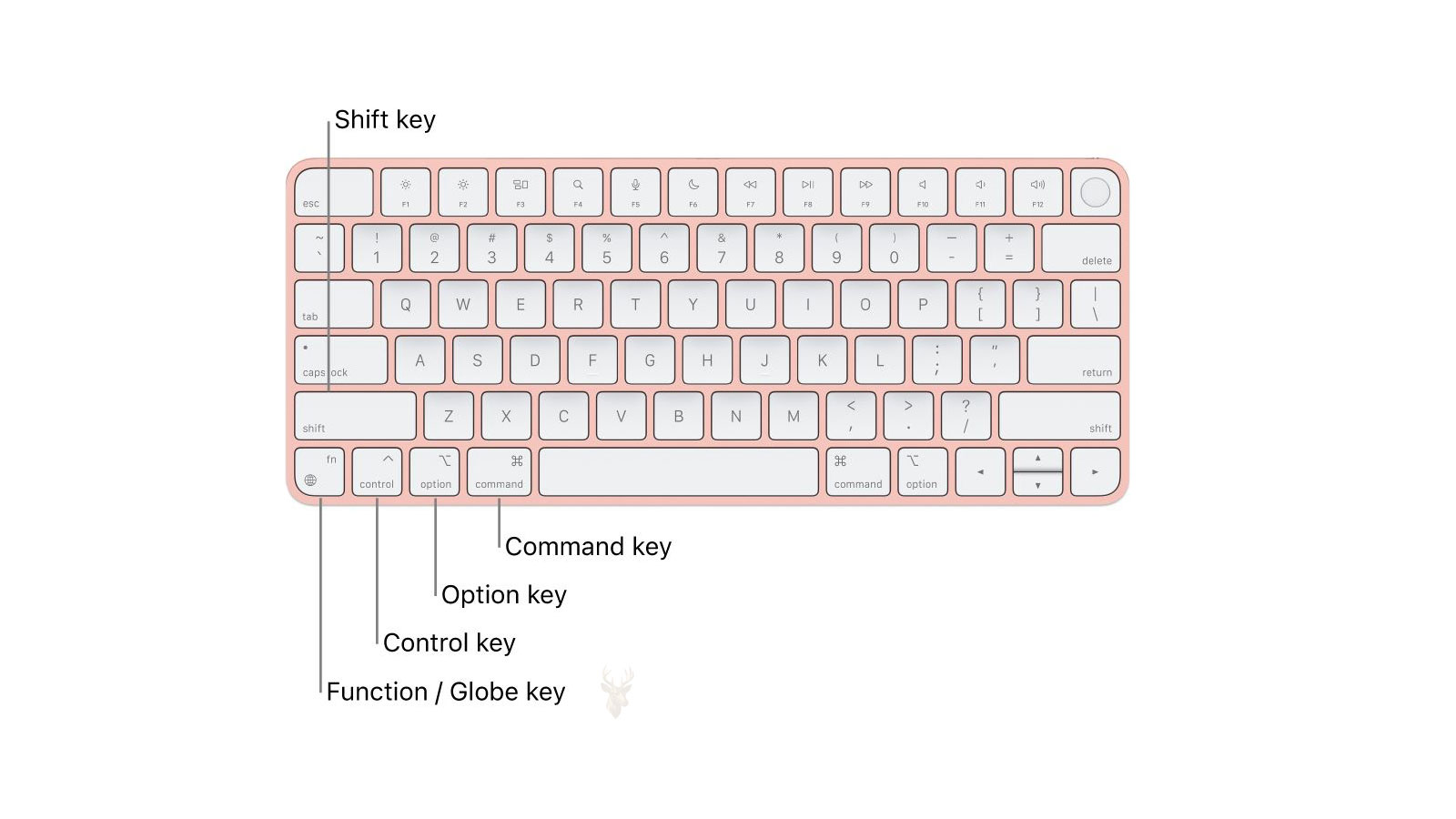
Startup Keys Can Change What a Mac Does Before macOS Loads
A Mac normally starts from its selected storage device and loads macOS without requiring any keyboard input. When startup problems occur, specific keys can be held during power-on to direct the computer toward recovery utilities, diagnostic tools, alternate startup disks, or limited operating modes.
These startup combinations are useful because they operate before the regular desktop environment becomes available. A Mac that cannot reach the login screen may still respond to Recovery Mode, Startup Manager, Safe Mode, or built-in diagnostics.
The keys do not repair every failure automatically. They provide access to tools that can help identify whether the problem involves software, storage, startup settings, connected hardware, or the operating system installation.
Timing Determines Whether the Command Is Recognized
A startup combination must be detected during a short period after the Mac is powered on or restarted. Holding the keys too late may allow the computer to continue with a normal startup, while releasing them too early may prevent the requested tool from opening.
On many Macs, the keys should be pressed immediately after the power button is used or immediately after the startup sound begins. They are generally held until a recognizable screen, symbol, progress indicator, or utility appears.
A correct startup combination can appear ineffective when the keyboard command reaches the Mac only a few seconds too late.
The exact visual response depends on the command and the model. Some combinations display a menu quickly, while others show a blank screen or progress bar for a longer period before the requested environment becomes available.
A Wired Keyboard Can Be More Reliable During Startup
Wireless keyboards may not establish communication early enough for every startup command to be detected. Bluetooth support can become available only after part of the startup process has already occurred, especially when the keyboard has not recently been paired or its battery is weak.
A built-in laptop keyboard or compatible wired USB keyboard usually provides a more direct connection. When a startup combination repeatedly fails, changing the keyboard can help determine whether the command is being ignored or never reaching the Mac.
- Confirm that the keyboard has power and responds normally.
- Connect a wired keyboard directly rather than through a hub.
- Use the built-in keyboard on a MacBook when it is functional.
- Press the keys before the ordinary startup sequence advances.
- Disconnect unnecessary USB devices that may delay keyboard detection.
Some third-party keyboards label modifier keys differently. The Windows key often functions as the Command key, while Alt commonly corresponds to Option, but keyboard behavior can vary.
Command-R Opens the Standard macOS Recovery Environment
Holding Command-R during startup commonly directs an Intel-based Mac to the recovery system stored on its internal drive. This environment provides utilities that can be used when macOS does not start normally or when system maintenance must be performed outside the regular operating system.
Available options can include Disk Utility, macOS reinstallation, restoration from a Time Machine backup, Terminal, and access to certain startup or security settings. The exact tools depend on the Mac model and the version of macOS associated with the recovery partition.
| Recovery utility | Typical purpose |
|---|---|
| Disk Utility | Inspecting storage devices, checking file systems, and managing partitions |
| Reinstall macOS | Installing the operating system without starting from the normal desktop |
| Time Machine Restore | Returning the Mac to data contained in an available backup |
| Terminal | Running command-line tools for advanced diagnosis or repair |
| Startup Disk | Selecting which available system the Mac should use |
Opening Recovery Mode confirms that the Mac can complete at least part of its early startup process. It does not confirm that the internal storage drive or installed operating system is healthy.
Internet Recovery Can Load Tools Without the Local Recovery System
If the internal recovery environment is missing, damaged, or inaccessible, certain Macs can obtain recovery tools through an internet connection. Command-Option-R and Shift-Command-Option-R are commonly associated with different forms of Internet Recovery on compatible Intel-based models.
Instead of loading recovery files from the internal drive, the Mac contacts Apple services and downloads the required startup environment. A rotating globe may appear while the computer attempts to establish the connection.
Internet Recovery generally takes longer than local Recovery Mode because the necessary files must be transferred before the utilities can open. Connection speed, wireless compatibility, router settings, and Apple service availability can affect the process.
The Recovery Combination Can Affect Which macOS Version Is Offered
Different recovery combinations may attempt to reinstall different versions of macOS. One command may offer the operating system most recently installed, while another may offer the newest compatible version or the version originally associated with the Mac.
This distinction matters when a specific software environment must be preserved. Installing a newer operating system can affect application compatibility, printer support, older peripherals, and specialized software that was designed for an earlier macOS release.
The offered version should be reviewed before installation begins. Recovery access and operating system selection are connected, but they are not the same decision.
Holding Option Opens the Startup Manager
The Option key can display available bootable volumes instead of allowing the Mac to start immediately from its default system. This menu is often called Startup Manager.
It can be useful when the Mac contains more than one operating system, when an external startup drive is connected, or when the selected startup disk is no longer functioning properly. The user can choose an available volume for that startup session without permanently changing every startup setting.
- An external macOS installation used for troubleshooting
- A bootable installer prepared on a USB device
- A secondary internal system volume
- A Windows installation configured through Boot Camp
- A recovery or diagnostic volume recognized as bootable
If an expected drive does not appear, the cause may involve the drive itself, its file system, the external connection, startup security settings, or incompatibility with the Mac.
Safe Mode Starts macOS With Additional Restrictions
Holding Shift during startup can direct an Intel-based Mac into Safe Mode. This mode performs certain startup checks and limits some software that normally loads automatically.
Safe Mode can prevent selected extensions, login items, fonts, and caches from affecting startup. The desktop may appear slower or visually different because some acceleration and background functions are restricted.
A Mac that starts in Safe Mode but not during an ordinary startup may have a problem involving third-party software, a login item, a damaged cache, or another component that Safe Mode temporarily excludes.
Safe Mode is most useful as a comparison. The difference between restricted startup and normal startup can narrow the search for the cause.
Safe Mode Is Not Intended for Normal Daily Operation
Because Safe Mode disables or limits certain functions, it should not be treated as a permanent configuration. Audio features, graphics performance, wireless behavior, and other services may operate differently while the Mac is in this state.
The purpose is to determine whether macOS can start with fewer variables present. After observations or maintenance are complete, restarting without holding any keys should return the Mac to an ordinary startup.
If the original problem immediately returns, the Safe Mode comparison becomes evidence that something excluded during restricted startup may be involved.
The D Key Can Open Apple Diagnostics on Supported Macs
Holding D during startup can open Apple Diagnostics on compatible models. This tool performs checks on certain hardware components and may provide a reference code when a problem is detected.
The diagnostic process can evaluate areas such as memory, sensors, power-related hardware, and some logic board functions. The coverage varies by model, and a passing result does not prove that every component is functioning under all conditions.
| Diagnostic result | What it means |
|---|---|
| A reference code is displayed | The test identified a condition associated with a supported hardware category. |
| No problem is found | The tested hardware did not produce a recognized failure during that session. |
| The tool will not open | The command, keyboard, firmware, storage, or internet connection may be interfering. |
| The Mac freezes during testing | A hardware or startup problem may prevent the diagnostic environment from completing. |
| Intermittent symptoms remain | Additional testing may be needed even when the diagnostic result is clear. |
Diagnostic reference codes are useful starting points, but they should be compared with the actual symptoms and physical condition of the Mac.
Option-D May Request Diagnostics Through the Internet
On supported Intel-based Macs, Option-D can attempt to start the diagnostic environment through an internet connection. This may help when the local diagnostic tools are unavailable.
As with Internet Recovery, successful access depends on a compatible network connection. Captive portals, business authentication systems, weak wireless signals, and certain router configurations can prevent the Mac from reaching the required service.
A failure to load internet diagnostics does not by itself confirm a hardware defect. The network path and keyboard command should also be considered.
Not Every Startup Combination Applies to Every Mac
Startup procedures vary according to processor type, firmware design, operating system version, and security configuration. A combination used on one Intel-based Mac may behave differently on another model or may not apply to newer Apple silicon systems.
The keyboard, storage configuration, firmware password, and connected devices can also change the result. A startup key should be selected according to the Mac being serviced rather than assumed to behave identically across every generation.
Identifying the exact model and understanding what the requested tool is expected to display can prevent a normal variation from being mistaken for another failure.
Command-Option-P-R Resets Certain Stored Startup Settings
On many Intel-based Macs, holding Command-Option-P-R during startup resets information stored in NVRAM or PRAM. These small areas of memory retain selected settings even when the computer is turned off.
The reset can affect startup disk selection, speaker volume, display resolution, time zone information, and certain records associated with recent startup behavior. It is sometimes used when those settings appear corrupted or no longer match the actual hardware configuration.
The procedure does not erase personal files or reinstall macOS. It also does not repair a failed storage drive, damaged display, defective memory, or other physical problem.
An NVRAM Reset Can Change the Selected Startup Disk
After the reset, the Mac may no longer remember a manually selected startup volume. A computer that previously started from an external drive, secondary partition, or Boot Camp installation may return to searching for another available system.
This can cause a longer startup delay or display a folder symbol if the expected system is not found. The behavior may appear to be a new failure even though it resulted from the cleared startup selection.
| Setting affected by reset | Possible result afterward |
|---|---|
| Startup disk selection | The Mac may search for another bootable system. |
| Display resolution | The screen may temporarily use a different size or refresh setting. |
| Speaker volume | The startup or system sound level may change. |
| Time zone or clock information | The date and time may require correction or network synchronization. |
| Recent kernel panic information | Certain diagnostic records may no longer be retained in the same way. |
After performing the reset, important preferences should be reviewed rather than assuming the Mac will return to every previous setting automatically.
Command-S Opens Single-User Mode on Some Older Systems
Single-user mode is a text-based startup environment available on certain older Intel-based Macs and macOS versions. Holding Command-S can start the computer without loading the normal graphical desktop.
This environment was traditionally used for advanced file system checks, command-line maintenance, and troubleshooting when the regular interface could not load. It provides direct access to system commands and should be used carefully.
A startup mode that provides deeper access also creates more opportunities for an incorrect command to change important system data.
Single-user mode is not available in the same form on every Mac, especially when newer security systems, file systems, firmware, or Apple silicon are involved. Recovery Terminal often replaces many of its earlier uses.
Command-V Displays Detailed Startup Messages
Verbose mode replaces the usual Apple logo and progress bar with lines of technical startup information on supported systems. Holding Command-V can reveal which process or component was active when startup stopped.
The messages can include storage checks, driver loading, service initialization, hardware detection, and file system activity. A repeated error or a long pause at the same message may help narrow the investigation.
Many messages that appear alarming are part of normal startup. The usefulness comes from comparing where the sequence stops, whether the same line appears repeatedly, and whether the Mac eventually reaches the desktop.
Verbose Mode Does Not Interpret the Error Automatically
The final visible line is not always the actual cause of the startup failure. It may only be the last process that completed before another hidden task stopped responding.
Technical messages should be compared with recent changes, attached hardware, storage condition, and the behavior of other startup modes. One line taken out of context can lead to an incorrect conclusion.
- Record the final several lines rather than only one message.
- Note whether the same stopping point appears after every restart.
- Disconnect unnecessary external devices and compare the result.
- Check whether Safe Mode or Recovery Mode can still open.
- Compare the messages with any recent software or hardware changes.
Verbose mode is most useful as supporting evidence rather than a complete diagnosis by itself.
The T Key Can Place Some Macs Into Target Disk Mode
Holding T during startup can place supported Intel-based Macs into Target Disk Mode. In this state, the Mac behaves like an external storage device when connected to another compatible Mac.
This can provide access to files when the original Mac cannot load the desktop but its storage system remains functional. It can also assist with migration, file transfer, and certain service procedures.
The required cable and connection type depend on the Mac models involved. FireWire, Thunderbolt, and USB-C connectors may look or behave differently, and not every cable that physically fits supports Target Disk Mode.
Target Disk Mode Still Depends on Storage Health and Authorization
A Mac can enter Target Disk Mode while its internal drive remains unreadable, encrypted, or damaged. The second Mac may detect the connection but fail to mount the expected volume.
FileVault protection may require the appropriate password or recovery information. Storage errors can also cause the volume to appear slowly, disconnect, or generate repair prompts.
| Target Disk Mode result | Possible explanation |
|---|---|
| The drive appears normally | The internal storage and external connection are functioning well enough for access. |
| The Mac shows the Target Disk symbol but no drive appears | The cable, port, storage device, or file system may be involved. |
| The volume requests a password | FileVault or another access control system may be active. |
| The connection repeatedly drops | The cable, adapter, port, or internal storage may be unstable. |
| The Mac will not enter the mode | The startup command, keyboard, firmware, or model compatibility may be responsible. |
The N Key Can Request a Network Startup
Holding N during startup can direct certain older or managed Macs to search for a compatible network startup system. This function was commonly associated with NetBoot environments used by schools, businesses, and service departments.
The Mac depends on network infrastructure that has been specifically configured to provide a startup image. On an ordinary home or office network without those services, the command may produce no useful result.
Network startup support has changed across macOS generations and hardware platforms. Its availability should not be assumed on newer systems simply because the keyboard command existed on earlier Macs.
Holding C Can Start From Compatible Optical Media
Older Macs equipped with optical drives can use the C key to request startup from a compatible CD or DVD. This was commonly used for operating system installers, diagnostic discs, and recovery media.
The disc must contain a bootable system that the Mac supports. A data disc, damaged installer, incompatible operating system, or failing optical drive will not provide a successful startup.
As optical drives disappeared from newer Mac designs, this command became less relevant. External optical drives may not provide the same early-startup support on every model.
The Eject or Mouse Button Can Request Disc Removal
On Macs with slot-loading or tray-loading optical drives, holding the eject key, the mouse button, or the trackpad button during startup can sometimes force a disc to be released.
This can help when a damaged or nonbootable disc prevents normal startup or when macOS is unavailable to issue an eject command. The procedure depends on the model and whether the optical mechanism remains functional.
A disc that does not eject may be physically jammed, improperly inserted, or blocked by a failed drive mechanism. Repeated force should not be applied to the slot or tray.
Firmware Passwords Can Block Startup Commands
A firmware password can restrict startup from external devices, Recovery Mode, Single-User Mode, and other alternate environments. The Mac may display a lock symbol instead of opening the requested tool.
This security feature is intended to prevent unauthorized changes or access when someone has physical possession of the computer. It is separate from the regular macOS account password.
A blocked startup command may be evidence that security is working as configured rather than evidence that the keyboard combination failed.
The correct firmware password or an authorized recovery process may be required before alternate startup tools become available.
External Devices Can Change Startup Behavior
USB storage, hubs, printers, audio interfaces, external displays, and other accessories can affect the early startup process. A defective device may delay detection, interfere with keyboard input, or cause the Mac to search for an unintended startup volume.
When a startup command does not behave as expected, disconnecting nonessential devices creates a simpler test environment. The keyboard, display, power connection, and any storage device specifically required for the test can remain connected.
- Remove unnecessary USB hubs and extension cables.
- Disconnect external drives that are not part of the test.
- Use a direct keyboard connection when possible.
- Leave only the required display and power accessories attached.
- Reconnect devices one at a time after startup behavior is confirmed.
This comparison can reveal whether the Mac itself is failing or whether an attached device is changing the startup sequence.
A Startup Tool That Opens Successfully Provides Only One Clue
Entering Recovery Mode, Safe Mode, diagnostics, or Startup Manager confirms that the Mac can respond to some early keyboard input and complete part of its firmware startup process. It does not prove that the installed operating system, storage device, memory, or logic board is fully reliable.
The result should be combined with the original symptoms. A Mac that opens Recovery Mode but cannot see its internal drive points in a different direction from one that sees the drive but fails only during normal startup.
Startup key combinations are most valuable when each result is treated as evidence within a larger diagnostic process rather than as an automatic repair.
Apple Silicon Macs Use a Different Startup Method
Macs built with Apple silicon do not rely on the same startup key combinations used by Intel-based models. Instead of pressing Command-R, Option, or other keys immediately after power-on, the power button is held until startup options appear.
The screen may display available startup volumes and an Options icon that opens the macOS recovery environment. From there, the user can access Disk Utility, reinstall macOS, select another startup disk, or use additional recovery tools.
This change is important because repeatedly attempting Intel keyboard commands on an Apple silicon Mac can create the impression that recovery is unavailable when the computer is simply waiting for the correct procedure.
Safe Mode on Apple Silicon Begins From Startup Options
Safe Mode also starts differently on Apple silicon. The Mac is first shut down, and the power button is held until the startup volume choices appear. After selecting the desired volume, the Shift key is held while the option to continue in Safe Mode is chosen.
The resulting environment serves a purpose similar to Safe Mode on Intel-based Macs. It limits certain software, performs startup checks, and creates a simpler comparison against normal operation.
| Mac platform | Typical Safe Mode method |
|---|---|
| Intel-based Mac | Hold Shift during startup. |
| Apple silicon Mac | Hold the power button for startup options, select the volume, then hold Shift while choosing Safe Mode. |
The distinction makes processor identification an important first step before troubleshooting begins.
Startup Security Settings Can Restrict External Systems
Some Macs include security settings that control whether the computer can start from external media or use operating systems that do not meet the expected security level. These settings may prevent a valid external installer or diagnostic drive from appearing as a usable startup choice.
On supported systems, Startup Security Utility can be opened from Recovery Mode. Available choices may include secure boot levels and permission to start from external or removable media.
Changing these protections should be done only when the purpose is clear. Reducing startup security can make troubleshooting easier, but it can also weaken safeguards intended to prevent unauthorized software from controlling the Mac before macOS loads.
A missing external startup drive may be blocked by security policy even when the drive, cable, and operating system are otherwise compatible.
FileVault Can Affect Recovery and Alternate Startup Access
FileVault encrypts the contents of the startup volume and requires authorized credentials before protected data can be read. A Mac may enter Recovery Mode or display its storage device while the personal files remain locked.
The user may need an approved account password, recovery key, or other authorized method to unlock the volume. Startup tools can provide access to the recovery environment, but they do not remove the encryption protecting the data.
This distinction is important during repair. Successfully opening Recovery Mode confirms access to the utility environment, not automatic access to every file stored on the Mac.
Recovery Mode Can Start Even When the Internal Drive Has Failed
A Mac that opens Internet Recovery or another external recovery environment may still have a failed or missing internal storage device. The recovery tools can load independently while Disk Utility shows no usable internal volume.
This result helps separate the startup environment from the storage hardware. The Mac can complete firmware operations and display utilities, yet remain unable to locate the drive needed for normal startup.
- The internal drive does not appear in Disk Utility.
- The drive appears with an incorrect capacity.
- The volume is visible but cannot be mounted.
- First Aid reports errors that cannot be repaired.
- The installer cannot find an eligible destination.
Each result points toward a different storage, file system, or compatibility issue and should be evaluated before macOS is reinstalled.
Reinstalling macOS Is Not the First Answer to Every Startup Failure
Recovery Mode prominently offers the option to reinstall macOS, but that choice should follow an assessment of the original problem. Reinstallation can replace damaged system files, yet it cannot correct failing storage hardware, defective memory, liquid damage, power instability, or an unsupported software environment.
If important files are not backed up, storage condition and data access should be considered before any installation begins. An unstable drive may deteriorate during the extended reading and writing required by an operating system installation.
| Condition | Appropriate consideration before reinstalling |
|---|---|
| The startup volume passes checks and remains stable | Reinstallation may help repair damaged macOS components. |
| The drive disappears or produces repeated errors | Storage diagnosis and data preservation should come first. |
| The Mac starts normally in Safe Mode | Third-party software or login items may deserve investigation. |
| Apple Diagnostics reports hardware trouble | The hardware issue should be addressed before relying on software repair. |
| Important data has no backup | Confirm that the files are protected before making major changes. |
Disk Utility First Aid Has Practical Limits
Disk Utility can examine file system structures and correct certain logical inconsistencies. It may repair directory records, volume metadata, or other software-level storage problems that prevent normal startup.
First Aid does not repair worn flash memory, failed hard drive heads, damaged cables, defective storage controllers, or severe electronic faults. A successful result also does not guarantee that the drive will remain reliable under sustained use.
Repeatedly running First Aid against an unstable device can create additional activity without resolving the physical cause. The drive’s behavior during the test should be considered alongside the final message.
Startup Commands Should Be Tested One at a Time
Pressing several unrelated keys together can produce an unexpected result or prevent any command from being recognized. A controlled troubleshooting process uses one combination at a time and records what the Mac displays.
- Identify whether the Mac uses an Intel processor or Apple silicon.
- Disconnect accessories that are not required for the test.
- Use the correct startup procedure for the selected tool.
- Allow enough time for the requested environment to load.
- Record symbols, messages, reference codes, and visible drives.
- Restart normally before testing a different startup method.
This sequence makes each result easier to interpret and prevents one startup command from being confused with another.
Repeated Failure to Recognize Commands Can Reveal a Keyboard Problem
If every startup command is ignored while the Mac continues directly into normal startup, the keyboard or its connection may be responsible. A damaged built-in keyboard, delayed Bluetooth connection, incompatible USB keyboard, or faulty port can prevent early input from reaching the firmware.
Testing with another known-compatible wired keyboard can provide a useful comparison. On a MacBook, an external keyboard can help determine whether the built-in keyboard is failing before macOS loads.
If the commands remain unavailable with multiple keyboards, firmware restrictions, processor-specific procedures, or a deeper startup problem should be considered.
Startup Symbols Provide Additional Diagnostic Information
The screen displayed after a startup command can provide as much information as the command itself. A flashing folder, prohibited symbol, lock icon, rotating globe, or blank display represents a different stage of the startup process.
| Startup symbol or screen | Possible interpretation |
|---|---|
| Flashing folder with a question mark | No usable startup system was found at that moment. |
| Circle with a diagonal line | A system was located but cannot be used by that Mac. |
| Lock symbol | A firmware or startup security password may be required. |
| Rotating globe | The Mac is attempting to load recovery tools through the internet. |
| Startup volume selection screen | The firmware has found one or more available bootable options. |
The symbol should be documented before the Mac is restarted because it can narrow the problem to security, compatibility, storage detection, or network recovery.
A Successful Diagnostic Test Does Not Exclude Intermittent Hardware Failure
Apple Diagnostics tests supported hardware under specific conditions and for a limited period. A component that fails only when warm, moved, placed under load, or connected to a particular accessory may pass the test.
Intermittent display problems, unstable storage, damaged ports, charging issues, and liquid-related corrosion may not produce a reference code during every session. The absence of a code should therefore be compared with the actual history of the Mac.
A passing diagnostic result means no supported fault was detected during that test. It does not erase symptoms that continue to occur in normal use.
Startup Tools Are Most Useful When Their Results Are Compared
No single startup mode explains every problem. Recovery Mode may confirm whether the internal drive is visible, Safe Mode can show whether limited software changes the behavior, Startup Manager can reveal alternate systems, and diagnostics can test selected hardware.
The comparison between these environments creates a more complete picture. A Mac that fails only during normal startup suggests a different problem from one that freezes in Recovery Mode, cannot see any storage device, and also fails diagnostics.
Each result reduces uncertainty when it is connected to the original symptoms rather than treated as an isolated success or failure.
The Correct Startup Method Preserves Better Repair Options
Startup key combinations and power-button procedures can provide access to valuable tools before macOS loads. They can assist with storage inspection, alternate startup, restricted software testing, hardware diagnostics, data access, and operating system recovery.
The safest use of these tools begins with identifying the Mac model, processor type, security configuration, and original symptoms. Selecting the correct method prevents unnecessary resets, installations, and permission changes that may complicate the repair.
Startup Commands Open Doors, but Diagnosis Determines Which Door Matters
A startup command is not a universal repair. It is a controlled way to ask the Mac to load a different environment or perform a specific early-startup function.
When the command is matched to the correct Mac and interpreted alongside the computer’s behavior, it can reveal whether the next step involves software, storage, security, connected hardware, or physical repair. That evidence makes the startup tools valuable even when none of them resolves the problem immediately.











