
A Failed Computer Does Not Always Mean the Files Are Lost
A computer can stop starting even when its storage drive remains readable. A failed motherboard, damaged power circuit, broken display, or severe Windows problem may prevent normal use while documents, photographs, business records, and other files remain stored on the internal drive.
One way to reach those files is to remove the storage device and connect it to another computer through an external enclosure or drive adapter. This allows the original drive to operate as a secondary storage device without requiring the damaged computer to start.
This approach can be useful, but it is not suitable for every failure. The condition of the drive, the type of connector, encryption, file permissions, and the reason the original computer stopped working all affect whether the data can be accessed safely.
The Enclosure Provides Power and a New Connection
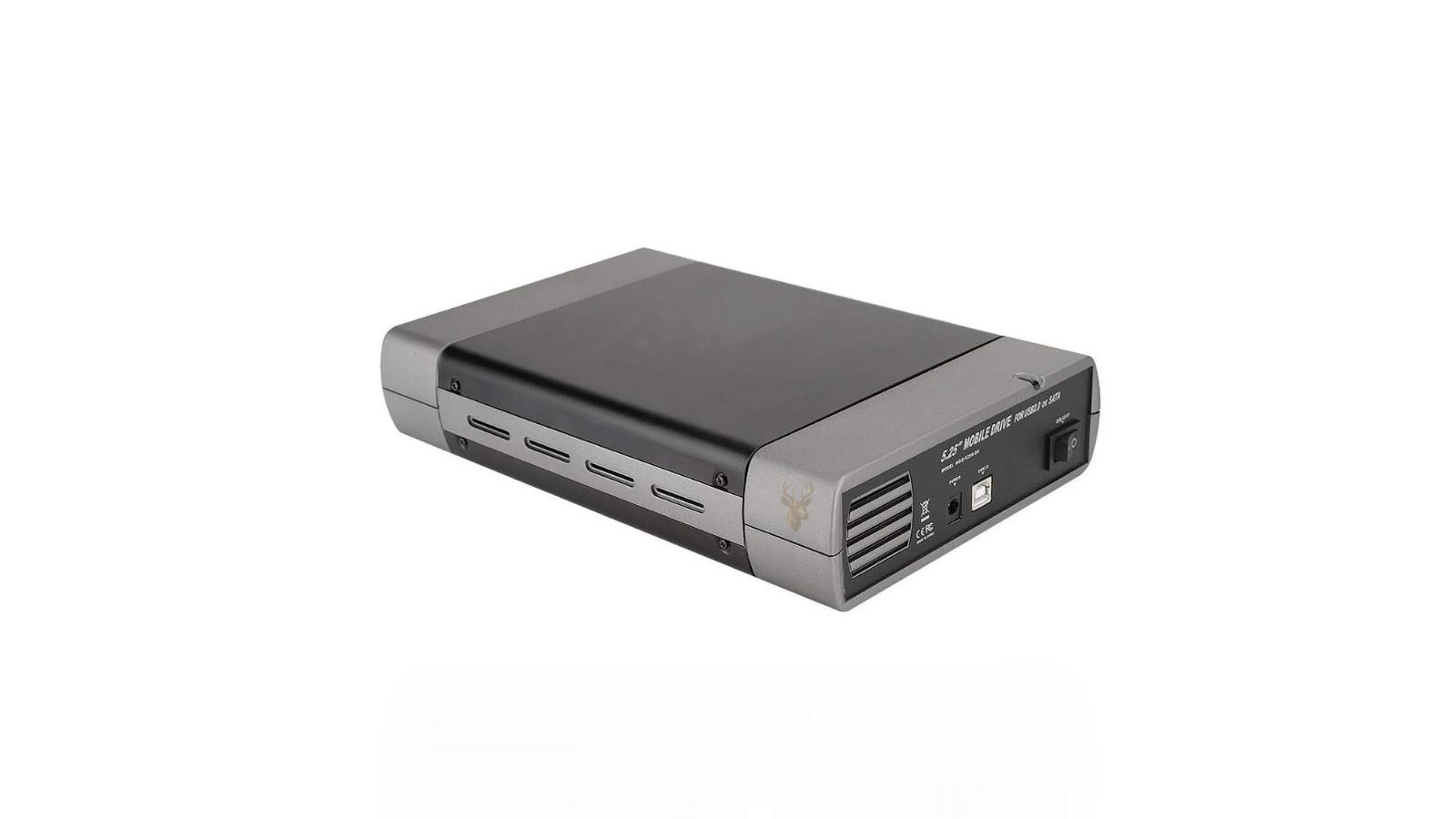
An external drive enclosure is a case containing the electronics needed to connect an internal storage device through USB or another external interface. The drive is installed inside the enclosure, which supplies power and converts its original connection into one that another computer can use.
A drive adapter performs a similar function without permanently surrounding the drive. Some adapters use a short cable, while docking stations allow a compatible drive to be inserted from above. Each method provides a way for the storage device to communicate with a working computer.
| Connection method | Typical use | Important consideration |
|---|---|---|
| External enclosure | Protecting a drive during repeated or long-term use | The enclosure must match the drive size and interface. |
| USB drive adapter | Temporary file access and diagnostic work | Some desktop drives require a separate power supply. |
| Drive docking station | Connecting compatible drives without installing them in a case | The exposed drive must remain stable and protected. |
The enclosure or adapter does not repair the drive. It only provides another connection method. If the storage device itself is damaged, changing how it connects may not make the files readable.
The Drive Interface Must Be Identified Correctly
Internal storage drives do not all use the same connector. Traditional laptop and desktop hard drives commonly use SATA, while newer solid-state drives may use SATA or PCI Express through an M.2 connector. Drives that appear similar can require completely different enclosures.
A 2.5-inch SATA drive uses a different connection from an M.2 SATA drive. An M.2 SATA drive also differs electrically from an M.2 NVMe drive, even though both may fit into similar-looking slots.
- 2.5-inch SATA hard drives and solid-state drives
- 3.5-inch SATA desktop hard drives
- M.2 SATA solid-state drives
- M.2 NVMe PCI Express solid-state drives
- Older IDE or proprietary storage devices
Selecting an enclosure based only on the physical appearance of the drive can result in an incompatible connection. The interface, drive dimensions, key position, and power requirements should be confirmed before the device is connected.
Desktop Hard Drives Usually Need More Power
Many 2.5-inch laptop drives can receive enough power directly from a USB connection. Larger 3.5-inch desktop hard drives normally require an external power adapter because USB alone cannot provide the voltage and current needed to start the motor reliably.
If a desktop hard drive is connected through an adapter that does not supply adequate power, it may remain completely inactive, attempt to spin repeatedly, or disconnect during use. These symptoms can be mistaken for drive failure when the real problem is insufficient power.
A compatible data connector is not enough. The enclosure or adapter must also supply the correct power for the storage device.
Removing the Drive Requires Careful Handling
Accessing the storage device begins with opening the nonworking computer. Depending on the design, this may require removing a service cover, keyboard, bottom panel, battery, mounting bracket, or several internal cables.
The computer should be disconnected from external power before internal parts are handled. If the device contains an internal battery, the battery connection should be isolated when the design allows it. Tools should not be allowed to contact exposed circuitry or bridge electrical contacts.
Mechanical hard drives are particularly sensitive to impact. Dropping the drive, striking its enclosure, or placing pressure on the circuit board can turn a readable device into a more serious recovery problem.
A Drive That Looks Normal May Still Be Unstable
Storage failure is not always visible. A hard drive can have internal mechanical damage without showing marks on the outside, and a solid-state drive can fail electronically without any physical warning.
Before connecting the drive repeatedly, it is important to consider how the original computer failed. Clicking sounds, extremely slow file access, repeated freezing, storage warnings, missing partitions, or earlier read errors can indicate that the drive itself was already deteriorating.
If the storage device is unstable, ordinary browsing and repeated copying attempts may place additional strain on it. The safest approach can differ from the procedure used for a healthy drive removed from a computer with an unrelated motherboard failure.
The Original Failure Provides Important Context
A laptop with a broken screen but normal startup sounds presents a different data-recovery situation from a computer that froze repeatedly and stopped detecting its storage drive. Both systems may appear unusable, but the likelihood that the drive remains healthy is not the same.
When the original problem clearly involves another component, removing the drive may provide straightforward access to the files. When the failure included storage-related symptoms, additional caution is appropriate before the drive is powered again.
| Original computer symptom | Possible meaning for the drive |
|---|---|
| Broken display with normal startup activity | The storage device may still be healthy. |
| Failed charging or motherboard power circuit | The files may remain accessible through another connection. |
| Repeated freezing during file access | The drive may be unstable or developing read errors. |
| Drive disappeared from BIOS or startup settings | The storage device, connector, or motherboard interface may have failed. |
| Clicking or repeated spin-up sounds | Mechanical damage may require specialized recovery procedures. |
Connecting the Drive Does Not Automatically Open Every Folder
After a healthy drive is connected, Windows may assign it a new drive letter and display its partitions in File Explorer. The files are still organized according to the folder structure created by the original operating system.
Personal data is commonly stored inside the original user profile, including folders for Documents, Desktop, Pictures, Downloads, and other application data. Accessing those folders from another computer can sometimes trigger a permission message because the files belong to a different Windows account.
A permission prompt does not necessarily mean the files are damaged. It may indicate that Windows is protecting data associated with the account from the original computer.
File Permissions and Encryption Are Different Barriers
Windows file permissions can often be adjusted by an authorized administrator when the storage device is otherwise readable. Encryption creates a different situation because the file contents are intentionally protected and require the correct recovery information.
A drive protected by BitLocker may request a recovery key when connected to another computer. Files encrypted through other systems may require the original account credentials, certificates, passwords, or recovery codes.
Ownership can permit access to protected folders, but it cannot replace a missing encryption key.
Before modifying permissions or attempting recovery, it is important to determine whether the obstacle is ordinary access control or encryption. Treating the two as the same problem can lead to unnecessary changes without making the files readable.
The First Successful Connection Should Be Used Carefully
When the drive appears on another computer, the immediate priority should be the most important and irreplaceable data. A storage device that works during the first connection may become less stable later, especially if it already showed signs of deterioration.
Large applications, operating system folders, and temporary files usually have less value than personal documents, photographs, financial records, customer information, and current work. Copying critical data first reduces the risk that time is spent on replaceable files while the drive continues to decline.
- Confirm that the drive is detected consistently.
- Identify the folders containing irreplaceable files.
- Copy the highest-priority data first.
- Avoid moving or deleting files from the original drive.
- Verify that copied files open correctly from the destination.
The goal is not merely to make the drive appear in File Explorer. The goal is to preserve usable copies of the data before the condition of the storage device changes.
Copying Files Is Safer Than Working From the Original Drive
Once the storage device is accessible, files should generally be copied to a separate healthy drive before they are opened, edited, reorganized, or renamed. Working directly from the original device increases the amount of activity performed on hardware that may already be unstable.
A copied file can be examined without depending on the continued reliability of the source drive. If the original device disconnects or develops additional read errors, the successfully copied data remains available on the destination.
Moving files is less desirable during recovery because a move operation may delete the source after copying. Preserving the original data unchanged provides another opportunity if the first transfer is incomplete or the destination later proves defective.
The Destination Needs Enough Free Space
Before beginning a large transfer, the destination drive should have enough available capacity for the selected folders. A recovery attempt can stop unexpectedly when the destination becomes full, leaving the user uncertain about which files were copied successfully.
The amount of used space on the original drive may be much larger than the visible size of the personal folders. Hidden application data, system files, recovery partitions, and older user profiles can occupy substantial capacity.
| Destination consideration | Reason it matters |
|---|---|
| Available capacity | The destination must hold all selected files without becoming full. |
| File system format | Some formats cannot store individual files larger than a specific size. |
| Drive condition | A failing destination can damage or lose otherwise successful copies. |
| Connection stability | Loose cables or unreliable USB ports can interrupt long transfers. |
| Existing data | Important destination files should already be backed up. |
Using a healthy destination with additional free space reduces interruptions and leaves room for files that may be discovered later.
Large Transfers Can Reveal Drive Instability
A drive may appear normal when a few small files are opened but begin failing during a longer transfer. Sustained reading causes the device to access more areas of the storage surface or memory, increasing the chance of encountering damaged sectors or unstable components.
The transfer may slow dramatically, stop at a particular file, cause the drive to disconnect, or make the computer temporarily unresponsive. Mechanical hard drives may begin repeating unusual sounds as they retry unreadable areas.
A drive that appears in File Explorer is not necessarily healthy enough to complete a full data transfer.
When these symptoms occur, repeatedly restarting the same large copy may place additional stress on the drive without producing better results. The recovery method should be reconsidered before the device deteriorates further.
One Damaged File Can Stop an Entire Folder Transfer
Standard file-copy operations sometimes stop when Windows encounters a file it cannot read. A folder containing thousands of healthy files may remain incomplete because one damaged item interrupts the process.
Smaller groups of files can make it easier to identify where the failure occurs. Copying one important folder at a time also helps confirm which data has already been preserved successfully.
- Begin with current documents and essential business records.
- Copy photographs and personal media in manageable groups.
- Separate folders that cause repeated errors.
- Record which items could not be copied.
- Verify completed folders before continuing.
This method does not repair unreadable files, but it can prevent one damaged item from delaying the preservation of everything else.
Unusual Sounds Change the Recovery Decision
A mechanical hard drive that clicks, scrapes, buzzes repeatedly, or struggles to reach normal operating speed may have an internal physical failure. An external enclosure cannot correct damaged heads, motor problems, or internal surface damage.
Continuing to power a mechanically damaged drive can increase internal wear. Each additional attempt may reduce the amount of data that remains recoverable, particularly when the read heads are contacting damaged surfaces.
A drive that begins making new mechanical sounds after connection should be powered down. Ordinary copying is no longer the same low-risk procedure used with a healthy drive removed from a computer that failed for another reason.
Solid-State Drives Often Fail Without Mechanical Warning
Solid-state drives have no spinning platters or moving read heads, so they usually do not provide clicking or grinding sounds before failure. They can disappear suddenly, report the wrong capacity, disconnect under load, or become completely unreadable.
An SSD may be detected by an enclosure while producing errors whenever files are opened. Controller problems, failed memory components, firmware faults, and electrical damage can all interfere with access.
Because there may be no audible warning, repeated detection failures or severe transfer instability should be treated seriously even when the drive remains silent.
Drive Temperature Should Be Watched During Long Transfers
Storage devices generate heat while reading large amounts of data. An enclosure with limited airflow can allow the temperature to rise during an extended copy operation, especially with high-performance NVMe drives or older mechanical drives.
Excessive heat can reduce performance, cause temporary disconnections, or worsen an existing electronic problem. A drive that becomes unusually hot shortly after connection may not be operating normally.
| Temperature-related behavior | Possible interpretation |
|---|---|
| Transfer speed gradually decreases | The drive or enclosure may be reducing performance as temperature rises. |
| The device disconnects after several minutes | Heat may be affecting the drive, bridge electronics, or USB connection. |
| The enclosure becomes too hot to handle comfortably | Testing should stop until the cause is evaluated. |
| The drive works again after cooling | A temperature-sensitive fault may be present. |
| A fan or ventilated adapter improves stability | Enclosure cooling may have been insufficient. |
Cooling can improve operating conditions, but it does not correct internal damage. A drive that repeatedly fails as it warms still requires careful evaluation.
USB Connections Can Create Their Own Problems
An unstable external connection can imitate a failing storage device. Damaged USB cables, loose ports, unpowered hubs, and incompatible bridge electronics may cause the drive to disconnect or transfer data slowly.
A recovery attempt should use a direct connection to a reliable port whenever possible. Adding extension cables, adapters, or hubs creates more points where power or communication can be interrupted.
If the drive behaves differently with another known-compatible enclosure or cable, the original connection hardware may be contributing to the problem. This comparison should be performed cautiously when the drive itself has already shown signs of physical failure.
Windows May Ask to Scan or Repair the Drive
When a drive contains file system errors, Windows may offer to scan and repair it. This message can appear after an improper shutdown, but it can also result from unreadable sectors or other storage damage.
Allowing Windows to modify the file system before important data is copied can change directory information, remove damaged entries, or place recovered fragments into new folders. These changes may make some files accessible, but they can also complicate later recovery efforts.
Repairing a file system and recovering important data are related tasks, but they are not always safest in the same order.
When the files are valuable or the drive appears unstable, preserving the data or creating a controlled copy should usually take priority over allowing automatic repair tools to write changes to the original device.
Initializing or Formatting the Drive Can Destroy Useful Information
If Windows detects the physical device but cannot interpret its partition structure, Disk Management may report that the drive is unknown, unallocated, or not initialized. It may then offer to initialize or format the device.
These options prepare a drive for new storage use. They are not methods for opening existing files. Accepting them can overwrite important structural information that helps identify the original partitions and file system.
- Do not initialize a drive that contains files needing recovery.
- Do not create a new partition to make the drive appear usable.
- Do not format the device when Windows reports an unreadable file system.
- Do not install Windows onto the original drive.
- Do not save recovered files back to the same source device.
A drive that does not open normally may still contain recoverable data even when Windows cannot mount it through File Explorer.
Encrypted Drives Need the Correct Recovery Information
When BitLocker or another encryption system protects the storage device, the enclosure may connect correctly while the files remain locked. The working computer can recognize the partition but cannot interpret the protected contents without authorization.
The recovery key may be stored in a Microsoft account, printed record, business management system, saved file, or another secure location selected when encryption was enabled. A password used to sign into Windows is not always the same information needed to unlock the removed drive.
Repeated guessing does not reconstruct a missing encryption key. Before making changes to an encrypted drive, available account records and recovery information should be reviewed carefully.
Old User Folders May Contain More Than Visible Documents
Important information can exist outside the familiar Documents and Pictures folders. Email archives, browser bookmarks, accounting data, application databases, saved game files, and custom templates may be stored inside hidden application folders.
The exact location depends on the software and how it was configured. Copying only the visible personal folders may preserve the most obvious files while leaving behind information needed by specialized applications.
| Data type | Possible storage location |
|---|---|
| Desktop files | The Desktop folder inside the original user profile |
| Email archives | Documents or hidden application data folders |
| Browser profiles | Hidden local or roaming application data |
| Accounting records | Application-specific folders or custom data locations |
| Program settings | User profile folders and system-wide application data |
When the original computer supported business or specialized work, identifying the applications previously used can help determine which additional folders should be preserved.
A Complete Copy Still Needs to Be Verified
A transfer that finishes without an error message is encouraging, but it does not prove that every copied file is usable. Some files may have been damaged before the transfer, and others may have copied with incomplete contents that are not immediately obvious.
Representative documents, photographs, videos, archives, and database files should be opened from the destination. Folder sizes and file counts can also be compared when practical.
Verification is particularly important before the original drive is erased, discarded, returned to service, or subjected to additional repair attempts. A successful recovery is measured by usable files, not only by a completed progress bar.
A Drive Image Can Be Safer Than Repeated File Browsing
When a storage device is unstable, opening folders and copying files individually may require the drive to revisit damaged areas many times. A controlled sector-by-sector image can reduce repeated access by creating a separate copy of the readable portions of the device.
The image is stored on another healthy drive and can then be examined without continuing to depend on the original hardware. This approach is especially useful when the source disconnects, slows dramatically, or produces read errors during ordinary copying.
Imaging does not guarantee that every sector can be recovered, but it separates the preservation stage from the later process of locating files and rebuilding damaged structures.
The Original Drive Should Remain Unchanged Whenever Possible
Recovery attempts are easier to repeat when the source device has not been modified. Formatting, repairing the file system, changing partitions, or saving new files can overwrite information that may still be useful.
Even actions that appear helpful can alter directory records, metadata, and unallocated space. Once those changes are written, returning the drive to its earlier condition may not be possible.
The safest recovery source is usually the one that has experienced the fewest additional changes after the failure.
When practical, analysis and repair attempts should be performed on a copy while the original device is preserved as a reference.
Deleted Files Require a Different Recovery Strategy
An external enclosure may provide access to existing folders, but it does not automatically restore files that were deleted before the computer stopped working. Deleted information may remain in unallocated space until new data overwrites it.
Searching for deleted files requires recovery software or more specialized analysis. The results depend on the type of drive, the file system, the amount of later activity, and whether SSD maintenance functions have already cleared the deleted blocks.
| Recovery situation | Typical approach |
|---|---|
| Existing files are visible and readable | Copy them to a separate healthy destination. |
| Folders are visible but some files produce errors | Preserve readable data first and isolate damaged areas. |
| The partition is missing or unreadable | Create an image and analyze the file system structure. |
| Files were deleted before the failure | Search unallocated space without writing to the source. |
| The drive has mechanical symptoms | Stop ordinary testing and consider specialized recovery. |
Choosing the correct method prevents a simple access problem from being treated like deletion, and it prevents deletion from being mistaken for a completely failed drive.
Application Data May Need More Than a Folder Copy
Some programs store information in databases, hidden folders, registry entries, or multiple locations across the user profile. Copying one visible folder may not preserve everything needed to reopen the data in the original application.
Accounting software, email clients, design programs, browser profiles, and specialized business applications may depend on version-specific files or export procedures. The data can be present on the recovered drive but remain difficult to use until the correct software and supporting files are identified.
- Record the name and version of important applications.
- Preserve visible project or database folders.
- Copy related hidden application data when appropriate.
- Keep license information and installation records.
- Test recovered data in a separate working environment.
This planning is especially important when the failed computer supported business operations or contained information stored in proprietary formats.
Permissions Should Be Changed Only With a Clear Purpose
Taking ownership of an old user folder can make ordinary Windows files accessible from another computer. However, broad permission changes across the entire drive may alter more information than necessary and can take a long time on a large or unstable device.
It is usually better to begin with the specific folders containing the required data. This reduces unnecessary writing and limits changes to areas that actually need to be opened.
Permission changes do not resolve corruption, encryption, hardware failure, or missing partitions. They should be used only after confirming that Windows access control is the actual obstacle.
The Enclosure Itself Should Not Be Assumed Reliable
Low-quality or damaged enclosures can cause disconnects, incorrect capacity reports, slow transfers, and power instability. A problem with the bridge electronics can closely resemble a failing drive.
When the storage device shows no mechanical warning and behaves inconsistently, comparison with another known-compatible adapter can help identify whether the enclosure is contributing to the failure.
This comparison should not become a series of repeated power cycles when the source drive is already deteriorating. The value of the files and the condition of the hardware should determine how much testing is appropriate.
Recovered Files Need More Than One Safe Copy
After important files have been copied and verified, they should not remain on only one destination drive. A successful recovery solves the immediate problem, but it does not protect the data from a future storage failure.
At least one additional backup should be created on separate media or in another secure location. Business records and irreplaceable personal files may justify multiple copies with different storage methods.
| Post-recovery step | Purpose |
|---|---|
| Open representative files | Confirms that the copied data is usable. |
| Compare important folders | Helps identify missing or incomplete transfers. |
| Create a second backup | Prevents the new destination from becoming another single point of failure. |
| Document missing files | Provides a clear record of what still requires recovery. |
| Preserve the original drive temporarily | Allows another attempt if later gaps are discovered. |
Some Warning Signs Call for Specialized Recovery
Ordinary enclosure access is most appropriate when the original computer failed for a reason unrelated to storage and the drive behaves normally after removal. More serious symptoms require a different level of caution.
- The hard drive clicks, scrapes, or repeatedly attempts to spin.
- The device disappears during every transfer attempt.
- The drive reports an incorrect or changing capacity.
- Important partitions are missing after physical damage or liquid exposure.
- The files are highly valuable and no backup exists.
- The drive has already been subjected to unsuccessful repair or recovery attempts.
Continuing ordinary testing under these conditions can reduce the likelihood of a successful recovery. The decision to stop is often as important as the decision to begin.
The Failed Computer May Still Be Needed Later
Removing the drive can provide immediate access to files, but the original computer may still contain information needed for a complete restoration. Firmware settings, encryption records, application licenses, proprietary connectors, and other internal components can affect later recovery or repair work.
Parts should be labeled and stored carefully rather than discarded as soon as the first files are copied. Mounting brackets, screws, thermal pads, and drive cables may be required if the computer is repaired or the storage device is returned to its original position.
Keeping the system intact until the recovery has been verified provides more options if important data is later found to be missing.
Successful Access Does Not Confirm Long-Term Drive Health
A drive that completes one recovery session may still be unsuitable for continued use. Read errors, unstable connections, age, poor health indicators, and the circumstances of the original failure can all reduce confidence in the device.
After the data has been secured, the drive should be evaluated separately before it is reused. A storage device involved in an unexplained startup failure should not automatically become the only location for important files again.
Recovery proves that some data could be read today. It does not promise that the same drive will remain dependable tomorrow.
External Access Is a Tool, Not a Complete Recovery Plan
An enclosure or adapter can be an effective way to retrieve files from a computer with a failed screen, motherboard, power circuit, or operating system. It provides a new path to the storage device without requiring the original machine to start.
The method remains safe only when compatibility, drive condition, encryption, permissions, destination capacity, and transfer stability are considered. Connecting the drive is the beginning of the recovery process rather than proof that the work is complete.
Preserving Usable Data Is the Final Objective
The value of an external enclosure is not measured by whether the old drive appears in Windows. It is measured by whether important files can be copied, opened, verified, and protected on reliable storage.
Careful handling, minimal changes to the source, and attention to warning signs can turn a nonworking computer into a successful data-recovery opportunity. When the drive itself is unstable, stopping ordinary access before additional damage occurs may provide the best chance of preserving what remains.











