
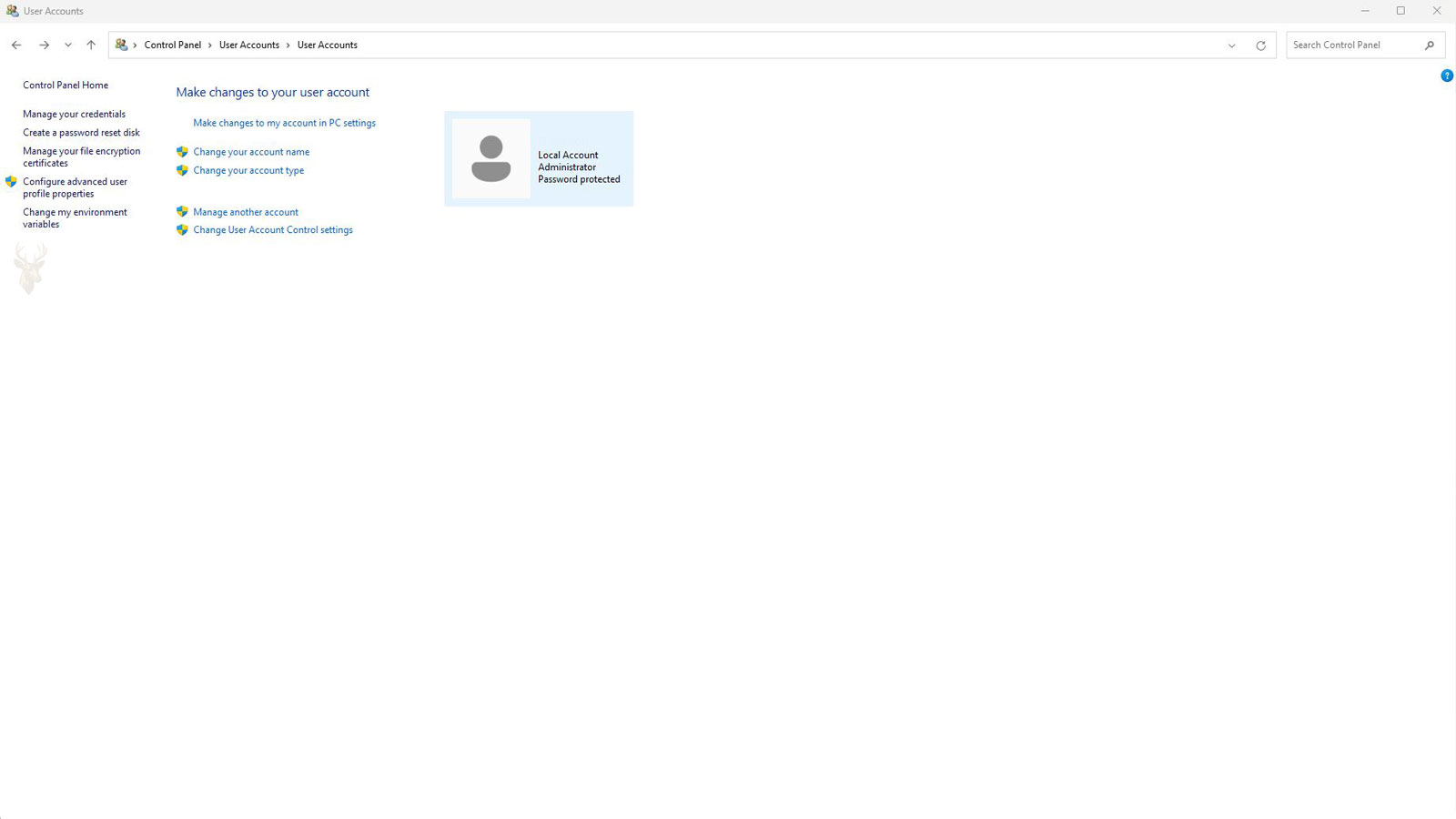
User Accounts Define What Each Person Can Change
Windows user accounts are more than separate names on a sign-in screen. Each account carries its own settings, files, saved preferences, and level of authority. That authority determines whether the person can install software, change system-wide settings, manage other accounts, or access protected areas of the computer.
When account permissions are understood and configured correctly, several people can use the same computer without giving everyone unrestricted control. When they are configured poorly, users may encounter repeated permission errors, failed installations, missing files, or security risks caused by unnecessary administrator access.
Many Windows problems that appear to involve damaged software are actually permission problems. The program may be working normally, but the current account may not have the authority required to complete the requested action.
Administrator and Standard Accounts Serve Different Purposes
Windows commonly separates local accounts into two broad permission levels: Administrator and Standard. Both account types can run programs, browse the internet, create documents, and personalize many everyday settings. The major difference is how much control they have over the operating system and other users.
An administrator account can make changes that affect the entire computer. It can install hardware drivers, add or remove user accounts, modify security settings, and change protected system files. A standard account is intended for normal daily work and is restricted from making many system-wide changes without administrator approval.
| Account type | Typical abilities | Primary purpose |
|---|---|---|
| Administrator | Install software, manage accounts, change protected settings, and approve elevated actions | System management and maintenance |
| Standard | Use installed programs, create files, adjust personal settings, and perform everyday tasks | Routine computer use with reduced risk |
The distinction helps prevent accidental changes from affecting every person who uses the computer. A standard account can still be fully useful without having unrestricted access to the operating system.
Administrator Membership Does Not Mean Every Program Runs Unrestricted
Even when a person signs in with an administrator account, Windows does not automatically give every program full system access. Most applications begin with ordinary user-level permissions. When a program attempts to perform a protected action, Windows can request approval before allowing it to continue.
This separation reduces the chance that a program can silently make major changes simply because the user belongs to the Administrators group. It also explains why an administrator may still see prompts asking for permission to install software or modify system settings.
An administrator account has the ability to approve protected changes, but Windows still separates ordinary activity from elevated system control.
User Account Control Adds a Confirmation Step
User Account Control, commonly called UAC, is the Windows feature that displays a confirmation prompt when software requests elevated permissions. The prompt may appear while installing a program, changing a firewall setting, updating a driver, or opening a tool that can modify protected parts of the system.
For an administrator account, the prompt usually asks for confirmation. For a standard account, Windows may require the username and password of an administrator before the action can continue.
The prompt is not an error message. It is a security checkpoint that gives the user an opportunity to decide whether the requested action is expected and trustworthy.
Unexpected Permission Prompts Deserve Attention
A permission prompt is appropriate when the user intentionally starts a system-level task. It is more concerning when the prompt appears without a clear reason, especially while opening a document, visiting a website, or performing another action that should not require administrative access.
Before approving an unexpected request, the user should review the program name and consider what action caused the prompt to appear. Unknown software, misspelled publisher names, or prompts that appear repeatedly can indicate an unwanted program or a poorly designed application.
- Confirm that the displayed program matches the task being performed.
- Check whether the publisher is identified and recognizable.
- Avoid approving a request that appeared without an intentional action.
- Close the prompt and investigate further when the source is uncertain.
- Do not enter an administrator password merely to stop repeated warnings.
Approving every prompt automatically defeats the purpose of the protection. The confirmation step is most useful when the user pauses long enough to verify what is requesting access.
Standard Accounts Reduce the Impact of Mistakes
A standard account limits the number of changes that can be made without additional approval. This can reduce the impact of accidental settings changes, unwanted software installations, and certain types of malicious activity.
For a shared household computer, a standard account can be appropriate for children, guests, or anyone who does not need to manage the system. In a business environment, standard accounts help keep workstations consistent and reduce unauthorized changes that can create support problems later.
The user can still complete ordinary work while an administrator account remains available for maintenance when needed.
Separate Accounts Also Separate Personal Settings
Permission level is only one reason to create separate accounts. Each user receives an individual profile containing desktop settings, browser data, application preferences, documents, and other personal information.
This separation prevents one person’s desktop changes from automatically affecting another person’s account. It also makes it easier to control access to private files and to troubleshoot problems that occur only within one profile.
If one account develops corrupted settings or application errors while another account works normally, the comparison can help identify whether the problem belongs to the entire computer or only to a specific user profile.
File Access Depends on More Than the Account Type
Administrator status does not automatically make every file freely available at all times. Windows also uses ownership and permission entries to control who can read, modify, or delete specific folders and files.
A standard user may have full control over personal documents but no access to another user’s private folders. An administrator may be able to take ownership or change permissions, but that can still require an elevated action and should not be done casually.
This layered approach helps protect personal data while still allowing authorized maintenance when a legitimate need exists.
Shared Computers Need More Than One Login
Allowing several people to share a single administrator account may seem convenient, but it removes accountability and mixes personal data together. Browser history, saved passwords, documents, cloud accounts, and application settings can become accessible to everyone using the same login.
Separate accounts make it easier to preserve privacy, identify who changed a setting, and remove one person’s access without affecting everyone else. They also allow each user to have an appropriate permission level instead of granting administrator rights to the entire household or office.
A well-organized account structure provides both security and convenience by giving each person access to the tools they need without granting control they do not require.
Installing Software Depends on the Scope of the Installation
Not every program installation requires the same level of permission. Some applications install only inside the current user’s profile, while others place files in protected system folders, add services, change firewall rules, or become available to every account on the computer.
A standard user may be able to install certain programs without administrator approval when the software affects only that account. An installation that changes the entire system usually requires elevation because it can influence other users and alter protected areas of Windows.
This difference explains why one application installs without interruption while another requests administrator credentials. The prompt is based on the type of changes the installer intends to make rather than the size or complexity of the program.
Running a Program as Administrator Changes Its Authority
The Run as administrator option starts a program with elevated permissions. This can be necessary for tools that modify system settings, repair protected files, manage disks, or perform other administrative work.
Elevation should not be used automatically whenever a program fails to open. Running software with greater authority may hide the real cause of a permissions problem and can give an untrusted application access to areas it does not need.
If a program works only when elevated, the difference is useful diagnostic information. It suggests that the application may be trying to write to a protected folder, access a restricted registry location, or use a system resource that is unavailable under ordinary permissions.
Elevation can confirm that a permissions restriction exists, but it does not explain why the program requires more authority than expected.
Older Programs May Expect Access Windows No Longer Grants
Software written for older versions of Windows may assume that every user has broad control over the computer. These programs may try to save configuration files inside their installation folders or write directly to protected parts of the registry.
Modern versions of Windows separate ordinary user activity from system-level changes more carefully. As a result, an older application may display errors, fail to save settings, or work only when started with administrator rights.
The problem may not indicate that the user account is damaged. It can result from software that was never designed for current permission standards.
Permission Problems Can Appear as Missing Settings
An application may appear to accept a setting but lose it after closing. In other cases, a program may repeatedly ask for initial setup information or recreate default preferences at every launch.
This can happen when the program is allowed to run but cannot save changes to the location it uses for configuration data. The application may not display a clear access-denied message, leaving the user to believe the software is corrupted.
| Observed behavior | Possible permission-related explanation |
|---|---|
| Settings disappear after the program closes | The application cannot write to its configuration location. |
| The program works only when elevated | It is requesting access to a protected file, folder, or registry area. |
| Updates repeatedly fail | The updater cannot replace system-wide program files. |
| One user can run the program but another cannot | The accounts have different file access or installation scope. |
| A file opens as read-only | The current account lacks modification permission. |
Changing an Account Type Has Immediate Consequences
Windows allows an authorized administrator to change a user between Standard and Administrator. Although the adjustment is simple, it changes how much control that person has over the entire computer.
Promoting an account can allow the user to install software, remove other accounts, change security settings, and approve elevated actions. Reducing an account to Standard removes much of that authority but does not erase the user’s files or ordinary preferences.
Before changing an account type, it is important to verify that at least one usable administrator account will remain on the computer. Removing administrative access from every accessible account can make future maintenance more difficult.
A Forgotten Administrator Password Can Block Maintenance
A standard account may continue working normally even when the administrator password has been forgotten. The problem becomes visible only when Windows requests approval for an installation, driver change, account adjustment, or protected setting.
Without valid administrator credentials, the user may be unable to complete legitimate maintenance. The available recovery options depend on whether the administrator is a local account, a Microsoft account, or part of a managed business environment.
Password recovery should be addressed before the computer develops a serious problem. Waiting until a driver fails or software must be removed can turn a manageable account issue into a larger service interruption.
Microsoft Accounts and Local Accounts Can Hold the Same Permission Level
The method used to sign in does not determine whether an account is an administrator. A Microsoft account can be Standard or Administrator, and a local account can also be assigned either role.
A Microsoft account uses online credentials and can synchronize certain settings across devices. A local account is stored primarily on the computer and does not require an online identity for sign-in. These differences affect account recovery and synchronization, but the permission level remains a separate setting.
- Account type determines authority on the computer.
- Sign-in method determines how the account is identified and recovered.
- Either sign-in method can be assigned Standard permissions.
- Either sign-in method can be assigned Administrator permissions.
Business Computers Often Restrict Local Administrator Access
In a managed office, employees may use standard accounts even when each person has an individually assigned computer. This prevents unauthorized software installations, reduces accidental configuration changes, and helps support staff maintain consistent systems.
Administrative work may be performed through a separate support account or by an authorized technician. This arrangement keeps ordinary work separate from maintenance and reduces the amount of time any account operates with elevated authority.
Although the restriction can feel inconvenient when a user wants to install a program immediately, it helps protect business data and prevents one workstation from becoming an unmanaged exception.
Family Computers Benefit From Planned Permission Levels
A household computer can also benefit from separating everyday use from administration. One responsible account can retain administrator authority while other family members use standard accounts for browsing, schoolwork, games, and general applications.
This does not prevent every unwanted change, but it introduces an approval step before software can alter protected areas of Windows. It also reduces the chance that a misleading download or accidental click will make system-wide changes without another person noticing.
The most useful arrangement is one that provides enough access for normal activity while keeping administrative control limited to the people who actually maintain the computer.
Permission Errors Should Be Investigated Before They Are Bypassed
When Windows reports that access is denied or requests administrator approval unexpectedly, it is often tempting to search for the fastest way to bypass the restriction. In many situations, however, the message is identifying a configuration issue rather than preventing legitimate work.
Determining why the permission request appears is usually more valuable than permanently granting additional privileges. An application may have been installed incorrectly, a folder may have inherited restrictive permissions, or the software may simply be attempting an operation that requires administrative authority.
Understanding the reason behind the message helps preserve both security and long-term system stability.
Administrative Access Is Best Used Only When Needed
Many routine computing tasks do not require administrator rights. Web browsing, email, office applications, media playback, and most everyday software operate normally under a standard account.
Using elevated privileges only when necessary limits the opportunities for unwanted software to make system-wide changes. It also reduces the likelihood that accidental configuration changes will affect every user of the computer.
Administrative authority is most effective when it is available for maintenance but not used continuously for ordinary daily work.
A Structured Review Can Identify Permission-Related Problems
When software repeatedly reports permission errors or refuses to complete a task, a methodical review often provides better results than repeatedly changing account settings.
| Question to Review | Reason for Checking |
|---|---|
| Does the problem affect every user account? | Helps determine whether the issue is system-wide or profile-specific. |
| Does the program request elevation every time it starts? | May indicate that it requires protected system access. |
| Was the software designed for an older version of Windows? | Older applications sometimes expect broader permissions. |
| Can the affected files still be opened or modified? | Confirms whether file permissions are contributing to the problem. |
| Did the issue begin after changing account settings? | Recent permission changes may explain the new behavior. |
Reviewing these factors creates a clearer picture of the problem before account types or security settings are changed.
Separate Accounts Improve Organization as Well as Security
Individual user accounts provide benefits beyond permission management. Each person maintains separate desktop preferences, browser profiles, saved passwords, application settings, and personal documents. This organization reduces confusion and makes it easier to identify which settings belong to which user.
On shared computers, separate accounts also simplify troubleshooting. If one user experiences application errors while another account functions normally, the comparison can help determine whether the problem is isolated to a single profile or affects the operating system as a whole.
This separation supports both privacy and more efficient maintenance throughout the life of the computer.
Administrator Rights Should Be Assigned Deliberately
Granting administrator privileges is a decision that affects the security of the entire computer. While some users genuinely need that level of access to maintain software, install hardware, or manage multiple accounts, many people can complete their everyday work without it.
Assigning administrative authority only where it is truly required helps reduce accidental changes, simplifies support, and provides greater confidence that unexpected software cannot modify protected areas of Windows without approval.
- Reserve administrator accounts for trusted users who maintain the system.
- Use standard accounts for routine daily activities whenever practical.
- Review unexpected permission prompts before approving them.
- Keep administrator credentials available for future maintenance.
- Periodically verify that account permissions still match each user’s responsibilities.
Permission Management Supports Long-Term Reliability
Windows account permissions are designed to balance flexibility with protection. Administrator accounts provide the authority needed to maintain the operating system, while standard accounts help reduce unnecessary system-wide changes during normal use.
Understanding the distinction between these permission levels makes it easier to interpret User Account Control prompts, troubleshoot access-related problems, and organize shared computers in a way that supports both productivity and security.
By assigning administrative rights carefully and using elevated privileges only when appropriate, Windows can provide a safer environment for everyday computing without limiting the maintenance tools required to keep the system operating reliably.
Balancing Control and Protection
Every Windows account is built around a balance between convenience and security. Administrator accounts make system management possible, while standard accounts help prevent unintended changes that could affect every user on the computer.
Choosing the appropriate permission level for each account allows Windows to provide a structured, organized, and secure computing environment. Whether the computer is used by one person, an entire family, or a small business, properly managed user accounts remain one of the simplest and most effective ways to maintain both reliability and control.











