
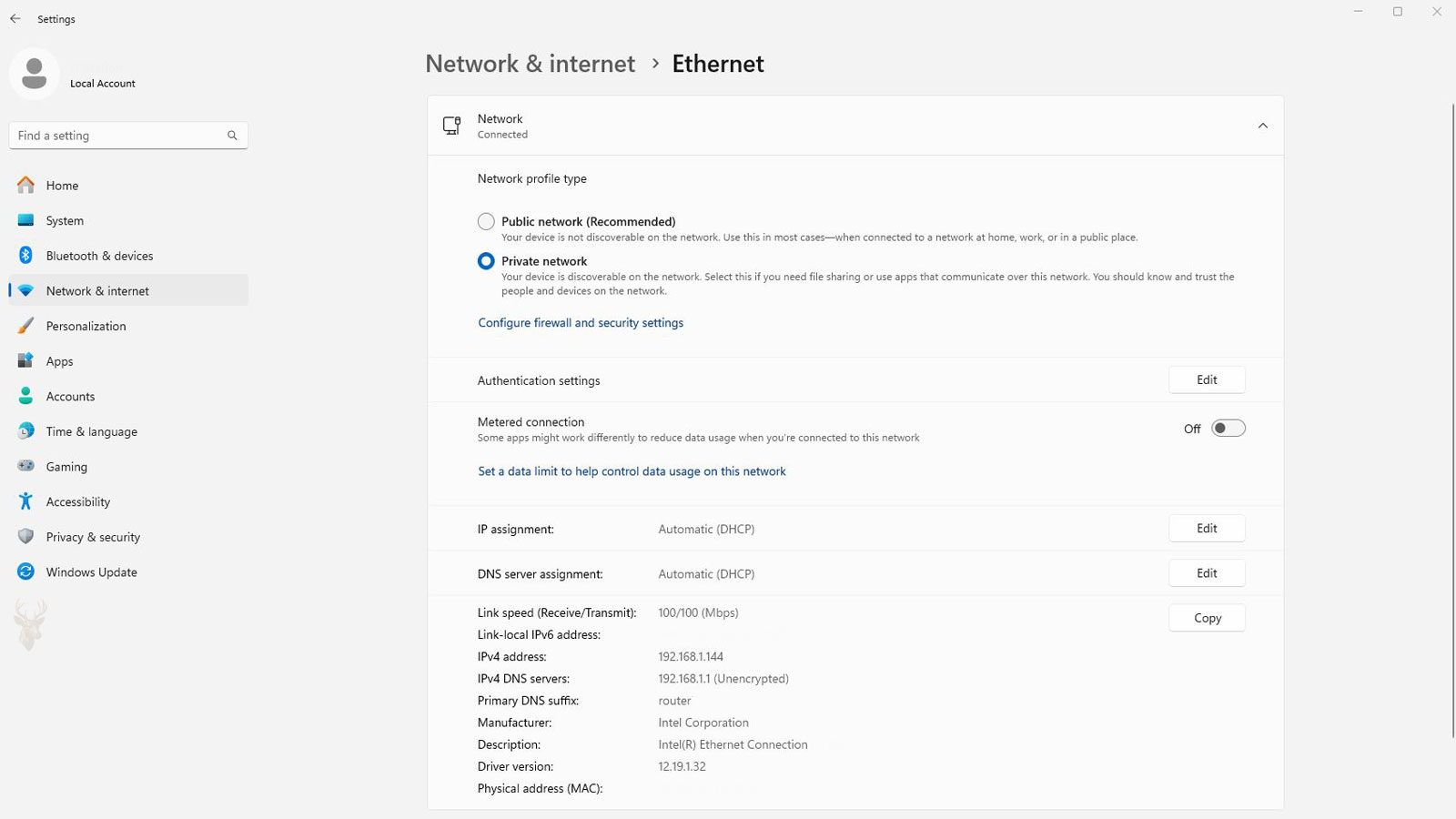
The Network Profile Sets the Boundaries for Local Communication
When Windows connects to a network, it does more than obtain internet access. It also decides how much the computer should trust the surrounding devices. That decision is represented by the network profile assigned to the connection.
The profile influences whether the computer can be discovered, whether shared folders and printers are available, and which firewall rules are permitted. A connection may work perfectly for web browsing while local communication remains restricted because Windows considers the network untrusted.
This distinction is important because many network problems are not caused by the router, wireless signal, or Ethernet cable. The computer may be connected normally but operating under a profile that intentionally limits communication with nearby devices.
Public and Private Describe Trust, Not Ownership
The terms Public and Private can be misleading. They do not indicate whether the network is owned by a business, a household, or a public organization. They describe how Windows should treat the other devices using that connection.
A Private profile is appropriate when the network is controlled and the connected devices are generally trusted. A home network or a secured small-office network commonly fits this description. Windows can allow local discovery and sharing features when those services are needed.
A Public profile is intended for networks where the surrounding devices are unknown. Hotel Wi-Fi, airports, cafés, conference centers, and guest networks are typical examples. Windows applies more restrictive behavior because another computer on the same network should not automatically be trusted.
A network can require a password and still be considered public from a security standpoint if the connected devices are unfamiliar.
The Profile Changes Firewall Behavior
Windows Firewall organizes many of its rules according to the active network profile. An application or service may be permitted to communicate on Private networks while remaining blocked on Public networks.
This allows one computer to behave differently depending on where it is connected. File sharing may be available at home but automatically restricted when the same laptop joins a hotel network. Remote management tools, media sharing, printer discovery, and other services can also be controlled in this way.
| Profile | Windows assumes | Typical local behavior |
|---|---|---|
| Private | The network is trusted and controlled. | Discovery and approved sharing features may be permitted. |
| Public | Nearby devices should not be trusted. | Incoming local communication is more heavily restricted. |
The profile does not replace individual firewall rules. It provides the context that determines which group of rules applies. A service can still be blocked on a Private network if its specific rule is disabled or incorrectly configured.
Internet Access Can Work Under Either Profile
Both Public and Private profiles allow ordinary internet access. A computer can open websites, receive email, and use cloud applications under either setting. The main difference involves communication initiated by nearby devices and the visibility of the computer on the local network.
This is why a profile problem can be easy to overlook. Users often confirm that the internet works and assume the entire network configuration is correct. Only later do they notice that a shared printer, network storage device, or another computer can no longer be reached.
When internet access remains normal but local resources disappear, the active profile becomes one of the first settings worth checking.
Windows Assigns a Profile to Each Connection
The profile is associated with a particular network connection rather than with the computer as a whole. A laptop can use a Private profile on its home Wi-Fi, a Public profile at an airport, and another profile when connected through Ethernet at an office.
Windows identifies networks using information from the connection and stores a profile for later use. When the computer reconnects, Windows usually applies the previously selected classification. Changes to the router, network name, security configuration, or adapter can cause Windows to treat the connection as new.
After such a change, the network may receive a different profile than it had before. A trusted office connection can suddenly behave like a public network even though the physical location and equipment appear unchanged.
A Router Replacement Can Create a New Network Identity
Replacing a router is a common point at which profile behavior changes. Even when the same wireless name and password are reused, Windows may recognize differences in the network and create a new connection record.
The same situation can occur after resetting a router, changing the wireless security mode, installing a new network adapter, or performing a Windows network reset. The user may believe the old connection has simply returned, while Windows is treating it as a separate network.
- A new router is installed with the previous wireless name.
- The Wi-Fi security type changes.
- The Ethernet adapter is replaced or reinstalled.
- Windows networking is reset.
- A major system update recreates part of the network configuration.
Any of these events can alter the profile or create a new network entry. The resulting symptoms may appear immediately or remain unnoticed until someone attempts to use a local resource.
Private Does Not Mean Every Device Is Automatically Accessible
Changing a connection to Private does not automatically open every folder, printer, or service. It only tells Windows that the network is trusted enough for approved local communication.
File sharing must still be enabled. Shared folders still require permissions. Password-protected resources still require valid credentials. Security software can continue blocking traffic, and the destination device must be configured to accept the connection.
The profile establishes the security context, but the individual services determine what is actually available within that context.
Public Networks Are Designed to Reduce Exposure
On a public connection, Windows attempts to reduce the number of ways nearby devices can interact with the computer. This is especially important in places where many unrelated users share the same network infrastructure.
A laptop used in a hotel may contain shared folders, remote access software, development tools, or printer services that are appropriate at home or in an office. The Public profile helps prevent those services from being exposed under the same rules when the computer travels.
Using the more restrictive profile in an unfamiliar environment is not a sign that the network is defective. It is a deliberate security boundary that limits local communication while preserving ordinary internet access.
The Correct Profile Depends on the Environment
There is no profile that should be used for every connection. Private is appropriate when the user controls the network and understands which devices are connected. Public is safer when the surrounding systems are unknown or managed by someone else.
The decision should be based on trust rather than convenience. Changing an unfamiliar network to Private simply to make a device visible can expose services that were never intended for that environment.
Choosing the correct profile allows Windows to maintain useful local communication where it belongs while applying stronger restrictions when the computer leaves that trusted setting.
Windows May Ask Only Once
When Windows connects to a new network, it often asks whether the computer should be discoverable by other devices. Many users answer the prompt quickly without realizing that their choice determines the network profile and influences how Windows will behave on future connections to that same network.
If the wrong option is selected, the computer may continue using that profile every time it reconnects. Weeks or months later, it can be difficult to remember that the original decision occurred when the network was first detected.
Fortunately, the profile can usually be reviewed and changed without rebuilding the entire network configuration. Before making that adjustment, however, it is worth confirming that the selected profile actually matches the environment where the computer is being used.
Different Computers Can Use Different Profiles on the Same Network
Every Windows computer maintains its own network profile. Two laptops connected to the same wireless router are not required to use identical settings. One computer may classify the network as Private while another treats it as Public.
This explains why one computer may discover printers, shared folders, and nearby workstations while another appears isolated despite having full internet access. The difference may not involve the router at all. Each computer is simply applying its own local security decisions.
When troubleshooting several devices, comparing their profile settings is often more productive than assuming the network infrastructure has failed.
Domain Networks Follow Different Rules
Business environments that use Windows domains are managed differently from typical home networks. When a computer joins a domain, Windows can recognize that environment and apply a Domain profile instead of the standard Public or Private classifications.
The Domain profile allows administrators to control firewall behavior, sharing policies, and security settings through centralized management. Individual users usually do not choose this profile themselves because it depends on successful communication with the organization’s domain infrastructure.
Although home users rarely encounter this profile, understanding that it exists helps explain why business computers may behave differently from personal systems running the same version of Windows.
| Profile | Typical environment | Who normally controls it |
|---|---|---|
| Public | Untrusted or shared networks | The individual user or Windows |
| Private | Trusted home or small-office networks | The individual user |
| Domain | Managed business networks | Organization administrators |
Applications Can Respond to the Active Profile
Some software checks the active network profile before enabling certain features. Backup programs may postpone network backups until a trusted connection is available. Media servers may limit device discovery on public networks, while remote management tools can disable incoming connections outside trusted environments.
This behavior reduces unnecessary exposure without requiring the user to manually enable and disable features every time the computer changes locations. The application simply adapts to the profile already selected by Windows.
As a result, changing the network profile may affect more than Windows itself. Programs that depend on local communication can also begin or stop offering services according to the current trust level.
Changing the Profile Does Not Repair Every Network Problem
Because profile changes are relatively simple, they are sometimes suggested as a universal solution for networking issues. In reality, the profile addresses only one part of the communication process.
If a network cable is damaged, the wireless signal is unstable, the router is malfunctioning, or the adapter driver has failed, selecting a different profile will not restore connectivity. Likewise, incorrect passwords, file permissions, or printer configuration problems continue to exist regardless of whether the connection is Public or Private.
The network profile determines how Windows behaves after a connection exists. It does not create the connection or guarantee that every network service will function correctly.
Moving Between Locations Can Change Expectations
Many laptops travel regularly between homes, offices, schools, customer locations, and public Wi-Fi networks. Each location presents a different level of trust, making the profile an important part of everyday security rather than a setting that is configured only once.
A user who expects a printer to appear automatically at home may be surprised when nothing is visible at a hotel. Likewise, an office computer that normally communicates with file servers may appear unusually isolated when connected to a public wireless network. In both situations, Windows is behaving exactly as intended.
Understanding these differences helps prevent unnecessary troubleshooting when the observed behavior is actually the result of appropriate security controls.
Review Security Before Choosing Convenience
When a network resource cannot be found, changing the profile to Private may seem like the fastest solution. Before making that change, it is worth considering whether the surrounding devices are actually trusted.
- Who manages the network infrastructure?
- Are the connected devices known and controlled?
- Will enabling discovery expose files or services unnecessarily?
- Is the network intended only for temporary internet access?
- Would another solution address the problem without reducing security?
Answering these questions keeps the profile aligned with the purpose of the network instead of changing it solely because a shared device is temporarily unavailable.
Small Changes Can Have Broad Effects
Although the profile appears to be a single setting, it influences several parts of Windows simultaneously. Firewall rules, network discovery, file sharing, and application behavior can all respond when the trust level changes.
Recognizing that relationship makes it easier to understand why one simple adjustment can affect multiple networking features at the same time. Rather than treating those changes as unrelated events, they should be viewed as different results of the same underlying security decision.
Signs the Wrong Network Profile May Be in Use
A network profile problem rarely announces itself with an obvious error message. Instead, the computer simply behaves differently than expected. Internet access often remains normal while local features gradually stop working, leading users to suspect hardware failures or router problems that do not actually exist.
Looking at the overall pattern is often more useful than focusing on a single symptom. If several sharing-related features stop working at approximately the same time, they may all point toward the active network profile rather than separate unrelated faults.
- Shared folders that were previously available no longer appear.
- Network printers disappear from automatic discovery.
- Another computer cannot locate this system on the local network.
- Media streaming between local devices stops working.
- Remote management tools no longer accept incoming connections.
- Internet browsing continues to function normally.
None of these observations prove that the network profile is responsible, but together they create a pattern that deserves investigation before hardware is replaced or the network is rebuilt.
Profile Changes Should Be Intentional
Changing a network profile should be treated as a security decision rather than a troubleshooting shortcut. Every adjustment changes the way Windows expects nearby devices to interact with the computer, and that decision should reflect the environment rather than the immediate problem.
For example, switching an airport Wi-Fi connection to a Private profile simply to test printer visibility exposes the computer to a level of local communication that was never intended for that location. Likewise, leaving a trusted office network configured as Public can unnecessarily restrict file sharing and collaboration.
The safest profile is not always the most convenient one, and the most convenient profile is not always the safest. The correct choice depends on who shares the network.
Troubleshooting Without Guesswork
Because profile settings influence several networking features simultaneously, it is helpful to confirm the symptoms before making changes. A systematic approach often identifies the cause much faster than trying multiple adjustments at random.
| Question | Why It Matters |
|---|---|
| Does internet access still work? | Confirms whether the issue is local communication or overall connectivity. |
| Are other computers affected? | Determines whether the problem is isolated to one system. |
| Did the behavior begin after connecting to a different network? | May indicate that Windows assigned a different profile. |
| Can the device be reached directly by its network address? | Helps distinguish discovery issues from communication failures. |
| Were any Windows or security updates installed recently? | Recent configuration changes may explain the new behavior. |
Answering these questions creates a logical starting point and helps avoid unnecessary changes that could introduce additional complications.
Security and Productivity Must Work Together
Windows network profiles were designed to balance convenience with protection. Users often move between trusted home networks, managed business environments, and public wireless connections throughout the same week. A single security model would not be appropriate for every location.
By allowing different firewall behavior and discovery settings for different environments, Windows reduces the need for users to manually enable or disable numerous individual services every time they change locations. The operating system adapts its networking behavior based on the level of trust assigned to each connection.
This flexibility becomes especially valuable for laptops that regularly leave the office. A computer can safely participate in file sharing at work while automatically becoming more restrictive when connected to unfamiliar wireless networks.
Understanding Profiles Makes Network Problems Easier to Explain
Many networking issues appear complicated because several features stop working at once. In reality, those symptoms often share a common cause. A single profile change can influence device discovery, printer availability, file sharing, firewall behavior, and application communication without affecting ordinary internet access.
Recognizing that relationship helps separate configuration issues from hardware failures. Instead of replacing cables, adapters, or routers immediately, it becomes possible to evaluate whether Windows is simply applying the security rules associated with the current network profile.
Choosing the Appropriate Trust Level
Public and Private network profiles are fundamental parts of Windows networking, yet they often receive little attention until a shared resource becomes unavailable. Understanding what these profiles actually control makes many networking behaviors easier to interpret and reduces unnecessary troubleshooting.
The correct profile is determined by the environment, not by the desire to make a device appear on the network. Selecting the appropriate trust level allows Windows to provide convenient local communication on trusted networks while reducing unnecessary exposure whenever the computer connects to unfamiliar surroundings.
With that distinction in mind, users can make informed security decisions while maintaining dependable access to the local resources they use every day.











