
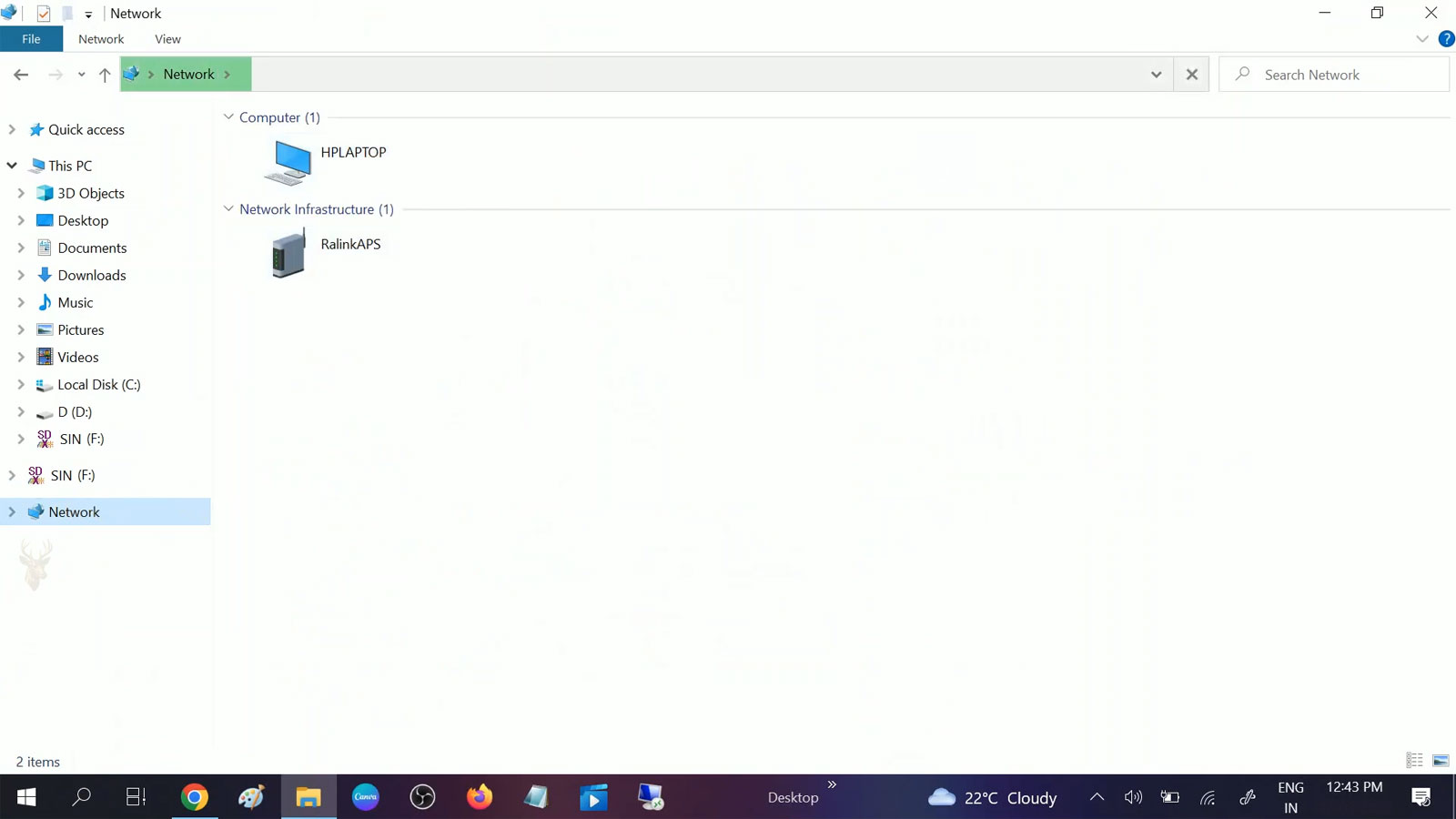
When Computers and Shared Devices Disappear From the Network
A computer can remain connected to the internet while other devices on the same local network seem to disappear. Shared computers may no longer appear in File Explorer, a network printer may be missing from the available devices, or a storage system that worked previously may become difficult to locate. This can happen even though websites continue loading and the router appears to be functioning normally.
The confusion begins because internet access and local network discovery are related but separate functions. Internet access only requires the computer to communicate through the router toward outside services. Network discovery depends on additional Windows settings, background services, firewall permissions, device responses, and the type of network profile assigned to the connection.
When one of those elements changes, the computer may still browse the web without being able to locate nearby systems. The missing device is not necessarily turned off or disconnected. It may simply no longer be advertising its presence in a way that Windows recognizes.
Network Discovery Is More Than a Device List
Network discovery is the process that allows compatible computers and devices to identify one another on a local network. It helps Windows populate the Network section of File Explorer and supports access to shared folders, printers, media devices, and other resources.
The list shown in Windows is not a permanent inventory stored by the router. Devices announce themselves, respond to discovery requests, and communicate through several network protocols. Windows gathers those responses and presents the devices it can currently identify.
This is why a device can be reachable by its network address while remaining absent from the visual device list. Direct communication may still work even when the discovery process is incomplete. In other situations, the device appears in the list but cannot be opened because the sharing permissions or authentication requirements are separate from discovery.
Seeing a device on the network does not guarantee access to its files, and a missing device does not always mean the connection has failed.
The Network Profile Controls What Windows Allows
Windows assigns each network connection a profile that influences how visible the computer should be and which types of communication are allowed. The two profiles most users encounter are Public and Private.
A Private network is intended for trusted locations such as a home or a controlled office. Windows can permit discovery and sharing features more freely because the devices on that network are assumed to be familiar.
A Public network is intended for locations where the connected devices should not be trusted, such as hotels, airports, cafés, or public wireless systems. Windows limits discovery and sharing to reduce exposure to nearby computers.
| Network profile | Typical environment | Expected discovery behavior |
|---|---|---|
| Private | Home, trusted office, controlled local network | Discovery and sharing may be enabled when configured. |
| Public | Hotel, airport, café, guest Wi-Fi | Discovery is commonly restricted for security. |
A connection can be assigned the wrong profile after a Windows update, network reset, router replacement, or the creation of a new wireless connection. When that happens, a computer that previously saw local devices may suddenly stop displaying them even though the internet connection remains unchanged.
Discovery and Sharing Are Separate Controls
Windows includes separate settings for network discovery and file and printer sharing. Network discovery controls whether the computer can locate nearby devices and whether other devices can identify it. File and printer sharing controls whether approved resources can be accessed across the network.
One setting can be enabled while the other remains disabled. A computer may therefore appear in the Network list but refuse connections to its shared folders. The reverse can also occur, where a shared folder remains accessible through a direct path even though the computer does not appear in File Explorer.
- Discovery enabled, sharing disabled: The computer may be visible, but its folders and printers remain unavailable.
- Discovery disabled, sharing enabled: A known resource may still open through a direct network path.
- Both disabled: The computer is generally hidden and does not offer shared resources.
- Both enabled: Visibility and access are possible, subject to permissions and firewall rules.
This separation is useful for security, but it can make troubleshooting less obvious. Turning on discovery alone does not correct password errors, folder permissions, or printer configuration problems.
Required Services Work Behind the Network Window
Several Windows services support the discovery process. These services listen for network announcements, publish information about the computer, and help Windows recognize compatible devices. If one of them is stopped, delayed, or configured incorrectly, the visible network list may become incomplete.
The exact services involved can vary with the Windows version and the type of device being discovered. Common components include services related to function discovery, device publication, DNS information, and network connections.
A service failure does not always remove every device. Some systems may continue to appear through cached information or another discovery method, while others vanish. This uneven behavior can make the problem look random when it is actually tied to the way each device communicates.
The Firewall Must Permit Local Communication
Windows Firewall and third-party security programs can block the traffic used for device discovery. The firewall normally applies different rules according to the active network profile. Discovery may be allowed on a Private network and blocked automatically on a Public network.
Security software can also change its rules after an update or installation. A computer may remain fully connected to the router while incoming discovery requests are rejected. Other devices can no longer identify it, and it may also stop receiving the announcements needed to populate its own network list.
Disabling the firewall entirely is not a good long-term solution. A safer diagnostic approach is to verify that the correct network profile is active and that the appropriate discovery and sharing rules are permitted for that profile.
Not Every Device Uses the Same Discovery Method
Local networks often contain a mixture of Windows computers, Macs, printers, smart televisions, storage devices, cameras, and older equipment. These devices may not all use the same protocols or respond to the same discovery requests.
A modern Windows computer may locate one printer automatically while an older storage device requires its address to be entered manually. A Mac may share files successfully without appearing in the same place as a Windows computer. Some devices rely on manufacturer software rather than the discovery features built into Windows.
This difference becomes important when only one type of device is missing. If every Windows computer can see one another but none can locate a particular printer, the issue may be with that printer’s network configuration rather than with discovery across the entire network.
A Missing Device May Still Be Reachable
The Network section of File Explorer is convenient, but it is not the only way to reach a local resource. A computer or storage device may still respond when its name or network address is entered directly.
This test helps separate a visibility problem from a communication problem. If the device opens through a direct path, the network connection is functioning and the fault is more likely related to discovery, name resolution, or publication services. If the direct connection also fails, the investigation must include the device’s address, firewall, permissions, and physical network connection.
Recognizing this distinction prevents unnecessary changes to the router or internet service when the actual problem is limited to the way Windows displays local devices.
The Router Does Not Keep a Permanent Directory
Many people assume the router maintains a complete and constantly updated list of every device connected to the network. While the router does know which devices are currently communicating with it, Windows does not simply download that list and display it in File Explorer.
Instead, Windows builds its own view of the local network by collecting responses from multiple discovery methods. Devices that remain quiet, block discovery traffic, or use different communication protocols may never appear, even though they have a perfectly valid network connection.
This explains why restarting a router does not always restore missing devices. If the underlying discovery process has been interrupted by a Windows setting, a firewall rule, or a disabled service, the router itself may have very little to do with the problem.
Timing Plays a Larger Role Than Many People Realize
Network discovery is not a continuous conversation between every device. Computers periodically announce themselves, request information, and update their view of the network. Because these exchanges happen over time, the list of visible devices can change gradually rather than immediately.
For example, a desktop computer that has just been powered on may not appear instantly in every other computer’s Network window. Likewise, a device that has been shut down may remain visible briefly until Windows refreshes its information and recognizes that the device is no longer responding.
This delay is normal and should not automatically be interpreted as a network fault. Problems become more likely when devices never appear, disappear repeatedly, or remain inaccessible long after the network should have refreshed.
Name Resolution and Discovery Are Related but Different
Finding a computer by name involves a different process from discovering that the computer exists. Discovery helps Windows identify available devices, while name resolution translates a computer name into the network address needed for communication.
If name resolution fails, a shared computer may be visible but unreachable by its familiar name. If discovery fails, the computer may disappear from the Network window while remaining fully accessible when its network address is entered manually.
| Situation | What it often indicates |
|---|---|
| Device appears but cannot be opened | Permissions, authentication, or sharing configuration may require attention. |
| Device does not appear but opens through its network address | Discovery or name resolution may be incomplete. |
| Device cannot be reached by either method | The problem may involve connectivity, firewall rules, or the device itself. |
| Only one computer has the problem | The issue is more likely local to that computer than to the entire network. |
Understanding which stage has failed keeps troubleshooting focused on the correct part of the communication process.
Sleep and Startup Can Temporarily Affect Visibility
A computer returning from sleep does not always restore every network service at exactly the same moment. The network adapter reconnects, Windows reloads background services, and discovery traffic resumes over a short period of time. During that transition, nearby devices may not immediately recognize the computer.
Similarly, another computer that is already running may continue displaying outdated information until it refreshes its own network view. This can create situations where one computer sees another while the second computer has not yet detected the first.
These brief inconsistencies are usually temporary. If visibility never returns after startup or sleep, the investigation should shift toward the adapter, required services, firewall configuration, or network profile.
Third-Party Security Software Can Change Discovery Behavior
Many antivirus and internet security packages include their own network protection features in addition to Windows Firewall. These products may automatically classify a newly connected network as untrusted, restrict local communication, or create rules that prevent discovery traffic.
Some programs also include privacy features that intentionally hide the computer from nearby devices. While this behavior improves security on public networks, it may create confusion when the same computer is later connected to a trusted home or office network.
Because every security product manages these settings differently, comparing the configuration with the intended network environment is more effective than simply disabling protection.
A computer can be fully protected while still participating in network discovery. The goal is to match the security settings to the type of network being used.
Wireless Isolation Can Prevent Devices From Seeing One Another
Some wireless networks intentionally prevent connected devices from communicating directly with one another. Hotels, guest Wi-Fi networks, public hotspots, and certain business environments often enable client isolation to improve privacy and reduce unwanted interaction between users.
Under these conditions, every device may have full internet access while remaining invisible to other computers on the same wireless network. File sharing, printer discovery, and media streaming may all appear broken even though the wireless signal is excellent.
This behavior is expected on many public networks and should not be mistaken for a Windows configuration problem.
Large Networks May Populate More Slowly
A home network with three computers behaves differently from an office containing dozens of workstations, printers, servers, and storage devices. As the number of connected systems increases, Windows requires more time to gather discovery information and present an organized list.
Administrators of larger environments often rely on directory services, centralized management tools, or direct network paths rather than depending entirely on the Network section of File Explorer. Discovery remains useful, but it is no longer the primary method of locating shared resources.
Recognizing the scale of the environment helps set realistic expectations. A busy office network naturally behaves differently from a small home network where only a few devices are active.
Patterns Help Separate Configuration Problems From Hardware Failures
When network discovery stops working, the first instinct is often to suspect the router or the network adapter. While hardware can certainly fail, discovery problems are frequently linked to configuration changes that occurred without being noticed.
- Visibility disappeared after a Windows feature update.
- A new security program was installed.
- The wireless network was recreated with a different profile.
- A desktop computer was moved to another switch or router port.
- The problem affects only one computer while every other device functions normally.
Looking for these patterns often provides a clearer direction than replacing hardware immediately. Understanding when the problem began and what changed around that time usually narrows the list of possible causes long before individual components need to be tested.
Verifying the Problem Before Changing the Network
One of the most common mistakes during network troubleshooting is making several configuration changes before confirming exactly what has stopped working. Restarting the router, resetting Windows networking, reinstalling drivers, and changing firewall rules at the same time may eventually restore normal operation, but it also makes it impossible to determine which action solved the problem.
A better approach is to verify the symptoms first. Determine whether the missing device is powered on, whether it still has internet access, whether it responds to its network address, and whether other computers experience the same issue. These observations often reduce the number of possible causes before any settings are modified.
Questions That Narrow the Investigation
Discovery problems become much easier to diagnose when the same questions are asked consistently. Instead of immediately searching for a solution, gathering a few facts creates a clearer picture of what has actually changed.
- Does every computer fail to see the missing device, or only one?
- Can the device still reach the internet?
- Can it be accessed directly by its network address?
- Did the problem begin after a Windows update, router replacement, or new security software installation?
- Is the connection using the correct network profile?
- Has the device recently been renamed or moved to another network?
- Does the problem affect only printers, only computers, or every shared device?
The answers frequently point toward a configuration issue rather than a failing piece of hardware. They also help determine whether the problem exists on one computer or throughout the entire network.
Simple Tests Can Save Considerable Time
Several basic tests can be performed without changing any settings. Opening a shared folder by its network address, checking whether another computer sees the same device, or temporarily connecting through Ethernet instead of Wi-Fi may reveal whether discovery is the actual problem or merely a symptom of something larger.
These comparisons also reduce unnecessary work. If every computer on the network suddenly loses access to the same printer, attention should shift toward the printer or the network itself. If only one computer experiences the problem, its local configuration becomes the more likely starting point.
| Observation | Helpful Interpretation |
|---|---|
| Only one computer cannot discover devices. | The issue is likely within that computer’s Windows configuration or security settings. |
| Every computer loses the same device. | The shared device or the network infrastructure deserves attention. |
| The device responds to its network address but is missing from File Explorer. | The communication path works, but discovery or name resolution is incomplete. |
| No computer can communicate with the device. | Power, hardware, network connectivity, or addressing should be investigated. |
Discovery Changes as Networks Evolve
Home and business networks rarely remain unchanged for long. New computers are added, wireless routers are replaced, printers receive firmware updates, and operating systems continue to evolve. Each change introduces another opportunity for discovery settings, permissions, or communication methods to differ from previous configurations.
Older equipment may rely on protocols that newer operating systems no longer enable by default. Likewise, modern devices may use discovery technologies that legacy hardware cannot understand. As a result, mixed environments often require more planning than networks where every device was designed during the same period.
Reliable network discovery depends on compatibility as much as connectivity. Devices must be able to recognize one another before they can conveniently share resources.
When Manual Connections Make Sense
Automatic discovery is convenient, but it is not always necessary. Many businesses connect to important servers, storage systems, and printers by using known network addresses or permanent mappings. This approach reduces dependence on automatic discovery and can provide more predictable access to frequently used resources.
Manual connections also help distinguish between visibility and communication problems. If a mapped network location continues working while the device disappears from the Network window, the connection itself remains healthy even though the discovery process requires further attention.
Keeping Local Networks Easy to Use
Network discovery is intended to make nearby computers and shared devices easy to find, but it depends on many components working together. Windows services, network profiles, firewall rules, security software, compatible protocols, and device configuration all contribute to what eventually appears in File Explorer.
When a computer suddenly stops displaying shared devices, the problem is not automatically the router, the internet provider, or failing hardware. Many discovery issues originate from configuration changes, software updates, or communication settings that affect only part of the local network.
By identifying whether the issue involves visibility, communication, permissions, or connectivity, troubleshooting becomes far more methodical. Understanding the distinction between these layers not only shortens repair time but also helps maintain a local network that remains dependable as new devices and operating systems are introduced.











