
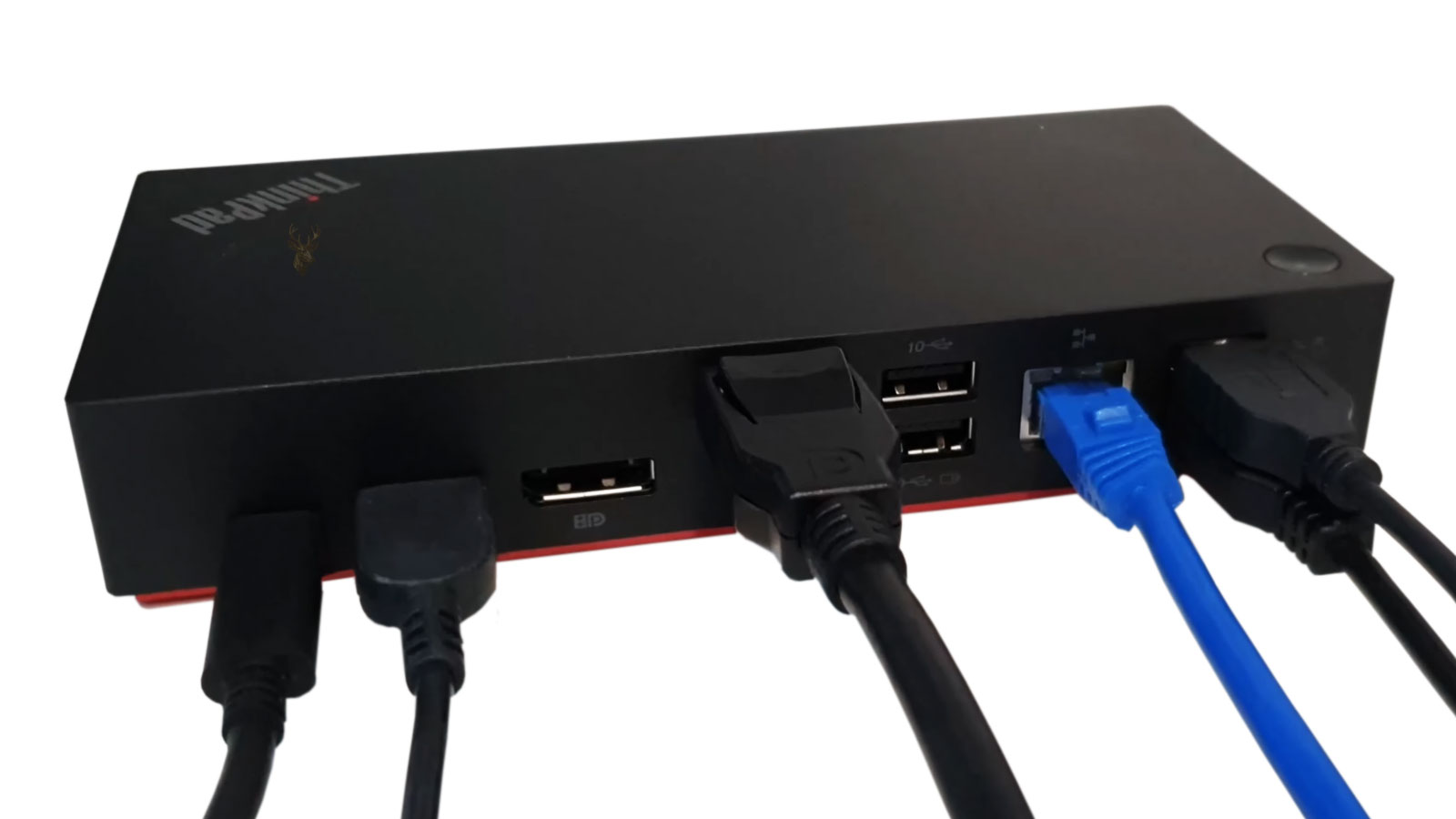
Connecting Multiple Displays Through a Dock
A docking station can transform a laptop into a desktop-style workspace with external monitors, a keyboard, a mouse, network access, speakers, and other accessories connected through a single device. The idea is simple, but the technology behind it involves several hardware and software components working together. If any one of them does not communicate correctly, an external monitor may remain blank even though every cable appears to be connected properly.
Many display problems reported after connecting a docking station are not caused by a defective monitor or a failed laptop. Instead, they often result from compatibility limits, connection methods, display configuration, firmware versions, or the capabilities of the dock itself. Understanding these factors makes troubleshooting much more methodical and helps avoid replacing equipment that is operating as designed.
A Dock Does More Than Add Extra Ports
Although docking stations are frequently described as accessories that add additional ports, they actually serve as communication hubs between the laptop and multiple external devices. Depending on the model, a dock may handle video output, USB devices, wired networking, audio, charging, and storage connections simultaneously.
Because several types of data pass through one connection to the laptop, the dock must negotiate available bandwidth and determine which features are supported by both the computer and the connected peripherals.
A docking station can only provide capabilities that are supported by both the dock and the laptop. The physical connector alone does not guarantee every feature will be available.
Different Connection Standards Produce Different Results
Two docking stations may look nearly identical while operating very differently. Some connect through USB-C with DisplayPort Alternate Mode, others rely on Thunderbolt, while certain models use USB graphics technology that processes video differently from a direct display connection.
| Connection Type | Typical Characteristics |
|---|---|
| USB-C with DisplayPort Alt Mode | Uses the laptop’s graphics hardware to drive external displays. |
| Thunderbolt | Provides higher bandwidth and often supports multiple high-resolution displays. |
| USB Graphics Dock | Uses additional software and dedicated display technology to create video output. |
Understanding which technology a dock uses helps explain why one model may support dual 4K monitors while another is limited to a single display, even though both connect through a USB-C cable.
When the Laptop Detects the Dock but Not the Monitor
A common situation occurs when Windows recognizes that a docking station has been connected, yet one or more monitors remain undetected. This usually indicates that communication with the dock is functioning while the video signal is encountering a separate limitation.
- The monitor is set to the wrong input source.
- A video cable does not support the required resolution or refresh rate.
- The dock requires a firmware update.
- The laptop’s graphics driver is outdated.
- The connected display exceeds the dock’s supported specifications.
- The operating system has not enabled the additional display.
Working through these possibilities one at a time is generally more productive than assuming the dock itself has failed.
Display Detection Begins Before the Desktop Appears
Long before Windows finishes loading, the firmware inside the laptop begins identifying connected hardware. As the operating system starts, graphics drivers continue the detection process and exchange information with each display regarding supported resolutions, refresh rates, color capabilities, and other technical characteristics.
If this communication is interrupted because of a cable problem, incompatible adapter, unsupported dock configuration, or firmware limitation, Windows may never receive the information required to activate the monitor automatically. In some situations, reconnecting the display after Windows has fully started allows the detection process to complete successfully, while in others the underlying compatibility issue must be addressed.
Resolution and Refresh Rate Limits
A monitor may be detected correctly and still display no image if the requested resolution or refresh rate exceeds what the dock, cable, or laptop connection can carry. This is especially relevant when two or more external displays share the same connection.
A dock that supports one high-resolution monitor may not support two monitors at the same resolution and refresh rate. Adding a second display can divide the available video bandwidth, forcing the system to reduce resolution, lower the refresh rate, or disable one output entirely.
This limitation can be confusing because product descriptions often list the highest supported display specification without making every multi-monitor restriction equally obvious. The maximum capability may apply only when one monitor is connected under specific conditions.
Cable Capability Matters
Video cables are not interchangeable simply because their connectors fit. HDMI and DisplayPort cables are produced for different performance levels, and lower-quality or older cables may struggle with high resolutions, higher refresh rates, or long cable runs.
A marginal cable can create symptoms that resemble a docking station failure. The display may flicker, appear only at a lower resolution, disconnect intermittently, or remain blank until the cable is reinserted.
- Confirm that the cable is connected firmly at both ends.
- Select the correct input on the monitor.
- Test with a shorter cable when possible.
- Reduce the resolution or refresh rate temporarily.
- Connect the monitor directly to the laptop if a compatible port is available.
- Replace the cable with one rated for the intended display mode.
Direct connection testing is particularly useful because it removes the dock from the signal path. If the monitor works directly from the laptop but not through the dock, the problem is more likely related to dock compatibility, firmware, bandwidth, or the connection between the laptop and dock.
The USB-C Cable Between the Laptop and Dock
The short USB-C cable connecting the dock to the laptop is easy to overlook. Some USB-C cables support charging and basic data transfer but do not carry video. Others support video but cannot provide the bandwidth required for multiple displays and fast USB devices at the same time.
Detachable dock cables should not be replaced with an arbitrary phone-charging cable. A cable that charges the laptop successfully may still be incapable of transmitting the display signal expected by the dock.
Manufacturer-supplied cables are usually the safest starting point because the dock was tested with their length and electrical specifications. When a replacement is necessary, it should support the same USB, DisplayPort, or Thunderbolt standard required by the equipment.
Power Delivery Can Affect Dock Operation
Many docking stations require their own power adapter. That external power supports connected USB devices, network hardware, internal electronics, laptop charging, and sometimes the display outputs themselves.
A dock may continue to provide limited functionality when its power adapter is disconnected or underpowered. A keyboard might work while the monitors remain blank, or one display may operate while the second fails to appear. This partial operation can make the power problem less obvious.
| Observed behavior | Possible power-related condition |
|---|---|
| Laptop charges slowly or not at all | Dock power adapter provides insufficient wattage or is not connected correctly. |
| USB devices disconnect when displays activate | The dock may be reaching a power or bandwidth limit. |
| Only one monitor works | The dock may not be fully powered, or the second output may require additional resources. |
| Dock functions change after replacing its adapter | The replacement adapter may not match the original voltage, wattage, or communication requirements. |
Laptop charging wattage also deserves attention. A dock can deliver video correctly while providing less power than the laptop requires under heavy use. In that situation, the battery may discharge slowly even though Windows reports that external power is connected.
Graphics Drivers and Dock Software
Docks that use the laptop’s native graphics output depend heavily on the installed graphics driver. A driver problem can prevent display detection, limit available resolutions, or cause screens to disappear after sleep.
Some USB-based docks also require separate display software. Without the correct software, their network and USB ports may work while the video outputs do not. Reinstalling only the standard graphics driver would not correct that type of problem.
Driver updates should be selected carefully. The newest generic driver is not always the best choice for every laptop. Manufacturers sometimes customize graphics, USB-C, and power-management behavior for a particular model. In those cases, the laptop manufacturer’s tested driver package may provide more reliable dock operation.
Dock Firmware and Laptop Firmware
Modern docking stations contain internal firmware that controls port behavior, power delivery, video routing, and communication with the computer. Laptop firmware also influences USB-C and Thunderbolt operation.
Firmware updates may correct display detection problems, improve compatibility with certain monitors, or resolve failures that appear after operating system updates. However, firmware should not be updated casually during an unstable power condition or with an uncertain dock model.
The exact dock revision matters. Devices with similar names can use different firmware packages, and applying an incorrect package can leave the dock unusable. Model numbers, revision labels, and manufacturer instructions should be checked before beginning the update process.
Sleep, Wake, and Reconnection Problems
A display that works after a fresh startup but disappears after sleep presents a different troubleshooting pattern from a monitor that is never detected. Sleep and wake problems often involve power management, graphics drivers, dock firmware, or the timing of device reinitialization.
During sleep, Windows reduces power to many devices. When the laptop wakes, the dock, graphics system, and monitors must establish their connections again. If one component responds too slowly or fails to resume correctly, Windows may restore the desktop without activating every external display.
Disconnecting and reconnecting the dock may restore the image, but repeated failures indicate that the underlying resume process should be investigated rather than treated as a normal inconvenience.
Windows Display Settings Can Hide a Working Monitor
A monitor can be connected, powered, and recognized by Windows without being used as part of the visible desktop. This usually happens when the display mode is set incorrectly or when Windows remembers an older arrangement from a previous docking setup.
The operating system can duplicate the same image across multiple screens, extend the desktop, show the desktop on only one display, or temporarily disconnect a detected monitor. A screen listed as inactive may appear to be defective even though the hardware connection is functioning.
Display arrangement also affects the way the mouse moves between screens. If Windows places a monitor above, below, or on the wrong side of the primary display, the pointer may seem unable to reach it. Rearranging the monitor icons to match the physical desk layout usually corrects that behavior.
Testing One Display at a Time
Multi-monitor systems are easier to evaluate when the setup is simplified. Connecting only one external monitor removes several variables and helps establish whether the basic video path is working.
- Disconnect every external display from the dock.
- Connect one known-working monitor to the first video output.
- Restart the laptop and confirm that Windows detects the display.
- Repeat the test with the second video output.
- Reconnect the additional monitor only after each output has been tested separately.
If both displays work individually but not together, the likely issue is not a failed monitor. The combined resolution, refresh rate, connection type, or available bandwidth may exceed what the docking station supports.
Adapters Add Another Point of Failure
Adapters are sometimes necessary when a dock and monitor use different connector types. A DisplayPort-to-HDMI adapter, USB-C video adapter, or conversion cable can work reliably when it is designed for the correct signal direction and display specification.
Problems arise when an adapter supports only lower resolutions, requires active conversion, or is connected in the wrong direction. Some products that convert DisplayPort output to HDMI input do not work in reverse. The connectors may fit the equipment, but the signal cannot travel through the adapter as expected.
Removing unnecessary adapters is one of the simplest ways to improve reliability. A direct cable connection between the dock and monitor reduces signal conversion and makes the equipment easier to test.
Dock Compatibility Is Often Model Specific
Universal docking stations can support many computers, but universal does not mean identical performance on every laptop. One model may provide charging, two monitors, and full USB functionality, while another supports the same dock only for data and a single display.
Laptop manufacturers often publish compatibility lists that identify supported docks, power limits, display combinations, and required firmware versions. These documents can clarify whether a particular configuration is expected to work before extensive troubleshooting begins.
A dock should be evaluated as part of a complete system. The laptop port, cable, firmware, graphics hardware, monitors, and power adapter all influence the final result.
Signs of a Defective Docking Station
Compatibility and configuration problems are common, but docking stations can also fail. Internal connectors wear, power circuits weaken, ports become damaged, and repeated heat exposure can affect electronic components inside the enclosure.
A dock deserves closer inspection when several unrelated functions fail together. Video loss combined with unstable USB ports, intermittent network access, charging failure, or excessive heat may indicate a problem inside the dock rather than a simple display setting.
- Multiple ports stop working at the same time.
- The connection changes when the dock or cable is moved.
- The dock repeatedly disconnects from more than one laptop.
- Known-working monitors and cables fail only through that dock.
- The power indicator flickers or turns off unexpectedly.
- The enclosure becomes unusually hot during light use.
Testing the dock with another compatible laptop can be useful, but the comparison must be made carefully. A second computer with different port capabilities may not support the same display arrangement.
A Stable Docked Workspace
Reliable external monitor operation depends on more than connecting a cable and selecting an input. The laptop must support the required display standard, the dock must provide enough bandwidth, the cables must carry the intended signal, and Windows must configure the displays correctly.
Troubleshooting becomes much easier when the system is reduced to its simplest working arrangement. One monitor, one direct cable, the original dock power adapter, and the correct laptop connection provide a clear starting point. Additional displays and accessories can then be added gradually while each change is observed.
This method separates hardware failure from configuration limits and compatibility problems. It also prevents unnecessary replacement of monitors, docks, or laptop components when the equipment is simply being asked to operate beyond the limits of the connection.











