
System Events That Help Explain Windows Problems
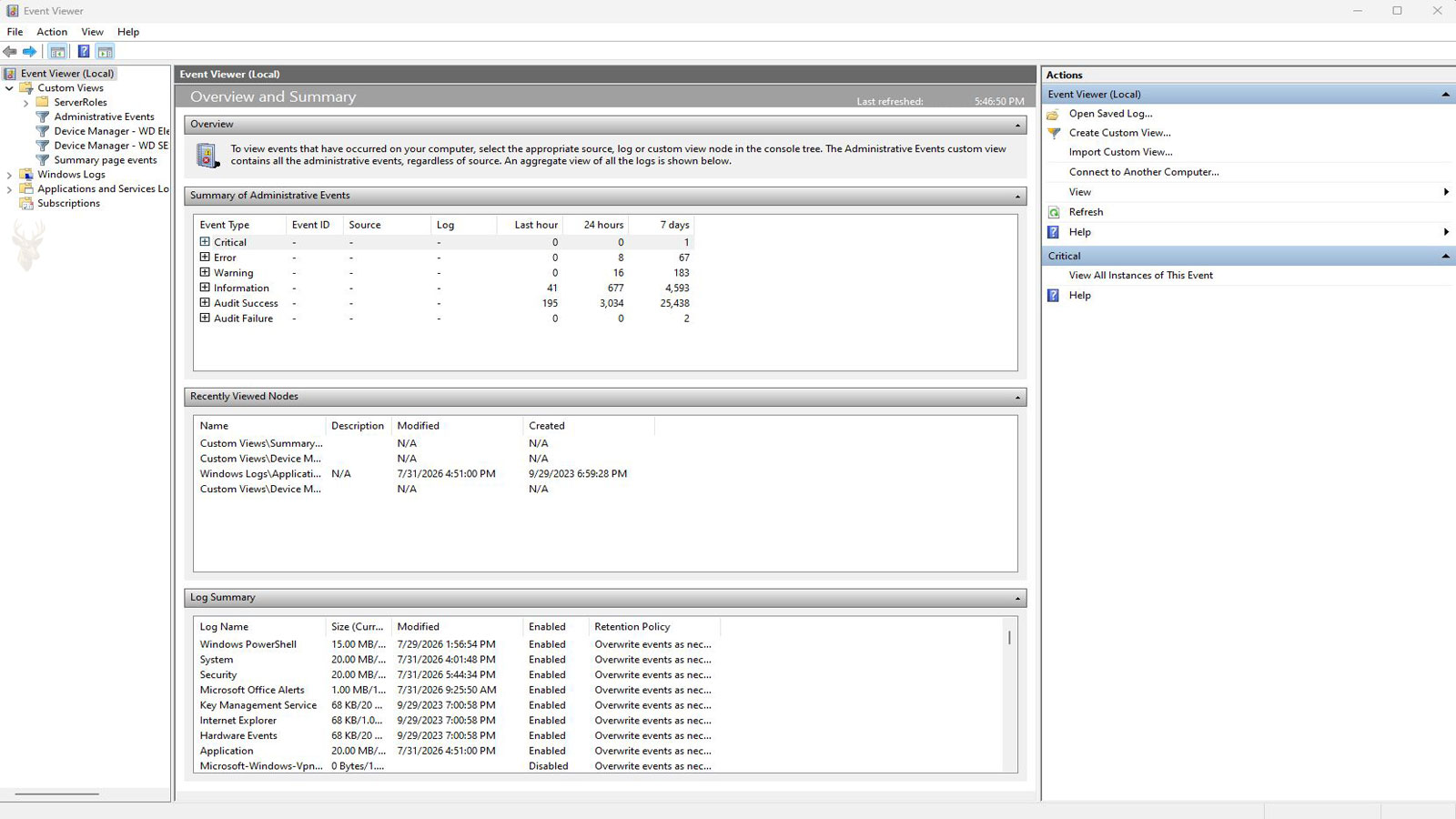
Most computer activity happens quietly in the background. Programs start, hardware initializes, Windows loads drivers, scheduled tasks run, and security features monitor the system. When something does not work correctly, Windows often records information about the event long before the user notices a visible problem. These records are stored in a built-in utility called Event Viewer.
For many technicians, Event Viewer is one of the first places to check when diagnosing an intermittent issue. It does not automatically identify the exact cause of every problem, but it provides a chronological record of what Windows observed. That information can reveal patterns that would otherwise remain hidden, especially when a computer experiences occasional crashes, startup failures, application errors, or unexpected restarts.
Understanding what Event Viewer does and just as importantly, what it does not do helps computer owners interpret system behavior more accurately and avoid drawing incorrect conclusions from individual log entries.
What Event Viewer Records
Windows constantly generates events as the operating system, installed software, drivers, and hardware interact. Event Viewer organizes these records into logs that document significant activities occurring throughout the computer.
Rather than recording every action performed by the system, Windows focuses on events considered useful for monitoring operation, troubleshooting failures, tracking security activity, or documenting changes that affect system behavior.
- Windows startup and shutdown events
- Driver initialization and failures
- Application crashes
- Hardware communication problems
- Disk warnings and storage errors
- User sign-in activity
- Security-related events
- Service startup failures
- Scheduled task execution
Each event contains technical details that help explain what happened, when it occurred, and which component generated the record.
The Main Windows Logs
Event Viewer contains numerous categories, but several logs are especially useful during everyday troubleshooting. Each serves a different purpose and focuses on a particular part of Windows.
| Log | Primary Purpose |
|---|---|
| Application | Records events generated by installed software. |
| System | Stores events related to Windows components, drivers, and hardware. |
| Security | Documents security auditing and authentication activity. |
| Setup | Tracks installation and update operations. |
| Forwarded Events | Stores events collected from other Windows systems when centralized logging is configured. |
Most home users spend very little time inside these logs unless a problem develops. Technicians, however, often compare entries from several logs together because a single issue may generate records in more than one location.
Understanding Event Levels
One of the first details users notice is that every event is assigned a level. These labels help indicate the general importance of the recorded event, although they should not be interpreted as an automatic measurement of severity.
- Information: Normal operating events that document expected system activity.
- Warning: Conditions that deserve attention but may not indicate an actual failure.
- Error: A process or component encountered a problem that prevented normal operation.
- Critical: A serious system failure, such as an unexpected shutdown or major operating system problem.
Seeing hundreds of Information entries is completely normal. Likewise, a Warning entry does not necessarily mean that hardware is failing. Many warnings are recorded simply because a device responded slowly, a service started later than expected, or a temporary communication problem occurred.
Event Viewer is most useful when multiple events form a consistent pattern over time. A single isolated error often provides far less diagnostic value than several related events occurring repeatedly.
Event IDs and Their Purpose
Every recorded event includes an Event ID. This numeric identifier groups similar events generated by the same Windows component or application. Although many people search the internet for a specific Event ID, the number alone rarely identifies the complete solution to a problem.
The same Event ID can appear on two different computers for entirely different reasons. Hardware configuration, installed software, driver versions, Windows updates, and user activity all influence the circumstances surrounding each event.
For that reason, experienced technicians rarely diagnose a computer using only one Event ID. Instead, they examine surrounding events, compare timestamps, review system history, and determine whether multiple components reported related problems within the same time period.
Looking Beyond Individual Errors
One of the most common misunderstandings is assuming that every Error entry represents the cause of a computer problem. In reality, many entries simply document the consequences of another failure that occurred earlier.
For example, if a storage device briefly becomes unavailable, Windows may generate several additional errors as applications lose access to files, services fail to respond, and background tasks stop unexpectedly. Those secondary events may appear more dramatic than the original storage interruption even though they are not the root cause.
This relationship is one reason technicians typically examine events both before and after the time a symptom appeared rather than focusing only on the most obvious error message.
Using Time to Identify Patterns
The timestamp attached to every event is often more valuable than the event itself. Computers may generate thousands of log entries over several days, making it impractical to inspect each one individually. Instead, narrowing the view to the period when a problem occurred can quickly reduce the amount of information that needs to be examined.
Suppose a computer freezes every afternoon around the same time. Rather than reviewing several days of logs, a technician can focus on the few minutes immediately before and after each freeze. If the same driver, service, or hardware component appears repeatedly during those time periods, it becomes a much stronger lead than an isolated error recorded days earlier.
This method of comparing timestamps is especially useful for diagnosing intermittent problems that are difficult to reproduce during a repair appointment.
Application Errors Versus System Errors
Not every problem recorded by Event Viewer affects the entire computer. Some events involve only a single application, while others indicate that Windows itself encountered a problem.
| Type of Event | Typical Effect |
|---|---|
| Application error | One program crashes or stops responding while the rest of Windows continues operating normally. |
| System error | Windows components, drivers, or hardware experience problems that may affect the entire computer. |
| Security event | Records authentication, permissions, or auditing activity without necessarily indicating a malfunction. |
| Service event | A background Windows service starts, stops, or fails unexpectedly. |
Recognizing the difference helps avoid unnecessary concern. A single application crash does not automatically suggest that Windows must be reinstalled or that hardware is failing.
Recurring Events Carry More Weight
Computers occasionally generate isolated warnings or errors during perfectly normal operation. A brief communication delay, a device waking from sleep, or a program closing unexpectedly can all produce log entries without indicating an ongoing problem.
When the same event appears repeatedly over days or weeks, however, it deserves closer attention. Consistent patterns often point toward a driver conflict, unstable hardware, failing storage, software incompatibility, or another issue that is gradually becoming more noticeable.
- The same Event ID appears every time Windows starts.
- A storage warning occurs several times each day.
- An application crashes after performing the same task.
- A network adapter repeatedly disconnects at regular intervals.
- A Windows service fails immediately after every reboot.
Looking for repetition generally produces more useful information than reacting to a single isolated entry.
Filtering the Information
Because Event Viewer stores such a large amount of information, Windows includes several tools that make searching easier. Filters allow users to display only certain event levels, dates, Event IDs, or sources instead of reviewing thousands of unrelated entries.
Custom views can also be created for recurring troubleshooting tasks. For example, an administrator may choose to display only Critical and Error events from the System log over the last seven days, making it easier to monitor computers that require regular maintenance.
Filtering reduces the amount of information on the screen, but it should never remove the surrounding context. Events immediately before and after a failure often provide important clues.
Hardware Problems That Leave Useful Clues
Although Event Viewer cannot perform hardware testing, it frequently records messages when Windows detects communication problems with installed devices. These records may help identify components that deserve additional inspection.
Examples include storage devices reporting read errors, network adapters resetting unexpectedly, graphics drivers restarting after becoming unresponsive, or USB devices repeatedly disconnecting and reconnecting. In each case, the log simply reports what Windows observed rather than confirming the exact cause of the malfunction.
Additional diagnostic tools are often needed before concluding that a component has failed. Hardware diagnostics, temperature monitoring, storage health tests, and visual inspection may all be part of a complete evaluation.
Software Changes Can Influence the Logs
Installing new software, updating drivers, applying Windows updates, or changing security settings can alter the types of events recorded by the operating system. Some entries appear only once during installation, while others continue appearing if the new software introduces compatibility issues.
Comparing the date of a newly installed application with the first appearance of recurring log entries can sometimes reveal a useful connection. This does not necessarily prove that the software caused the problem, but it provides another piece of information that can be evaluated alongside other evidence.
For that reason, technicians often ask when a problem first appeared and whether any updates or hardware changes occurred shortly beforehand. Matching those events with the system logs can make troubleshooting considerably more efficient.
Event Viewer Is a Diagnostic Tool, Not a Repair Tool
One misconception is that clearing the logs or deleting individual events somehow repairs the computer. Event Viewer does not fix problems, nor does it cause them. It simply records information that Windows has chosen to save.
Likewise, seeing a long list of errors should not automatically be interpreted as evidence that the operating system is severely damaged. Computers that have been running for months can accumulate thousands of entries while continuing to operate normally. The important question is whether those entries correspond with an actual symptom that the user is experiencing.
Successful troubleshooting combines the information found in Event Viewer with system behavior, hardware testing, software history, and direct observation. Looking at only one source of information can easily lead to incorrect conclusions.
When the Logs Contain Too Much Information
On computers that have been in service for several years, the number of recorded events can seem overwhelming. Fortunately, the quantity of entries is not usually the most important factor. Even a busy system often contains only a small number of records that are directly related to the issue being investigated.
Rather than attempting to review every warning or error, experienced technicians normally begin with a specific symptom, identify the approximate time it occurred, and work outward from there. This targeted approach is generally much more productive than scanning thousands of unrelated records.
Information That Supports Other Diagnostic Tools
Event Viewer becomes even more useful when its information is compared with other diagnostic resources available in Windows. Reliability history, storage health reports, memory diagnostics, hardware monitoring utilities, and application-specific logs can all contribute additional details that help explain the overall condition of a computer.
When several independent tools point toward the same component or the same time period, confidence in the diagnosis increases considerably. Conversely, if different sources disagree, additional testing is often needed before replacing hardware or making significant software changes.
Situations Where Event Viewer Is Especially Helpful
Although every repair is different, Event Viewer frequently provides valuable information during investigations involving recurring or difficult-to-reproduce problems.
- Unexpected shutdowns or spontaneous restarts.
- Applications that crash at regular intervals.
- Windows services that repeatedly fail to start.
- Storage devices reporting intermittent communication problems.
- Driver failures that occur after updates.
- Network adapters that disconnect unexpectedly.
- Hardware that functions normally most of the time but occasionally stops responding.
In many of these situations, the event logs do not provide the complete answer, but they establish a timeline that makes further troubleshooting much more efficient.
Building a More Complete Picture
Windows Event Viewer has been part of the operating system for many years because it serves an important purpose: documenting what Windows observes as the computer operates. Those observations become especially valuable when a problem develops gradually or occurs only under certain conditions.
Rather than focusing on individual warnings or searching for a single Event ID that promises an immediate solution, it is more productive to examine recurring patterns, compare timestamps, and evaluate multiple sources of diagnostic information together. That approach reduces unnecessary part replacement and helps distinguish between isolated incidents and genuine system faults.
For computer owners, becoming familiar with Event Viewer provides a better understanding of how Windows records system activity. For technicians, it remains one of many diagnostic tools that, when interpreted carefully and combined with practical testing, contributes to a more accurate assessment of both hardware and software problems.











