
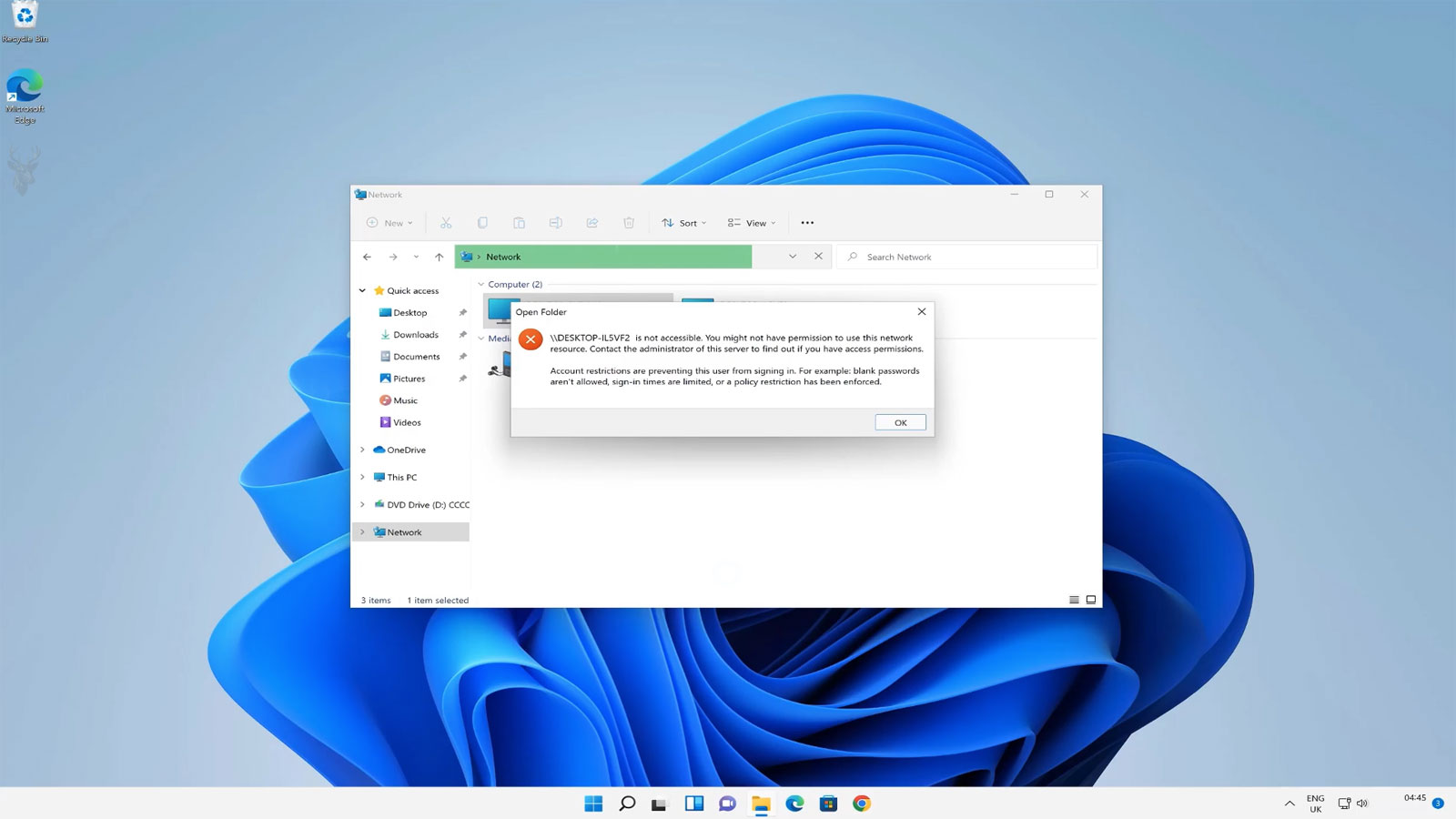
A Computer Can Reach the Internet While Losing Access to the Office Network
A computer in a small office may browse websites, send email, and connect to cloud services while being unable to open a shared folder, reach a network printer, access a local server, or start a business application. Because the internet still works, the problem may initially appear to affect only one program or device.
Internet access and local network access depend on related but different connections. A workstation can communicate successfully with the router and internet service while failing to locate, authenticate with, or receive permission from another device inside the office.
The cause may involve the affected computer, the destination resource, the network infrastructure, or the relationship between them. Address changes, stored credentials, firewall rules, permissions, name-resolution failures, network profile changes, and unavailable servers can all produce similar symptoms.
Working internet access confirms only part of the network path; it does not prove that local office resources remain reachable.
Office Network Resources Depend on Several Separate Layers
Opening a shared resource usually requires more than a physical network connection. The computer must join the correct network, receive usable addressing information, identify the destination, establish communication, present acceptable credentials, and receive authorization for the requested resource.
A failure at any one of these stages can make the final resource appear unavailable. Two computers may display nearly identical error messages even though one has an addressing problem and the other has a permission problem.
| Connection Layer | What Must Work | Possible Failure Result |
|---|---|---|
| Physical or wireless connection | The computer must connect to the intended switch, access point, or router | The network may appear disconnected or show limited connectivity |
| Network addressing | The computer must receive an address compatible with the office network | Internet or local resources may become unreachable |
| Name resolution | The resource name must lead to the correct network address | A server name may fail even when its address still works |
| Authentication | The destination must accept the supplied user identity and credentials | Repeated password prompts or sign-in failures may appear |
| Authorization | The authenticated user must have permission to use the resource | Access denied messages may appear after a successful connection |
| Application or service availability | The server, share, printer service, or business program must be running | The resource may time out or appear offline |
Effective troubleshooting begins by determining which layer is failing instead of repeatedly reconnecting drives, reinstalling printers, or changing passwords without a clear reason.
The Internet and the Local Network Are Not the Same Destination
Most office computers reach the internet through a router that also connects local devices. The router can continue forwarding internet traffic even when a workstation cannot communicate properly with a server, printer, storage device, or another computer on the local network.
A website may be reached through public name servers and an external route, while a shared folder depends on an internal computer name, private address, local authentication, and file-sharing service. Success in one path does not confirm the other.
This distinction is important when employees report that “the network is working” because web pages open. Their observation is useful, but it narrows only part of the problem.
A workstation can be online to the world while remaining disconnected from the resources across the room.
Connecting to the Wrong Wireless Network Can Isolate a Workstation
Small offices sometimes operate several wireless networks, including an internal employee network, guest access, separate equipment networks, and wireless service supplied by more than one router. A computer can connect automatically to the wrong one after restarting, moving between rooms, or losing its preferred connection.
The guest network may provide normal internet access while intentionally blocking communication with office computers, printers, and servers. This isolation protects internal systems from visitors but can confuse an employee whose laptop connected to the guest network automatically.
Two wireless names may also look nearly identical. A replacement router, range extender, mobile hotspot, neighboring business, or old saved profile can attract the computer to a network that does not provide access to the required resources.
Internet Access on a Guest Network Can Look Completely Normal
The employee may not notice the change until a shared drive, local printer, accounting database, or office server refuses to connect.
An Incorrect Network Profile Can Restrict Local Discovery and Sharing
Windows classifies network connections through profiles such as private and public. A private profile is generally intended for trusted home or workplace networks, while a public profile applies more restrictive firewall and discovery behavior.
After a router replacement, network reset, major update, or connection change, Windows may identify the office network as new and assign a public profile. The computer may retain internet access while network discovery, file sharing, printer communication, or inbound connections become restricted.
Changing the profile should be done only after confirming that the computer is connected to the trusted internal office network. A public profile provides useful protection on airports, hotels, cafés, and other untrusted networks.
A restrictive network profile can block local communication without interrupting ordinary web browsing.
An Address From the Wrong Network Can Prevent Local Communication
Every computer communicating through an Internet Protocol network requires an address and related configuration. In many offices, a router or server assigns these settings automatically through the Dynamic Host Configuration Protocol.
If the computer receives an address from the wrong router, keeps an outdated manual address, or fails to receive a proper assignment, it may no longer belong to the same logical network as the resource it needs.
The computer might still reach the internet through another route or wireless connection. However, attempts to reach a server or printer on the expected office address range may fail because the devices are no longer communicating through the same local path.
A Self-Assigned Address Often Indicates That Automatic Configuration Failed
When a computer is configured to receive an address automatically but cannot contact the service responsible for assigning one, the operating system may create a temporary self-assigned address. This allows limited communication with similarly configured devices but usually does not provide normal access to the office network.
The taskbar may show no internet access, an unidentified network, or a limited connection. In other cases, a second active adapter may continue providing internet access, making the addressing failure less obvious.
The underlying issue may involve a disconnected cable, failed switch port, wireless authentication problem, exhausted address pool, unavailable DHCP service, incorrect virtual adapter, or network equipment that has not restarted properly.
- The computer displays an unidentified or limited network.
- Local servers and printers cannot be reached.
- The assigned address does not resemble those used by working office computers.
- Disconnecting and reconnecting briefly changes the network status.
- Another adapter, such as Wi-Fi or a mobile hotspot, still provides internet access.
These symptoms do not prove that DHCP is the cause, but they justify comparing the workstation’s configuration with a known working computer on the same network.
A Static Address Can Become Incorrect After Network Equipment Changes
Some office computers, printers, servers, and specialized devices use manually assigned addresses. This can make their locations predictable, but it also means their settings do not automatically adjust when the network design changes.
A new router may use a different address range, gateway, or name-server configuration. A workstation retaining the old settings may lose access even though its cable and network adapter remain functional.
Partial communication is possible. The computer may reach devices using old compatible settings while failing to connect to new equipment, the internet, or resources that depend on name resolution.
Manual addressing should be documented so it can be reviewed whenever routers, firewalls, servers, switches, or internet services are replaced.
Duplicate Addresses Can Cause Intermittent Network Access
Two devices should not use the same address simultaneously on the same network. If a manually assigned address overlaps with one distributed automatically, traffic may be delivered inconsistently to the wrong device.
The affected computer may work for several minutes, lose access, reconnect, or display an address-conflict warning. The behavior can change depending on which device started first and how network equipment currently maps the address.
Shared folders, printers, remote sessions, and business applications may disconnect without the entire network going offline. Restarting one device may seem to correct the problem temporarily because it changes which system responds.
An address conflict can create an intermittent failure because two devices are competing for the same network identity.
A Server Address Can Change While an Old Shortcut Remains
Shared folders and business applications are often reached through shortcuts, mapped drives, saved paths, or configuration files. These references may use a computer name, network address, or both.
If a server receives a new address after a restart or router replacement, a shortcut pointing directly to the previous address will fail. Other employees may continue working if their systems use the server name or have already updated their references.
The reverse can also occur. A server may be reachable by address while its name no longer resolves correctly. Testing both methods helps distinguish a connectivity failure from a name-resolution failure.
Name Resolution Allows Employees to Use Familiar Resource Names
Users generally remember a name such as an office server or printer more easily than a numerical network address. Name-resolution services translate that familiar name into the address required for communication.
If the translation is missing, outdated, or directed to the wrong device, the resource name may stop working. The server itself can remain fully operational and accessible by its current address.
Small offices may rely on several name-resolution methods at once, including DNS, local discovery, cached records, router registrations, and information announced by individual devices. A change in one method can affect only selected workstations.
A resource can remain online while the network loses the directions needed to find it by name.
Cached Name Information Can Point to an Old Address
Computers temporarily store name-resolution results to reduce repeated network lookups. This cache improves performance, but it can preserve an outdated address after a server, printer, or router changes.
One employee may connect normally because their computer obtained the new address, while another continues trying the previous one. Restarting the workstation may clear some temporary information, but not every saved path or application cache is necessarily refreshed.
A correct diagnosis should identify whether the old address comes from the operating system cache, a local configuration file, the router, a DNS server, a mapped drive, or the business application itself.
Similar Server Names Can Direct Users to the Wrong System
During migrations or equipment replacement, an office may temporarily operate an old server and a new server with similar names. Saved shortcuts, recent-item histories, and application settings can continue directing some users to the retired system.
The user may receive a password prompt, outdated files, an empty folder, or a connection failure. Because the name looks familiar, the possibility of reaching the wrong destination may not be considered.
Clear naming, documented retirement procedures, and removal of old network references help prevent employees from connecting to obsolete resources.
Old Resources Should Not Remain Ambiguous
A retired server or share should be clearly removed, renamed, redirected, or documented so that employees do not unknowingly continue using it.
Mapped Drives Can Fail Even When the Shared Folder Still Exists
A mapped drive assigns a drive letter to a network location. It provides convenient access, but the mapping depends on a saved path, user context, credentials, and the availability of the destination when Windows attempts the connection.
The drive may display a disconnected symbol after startup even though opening it reconnects successfully. This can happen when the computer starts before the wireless connection, virtual private network, or server is ready.
In other cases, the mapped path points to a resource that was renamed, moved, or removed. Recreating the mapping without confirming the correct destination can reconnect the user to the wrong folder or conceal a broader network problem.
Drive Letters Can Conflict With Local and Removable Storage
A mapped network drive can use the same letter later assigned to a USB drive, card reader, external disk, or other storage device. Windows cannot present two different locations through the same drive letter at the same time.
The network mapping may disappear, fail to reconnect, or become inaccessible while the conflicting device is attached. An application expecting the network location may then report missing data even though the server remains online.
Business mappings are often assigned letters farther from those commonly used by removable drives. Consistent drive-letter planning reduces conflicts across workstations.
A missing mapped drive may reflect a local letter conflict rather than a failed server connection.
Saved Credentials Can Continue Supplying an Old Password
Windows and business applications can save usernames and passwords for network resources. This allows employees to reconnect without entering credentials each time, but the saved information can become outdated after a password change, account migration, or server replacement.
The workstation may silently submit the old password and receive an access failure. Repeated prompts can appear even when the employee enters the correct current password because another saved connection is still using different credentials.
Applications, scheduled tasks, mapped drives, backup software, scanners, and synchronization tools may each store their own credentials. Correcting only the visible prompt may not update every background connection.
A Password Change Can Affect More Than the User’s Sign-In
Employees often think of a password as belonging only to their Windows sign-in or email account. In an office environment, the same account may also authorize access to shared folders, printers, remote applications, databases, and scheduled processes.
After the password changes, existing sessions may continue temporarily while new connections fail. This can create the impression that one application is broken while another remains functional.
The problem may become more visible after a restart, sign-out, network interruption, or server maintenance because the computer must establish fresh sessions using the new credentials.
An old session can hide a credential problem until the computer is forced to authenticate again.
Different Usernames Can Refer to Different Security Authorities
A small office may use local computer accounts, server accounts, Microsoft accounts, domain accounts, cloud identities, and application-specific credentials. The same visible username can exist in more than one location.
Entering only the username may cause the destination to check the wrong account source. Specifying the server, computer, or domain associated with the account may be necessary to identify the intended user correctly.
This issue often appears after replacing a workstation or changing from local accounts to centralized management. The employee may believe they are using the same identity while the network recognizes it as a different account with different permissions.
Authentication and Permission Are Separate Decisions
Authentication confirms who the user is. Authorization determines what that user is allowed to do. A successful sign-in does not automatically provide access to every shared folder, printer, database, or server function.
An employee may connect to the server successfully but receive an access denied message when opening a specific department folder. Another employee may reach the same share because their account belongs to a different security group.
Changing passwords will not correct a missing permission assignment. The resource permissions, group membership, account status, and intended business access must be reviewed.
Shared-Folder Access Can Depend on More Than One Permission Layer
A Windows file share may apply sharing permissions at the network level and file-system permissions to the folders and files themselves. The user’s effective access is influenced by both layers.
A share can appear visible while its contents remain inaccessible. The opposite can also occur when file-system permissions are correct but the network share does not allow the connection.
Permission changes should be planned carefully. Granting broad access to overcome one error can expose confidential records to employees who do not require them.
Resolving an access error should restore the intended permission, not remove the protection surrounding the data.
Group Membership Changes May Not Affect an Existing Session Immediately
Businesses often assign access through groups rather than modifying every user individually. Adding an employee to a group can provide access to the resources associated with that role.
However, an existing sign-in session may still use a security token created before the membership changed. The user may need to sign out, restart, or establish a new session before the updated permissions are recognized.
Repeatedly modifying the permissions during this delay can create unnecessary complexity. The change should be verified after the user’s authentication session has been refreshed.
Disabled, Locked, or Expired Accounts Can Interrupt Resource Access
An employee account may be disabled intentionally, locked after repeated failed sign-in attempts, or restricted by an expired password. Existing local access can make the computer appear usable while network authentication fails.
The employee may continue opening local files and previously cached information but lose shared folders, databases, remote services, and printers that require a fresh server connection.
Account status should be checked before passwords are reset repeatedly or permissions are changed. A locked or disabled account requires a different correction from a valid account using an incorrect password.
A Firewall Can Permit Internet Traffic While Blocking Local Services
Firewall rules distinguish between types of traffic, network profiles, applications, ports, and connection directions. A rule can allow normal web access while blocking file sharing, printer discovery, remote management, or a business application.
Security software updates, network-profile changes, new endpoint policies, or application installations can modify these rules. The failure may affect only one workstation even though the office infrastructure remains unchanged.
Disabling the firewall permanently is not an appropriate repair. The blocked service and required rule should be identified so that local access can be restored without removing unrelated protection.
The Destination Computer Can Also Block the Connection
Troubleshooting often focuses on the employee’s workstation, but the server, host computer, printer, or storage device can reject incoming connections. Its firewall, sharing service, network profile, or security software may have changed.
If every employee loses access to the same resource, the destination or shared network path becomes more likely. If only one employee is affected, the workstation, account, or route may deserve closer attention.
The number and location of affected users provide useful evidence, but exceptions are possible. A server-side permission change can affect only one account, while a switch failure can isolate several nearby desks.
Who Is Affected Helps Narrow the Search
Comparing one user, one department, one physical area, and the entire office can reveal whether the failure follows a computer, account, resource, or network segment.
File-Sharing Services Must Be Running on the Host
A computer or server can respond to basic network communication while the service responsible for file sharing is stopped, disabled, or unresponsive. Employees may see the device online but remain unable to open its shared folders.
Updates, crashes, resource exhaustion, security changes, and incomplete restarts can affect individual services. Restarting the entire server may temporarily restore access without identifying why the service stopped.
Repeated service failure should be investigated through system logs, dependency checks, storage health, update history, and resource usage. A recurring outage may indicate a larger server problem.
Sleeping Host Computers Can Make Shared Resources Disappear
Some small offices share files or printers from an ordinary desktop computer rather than a dedicated server. When that host computer enters sleep mode, shuts down, installs updates, or loses its network connection, every resource attached to it becomes unavailable.
Employees may assume the printer or folder has failed because they do not realize another workstation must remain awake. The resource can return immediately when the host computer resumes.
Critical shared resources should not depend on an employee workstation whose power state changes unpredictably. A dedicated and documented host provides more reliable availability.
A shared device cannot remain available when the computer providing the share is asleep or offline.
A Network Printer Can Be Online but Unavailable Through Its Old Address
Network printers commonly receive an address from the router or use a manually configured one. If the address changes, workstations with printer ports pointing to the old location can no longer send jobs correctly.
The printer may appear powered on, display a normal network symbol, and work from another computer. The affected workstation can continue showing the installed printer while reporting it offline.
Removing and reinstalling the printer may locate its current address, but the addressing method should also be stabilized. Otherwise, the same failure can return after another restart or network change.
Printer Sharing Through Another Computer Adds an Extra Dependency
A USB printer shared from a workstation depends on the printer, host computer, host operating system, sharing service, user permissions, network connection, and client configuration. Failure in any one of these areas can make the printer unavailable.
The printer may work perfectly when used directly from the host while every other employee sees it offline. This does not necessarily indicate a printer hardware problem.
For frequently used office printers, a direct network connection or dedicated print service can reduce dependence on one employee computer.
The more devices and services involved in a shared path, the more places a connection can fail.
Business Applications May Depend on a Network Path Hidden From the User
An accounting, scheduling, inventory, design, or customer-management program may store its data on a server even though the employee opens it through a normal desktop shortcut. The network dependency may not be obvious until the connection fails.
The program may report that its database is missing, another user has locked the file, the company file cannot be found, or the server is unavailable. Reinstalling the application does not correct a failed path to its data.
The location of business data should be documented before troubleshooting begins. Opening a newly created empty database or local sample file can make the program appear functional while hiding the original connection problem.
A Shortcut Can Continue Opening an Obsolete Data Location
When business data is moved to a new server or folder, old shortcuts may remain on individual desktops, taskbars, recent-item lists, and application settings. Employees can unknowingly continue attempting to open the previous location.
Some users may reach the new resource while others receive missing-file or access errors. The difference can follow their shortcut rather than their account or computer.
A migration should include removal or replacement of obsolete paths across every workstation that used the old location.
Offline Files Can Make an Unavailable Share Look Partially Functional
Windows can store local copies of selected network files for offline access. This allows employees to work when the server is temporarily unavailable and synchronize changes later.
The feature can also create confusion. Some folders may open from the local cache while others remain unavailable, making the network connection appear inconsistent.
Files edited offline may later produce synchronization conflicts if the server copy also changed. The presence of cached content should be identified before old local copies are mistaken for current shared data.
Stale Offline Copies Can Conceal a Server Connection Failure
An employee may continue opening documents without realizing that the workstation is no longer synchronizing with the server. Other users can make changes that never appear on the disconnected computer.
The problem may not become obvious until the user creates a new file, accesses an uncached folder, or sees a synchronization warning. At that point, several days of work may exist only on the local computer.
Synchronization status should be checked before cached files are deleted or the offline feature is reset. Unsynchronized work must be preserved first.
Opening a cached file does not prove that the workstation is currently connected to the shared folder.
A VPN May Be Required for Resources Outside the Office
Employees working from home, traveling, or using another location may need a virtual private network to reach resources that are available only inside the office network. Internet access alone does not provide that private route.
The employee may successfully use email and cloud applications while local file shares, printers, databases, and management tools remain unavailable. Connecting the VPN establishes access only if the correct routes, credentials, and security policies are applied.
A connected status does not guarantee that every office resource is reachable. The VPN may permit selected systems while blocking others intentionally.
Home and Office Networks Can Use Conflicting Address Ranges
A remote employee’s home router may use the same private address range as the office. When the user attempts to reach an office resource through the VPN, the computer may incorrectly treat the destination as a local home device.
The VPN can appear connected while one or more office resources fail. Other employees using different home-network ranges may connect without difficulty.
Resolving the conflict may require changes to the home network, office addressing, or VPN route configuration. Reinstalling the affected business application will not change the path chosen by the network.
Two separate networks using the same addresses can leave the computer uncertain about which destination is local and which belongs across the VPN.
Multiple Active Network Adapters Can Send Traffic Through the Wrong Path
A workstation may have Ethernet, Wi-Fi, VPN, virtual-machine adapters, docking-station networking, and mobile connections active at the same time. Windows selects routes according to the configuration and priority of these adapters.
Internet traffic may leave through one connection while local resource traffic attempts another. An employee connected by cable may still send selected requests through Wi-Fi or a virtual adapter with incompatible settings.
Disabling adapters at random can interrupt remote access or business applications. The active routes and purpose of each connection should be understood before changes are made.
Docking Stations Can Introduce a Different Network Identity
A laptop connected through a dock may use the dock’s Ethernet adapter instead of its built-in wireless or wired adapter. The network can treat this as a different device because it presents a different hardware identity.
Address reservations, security approvals, network access controls, and device records associated with the laptop’s original adapter may not apply to the dock. The computer can work normally when undocked and lose selected resources when connected at the desk.
Testing the laptop through each adapter helps determine whether the failure follows the computer, user account, cable, dock, or network identity.
Switch Ports Can Place Devices on Different Logical Networks
Managed switches can assign ports to separate virtual local area networks. Two desks connected to the same physical switch may belong to different logical networks with different access rules.
Moving a computer to another office, replacing a cable, or reconnecting equipment after maintenance can place the workstation on a port configured for phones, guests, cameras, or another department.
The computer may receive internet access but lose servers and printers that are available only to its intended network segment. Comparing the affected port with a known working port can help identify the difference.
Network Segmentation Can Intentionally Limit Resource Access
Separating employee computers, guest devices, payment systems, security cameras, servers, and internet-connected equipment can improve security. Communication between those segments is controlled by routing and firewall policies.
A new printer or computer placed on the wrong segment may remain online while being unable to reach the users or services that require it. The failure is not necessarily accidental; the network may be enforcing its configured boundaries.
Access should be added through an appropriate rule or placement change rather than by removing segmentation entirely.
A secure network may block communication by design, so restoring access requires identifying the intended path rather than eliminating every restriction.
Security Software Can Isolate a Device After Detecting a Risk
Endpoint security systems may restrict network communication when a workstation is considered infected, out of compliance, or missing required updates. Internet access may remain limited or filtered while internal resources are blocked.
The employee may see only ordinary connection failures unless the security agent displays a warning. Centralized management records may provide more information than the local workstation.
Removing security software to restore access can leave the business exposed and may violate company requirements. The reason for isolation should be identified and corrected through the intended management process.
Updates Can Change Network Components Without Causing a Complete Outage
Operating-system, driver, security, and application updates can affect network profiles, adapter behavior, firewall rules, authentication requirements, and supported communication methods.
The workstation may retain general connectivity while one older server, printer, or application no longer communicates. This can occur when the update disables an outdated protocol or strengthens a security requirement.
Rolling back every update is not always appropriate. The destination resource may need a compatible configuration or update of its own.
A security improvement on one computer can expose an outdated dependency elsewhere on the office network.
Older Devices May Depend on Communication Methods No Longer Enabled
Legacy storage devices, multifunction printers, specialized equipment, and older servers may rely on network protocols that modern operating systems restrict or disable for security reasons.
An older workstation may continue connecting while a newly installed or updated computer fails. The difference can lead users to assume that the new computer is defective.
Re-enabling an obsolete protocol can introduce risk. Replacing, updating, or isolating the legacy device may provide a safer long-term solution.
Computer Replacement Can Break Connections That Were Never Documented
An old workstation may contain years of saved drive mappings, printer ports, credentials, application paths, certificates, and manual network settings. A replacement computer does not automatically inherit every dependency.
The employee may sign in successfully and access the internet while several office functions remain unavailable. Reinstalling the visible applications may not restore hidden configuration files or service accounts.
Before replacing a business computer, its resource connections should be inventoried. This reduces the chance of discovering an undocumented dependency after the old system has already been removed.
A Working Desktop Can Contain Invisible Business Configuration
Network access may depend on saved settings that employees use every day without knowing where those settings are stored.
The Pattern of Failure Helps Identify the Responsible Area
Before changing network settings, it is useful to determine what still works, what fails, when the problem began, and who else is affected. The answers can separate a workstation problem from a resource outage or infrastructure change.
A failure affecting one user across several computers may follow the account. A failure affecting every user on one computer may follow that workstation. A failure affecting everyone who uses one printer or server may follow the resource.
Physical location also matters. Several affected computers in one room may share a switch, access point, cable path, or electrical problem.
Repeated Reconnection Can Hide the Original Cause
Removing mapped drives, deleting printers, clearing credentials, resetting adapters, and restarting equipment can temporarily restore access. However, making many changes at once removes evidence about which condition caused the failure.
A systematic process records the original error, connection method, affected users, resource name, address information, and recent changes before rebuilding configurations.
This approach reduces unnecessary disruption and makes recurring problems easier to recognize.
The fastest reliable repair often begins by preserving the pattern of the failure before resetting everything that produced it.
Office Resource Failures Should Be Diagnosed as Paths, Not Isolated Icons
A disconnected drive letter, offline printer symbol, or unavailable application is the visible end of a longer network path. The user interface does not always reveal whether the failure began with the workstation, credentials, addressing, routing, destination service, or permission structure.
Following the path from the employee’s computer to the intended resource makes the diagnosis more precise. It also avoids replacing working equipment or weakening security controls simply because the final connection failed.
Small office networks become easier to support when their addresses, resource names, user permissions, server roles, printer locations, and dependencies are documented. That documentation turns an unexplained outage into a connection problem that can be traced one layer at a time.
Network Cables Can Appear Connected While Failing Intermittently
An Ethernet cable does not always fail completely. A damaged connector, partially broken conductor, bent retaining clip, or loose wall jack can allow a computer to remain connected while introducing intermittent communication problems.
Employees may report that shared folders disappear briefly, printers become unavailable, remote desktop sessions disconnect, or business applications lose communication before reconnecting without intervention. Internet browsing may continue working because the interruption is short enough for websites to recover automatically.
Repeated movement of laptops, docking stations, desks, and office furniture can gradually stress network cables and connectors. Physical inspection should be considered alongside software troubleshooting.
A cable that works most of the time can be more difficult to diagnose than one that fails completely.
Wireless Signal Quality Can Affect Office Resources Before Internet Browsing
Small reductions in wireless signal quality may not prevent web pages from loading, but they can interrupt activities that depend on continuous communication with office resources. Shared databases, synchronized folders, voice applications, and remote desktop sessions are often more sensitive to interruptions than ordinary browsing.
A laptop located near metal shelving, conference-room displays, elevator shafts, or dense building materials may experience brief communication losses even though its wireless icon continues showing a connection.
Moving only a short distance or reconnecting to another access point may temporarily improve stability. Consistent failures in one physical location often indicate radio coverage rather than authentication or permission problems.
Signal strength and connection quality are related but not always identical.
Roaming Between Wireless Access Points Can Interrupt Active Sessions
Offices with multiple wireless access points allow employees to move throughout the building without manually reconnecting. During this transition, however, active sessions may briefly pause while the computer selects the stronger signal.
Email and web browsing often recover without notice, but accounting software, remote desktop connections, inventory systems, and database applications may detect the interruption immediately.
If employees consistently lose access while walking between work areas, meeting rooms, or warehouses, wireless roaming behavior deserves attention alongside application configuration.
Slow Name Resolution Can Make Servers Appear Offline
Employees often describe a server as unavailable when it is actually responding more slowly than expected. If locating the server name takes several seconds, applications may display timeout errors before communication is fully established.
The server itself may continue functioning normally. Delays can originate from overloaded DNS services, unreachable name servers, incorrect forwarding, or temporary communication problems between network devices.
Comparing connection attempts by server name and by direct address can help determine whether the delay occurs during name resolution or after communication begins.
| Observed Symptom | Possible Underlying Cause | Typical Result |
|---|---|---|
| Server name responds slowly | Name-resolution delay | Applications report temporary connection failures |
| Server address connects immediately | DNS or cached-name problem | Resource itself remains available |
| Both name and address fail | Communication or server issue | Resource is likely unreachable |
| Only selected workstations fail | Local cache or workstation configuration | Problem follows individual computers |
Network Discovery Can Fail While Direct Connections Continue Working
Employees sometimes believe a server or printer has disappeared because it no longer appears automatically inside Windows Explorer or the Network section. However, manually entering the resource path may still establish a successful connection.
Automatic discovery depends on additional services beyond basic communication. Those services may stop functioning without affecting direct access.
This distinction prevents unnecessary replacement of equipment that remains available through its known address or shared path.
Failure to discover a resource automatically does not necessarily mean the resource itself is offline.
Network Time Differences Can Affect Authentication
Many business authentication systems rely on reasonably synchronized clocks. A workstation with a significantly incorrect date or time may experience authentication failures even when usernames and passwords are correct.
The employee may continue using local applications while shared folders, remote services, and business servers reject new authentication attempts.
Clock synchronization becomes especially important after replacing a computer battery, restoring backups, reinstalling Windows, or recovering from hardware failure.
Business Software Licenses Can Depend on Network Communication
Some office applications obtain licenses from a server rather than storing permanent activation on each workstation. If communication with the licensing service fails, the application may refuse to start or operate with reduced functionality.
Employees sometimes assume the software itself has become damaged, even though the underlying issue is the inability to reach the licensing server through the office network.
License-related communication should be evaluated before reinstalling business software that previously functioned normally.
Licensing Servers Are Often Invisible During Normal Work
Employees may not realize that successful application startup depends on a background network service running elsewhere in the office.
Security Certificates Can Prevent Successful Connections
Modern business applications frequently encrypt communication with servers. Expired certificates, incorrect server names, or trust problems may prevent secure connections even though the server remains online.
Employees may receive warnings about secure connections, certificates, or encrypted sessions instead of simple network errors. Ignoring these warnings without understanding their cause can introduce security risks.
The certificate presented by the server should match the intended resource and remain valid according to the organization’s security requirements.
A secure connection can fail because trust cannot be established, not because communication is impossible.
Resource Availability Can Change During Scheduled Maintenance
Servers, storage systems, switches, routers, and business applications sometimes become unavailable during planned maintenance windows. Employees arriving early or working late may encounter temporary connection failures that disappear after maintenance is complete.
Without communication about scheduled work, users may believe hardware has failed or their computers require repair. Maintenance records provide useful context when troubleshooting begins.
Knowing whether the interruption affects all employees or only one workstation helps distinguish scheduled maintenance from isolated technical problems.
Resource Usage Can Delay Connections Without Creating Complete Failures
A server approaching its processor, memory, storage, or network limits may continue accepting connections while responding much more slowly than usual. Employees may experience timeouts, delayed folder listings, slow searches, and postponed printer jobs.
The server has not necessarily stopped working. Instead, requests accumulate faster than they can be processed.
Performance monitoring provides valuable information before resource shortages develop into complete service interruptions.
- Folders require much longer than usual to open.
- Printer jobs remain pending before printing.
- Business applications pause while retrieving information.
- Employees report delays rather than complete disconnections.
- Performance improves outside busy business hours.
Comparing Working and Nonworking Computers Often Reveals the Difference
When only one workstation experiences network resource failures, comparing it with a nearby computer that continues working can identify meaningful differences much faster than changing settings randomly.
Network profile, address assignment, wireless connection, credentials, mapped drives, server paths, printer configuration, application settings, and security software can all be reviewed systematically.
Small differences that appear insignificant individually often explain why one employee continues working while another cannot access the same shared resource.
| Comparison Item | Working Computer | Problem Computer |
|---|---|---|
| Network profile | Private office network | Public profile or different network |
| Wireless network | Employee network | Guest or incorrect network |
| Mapped drives | Current server paths | Outdated mappings |
| Credentials | Current account information | Saved outdated credentials |
| Resource access | Normal | Fails consistently |
Methodical comparison reduces unnecessary configuration changes and preserves useful troubleshooting evidence.
Intermittent Switch Problems Can Affect Only Part of the Office
A network switch connects several office computers, printers, phones, access points, and servers. A complete switch failure can disconnect an entire area, but partial problems may affect only one port, one group of ports, or one type of traffic.
An employee may retain internet access while experiencing slow shared folders, dropped printer connections, or unstable communication with a local server. Another workstation connected through a different port can continue working normally.
Moving the computer temporarily to a known working connection can help determine whether the failure follows the workstation or remains with the original switch port and cabling path.
A network device does not need to fail completely before it begins disrupting selected office resources.
Port Negotiation Problems Can Reduce Network Reliability
Ethernet devices normally negotiate connection speed and communication settings automatically. A damaged cable, faulty adapter, incompatible switch port, or incorrect manual configuration can interfere with that process.
The computer may connect at a lower speed than expected or experience transmission errors. Basic internet use may remain possible, while large file transfers, database access, backups, and remote sessions become noticeably unstable.
Connection speed alone does not prove that the link is healthy. A port can report an active connection while errors continue accumulating in the background.
Network Loops Can Create Widespread but Inconsistent Failures
A network loop occurs when switching equipment is connected in a way that allows traffic to circulate repeatedly. This can happen after an unmanaged switch is added, cables are moved, or two wall connections are unintentionally linked together.
The office may experience sudden slowdowns, intermittent disconnections, unavailable printers, delayed server responses, and unstable internet access. The symptoms can change rapidly because excessive traffic affects the entire local network.
Restarting equipment may briefly restore service, but the problem returns while the loop remains. Physical network changes made shortly before the failure provide an important clue.
A single misplaced cable can disrupt communication across many otherwise working computers.
Broadcast Traffic Can Overload Small Office Networks
Some network messages are delivered broadly so devices can discover resources or announce their presence. Normal broadcast traffic is expected, but a malfunctioning device or software process can generate much more traffic than the network can handle comfortably.
Employees may report that resources appear and disappear, network folders take a long time to open, or printer discovery becomes unreliable. The problem can resemble a server failure even though the server itself remains operational.
Traffic monitoring and switch information can help identify which device or connection is producing unusual activity. Disconnecting equipment without a plan can temporarily reduce the symptoms while leaving the original cause unknown.
Malfunctioning Devices Can Disrupt Neighboring Computers
A failing network adapter, printer, camera, telephone, access point, or unmanaged switch can introduce excessive traffic, address conflicts, or repeated connection changes. The affected device may still appear to function partially.
Because the symptoms appear on other computers, attention may remain focused on the server or router. The actual source can be a recently added or failing device elsewhere on the network.
The timing of the first outage should be compared with equipment installations, desk moves, cable changes, and power interruptions.
A network problem observed on one computer can originate from another device sharing the same infrastructure.
Router Replacements Can Alter More Than Internet Access
Replacing an office router may change the local address range, wireless names, firewall behavior, DHCP assignments, DNS settings, reserved addresses, and communication between network segments.
The internet may begin working immediately after the replacement while shared folders, printers, servers, remote-access systems, and specialized devices remain unavailable.
Restoring the previous wireless name alone does not reproduce every internal setting. Resource addresses, port rules, reservations, and routing behavior must also be reviewed.
Factory-Default Equipment Can Create a Second Network
A new router, wireless extender, or combination modem may begin operating with its own address assignments and firewall. If it is added without being configured for the existing network design, devices connected through it can become separated from the original office resources.
Employees may receive normal internet access from the new equipment while losing communication with servers and printers connected to the older network. This condition is sometimes called double routing or double network address translation.
The office may then contain two private networks that cannot communicate freely even though both lead to the same internet connection.
New Equipment Should Fit the Existing Design
A device intended only to extend coverage should not quietly begin assigning addresses and separating users from the rest of the office.
Power Interruptions Can Leave Network Equipment in Different States
After an outage, router, switch, server, printer, storage device, and wireless equipment may restart at different speeds. Some devices can request addresses or announce services before the systems they depend on are ready.
The result may be missing shares, changed printer addresses, failed name registration, or applications that cannot reconnect until selected equipment is restarted again.
A coordinated restart order can restore dependencies more reliably than repeatedly cycling devices at random. The modem or internet gateway, router, switches, servers, storage, printers, access points, and workstations may each have a place in that sequence.
After a power failure, every device may be running while the services between them have not recovered in the correct order.
Uninterruptible Power Does Not Protect Every Network Dependency
A server may remain powered by an uninterruptible power supply while its switch, router, modem, wireless access point, or storage device loses electricity. Employees can see the server still running but remain unable to reach it.
Critical network paths should be evaluated as complete systems. Protecting only the main server does not preserve access when intermediate equipment shuts down.
Battery capacity must also be sufficient for the number of connected devices. Overloading a small backup unit can shorten runtime or cause it to shut down immediately during an outage.
Network Storage Can Be Online While Individual Shares Are Missing
A network-attached storage device may respond to its management page while selected shared folders remain unavailable. The storage volume may be degraded, unmounted, encrypted, locked, or undergoing a consistency check.
Employees may conclude that the entire device is functioning because its status page opens. Management access, however, does not confirm that every data volume and file-sharing service is ready.
Storage warnings should be reviewed before the unit is repeatedly restarted. A failing disk, damaged file system, or incomplete array rebuild may require careful handling to protect the data.
Storage Capacity Can Affect Shared Folder Access
A server or storage device that has run out of free space may allow employees to open existing files while preventing new files, edits, temporary data, or database transactions from being saved.
Applications can report access denied, disk full, database unavailable, or unknown network errors depending on how they handle the failure. The workstation connection may be healthy even though the destination cannot complete the requested operation.
Free-space monitoring should include system volumes, data volumes, temporary locations, database logs, and backup destinations. A volume not visible to ordinary users can still interrupt the service they depend on.
Opening a shared folder does not prove that the server has enough space to accept the next change.
Database Locks Can Resemble Network Access Failures
Some business applications use shared database files that permit only specific types or numbers of simultaneous access. An interrupted workstation session can leave a lock file or active connection that prevents another user from opening the data.
The employee may receive a message stating that the file is unavailable, already in use, or located on an inaccessible path. The network can be functioning correctly while the application refuses the connection.
Lock files should not be deleted without confirming that no employee or service is actively using the database. Removing a valid lock can contribute to conflicting changes or data corruption.
User Limits Can Prevent Additional Connections
Some operating systems, applications, storage devices, and licenses allow only a limited number of simultaneous users or sessions. Once the limit is reached, additional employees may be unable to connect.
Existing users continue working, making the failure appear specific to the next workstation. Restarting the server may clear inactive sessions temporarily without addressing the capacity limitation.
Connection counts, inactive sessions, licensing terms, and the intended number of users should be reviewed before the workstation is treated as defective.
A resource can be available and healthy while refusing new users because its connection limit has been reached.
Application Updates Can Change the Required Server Path
A business application update may change where it expects to find its database, configuration, licensing service, or shared components. One workstation can lose access after updating while others using an older version continue working.
The new version may require a different server component, communication port, folder permission, or database update. Reinstalling the workstation repeatedly will not help if the server side remains incompatible.
Business software updates should be coordinated across the systems that share data. Workstations and servers may need to remain on compatible versions.
Mixed Application Versions Can Produce Selective Failures
When some employees use a newer application version and others use an older one, the shared data may open differently or require an upgrade that prevents older software from reconnecting.
One workstation may report that the database cannot be opened, requires conversion, or belongs to a later release. The error concerns application compatibility rather than basic network communication.
Before allowing a conversion, a current backup should be confirmed and the effect on every workstation should be understood.
Reaching the server does not guarantee that the workstation’s software can understand the data stored there.
Antivirus Scanning Can Delay or Block Shared Files
Security software may scan files when they are opened, saved, downloaded, or transferred across the network. Large archives, databases, installation packages, and unfamiliar file types may require additional inspection.
An employee may experience slow access, temporary file locks, failed saves, or application timeouts while the security software evaluates the file. Another workstation with different policies may not show the same behavior.
Exclusions should not be added broadly merely to improve speed. The application vendor’s recommendations, file location, business risk, and security requirements should be reviewed first.
Ransomware Protection Can Restrict Legitimate Applications
Controlled-folder and ransomware-protection features may prevent unapproved applications from changing protected files. A business program can read information from a shared location while failing when it attempts to save an update.
The resulting message may resemble a permission or network problem. Security logs can reveal whether the application was blocked locally before the write request reached the server.
Approving the specific trusted application is safer than disabling the protection for the entire computer.
Read Access and Write Access Can Fail Separately
A user may open a shared document successfully yet remain unable to save changes because a different permission or security control governs writing.
File Locks Can Remain After an Application Closes Incorrectly
Word processors, spreadsheets, design tools, and database programs may create temporary lock files while a shared document is open. If the application crashes or the network connection drops, the temporary record may remain.
Other employees can then receive a message that the file is being edited, locked, or available only as read-only. The shared folder itself remains accessible.
The employee sessions and temporary files should be reviewed before the lock is removed. Another user may still have unsaved changes.
Open Files Can Prevent Server Maintenance From Completing
A server update, data migration, backup, or application repair may require all users to close shared files. One workstation with a hidden or disconnected session can keep a file open and prevent the process from finishing.
The maintenance may leave the resource temporarily unavailable or in a partial state. Employees returning to work can experience access errors even though no obvious program remains open.
Active server sessions should be reviewed before files are forced closed. Unsaved work and database activity can be lost when connections are terminated without warning.
A disconnected window on one workstation can leave an active file session on the server.
Long File Paths Can Prevent Access to Deeply Nested Folders
A user may open the top level of a shared folder but receive errors when navigating into deeply nested directories. The complete path can exceed a limit imposed by the operating system, application, synchronization tool, or backup software.
Another workstation or newer application may open the same location successfully because it supports longer paths. This can make the problem appear related to permissions when it actually depends on path length.
Shortening folder names, reducing unnecessary nesting, and reviewing application compatibility can improve access without changing security settings.
Unsupported Characters Can Affect Shared Paths
Different operating systems, applications, cloud services, and storage devices do not always accept the same characters in filenames and folder names. A file created successfully through one system may fail to open, synchronize, or copy through another.
The user may access most of the shared folder while only selected files produce errors. Renaming the affected items can correct compatibility problems, but the original names and application dependencies should be considered first.
Standardized naming practices reduce failures when office data moves between Windows, Mac, cloud, mobile, and network storage systems.
Access to a folder can succeed while one filename inside it remains incompatible with the application or destination.
Mac and Windows Computers May Reach the Same Share Differently
A mixed office may use both Mac and Windows computers to reach the same server or storage device. Each system can store credentials, display names, reconnect shares, and interpret permissions differently.
A resource may work from Windows while failing on a Mac after a password change, server update, or protocol adjustment. The reverse is also possible.
Troubleshooting should account for the connection method and operating system rather than assuming every workstation reaches the resource through an identical process.
Filename Case Can Matter on Some Storage Systems
Some file systems treat uppercase and lowercase letters as equivalent, while others distinguish between them. An application expecting one exact path may fail after data is moved to storage with different case behavior.
Employees may browse to the folder manually while the business application reports that its data path does not exist. The visible difference can be as small as one capital letter.
Consistent path naming becomes especially important when applications are used across Windows, Mac, Linux, and network storage platforms.
Remote Employees May Need More Than a VPN Connection
A remote computer can connect successfully to the office VPN while still lacking the internal DNS settings, mapped drives, application configuration, or account permissions required for the intended resource.
The VPN status confirms that a secure tunnel exists. It does not confirm that the correct network routes and resource policies have been delivered through that tunnel.
Testing access to several known office systems helps determine whether the failure affects the entire remote path or only one destination.
Split Tunneling Can Send Different Traffic Through Different Connections
Some VPN configurations send only office traffic through the secure connection while ordinary internet traffic continues through the employee’s local internet service. This arrangement is known as split tunneling.
If the required office route is missing, internet browsing works normally while the internal resource remains unreachable. The employee may assume the VPN is working because its status shows connected.
Route configuration should be reviewed before the resource address, workstation firewall, or business application is changed.
A connected VPN can carry some office traffic correctly while sending another destination through the wrong path.
Remote Connections Can Fail When the Office Address Changes
Remote-access systems often depend on the office’s public internet address or a name that points to it. If the internet provider changes that address and the remote service is not updated, employees may no longer reach the office.
Computers inside the office continue accessing local resources normally, so the problem affects only remote workers. Email and other cloud services can remain available.
The public address, name record, firewall configuration, and remote-access service should be reviewed together. Changing a user’s local password will not restore a route that leads to the wrong office address.
Expired Remote-Access Credentials Can Affect Only Off-Site Work
A business may use separate credentials, certificates, or temporary access codes for remote connections. These can expire independently from the employee’s normal office sign-in.
The same laptop may access every resource while physically inside the office and fail when used from home. The difference follows the remote authentication method rather than the computer itself.
Renewal should follow the business security process so old access is removed and replacement credentials are delivered safely.
Local and remote access can use different identities even when the employee believes they are using the same account.
Remote Desktop Access Can Fail While File Sharing Continues
Remote desktop, file sharing, printing, and application access use different services and firewall rules. Successful access to one does not prove that another is available.
An employee may open shared files through the VPN while being unable to control the office workstation remotely. The host computer may be asleep, remote access may be disabled, or its firewall rule may no longer apply to the current network profile.
Each service should be tested separately rather than describing the entire office network as unavailable.
Name Changes Can Break Remote Desktop Shortcuts
A replaced or renamed workstation may no longer match a saved remote desktop shortcut. The shortcut can continue pointing to the old computer name or address.
The user may receive a connection error even though the replacement workstation is online and configured correctly. Updating the saved destination can restore access without changing the remote desktop service itself.
Old names and addresses should be removed from documentation so employees do not alternate between current and retired systems.
Local Administrator Access Does Not Guarantee Server Access
An employee or technician may have administrator rights on the workstation while remaining an ordinary or unauthorized user on the server. Local control and network authorization are separate.
Running an application as administrator can even change which stored credentials and mapped drives are visible to it. The elevated application may fail to see a network drive that appears normally in the employee’s standard session.
Permission troubleshooting should identify which account and security context are actually attempting the connection.
Administrator rights on one computer do not automatically extend to another system across the network.
Applications Running Under Different Accounts May See Different Resources
Scheduled tasks, Windows services, backup programs, accounting tools, and line-of-business applications may run under accounts different from the employee currently signed in.
The employee can open the shared folder manually while the application reports that the location is unavailable. The background account may lack permission, use an expired password, or have no access to the mapped drive.
The service identity, saved password, direct network path, and intended permissions should be reviewed before reinstalling the application.
Mapped Drives May Not Be Visible to Elevated Programs
A drive mapping created in the employee’s normal Windows session may not appear inside an application launched with elevated privileges. The two processes can operate under different security contexts.
The user sees the drive in File Explorer but the elevated program reports that the path does not exist. Using the direct network path or creating the connection in the appropriate context can resolve the difference.
This behavior can be mistaken for a disconnected server because the failure appears only inside one application.
Login Scripts Can Fail Without Preventing Windows Sign-In
Some offices use sign-in scripts to map drives, connect printers, set application paths, or apply workstation settings. Windows can complete the user sign-in even when part of the script fails.
The employee reaches the desktop with internet access but finds that expected drives and printers are missing. Reconnecting them manually can hide the failed script until the next sign-in.
Script paths, server availability, user permissions, execution policies, and timing should be reviewed when the same resources repeatedly disappear after restart.
A successful desktop sign-in does not prove that every network connection assigned during sign-in completed successfully.
Delayed Network Readiness Can Cause Startup Mappings to Fail
A workstation may reach the desktop before Wi-Fi, docking-station Ethernet, VPN, or network authentication is fully ready. Login scripts and applications that attempt connections immediately can fail during this short period.
Opening the resource manually several seconds later may work without any configuration change. The failure follows startup timing rather than the server or user permission.
Persistent cases may require changes to connection timing, script behavior, wireless authentication, or system policies that wait for the network before completing sign-in.
Fast Startup Can Preserve a Faulty Network State
Windows Fast Startup can retain part of the system state during shutdown. A normal shutdown and power-on may therefore preserve an adapter or service condition that a full restart clears.
An employee may report that shutting down did not restore network resources while selecting Restart corrected the problem. This difference can provide a clue about driver, service, or saved-state behavior.
Repeatedly relying on restarts is not a complete repair. Adapter drivers, power management, system updates, and event history should be reviewed when the problem returns.
A shutdown and a restart do not always rebuild the Windows network state in the same way.
Network Adapter Power Saving Can Interrupt Idle Connections
Windows and network drivers may reduce power to an adapter when the computer is idle. A workstation can fail to resume communication correctly even though the network icon still appears connected.
Shared drives, remote sessions, and business applications may stop responding after lunch breaks, meetings, or overnight inactivity. Disconnecting and reconnecting the adapter can restore access temporarily.
Power-management settings, driver updates, docking behavior, and sleep configuration should be evaluated together. Disabling every power-saving feature is not always necessary.
Dock Firmware and Drivers Can Affect Wired Network Access
USB-C and proprietary docking stations often contain their own network adapter, firmware, and drivers. A problem in the dock can affect Ethernet while displays, charging, and USB devices continue working.
The laptop may access office resources correctly through Wi-Fi and fail only when connected to the dock. Another laptop may work through the same desk setup if its driver or firmware version differs.
Testing the computer directly through another adapter helps separate the laptop’s operating system from the dock’s network hardware.
A dock can function as a monitor and charger while its internal network adapter remains unstable.
Virtualization Software Can Change Network Routing
Virtual-machine, container, emulator, and security software can create additional network adapters and routing rules. These virtual connections allow isolated or shared communication for software environments running inside the workstation.
An update or configuration change can cause office traffic to prefer an unintended virtual route. Internet access may remain available while local server communication fails or becomes intermittent.
Virtual adapters should not be removed without understanding which applications require them. Their addresses, priorities, and routes can be compared with the workstation’s physical connection.
Internet Sharing Can Accidentally Create Conflicting Routes
A workstation configured to share one network connection with another can begin acting as a small router. This may be intentional for temporary testing but can interfere with normal office addressing if left enabled.
The computer or nearby devices may receive unexpected addresses, gateways, or DNS settings. They can remain online while losing access to internal resources on the primary office network.
Connection-sharing features should be reviewed when the problem began after mobile hotspot use, equipment testing, or temporary internet workarounds.
Proxy Settings Can Affect Selected Business Applications
A proxy directs certain application traffic through another service. Incorrect proxy settings can allow some programs to reach the internet while blocking internal web applications, update systems, or services that expect a direct local connection.
Browsers and business applications do not always use the same proxy configuration. One program may work while another reports that the server cannot be reached.
Automatic configuration scripts, security software, VPN clients, and manual settings can all influence proxy behavior. The intended office policy should be confirmed before the proxy is disabled.
Browser-Based Office Systems Can Fail Because of Local Security Settings
An internal website may be reachable by address while the browser blocks sign-in, scripts, downloads, pop-up windows, or certificate trust. Employees may describe the entire office system as offline even though the web server responds.
Browser extensions, security zones, cached sessions, compatibility settings, and outdated components can affect only one workstation.
Testing the resource through another supported browser can help distinguish a network path problem from a browser-specific failure.
Reaching an internal website and using that website successfully are separate stages of access.
Cached Browser Sessions Can Preserve an Invalid Sign-In
An employee may remain signed in through an expired or corrupted browser session. The internal application opens partially but refuses selected pages, repeatedly redirects to sign-in, or reports insufficient access.
Another browser or private session may work because it starts without the old cookies and cached credentials. This behavior can be mistaken for a network or server outage.
Clearing session data should be targeted carefully because it can sign the user out of unrelated business services and remove useful saved settings.
Single Sign-On Failures Can Affect Several Resources at Once
Small businesses increasingly use one identity to access local applications, cloud services, file systems, and remote resources. A problem with that identity provider can create access failures across several otherwise healthy systems.
The employee may browse public websites normally while every business service requiring organizational authentication fails. Other employees may remain connected through existing sessions until they are asked to authenticate again.
The shared sign-in service, account status, time synchronization, certificate trust, and network path should be considered before each application is repaired independently.
Several applications can fail together because they depend on one identity service rather than because every application failed separately.
Cloud Resources Can Appear as Local Network Drives
Some synchronization and document-management services present cloud storage through a drive letter or familiar folder. Employees may describe it as a network drive even though it depends on internet access, cloud authentication, synchronization software, and local cache storage.
A local server connection can work while the cloud-mounted drive fails, or the cloud drive can work while an office file server remains unreachable. The two resources should not be assumed to share the same cause.
The actual storage location and connection method should be identified before troubleshooting begins.
Synchronization Pauses Can Make Cloud Folders Appear Incomplete
A cloud folder may remain visible while new files, shared changes, or online-only content fail to appear. Synchronization can pause because of account errors, storage limits, unsupported filenames, network restrictions, or application updates.
Employees may continue opening files already stored locally and assume the shared resource is current. Other users can be working with newer versions that have not reached the affected computer.
Synchronization status should be reviewed before local files are deleted or uploaded again. Duplicate and conflicting copies can be created when the connection resumes.
Storage Quotas Can Prevent New Cloud or Server Files
A user account, department share, server volume, or cloud subscription may have a storage quota. Once the limit is reached, existing files can remain readable while new saves and uploads fail.
The error may appear only for one employee if the quota is assigned per user. Another employee working in the same folder can continue saving under a different allowance.
Quota usage and destination capacity should be checked before permissions are widened or files are repeatedly resaved.
Temporary Files Can Consume Space Without Appearing in Shared Folders
Applications, databases, backups, and synchronization tools may create temporary files that ordinary employees do not see. These files can consume available space and prevent new transactions even though visible documents do not appear excessive.
Restarting an application may release some temporary data, but repeated growth can indicate incomplete backups, failed updates, abandoned exports, or database maintenance problems.
Space should be recovered only after the purpose of the files is understood. Deleting an active database or backup component can create a more serious outage.
The files employees can see may represent only part of the storage used by the service.
A Complete Troubleshooting Record Should Capture the Original Conditions
Network resource failures become easier to diagnose when the original error and surrounding conditions are recorded before settings are changed. A screenshot, exact message, time of failure, resource path, and affected user can preserve details that disappear after a restart.
The record should distinguish whether the resource is a server name, direct address, mapped drive, printer, application database, internal website, cloud folder, or remote desktop destination.
Recent changes should also be noted, including password resets, updates, equipment replacements, desk moves, power outages, new software, and changes to remote work arrangements.
- Record the exact error message and the time it appeared.
- Identify the affected user, computer, location, and resource.
- Confirm whether internet access and other local resources still work.
- Compare the failure with a known working computer or account.
- Document recent changes before resetting network settings or saved connections.
This information prevents several unrelated symptoms from being grouped together under the general description that “the network is down.”
Testing Should Move From the Workstation Toward the Resource
A structured diagnosis begins with the employee’s physical or wireless connection and follows the path toward the intended destination. Each successful stage narrows the remaining possibilities.
The workstation’s network, address, route, resource name, direct address, authentication, permission, and application behavior can be examined in sequence. This separates communication failures from account and software problems.
Skipping directly to password resets or software reinstallation can create new problems while leaving the original network path unchanged.
A Successful Basic Test Does Not Confirm Application Access
A server can respond to a basic network test while its file-sharing, database, licensing, or remote desktop service remains unavailable. Likewise, a device can block basic testing while still accepting the application traffic employees need.
Diagnostic results must be interpreted according to the service being tested. One successful response confirms only that specific form of communication.
The final test should reproduce the employee’s normal task, such as opening the correct shared folder, printing a document, launching the business database, or starting the remote session.
A network test is useful only when its result is connected to the actual service the employee is trying to use.
Workarounds Should Not Replace the Original Shared Resource Without Review
When a shared folder or application becomes unavailable, an employee may create a local copy and continue working. This can reduce immediate downtime but also create a second version outside the normal backup, permission, and collaboration process.
Other employees may continue editing the server copy, producing conflicting versions that must later be reconciled. Sensitive records may also be stored on a workstation not intended to hold them.
Temporary workarounds should identify where new work is being saved and how it will be returned safely after the connection is restored.
Using Personal Cloud Storage Can Create Security and Version Problems
An employee unable to reach the office server may move files into a personal cloud account, email them to another address, or transfer them through an unapproved service. This can expose business information and create uncontrolled copies.
The file may later return without its original permissions, audit history, folder location, or current changes made by coworkers.
Businesses should provide an approved continuity process for temporary outages so employees are not forced to invent their own data-transfer methods.
A connection workaround should not create a second data-management problem after the network issue is repaired.
Repeated Access Failures Can Indicate Missing Network Documentation
When the same office resources repeatedly become unavailable after updates, password changes, router replacements, or workstation migrations, the underlying problem may be undocumented dependencies.
Technicians may restore each connection manually without recording the server path, account, address reservation, printer port, application service, or startup requirement involved. The repair then has to be rediscovered during the next change.
Basic documentation turns hidden relationships into maintainable business systems.
Resource Documentation Should Identify Ownership and Purpose
A useful record includes more than a device name and address. It should explain what the resource provides, which employees require it, where its data is stored, how it is backed up, and who is authorized to approve changes.
This information prevents obsolete shares and printers from remaining active simply because no one knows whether they are still needed. It also reduces the risk of removing a resource that supports a critical but rarely used process.
Ownership becomes especially important when outside vendors, former employees, and several internal departments share responsibility for one application.
A network resource is easier to repair when the business knows what it does and who depends on it.
Consistent Naming Reduces Connection Errors
Clear names for servers, printers, switches, access points, and shared folders help employees and technicians distinguish one resource from another. Names based only on temporary locations or individual employees can become misleading after office changes.
A printer called “front desk” may later move to accounting, while a server named after a former employee may continue hosting essential data. Shortcuts and instructions become difficult to interpret.
Names should be stable enough to survive routine moves while remaining understandable to the people who support the network.
Address Reservations Help Keep Shared Devices Predictable
Printers, servers, storage devices, and other shared equipment often need predictable addresses. Reservations allow the network’s automatic addressing service to assign the same address consistently to a known device.
This can reduce failures caused by direct-address printer ports, application settings, and older devices that do not update their location automatically.
Reservations should be documented and kept outside the range used for conflicting manual assignments. A predictable address is useful only when the network avoids assigning it to another device.
Shared resources become more reliable when their network identities do not change unexpectedly.
Centralized Permissions Reduce Inconsistent Access
Assigning access through documented roles and groups is generally easier to maintain than creating different permissions for every employee and folder. A new employee can receive the intended access by joining the appropriate group.
Centralization also makes departures and role changes easier to manage. Access can be removed without searching through numerous individual share settings.
Groups still require periodic review. Employees can accumulate access that no longer matches their responsibilities if old memberships are never removed.
Broad Permissions Can Hide Configuration Errors
Granting every user full access can make an error disappear quickly, but it does not identify whether the original problem involved an incorrect account, missing group, wrong path, or failed authentication.
It also increases the risk of accidental deletion, unauthorized viewing, ransomware spread, and changes to business records.
Access should be restored according to the employee’s actual responsibilities rather than by removing the controls that exposed the problem.
A permission problem should be corrected precisely, not concealed by giving every user control over the resource.
Monitoring Can Reveal Problems Before Employees Lose Access
Servers and network devices can record storage warnings, service failures, authentication errors, dropped connections, high resource usage, and repeated port changes before a complete outage occurs.
Reviewing these records only after employees complain can miss early warning patterns. Basic monitoring can identify low disk space, failed backups, unstable links, expired certificates, and unavailable services sooner.
Monitoring should focus on the systems that support actual business work rather than producing large numbers of alerts that no one reviews.
Recurring Problems Should Be Correlated With Time and Activity
A resource that fails at the same time each day may be affected by backups, antivirus scans, synchronization, maintenance, power settings, shift changes, or heavy application usage.
A weekly interruption may correspond with scheduled updates or a vendor process. Problems appearing only during meetings may follow wireless congestion in a conference area.
Recording the time and business activity surrounding each incident can reveal a pattern that isolated troubleshooting sessions miss.
A network failure that appears random may become predictable when it is compared with the office schedule.
Backups Must Include the Data Behind Shared Applications
Employees may assume that a business application is backed up because the program is installed on several computers. The important information may actually reside in one shared database on a server or host workstation.
If access is lost because the host storage fails, reinstalling the application does not restore the company records. The database, attachments, configuration, and any required encryption keys must be protected separately.
Backup testing should confirm that the application data can be restored and opened, not merely that files were copied somewhere.
Offline Backups Protect Against Network-Wide Damage
A backup that remains continuously connected and writable through the same network can be affected by ransomware, accidental deletion, compromised credentials, or storage failure.
Maintaining an offline, isolated, or otherwise protected backup reduces the chance that the same event will damage both the production files and every recovery copy.
The backup process should still be monitored. A protected copy is useful only when it is current, complete, and restorable.
Reliable network access supports daily work, but reliable backups protect the business when that access cannot be restored quickly.
Temporary Outages Should Have a Defined Business Response
Not every network resource can be restored immediately. A failed storage device, damaged server, internet outage, vendor problem, or security incident may require careful recovery rather than a quick reset.
Employees should know which activities can continue safely, where temporary work may be stored, who should authorize alternate access, and how information will be reconciled afterward.
A defined response reduces improvised workarounds that create duplicate records, expose sensitive information, or overwrite the only usable data.
Restored Access Should Be Verified Through Normal Work
A mapped drive appearing again or a printer returning to an online state does not prove that the employee’s complete task is working. The resource should be tested through the normal business process.
A shared document should open and save, a printer should produce a test page, a database should retrieve and update records, and a remote session should remain stable long enough to confirm the connection.
Verification should also include another affected user when the outage involved several employees. A repair applied only to the technician’s account may not restore the intended office access.
A resource is restored only when the employee can complete the work that depended on it.
The Final Repair Should Address the Cause That Allowed the Failure
Reconnecting a drive, restarting a server, renewing an address, or clearing a credential can restore immediate access. A lasting repair also asks why the connection failed and whether the condition will return.
An unstable cable should be replaced, an address conflict should be prevented, an outdated shortcut should be removed, a failing service should be investigated, and undocumented credentials should be brought under proper management.
Without this final step, the office may experience the same outage after the next restart, update, password change, or equipment replacement.
Small Office Network Reliability Depends on Clear Relationships
Shared folders, printers, servers, applications, and remote-access systems depend on relationships between devices, addresses, names, accounts, permissions, services, and network paths. The visible resource is only the final part of that chain.
When one computer loses access, the most useful question is not simply whether the network works. It is which part of the path differs from a computer, user, or location that still reaches the same resource.
Careful comparison, documented infrastructure, controlled permissions, stable addressing, tested backups, and precise troubleshooting make these failures easier to resolve without weakening security or disrupting unaffected systems.
A dependable office network is not defined only by working internet access, but by every employee reaching the correct business resources safely and consistently.











