
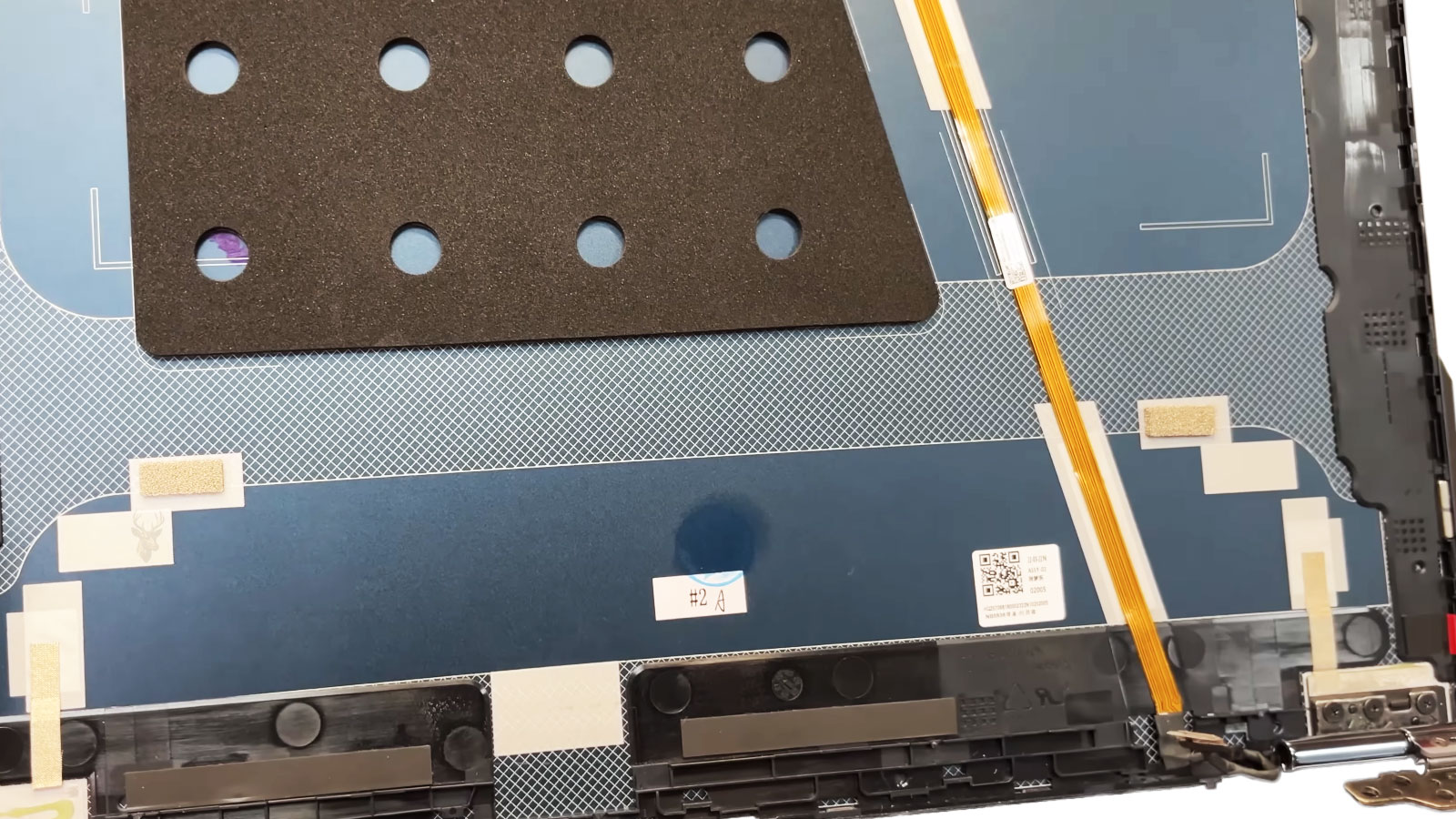
External Pressure Can Damage Parts Hidden Inside a Laptop
A laptop is designed to tolerate ordinary handling, but its thin enclosure does not distribute every force evenly. Pressure applied to the lid, keyboard, palm rest, bottom cover, or corners can transfer directly into the display, battery, motherboard, storage device, and internal cables.
The exterior may show only a small dent, separated seam, or slightly uneven panel while the internal structure has already shifted. In other cases, no visible mark appears even though a connector, circuit board, or display layer has been placed under stress.
Damage can occur when a laptop is carried inside an overfilled bag, placed beneath books, pressed against furniture, stepped on, or lifted by one corner. Repeated light pressure can also weaken the frame over time, especially when screws, clips, or hinge mounts are already loose.
A laptop case is part of the structural support system, not merely a decorative cover around the electronics.
The Chassis Helps Keep Internal Parts Properly Aligned
The upper case, bottom cover, internal frame, and mounting points work together to hold the motherboard and other components in fixed positions. When the chassis bends, internal parts may no longer sit at the angle or height intended by the manufacturer.
A small change in alignment can affect ports, cooling assemblies, ribbon cables, speakers, batteries, and storage connectors. The problem may appear only when the case is pressed, the laptop is moved, or the lid is opened to a particular position.
Loose screws and broken clips make this condition worse because the remaining structure must absorb more of the force. A panel that flexes excessively may press directly against components that were originally protected by a small air gap.
Pressure on the Display Lid Can Damage More Than the Outer Cover
The display lid contains the LCD panel, backlight layers, camera, antennas, cables, brackets, and sometimes touch-screen components. Pressure on the closed lid can be transferred into these thin internal layers.
A screen may develop dark spots, bright pressure marks, vertical lines, color distortion, or a cracked internal panel without obvious damage to the outer surface. The image can initially remain visible and then worsen as the laptop is opened and closed.
Touch-enabled displays may also develop areas that respond incorrectly or register input without being touched. This can happen when the touch layer separates, bends, or remains under pressure from a distorted bezel.
| Area Under Pressure | Possible Internal Effect | Common Symptom |
|---|---|---|
| Center of display lid | LCD layers flex inward | Dark spots, bright marks, or image distortion |
| Display corner | Panel edge or bracket becomes stressed | Cracks, lines, or uneven backlighting |
| Camera area | Camera or microphone assembly shifts | Missing camera, distorted image, or poor microphone audio |
| Display hinge side | Cable routing and mounting points are compressed | Flickering, intermittent image, or damaged hinge movement |
A screen affected by pressure should not be repeatedly pushed or flexed to test whether the image changes. Additional movement can extend a crack or damage the cable and mounting structure around the panel.
Objects Left on the Keyboard Can Damage the Screen When the Lid Closes
A pen, flash drive, earbud, cable end, or other small object left on the keyboard can become trapped between the keyboard deck and the display. Closing the lid concentrates force into a very small area of the screen.
The outer glass or protective layer may remain intact while the LCD beneath it cracks. In some cases, the hinge pressure continues forcing the object into the display even after the damage begins.
The lid should never be forced closed when resistance is felt. The keyboard and palm-rest area should be checked before the laptop is placed in a bag or carried while closed.
A small object can create more display damage than broad pressure because the force is concentrated into one point.
Palm-Rest Flex Can Affect the Touchpad and Battery
The palm rest may contain the touchpad, fingerprint reader, keyboard edge, battery support, speakers, and several ribbon cables. Excessive flex in this area can cause intermittent input problems or place pressure on the battery beneath it.
A touchpad that clicks differently on one side, becomes difficult to press, or rises above the case may indicate structural distortion. The cause may be a bent palm rest, broken mounting point, or swollen battery pushing upward from below.
Pressing harder on the touchpad is not a safe way to restore normal operation. Additional force can damage the click mechanism, ribbon cable, or battery enclosure.
Bottom-Cover Pressure Can Reach the Motherboard
Many modern laptops use very little empty space between the bottom cover and the internal components. A dent or inward flex in the lower case may contact the motherboard, memory, storage device, battery, or cooling assembly.
If the laptop is used on an uneven surface or picked up by one corner, the bottom panel can twist. The motherboard is mounted to the chassis at several points and may flex with it.
Circuit boards can tolerate limited movement, but repeated bending can weaken solder joints, damage connectors, and create intermittent electrical paths. The computer may freeze, restart, or lose access to a device only when the case is handled a certain way.
A Symptom That Changes With Case Pressure Is Important Diagnostic Evidence
If touching or lifting one area causes the display, storage, charging, or input problem to change, the chassis and internal mounting structure should be inspected before software is blamed.
Motherboard Flex Can Affect Soldered Components
Laptop motherboards contain many small components and soldered connections. Some chips use contact points underneath the package, where damage cannot be seen through a normal visual inspection.
When the motherboard bends, stress can develop around large chips, ports, memory sockets, and power components. A weakened solder connection may open only when the board is warm, cool, or flexed by the case.
The laptop may work normally while resting flat and fail when lifted. It may also restart when pressure is applied near the keyboard, touchpad, or bottom cover.
Continued flexing can turn an intermittent problem into a permanent failure. The damaged mounting point or distorted chassis must be corrected along with any board-level repair.
Storage Devices Can Shift Under Chassis Pressure
A laptop hard drive, solid-state drive, or M.2 module depends on its connector and retaining hardware to remain stable. Case distortion can pull on the drive cable, loosen the retaining screw, or press against the storage assembly.
A mechanical hard drive is especially vulnerable to impact and pressure while operating because its internal parts move with very small clearances. Sudden chassis movement can interrupt operation or contribute to physical drive damage.
An M.2 drive may also lose reliable contact if the motherboard or mounting point bends. The laptop can then display startup errors, disappear from the operating system, freeze during file access, or fail to boot.
Storage failure after physical pressure should be treated carefully because repeated testing may place important files at additional risk.
Battery Damage May Begin Without Immediate Swelling
An internal lithium battery can be damaged by crushing, bending, puncture, or pressure from a distorted case. Visible swelling may not appear immediately after the event.
The battery may begin losing capacity, heating unevenly, shutting the laptop down unexpectedly, or causing charging irregularities. A damaged enclosure can also weaken the separation between internal battery layers.
A laptop that has been crushed or bent should be inspected before it is repeatedly charged. Heat, odor, hissing, leakage, discoloration, or case separation requires immediate attention.
- Stop using the laptop if the battery area becomes unusually warm.
- Do not press a raised palm rest or bottom cover back into place.
- Avoid charging a battery that appears crushed, punctured, or swollen.
- Keep sharp tools away from a distorted battery enclosure.
- Do not continue testing if odor, smoke, or hissing develops.
Battery safety takes priority over recovering normal case alignment or completing additional diagnostic tests.
Cooling Assemblies Can Lose Proper Contact
Laptop cooling systems rely on specific mounting pressure between the processor, thermal material, heat plate, heat pipes, and fan assembly. Chassis distortion can change that pressure or twist the cooling hardware.
The fan may continue spinning while heat transfer becomes less effective. The laptop can then run hotter, reduce performance, or shut down under load even though the vents appear clean.
A bent heat pipe, loosened screw, cracked mounting point, or shifted thermal pad may require disassembly to identify. Tightening one accessible screw without checking the entire mounting pattern can create uneven pressure.
Case Distortion Can Restrict Fan Movement
A bottom cover that bends inward may touch the cooling fan or reduce the space around its intake. The fan can scrape, slow down, stop intermittently, or produce a new vibration.
The sound may disappear when the laptop is lifted because the cover flexes away from the fan. It may return when the system rests on a flat surface or when pressure is placed near the vent.
Continued operation can damage the fan blades or motor. Restricted airflow can also increase internal temperatures before the fan failure becomes obvious.
Internal Ribbon Cables Can Be Pinched or Partially Disconnected
Thin ribbon cables connect the keyboard, touchpad, power button, fingerprint reader, display controls, and other laptop components. These cables often pass through narrow areas between the case and motherboard.
When the chassis bends or a panel is forced into place, a ribbon cable can become pinched, folded, or pulled partly out of its socket. The connected device may fail completely or operate only when pressure is applied nearby.
A cable can look intact from above while its conductive paths are cracked internally. Repositioning it may temporarily restore operation without providing a lasting repair.
An input device that responds to case movement may be exposing a cable or connector problem beneath the surface.
Ports Can Move Out of Alignment With the Case Openings
USB, charging, audio, video, and network ports are positioned to line up with precise openings in the laptop enclosure. A bent chassis can shift the opening relative to the connector.
The plug may become difficult to insert or may enter at an angle. Repeatedly forcing it can damage the internal port, crack its solder joints, or deform the external plug.
A port that works only when the cable is lifted, pushed sideways, or held under tension should be inspected before it is used further. The issue may involve both the connector and the surrounding structure.
Hinge Pressure Can Spread Into the Base of the Laptop
Laptop hinges apply significant force to the display lid and the base each time the screen is opened. If the hinge becomes stiff or its mounting point breaks, that force is transferred into the surrounding plastic and metal.
The keyboard deck may rise, the bottom cover may separate, or the display corner may flex. Internal cables routed near the hinge can also become stretched or crushed.
Continuing to open and close the laptop can enlarge the damage. What begins as a loose corner may eventually affect the display cable, antennas, camera wiring, and motherboard mounting area.
A stiff hinge can damage the case even when the hinge itself still moves.
An Overfilled Laptop Bag Can Create Continuous Pressure
A laptop carried tightly between books, chargers, tools, and other objects may remain under pressure for an extended period. The force may be distributed unevenly across the lid or one edge of the base.
Objects stored in the same compartment can also press against the display or strike the ports. A charger placed directly against the lid can create a concentrated pressure point when the bag is set down or compressed.
A protective sleeve can reduce scratches and minor impact, but it does not make the laptop resistant to crushing. The bag should provide enough space for the computer to remain flat without being forced against rigid objects.
Lifting a Laptop by One Corner Can Twist the Frame
Picking up an open laptop by one front corner places the weight of the system through a small part of the chassis. Thin models can flex noticeably under this load.
The movement may affect the touchpad, motherboard, storage device, or battery even if the frame returns to its normal shape afterward. Repeated lifting in the same way can weaken screws and mounting points.
A laptop should be supported with both hands, especially when it is open or when the enclosure already shows separation or flex.
A Laptop Can Be Damaged Without Being Dropped
Physical damage is often associated with a visible impact, but gradual pressure can produce many of the same internal effects. Sitting on a bag, stacking equipment on the lid, leaning against the computer, or forcing a panel closed can bend the structure without a fall.
The absence of impact marks does not eliminate a mechanical cause. A technician may need to inspect panel alignment, screw positions, mounting points, cable routing, and the distance between the case and internal parts.
Understanding how the laptop was stored, carried, or handled before the symptom appeared can provide important diagnostic information.
Minor Exterior Changes Can Point to Significant Internal Stress
A raised edge, new gap, uneven keyboard, misaligned port, or bottom cover that no longer sits flat may indicate that the laptop’s internal support structure has changed.
These signs should not be corrected by squeezing the case together or installing longer screws. Improvised pressure can reach the battery, motherboard, display, or cooling assembly.
Early inspection can identify whether the issue is limited to the enclosure or has already affected internal components. Addressing the structural problem promptly can prevent normal handling from causing additional damage.
Pressure Damage Can Cause Problems That Appear Only After the Laptop Warms Up
A laptop may start normally after being bent or compressed and then become unstable as internal temperatures rise. Heat causes metal, plastic, solder, and circuit-board materials to expand at different rates.
If a connector, solder joint, or motherboard area has already been weakened by chassis pressure, this expansion can change the electrical contact. The laptop may freeze, lose its display, restart, or stop detecting a device only after several minutes of use.
Once the system cools, the connection may temporarily return. This pattern can make the problem appear related to software, power settings, or overheating even when the underlying cause is mechanical stress.
A laptop that fails only after warming up may still have a pressure-related connection problem rather than a cooling problem alone.
Cold Conditions Can Change a Pressure-Related Failure
Temperature changes work in both directions. A laptop that behaves normally after warming may fail when first started in a cold room or after being transported in cool weather.
Plastic panels and metal frames contract as they cool. A small dimensional change can increase pressure on one area or pull a weakened connection slightly apart.
The symptom may disappear after the computer reaches room temperature, leading the user to believe the problem corrected itself. Repeated changes between cold and warm conditions can continue stressing the same damaged area.
Temperature Patterns Can Help Locate Structural Problems
Recording whether the failure appears during a cold startup, after warming, or while cooling down can help separate an intermittent mechanical condition from an ordinary software error.
Keyboard Problems Can Begin With a Distorted Upper Case
The keyboard is supported by the upper case, internal frame, and mounting points beneath it. If the chassis bends, the keyboard may no longer sit evenly across its support structure.
Some keys may become harder to press, remain partially depressed, or respond only when the palm rest is supported. The problem may affect a group of keys located above the same distorted section.
A bent keyboard deck can also pull on the keyboard ribbon cable or its socket. Replacing the keyboard without correcting the chassis may leave the new part under the same stress.
Pressure-related keyboard failure should be distinguished from liquid damage, worn key mechanisms, and ordinary ribbon-cable failure. The surrounding case alignment provides an important clue.
Speakers Can Become Distorted When the Case Presses Against Them
Laptop speakers are often mounted near the front edge, keyboard, or bottom cover. Their thin diaphragms require space to move freely.
A bent panel or displaced bracket can press against the speaker housing. Audio may then sound muffled, distorted, quieter on one side, or accompanied by vibration at certain frequencies.
The speaker itself may still be electrically functional. Replacing it without checking the enclosure can allow the replacement to produce the same distorted sound.
Sound distortion that changes when the case is touched may come from mechanical contact rather than an audio-driver problem.
Wi-Fi and Bluetooth Performance Can Change After Chassis Damage
Wireless antennas are commonly routed around the display lid and hinge areas. Pressure on the lid or damage near a hinge can pinch an antenna cable, loosen its terminal, or change its position inside the enclosure.
The wireless adapter may remain visible in the operating system while signal strength becomes weaker. Connections may work near the router and fail at distances that were previously reliable.
Bluetooth devices may also disconnect more often or develop reduced range because Wi-Fi and Bluetooth sometimes share the same internal antenna system.
Reinstalling drivers will not correct an antenna that has been crushed, detached, or relocated by structural damage.
A Bent Display Frame Can Pull on the Video Cable
The display cable usually passes from the motherboard through a hinge and into the screen assembly. Its length and routing are designed for the original alignment of the lid and base.
If the display frame bends or a hinge shifts, the cable may become stretched in one position and compressed in another. Opening the lid can then cause flickering, lines, image loss, or changes in brightness.
The cable may continue working at one lid angle because the damaged conductors or connector remain in contact there. Moving the display changes the tension and interrupts the signal.
Replacing a display cable without repairing the distorted hinge or frame can expose the new cable to the same damaging force.
Webcam and Microphone Failures May Share the Same Mechanical Cause
The webcam, microphones, display cable, and wireless antennas may all pass through the upper display assembly. Pressure near the top bezel or hinge can affect several of these functions together.
A camera may disappear, freeze, or show interference while the microphone becomes quiet or intermittent. When several display-mounted devices change at the same time, a shared cable path or damaged frame is more likely than unrelated software failures.
The bezel should not be squeezed repeatedly to make the devices reconnect. This can worsen damage to the screen, camera module, or thin wiring routed behind the panel.
A Distorted Case Can Prevent Proper Docking and Cable Insertion
Some laptops connect to docks through side-mounted USB-C ports, proprietary connectors, or bottom docking contacts. These connections depend on precise alignment.
A bent edge can prevent the plug from entering fully even though it appears connected. Power may work while displays, networking, or USB devices disconnect because some contacts are not making reliable contact.
Forcing the dock or cable into position can transfer additional stress to the port and motherboard. The chassis opening and internal connector should be inspected together.
Partial Dock Operation Can Be an Alignment Warning
When charging works but other docked functions fail, incomplete connector engagement should be considered before the dock itself is replaced.
Pressure Near a Memory Slot Can Create Intermittent Startup Failure
Removable memory modules are held in their sockets by small retaining clips. If the motherboard flexes or the lower cover presses against the module, electrical contact can become unstable.
The laptop may fail to start, display a memory warning, restart unexpectedly, or report less memory than is installed. Pressing or moving the case may temporarily change the symptom.
Reseating the memory can restore operation, but the surrounding structure must also be checked. A bent motherboard, damaged socket, missing shield, or incorrect cover pressure can cause the problem to return.
Soldered Memory Can Also Be Affected by Board Flex
Many thin laptops use memory chips soldered directly to the motherboard. These chips cannot be removed and reseated like conventional memory modules.
Repeated board flex can stress connections beneath the chips or damage nearby supporting components. The resulting symptom may resemble defective memory, including freezing, startup loops, application crashes, and data errors.
Because the memory is integrated into the motherboard, a structural problem can lead to a more involved repair. Continuing to twist or press the laptop may make the fault harder to repair reliably.
Pressure Can Affect Internal Storage Even Without Disconnecting It
A storage device may remain detected while physical stress affects its operation. A cable can be pinched without separating completely, or an M.2 drive can bend slightly between its socket and retaining screw.
The laptop may freeze during large transfers, show file errors, or become slow when the drive is under sustained use. Light activity may not reproduce the failure.
Repeated storage errors after a pressure event should be treated cautiously. Important files should be copied while the drive remains accessible rather than waiting for a complete startup failure.
A drive does not need to disappear completely for physical stress to place its data at risk.
The Power Connector Can Be Forced Against the Motherboard
A charger plug inserted into a distorted side panel may not align correctly with the internal power jack. The plug can push the jack sideways each time it is connected.
This force can loosen a cable-mounted jack, crack solder joints on a board-mounted connector, or damage the surrounding case support. Charging may work only when the plug is held at an angle.
Using a tighter-fitting charger or holding the cable under tension does not correct the structural problem. It can increase damage to both the laptop and adapter plug.
A Twisted Base Can Cause the Laptop to Sit Unevenly
A laptop should normally rest on all of its support feet without rocking. If the base has twisted, one corner may lift from a flat surface.
This uneven position can change as the user places their hands on the palm rest. The repeated movement may flex the motherboard and internal connectors during ordinary typing.
Missing rubber feet can also contribute by allowing the case to rest directly on a raised screw, uneven table, or debris. The resulting pressure may be concentrated in one section of the bottom cover.
A laptop that rocks on a flat surface may be showing chassis distortion, battery swelling, or missing structural support.
Incorrect Screws Can Press Into Internal Components
Laptop bottom covers often use screws of different lengths. Installing a long screw in a shallow location can push into the motherboard, palm rest, keyboard, battery, or display assembly.
The exterior may appear fully assembled while the screw creates internal pressure. Tightening it further can crack plastic mounts, lift the keyboard, damage a circuit board, or leave a visible mark on the opposite side.
Screws should be returned to their original positions and tightened only enough to secure the panel. Resistance that appears before the screw is seated may indicate incorrect length or alignment.
Missing Screws Can Allow Harmful Flexing
A missing screw may seem unimportant when the case remains closed, but the surrounding mounting points must then carry more load. The panel can flex farther during lifting, typing, and opening the display.
Over time, the nearby clips and threaded inserts may loosen or break. Internal cables and boards can begin moving with the unsupported section.
Replacing missing hardware helps restore the original distribution of force. However, the correct screw size and type must be used to avoid creating pressure damage in another form.
Improvised Case Repairs Can Transfer Stress to the Wrong Area
Tape, glue, oversized screws, metal plates, and tightly fitted external covers are sometimes used to hold a separated laptop together. These methods may close a visible gap while forcing the damaged structure into a new position.
A rigid repair over one broken area can transfer hinge or lifting force into the motherboard, battery compartment, or display frame. Adhesive can also enter connectors, vents, speakers, and screw holes.
A structural repair should restore alignment and support rather than simply prevent the case from opening. The cause of the separation must be identified before pressure is added.
Closing a gap is not the same as restoring the laptop’s original load-bearing structure.
Case Pressure Can Change the Behavior of the Power Button
The external power button may press a small switch on the motherboard or connect through a separate cable and button board. Chassis distortion can move these parts out of alignment.
The button may feel unusually deep, remain pressed, fail to click, or work only when another area of the case is supported. In some situations, constant pressure can hold the switch closed and cause repeated shutdown or startup behavior.
Replacing the button alone may not correct the problem if the upper case, bracket, or motherboard position has shifted.
A Bent Case Can Affect Cooling Even When the Fan Is Not Touching It
Cooling performance depends on the shape and spacing of the air passages inside the laptop. A distorted cover can narrow an intake opening, change the seal around the fan, or allow hot exhaust air to circulate back into the system.
The fan may run at normal speed but move less useful air through the heat sink. Temperatures can rise even though no scraping sound is present.
Comparing airflow at the exhaust and inspecting the internal air guides can help identify a cooling restriction caused by enclosure damage.
Pressure Damage May Leave No Clear Error Message
Windows and hardware diagnostics usually report the device that stopped responding, not the physical force that interrupted it. A storage warning, memory error, display reset, or USB disconnection may therefore appear without any reference to chassis damage.
Standard diagnostic tests may also pass when the laptop is resting in a stable position. The failure may require normal handling, lid movement, temperature change, or light pressure before it returns.
Physical history should be considered alongside software records. Knowing that the laptop was carried in a compressed bag, sat on, repaired recently, or lifted by one corner may connect otherwise unrelated symptoms.
An error message can identify the affected device without identifying the bent structure that caused the interruption.
Repeated Pressure Testing Can Make the Damage Worse
When a symptom changes after the case is touched, it can be tempting to press the same area repeatedly. This may help confirm that the failure is mechanically sensitive, but it can also extend cracks and weaken connectors.
Only gentle observation should be used to identify the affected region. Once a repeatable response is found, the laptop should be powered down and inspected internally.
Using pressure as a way to keep the laptop operating is particularly risky when the affected area is near the battery, storage device, power circuit, or display.
Structural Damage Should Be Evaluated Before Individual Parts Are Replaced
A damaged screen, touchpad, keyboard, port, fan, or storage device may be the visible result of pressure rather than the only failed part. Installing a replacement without restoring the enclosure can leave the new component misaligned.
The upper case, bottom cover, frame, screw mounts, hinges, brackets, and motherboard supports should be examined as one system. Each part helps maintain the spacing required by the electronics.
A reliable repair corrects both the failed function and the mechanical condition that caused or contributed to it.











