
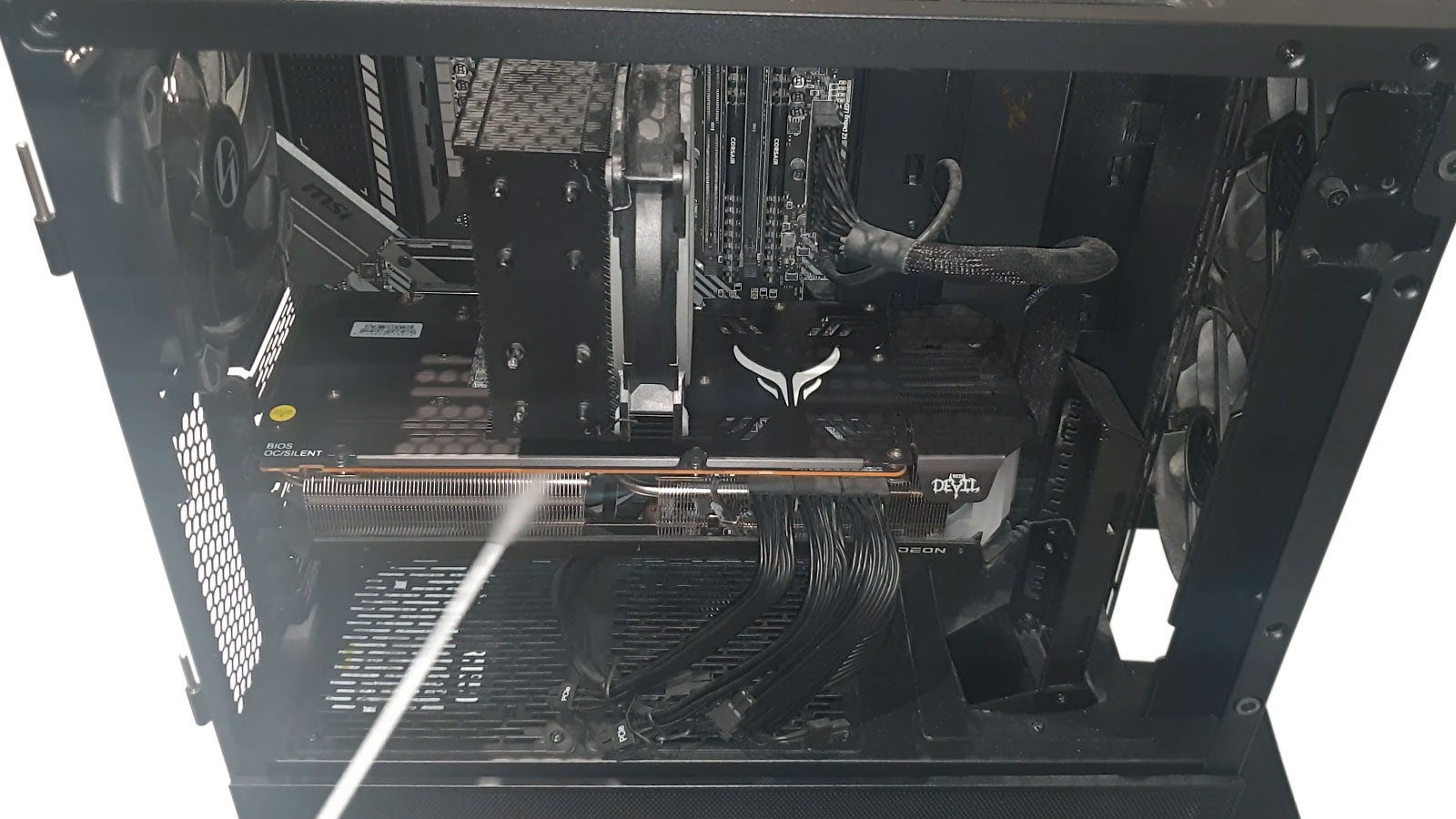
Compressed Air Is Useful Only When the Cleaning Method Is Controlled
Dust removal is an important part of computer maintenance because blocked vents, coated heat sinks, and restricted fans can interfere with cooling. Compressed air is commonly used for this work because it can move loose debris without requiring direct contact with delicate components.
The same airflow can also create problems when the can is tilted, the nozzle is placed too close, or internal fans are allowed to spin uncontrollably. Cleaning a computer safely requires more than directing a strong stream of air through every opening.
Desktop and laptop systems contain small connectors, thin fan blades, exposed circuit boards, microphones, speakers, and moving assemblies. The cleaning approach should account for the construction of the device instead of treating every dusty area the same way.
Compressed air can remove dust without touching the hardware, but the air itself still applies force to everything in its path.
The Computer Should Be Powered Down Before Internal Cleaning
Internal cleaning should begin with the computer shut down and disconnected from external power. A laptop battery should also be disconnected when the design allows safe access to its connector.
Working around energized components increases the risk of electrical damage if moisture, conductive debris, or a tool reaches the motherboard. Fans and pumps may also start unexpectedly when a powered computer changes temperature or receives a background command.
After power is removed, the power button can be held briefly to help discharge residual electricity from parts of the system. This does not make every circuit immediately safe, but it reduces the chance of accidental startup while the case is open.
Tilting an Aerosol Can May Release Liquid Propellant
Products sold as canned air usually contain a compressed propellant rather than ordinary atmospheric air. When the container is held upright, the material normally leaves the nozzle as a gas. Tilting or shaking the can can allow cold liquid to escape.
The liquid may evaporate quickly, but it can leave temporary moisture, produce extreme localized cooling, or carry residue onto a circuit board. Applying power before the area has returned to normal temperature and dried completely can create additional risk.
| Handling Condition | Possible Result | Safer Approach |
|---|---|---|
| Can held upright | Propellant is more likely to leave as a controlled gas | Use short bursts while maintaining the recommended position |
| Can tilted or inverted | Cold liquid propellant may reach the hardware | Stop spraying and return the container to an upright position |
| Long continuous spray | The can becomes cold and pressure becomes less predictable | Pause between bursts and allow the container to stabilize |
| Nozzle placed very close | Strong concentrated pressure may disturb small parts | Keep reasonable distance and increase pressure gradually |
If visible liquid reaches the computer, cleaning should stop until the area has been inspected and allowed to dry fully. The system should not be restarted simply because the surface appears to have evaporated.
Uncontrolled Fan Rotation Can Stress Bearings and Electronics
A strong stream of air can spin a cooling fan much faster than its normal operating speed. The fan may produce a high-pitched sound while rotating freely under the airflow.
Excessive speed can place stress on the bearings, loosen worn blades, or cause the fan to generate electrical voltage back through its motor circuit. The exact risk varies by fan design, but there is no maintenance benefit to allowing the fan to spin uncontrollably.
The blades should be held still with a nonconductive tool or supported carefully while the heat sink and surrounding area are cleaned. Pressure should never be applied hard enough to bend or crack the blades.
A fan spinning rapidly during cleaning is not proof that the dust-removal method is working safely.
Dust Should Be Directed Out of the Computer Rather Than Deeper Inside
Spraying through an exterior vent without opening the computer may move dust away from the visible grille while forcing it deeper into the heat sink, fan housing, keyboard, or internal cavity.
This can make the outside appear cleaner without restoring airflow. In some cases, packed dust shifts into a denser layer that blocks cooling fins more effectively than before.
- Open accessible panels when the design permits safe service.
- Identify the normal direction of airflow before spraying.
- Move loosened debris toward an open exit from the case.
- Prevent dust from being driven into ports and connectors.
- Collect heavy debris instead of repeatedly circulating it inside.
The cleaning path should allow dust to leave the device rather than move from one internal section to another.
High Pressure Can Dislodge Small Connectors
Modern computers use small speaker plugs, fan headers, antenna terminals, ribbon cables, and sensor connections. A narrow nozzle positioned close to one of these parts can apply enough force to move a cable or weaken an already marginal connection.
The computer may then develop a new problem immediately after cleaning. A fan may stop being detected, a laptop speaker may fail, or a wireless antenna cable may separate from its card.
Air should be introduced gradually, with the nozzle kept far enough away to observe how surrounding wires and components react. Any cable that begins moving should be supported before cleaning continues.
More Pressure Does Not Always Produce Better Cleaning
Loose surface dust may require very little force, while compacted contamination may need access, brushing, or partial disassembly instead of a stronger blast.
Cold Airflow Can Create Sudden Temperature Changes
Compressed aerosol becomes colder during use, especially when the spray continues for an extended period. A concentrated stream can cool a small area of the circuit board or a component much faster than the surrounding material.
Computer components normally experience temperature changes during operation, but sudden localized cooling is unnecessary during routine cleaning. Condensation may also become a concern in humid conditions if a surface becomes cold enough.
Using short bursts and allowing the can and hardware to return toward room temperature helps keep the process controlled. The computer should remain powered off until every cleaned area is dry and temperature has stabilized.
Compressed Air Does Not Remove Every Type of Contamination
Airflow works best on loose, dry dust. It may not remove oily residue, smoke deposits, dried liquid contamination, pet-related buildup, or dust bonded to fan blades and heat-sink surfaces.
Repeatedly increasing the pressure against attached residue can spread it across a larger area or push it beneath components. Some contamination requires controlled surface cleaning, removal of the cooling assembly, or professional board-level inspection.
The cleaning method should be selected according to the material present. A computer exposed to liquid, heavy smoke, insects, or corrosion should not be treated as an ordinary dust-removal job.
Laptop Vents Require More Caution Than Open Desktop Cases
A desktop side panel often provides direct access to its fans and heat sinks. Laptop cooling systems are usually enclosed beneath the bottom cover, with narrow passages connecting the intake vents, fan, heat sink, and exhaust opening.
Spraying through a laptop vent can spin the fan without allowing the loosened debris to escape. Dust may collect inside the fan housing or become packed between the fan and heat-sink fins.
When the cooling system is heavily obstructed, removing the bottom cover and accessing the fan directly is usually more effective than spraying through the exterior openings. Some models require additional disassembly, and forcing unfamiliar panels can damage clips, cables, or the case.
An exterior vent provides airflow access, but it does not always provide a safe cleaning path.
Filters and Grilles Should Be Cleaned Separately When Possible
Desktop dust filters can often be removed from the case and cleaned away from the internal components. This prevents trapped debris from being blown back through the fans and onto the motherboard.
A filter should be completely dry before it is reinstalled. Moisture held inside a fine mesh can be pulled into the computer when the fans begin operating.
Fixed grilles may require cleaning from both sides so that dust is lifted away rather than pressed more tightly into the openings. Bent mesh and damaged foam can restrict airflow even after visible dust has been removed.
Cleaning Should Be Based on Condition Rather Than a Fixed Schedule
Computers do not collect dust at the same rate. Floor placement, carpet, pets, smoking, nearby construction, open windows, fan arrangement, and daily operating time all influence how quickly contamination builds.
A lightly used computer in a clean office may remain clear for a long period, while a gaming system operating near the floor can develop blocked filters much sooner. Opening a clean computer too frequently can introduce unnecessary handling without providing a cooling benefit.
Visible buildup, rising temperatures, louder fans, reduced airflow, and repeated thermal shutdowns provide more useful guidance than cleaning every computer according to the same calendar interval.
Safe Dust Removal Depends on Preparation and Restraint
Compressed air can be effective when the computer is powered down, the container remains upright, fans are prevented from spinning, and debris has a clear path out of the device.
The objective is not to apply the strongest possible airflow. It is to remove contamination without moving connectors, damaging fan assemblies, introducing liquid propellant, or forcing dust into more difficult locations.
Careful observation during cleaning helps reveal when compressed air is sufficient and when the computer needs deeper access, manual cleaning, or repair of a cooling system that has already become obstructed.
Electric Air Dusters Require the Same Level of Control
Reusable electric air dusters are often chosen as an alternative to disposable aerosol cans. They avoid liquid propellant and can provide a steady supply of airflow, but they are not automatically safer for every computer component.
Some models produce considerably more airflow than canned products. A narrow attachment placed close to a fan, ribbon cable, microphone opening, or exposed connector can apply enough force to damage or dislodge the part.
The lowest practical setting should be used first. Distance can then be reduced gradually while observing the movement of cables, fan blades, and lightweight debris. A cleaning attachment should never be pressed directly against an opening to concentrate the full pressure inside the device.
Continuous Airflow Can Hide Excessive Force
An electric duster does not lose pressure as quickly as an aerosol can, so the same area can be exposed to strong airflow for much longer than necessary.
Household Vacuum Cleaners Are Not Direct Replacements for Compressed Air
A vacuum cleaner can collect dust instead of blowing it through the computer, but placing a household vacuum nozzle directly against internal hardware introduces other concerns. Plastic hoses and fast-moving air can contribute to static charge, while the nozzle can strike components that are difficult to see.
Strong suction can also pull on small wires, fan blades, jumpers, labels, and foam insulation. A loose screw or retaining part may disappear into the vacuum before its original location is identified.
A vacuum may be useful for collecting debris near the edge of an open case while compressed air moves the dust outward, but the nozzle should remain separated from the motherboard and other sensitive assemblies.
Removing dust from the area is helpful, but direct contact between a household vacuum and computer circuitry should be avoided.
Static Risk Depends on the Tool, Environment, and Handling
Dry air, synthetic clothing, carpet, plastic tools, and rapid airflow can all contribute to electrostatic buildup. A discharge may be too small to feel while still reaching a sensitive circuit.
Cleaning should be performed on a stable, noncarpeted surface when possible. The person handling the computer should avoid unnecessary movement and should discharge static safely before touching internal parts.
The air source should also be intended for electronics or controlled maintenance work. Workshop compressors, household blowers, and improvised equipment may introduce pressure, moisture, oil, or static conditions that were not considered in the computer’s design.
Workshop Air Compressors Can Introduce Moisture and Oil
Compressed air from a shop system may contain condensed water, compressor oil, rust particles, or other contamination from the tank and hoses. These materials may not be visible in the airflow until they collect on the computer.
Filters and moisture separators can reduce contamination, but their presence does not confirm that the air is suitable for exposed electronics. Pressure from a workshop compressor can also be much higher than what is necessary for dust removal.
A brief release into a clean white surface can reveal obvious moisture or residue, but it cannot guarantee that every burst will remain clean. Equipment used around electronics should be regulated, maintained, and selected specifically for that purpose.
Air that is appropriate for mechanical tools may still be unsuitable for a motherboard.
Dust Can Become More Abrasive When Blown Across Surfaces
Computer dust is not always soft. It can contain sand, construction particles, metal fragments, fibers, and other material capable of scratching plastics or wearing coated surfaces when moved at high speed.
Directing a concentrated stream across a display panel, camera lens, polished heat spreader, or exposed contact area may drag particles over the surface instead of lifting them away.
Loose debris should first be moved gently. Material attached to a surface may require a suitable soft brush or controlled manual cleaning rather than repeated high-pressure spraying.
Keyboard Cleaning Can Push Debris Beneath the Keys
Compressed air is often directed between keyboard keys to remove crumbs, hair, and dust. On some keyboards, the debris exits through nearby openings. On others, the airflow pushes it deeper beneath the key mechanisms or toward internal membranes.
Laptop keyboards may sit directly above ribbon cables, speakers, the battery, or motherboard areas. Liquid propellant, metal fragments, and food residue should not be driven through the openings into the computer.
The keyboard should be angled so loosened debris can move outward. Short bursts from several directions are safer than holding the nozzle close to one key and forcing material downward.
Sticky Keys Usually Need More Than Airflow
If a key is affected by dried liquid or residue, compressed air may move loose debris without correcting the material attached beneath the keycap.
Ports Should Not Be Cleaned With Maximum Pressure
USB, audio, charging, Ethernet, memory-card, and video ports can collect lint and dust. A strong blast directed straight into a port may compact the debris against the rear contacts or push it farther beneath the connector housing.
Small foreign objects can also shift across adjacent contacts. This is particularly concerning in power-delivery and charging ports where conductive debris may interfere with detection or electrical contact.
Air should be applied at an angle that encourages debris to leave the opening. If the material remains packed inside, the port may require careful inspection and manual removal with the system fully powered down.
A port that looks open from the outside can still contain compacted material around its internal contacts.
Speakers and Microphones Can Be Damaged by Direct Airflow
Speaker and microphone openings may resemble ordinary ventilation holes, but the components behind them contain thin membranes and small acoustic structures. Concentrated pressure can deform these parts or force contamination through the protective mesh.
A laptop may place microphone openings near the webcam, keyboard, palm rest, or display edge. Spraying these areas without identifying the openings can produce audio problems that were not present before cleaning.
Surface dust should be lifted gently from the grille rather than driven directly into it. If sound remains muffled after external debris is removed, the problem may require access to the internal speaker or microphone assembly.
Heat-Sink Fins May Remain Blocked After the Visible Dust Is Removed
The outer surface of a fan can appear clean while a dense layer of dust remains between the fan outlet and the heat-sink fins. This hidden obstruction can severely restrict airflow.
Spraying through the exhaust may move the dust backward into the fan housing. Spraying through the intake may press the material more tightly against the fins. The most effective direction depends on how the cooling assembly is constructed and where the debris can exit.
In heavily contaminated systems, the fan may need to be removed from the heat sink so the packed material can be lifted out as a single layer. This should be done without disturbing thermal components that do not need removal.
Cleaning the Power Supply Requires Additional Caution
A desktop power supply contains its own fan, heat sinks, capacitors, and high-voltage circuitry. Dust can collect inside the unit, but opening the power-supply housing is not an ordinary maintenance task.
Some internal components can retain dangerous electrical charge after the computer is unplugged. The power supply should not be disassembled simply to improve access for compressed air.
Exterior cleaning can be performed through the intake and exhaust openings while the unit is disconnected, but the fan should be held stationary and debris should be directed outward. Heavy internal contamination, unusual odor, noise, or overheating may justify replacing or professionally servicing the unit instead.
A power supply can remain electrically hazardous even when the computer is disconnected from the wall.
Fan Blades Can Break When Dust Has Weakened Them
Plastic fan blades become more brittle with age, heat exposure, and contamination. A blade may already contain a small crack that is difficult to see before cleaning begins.
Strong airflow can flex the blade or accelerate it unevenly, causing the damaged section to break. A missing blade leaves the fan unbalanced and can produce vibration, noise, and reduced cooling.
Older fans should be inspected before air is applied. If the blades appear cracked, warped, loose, or coated with material that cannot be removed gently, replacing the fan may be safer than forcing it through a cleaning process.
Compressed Air Can Spread Biological and Environmental Debris
Computers used in garages, workshops, kitchens, smoking environments, or homes with pests may contain more than ordinary household dust. Mold particles, insect debris, animal hair, smoke residue, and contaminated material can become airborne during cleaning.
Blowing this material into an occupied room can affect the work area and expose nearby equipment. The computer should be cleaned in a suitable, well-ventilated location with attention to personal protection and debris containment.
A system with extensive contamination may require isolation and deeper cleaning rather than a quick burst of air at a desk. The condition of the computer should be evaluated before the debris is disturbed.
Cleaning Can Reveal a Fan That Was Already Failing
Dust can sometimes dampen vibration or limit the movement of a worn fan. After the buildup is removed, the fan may become noticeably louder or begin rattling.
This does not necessarily mean the cleaning damaged the fan. The removal of packed debris may expose bearing wear, blade imbalance, or shaft movement that was already present.
The fan should be tested after cleaning and allowed to reach normal operating speed. Grinding, repeated stopping, delayed startup, or visible wobble indicates that replacement may be needed.
A Clean Appearance Does Not Confirm Restored Cooling
Removing visible dust improves the appearance of a computer, but cooling performance depends on the entire airflow path. A clean fan cannot move enough air through a blocked heat sink, damaged vent, loose thermal assembly, or restricted filter.
Temperatures and fan behavior should be checked after cleaning. If the computer continues overheating, slowing down under load, or shutting off, the problem may involve thermal paste, mounting pressure, fan control, or a cooling component that has failed.
Cleaning is one part of maintenance, not a substitute for diagnosing a system that already shows signs of thermal failure.
Post-Cleaning Inspection Helps Catch New Problems Early
Before the computer is closed and powered on, the cleaned areas should be inspected for shifted cables, detached connectors, loose screws, moisture, and debris that moved into another location.
Fans should rotate freely by hand without scraping surrounding wires. Filters and panels should be reinstalled in the correct orientation, and every connector disturbed during access should be checked for proper seating.
- Confirm that no visible liquid or frost remains.
- Check that fans and cables have not shifted.
- Remove loosened dust from the bottom of the case.
- Verify that filters and covers are completely dry.
- Allow temperatures to return to normal before startup.
The first startup should be observed for fan warnings, unusual noise, missing devices, or unexpected shutdowns that may indicate something moved during cleaning.
Controlled Cleaning Protects Both Cooling and Reliability
Compressed air can help restore airflow and remove contamination that contributes to heat buildup. Its value depends on careful pressure, correct direction, stable fan blades, and a clear route for debris to leave the computer.
Using excessive force, unsuitable equipment, or direct airflow against delicate openings can create new faults while attempting to correct a maintenance issue.
A safe cleaning process recognizes the limits of airflow. When dust is packed, oily, corrosive, or trapped behind internal assemblies, proper access and manual service are more effective than increasing the pressure.
Compressed Air Should Not Be Used as a Substitute for Inspection
A quick cleaning can remove enough visible dust to make a computer appear improved, but it does not reveal every problem hidden beneath a fan, shield, heat sink, or cable assembly. Contamination may remain in areas that airflow cannot reach safely.
If overheating, unusual noise, or reduced performance continues after cleaning, additional inspection is necessary. The cooling system may contain a worn fan, dried thermal material, bent fins, loose mounting hardware, or an obstruction packed between internal layers.
Increasing air pressure because the first attempt did not correct the problem can damage the computer without reaching the actual cause. The next step should be guided by the remaining symptoms rather than by the amount of dust still visible.
Cleaning can improve airflow, but it cannot repair a mechanical or thermal defect that already exists.
Airflow Can Move Loose Screws Into Dangerous Locations
A desktop or laptop may contain a screw that was dropped during an earlier repair or loosened from a bracket. Strong airflow can move that metal object across the case or beneath the motherboard.
If the screw settles across electrical contacts, it can create a short circuit when the computer is powered on. It may also become trapped inside a fan, under a battery, or between a circuit board and the chassis.
The bottom of the case should be inspected before and after cleaning. Any loose object should be removed rather than blown toward an unseen area.
Cable Labels and Protective Films Can Be Lifted by Strong Air
Internal labels, insulating films, thermal pads, foam barriers, and adhesive cable supports may weaken with age and heat. A concentrated stream of air can lift an edge and move the material into a fan or away from the area it was designed to protect.
A displaced insulating sheet can expose a circuit board to metal contact. A lifted cable support can allow wiring to rub against a hinge, fan, or sharp chassis edge.
These materials should not be dismissed as packaging. Their position may be important to electrical insulation, airflow control, vibration reduction, or cable routing.
Cleaning Around Thermal Pads Requires Special Care
Graphics cards, laptops, compact desktops, and other dense systems may use soft thermal pads between components and heat-spreading surfaces. These pads can tear, shift, or collect dust when nearby assemblies are disturbed.
Compressed air should not be directed beneath an exposed thermal pad. Airflow can lift the material, fold an edge, or spread dust onto the contact surface.
If a heat sink is removed during deeper cleaning, the thermal pads should be inspected for correct thickness, coverage, and placement before the assembly is reinstalled. A displaced pad can reduce cooling even when every fan and vent is clean.
A clean cooling assembly can still overheat when its thermal contact materials are damaged or misaligned.
Blowing Dust Through an Optical Drive Can Spread Contamination
Optical drives contain a laser assembly, loading mechanism, gears, belts, and internal guides. Spraying through the front opening can move dust toward the lens or deeper into the mechanical assembly.
A drive that has trouble reading discs may not benefit from exterior compressed air. The problem may involve a worn laser, damaged disc, weak spindle motor, or internal contamination that requires controlled access.
The tray should not be forced open for cleaning, and high pressure should not be directed at the lens area. If the drive remains unreliable, replacement is often safer than attempting aggressive internal cleaning.
Displays Should Be Cleaned With Surface Methods Rather Than Air Pressure
Dust around the edge of a monitor or laptop display can often be removed with a soft, dry material. Compressed air is rarely necessary on the screen surface and can force debris or propellant beneath the bezel.
Liquid reaching the display layers can create stains, uneven brightness, or permanent marks. Strong airflow may also move dust into camera openings, microphones, speakers, or the narrow gap surrounding the panel.
The display should remain powered off and cool during cleaning. Pressure should not be applied to the panel, and any approved liquid cleaner should be placed on the cleaning material rather than sprayed directly onto the screen.
Small Computers Can Trap Dust in Dense Internal Layers
Miniature desktops, all-in-one computers, and compact workstations often place fans, storage devices, memory, speakers, and power circuitry within a limited space. Dust loosened from one area may settle immediately onto another component.
An all-in-one computer may have long internal air channels that cannot be cleaned effectively from the exterior vents. Spraying through one opening may move contamination toward the display electronics or power supply section.
Dense systems may need partial disassembly so each cooling path can be cleaned independently. This should be performed with attention to hidden cables and display connections that may remain attached when the housing is opened.
The smaller the enclosure, the less room there is for loosened dust to escape without reaching another component.
Water-Cooled Systems Still Accumulate Dust
A liquid-cooled computer still relies on fans and a radiator to transfer heat into the surrounding air. Dust can collect between the radiator fins and reduce cooling just as it does in a conventional heat sink.
The radiator may be mounted behind case fans, making the blockage difficult to see. Blowing through the assembly without holding the fans can overspeed them and may drive the dust into the space between the radiator and case.
When access allows, the fan and radiator surfaces should be cleaned from both sides. Tubing, pump cables, and fittings should not be pulled or twisted to create additional space.
Cleaning Cannot Correct a Failed Pump or Blocked Liquid Loop
A liquid-cooled processor can continue overheating even when the radiator is clean. The pump may not be operating, the internal coolant path may be restricted, or air may have collected where it interferes with circulation.
Compressed air affects only the external airflow side of the cooling system. It cannot restore coolant movement inside a sealed loop.
If temperatures remain abnormally high while the radiator and fans are clear, pump operation, mounting pressure, thermal contact, and coolant circulation should be evaluated separately.
Cleaning Near a Damaged Battery Can Increase Risk
A swollen laptop battery can press against the bottom cover, keyboard, touchpad, or internal cables. Opening the computer for cleaning may reveal a battery that has changed shape or begun separating from its mounting area.
Compressed air should not be used to clean around a punctured, leaking, overheated, or swollen battery. The battery should not be pressed down to create working space, and nearby sharp tools should be avoided.
Cleaning should stop until the battery condition is addressed safely. Removing dust does not take priority over a damaged energy-storage component.
A swollen battery changes an ordinary maintenance procedure into a hardware safety concern.
Excessive Cleaning Can Wear Delicate Parts Over Time
Frequent disassembly and aggressive airflow can expose a computer to more handling than its condition requires. Plastic clips weaken, screws wear, adhesive supports lose grip, and small connectors may be disturbed unnecessarily.
A computer does not need to be opened every time a small amount of dust becomes visible on an exterior vent. The cleaning depth should match the actual contamination and cooling behavior.
Routine observation of filters, fan noise, airflow, and operating temperature can identify when deeper maintenance is justified without repeatedly disturbing clean internal hardware.
Dust Removal Should Be Followed by Temperature Comparison
Cooling improvement is easier to evaluate when temperatures before and after cleaning are compared under similar conditions. A computer that was tested while idle should not be compared with a later reading taken during gaming or software installation.
Fan speed, room temperature, workload, and power mode can all affect the result. A meaningful comparison uses the same type of workload and enough operating time for temperatures to stabilize.
If the temperature improves substantially, airflow restriction was likely contributing to the problem. If little changes, the cooling issue may involve thermal contact, fan performance, mounting pressure, or another hardware condition.
Unusual Noise After Cleaning Should Be Investigated
A new rattle, scraping sound, vibration, or whistle after cleaning can indicate that a cable moved into a fan, a blade was damaged, a panel was reinstalled incorrectly, or dust shifted into a rotating assembly.
The computer should not continue operating under heavy load until the source is identified. A cable touching a fan can wear through its insulation, while a damaged fan may stop completely after continued use.
The sound should be observed during startup and as fan speed changes. Removing the cover again may reveal movement that was not visible before the system was reassembled.
A computer that sounds different after maintenance should be checked before the new noise becomes a larger failure.
Cleaning Records Can Help Establish a Useful Maintenance Pattern
Recording the date, amount of contamination, fan condition, and temperature change after cleaning can help determine how quickly a particular computer collects dust.
A system used in the same location often develops a repeatable pattern. Filters may begin restricting airflow after a similar period, or pet hair may collect consistently along one intake.
This information allows future maintenance to be based on the computer’s actual environment rather than a general schedule that may be too frequent or too late.
The Work Area Should Be Cleaned After the Computer
Dust removed from a computer can settle on the work surface, tools, nearby equipment, and open ports. Reassembling the system in the same contaminated area can return some of the debris to the case.
The surrounding surface should be cleaned before the computer is closed. Loose screws, clips, labels, and protective pieces should also be accounted for so nothing remains beneath the system or inside the case.
Cleaning tools should be stored away from moisture and contamination. A dirty nozzle or brush can introduce material during the next maintenance job.
A Safe Cleaning Process Ends With Functional Testing
After the computer has returned to room temperature and all cleaned areas are dry, the system can be powered on and observed carefully. Fans should start normally, connected devices should remain available, and no warning lights or unusual sounds should appear.
The computer should then be used under a moderate workload while temperatures and fan behavior are checked. This confirms whether the cleaning restored airflow without creating a loose connection or damaging a cooling component.
Any new symptom that appears immediately after maintenance should be investigated before the computer is returned to regular use. The timing may point directly toward a cable, fan, connector, or area disturbed during cleaning.
Compressed Air Is a Maintenance Tool, Not a Universal Repair Method
Compressed air is effective for removing loose, dry contamination when pressure, direction, distance, and fan movement are controlled. It becomes less appropriate when debris is packed, oily, corrosive, wet, or trapped beneath internal assemblies.
Using more pressure cannot compensate for limited access or an incorrect cleaning path. In many systems, safe disassembly and direct removal of the obstruction provide a better result than spraying through exterior openings.
The safest method protects delicate connectors, prevents uncontrolled fan rotation, avoids liquid propellant, and leaves the computer fully inspected before power is restored.
Good Computer Cleaning Improves Reliability Without Creating New Problems
Dust removal should reduce heat, fan noise, and airflow restriction while preserving every cable, sensor, fan, port, and protective material inside the computer.
Careful preparation matters as much as the cleaning itself. Power must be removed, the correct air source must be selected, and debris must have a clear route out of the enclosure.
When compressed air is used with restraint and followed by inspection and testing, it can support reliable computer cooling. When it is used aggressively or without understanding the internal layout, it can turn ordinary maintenance into an avoidable repair.











