
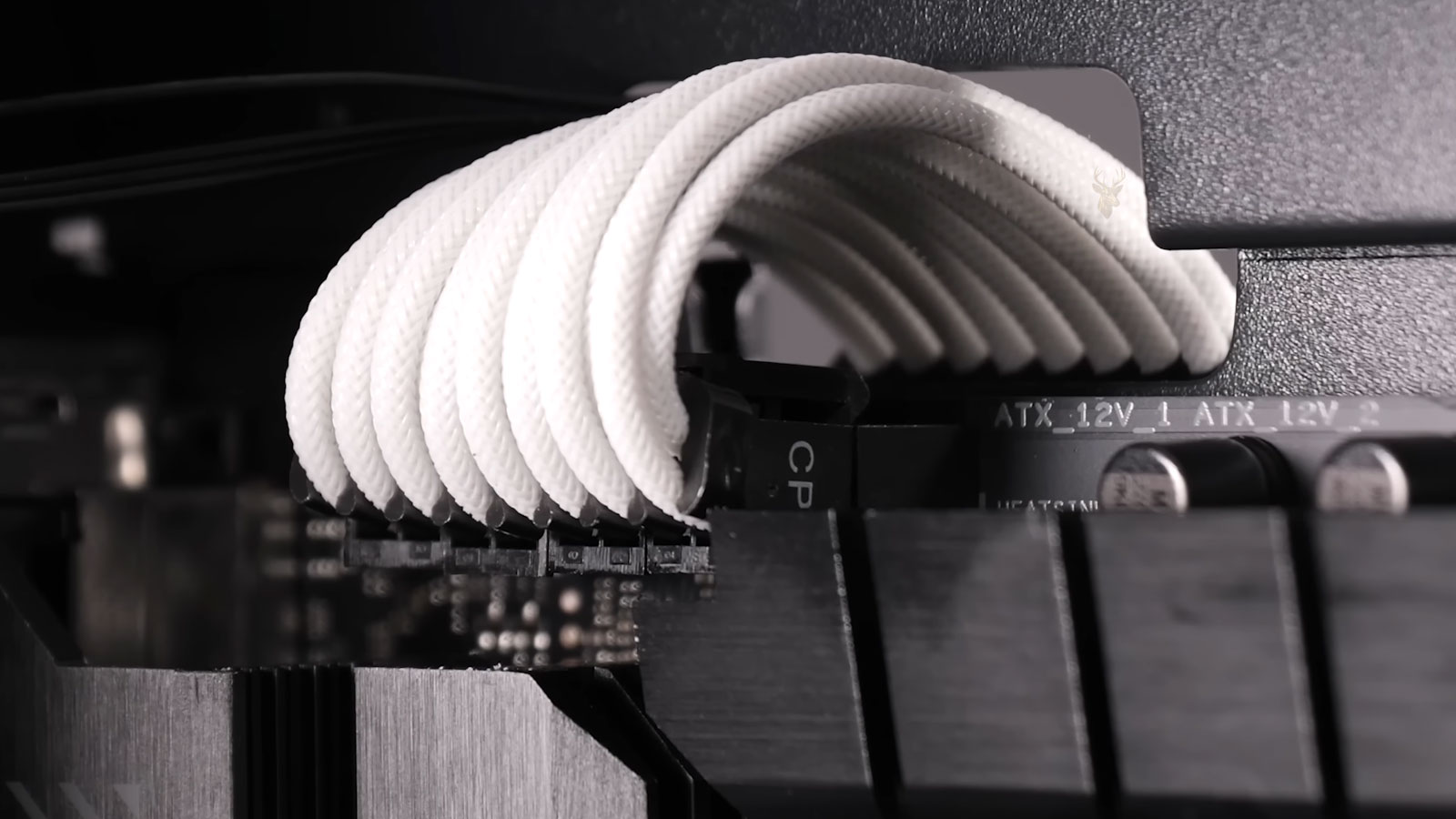
Loose Internal Connections Can Produce Problems That Come and Go
A computer problem is not always caused by a completely failed component. Internal cables, memory modules, expansion cards, and power connectors can become partially disconnected while still maintaining enough contact for the computer to work occasionally.
This can create symptoms that appear without warning and disappear before the system is examined. A computer may start normally one day, refuse to display an image the next morning, and begin working again after it is moved or restarted.
Intermittent behavior can make diagnosis difficult because the affected connection may pass an initial test. The system often needs to be examined under the same conditions that cause the failure.
A connection does not have to separate completely before it begins affecting computer operation.
Movement Can Temporarily Restore or Interrupt Contact
Moving a desktop, opening and closing a laptop, transporting a computer, or reconnecting external equipment can slightly shift internal parts. A connector that is barely making contact may become stable temporarily or separate enough to interrupt a signal.
This is why some computers begin working after being carried to another room or brought to a repair location. The movement may alter the failing connection without correcting the underlying problem.
- The computer starts after the case is moved.
- The screen changes when the laptop lid is adjusted.
- A storage drive disappears after transportation.
- The system freezes when the desk or case is bumped.
- A device returns after the computer is restarted.
A temporary improvement after movement should not be treated as proof that the computer has repaired itself.
Memory Modules Must Maintain Consistent Electrical Contact
Desktop and laptop memory modules fit into sockets with many small electrical contacts. If a module is not fully seated, one side of the retaining mechanism is loose, or contamination develops along the contacts, the computer may not read the memory reliably.
The resulting symptoms can vary. The computer may fail to start, restart repeatedly, display a memory warning, freeze during use, or report a different amount of installed memory from one startup to another.
Complete Loss of Contact
The computer may produce a blank screen, warning lights, or memory-related startup sounds.
Partial Contact
The system may start but later freeze, restart, or detect less memory than expected.
Removing and reinstalling memory can restore proper contact, but the socket, module, and retaining clips should also be inspected for damage.
Storage Cables Can Cause Drives to Appear and Disappear
A desktop hard drive or solid-state drive commonly uses separate data and power connections. If either connector becomes loose, the drive may disappear from Windows, fail to appear in the BIOS, or stop responding while files are being accessed.
A partially connected storage cable may continue working until vibration, heat, or case movement changes the contact. This can create freezing, startup errors, corrupted transfers, or messages indicating that a required drive cannot be found.
A drive that disappears intermittently may have a connection problem even when the drive itself still passes a health test.
The cable, connector, motherboard port, and drive socket should be checked individually before the storage device is assumed to have failed.
Power Connections Can Fail Under Higher Demand
A loose power connector may provide enough electricity for the computer to remain idle but fail when the processor, graphics card, or storage system requires additional power. The computer may then shut down, restart, freeze, or lose a specific device.
This can happen when a motherboard power plug, processor power cable, graphics card connector, or drive power connection is not fully inserted. Heat-damaged or weakened terminals can create similar behavior even when the connector appears to be attached.
Higher Workload Can Expose a Weak Connection
Gaming, video processing, software installation, and other demanding tasks can increase power consumption enough to reveal a connection that remains stable during light use.
A power connector should fit firmly without discoloration, melted plastic, damaged locking tabs, or movement inside the socket.
Expansion Cards Can Shift Inside a Desktop Computer
Graphics cards, wireless adapters, sound cards, and other expansion devices connect directly to motherboard slots. Their weight, case movement, missing retaining screws, or repeated heating and cooling can allow them to shift slightly.
A graphics card with inconsistent contact may cause a blank screen, visual corruption, driver crashes, or a display that returns after the case is moved. Other expansion cards may disappear from Windows or reconnect repeatedly.
- A card may not be fully inserted into its slot.
- The rear retaining screw may be missing or loose.
- A heavy graphics card may sag over time.
- Dust or oxidation may interfere with the contacts.
- The motherboard slot may be damaged.
Reseating the card can help determine whether the failure follows the card, the slot, or the supporting power connection.
Laptop Display Cables Move With the Hinges
A laptop display cable normally passes from the motherboard through the hinge area and into the screen assembly. The cable flexes each time the lid is opened or closed.
If the connector loosens or the cable begins wearing near the hinge, the display may flicker, change colors, show lines, lose backlighting, or turn black at certain lid positions.
Because the image may return when the lid is moved, the problem is sometimes mistaken for a failed screen. The panel, cable, motherboard connector, and hinge routing should all be examined before a replacement is selected.
A display that reacts to lid movement often points toward the cable path or connection rather than a constant software problem.
Internal Connectors Can Loosen After Previous Service
Many internal connectors include locking tabs, retaining bars, screws, brackets, or adhesive supports. If one of these parts is not secured properly during service, the connection may separate gradually after the computer is returned to normal use.
A cable can appear connected while sitting slightly outside the correct position. Some laptop ribbon cables must enter a socket evenly before the locking bar is closed. If the cable is angled or inserted only partway, the device may work intermittently.
Secured Connection
The cable is aligned correctly, fully inserted, and held by its intended locking mechanism.
Unstable Connection
The device may work temporarily but fail after movement, vibration, or temperature changes.
Reviewing recent repair history can help identify which connectors or assemblies were disturbed before the symptoms began.
Heat Expansion Can Change an Unstable Connection
Computer components and circuit boards expand slightly as they warm and contract as they cool. A marginal connector, cracked solder joint, or weakened socket may behave differently depending on the system temperature.
The computer may work when first started and fail after warming up, or it may refuse to start until it has cooled. This pattern does not automatically identify the defective part, but it provides useful information during testing.
- The problem begins after several minutes of operation.
- The device returns after the computer cools.
- A restart changes the symptom temporarily.
- Higher workloads cause the failure sooner.
- Movement affects the problem differently at different temperatures.
Temperature-related changes can expose a weak physical connection that remains hidden during a quick inspection.
Intermittent Problems Require Careful Observation
A computer that works during testing may still have a genuine hardware problem. The timing, movement, temperature, workload, and devices involved should be documented before the system is opened or its connections are disturbed.
Recording what happens immediately before the failure can help reproduce the condition and prevent a temporary improvement from being mistaken for a completed repair.
Partially connected hardware should be handled carefully because repeated interruptions can lead to corrupted data, electrical damage, overheating at the connector, or a complete loss of operation.
Fan and Front-Panel Cables Can Cause Misleading Symptoms
Desktop computers often contain several smaller cables for case fans, front USB ports, audio connections, indicator lights, and the power button. A loose connection in one of these areas can create a symptom that appears unrelated to the cable itself.
A disconnected front-panel cable may prevent the power button from responding even though the motherboard and power supply are functional. A loose fan cable may trigger a startup warning, allow temperatures to rise, or cause the system to shut down under load.
- The power button works only when pressed repeatedly.
- A case fan starts and stops unexpectedly.
- Front USB ports disconnect during use.
- Headphones are detected only intermittently.
- Indicator lights stop matching the computer’s actual state.
Because these connectors are small and sometimes grouped closely together, they should be checked against the motherboard labeling or service documentation before being repositioned.
Loose Cooling Connections Can Lead to Sudden Shutdowns
A processor fan or pump may still spin occasionally even when its electrical connection is unstable. If the cooling device stops receiving power or loses its speed signal, the system can overheat quickly and shut down to protect the processor.
Some motherboards display a fan warning during startup, while others continue operating until temperature limits are reached. The computer may therefore appear normal during light use and fail only during demanding tasks.
Fan Power Loss
The cooling fan may stop completely or operate only when the cable is positioned a certain way.
Missing Speed Signal
The fan may spin while the motherboard reports an error because it cannot confirm the expected speed.
Cooling connectors should be inspected for bent pins, loose housings, damaged wires, and incorrect placement on the motherboard header.
Laptop Ribbon Cables Require Precise Alignment
Laptops use thin ribbon cables for keyboards, touchpads, power buttons, speakers, fingerprint readers, and other internal devices. These cables often slide into low-profile sockets secured by a small locking bar.
If a ribbon cable is inserted unevenly, one side may make contact while the other side does not. The connected device may then work partially, respond only after pressure is applied, or stop operating when the laptop is moved.
A ribbon cable can appear fully inserted while several contacts remain outside the socket.
The cable should be aligned straight with the socket and inserted to the proper depth before the locking bar is secured. Forcing the latch can crack the socket or damage the cable contacts.
Battery Connections Can Affect More Than Charging
Many modern laptops use internal batteries connected to the motherboard through a compact cable or direct socket. If this connection is loose, the laptop may stop charging, shut off when the adapter is removed, or report an incorrect battery condition.
An unstable battery connection can also cause unexpected resets when the computer changes between adapter power and battery power. The system may appear reliable while plugged in but turn off immediately when the charger is moved or disconnected.
- The battery appears and disappears from Windows.
- The charge percentage changes unexpectedly.
- The laptop shuts off when the charger is unplugged.
- Charging begins only after the case is moved.
- The system alternates rapidly between battery and adapter power.
The battery connector, cable, socket, and surrounding board area should be checked before the battery itself is replaced.
A Loose Charger Jack Cable Can Mimic Adapter Failure
Some laptops use a charging jack mounted directly to the motherboard, while others connect the jack through a separate internal cable. When that cable becomes loose or damaged, the computer may charge only when the plug is held at a certain angle.
The symptom may be blamed on the external charger because moving the plug changes the connection. However, the actual interruption may occur between the internal jack assembly and the motherboard.
Movement Does Not Always Identify the Failed Part
Tilting the charger plug can move the external connector, internal jack, cable, and motherboard socket at the same time.
Testing should separate the adapter, jack assembly, internal cable, and motherboard input circuit rather than replacing the first part that reacts to movement.
SATA Connectors Can Wear or Lose Their Grip
Desktop SATA data connectors are designed to slide onto the storage device and motherboard port. Some cables include locking clips, while others rely only on friction to stay in place.
After repeated removal, sharp cable bending, or tension from poor routing, the connector may no longer hold securely. The cable can remain attached visually while moving enough to interrupt communication.
A cable that reconnects a drive after being touched should be replaced or secured rather than trusted.
A known-good cable and an alternate motherboard port can help determine whether the fault is in the cable, the port, or the drive connector.
M.2 Drives Depend on Correct Insertion and Retention
M.2 solid-state drives slide into a motherboard socket at an angle and are then lowered into position. A screw, latch, or retaining mechanism holds the opposite end against the board.
If the drive is not inserted fully or the retainer is missing, the module can rise slightly out of the socket. The computer may fail to detect the drive, freeze during storage activity, or lose access after being moved.
Incomplete Insertion
The drive contacts do not enter the socket deeply enough to maintain consistent communication.
Missing Retainer
The module can lift or shift because nothing holds it flat against the motherboard.
The correct screw or manufacturer-approved retaining part should be used. Improvised pressure can damage the drive or motherboard.
Modular Power Supply Cables Must Match the Power Supply
Modular desktop power supplies allow internal power cables to be removed from the power supply housing. Although connectors from different models may look similar, their electrical wiring can differ.
A cable that is only partially inserted can cause intermittent operation. A cable from the wrong power supply can create a much more serious problem by delivering voltage to the wrong pins and damaging connected hardware.
- Check that the cable is fully inserted at both ends.
- Use only cables approved for the exact power supply model.
- Confirm that locking tabs engage properly.
- Inspect terminals for discoloration or heat damage.
- Avoid mixing cables from different modular power supplies.
Modular cables should never be selected by connector shape alone.
Graphics Card Power Cables Can Create Display Failures
Many graphics cards require one or more dedicated power connections. If one of these plugs is loose, the computer may start with no image, display a power warning, crash during gaming, or restart when graphics demand increases.
Some connectors use separate sections that must be joined correctly, such as a six-plus-two-pin plug. If the smaller section is not seated evenly, the connector may appear complete while one portion remains loose.
A graphics card may work on the desktop and fail only when its power requirement increases.
The graphics card, power cable, power supply connection, and motherboard slot should all be checked when display problems appear under load.
USB Headers Can Affect Several Ports at Once
Front USB ports usually connect to internal motherboard headers. A single loose header cable can affect two or more ports, making multiple devices fail at the same time.
A partially connected header may provide power without reliable data communication. A flash drive may light up but fail to appear in Windows, or a device may connect and disconnect repeatedly.
Power Without Data
The connected device receives electricity but cannot communicate properly with the motherboard.
Intermittent Header Contact
Several front ports may disconnect together when the shared cable shifts.
Internal USB headers contain exposed pins that can bend easily, so alignment should be confirmed before pressure is applied.
A Loose Speaker or Audio Cable Can Cause Partial Sound Loss
Laptop speakers and some desktop front-audio assemblies connect through small internal cables. If the connection is incomplete, one speaker may stop working, sound may crackle, or audio may disappear when the case is moved.
The operating system may continue showing the audio device as active because the sound controller remains functional. This can make the problem appear to be related to drivers or sound settings.
- Only one speaker produces sound.
- Audio crackles when the laptop is moved.
- Headphone detection changes unexpectedly.
- Internal speakers fail while external audio works.
- Sound returns after pressure is applied near the connector.
Comparing internal speakers, headphones, Bluetooth audio, and external speakers can help isolate the physical connection from the audio controller.
Camera and Wireless Antenna Connections Can Become Unstable
Laptop webcams and wireless antennas often route through the display assembly. Their cables may pass near hinges and other moving parts, placing them under repeated mechanical stress.
A loose camera cable can cause the webcam to disappear from Windows or freeze during use. A loose wireless antenna connector may reduce signal strength without disabling the wireless card completely.
Weak Signal Can Be a Physical Connection Problem
A wireless adapter may remain visible and connected while a detached or damaged antenna greatly reduces its usable range.
The wireless card, antenna connectors, cable routing, and display-hinge area should be examined when signal quality changes after physical movement or repair.
Cable Tension Can Pull Connectors Out Gradually
Internal cables should have enough slack to reach their connectors without pulling against them. Poor routing, replacement parts with different dimensions, or missing adhesive supports can place constant tension on a connection.
The computer may work immediately after service and begin failing later as vibration and heat slowly move the cable. Reconnecting it without correcting the routing can allow the problem to return.
A connector should hold the cable in place, but it should not be expected to resist continuous pulling force.
Proper routing includes the intended clips, channels, brackets, tapes, and clearances around fans, hinges, and sharp metal edges.
Corrosion Can Make a Connection Intermittent
Moisture exposure and liquid damage can leave corrosion on cable contacts, sockets, and nearby circuit paths. The affected connection may continue working temporarily before resistance increases or the metal surface deteriorates further.
Moving or reseating the cable may scrape through part of the contamination and restore operation briefly. This temporary result does not remove corrosion beneath the connector or inside the socket.
- Green, white, dark, or powdery residue may be visible.
- Contacts may appear dull instead of metallic.
- The problem may worsen over days or weeks.
- Several nearby devices may begin failing.
- Heat may develop around a resistive power connection.
Corroded connectors should be evaluated carefully because cleaning alone may not correct damaged contacts, weakened terminals, or affected motherboard circuits.
Repeated Reseating Is Not a Complete Diagnosis
Removing and reinstalling a cable or component can restore operation by improving contact. However, that result does not explain whether the original problem came from poor insertion, contamination, cable damage, socket wear, or a cracked connection nearby.
If the same part becomes loose repeatedly, the retaining mechanism, cable routing, component weight, and connector condition should be examined. Simply pressing the part back into place may postpone the next failure without preventing it.
Reseating can be a useful test, but the reason the connection became unstable still matters.
A reliable repair should remain stable through normal movement, temperature changes, startup cycles, and expected workloads.
Connector Damage Can Remain Hidden Beneath the Housing
Many computer connectors are surrounded by plastic housings that hide the individual metal terminals. A cable may appear secure from the outside while one terminal has shifted backward, bent, cracked, or lost tension inside the housing.
This type of damage can create a connection that works only when the cable is pushed, twisted, or held in a particular position. Replacing the visible cable may not correct the problem if the damaged terminal is inside the motherboard socket or device connector.
- A terminal may move backward when the connector is inserted.
- A locking tab may no longer hold the terminal in position.
- The metal contact may be widened or weakened.
- A pin may be bent inside the socket.
- The plastic housing may be cracked around the connection.
Close inspection under adequate lighting and magnification may be necessary when the connector appears normal but continues reacting to movement.
Cracked Solder Joints Can Behave Like Loose Cables
Not every connection problem occurs between two removable parts. A socket can remain attached mechanically while one or more solder joints beneath it develop cracks from repeated movement, heat, stress, or impact.
The connector may work when pressure is applied because the cracked joint temporarily closes. Once the pressure is removed or the board changes temperature, the electrical path can open again.
A cable that reacts to movement may be exposing a damaged board connection rather than a loose plug.
Charging ports, USB sockets, display connectors, and power jacks are especially vulnerable when repeated external force is transferred to their motherboard mounting points.
Pressure Testing Must Be Performed Carefully
Gently changing the position of a cable or component can help identify an unstable connection, but excessive pressure can worsen the damage. Small sockets, ribbon-cable latches, and motherboard connectors are not designed to withstand force from tools or repeated bending.
A successful reaction to pressure should be treated as diagnostic information rather than a repair method. Holding a connector in place with improvised material can create additional stress, block airflow, or damage nearby parts.
Useful Observation
A symptom changes consistently when a specific connector or area is moved gently.
Unsafe Handling
Strong pressure, sharp tools, or repeated flexing is used to force the device to operate.
Once an unstable area is identified, the computer should be powered down before connectors are removed, reseated, repaired, or replaced.
Intermittent Connections Can Corrupt Data
A storage connection that drops briefly may interrupt a file transfer, installation, update, or write operation. Even if the drive reconnects afterward, the incomplete operation can leave files damaged or the file system in an inconsistent state.
Similar interruptions can affect external drives connected through loose USB headers, unstable power cables, or worn ports. The device may disappear for only a moment while Windows is writing data.
A connection that repeatedly returns can still damage files each time communication is interrupted.
Important data should be backed up before repeated testing continues on a drive or connection that is disappearing unexpectedly.
Event Logs May Record the Effects Rather Than the Cause
Windows logs may show that a disk was removed, a USB device reset, a network adapter stopped, or a graphics driver failed. These records confirm that communication was interrupted, but they may not identify the loose connector responsible for the event.
A hardware disconnection can therefore appear as a driver, device, or operating-system error. The timing of the event should be compared with physical movement, temperature changes, workload, and recent service.
- Disk warnings may follow an unstable storage cable.
- USB reset messages may follow a loose internal header.
- Display-driver errors may follow graphics card instability.
- Network events may follow a shifting adapter or antenna cable.
- Unexpected shutdown records may follow a weak power connection.
Software records are most useful when combined with physical inspection and repeatable testing.
Diagnostic Tests Can Pass While the Connection Remains Unstable
A memory test, drive-health check, graphics benchmark, or processor stress test may complete successfully when the affected connection happens to be stable. This does not eliminate the possibility of an intermittent hardware path.
The failure may require movement, warming, cooling, lid adjustment, cable tension, or a specific workload before it appears. A single successful test represents only the conditions present during that test.
Passing Results Need Context
A component can pass its internal test while losing communication later because the cable, socket, or power connection is unstable.
Repeated tests under different conditions can provide more useful evidence than one short diagnostic run.
Substitution Testing Can Separate the Cable From the Device
When possible, a known-good cable, alternate port, replacement power lead, or compatible component can be used to isolate the failure. Changing one item at a time helps show whether the problem follows the cable, socket, device, or motherboard connection.
Replacing several parts at once may stop the symptom but makes it difficult to determine which one was responsible. It can also hide a damaged socket that later affects the replacement part.
Change One Variable
Use a known-good cable while keeping the original device and port unchanged.
Compare the Result
Observe whether the same movement, workload, or temperature still produces the failure.
Careful substitution testing is especially useful for storage cables, modular power leads, display cables, USB assemblies, and expansion cards.
Connector Cleaning Must Match the Type of Contamination
Dust, residue, oxidation, and liquid contamination do not require the same treatment. Blowing loose dust away may help an exposed slot, but it will not remove corrosion or residue bonded to the electrical contacts.
Cleaning methods that leave moisture, fibers, or abrasive particles can make the condition worse. Some connectors are too delicate to scrub safely, and internal sockets may require replacement if their contacts are damaged.
- Power must be removed before internal cleaning begins.
- The battery should be disconnected when the design allows it.
- Residue should not be pushed deeper into a socket.
- Contacts should not be scraped with sharp metal tools.
- Damaged plating cannot be restored through cleaning alone.
A connector that remains discolored, loose, or heat-damaged after cleaning should not be relied upon for continued operation.
Heat Damage Around a Connector Requires Immediate Attention
A loose power connection can create electrical resistance. Resistance produces heat, and the heat can discolor terminals, soften plastic housings, damage insulation, and weaken the connector further.
The computer may continue operating while the connection becomes progressively more dangerous. A burning smell, browned plastic, melted edges, or a connector that feels unusually warm should not be ignored.
A power connector that has overheated should not simply be pushed back into place and reused.
The affected cable, socket, and surrounding circuit should be examined for damage before power is applied again.
Retaining Hardware Is Part of the Electrical Repair
Screws, brackets, clips, latches, and adhesive supports may appear mechanical, but they often protect the electrical connection from movement. Missing retention allows cables and components to shift during transportation and normal use.
A graphics card without a retaining screw can move inside its slot. An M.2 drive without its fastener can rise out of the socket. A display cable without its bracket or tape can loosen as the laptop lid moves.
Securing the Part Prevents Repeated Stress
The original retaining method helps keep the connector aligned without transferring unnecessary force to the motherboard or cable.
Replacement retaining hardware should match the original design rather than adding pressure in an unintended location.
Cable Routing Should Be Reviewed During Reassembly
A cable can be connected correctly and still fail later if it is routed through the wrong path. Pinching, stretching, twisting, or contact with a fan can damage the cable and pull against its socket.
Laptop cables may need to pass beneath brackets, through hinge channels, or around battery edges. Desktop cables may require clearance from fans, heat sinks, side panels, and sharp chassis openings.
- Confirm that no cable is trapped beneath a screw or bracket.
- Keep wiring away from fan blades and heat sources.
- Restore clips, tapes, channels, and protective sleeves.
- Leave enough slack for hinges and removable panels.
- Avoid tight bends immediately beside the connector.
Correct routing helps prevent a repaired connection from becoming unstable again after the computer is moved or closed.
Testing Should Continue After the Computer Is Reassembled
An open computer may behave correctly while its cables are relaxed and visible. Reinstalling the bottom cover, side panel, keyboard, battery, or display bezel can change cable pressure and component alignment.
The system should therefore be tested again after full reassembly. Laptop lids should be opened and closed normally, desktops should be moved carefully into their expected position, and affected devices should be checked under typical workloads.
Open-System Test
Confirms that the connection works before covers and retaining parts are installed.
Final Assembly Test
Confirms that normal pressure, movement, and cable routing do not bring the symptom back.
A repair is not complete until the connection remains stable in the computer’s normal assembled condition.
Intermittent Failures Should Be Reproduced Before Parts Are Replaced
Replacing a component without reproducing the failure can lead to unnecessary cost and an unresolved problem. A new drive, memory module, graphics card, or battery may behave exactly like the original if the socket or cable remains unstable.
The circumstances surrounding the failure should be documented first. Useful details include whether the computer was moved, whether it was warm or cold, which programs were running, and whether pressure or lid position changed the symptom.
The part that stops responding is not always the part that caused the connection to fail.
A repeatable test makes it easier to verify both the diagnosis and the completed repair.
A Connection Problem Can Affect Several Systems at Once
Some cables and connectors carry more than one function. A laptop display assembly may include video, camera, microphone, touch, and wireless antenna paths. A docking connection may carry power, displays, USB devices, audio, and networking.
When several related functions fail together, a shared cable or connector becomes more likely than several independent component failures occurring at the same time.
- Display and camera problems may share the same hinge area.
- Multiple front USB ports may share one internal header.
- Charging and power-state changes may share one input connection.
- Several docked devices may fail when the dock link is unstable.
- Storage detection and startup failure may share one drive connection.
Grouping the symptoms by shared hardware paths can reduce unnecessary replacement and shorten the diagnostic process.
Temporary Operation Does Not Confirm Long-Term Reliability
A computer may operate for hours after a connector is reseated and still fail again during transportation, heating, cooling, or normal movement. Intermittent faults require more than a successful startup before the repair can be considered reliable.
The affected function should be tested repeatedly under the conditions that previously caused the problem. Storage devices should complete sustained transfers, graphics cards should be tested under load, and laptop display paths should be checked through normal lid movement.
A connection is reliable only when it remains stable through normal use, not merely when the computer first turns on.
Extended observation can reveal whether the repair corrected the cause or only changed the symptom temporarily.
Careful Inspection Can Prevent Unnecessary Component Replacement
Loose cables, partially seated modules, worn sockets, damaged retention, corrosion, and cracked solder joints can imitate failures in memory, storage, graphics, charging, cooling, audio, and networking hardware.
Replacing the visible device without examining its connection path can leave the original problem in place. The same symptom may then return with the replacement component.
A complete inspection considers the component, cable, socket, power source, retaining hardware, routing, and surrounding circuit before deciding which part requires repair or replacement.
Stable Connections Depend on More Than Firmly Pressing Parts Into Place
Reseating a cable or module may restore operation, but a lasting repair depends on understanding why the connection became unstable. The connector may be worn, the latch may be broken, the cable may be under tension, or the board beneath the socket may be damaged.
Correct alignment, clean contacts, intact terminals, proper retention, safe cable routing, and testing after reassembly all contribute to long-term reliability.
When intermittent computer problems are evaluated as possible connection failures, symptoms that appear random often begin to follow a clear physical pattern. Identifying that pattern helps protect the hardware, reduce repeated failures, and avoid replacing parts that were never defective.











