
An Unexpected Startup Can Begin With Software, Hardware, or an External Signal
A computer that turns on without the power button being pressed can appear to have a serious electrical problem. In many cases, however, the system is responding to a configured wake feature, a scheduled event, restored electrical power, or a shutdown process that never fully placed the computer in an off state.
The first step is to determine what the computer was doing before it turned on. A system waking from sleep differs from one restarting after shutdown, and both differ from a computer starting immediately when electrical power returns.
The timing of the event can provide an important clue. A startup that occurs at the same time each day may be scheduled, while one that happens when another device accesses the network may involve Wake-on-LAN. A computer that starts after an outage may be following a firmware setting related to power restoration.
The Computer May Have Been Sleeping Rather Than Fully Shut Down
Sleep mode keeps the current Windows session available in memory while placing most hardware into a low-power state. Because the computer remains partially active, a keyboard, mouse, network adapter, timer, or connected device may be allowed to wake it.
A user may believe the computer was shut down when the screen went dark, especially if the power light becomes dim or begins blinking. The system can then appear to turn on by itself when it is actually resuming from sleep.
Sleep
The Windows session remains in memory, and selected devices or timers may be permitted to wake the computer.
Full Shutdown
Most active system processes stop, although certain firmware and power-management features may still initiate a new startup.
Confirming whether the computer slept, hibernated, restarted, or completed a full shutdown prevents different power states from being treated as the same problem.
The Power Indicator Can Help Identify the Previous State
Desktop and laptop computers often use different light patterns to show whether they are operating, sleeping, charging, or fully powered down. A blinking power light commonly indicates sleep, while a steady light may indicate that the system is still running even if the display is off.
The exact pattern varies by manufacturer, so the light alone is not a complete diagnosis. It can still help establish whether the computer remained in a low-power mode before the unexpected startup occurred.
A dark monitor does not always mean the entire computer has shut down.
A monitor entering standby, a laptop lid being closed, or a display timeout can make the system appear off while Windows and connected hardware remain active.
Wake Timers Can Start the Computer for Scheduled Work
Windows can allow scheduled tasks to wake a sleeping computer so maintenance, updates, backups, or other automated work can begin. These wake timers are created by the operating system or by installed software that needs to run at a particular time.
A wake timer may be responsible when the computer starts at approximately the same hour each night or shortly before a scheduled backup, update, or maintenance period.
- Windows maintenance may request a scheduled wake event.
- Backup software may wake the computer before copying files.
- Media or recording software may start for a scheduled task.
- Third-party update utilities may create their own timers.
Disabling every scheduled task is not the best first response because some perform useful security and maintenance work. The responsible task should be identified before its wake permission is changed.
Automatic Maintenance May Run Outside Normal Working Hours
Windows attempts to perform certain maintenance activities when the computer is not being actively used. This can include update processing, system checks, software maintenance, and other background operations.
If the system is sleeping during the configured maintenance period, Windows may wake it so the work can proceed. The computer may remain running afterward if its sleep settings do not return it to a low-power state.
The Startup May Be Intentional
An automatic wake event can be part of normal maintenance even when no person is present at the computer.
The concern is not simply that the computer woke, but whether the wake event was expected, properly configured, and followed by normal power behavior.
Windows Update Can Restart a Computer After Installation
Some updates require a restart before Windows can replace active system files and complete installation. If a restart was postponed or scheduled for a period of inactivity, the computer may begin that process when the user is away.
A scheduled update restart can be mistaken for the computer powering on independently, especially when the system had entered sleep rather than completing a full shutdown.
Update history and restart notifications can help determine whether Windows recently installed changes that required the system to start again.
An automatic update restart and an unexplained electrical startup can look similar from outside the room.
The screen displayed after startup may provide evidence. Messages about completing updates, configuring Windows, or finishing installation suggest that the event was related to software maintenance.
Wake-on-LAN Allows Network Activity to Start a Computer
Wake-on-LAN is a feature that allows a compatible network adapter to wake or start a computer after receiving a specially formatted network signal. Businesses commonly use it to turn on workstations for maintenance, remote access, updates, or after-hours support.
The feature can also be enabled on a home computer without the owner realizing it. Network-management software, another computer, or certain router behavior may send traffic that the adapter interprets as a wake request.
Intended Network Wake
An administrator or authorized application deliberately starts the computer for remote work or maintenance.
Unintended Network Wake
The adapter responds to ordinary or misinterpreted network activity when its wake settings are too broad.
The adapter can often be configured to wake the computer only after receiving a specific magic packet rather than responding to a wider range of network events.
Network Adapter Power Settings Control Wake Permission
Windows device settings can permit a network adapter to wake the computer. Additional options may restrict that permission to particular types of traffic, depending on the adapter and its driver.
A driver update, system upgrade, or network configuration change can alter how the adapter handles wake events. The computer may begin waking unexpectedly even though the user did not intentionally enable a new feature.
- The adapter may be allowed to wake the computer.
- Wake permission may apply to more than a magic packet.
- A driver may expose different options after an update.
- Firmware settings may also control network startup behavior.
Both Windows and firmware settings should be considered because disabling a feature in only one location may not always change the final behavior.
A Mouse or Keyboard Can Wake a Sleeping System
Input devices are commonly allowed to wake a computer so the user can resume work without pressing the main power button. A small mouse movement, vibration of the desk, pressure on a key, or signal from a wireless receiver may trigger the wake event.
An optical mouse can respond to movement, light changes, or an uneven surface. A wireless keyboard or mouse receiver may also register activity when the device reconnects or experiences interference.
A sleeping computer can wake from a very small input that no one intentionally made.
If the symptom occurs after the desk is bumped, a pet enters the area, or a wireless device reconnects, input-device wake permissions should be included in the investigation.
USB Devices Can Generate Wake Events
USB controllers manage keyboards, mice, wireless receivers, external drives, printers, hubs, and many other accessories. Some of these devices are allowed to wake the computer, while others may produce electrical or connection changes that Windows interprets as activity.
A loose USB connection, unstable hub, failing accessory, or device that repeatedly disconnects and reconnects can contribute to unexpected wake behavior. The event may begin only after a new peripheral is installed or moved to another port.
Recent Hardware Changes Matter
A computer that begins waking unexpectedly after a new USB device is connected should be tested without that accessory before unrelated settings are changed.
Disconnecting nonessential devices for a controlled test can help identify whether the wake signal originates from an external accessory or from the computer itself.
Bluetooth Devices May Also Resume a Computer
Bluetooth keyboards, mice, controllers, and other accessories may be permitted to wake a sleeping computer. Reconnection attempts, accidental button presses, or movement of a paired device can cause the system to resume.
The available controls depend on the Bluetooth adapter, its driver, and the Windows version. Some systems provide separate wake permissions, while others manage Bluetooth through a shared USB or wireless controller.
Temporarily turning off or removing paired devices can help determine whether the startup follows Bluetooth activity rather than a scheduled system event.
Fast Startup Can Make Shutdown Behavior More Difficult to Interpret
Windows Fast Startup combines elements of shutdown and hibernation so the operating system can load more quickly during the next power-on. User sessions close, but selected system information is saved instead of being rebuilt from the beginning.
This hybrid process can make troubleshooting confusing because a normal Shut down command does not always produce the same state as a complete restart or a shutdown performed with Fast Startup disabled.
The word “shutdown” does not always describe an identical power state on every Windows configuration.
If unexpected startups occur only after a standard shutdown but not after a full restart or complete power removal, the hybrid shutdown process may be part of the pattern.
Firmware Can Be Configured to Start the Computer on a Schedule
Some desktop and business-class computers include firmware settings that allow the system to power on automatically at a specific time or on selected days of the week. The feature may be labeled as a scheduled power-on, resume alarm, RTC wake, or automatic startup.
This function operates below Windows, so the computer can start even when the operating system was fully shut down. Changing Windows wake settings alone will not stop a firmware-controlled startup.
Windows Schedule
A task or maintenance event requests that a sleeping computer resume so software can run.
Firmware Schedule
The motherboard starts the computer independently of Windows at a configured date or time.
A startup that occurs at nearly the same minute every day should be compared with both Windows Task Scheduler and the motherboard firmware settings.
Power Restoration Settings Can Start a Desktop Automatically
Many desktop motherboards include a setting that determines what the computer should do when electrical power returns after an interruption. The available choices commonly include remaining off, turning on automatically, or returning to the state the computer had before power was lost.
If the setting is configured to power on, a brief outage or momentary loss of electricity can cause the computer to start without anyone pressing the button. The interruption may be so short that lights and other appliances do not appear to have lost power.
A computer that starts after electricity returns may be following a deliberate motherboard setting rather than experiencing a defective power button.
This behavior is useful for servers, remote workstations, security systems, and computers that must resume operation after an outage. On a home computer, however, the same feature can appear unexpected.
Brief Voltage Interruptions May Be Difficult to Notice
Electrical service does not need to fail for several minutes to affect a computer. A very brief voltage interruption, loose power connection, overloaded circuit, or unstable power strip can remove power long enough for the system to shut off and then restart when electricity returns.
The monitor may remain dark while the computer begins booting, making it seem as though the system turned on later by itself. Event logs and other devices on the same circuit may help establish whether a power disturbance occurred.
- A loose wall plug may interrupt power when the cable is moved.
- A worn power strip can create intermittent electrical contact.
- An overloaded circuit may briefly drop voltage.
- A failing UPS can switch between battery and utility power unexpectedly.
Repeated unexplained startups should therefore be evaluated alongside the quality and stability of the computer’s electrical source.
A UPS Can Influence What Happens After a Power Event
An uninterruptible power supply can communicate with a computer through USB or network software. Depending on its configuration, the UPS may shut the computer down during an extended outage and later permit or request a restart when utility power becomes stable again.
Business environments may intentionally use this behavior so essential systems return to service after electrical power is restored. At home, an old UPS battery, unstable communication cable, or incorrect shutdown software can create confusing power transitions.
The UPS and Computer May Be Coordinated
Automatic shutdown and restart behavior can be controlled by a combination of UPS software, firmware settings, and the condition of incoming power.
Testing the system temporarily on a known-stable electrical source can help determine whether the startup pattern is connected to the UPS or power strip.
A Restart After a System Failure Can Look Like an Automatic Startup
Windows can be configured to restart automatically after a serious system error. If the computer crashes while unattended, it may reboot and return to the sign-in screen before anyone sees the original error.
The user may believe the computer had been shut down because the screen was dark or the system was expected to be idle. In reality, the computer may have remained on, encountered a failure, and restarted itself.
A reboot following a crash is not the same as a computer powering on from a fully off state.
Unexpected shutdown records, blue-screen history, and Reliability Monitor can help determine whether the event began with a system failure rather than a wake command.
Event Viewer Can Record Why Windows Resumed
Windows records many power transitions in its system logs. These entries can indicate when the computer entered sleep, resumed, shut down unexpectedly, restarted after an error, or received a wake request from a device or timer.
The logs are most useful when the approximate time of the unexpected startup is known. Comparing that time with power, kernel, driver, and task events can reveal what occurred immediately before and after the system resumed.
- A wake source may identify a device or timer.
- A power event may show that the previous shutdown was unexpected.
- A bug-check record may indicate that Windows crashed.
- A scheduled task entry may show that automated work began.
Not every event description is complete, and some systems report a generic or unknown wake source. The logs should be combined with the timing, connected devices, and power settings rather than treated as the only evidence.
Power Commands Can Identify Recent Wake Activity
Windows includes power-management commands that can report the most recent wake source, list devices currently permitted to wake the computer, and display active wake timers. These reports can narrow the investigation without changing settings immediately.
The most recent wake source may identify a network adapter, USB controller, keyboard, mouse, timer, or another device. A list of wake-enabled hardware can also reveal permissions that were enabled by default or changed after a driver update.
Recent Wake Source
Shows what Windows believes triggered the latest transition from sleep.
Wake-Enabled Devices
Lists hardware that currently has permission to resume the computer.
These reports are most relevant to sleep and hibernation. They may not explain a startup caused directly by motherboard firmware or restored electrical power.
Remote Management Software May Start or Wake a Workstation
Business computers may be managed by software that schedules updates, maintenance, inventory checks, backups, or remote support sessions. An administrator may use Wake-on-LAN or another management feature to make the workstation available outside regular working hours.
The employee using the computer may not see the schedule or know that the action was planned. This can make a normal management process appear to be an unexplained startup.
A managed business computer may follow organization-wide power rules that are not visible in ordinary user settings.
Before disabling wake features on a company-owned device, the organization’s IT administrator should confirm whether those settings support backups, security updates, or remote maintenance.
Backup Software Can Create Its Own Power Schedule
Backup programs are often configured to run when the computer is not being used. Some can request permission to wake the system so scheduled copies begin even when the workstation has entered sleep.
The startup may occur shortly before an external drive becomes active, a network backup begins, or cloud software scans for changed files. If the backup takes longer than expected, the computer may remain running into the morning.
The Wake Event May Protect Important Data
Removing the schedule without reviewing the backup system can stop unexpected wake-ups while also preventing current copies from being created.
The better approach is to adjust the schedule, wake permission, or post-backup sleep behavior while preserving reliable data protection.
Media Applications and Recording Tasks May Wake the System
Computers used for television recording, media servers, security cameras, audio capture, or scheduled downloads may wake automatically so time-sensitive work can begin. The application can create tasks that remain active even when it is not open on the screen.
The timing is often highly consistent because the wake event corresponds with a recording, transfer, or content update. Reviewing the application’s own schedule can reveal activity that does not appear obvious in ordinary Windows power settings.
Removing the program may not always remove every scheduled task it created. Leftover services and task entries should be checked when automatic startups continue after the related software is no longer used.
Malware Is Possible but Not the Most Common Explanation
An unexplained startup can raise concerns about malware or unauthorized remote access. Malicious software can create scheduled tasks, modify power behavior, or use remote-control tools, but ordinary wake settings and maintenance features are more common causes.
Suspicion increases when the startup is accompanied by unknown programs, unfamiliar remote sessions, disabled security tools, unusual network activity, or newly created administrator accounts.
The computer turning on by itself is not enough evidence to conclude that it has been compromised.
Security scanning and account review may be appropriate when other warning signs exist, but the power state and wake source should still be established first.
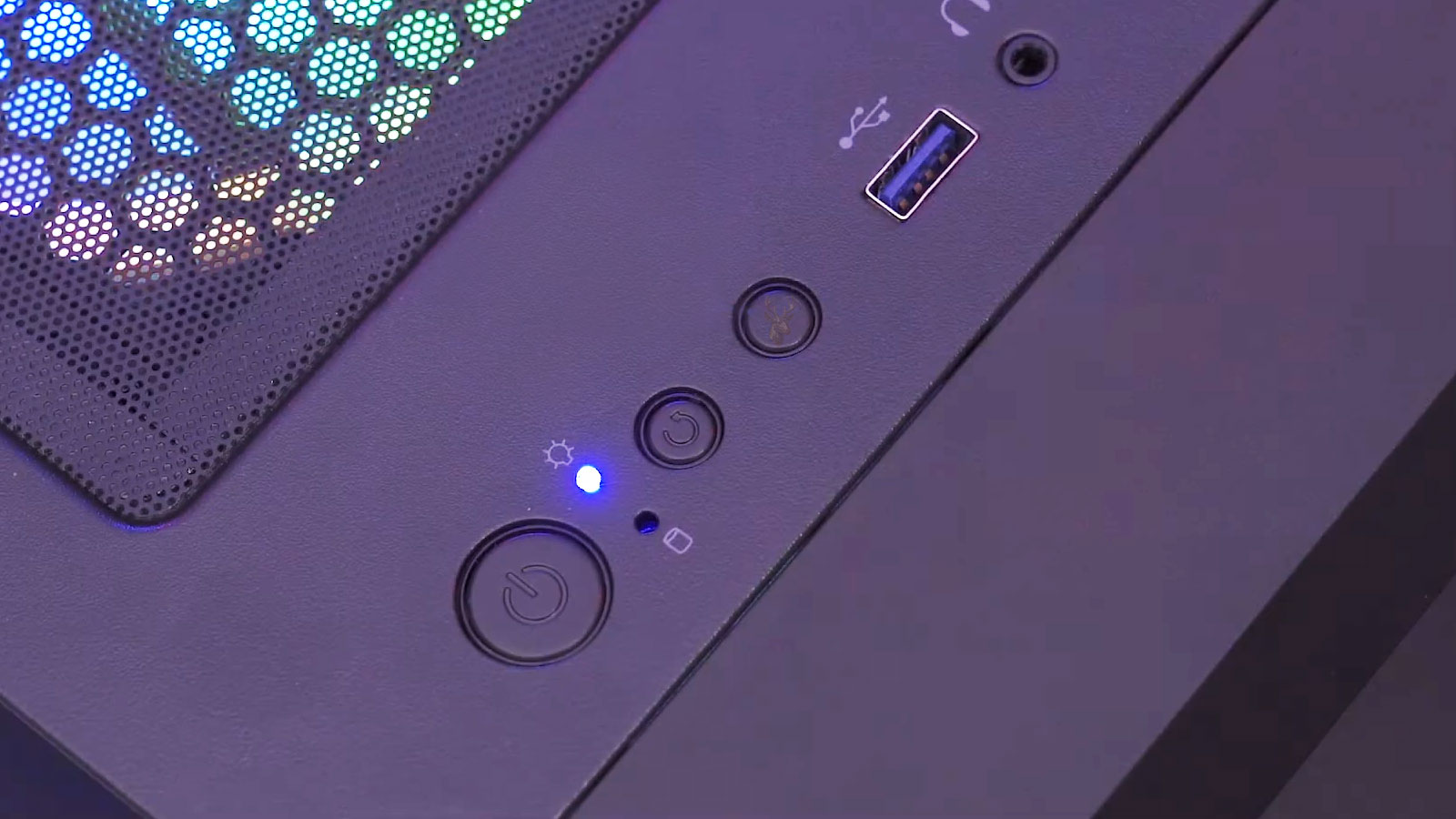
A Faulty Power Button Can Create Unintended Start Signals
The power button is a momentary switch connected to the motherboard. Pressing it sends a control signal rather than directly carrying all electrical power used by the computer.
A sticking switch, damaged front-panel cable, contaminated button assembly, or shorted contact can imitate a button press. The computer may start when the case is moved, the desk vibrates, or the switch changes position on its own.
- The button may feel loose, sticky, or unusually sensitive.
- The computer may start when the case is touched or moved.
- The system may shut down or restart without a normal Windows command.
- The behavior may continue even when network and wake timers are disabled.
Disconnecting the front-panel power switch temporarily and starting the system through a controlled service method can help determine whether the case button or its wiring is responsible.
Front-Panel Wiring Can Be Installed Incorrectly
Desktop cases connect their power and reset buttons to small motherboard header pins. After a motherboard replacement, case transfer, cleaning, or internal repair, these connectors can be placed on the wrong pins or left partially connected.
An incorrectly positioned reset or power connector can create unpredictable behavior, including spontaneous startup, repeated restarting, or failure to respond normally to the buttons.
Unexpected power behavior that begins immediately after internal repair should include front-panel wiring in the inspection.
The motherboard diagram should be followed carefully because header layouts differ between manufacturers and models.
A Failing Power Supply Can Produce Irregular Power Behavior
A desktop power supply provides standby voltage to parts of the motherboard even while the computer appears off. This low-power circuit allows the motherboard to detect the power button, network wake signals, and other startup requests.
If the standby circuit becomes unstable, the system may start unpredictably, fail to start consistently, or cycle on and off. Power-supply failure is less common than an enabled wake feature, but it becomes more likely when other electrical symptoms are present.
Configuration Pattern
The computer starts at repeatable times or after identifiable network, device, or power events.
Electrical Instability
The startup is irregular and may occur with clicking, cycling, failed starts, or sudden shutdowns.
Testing with a known-good power supply can help separate motherboard control behavior from unstable power delivery.
Motherboard Standby Circuits Remain Active After Shutdown
A computer that appears fully off still receives a small amount of standby power when it remains connected to electricity. This standby circuit allows the motherboard to detect the power button, network wake requests, scheduled firmware events, and certain USB signals.
Because part of the motherboard remains energized, a startup can occur without the main power button being pressed. This behavior is normal when an approved wake source is active, but it can also make an unstable electrical signal more difficult to separate from a software setting.
A shut-down computer is not electrically inactive while standby power remains connected.
Disconnecting the power cable or switching off the power supply removes most standby power and can help determine whether the event depends on an active motherboard wake circuit.
A Firmware Update or Reset Can Change Power Behavior
Motherboard firmware controls several automatic startup features, including scheduled power-on, Wake-on-LAN, USB wake support, and behavior after electrical power is restored. A firmware update or reset can return these options to manufacturer defaults.
The computer may begin turning on unexpectedly after a BIOS or UEFI update even though no Windows setting was changed. A reset performed during troubleshooting can create the same result if a previously disabled wake option becomes active again.
Default Does Not Always Mean Preferred
The manufacturer’s default power settings may support remote management or automatic recovery in ways that are unnecessary for the current user.
Reviewing firmware settings after an update, battery replacement, or reset can reveal why the startup pattern changed suddenly.
A Weak CMOS Battery Can Cause Firmware Settings to Change
Many desktop computers use a small battery to preserve the clock and firmware settings while the system is unplugged. When this battery weakens, the motherboard may lose stored configuration details and return to default values.
A changed clock, incorrect date, lost boot order, or repeated firmware warning can appear alongside unexpected power behavior. If the default configuration enables automatic startup after power restoration or another wake feature, the computer may begin turning on differently after being disconnected from electricity.
- The system clock may reset after power is removed.
- Firmware settings may not remain saved.
- Boot preferences may return to default values.
- Automatic power options may become active again.
Replacing the battery may restore setting retention, but the preferred firmware configuration must still be reviewed and saved afterward.
Laptops Can Respond to Lid, Dock, or Power Adapter Events
Laptop power behavior can be influenced by more than the main power button. Some models can start when the lid is opened, when a docking station is connected, when external power is attached, or when a compatible peripheral sends a wake request.
These features may be useful in a desk setup where the laptop remains closed and connected to external displays. They can appear unexpected when the system begins starting as soon as the charger, dock, or lid position changes.
Lid-Open Startup
The laptop powers on or resumes automatically when the display lid is raised.
Power or Dock Startup
Connecting a charger or docking station produces a startup signal through the system’s power-management hardware.
The behavior should be tested with the dock, charger, and external devices disconnected to determine whether one of them is initiating the event.
A Docking Station Can Pass Wake Signals to the Computer
Docking stations can contain network adapters, USB controllers, power-delivery circuits, display interfaces, and their own firmware. Any of these components may participate in wake behavior when the laptop is sleeping or connected to external power.
A dock may wake the system when Ethernet activity occurs, when a USB device reconnects, or when power delivery briefly changes. Firmware or driver problems can also create repeated connection events that cause the laptop to resume unexpectedly.
The wake source may be inside the docking station rather than inside the laptop.
Testing the laptop directly with its normal charger can help separate dock-related behavior from an internal power-management problem.
A Charger Connection Can Be Mistaken for an Independent Startup
Some laptops are configured to power on automatically when an AC adapter is connected. Others may resume because attaching the charger changes the power state of a sleeping system.
A loose charging plug or damaged port can repeatedly connect and disconnect, creating multiple power-state changes. The laptop may appear to start without explanation when the actual trigger is intermittent charger contact.
Watch the Timing of the Charger
If the startup follows movement of the adapter, charging cable, or laptop, the power connection should be inspected before scheduled software events are blamed.
Testing with a known-good compatible adapter can help determine whether the behavior is related to the charger or the laptop’s internal charging circuit.
Battery Problems Can Create Unexpected Power Transitions
A failing laptop battery can cause the system to lose power unexpectedly, switch repeatedly between battery and charger operation, or report an incorrect charge level. The resulting shutdown and restart pattern may be mistaken for the computer turning on by itself.
If the laptop shuts off while unattended and later starts when the charger makes contact or electrical power returns, the visible result can resemble an automatic startup. Battery health, charging stability, and event history should be considered together.
- The laptop may shut down abruptly before the apparent restart.
- The battery percentage may change unpredictably.
- The system may start only when external power is present.
- Moving the charger may trigger a new power event.
A swollen, overheating, or physically damaged battery requires immediate attention rather than continued power testing.
A Restarting Computer May Never Have Completed Shutdown
Windows can encounter a driver, service, or firmware problem near the end of shutdown. The screen may turn black and the user may leave, while the system remains active or automatically restarts instead of entering the expected off state.
This pattern can make the computer appear to turn on later when it actually restarted moments after the shutdown command. Watching the complete shutdown process can reveal whether fans, indicator lights, and storage activity truly stop.
A black screen during shutdown does not confirm that the motherboard has entered the off state.
Shutdown logs and uptime information can help determine whether the system performed a new startup or simply continued running after an incomplete shutdown.
Driver Problems Can Interfere With Power-State Changes
Power transitions require cooperation between Windows, device drivers, firmware, and hardware. A driver that does not enter or leave a low-power state correctly can cause failed sleep, immediate wake-ups, incomplete shutdown, or unexpected restarting.
Network, graphics, storage, chipset, USB, and Bluetooth drivers are commonly involved in power management. The symptom may begin after a driver update, Windows upgrade, hardware replacement, or installation of a new peripheral.
Immediate Wake
The computer enters sleep and resumes almost at once because a driver or device generates activity.
Failed Shutdown
The system cannot complete the transition to the off state and may restart or remain partially active.
Reviewing the timing of recent driver and hardware changes can prevent unnecessary replacement of the power supply or motherboard.
The Exact Time of the Event Should Be Recorded
Automatic startup problems are easier to diagnose when the approximate date and time of each event is known. That information can be compared with Windows logs, scheduled tasks, maintenance periods, backup activity, router records, and electrical interruptions.
A repeatable time suggests a schedule, while a startup linked to movement, network use, power restoration, or connection of a device suggests a physical or external trigger.
- Record whether the computer was sleeping, hibernating, or shut down.
- Note the exact or approximate startup time.
- Identify any device connected or moved shortly beforehand.
- Check whether an outage, flicker, or UPS alarm occurred.
- Review whether updates, backups, or remote work were scheduled.
A simple event history can reveal a pattern that is not obvious when each startup is considered separately.
Testing Should Change One Wake Source at a Time
Disabling every power-management feature at once may stop the behavior, but it also removes the evidence needed to identify the actual cause. It can interfere with legitimate backups, updates, remote access, and convenient wake functions.
A controlled test changes one likely source, observes the computer through the time when the startup normally occurs, and records the result. Network wake, USB devices, timers, firmware schedules, and power-restoration settings can then be evaluated separately.
Controlled Changes Produce Better Evidence
When several settings are changed together, there is no reliable way to know which one corrected the behavior.
The original setting should be documented before each test so useful features can be restored if they are not responsible.
A Full Power-Removal Test Can Separate Wake Features From Hardware Behavior
A desktop computer cannot respond to ordinary wake signals when its power cable is disconnected and standby electricity is absent. If it remains off while disconnected but starts after power is restored, the behavior may involve the motherboard’s power-restoration setting or an unstable electrical source.
If the system starts only when network, USB, or other external devices are connected, those paths become stronger suspects. A laptop requires additional care because its internal battery can continue supplying power after the charger is removed.
Removing external power is a diagnostic comparison, not a permanent solution for a computer that should remain available.
The test should be performed only when the computer has completed shutdown and no update, backup, or storage activity is in progress.
Persistent Irregular Startup May Require Hardware Diagnosis
When scheduled tasks, wake permissions, firmware settings, external devices, and electrical conditions have been ruled out, the remaining possibilities may include a defective power switch, unstable power supply, damaged motherboard circuit, liquid contamination, or incorrect internal wiring.
Hardware suspicion increases when the computer also cycles on and off, fails to start reliably, reacts when the case is moved, emits electrical odors, or loses power without a Windows shutdown message.
- Inspect the power button and front-panel wiring.
- Check for loose internal and external power connections.
- Test the power supply under controlled conditions.
- Examine the motherboard for liquid damage or visible defects.
- Compare behavior with nonessential devices disconnected.
Parts should not be replaced solely because the startup appears random. The standby power and control path should be tested to identify which component is producing the signal.
The Most Useful Question Is What State the Computer Left
A computer can resume from sleep, return from hibernation, restart after a crash, continue from an incomplete shutdown, or power on from a fully off state. Each event uses a different path and points toward a different group of causes.
Wake timers, input devices, network adapters, and USB accessories usually affect low-power states. Firmware schedules, restored electricity, power-button circuits, and motherboard standby controls can start a system that was more completely shut down.
Identifying the previous state prevents wasted troubleshooting. A wake-from-sleep problem should not be approached as a failing power supply, while a true power-on event should not be investigated only through Windows sleep settings.
Unexpected Power-On Events Usually Leave a Pattern
A computer that turns on by itself is often responding to a specific condition rather than acting randomly. The trigger may be a scheduled maintenance task, network packet, moving input device, docking station, charger connection, restored electrical power, or firmware-controlled alarm.
The safest diagnosis begins by confirming whether the system was sleeping or fully shut down, recording when the event occurred, checking recent wake information, and reviewing both Windows and firmware settings. External devices and electrical conditions can then be tested without disabling every useful feature at once.
When no software, network, device, or power-setting explanation remains, the power button, standby circuit, power supply, and motherboard may require direct inspection. Following the complete power path makes it possible to distinguish normal automatic behavior from a developing hardware fault.











