
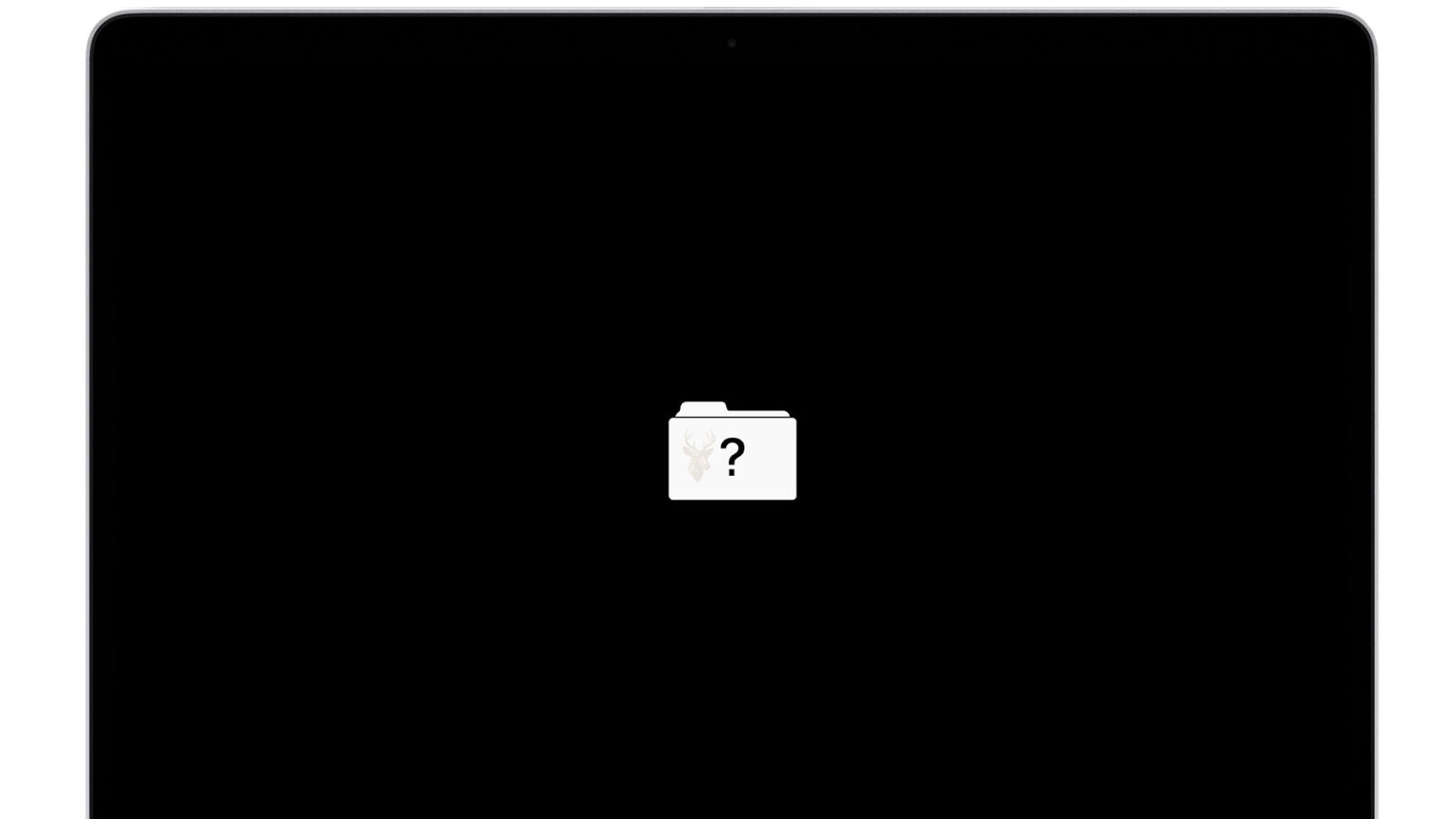
The Symbol Appears When the Mac Cannot Find a Usable Startup System
A Mac normally begins startup by locating a storage device that contains a compatible macOS installation. When the computer cannot identify a usable system folder, it may display a flashing folder marked with a question mark instead of continuing to the desktop.
The symbol does not identify one specific failed component. It indicates that the startup process reached the point where macOS should have been found, but the computer could not locate a system it was able to use.
The cause can involve the selected startup disk, damaged operating system files, a storage device that is not responding, an internal connection problem, or a drive whose file structure can no longer be read correctly. The same visual warning can therefore appear in several very different situations.
The Folder Symbol Represents a Missing System Location
The flashing folder is sometimes mistaken for an ordinary missing file or deleted personal folder. It actually represents a much earlier startup problem. The Mac has not yet loaded the operating system, opened a user account, or reached the files stored on the desktop.
During a normal startup, the computer identifies an eligible storage volume, reads its system information, and begins loading macOS. If that sequence cannot continue, the folder symbol communicates that no acceptable startup location has been confirmed.
The question-mark folder means the Mac cannot locate a startup system it recognizes, not simply that one personal folder is missing.
This distinction matters because searching for a deleted folder or changing user-account settings will not address a failure occurring before macOS has started.
A Brief Appearance Can Differ From a Continuous Flashing Folder
Some Macs display the question-mark folder only briefly before continuing into macOS. Others remain on the symbol indefinitely and never reach the login screen. These two patterns can point toward different levels of startup difficulty.
A brief delay may occur when the computer is searching several possible startup locations or has not retained the preferred startup disk correctly. A continuous flashing folder indicates that the search did not produce a usable operating system.
Brief Folder Display
The Mac eventually finds macOS, but the startup search takes longer than expected.
Continuous Folder Display
No usable startup system is found, leaving the computer unable to continue.
The timing and consistency of the symptom should be noted because an intermittent search delay differs from a complete loss of startup-disk access.
The Selected Startup Disk May No Longer Be Available
A Mac can remember which storage volume it should use during startup. This setting becomes important when the computer contains multiple operating systems, uses an external startup drive, or previously started from a temporary installation device.
If the preferred startup volume has been disconnected, erased, renamed, or made unavailable, the computer may spend additional time searching for another eligible system. When no alternative can be found, the question-mark folder appears.
The Mac May Be Searching for the Wrong Location
A valid macOS installation can still exist on the computer while the stored startup selection points toward a volume that is no longer accessible.
This situation differs from a failed internal drive because the operating system may remain intact and usable once the correct startup volume is selected again.
Startup Selection Can Be Lost After Certain Resets
Some startup preferences are stored in nonvolatile memory so the Mac can remember them after shutdown. Resetting that memory can remove the saved startup-disk selection along with other low-level settings.
The computer may then search for an operating system rather than immediately opening the usual startup volume. If the internal system is healthy, the Mac may eventually start after a delay. If detection is already unreliable, the reset can make the existing problem more visible.
A settings reset does not normally delete macOS, but it can remove the preference that told the Mac where to look first.
For that reason, the appearance of the symbol after a reset does not automatically prove that the operating system was erased during the procedure.
The Internal Drive Must Be Detected Before macOS Can Load
The Mac cannot start from an internal drive that its hardware and firmware cannot detect. Even a complete macOS installation becomes unavailable when the storage device fails to identify itself or loses communication with the computer.
Detection problems can involve the drive electronics, a storage controller, an internal cable, a connector, or the logic board interface. The exact arrangement depends on the Mac model because different generations use hard drives, solid-state drives, removable storage modules, or storage integrated directly with the logic board.
- The storage device may fail to identify itself during startup.
- An internal cable can interrupt communication with the drive.
- A connector may become unreliable after impact or previous repair.
- The logic board may not communicate correctly with the storage hardware.
When the drive is not detected at all, repairing macOS files will not be possible until the underlying storage connection or hardware problem is addressed.
Older MacBooks Can Develop Internal Drive Cable Problems
Some older MacBook models connect the internal drive to the logic board through a flexible cable routed inside the lower case. Repeated heat exposure, pressure, movement, and contact with the computer’s internal surfaces can gradually damage that cable.
The drive itself may remain functional while communication becomes intermittent. The Mac can start normally on one occasion, show the flashing folder on another, or freeze when the cable loses a reliable connection during operation.
Drive Failure
The storage device cannot read, write, or communicate reliably even when connected through a known-good path.
Cable Failure
The drive may operate normally elsewhere, but the Mac cannot communicate with it consistently through the internal cable.
Separating these possibilities prevents a usable drive from being replaced when the actual failure exists in the connection between the drive and the logic board.
A Detected Drive Can Still Lack a Usable macOS Installation
Storage detection alone does not guarantee that the Mac can start. The drive must also contain a readable volume with the system files and startup information required by that computer.
If macOS was erased, an installation was interrupted, essential system files became damaged, or the startup volume was altered incorrectly, the drive may appear in diagnostic tools without offering a usable operating system.
A visible storage device and a bootable startup system are not the same condition.
This explains why a drive can be listed with its correct capacity while the Mac continues displaying the question-mark folder during ordinary startup.
File-System Damage Can Hide an Otherwise Present System
The startup volume depends on a file system that organizes folders, file records, free space, and other structural information. If that structure becomes damaged, the Mac may be unable to locate or read the system even though much of the underlying data remains physically present.
File-system problems can follow an interrupted update, sudden power loss, unstable storage hardware, forced shutdown, or a drive that is developing unreadable areas. The severity can range from a repairable directory inconsistency to damage that prevents the volume from mounting.
Storage Presence Does Not Confirm Volume Health
The Mac may recognize the physical drive while remaining unable to interpret the file structure containing macOS and the user’s files.
Determining whether the drive is detected, whether the volume can be mounted, and whether macOS remains bootable are three separate stages of diagnosis.
An Interrupted macOS Update Can Leave Startup Incomplete
A macOS update changes system files, startup information, recovery components, and sometimes firmware. If the process is interrupted by power loss, storage errors, forced shutdown, or insufficient free space, the Mac may be left without a complete system it can load.
The drive may still contain personal files and portions of the previous operating system, but the startup sequence can no longer continue normally. The question-mark folder may appear immediately or after the Mac attempts several unsuccessful startup paths.
Repeatedly restarting the computer does not complete missing installation steps when essential files were never written correctly. The condition must first be evaluated to determine whether macOS can be repaired or reinstalled without erasing the existing data.
Startup Manager Can Show Which Systems the Mac Recognizes
Startup Manager allows a Mac to search for available startup volumes and present the systems it considers eligible to load. This can help separate a missing startup selection from a storage device that is not being detected at all.
If the normal macOS volume appears and starts successfully when selected manually, the operating system may still be intact. The computer may simply have lost or changed its preferred startup-disk setting.
If the expected volume does not appear, the problem may involve storage detection, volume structure, operating system damage, or compatibility with the particular Mac.
Volume Appears
The Mac recognizes a possible startup system, allowing further testing of whether it can load correctly.
Volume Is Missing
The computer is not presenting that storage location as a usable startup option.
This comparison does not identify the final cause by itself, but it reveals whether the Mac can currently see an eligible system during startup.
Recovery Mode Uses a Separate Startup Environment
macOS Recovery provides diagnostic and installation tools without requiring the main operating system to start normally. Depending on the Mac model and system condition, recovery tools may load from an internal recovery volume or through an internet-based startup process.
Reaching recovery does not prove that the ordinary macOS installation is healthy. It only confirms that the Mac found another environment capable of loading basic utilities.
A working recovery environment and a working primary macOS installation are two separate conditions.
Recovery tools can help determine whether the internal storage is visible, whether its volumes mount, and whether the file system reports structural problems.
Internet Recovery Does Not Depend on the Main Drive
When the internal recovery environment is missing or unavailable, some Macs can retrieve recovery tools through an internet connection. This allows the computer to start a basic diagnostic and installation environment even when the internal drive contains no usable system.
A successful Internet Recovery session does not confirm that the internal storage is functioning. The tools are being loaded from an external source, so the Mac may enter recovery even when its internal drive is absent or severely damaged.
Recovery Access Is Only the Beginning
Once recovery loads, the internal storage must still be examined separately to determine whether it is detected, readable, repairable, or suitable for reinstallation.
This distinction prevents a successful recovery startup from being mistaken for proof that the original macOS volume remains intact.
Disk Utility Can Reveal Several Different Storage Conditions
Disk Utility can display physical storage devices, containers, partitions, and volumes. The exact entries shown depend on the Mac model, storage format, and operating system version.
A drive that appears with the correct capacity but contains an unavailable or unmounted volume presents a different problem from a drive that does not appear at all. A visible volume with file-system errors differs again from a healthy volume that simply lacks a complete macOS installation.
- The physical storage device may be missing entirely.
- The device may appear while its container or partition is damaged.
- The volume may be present but unable to mount.
- The volume may mount while lacking usable startup files.
- The storage may appear healthy while the preferred startup selection is incorrect.
Reading these levels separately helps avoid treating every flashing-folder condition as the same type of failure.
First Aid Checks Structure but Cannot Repair Every Problem
Disk Utility includes First Aid, which checks portions of the storage structure and attempts certain repairs. It can correct some directory, container, or volume inconsistencies when the underlying storage hardware remains stable enough to read and write reliably.
First Aid cannot rebuild every damaged file system, replace missing operating system files, or correct a failing drive. A successful result also does not guarantee that the Mac will start if the startup information or macOS installation remains incomplete.
A completed First Aid check confirms only what the utility was able to examine and repair during that session.
If the drive repeatedly disappears, produces input and output errors, or cannot remain mounted, continuing repair attempts may create additional risk for important files.
Mounting a Volume Is Different From Starting From It
A volume may mount in Recovery Mode and allow folders to be viewed while remaining unable to start macOS. Mounting confirms that the file system can be accessed at some level, but a bootable system requires additional startup files, permissions, system components, and compatible operating system information.
This situation can occur after an incomplete update, accidental deletion of system files, damaged startup information, or an installation that never finished. Personal files may still be present even though the operating system no longer loads.
Mounted Volume
The file system can be opened sufficiently for some data and folders to become accessible.
Bootable Volume
The volume also contains a complete and compatible system that the Mac can load during startup.
Preserving accessible data may become the priority when a volume mounts but no longer provides a reliable startup system.
Reinstalling macOS Does Not Always Require Erasing the Drive
When the storage device is healthy enough and the existing volume remains readable, macOS may sometimes be reinstalled over the current system without intentionally erasing personal files. This can replace missing or damaged operating system components while leaving user data in place.
A reinstall is not a substitute for checking the condition of the drive. Writing a large operating system installation to unstable storage can fail partway through or place additional stress on a device that is already deteriorating.
Reinstallation addresses missing or damaged system software, not defective storage hardware.
Important files should be protected before major repair or installation work whenever the volume remains accessible and no current backup exists.
Erasing the Drive Changes the Nature of the Repair
Erasing removes the existing volume structure and prepares the storage device for a new installation. This may be appropriate when the current system is no longer needed, the data is safely backed up, or the file structure cannot be reused.
It should not be treated as the first response to a flashing folder when important files remain only on the affected drive. Erasing can eliminate information needed to locate existing folders and complicate later recovery attempts.
A Fresh Installation Restores Use, Not Missing Data
Reformatting may return the Mac to an operational state, but it does so by replacing the previous storage structure rather than repairing the files that were already there.
The condition of the data and the availability of a backup should be established before an erase operation is approved.
External Startup Testing Can Separate the Mac From Its Internal System
Starting from a compatible external macOS installation can help determine whether the Mac’s processor, memory, display, and other major components are capable of running an operating system independently of the internal startup volume.
If the Mac operates normally from an external system, the investigation can focus more closely on the internal drive, internal connection, volume structure, or macOS installation. If similar failures occur from multiple known-good startup sources, the problem may extend beyond the internal storage.
An external startup test does not repair the original drive, but it can provide another environment for examining the internal storage and protecting accessible files.
A Previously Replaced Drive May Have Compatibility or Installation Problems
The flashing folder can appear after a storage upgrade when the replacement drive contains no operating system, uses an unsupported configuration, or was not prepared correctly for that Mac. A physically installed drive is not automatically ready to serve as a startup device.
Some replacements also depend on adapters, firmware support, or operating system versions that understand the storage hardware. A drive can be electrically present while remaining unavailable as a practical startup option.
- The replacement drive may be blank.
- The macOS installation may have failed or remained incomplete.
- The partition or container structure may be unsuitable.
- An adapter may create intermittent communication.
- The Mac may require different firmware or system support.
Reviewing when the symptom began helps distinguish a long-developing storage failure from a problem introduced during a recent upgrade or repair.
Intermittent Startup Can Indicate an Unstable Storage Path
A Mac that sometimes starts normally and sometimes displays the question-mark folder may have an intermittent problem rather than a completely missing operating system. The storage device, internal cable, connector, or file system may work well enough during one startup and fail during another.
Movement, temperature changes, pressure on the lower case, and repeated restarts can influence a weak connection. A deteriorating drive can also respond inconsistently as unreadable areas spread or internal electronics become less reliable.
A Mac that starts successfully once is not necessarily free of storage trouble when the flashing folder has already appeared.
The frequency of the symptom, any recent impact, and whether the Mac freezes before the folder appears can help identify whether the failure is developing gradually.
Slow Startup Before the Folder Appears Can Be an Important Warning
Some Macs spend an unusually long time on a blank screen, Apple logo, or progress indicator before displaying the question-mark folder. This delay can occur while the computer repeatedly attempts to identify the drive or read enough startup information to continue.
A long search followed by failure may point toward unstable communication, file-system damage, or a drive that responds too slowly. The computer may not immediately conclude that no startup system is available because portions of the storage remain detectable.
Delayed Failure Can Still Be Serious
A storage device that responds only after repeated attempts may be closer to complete failure than one that is consistently absent.
When important files are stored on the Mac, a worsening delay should not be treated only as an inconvenience. It can be an opportunity to preserve data before access becomes more limited.
Unusual Sounds Can Point Toward Mechanical Drive Failure
Older Macs equipped with mechanical hard drives may produce clicking, repeated spin-up sounds, grinding, or rhythmic attempts to initialize when the drive is failing. These sounds are more concerning when they appear together with slow startup, freezing, or the flashing folder.
A mechanical drive contains moving parts that must position accurately to read stored information. Internal wear, impact damage, or head and motor problems can prevent the device from reaching the areas required for startup.
Repeated clicking from a mechanical drive is not corrected by reinstalling macOS.
Continuing to restart a mechanically damaged drive may reduce the amount of data that can still be read. Professional recovery evaluation may be more appropriate than repeated software repair attempts when the information is important.
Solid-State Drives Can Fail Without Audible Warning
Solid-state storage has no moving parts and usually does not provide the same sound-related warnings as a mechanical hard drive. An SSD can disappear suddenly, become read-only, report incorrect capacity, or stop responding without producing any unusual noise.
Controller failure, worn flash memory, power problems, firmware faults, or damage to integrated storage circuitry can prevent the Mac from locating a usable system. The absence of clicking or grinding therefore does not rule out storage failure.
Mechanical Drive
May provide audible warnings, slow reading, or repeated spin attempts before complete failure.
Solid-State Drive
May fail silently or disappear abruptly when its controller or flash storage becomes inaccessible.
The storage technology changes the likely warning signs, but either type of device can leave the Mac unable to locate macOS.
Integrated Storage Changes the Available Repair Options
Some newer Mac models place the storage components directly on the logic board instead of using a removable internal drive. When this integrated storage develops a hardware problem, replacing a separate drive may not be possible.
The repair may require logic board diagnosis, board-level work, specialized data recovery, or replacement of the entire board. The available options also depend on whether the storage encryption keys remain accessible through the original hardware.
On a Mac with integrated storage, a flashing folder can involve both the startup system and the logic board that contains the data.
Identifying the exact model is therefore essential before assuming that the storage can be removed and tested independently.
Encryption Can Affect Access to Files During Recovery
A Mac may use FileVault or another encryption method to protect the information stored on its startup volume. Even when the volume can be detected or copied, the files may remain unreadable until the correct password, recovery key, or authorized hardware information is available.
Encryption does not cause every flashing-folder condition, but it can influence what happens after the storage is located. A damaged encrypted volume may require both successful hardware recovery and valid decryption credentials.
- A visible encrypted volume may still require a password before it can mount.
- A sector copy preserves encrypted information but does not automatically unlock it.
- Replacing the logic board may affect access on models that tie encryption to onboard hardware.
- Erasing the drive removes the encrypted data rather than recovering it.
Recovery planning should therefore include both the physical condition of the storage and the credentials required to access its contents.
Data Preservation Should Come Before Reinstallation When Files Are Important
Reinstalling macOS may appear to be the fastest way to move beyond the flashing folder, but installation activity writes a large amount of new data to the storage device. On an unstable drive, this can worsen failure or overwrite information that might otherwise be recoverable.
If the volume can still be mounted, important files should be copied before major repair attempts. If the storage is disappearing, making unusual sounds, or reporting serious errors, a controlled recovery process may be safer than ordinary file copying.
The Goal Determines the Next Step
Restoring the Mac to working condition and preserving the only copy of important data are related but not always identical priorities.
When no backup exists, the value of the files should be considered before approving an erase, reinstall, or repeated repair attempt.
A Backup Can Reduce the Risk of Startup Repair
A current Time Machine backup or another verified copy of important files gives the owner more flexibility when the startup volume is damaged. The internal drive can be erased, replaced, or reformatted without relying on it as the only source of the user’s information.
A backup should be confirmed rather than assumed. An attached backup drive may have stopped updating, run out of space, or contain an older copy that does not include recent work.
When the Mac starts intermittently, checking the backup date and completing a new backup may be more important than immediately attempting to eliminate the flashing-folder symptom.
A Question-Mark Folder After Impact Requires Hardware Inspection
If the symptom begins after the Mac is dropped, struck, or transported roughly, the storage system and its connections should be treated as possible hardware failures. Impact can damage a mechanical drive, loosen a connector, crack a cable, or affect the logic board.
The exterior case may show little damage while internal parts have shifted or fractured. Repeatedly forcing startup does not correct a broken connection and may place additional stress on a damaged mechanical drive.
The timing of the first flashing-folder event can be as important as the symbol itself.
Any recent impact, liquid exposure, repair work, or storage upgrade should be included in the diagnostic history.
Liquid Damage Can Interrupt Storage Communication
Liquid exposure can corrode connectors, damage logic board circuits, or create unstable power delivery to the storage system. The Mac may continue working immediately after the spill and develop the flashing folder days or weeks later as corrosion progresses.
Cleaning or reinstalling macOS does not repair corroded circuitry. The affected area must be inspected to determine whether the storage device, its power supply, or the communication path has been damaged.
When liquid exposure is suspected, continued use can allow electrical damage and corrosion to spread. Protecting accessible data and disconnecting power may be safer than repeated startup attempts.
A Recent Repair Can Introduce a Connection or Configuration Problem
The question-mark folder may appear after battery replacement, logic board work, storage replacement, internal cleaning, or another repair that required opening the Mac. A connector may not be fully seated, a cable may have been damaged, or the replacement storage may not contain a compatible operating system.
The repair history can narrow the investigation. A Mac that worked normally before service and displayed the folder immediately afterward should be checked for changes introduced during that work before unrelated causes are assumed.
Physical Change
A cable, connector, drive, or logic board component may no longer be installed or communicating correctly.
Software Change
The replacement storage may lack macOS, use an unsuitable format, or contain an incomplete installation.
Reviewing both the physical and software sides of the recent repair avoids repeating installation work when the real problem is an internal connection.
The Correct Diagnosis Follows the Startup Path
A reliable diagnosis begins by determining whether the Mac can identify its storage hardware, whether the expected volume exists, whether that volume can mount, and whether it contains a complete macOS installation. Each stage answers a different question.
- Confirm whether the physical storage device is detected.
- Check whether its container, partition, and volume structures appear.
- Determine whether the volume can mount and remain accessible.
- Evaluate whether the file system reports errors.
- Confirm whether the volume contains a compatible startup system.
- Protect important data before destructive repair or reinstallation.
Skipping these stages can lead to unnecessary erasure, replacement of a working component, or repeated software repairs on hardware that is already failing.
The Flashing Folder Is a Starting Point, Not a Final Diagnosis
The question-mark folder communicates that the Mac could not locate a usable startup system. It does not reveal whether the cause is a forgotten startup selection, damaged macOS installation, corrupted file system, disconnected drive, failing storage device, or logic board problem.
A brief appearance may result from a delayed search, while a persistent symbol can indicate that no eligible system is available. Intermittent behavior, recent impact, unusual sounds, failed updates, and prior repair work provide additional clues that help separate software trouble from hardware failure.
The safest response depends on whether the files are backed up and whether the storage remains stable. When important data exists only on the affected Mac, preservation should come before erasing, reinstalling, or repeatedly restarting the computer. Following the storage and startup path carefully provides the best chance of restoring both the Mac and the information it contains.











