
A Recovery Key Is Designed to Protect Data, Not Indicate a Failure
BitLocker is a Windows security feature that encrypts the contents of a storage drive so information remains protected if the computer is lost, stolen, or accessed without authorization. Under normal conditions the encryption process works quietly in the background, allowing the computer to start without requiring the user to enter a recovery key every time.
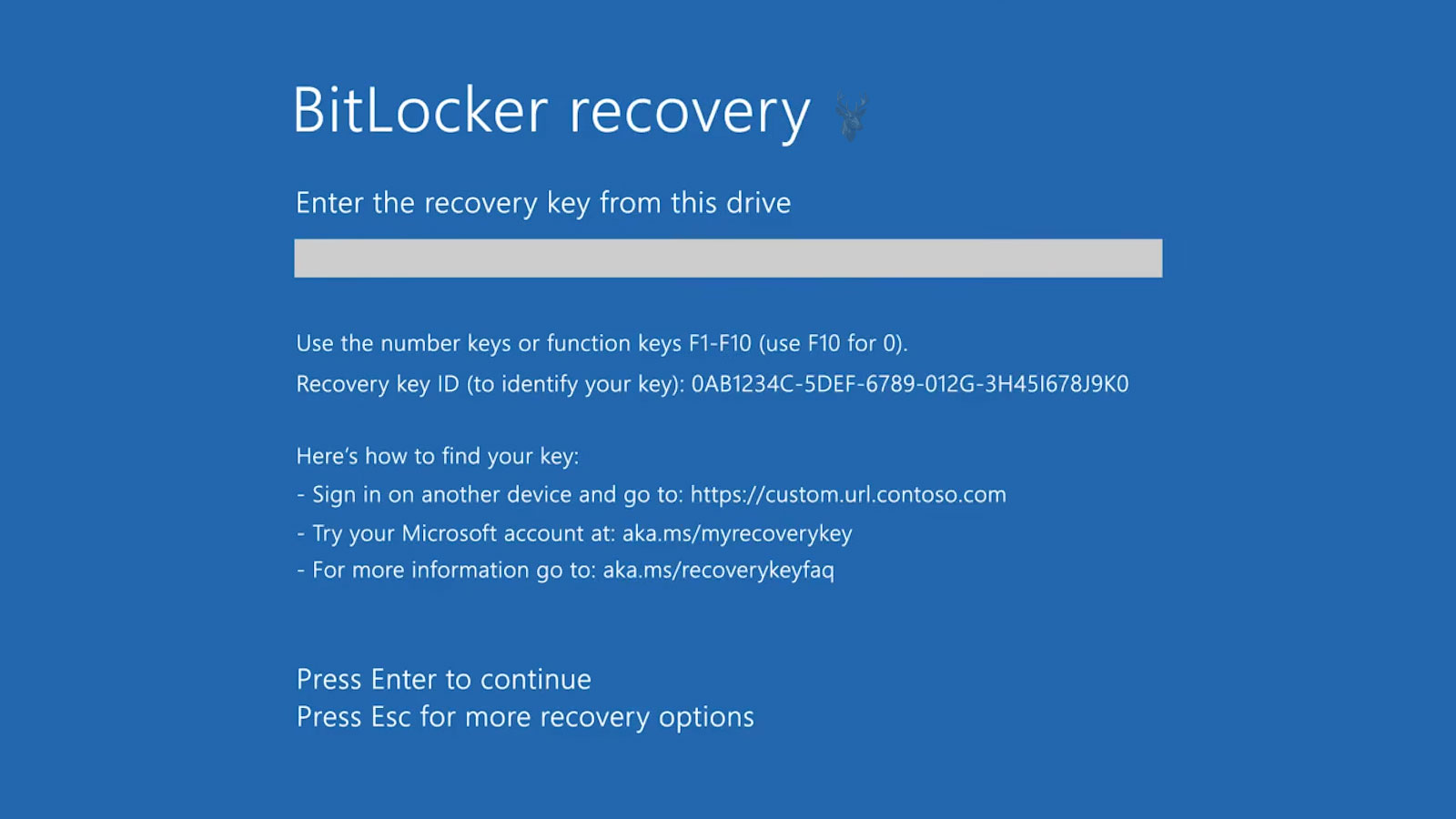
Occasionally, however, Windows interrupts the normal startup process and requests a BitLocker recovery key before allowing access to the encrypted drive. This request often surprises users because the computer may have been operating normally only moments earlier.
Although the recovery screen can appear alarming, it does not automatically mean that Windows is damaged, the storage device has failed, or the encrypted files have been lost. In many situations, BitLocker is responding exactly as it was designed by asking for additional verification before releasing the encryption keys.
Encryption Protects Information Even When the Drive Is Removed
Unlike ordinary file permissions that depend on a Windows user account, BitLocker encrypts the information stored on the drive itself. If someone removes the storage device and connects it to another computer, the files remain unreadable without the proper decryption information.
This approach protects documents, photos, financial records, business information, and other sensitive data against unauthorized access. Even though the drive is physically present and functioning correctly, the stored information appears as unreadable encrypted data until BitLocker authorizes access.
BitLocker is designed to protect the contents of the drive rather than simply restrict who can log into Windows.
Because the protection exists below the operating system level, BitLocker can continue safeguarding information even if the drive is installed in an entirely different computer.
The Trusted Platform Module Plays an Important Role
Many modern computers contain a Trusted Platform Module, commonly called a TPM. This specialized security chip stores information that helps verify whether the computer is starting in the expected hardware configuration.
During startup, BitLocker checks several security measurements before automatically unlocking the encrypted drive. If those measurements match the expected values, Windows continues loading without requiring additional input from the user.
If the TPM detects a significant change, BitLocker may request the recovery key before releasing the encryption information. This extra verification helps prevent someone from bypassing security by modifying hardware or startup components.
Expected Startup
The TPM recognizes the normal startup environment, allowing BitLocker to unlock the encrypted drive automatically.
Unexpected Startup
Changes to important startup conditions may cause BitLocker to request the recovery key before continuing.
Several Normal Events Can Trigger Recovery Mode
A BitLocker recovery request does not always indicate that someone attempted unauthorized access. Many legitimate maintenance activities can change the security measurements that BitLocker evaluates during startup.
Examples include firmware updates, certain BIOS or UEFI configuration changes, replacing the motherboard, modifying startup settings, clearing TPM information, or moving the encrypted drive into another computer. Even though these changes may be intentional, BitLocker treats them cautiously until the correct recovery key is provided.
- Firmware or BIOS updates.
- Changes to Secure Boot or startup configuration.
- Replacing certain hardware components.
- Moving an encrypted drive to another computer.
- Clearing or resetting TPM information.
After successful verification, BitLocker may return to normal automatic operation if the new configuration becomes the trusted startup environment.
The Recovery Key Is Different From a Windows Password
A Windows sign-in password identifies the person using the computer after the operating system has started. A BitLocker recovery key serves a completely different purpose by authorizing access to the encrypted storage before Windows can load.
Because these security layers protect different stages of the startup process, knowing the Windows account password does not automatically provide access when BitLocker requests its recovery key. Likewise, entering the correct recovery key does not replace the normal Windows sign-in credentials.
Separate Layers of Protection
BitLocker protects the encrypted drive before Windows starts, while the Windows password protects the user account after the operating system has successfully loaded.
Understanding the distinction helps explain why recovering access to an encrypted drive follows a different process from resetting a forgotten Windows password.
Recovery Mode Helps Prevent Unauthorized Hardware Changes
One purpose of BitLocker is to recognize when the startup environment differs from the trusted configuration established when encryption was enabled. Rather than assuming every hardware change is legitimate, BitLocker pauses the startup process until the correct recovery information is provided.
This security behavior reduces the likelihood that an attacker could modify startup components, remove the drive, or bypass normal authentication without additional verification. Although recovery mode may seem inconvenient during legitimate maintenance, it represents an important part of protecting encrypted information.
The Recovery Key Is a Long Numerical Code
A BitLocker recovery key is typically a 48-digit numerical code divided into several groups. The length makes it impractical to guess and helps ensure that only someone with access to the stored recovery information can unlock the encrypted drive.
The recovery screen also displays a key identifier. This identifier is not the recovery key itself. Instead, it helps distinguish the correct key when an account or organization stores recovery information for several encrypted computers.
Recovery Key
The complete numerical code used to unlock the encrypted drive.
Key Identifier
A shorter reference that helps locate the matching recovery key among multiple stored records.
Entering the identifier alone will not unlock the computer. The full recovery key associated with that identifier must be located and entered correctly.
The Key May Be Stored in a Microsoft Account
When device encryption or BitLocker is enabled on a personal Windows computer, the recovery key may be associated with the Microsoft account used during setup. This provides a way to retrieve the key from another device when the encrypted computer cannot start normally.
The account must be the same one that received or stored the recovery information. A person who has used several Microsoft accounts may need to determine which account was connected to the computer when encryption became active.
The recovery key is connected to the account or management system that stored it, not simply to the person currently using the computer.
Finding the correct account can be difficult when a computer was originally configured by a family member, former employee, outside technician, or previous owner.
Business Computers May Store Keys With the Organization
Computers managed by a business, school, or other organization may store BitLocker recovery information in a centralized directory or device-management platform. This allows authorized administrators to retrieve the key when maintenance, hardware changes, or security events trigger recovery mode.
In these environments, the employee using the computer may never have received a personal copy of the key. The organization may control recovery as part of its security policy, particularly when the device contains company records or regulated information.
Managed Encryption
Central storage allows administrators to recover authorized devices while maintaining control over access to protected company data.
A business computer displaying the BitLocker screen should normally be reported to the organization responsible for managing it rather than handled as a personal password-reset problem.
A Printed Copy or Saved File May Have Been Created
During BitLocker setup, Windows can provide several ways to preserve the recovery key. Depending on the system and configuration, the key may have been printed, saved as a file, copied to removable storage, or recorded in another approved location.
A printed recovery key may be stored with computer purchase records, maintenance documents, or other important paperwork. A saved file may exist on another computer, external drive, or secure storage location selected when encryption was enabled.
- A printed recovery-key page.
- A text file stored on another device.
- A record saved to removable storage.
- An entry maintained by an organization’s IT department.
- A key associated with the Microsoft account used during setup.
The recovery key should not be stored only on the encrypted drive it is intended to unlock. If the computer cannot access that drive, a copy located there would also be unavailable.
Automatic Device Encryption Can Surprise the Owner
Some Windows computers enable device encryption during initial setup when compatible hardware and account conditions are present. The owner may not remember deliberately turning on BitLocker because encryption became active as part of the normal configuration process.
This can create confusion months or years later when the computer first requests a recovery key. The absence of a remembered encryption setup does not prove that the recovery screen is fraudulent or that someone recently changed the drive.
Encryption may have been activated during the original Windows setup even when the user never opened the BitLocker control panel.
Understanding that encryption can be enabled quietly helps explain why some users encounter BitLocker recovery without having previously recognized that their files were encrypted.
BIOS and UEFI Changes Can Alter Trusted Measurements
The firmware configuration contains settings that influence how the computer begins the startup process. Changes to Secure Boot, TPM operation, boot mode, storage configuration, or startup-device order can alter the measurements that BitLocker expects.
A setting may be changed intentionally during troubleshooting, reset after a depleted motherboard battery, or restored to a default value following a firmware update. BitLocker cannot always determine whether the change was harmless, so it may require the recovery key before unlocking the drive.
Restoring a previous firmware setting may sometimes return the system to its trusted configuration, but settings should not be changed randomly. An incorrect storage or boot configuration can prevent Windows from starting for reasons unrelated to encryption.
Motherboard Replacement Commonly Changes the Security Environment
Because the TPM is normally associated with the motherboard, replacing the motherboard can remove the security information BitLocker previously trusted. The encrypted drive may still be completely healthy, but the new board cannot automatically provide the same authorization as the original hardware.
This is why recovery planning is important before major hardware repair. Suspending BitLocker or confirming that the recovery key is available can prevent an otherwise successful repair from leaving the owner unable to access the operating system afterward.
The Drive and Motherboard Serve Different Roles
The storage device contains the encrypted data, while the motherboard security hardware helps confirm that the computer is starting in an approved environment.
Replacing the motherboard does not decrypt or erase the drive. It changes the trusted hardware relationship that previously allowed BitLocker to unlock automatically.
Clearing the TPM Can Remove Stored Trust Information
The TPM can be cleared through Windows or the computer’s firmware settings. This action removes security information stored within the module and may be appropriate when preparing a computer for reassignment or resolving certain security-configuration problems.
Clearing the TPM without first confirming the BitLocker recovery key can create an immediate access problem. Once the trusted information is removed, the encrypted drive may require recovery verification during the next startup.
Resetting a security component should never be treated as a harmless troubleshooting step when encrypted storage is present.
Before clearing the TPM, the encryption status and recovery options should be reviewed so the computer can be unlocked after the security module is reset.
A Drive Moved to Another Computer Usually Requires Recovery
An encrypted drive remains protected when removed from its original computer. Installing it in another system changes the hardware environment and prevents the original TPM relationship from unlocking it automatically.
The second computer may detect the drive correctly and confirm that the storage hardware is present, but the files remain encrypted. The recovery key or another authorized unlocking method is still required before the contents can be accessed.
This behavior is one of BitLocker’s main protections. Without it, someone could bypass the original computer’s login security simply by moving the drive into another machine.
The Recovery Screen Should Be Matched to the Correct Drive
A computer may contain more than one encrypted storage device, and an account may hold recovery information for several systems. The key identifier displayed on the BitLocker screen helps determine which stored recovery key belongs to the drive currently requesting access.
This comparison matters because every encrypted volume can have its own recovery key. A valid key from another computer or another drive will not unlock the affected volume even when it belongs to the same owner.
The identifier should be compared carefully before a long numerical key is entered. This prevents confusion when several similar recovery records appear under the same Microsoft account or organizational directory.
Repeated Recovery Requests Can Point to an Unresolved Change
Entering the correct key may allow Windows to start, but the computer can request it again during a later restart if the underlying security measurement remains different from the trusted configuration. A single successful unlock does not always update every condition that caused recovery mode.
Repeated prompts may follow an incomplete firmware update, a changed Secure Boot setting, a TPM communication problem, an unstable motherboard battery, or another startup configuration that continues changing between restarts.
A recovery key can unlock the drive for one startup without correcting the condition that caused BitLocker to become cautious.
The pattern should be documented rather than dismissed. Knowing whether the prompt appears after every restart, only after shutdown, or only after firmware changes can help identify which part of the startup environment is not remaining consistent.
Suspending BitLocker Is Different From Decrypting the Drive
BitLocker can be suspended temporarily before certain maintenance procedures. Suspension allows the encrypted drive to remain protected while pausing some startup verification requirements for a limited period.
This is different from turning BitLocker off. Disabling BitLocker begins decrypting the stored information, which can take considerable time depending on the size and speed of the drive. Suspension leaves the data encrypted and is often more appropriate before planned firmware or hardware changes.
BitLocker Suspended
The drive remains encrypted while selected startup protections are temporarily paused.
BitLocker Disabled
The computer begins removing encryption from the drive and returning the stored data to an unencrypted state.
Choosing the correct action matters because unnecessary decryption can reduce protection and create a long process that was not required for the planned repair.
The Recovery Key Does Not Repair Windows
A BitLocker recovery key performs one specific task: it authorizes access to an encrypted drive. It does not repair damaged Windows files, correct startup records, restore deleted information, or resolve a failing storage device.
After the drive is unlocked, the computer may still encounter a separate startup problem. Windows can display repair options, error messages, or a blank screen even though BitLocker accepted the key successfully.
Unlocking and Repairing Are Separate Steps
The recovery key provides authorized access to encrypted data. Any operating system, hardware, or file-system problem must still be diagnosed independently.
This distinction prevents a valid recovery key from being blamed when the real problem begins after the encrypted volume has already been opened.
A Failing Drive Can Complicate BitLocker Recovery
Encryption does not prevent storage hardware from developing bad sectors, controller problems, or other physical failures. If the drive is unstable, BitLocker may unlock it successfully while file access remains slow, incomplete, or unreliable.
Repeated attempts to start Windows from a deteriorating drive can place additional stress on the hardware. When important information is involved, the priority may shift from ordinary startup repair to preserving the encrypted data before the drive becomes less readable.
An encrypted drive can have both an access problem and a hardware problem at the same time.
The recovery key remains essential, but it cannot compensate for storage media that is physically unable to read portions of the encrypted information.
Data Recovery Still Requires the Correct Decryption Information
When files must be recovered from a BitLocker-protected drive, the recovery process generally requires valid decryption credentials. Specialized recovery tools may help read an unstable or damaged device, but they do not remove properly implemented encryption.
A sector-by-sector image of the drive can preserve encrypted data for later work, yet the copied information remains encrypted. The correct key is still needed before recovered file structures and documents can be interpreted.
- A healthy encrypted drive still requires authorization.
- A damaged encrypted drive may require both hardware recovery and the correct key.
- Copying encrypted sectors does not automatically decrypt them.
- A Windows password is not a substitute for the BitLocker recovery key.
This is why locating recovery information early is important whenever an encrypted computer begins showing storage warnings or intermittent startup problems.
Formatting the Drive Removes the Data but Not the Need for a Decision
If the recovery key cannot be found, Windows may offer options that erase or reinstall the operating system. These choices can return the computer to a usable condition, but they do so by removing the encrypted information rather than unlocking it.
Formatting the drive does not recover access to the existing files. It creates a new storage structure and overwrites information needed to locate the previous data. The decision should therefore be made only after confirming that the missing files are not required or that another complete backup exists.
Reinstalling Windows can restore use of the computer, but it cannot replace an unavailable BitLocker key or preserve the encrypted files already on the drive.
Owners should avoid approving an erase operation simply to move past the recovery screen without first understanding what information will be lost.
Used Computers Can Retain Encryption From a Previous Owner
A secondhand computer may contain a drive that was encrypted under the previous owner’s Microsoft account or organizational management system. The new owner may be able to use the computer normally until a firmware reset, hardware change, or startup event triggers recovery mode.
At that point, the required key may remain available only to the person or organization that originally configured the device. Proof of ownership by itself does not create the cryptographic information needed to decrypt the existing drive.
Ownership and Encryption Access Are Not Identical
Possessing the computer does not automatically provide the key that was generated when another account or organization encrypted its storage.
A properly prepared used computer should be reset, removed from previous management, and configured under the new owner’s account before important files are stored on it.
Recovery Keys Should Be Stored Separately and Securely
A recovery key must remain available during an emergency without being left where anyone can use it. Storing the only copy on the encrypted computer defeats its purpose because the record becomes inaccessible when the drive cannot be unlocked.
Appropriate storage may include a protected account, a secured organizational directory, an encrypted password manager, a printed copy kept with important records, or another location that is both separate from the computer and resistant to unauthorized access.
The storage method should also be reviewed when a computer changes owners, employees leave an organization, hardware is replaced, or encryption is enabled again. An outdated record may refer to a previous key rather than the one currently protecting the drive.
Planned Maintenance Should Begin With Recovery Verification
Before updating firmware, changing Secure Boot settings, clearing the TPM, replacing a motherboard, or moving an encrypted drive, the recovery information should be located and confirmed. This preparation turns an unexpected lockout into a manageable security check.
The encryption status should also be documented so everyone involved in the repair understands that the drive is protected. A technician who is unaware of BitLocker may complete a hardware change successfully and encounter the recovery screen only when attempting the first startup.
Before Maintenance
Confirm encryption status, locate the matching recovery key, and determine whether BitLocker should be suspended.
After Maintenance
Verify that Windows starts normally, protection has resumed, and the current recovery information is stored securely.
These precautions are especially important when the computer contains information that cannot be replaced from another source.
BitLocker Recovery Is a Security Boundary
The recovery screen exists because Windows detected that the startup environment no longer matched the conditions previously trusted to unlock the encrypted drive automatically. The request is intended to protect the stored information when the computer cannot confirm that the change is authorized.
Locating the correct key can restore access when the drive and encryption records remain intact. When the key is unavailable, neither ordinary password resets nor software repair procedures can recreate the missing cryptographic authorization.
The most reliable protection combines encryption with careful recovery planning. Keeping the correct key in a secure location, verifying it before major maintenance, and recognizing the difference between drive access and Windows repair can prevent a routine hardware or firmware change from becoming a permanent data-loss event.











