
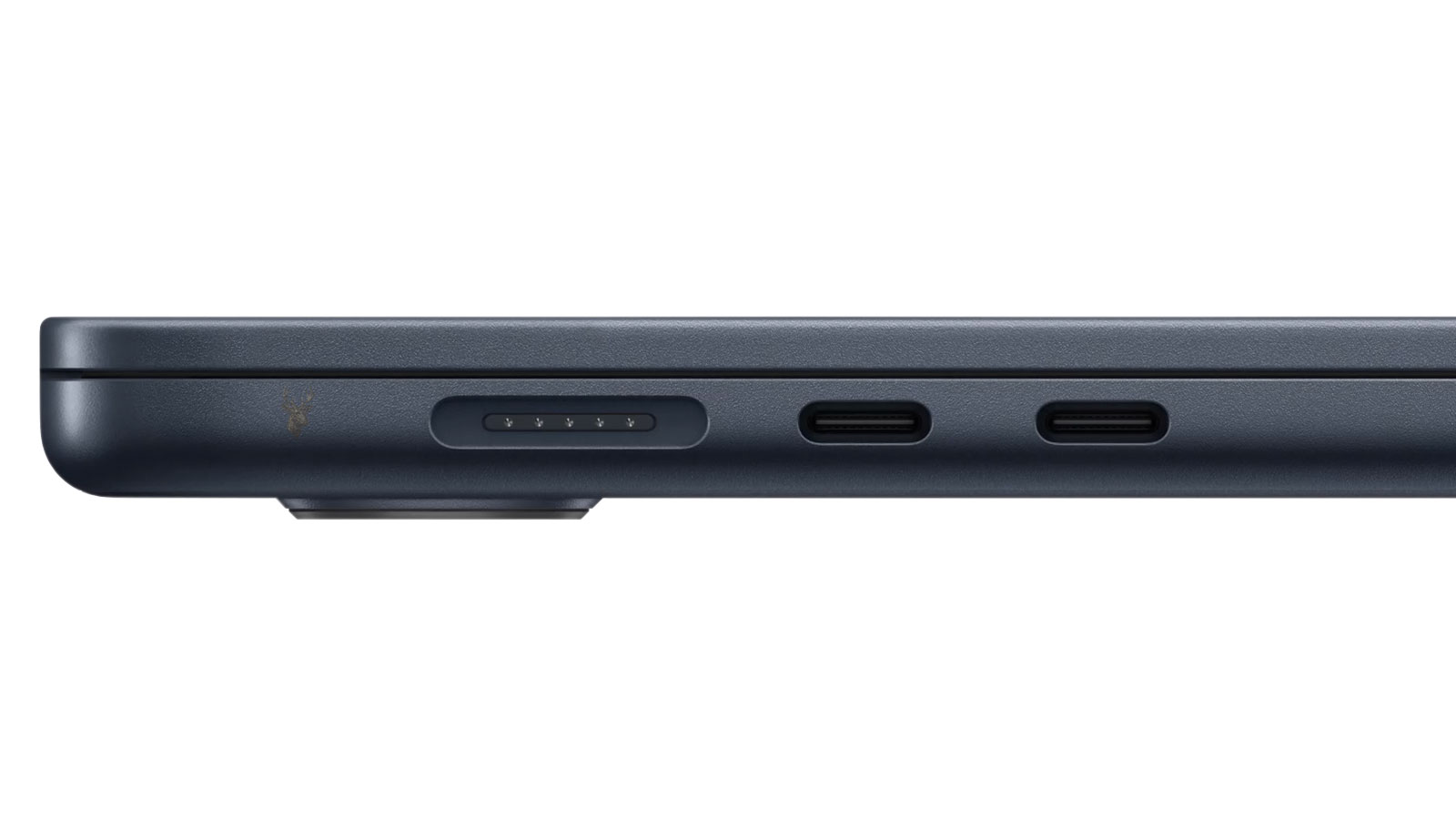
One Connector Shape Can Hide Several Different Capabilities
USB-C was designed around a small, reversible connector that can be inserted without checking which side faces upward. That convenience has helped the connection appear on laptops, tablets, phones, desktop computers, monitors, docking stations, external drives, chargers, and many other devices.
The matching shape can create a misleading expectation: if a cable fits into the port, every USB-C feature should be available. In practice, the connector describes only the physical interface. The electronic capabilities behind it depend on how the computer, peripheral, cable, and power source were designed.
Two USB-C ports located on the same laptop may not even perform the same functions. One may support charging and video output, while another handles data devices only. A port can therefore work normally with a flash drive yet produce no picture when connected to a monitor.
The Connector Does Not Identify the USB Speed
Earlier USB connectors often provided a rough visual clue about the technology being used. A large rectangular USB-A port was recognizable immediately, and manufacturers sometimes used different internal colors to suggest a particular generation. USB-C does not provide the same certainty because the outer connector remains nearly identical across several performance levels.
A USB-C port may operate at older USB data rates or support much faster transfers. The connected device can communicate only at the highest speed shared by every part of the path. A high-performance external solid-state drive will not reach its intended transfer rate when attached through a slower port or cable.
The shape of a USB-C connection reveals where the cable fits, not how quickly the connection can move data.
This difference becomes especially important when large backups, video projects, disk images, or other substantial files are transferred. A connection may be completely functional while operating far below the speed the user expected.
Charging Support Must Exist on the Computer Side
Many lightweight laptops receive power through USB-C, but the presence of the connector does not guarantee that every computer can be charged through it. The port requires circuitry designed to accept power and negotiate an appropriate charging level with the connected adapter.
A laptop with a traditional round charging connector may still include USB-C for accessories and data. Connecting a USB-C power adapter to that port may produce no response because the computer was never designed to receive operating power through it.
Power Input Available
The port can negotiate with a compatible charger and direct the supplied power into the laptop’s charging system.
Accessory Power Only
The computer can provide limited power to connected devices but cannot use that same port to charge its own battery.
These two behaviors are easy to confuse because electricity can travel through the connection in different directions. A port capable of powering a phone or external drive is not automatically capable of accepting enough power to operate the computer.
A Charger May Connect Correctly Yet Supply Too Little Power
USB-C charging involves more than matching the connector. The computer and adapter communicate to determine which voltage and power level can be used safely. When the charger cannot provide what the laptop requests, charging may proceed slowly, stop under heavy use, or fail to begin.
A small adapter intended for a phone may keep a sleeping laptop from losing battery power but remain unable to support the computer while it is running. The battery percentage can continue falling even though Windows displays a charging symbol because the computer is consuming power faster than the adapter can replace it.
Connected Does Not Mean Adequately Powered
A USB-C charger can be recognized by the laptop and still lack the output needed for normal operation, rapid charging, or demanding workloads.
The required wattage varies by computer. A compact system may operate comfortably from a modest adapter, while a larger laptop with a powerful processor or dedicated graphics hardware may require substantially more power.
Video Output Is an Optional Function
USB-C can carry a display signal when the port supports an appropriate video mode. This allows one compact connection to link a laptop to a monitor, television, projector, or docking station without a separate HDMI or DisplayPort connector.
The video capability is not built into every USB-C port. A computer manufacturer may include the connector strictly for data transfer and basic accessories. In that situation, a USB-C-to-HDMI adapter can fit securely and still produce no image because the port never sends a display signal.
An adapter can change the connector presented to the monitor, but it cannot create a video signal that the computer never supplied.
This explains why the same adapter may work immediately on one laptop and remain inactive on another. The difference may belong to the computers rather than the adapter or monitor.
Port Symbols Can Provide Clues Without Telling the Whole Story
Manufacturers sometimes place a small symbol beside a USB-C connection to indicate charging, video, high-speed data, or Thunderbolt support. These markings can be useful, especially when a computer contains several similar-looking ports.
The symbols are not always present, easy to see, or applied consistently. A dark icon on a dark case can be difficult to recognize, and some systems leave capable ports completely unmarked. Documentation for the exact computer model is therefore more reliable than judging the connector by appearance alone.
Model-specific details matter because computers with nearly identical product names may include different port capabilities. A higher configuration can support video or faster data transfer while a lower configuration in the same product family uses a more limited controller.
The Cable Can Restrict a Capable Port
Even when the computer and peripheral support a feature, the cable between them must be built to carry it. Some USB-C cables are intended mainly for charging and provide only basic data performance. Others support faster transfer rates, higher charging power, video transmission, or specialized high-speed connections.
Two cables can look almost identical while containing different internal wiring and electronic identification components. Cable thickness is not a dependable guide, and a premium-looking exterior does not confirm which functions are supported.
- A charging cable may transfer data only at a basic speed.
- A data cable may not support the power required by a larger laptop.
- A cable that works with an external drive may not carry video.
- A longer cable may support fewer high-speed features than a shorter certified cable.
Using the cable supplied with a monitor, dock, high-speed drive, or laptop charger often provides the clearest starting point because it was selected for that device’s intended operation.
Docking Stations Depend on Several Features at Once
A USB-C docking station may combine monitors, Ethernet, audio, storage, keyboard, mouse, and laptop charging through one cable. For the dock to perform every advertised function, the computer port must support the required mixture of data, display output, and power negotiation.
Partial compatibility is common. The keyboard and network connection may work while the monitors remain blank. Displays may operate while the laptop refuses to charge. A dock can therefore appear defective even though some of its functions exceed what the connected port can provide.
A Dock Does Not Upgrade the Port Behind It
The docking station can distribute capabilities supplied by the computer, but it cannot add missing video support, increase the port’s maximum data speed, or force the laptop to accept charging.
Confirming the computer’s port specifications before selecting a dock prevents a physically compatible connection from being mistaken for complete functional compatibility.
Thunderbolt Uses the Same Connector Without Being the Same Technology
Thunderbolt connections can use the USB-C connector while supporting additional bandwidth, display capability, storage performance, and expansion features. Because the physical port looks familiar, users may assume that any USB-C cable or accessory can deliver the same result.
A basic USB-C port and a Thunderbolt-capable port may accept the same plug, yet the devices connected to them can behave very differently. A high-performance dock, external graphics enclosure, or specialized storage system may require Thunderbolt communication rather than ordinary USB data transfer.
When a Thunderbolt device is connected to a standard USB-C port, it may operate with reduced functionality or remain undetected. The outcome depends on whether the device was designed to fall back to a simpler connection mode.
A matching connector can establish physical compatibility without providing the electronic protocol required by the device.
This distinction is especially important with equipment purchased for professional video, high-speed storage, or multi-monitor workstations, where the missing capability may not become obvious until demanding hardware is connected.
External Drives Reveal the Difference Between Connection and Performance
An external drive can appear in Windows, open files normally, and still be operating far below its expected speed. This often occurs when the drive, enclosure, port, or cable supports a different USB generation from the rest of the connection path.
The slowest component establishes the practical limit. A fast solid-state drive placed inside a capable enclosure cannot overcome a cable designed for basic transfer rates. Replacing the computer port is not always necessary if the restriction is located in the cable or adapter.
Functional Connection
The drive mounts, files open, and data can be copied without errors.
Expected Performance
The transfer rate approaches what the drive, enclosure, cable, and port can support together.
These are separate questions. Confirming that a drive works does not confirm that it is using the intended connection speed.
Power Delivery Can Change During Use
A laptop connected through a USB-C dock may charge normally while performing light tasks and begin losing battery power when processor or graphics activity increases. The dock can remain connected and operational even though the available power no longer matches the computer’s demand.
This behavior can be mistaken for a failing battery or defective charging port. The more useful comparison is whether the original laptop adapter maintains the battery under the same workload. If it does, the dock, charger, or cable may be supplying less power than the computer requires.
Charging Status Can Be Misleading
An operating system may report that external power is connected even while the battery percentage continues to fall. The symbol confirms that power is entering the computer, not that the amount is sufficient.
Performance modes can make the difference more visible. A laptop that charges through the dock during office work may discharge during gaming, rendering, or other high-load activity.
Monitor Adapters Do Not All Convert Signals the Same Way
Some USB-C display adapters rely on a video signal already produced by the computer. Others contain additional electronics and use software to create a display connection through ordinary USB data. These approaches can look similar from the outside while depending on very different capabilities.
A simple USB-C-to-HDMI adapter generally expects the port to support video output. If that capability is missing, the adapter has nothing to convert. A more complex USB display adapter may work through installed drivers, although its performance and supported resolutions can differ from a direct display connection.
The presence of an HDMI socket on an adapter does not reveal how the video signal is being produced.
This difference affects troubleshooting. Installing a display driver will not activate a basic adapter connected to a port with no video support, while changing the cable may not help a software-based adapter whose driver is missing or damaged.
Display Resolution Depends on the Complete Connection Path
A monitor may produce an image through USB-C while refusing to use its highest resolution or refresh rate. The limitation can come from the computer, adapter, dock, cable, or monitor input rather than from the display panel itself.
Higher resolutions require more bandwidth, and higher refresh rates increase that demand further. A connection that handles ordinary office output may not support a demanding display mode such as a high-resolution screen at an elevated refresh rate.
When multiple monitors share one docking connection, the available display bandwidth may also be divided among them. Adding a second display can reduce the maximum mode available to the first even though both monitors function.
A Picture Does Not Confirm Full Display Capability
Successful video output proves that a display path exists, but it does not prove that every resolution, refresh rate, color mode, or monitor arrangement is supported.
USB-C Hubs Can Divide Limited Resources Among Several Devices
A compact hub may turn one USB-C connection into several USB ports, a network adapter, memory card reader, audio connection, and display output. The convenience can hide the fact that every function still travels through one upstream link to the computer.
When several devices are active at once, they may share bandwidth. Copying files to an external drive while using a high-resolution webcam and network adapter can produce a different result from using each device separately.
- An external drive may transfer more slowly while other hub devices are busy.
- A webcam can lose quality when the shared connection becomes congested.
- Ethernet performance may change during large storage transfers.
- Connected devices can disconnect if the hub cannot provide enough power.
A hub advertised with many ports does not guarantee that every connection can operate at maximum performance simultaneously. The upstream port, internal hub controller, and available power all influence the combined result.
Unpowered Hubs Rely on the Computer for Every Connected Device
A bus-powered USB-C hub receives its operating power from the computer and distributes part of that power among the attached accessories. Keyboards, mice, and small flash drives usually require little power, but multiple storage devices, network adapters, or card readers can create a larger demand.
If the available power is insufficient, devices may reconnect repeatedly, disappear during file transfers, or work individually but fail when used together. The hub itself may remain visible while one connected accessory becomes unstable.
A powered dock or hub uses an external adapter to support its internal electronics and connected devices. This can improve stability, but only when the power supply is appropriate for the exact model and functioning correctly.
Pass-Through Charging Has Its Own Power Limit
Some USB-C hubs include a charging input that allows one connection to carry accessories and laptop power at the same time. The charger plugs into the hub, and the hub passes a negotiated portion of that power to the computer.
The laptop may receive less power than the charger produces because the hub consumes some electricity for its own operation and may impose a maximum pass-through rating. A powerful adapter does not guarantee that the full amount reaches the computer.
The rating on the charger and the power delivered through the hub are not always the same number.
This becomes important when a hub supports only modest pass-through charging but is connected to a laptop designed for a much larger adapter. The computer may charge slowly, display a low-power warning, or reduce performance while connected.
A Port Can Support Data While Refusing a Particular Accessory
A working flash drive does not prove that every other USB-C device should function in the same port. Different accessories depend on different combinations of data protocol, power, video support, driver compatibility, and device authorization.
For example, a basic storage device may require only ordinary USB data and a small amount of power. A docking station may require video output, higher power negotiation, multiple data channels, and firmware support. The simpler device can work perfectly while the more demanding accessory remains only partially functional.
Troubleshooting should therefore focus on the capability required by the failing device rather than treating the port as either completely working or completely defective.
Older Peripherals May Require a Different Connection Altogether
As USB-C became more common, many users began connecting existing keyboards, printers, scanners, audio interfaces, and storage devices through inexpensive adapters. While many combinations work well, some older peripherals were designed around connection methods that behave differently from modern USB-C implementations.
A simple connector adapter cannot modernize the internal electronics of an older device. If the peripheral depends on legacy signaling, specialized drivers, or unique communication timing, the limitation remains even though the physical plug has changed.
Successful operation therefore depends on compatibility throughout the entire communication path rather than on the connector alone.
Restarting the Computer Can Trigger a New Capability Check
Many USB-C devices are detected immediately after connection, but certain docks, displays, and expansion devices perform capability negotiations while the operating system is starting. If communication is interrupted during that process, the computer may recognize only part of the connected hardware.
For example, network access may function while external monitors remain unavailable, or storage devices may appear without the expected charging capability. Disconnecting and reconnecting the cable sometimes repeats the negotiation successfully, although a full restart may also be necessary depending on the device.
Detection Can Occur in Stages
Different functions of the same USB-C accessory may become available independently because power delivery, USB communication, networking, storage, and display features are established through separate processes.
Recognizing that these features initialize independently helps explain why one portion of a docking station may operate correctly while another does not.
Dust and Wear Can Affect a Fully Reversible Connector
One advantage of USB-C is that the connector can be inserted in either orientation. Even so, repeated daily use gradually exposes the port to dust, lint, moisture, and mechanical wear. Material trapped inside the connector can prevent the plug from seating completely even though it appears connected.
A partially inserted cable may continue supplying power while interrupting data communication or display functions. In other situations, a device may disconnect when the cable is moved slightly because the internal contacts are no longer making reliable electrical contact.
A reversible connector still depends on clean, properly aligned electrical contacts.
Because the opening is relatively small, accumulated debris is not always obvious during a quick visual inspection. A connection problem should not automatically be blamed on software before the physical condition of the port is considered.
Extension Cables Can Introduce Unexpected Compatibility Issues
USB-C extension cables are sometimes used to make laptop connections easier to reach or to reduce wear on the computer’s built-in connector. Although convenient, an extension becomes another component that must support the required combination of charging, data transfer, and display capability.
A system that operates normally with a direct connection may behave differently after an extension is added. Higher-speed functions are generally more sensitive to signal quality than slower connections, making cable quality and length increasingly important.
- Charging may continue while external displays stop working.
- Storage devices can reconnect unexpectedly during file transfers.
- Maximum transfer speeds may decrease.
- Certain accessories may not be detected consistently.
Removing the extension during troubleshooting provides a straightforward comparison before more complex causes are investigated.
Business Environments Often Standardize Approved Accessories
Organizations that deploy many laptops frequently approve specific docks, chargers, monitors, and cables for each computer model. This reduces support requests caused by partially compatible accessories that appear identical but provide different capabilities.
Standardization also simplifies replacement. When every workstation uses the same equipment, technicians can exchange one component at a time to determine whether the problem follows the accessory or remains with the computer.
Standard Equipment
Consistent accessories make troubleshooting faster because known compatibility has already been established.
Mixed Accessories
Different chargers, docks, cables, and adapters increase the number of compatibility combinations that must be evaluated.
Although home users may not need formal equipment standards, using proven combinations can reduce unexpected compatibility problems as additional devices are added over time.
Identifying the Missing Feature Is More Useful Than Replacing Parts
When a USB-C connection does not behave as expected, replacing cables or adapters at random can become expensive without solving the actual problem. A more productive approach is to determine exactly which capability is unavailable.
If charging works but video does not, attention should focus on display support. If video works but storage transfers remain slow, the limiting factor may involve data speed or cable capability. If every function fails simultaneously, the investigation should begin with the physical connection and port condition.
Understanding which feature is missing is often more valuable than replacing the first accessory that seems suspicious.
Breaking the problem into individual functions transforms a confusing compatibility issue into a series of smaller, easier-to-test questions.
One Port Can Support Many Roles Without Supporting Every Role
USB-C represents one of the most versatile connectors used in modern computers, yet its flexibility is also the source of frequent misunderstanding. The connector itself remains consistent while the technologies behind it vary from one device to another.
A single port may provide charging, high-speed storage, external displays, networking, and docking support, while another visually identical port may handle only a portion of those tasks. The same observation applies to cables, hubs, adapters, and chargers, each of which contributes its own capabilities and limitations.
Viewing USB-C as a family of possible features rather than a single universal standard makes compatibility questions easier to understand. Instead of asking whether a device has USB-C, it becomes more useful to ask which USB-C functions that particular device was designed to support.











