
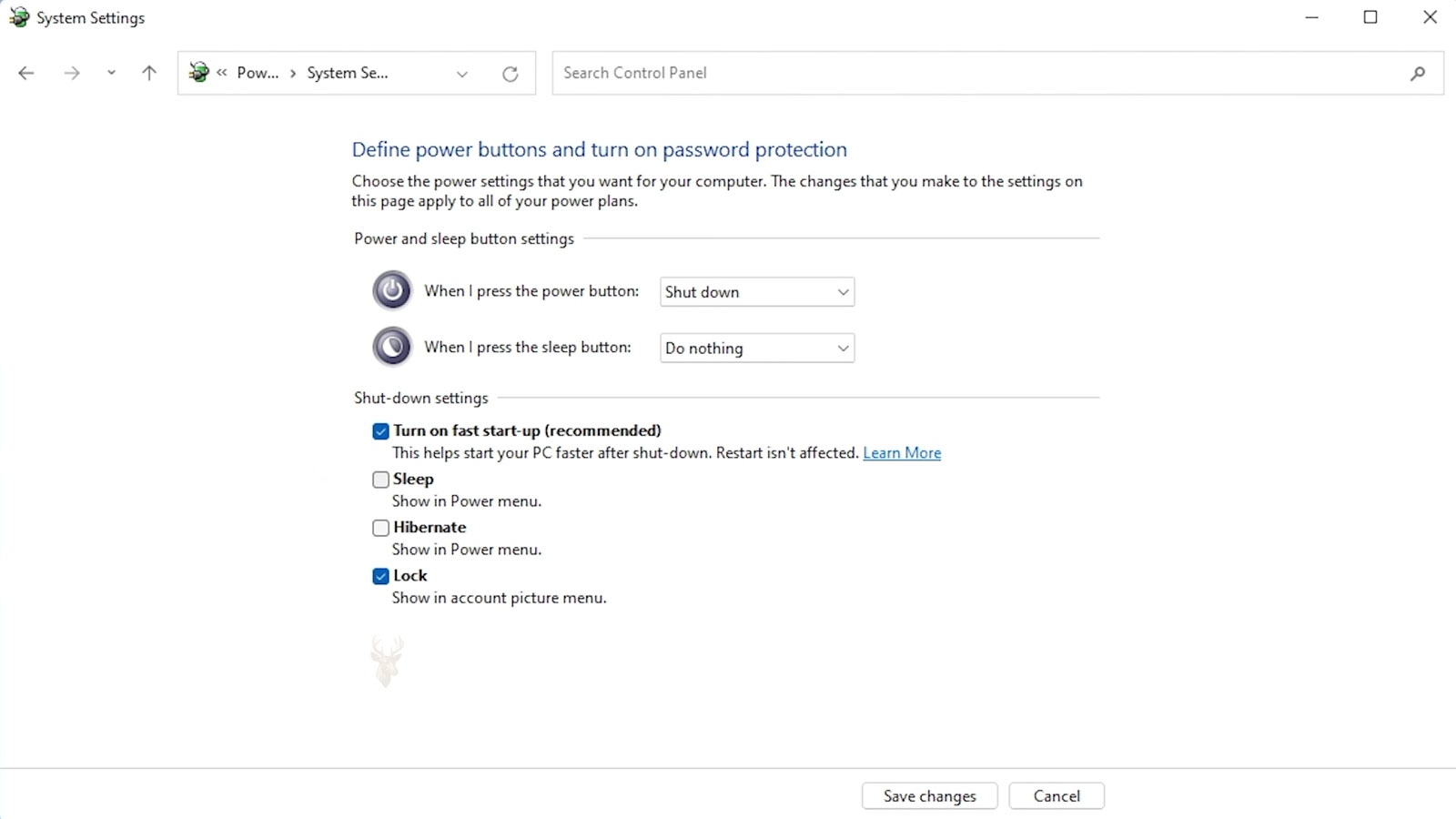
What Actually Happens During a Fast Startup Shutdown
Turning a Windows computer off may appear to provide a complete reset, but the system does not always close and reload every component in the same way. When Fast Startup is enabled, Windows can save part of the operating system state before powering down so the next startup can complete more quickly.
This abbreviated shutdown process is useful when a computer is working normally. However, it can also preserve a driver condition, hardware communication problem, or incomplete system state that a user expected the shutdown to clear. The machine may power off completely from the outside while still carrying information from the previous Windows session.
Fast Startup Changes What Windows Saves Before Powering Down
A normal shutdown closes user sessions, stops running services, unloads drivers, and ends the Windows kernel session. Fast Startup uses a different process. User applications are closed, but selected system information is written to the hibernation file so Windows can reuse it during the next startup.
Full Shutdown
- Closes active user sessions.
- Stops system services.
- Unloads drivers and kernel components.
- Builds a new system session at startup.
Fast Startup Shutdown
- Closes user applications and accounts.
- Saves part of the kernel session.
- Writes system state to the hibernation file.
- Reloads preserved information at startup.
This hybrid approach can reduce the time between pressing the power button and reaching the Windows sign-in screen. It is especially noticeable on computers using slower storage, although systems with solid-state drives may also benefit.
A Shutdown and a Restart May Produce Different Results
Many users expect shutting down and restarting to perform the same type of reset. With Fast Startup enabled, they can behave differently. A shutdown may preserve the kernel session, while a restart normally closes Windows more completely before loading it again.
Why Restarting Can Clear a Problem That Shutdown Does Not
- A driver or hardware device enters an unstable condition.
- The user shuts down the computer expecting the condition to clear.
- Fast Startup preserves part of the system session.
- The same driver state returns when Windows starts again.
- A restart finally unloads and reloads the affected component.
This does not mean that every repeated problem is caused by Fast Startup. It means the shutdown may not provide the clean test the user believes it does. Restarting can help determine whether the issue belongs to a temporary system state or to a condition that returns even after Windows has been fully reloaded.
The Hibernation File Supports the Faster Startup Process
Fast Startup depends on a protected system file named hiberfil.sys. During shutdown, Windows writes selected kernel and driver information into this file. During the next startup, the saved information is read back into memory instead of being recreated entirely from the beginning.
Fast Startup shortens boot time by reusing part of the previous Windows system session rather than rebuilding every component from zero.
The hibernation file is also associated with the full Hibernate feature, but Fast Startup can use it even when the user never manually places the computer into hibernation. Disabling hibernation removes the file and also prevents Fast Startup from operating.
Preserved Driver States Can Make Hardware Problems Reappear
Drivers form the communication layer between Windows and devices such as network adapters, sound hardware, USB controllers, graphics systems, and storage components. If a driver enters an incomplete or unstable state, preserving portions of the kernel session can allow the same condition to return after the computer is powered on again.
- A wireless adapter remains unavailable after shutdown.
- A USB device is still missing when the computer starts again.
- Audio hardware continues producing no sound.
- A second display is not detected after power cycling.
- A Bluetooth device remains disconnected or unavailable.
A full restart may force Windows to unload and initialize those drivers again. If the hardware begins working immediately after the restart, the result does not prove that Fast Startup is defective, but it does show that the preserved system state influenced the behavior.
Fast Startup Can Complicate Simple Troubleshooting
Powering a computer off and back on has long been one of the first troubleshooting steps for temporary problems. Fast Startup changes the meaning of that test. The computer may appear to complete a full power cycle while Windows restores part of the previous session during startup.
A More Reliable First Comparison
- Test the problem before restarting.
- Use Restart instead of Shut down.
- Check the same device or feature after Windows reloads.
- Record whether the issue disappears, changes, or returns immediately.
- Avoid changing several settings before comparing the result.
This comparison provides more useful information than repeatedly turning the computer off. If the failure disappears only after a restart, the next step is to examine drivers, updates, power management, and Fast Startup behavior rather than assuming the physical device has permanently failed.
Powering Off Does Not Always Reinitialize Every Device
A computer can appear completely off while some hardware remains connected to standby power. At the same time, Fast Startup may preserve part of the Windows system session. These two conditions can combine to make a temporary hardware communication problem survive what looks like a normal shutdown.
Hardware That May Remain Affected
- Wireless network adapters
- Bluetooth controllers
- USB host controllers
- Integrated audio devices
- Graphics and display interfaces
Problems That May Return
- Missing devices
- Failed connections
- Unresponsive ports
- No sound output
- Displays that are not detected
A restart normally forces Windows to close the current kernel session and initialize these components again. If the device works after restarting but fails again after a normal shutdown, Fast Startup becomes one possible factor worth examining.
USB Problems Can Return With the Preserved System State
USB devices depend on a chain of communication that includes the physical port, the USB controller, the device driver, and Windows power management. A disruption anywhere in that chain can leave a device connected but unavailable.
A Typical Pattern
- A webcam, flash drive, printer, or external drive stops responding.
- The user shuts down the computer and turns it back on.
- The same device remains missing or produces the same error.
- The user selects Restart instead.
- Windows rebuilds the active driver session and the device returns.
This result does not automatically identify the USB device as healthy. A loose port, failing cable, damaged controller, or unstable peripheral can still produce intermittent behavior. The difference after a restart simply shows that the Windows session was part of the condition.
Network Adapters May Hold an Unstable Connection State
Ethernet and Wi-Fi adapters maintain information about their current connection, driver state, power settings, and communication with the router or network switch. When that information becomes inconsistent, the computer may lose internet access even though other devices continue working normally.
A shutdown may remove visible power from the computer without forcing Windows to rebuild the entire networking session.
The adapter may reconnect with limited access, fail to detect available wireless networks, or remain disabled in Device Manager. Restarting can reload the networking stack and driver more completely than a Fast Startup shutdown.
Clues That the Network State May Be Involved
- The problem affects only one computer.
- The router and other connected devices continue working.
- Disabling and enabling the adapter temporarily restores access.
- A restart works when shutting down does not.
- The failure returns after sleep, hibernation, or another shutdown.
Repeated network failures still require a broader review. Driver quality, router compatibility, power-saving settings, damaged Ethernet cables, weak wireless signals, and failing adapters can all produce similar symptoms.
Dual-Boot Systems Can Be Affected by Hybrid Shutdown
Fast Startup can create additional complications on computers that use more than one operating system. When Windows performs a hybrid shutdown, an NTFS volume may remain associated with a saved Windows session instead of being released as though the operating system had closed completely.
What Windows Expects
The saved file-system state will still be valid when Windows resumes during the next startup.
What Another System May Do
Another operating system may attempt to read or modify the same volume before Windows restores its saved state.
To reduce the risk of conflicting file-system changes, another operating system may refuse to mount the Windows volume normally or may limit it to read-only access. A full shutdown can release the volume in a cleaner state before switching systems.
Some BIOS and Firmware Changes Need a Complete Restart Cycle
Changes involving firmware, chipset behavior, storage modes, virtualization, or device configuration may not take effect correctly while Windows continues using a preserved kernel session. Restarting after these changes gives the operating system an opportunity to detect the hardware environment again.
Changes That May Require Fresh Hardware Detection
- Enabling or disabling an onboard controller
- Changing a storage or boot configuration
- Installing a new internal device
- Updating motherboard firmware
- Changing virtualization or security settings
A computer that starts normally does not guarantee that every change was recognized correctly. Missing devices, warning symbols, altered boot behavior, or unavailable features may indicate that Windows needs a complete restart before further troubleshooting.
Driver Installation May Not Finish Until Windows Fully Reloads
Many driver installers request a restart because active system components cannot always be replaced while Windows is running. The installer may copy new files and prepare configuration changes, but the older driver can remain active until the current kernel session ends.
- The installer reports that setup is complete.
- The device continues using the earlier driver.
- A normal shutdown preserves part of the current system state.
- The expected improvement does not appear at the next startup.
- A restart completes the replacement and reloads the device.
This is one reason restart instructions should not be replaced casually with a shutdown and power-on cycle. The two actions may look equivalent to the user while producing different results inside Windows.
Fast Startup Can Hide the Difference Between a Temporary and Repeating Fault
Troubleshooting depends on changing one condition at a time and observing the result. If the computer is never given a fully renewed Windows session, a temporary driver condition can be mistaken for a permanent hardware failure.
A Useful Testing Sequence
- Confirm the symptom before changing any settings.
- Use Restart and test the same function again.
- Perform a full shutdown if another power cycle is needed.
- Reconnect or test the affected device only after Windows finishes loading.
- Record whether the problem disappears, returns immediately, or returns later.
If the fault returns after a complete restart, Fast Startup is less likely to be the only cause. The investigation can then move toward the driver, device, cable, port, firmware, or Windows component involved.
A Full Shutdown Can Be Performed Without Disabling the Feature Permanently
Fast Startup does not always need to be turned off permanently to perform a clean test. Windows can be instructed to complete a full shutdown when troubleshooting requires one.
Use Restart
Restart normally closes the current Windows kernel session and reloads the operating system.
Use a Full Shutdown
A full shutdown can be used when the computer must power off completely before the next startup.
The appropriate method depends on what is being tested. Restarting is often the better first choice for reloading Windows components, while a complete shutdown may be useful after hardware changes or when standby power also needs to be removed.
Disabling Fast Startup Is a Diagnostic Step, Not an Automatic Repair
Turning Fast Startup off can help determine whether a preserved Windows session is contributing to a repeated problem. It does not repair a damaged driver, failing device, corrupted system file, or unstable power condition by itself.
What the Test Can Reveal
- Whether a device initializes differently after a complete shutdown
- Whether a problem returns only after hybrid shutdown
- Whether Windows behaves more consistently with a fresh kernel session
- Whether the issue continues regardless of the startup method
If the symptom disappears while Fast Startup is disabled, the result provides a direction for further investigation. The next step is to determine why the driver, device, or service becomes unstable before shutdown rather than treating the startup feature as the entire problem.
The Setting May Be Unavailable When Hibernation Is Disabled
Fast Startup depends on the Windows hibernation system. If hibernation has been disabled, the option may disappear from the power settings because Windows no longer has the hibernation file required to save the kernel session.
When Hibernation Is Available
Windows can maintain the hibernation file and use it for Fast Startup during a normal shutdown.
When Hibernation Is Disabled
The hibernation file is removed, Fast Startup cannot use its saved-session process, and the related option may no longer appear.
This relationship can cause confusion when two computers display different power options. The missing setting does not necessarily indicate a damaged Control Panel or an incomplete Windows installation. One system may simply have hibernation disabled.
Windows Updates Can Temporarily Change Startup Behavior
Major updates and some driver packages require Windows to complete a restart before installation is finished. During that process, startup may take longer, the computer may restart more than once, and Fast Startup may not operate in its usual manner.
Normal Update Activity Can Include
- A longer shutdown while changes are prepared
- One or more automatic restarts
- Temporary device detection during the first login
- Background driver installation after the desktop appears
- A return to normal startup speed after configuration is complete
Interrupting power during these stages can create a different problem from Fast Startup. A machine that is applying updates should be allowed to complete the process unless it has remained unresponsive for an unusually long period and further diagnosis is required.
Startup Speed Alone Does Not Confirm That Fast Startup Is Working Correctly
A fast boot does not prove that every device initialized correctly, and a slow boot does not automatically mean Fast Startup has failed. Startup duration is influenced by storage performance, firmware checks, background software, driver delays, connected devices, and pending Windows maintenance.
Fast Startup changes one portion of the boot process, but it does not control every delay that occurs before the desktop becomes usable.
A computer may reach the sign-in screen quickly and then spend additional time loading security software, cloud synchronization, office applications, or hardware utilities. Another system may remain on the manufacturer logo while firmware tests a storage device before Windows begins loading.
A Slow Startup After Disabling the Feature May Be Expected
Once Fast Startup is disabled, Windows must build a fresh kernel session after every shutdown. On a computer with a mechanical hard drive, this difference may be noticeable. Systems using a modern solid-state drive may show a smaller change.
Expected Difference
- A modest increase in boot time
- More complete device initialization
- A fresh Windows kernel session
Possible Separate Problem
- Several minutes of unusual delay
- Repeated loading failures
- Drive activity that never settles
A small change in startup time may be the normal cost of performing a complete initialization. A severe delay should be investigated separately because it may involve storage health, startup applications, driver timeouts, or damaged Windows components.
Removing Power Can Test Conditions Outside the Windows Session
A restart refreshes Windows, but it does not necessarily remove electrical power from every component. When a controller or attached device remains unresponsive after restarting, a complete power removal may provide a different test.
A Complete Power Reset May Include
- Shutting Windows down fully
- Disconnecting the power adapter or desktop power cable
- Removing detachable external devices
- Waiting briefly for standby power to discharge
- Reconnecting only the equipment required for testing
Laptops with internal batteries may continue supplying power to parts of the motherboard even after the charger is removed. Some systems provide a battery-disconnect procedure or an emergency reset opening, but the correct method depends on the computer design and should not be guessed.
A Windows restart, a full shutdown, and complete removal of standby power are three different troubleshooting actions.
Repeated Dependence on Restarting Points to an Unresolved Cause
If a device fails after every shutdown but returns after every restart, the pattern should not be treated as a permanent operating routine. The repeated recovery indicates that something is becoming unstable and is only being corrected when Windows reloads the affected components.
Areas Worth Reviewing
- The current driver version and installation history
- Windows power-management settings for the affected device
- Available firmware or chipset updates
- Errors recorded in Device Manager or Event Viewer
- Whether the problem began after an update or hardware change
- Whether the same device fails in another port or another computer
The objective is to identify what enters the unstable state before shutdown. Disabling Fast Startup may prevent the condition from being preserved, but it does not explain why the condition developed.
Fast Startup Is Not Equally Useful on Every Computer
The practical value of Fast Startup depends on the hardware and the way the computer is used. A system with a slow hard drive may gain a meaningful reduction in boot time. A computer with a fast solid-state drive may already start quickly enough that the difference is difficult to notice.
Keeping It Enabled May Make Sense When
- The computer starts and shuts down reliably.
- No devices repeatedly disappear.
- The system uses slower storage.
- The computer runs only Windows.
Disabling It May Be Preferable When
- Hardware problems return after shutdown.
- The computer uses more than one operating system.
- Complete shutdowns are regularly required.
- The speed benefit is insignificant.
There is no single setting that is best for every machine. Reliability, startup time, hardware compatibility, and the computer’s intended use should determine whether the feature remains enabled.
When the Same Symptoms Continue After a Full Restart
A problem that remains after restarting, completing a full shutdown, and removing external devices is less likely to be explained only by Fast Startup. Continuing to toggle the setting may delay the investigation of the actual fault.
The Next Diagnostic Direction May Involve
- Reinstalling or replacing a damaged driver
- Testing the device on another connection
- Checking Windows system files
- Reviewing storage and memory stability
- Testing for a failing internal component
- Examining recent updates and configuration changes
The startup method is one variable among many. Once a clean restart produces the same failure, attention should move toward the component or Windows subsystem directly responsible for the symptom.
A Faster Startup Should Not Come at the Cost of Reliable Operation
Fast Startup can shorten the time required to begin a Windows session by saving part of the kernel state during shutdown. On a stable computer, this process may work for years without attracting attention.
When devices disappear, drivers remain unresponsive, or recently installed changes do not take effect, the difference between Shut down and Restart becomes important. A full reload can reveal whether Windows was repeatedly restoring an unhealthy system state.
The feature should be evaluated by its actual effect on the computer. If it provides a useful speed improvement without creating instability, it can remain enabled. If reliable startup requires a fresh session each time, disabling it may provide a better balance between convenience and consistent operation.











