
When Familiar Files Suddenly Become Restricted
A folder that has been accessible for years can suddenly begin displaying permission errors after being moved to another drive. Files that previously opened without difficulty may now request administrator approval, deny access entirely, or appear available to one user account but not another. Because the data itself often remains intact, the situation can be confusing and may be mistaken for file corruption or storage failure.
In many cases, the problem is not the files but the security information associated with them. Windows stores permissions separately from the file contents, allowing access rights to change without modifying the documents, photographs, databases, or other information stored inside them. Understanding how these permissions behave during file transfers helps explain why the same folder can function normally in one location and become restricted after being relocated.
Every File Carries More Than Its Name and Contents
When most people think about a file, they picture its contents and perhaps its size or modification date. Windows, however, maintains additional information behind the scenes. Alongside the stored data are security settings that determine which users and groups may view, edit, delete, or manage that file.
These security settings exist independently of the document itself. Two identical copies of the same spreadsheet can contain exactly the same information while allowing completely different levels of access depending on where each copy resides and how it arrived there.
Moving data changes its location. It may also change the security rules that determine who can use it.
The Destination Folder Often Influences the Final Permissions
Every folder within an NTFS file system can define its own security structure. New files placed inside that folder may inherit those existing rules automatically. As a result, two destinations on the same computer can produce different permission outcomes even when receiving the exact same collection of files.
This behavior allows organizations to protect sensitive departments without manually configuring every document. A payroll folder, for example, may automatically assign stricter permissions than a folder intended for general office documents.
A Change in Location Can Change Expectations
Suppose a folder is copied from a personal documents directory into a company archive that already contains carefully defined security rules. The documents themselves remain identical, but Windows may treat them as part of the protected archive instead of continuing to follow the original personal settings.
Copying and Moving Are Not Always Treated the Same Way
Although both operations appear similar from the user’s perspective, Windows can process them differently depending on where the transfer occurs. A copy operation creates a new file at the destination, while a move operation may either relocate the existing file or create a new instance before removing the original.
Because these operations behave differently under various circumstances, the resulting permissions may also differ. Two transfers performed only minutes apart can therefore produce different access rights even though the visible folder structure looks identical.
What the User Notices
The files appear to have moved successfully, yet one user suddenly loses editing rights while another gains access that previously did not exist.
What Windows Evaluates
The operating system considers the destination, the transfer method, existing security settings, inheritance rules, ownership information, and available user accounts before finalizing permissions.
Ownership and Permissions Are Separate Security Concepts
A common misunderstanding is that the owner of a file automatically possesses unrestricted access forever. Ownership and permissions are related but independent. Ownership identifies who controls the security settings, while permissions define what various users and groups may actually do with the file.
This distinction explains why a user can sometimes own a document yet still encounter restrictions placed upon it through inherited security rules or organizational policies.
Inherited Permissions Reduce Administrative Work
Large storage environments may contain millions of individual files. Assigning security manually to every document would be impractical. Instead, Windows allows child folders and files to inherit permissions from their parent locations, creating consistent access policies throughout an organized directory structure.
This inheritance model simplifies administration while reducing accidental inconsistencies. However, it also means that moving information into a differently configured folder may produce results that surprise someone expecting the original permissions to remain unchanged.
- Parent folders establish default security behavior.
- Child folders often inherit those permissions automatically.
- Individual files can receive additional custom permissions.
- Administrators may intentionally block inheritance in specific locations.
- Different storage locations can therefore produce different access experiences.
What Actually Changes When Files Are Relocated
The visible action may be as simple as dragging a folder from one location to another, but Windows may be making several separate decisions during that transfer. The outcome depends on whether the files remain on the same volume, cross to another drive, enter a folder with inherited restrictions, or arrive from a different Windows installation.
| Transfer situation | Typical permission behavior | Possible result |
|---|---|---|
| Move within the same NTFS volume | Existing security information may remain attached | The file can keep restrictions from its former folder |
| Copy into another folder | The new copy often inherits from the destination | Access may become broader or more limited |
| Move to another drive | Windows generally creates a new file at the destination | The destination folder may define the new permissions |
| Transfer from another computer | Old account identifiers may remain in the security entries | Current users may receive access denied messages |
These differences explain why two files placed side by side can behave differently even when they contain the same type of information and appear to belong to the same folder.
A Same-Drive Move Is Not the Same as Creating a New Copy
The File Is Repositioned
When a file remains on the same NTFS volume, Windows may only update where the file appears in the directory structure. Its original security descriptor can continue traveling with it.
The Folder May Not Fully Reassign Access
The destination may allow broad access, yet the moved file can still carry narrower permissions from its previous location. It may look like every surrounding document while responding differently to the same user.
Example: A Restricted File Enters a Shared Folder
- A manager stores a document in a private directory.
- The file receives access entries limited to a small group.
- The document is later moved into a department-wide folder on the same drive.
- Employees can see the filename but cannot open or edit it.
- Other documents in the same folder continue working normally.
The problem is not necessarily the shared folder. The individual document may still be carrying security settings from the private directory.
Crossing to Another Drive Creates a Different Result
A transfer between drives usually requires Windows to write a new instance of the file at the destination. The original contents are reproduced, but the new file enters a different security environment.
The data may be identical while the rules surrounding that data are completely different.
This matters when files are moved from an internal drive to a secondary disk, from a server share to a workstation, or from an older storage device into a replacement computer. The destination is not merely another address. It may represent another file system, another set of inherited rules, and another collection of recognized users.
Three Questions That Help Explain the Outcome
- Did the transfer remain on the same NTFS volume? A same-volume move may preserve more of the original permission structure.
- Was a new file created at the destination? A newly created file commonly receives inherited permissions from its new parent folder.
- Does the destination recognize the original users and groups? If not, the security list may contain entries that no longer correspond to active accounts.
Windows Identifies Accounts by More Than Their Visible Names
A username such as “Office,” “Admin,” or “Maria” is only the readable label. Windows assigns each account a unique security identifier, commonly called a SID. File permissions are linked to that identifier rather than relying exclusively on the name shown at the sign-in screen.
What Looks the Same
- The username
- The desktop name
- The profile picture
- The administrator label
What Windows Sees
- A newly generated SID
- A different user profile
- Different group memberships
- No automatic claim to the older account’s files
This is why recreating an account with the same spelling does not necessarily restore access. The replacement account may look familiar to the user while remaining completely different to the operating system.
Why a Long Number May Appear Instead of a Username
When Windows cannot match a stored SID to an active account, the Security tab may display a long numeric entry beginning with characters such as “S-1-5.” That entry usually represents a user or group from another installation, another computer, or an account that has since been removed.
The unfamiliar number does not by itself indicate malware or damaged files. It is often evidence that the data still remembers a security identity the current system no longer knows.
External Drives Can Bring Old Security Rules With Them
An NTFS-formatted external drive can preserve permissions even after being disconnected and attached elsewhere. The second computer may read the file system correctly but fail to recognize the accounts named in its access control entries.
| What the user sees | What may be happening |
|---|---|
| The folder opens but some files do not | Individual files may contain explicit permissions |
| An administrator receives an access denied message | Administrator status does not automatically replace ownership |
| Unknown accounts appear in the Security tab | The drive still references users from another computer |
| Applications cannot save changes | The program may have read access but not modify permission |
| Subfolders behave differently from the parent folder | Inheritance may have been disabled in selected locations |
This is especially common after replacing a failed computer, reinstalling Windows, recovering a drive from another machine, or connecting storage that was previously used in a business network.
Ownership Is the Ability to Control Permissions, Not Automatic Full Access
Taking ownership opens the door to changing security settings. It does not automatically remove every restriction already attached to the file.
A user may become the owner of a folder and still lack permission to read, modify, rename, or delete its contents. Ownership and access rights are connected, but they serve different purposes.
Ownership Allows
- Reviewing the permission structure
- Changing access entries
- Assigning another owner
- Repairing inherited permissions
Ownership Does Not Automatically Provide
- Immediate read access
- Permission to modify contents
- Access to encrypted information
- Correct rights for every subfolder
After ownership is changed, the permission entries still need to be reviewed. Applying unrestricted access to everyone may eliminate the immediate error, but it can also expose private information and weaken the security design of the destination folder.
Inherited and Explicit Permissions Can Exist Together
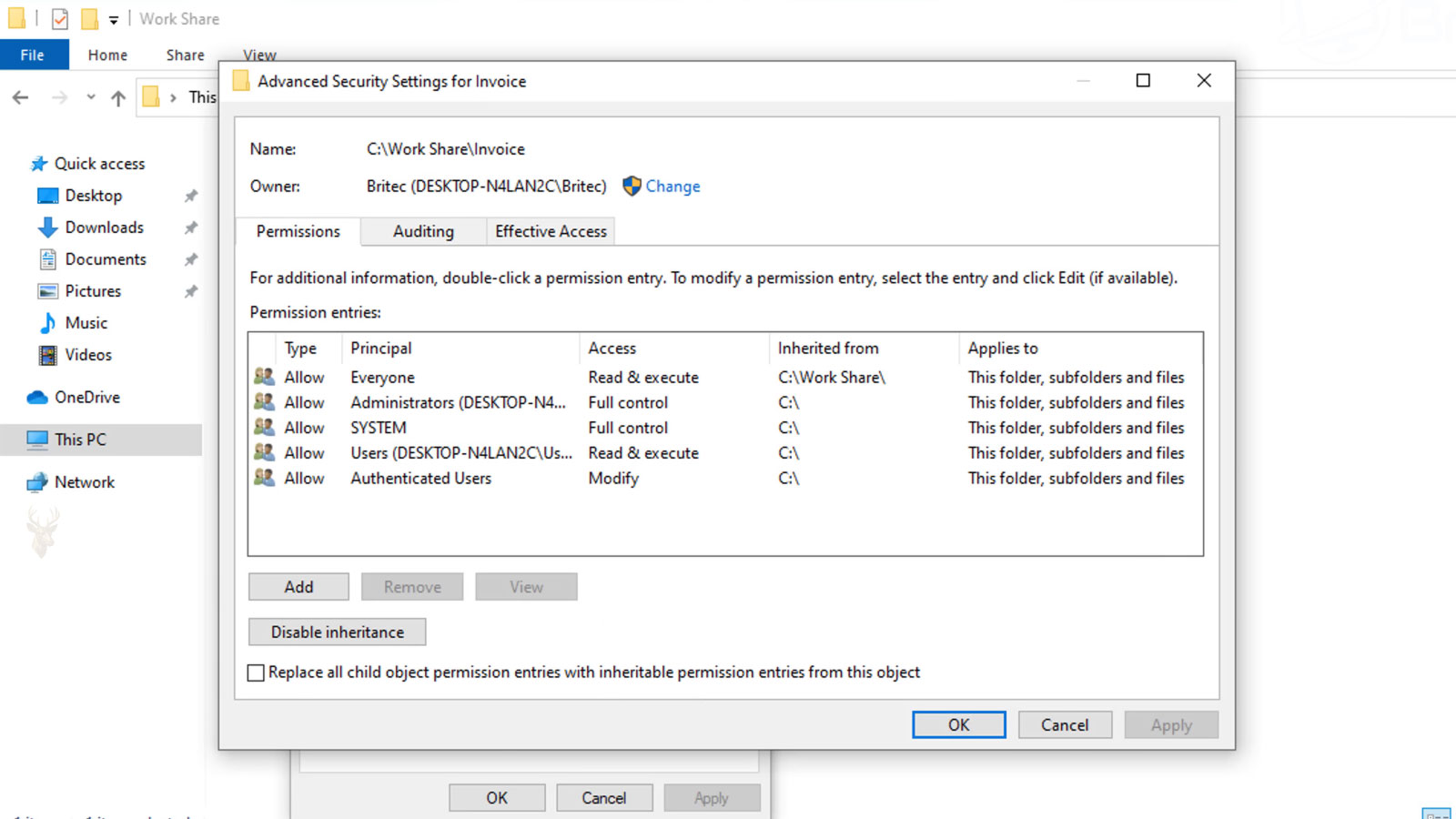
Many folders rely on inheritance so that files automatically receive the same basic rules as their parent location. Windows also permits direct entries to be attached to one specific file or folder. These are known as explicit permissions.
A Simple Permission Stack
- The parent folder grants read and modify rights to the accounting group.
- A subfolder inherits those permissions.
- One spreadsheet receives an explicit deny entry for a temporary employee.
- The spreadsheet is moved without removing that direct restriction.
- The temporary employee can use nearby files but remains blocked from that one document.
Looking only at the parent folder would not reveal the full reason for the failure. Troubleshooting must account for inherited entries, direct entries, account memberships, ownership, and any deny rules that affect the user.
Deny Entries Can Override Access That Appears to Be Allowed
A user can receive permission through several routes at the same time. One group may allow reading, another may allow modification, and an explicit entry may deny deletion. Windows evaluates the combined result rather than treating each line as an isolated instruction.
| Permission source | Assigned right |
|---|---|
| Department group | Read and modify |
| General staff group | Read |
| Explicit entry on the file | Deny delete |
| Effective result | The user can open and edit the file but may be unable to remove it |
This layered behavior is one reason that a permission list can appear correct while the user still encounters an error. The effective access is determined by the complete security context, not by whichever entry appears most convenient or most visible.
Permission Failures Do Not Always Look Like Access Denied Messages
A permissions problem can affect only one action while leaving several others available. A document may open normally but refuse to save. A folder may display its contents while preventing a file from being renamed. Another user may be able to read the same information but not delete or replace it.
Opening Works
The account has enough access to read the existing contents.
Saving Fails
The application may be unable to create a temporary file, replace the original, or write inside the surrounding folder.
Deletion Fails
The account may lack delete rights on the file, the folder, or both.
This selective behavior is one reason permission trouble is sometimes mistaken for a damaged program or corrupted document. The file itself can be healthy while one required operation is being blocked by the security configuration.
Programs Often Need Control of the Surrounding Folder
Many applications do more than read and overwrite the file selected by the user. During a save, a program may create a temporary copy, rename the original, write recovery information, and then replace the old version after confirming that the new data was stored successfully.
A Common Clue
The document refuses to save in its current folder but works when “Save As” is used to place another copy on the desktop. That result suggests that the document contents are readable and the original directory is restricting one or more steps in the save process.
This can affect spreadsheets, image projects, accounting records, databases, and other files that rely on supporting data during editing. Granting permission to read one document may not be enough if the program also needs to create or remove items beside it.
Changing File Systems Can Remove the Old Permission Structure
NTFS supports detailed Windows ownership, inheritance, and access-control entries. Removable drives formatted with FAT32 or exFAT do not preserve the same local security structure. When files are copied from NTFS to one of those formats, the file contents can remain intact while the original permission information is left behind.
A transfer can preserve every document while discarding the access rules that previously surrounded those documents.
If the files are later copied back to an NTFS drive, Windows does not recreate the earlier permissions from memory. The returning files normally receive new access rules from the folder where they are placed. This can make formerly private files broadly accessible or place previously shared files inside a more restrictive destination.
Network Locations Add Another Decision Point
A folder accessed across a network may be controlled by both the underlying file permissions and the settings of the network share. One layer can allow an action while the other limits it. The user experiences only the final result after both have been evaluated.
Local File Security
NTFS permissions determine what recognized users and groups may do with the stored folders and files.
Network Share Security
Share settings determine what a person may do while reaching that location from another computer.
A folder may therefore work normally when opened directly on the host computer but become read-only through the network. Moving that folder to another drive or server can change the NTFS side of the arrangement without automatically reproducing the original share configuration.
Why a Successful Transfer Can Still Interrupt an Office
The files may all arrive at the new location with the correct names and sizes, yet employees can no longer edit them through their usual mapped drive. The data transfer succeeded, but the new path may be using different inherited permissions, different groups, or a share that was never configured to match the former location.
Encryption Is Not Repaired by Changing Ownership
Ordinary permissions determine whether Windows allows an account to reach a file. Encryption protects the contents with a key. These mechanisms can appear similar when access fails, but they require very different solutions.
- Taking ownership may allow an administrator to edit the permission list.
- Granting full control may correct an NTFS access restriction.
- Neither action recreates a missing encryption certificate or recovery key.
- An encrypted file can remain unreadable even after every visible permission appears correct.
This distinction is especially important when data is recovered from an old Windows installation. Replacing permissions too quickly can create the impression that access has been fully restored when the original decryption credentials are still required.
Broad Permission Resets Can Damage a Working Security Structure
When hundreds of files begin producing errors, replacing every permission entry may seem like the fastest solution. A blanket reset can restore immediate access, but it can also remove carefully separated roles, expose confidential folders, or interfere with applications that depend on specific system and service accounts.
The correct repair restores intended access. It does not simply remove every restriction.
A Safer Order of Review
- Identify the smallest file or folder that demonstrates the problem.
- Compare it with a working item in the same destination.
- Check the owner, inherited entries, direct entries, and unknown accounts.
- Determine whether the transfer crossed drives, computers, or file systems.
- Confirm whether encryption or network-share rules are involved.
- Preserve important data before applying changes to an entire folder tree.
- Correct only the portion of the structure that is actually wrong.
This approach helps prevent a local permission issue from becoming a drive-wide security problem. It also preserves useful evidence about how the files were originally organized and who was expected to use them.
Comparing One Working File With One Failing File Can Reveal the Difference
Permission troubleshooting is often easier when two neighboring items are examined side by side. If one document works and another does not, the contrast can reveal whether the problem follows the individual file or belongs to the destination folder.
Useful Differences to Look For
- Different owners
- Unknown account identifiers
- Disabled inheritance
- Direct deny entries
- Missing modify rights
- Different parent folders
If the failing file remains restricted after being placed in a clean test folder, its security settings may be attached directly to the file. If several unrelated files fail only inside one directory, the inherited rules of that location deserve closer examination.
Some Permission Repairs Require Extra Caution
Personal documents on a single-user computer are very different from payroll records, shared business folders, recovered drives, or application databases. The more people and systems involved, the more likely it is that the existing restrictions were created for a reason.
Why Windows File Permissions Can Change After Moving Data Between Drives
A folder that has been accessible for years can suddenly begin displaying permission errors after being moved to another drive. Files that previously opened without difficulty may now request administrator approval, deny access entirely, or appear available to one user account but not another. Because the data itself often remains intact, the situation can be confusing and may be mistaken for file corruption or storage failure.
In many cases, the problem is not the files but the security information associated with them. Windows stores permissions separately from the file contents, allowing access rights to change without modifying the documents, photographs, databases, or other information stored inside them. Understanding how these permissions behave during file transfers helps explain why the same folder can function normally in one location and become restricted after being relocated.
Every File Carries More Than Its Name and Contents
When most people think about a file, they picture its contents and perhaps its size or modification date. Windows, however, maintains additional information behind the scenes. Alongside the stored data are security settings that determine which users and groups may view, edit, delete, or manage that file.
These security settings exist independently of the document itself. Two identical copies of the same spreadsheet can contain exactly the same information while allowing completely different levels of access depending on where each copy resides and how it arrived there.
Moving data changes its location. It may also change the security rules that determine who can use it.
The Destination Folder Often Influences the Final Permissions
Every folder within an NTFS file system can define its own security structure. New files placed inside that folder may inherit those existing rules automatically. As a result, two destinations on the same computer can produce different permission outcomes even when receiving the exact same collection of files.
This behavior allows organizations to protect sensitive departments without manually configuring every document. A payroll folder, for example, may automatically assign stricter permissions than a folder intended for general office documents.
A Change in Location Can Change Expectations
Suppose a folder is copied from a personal documents directory into a company archive that already contains carefully defined security rules. The documents themselves remain identical, but Windows may treat them as part of the protected archive instead of continuing to follow the original personal settings.
Copying and Moving Are Not Always Treated the Same Way
Although both operations appear similar from the user’s perspective, Windows can process them differently depending on where the transfer occurs. A copy operation creates a new file at the destination, while a move operation may either relocate the existing file or create a new instance before removing the original.
Because these operations behave differently under various circumstances, the resulting permissions may also differ. Two transfers performed only minutes apart can therefore produce different access rights even though the visible folder structure looks identical.
What the User Notices
The files appear to have moved successfully, yet one user suddenly loses editing rights while another gains access that previously did not exist.
What Windows Evaluates
The operating system considers the destination, the transfer method, existing security settings, inheritance rules, ownership information, and available user accounts before finalizing permissions.
Ownership and Permissions Are Separate Security Concepts
A common misunderstanding is that the owner of a file automatically possesses unrestricted access forever. Ownership and permissions are related but independent. Ownership identifies who controls the security settings, while permissions define what various users and groups may actually do with the file.
This distinction explains why a user can sometimes own a document yet still encounter restrictions placed upon it through inherited security rules or organizational policies.
Inherited Permissions Reduce Administrative Work
Large storage environments may contain millions of individual files. Assigning security manually to every document would be impractical. Instead, Windows allows child folders and files to inherit permissions from their parent locations, creating consistent access policies throughout an organized directory structure.
This inheritance model simplifies administration while reducing accidental inconsistencies. However, it also means that moving information into a differently configured folder may produce results that surprise someone expecting the original permissions to remain unchanged.
- Parent folders establish default security behavior.
- Child folders often inherit those permissions automatically.
- Individual files can receive additional custom permissions.
- Administrators may intentionally block inheritance in specific locations.
- Different storage locations can therefore produce different access experiences.
What Actually Changes When Files Are Relocated
The visible action may be as simple as dragging a folder from one location to another, but Windows may be making several separate decisions during that transfer. The outcome depends on whether the files remain on the same volume, cross to another drive, enter a folder with inherited restrictions, or arrive from a different Windows installation.
| Transfer situation | Typical permission behavior | Possible result |
|---|---|---|
| Move within the same NTFS volume | Existing security information may remain attached | The file can keep restrictions from its former folder |
| Copy into another folder | The new copy often inherits from the destination | Access may become broader or more limited |
| Move to another drive | Windows generally creates a new file at the destination | The destination folder may define the new permissions |
| Transfer from another computer | Old account identifiers may remain in the security entries | Current users may receive access denied messages |
These differences explain why two files placed side by side can behave differently even when they contain the same type of information and appear to belong to the same folder.
A Same-Drive Move Is Not the Same as Creating a New Copy
The File Is Repositioned
When a file remains on the same NTFS volume, Windows may only update where the file appears in the directory structure. Its original security descriptor can continue traveling with it.
The Folder May Not Fully Reassign Access
The destination may allow broad access, yet the moved file can still carry narrower permissions from its previous location. It may look like every surrounding document while responding differently to the same user.
Example: A Restricted File Enters a Shared Folder
- A manager stores a document in a private directory.
- The file receives access entries limited to a small group.
- The document is later moved into a department-wide folder on the same drive.
- Employees can see the filename but cannot open or edit it.
- Other documents in the same folder continue working normally.
The problem is not necessarily the shared folder. The individual document may still be carrying security settings from the private directory.
Crossing to Another Drive Creates a Different Result
A transfer between drives usually requires Windows to write a new instance of the file at the destination. The original contents are reproduced, but the new file enters a different security environment.
The data may be identical while the rules surrounding that data are completely different.
This matters when files are moved from an internal drive to a secondary disk, from a server share to a workstation, or from an older storage device into a replacement computer. The destination is not merely another address. It may represent another file system, another set of inherited rules, and another collection of recognized users.
Three Questions That Help Explain the Outcome
- Did the transfer remain on the same NTFS volume? A same-volume move may preserve more of the original permission structure.
- Was a new file created at the destination? A newly created file commonly receives inherited permissions from its new parent folder.
- Does the destination recognize the original users and groups? If not, the security list may contain entries that no longer correspond to active accounts.
Windows Identifies Accounts by More Than Their Visible Names
A username such as “Office,” “Admin,” or “Maria” is only the readable label. Windows assigns each account a unique security identifier, commonly called a SID. File permissions are linked to that identifier rather than relying exclusively on the name shown at the sign-in screen.
What Looks the Same
- The username
- The desktop name
- The profile picture
- The administrator label
What Windows Sees
- A newly generated SID
- A different user profile
- Different group memberships
- No automatic claim to the older account’s files
This is why recreating an account with the same spelling does not necessarily restore access. The replacement account may look familiar to the user while remaining completely different to the operating system.
Why a Long Number May Appear Instead of a Username
When Windows cannot match a stored SID to an active account, the Security tab may display a long numeric entry beginning with characters such as “S-1-5.” That entry usually represents a user or group from another installation, another computer, or an account that has since been removed.
The unfamiliar number does not by itself indicate malware or damaged files. It is often evidence that the data still remembers a security identity the current system no longer knows.
External Drives Can Bring Old Security Rules With Them
An NTFS-formatted external drive can preserve permissions even after being disconnected and attached elsewhere. The second computer may read the file system correctly but fail to recognize the accounts named in its access control entries.
| What the user sees | What may be happening |
|---|---|
| The folder opens but some files do not | Individual files may contain explicit permissions |
| An administrator receives an access denied message | Administrator status does not automatically replace ownership |
| Unknown accounts appear in the Security tab | The drive still references users from another computer |
| Applications cannot save changes | The program may have read access but not modify permission |
| Subfolders behave differently from the parent folder | Inheritance may have been disabled in selected locations |
This is especially common after replacing a failed computer, reinstalling Windows, recovering a drive from another machine, or connecting storage that was previously used in a business network.
Ownership Is the Ability to Control Permissions, Not Automatic Full Access
Taking ownership opens the door to changing security settings. It does not automatically remove every restriction already attached to the file.
A user may become the owner of a folder and still lack permission to read, modify, rename, or delete its contents. Ownership and access rights are connected, but they serve different purposes.
Ownership Allows
- Reviewing the permission structure
- Changing access entries
- Assigning another owner
- Repairing inherited permissions
Ownership Does Not Automatically Provide
- Immediate read access
- Permission to modify contents
- Access to encrypted information
- Correct rights for every subfolder
After ownership is changed, the permission entries still need to be reviewed. Applying unrestricted access to everyone may eliminate the immediate error, but it can also expose private information and weaken the security design of the destination folder.
Inherited and Explicit Permissions Can Exist Together
Many folders rely on inheritance so that files automatically receive the same basic rules as their parent location. Windows also permits direct entries to be attached to one specific file or folder. These are known as explicit permissions.
A Simple Permission Stack
- The parent folder grants read and modify rights to the accounting group.
- A subfolder inherits those permissions.
- One spreadsheet receives an explicit deny entry for a temporary employee.
- The spreadsheet is moved without removing that direct restriction.
- The temporary employee can use nearby files but remains blocked from that one document.
Looking only at the parent folder would not reveal the full reason for the failure. Troubleshooting must account for inherited entries, direct entries, account memberships, ownership, and any deny rules that affect the user.
Deny Entries Can Override Access That Appears to Be Allowed
A user can receive permission through several routes at the same time. One group may allow reading, another may allow modification, and an explicit entry may deny deletion. Windows evaluates the combined result rather than treating each line as an isolated instruction.
| Permission source | Assigned right |
|---|---|
| Department group | Read and modify |
| General staff group | Read |
| Explicit entry on the file | Deny delete |
| Effective result | The user can open and edit the file but may be unable to remove it |
This layered behavior is one reason that a permission list can appear correct while the user still encounters an error. The effective access is determined by the complete security context, not by whichever entry appears most convenient or most visible.
Situations That Deserve a Controlled Approach
Permission changes require more care when the files belong to a business, came from another computer, or depend on account-specific security. In these cases, a quick ownership reset can restore access while also removing protections that were intentionally created.
- Financial, employee, or customer records
- Drives recovered from a failed computer
- Folders shared by several departments
- Application data using service accounts
- Files showing signs of encryption
- Storage moved from another Windows installation
Preserving the existing state before making broad changes can be as important as restoring access. Once a complex permission structure has been overwritten, reconstructing the original separation between users may be difficult.
The Data Can Be Healthy Even When Windows Refuses Access
A file that becomes inaccessible after being copied or moved is not automatically damaged. Its contents may remain completely intact while Windows evaluates it under a new owner, a different destination, an unfamiliar account identifier, or another set of inherited rules.
The Transfer History Often Provides the Best Clue
- The files remained on the same NTFS volume.
- The data crossed to another internal or external drive.
- The folders came from an older Windows installation.
- The files passed through FAT32 or exFAT storage.
- The destination is controlled through a network share.
Each of these situations can change how Windows assigns ownership, inheritance, and effective access. The error may therefore come from the security context surrounding the file rather than from the information stored inside it.
Healthy files can become inaccessible when their security rules no longer match the users, folders, or computers expected to open them.
Separating file health from file permissions makes the problem easier to diagnose. The repair can then focus on restoring the correct ownership and access without weakening the protection surrounding the rest of the data.











