
A Loud Fan Can Be a Protective Response Rather Than the Original Failure
A Mac that begins running its fan at maximum speed after a repair may not be overheating at that moment. The cooling system can increase fan speed because the computer no longer trusts one of the temperature readings used to regulate airflow.
When a sensor value is missing, unrealistic, or unavailable, the system may choose the safer response and command additional cooling. This behavior protects the processor, graphics hardware, storage device, power circuitry, and other heat-producing components when actual temperature conditions cannot be confirmed.
The loud fan is therefore a symptom of uncertainty as well as heat. Replacing the fan may not correct the condition if the motor is simply following a command produced by a disconnected sensor, damaged cable, incompatible component, or communication fault.
Mac Cooling Decisions Depend on Several Temperature Sources
A Mac may monitor more than one thermal location. Depending on the model, temperature information can come from the processor, graphics section, storage device, battery, power supply, logic board, palm-rest area, display assembly, or other internal locations.
These readings allow the system to adjust fan speed according to where heat is developing. A light task may require little airflow, while sustained processor activity, graphics work, charging, or a warm environment can justify a gradual increase.
- Processor sensors help track heat generated during computation.
- Graphics-related readings may influence cooling during video or design work.
- Battery temperature can affect charging and performance decisions.
- Storage temperature may be monitored directly or through a dedicated cable.
- Power-supply and logic-board areas can have their own thermal limits.
The exact arrangement varies between MacBook, Mac mini, iMac, and Mac Pro models. A repair method that applies to one design may not apply to another, even when both produce the same loud-fan symptom.
A Missing Reading Can Be Treated as a Worst-Case Condition
Temperature-control logic cannot safely assume that a disconnected sensor represents a cool component. A missing reading could mean that the monitored area is normal, but it could also mean that the computer has lost its ability to detect dangerous heat.
For that reason, some Mac models respond by increasing fan speed immediately. Others may also reduce processor performance, limit charging, report diagnostic information, or alter sleep and shutdown behavior.
Maximum fan speed can be the computer’s fallback setting when it cannot verify whether an internal component is operating safely.
This fallback response should not be silenced without identifying the missing information. Forcing a lower fan speed may hide the warning while leaving the computer unable to react correctly if genuine overheating occurs later.
The Timing of the Fan Change Can Identify the Area to Inspect
The moment when the fan problem began is often more useful than the noise itself. A Mac that became loud immediately after a display, battery, storage, keyboard, or logic-board repair should be compared with the parts and connectors disturbed during that work.
If the fan began accelerating before any repair, the cause may instead involve accumulated dust, a failing sensor, dried thermal material, restricted airflow, background processing, or a component that is genuinely producing excessive heat.
| When the Fan Problem Appeared | Useful Starting Direction |
|---|---|
| Immediately after storage replacement | Check the storage temperature connection, compatibility, and any adapter used. |
| After the display assembly was removed | Inspect cables and connectors located near the opened display path. |
| After battery service | Verify battery communication, temperature reporting, and connector seating. |
| After internal cleaning | Look for disconnected sensors, pinched wires, loose fan plugs, or disturbed thermal material. |
| Gradually during ordinary use | Evaluate real temperatures, airflow restriction, workload, and component aging. |
A recent repair does not prove that the technician damaged the computer, but it provides a logical boundary. Components that were handled should be checked before unrelated parts are replaced.
Storage Replacement Can Change the Thermal Information Available to an iMac
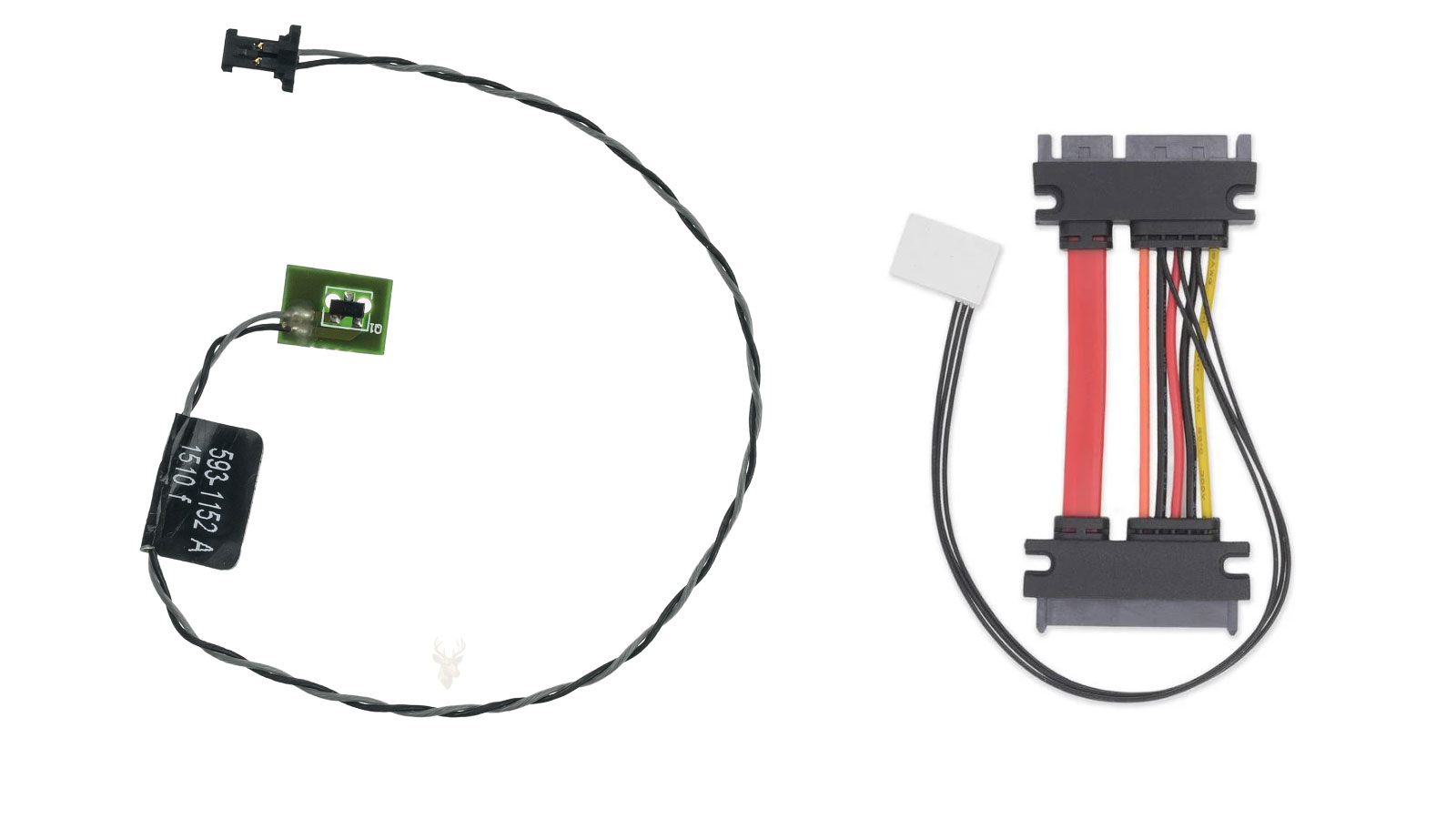
Some iMac designs expect temperature information associated with the installed storage device. When the original hard drive is replaced, the new drive may not provide the same signal through the same connection.
The storage device can operate normally while the Mac still loses the reading it expected. The result may be a fan that accelerates after startup even though the replacement drive is cool and functioning correctly.
Depending on the model and replacement method, the repair may require a compatible thermal cable, sensor arrangement, or installation approach that restores the expected information. A generic drive adapter addresses physical mounting or connection but may not automatically address thermal monitoring.
- Identify the exact iMac model and original storage configuration.
- Determine how that model receives storage temperature information.
- Inspect any sensor cable or adapter installed during the replacement.
- Confirm that the replacement drive and connection method are compatible.
- Verify the temperature reading before attempting to control fan speed through software.
The solution should restore reliable monitoring rather than merely suppress the sound created by the missing reading.
A Sensor Cable Can Be Connected but Still Fail Electrically
Small thermal cables can appear properly installed while one contact remains outside the connector or fails to make pressure against its matching pin. A cable may also have an internal break that is hidden beneath insulation.
Sharp folding, pulling on the wires instead of the plug, trapping the cable beneath a shield, or closing the case over it can weaken the connection. Adhesive residue and contamination may also prevent a sensor from sitting correctly against the surface it is intended to monitor.
- Check that the plug is level and fully seated.
- Inspect the cable where it bends near the connector.
- Look for crushed insulation or exposed conductors.
- Confirm that the sensor remains attached to the correct location.
- Verify continuity when the cable condition is uncertain.
A cable should not be judged only by whether it is present. The complete path must carry a believable signal from the monitored area to the controller that uses it.
Battery Information Can Influence MacBook Cooling Behavior
A MacBook battery contains monitoring and protection electronics that communicate operating conditions to the logic board. Temperature is one part of the information used to manage charging and protect the battery during use.
If battery communication becomes unreliable after replacement or disconnection, the Mac may show charging problems, inaccurate percentage readings, reduced performance, service warnings, or unusual fan behavior. The battery cells may still provide power while some monitoring information remains unavailable.
An incompatible replacement battery can create similar symptoms even when its connector fits. Physical fit does not guarantee that its control electronics communicate correctly with the Mac model in which it was installed.
A replacement component must provide the information the Mac expects, not merely fit into the available space.
Battery swelling, excessive warmth, or physical damage requires separate attention. A cooling or sensor complaint should not distract from a battery that may be unsafe to continue charging.
Fan Speed and Actual Temperature Must Be Compared
A loud fan does not prove that the Mac is overheating, but the possibility of real heat cannot be dismissed. Temperature readings, workload, airflow, and surface behavior should be compared before the problem is classified as a sensor fault.
If processor temperature rises rapidly under a light workload, the fan may be responding correctly. Blocked vents, dust-packed heat sinks, poor thermal contact, a damaged heat pipe, or excessive background activity can all produce real thermal demand.
If reported temperatures remain moderate while one sensor is missing or unrealistic and the fan immediately runs at maximum speed, the evidence points more strongly toward monitoring or communication.
- Compare fan speed at idle and under a known workload.
- Check whether all expected sensors produce believable values.
- Observe whether one reading is absent, fixed, or extreme.
- Confirm that vents and heat sinks are physically clear.
- Review recent repairs that may have changed the thermal path.
The distinction matters because genuine overheating requires better heat removal, while a missing reading requires restoration of the monitoring path.
Software Fan Control Can Conceal the Evidence Needed for Diagnosis
Fan-control utilities can be useful for observation and controlled testing, but they can also make a sensor failure harder to interpret. A manually selected speed may override the behavior that originally revealed the problem.
Reducing the fan because the Mac sounds loud does not restore a disconnected temperature source. The computer may continue operating without an accurate view of the affected component.
Before changing automatic controls, the original fan response and sensor values should be recorded. This creates a reference that can be compared after cables, replacement parts, cooling components, or system settings are examined.
Software should support the diagnosis rather than replace it. A permanent repair should allow the Mac to regulate cooling normally without requiring a utility to hide an unresolved hardware condition.
The First Inspection Should Follow the Parts Disturbed During Service
When full-speed fan operation begins after repair, the most efficient starting point is the service path. The Mac should be inspected around the components that were removed, replaced, disconnected, or moved aside.
This includes more than the obvious fan connector. Storage sensor cables, battery connections, display cables, logic-board plugs, adhesive sensors, and wiring routed beneath shields may all influence thermal information.
The inspection should confirm correct part numbers, connector orientation, cable condition, sensor placement, and freedom from pinching. Temperature readings should then be reviewed before the Mac is fully reassembled.
A fan operating at maximum speed is not a diagnosis by itself. It is a protective reaction that must be traced back to the temperature, communication, or cooling condition that caused the Mac to request it.
Sensor Values Should Be Evaluated as a Group
One temperature reading can be misleading when viewed by itself. A Mac may show a processor value that appears reasonable while another expected sensor is missing, frozen, or reporting an impossible number.
The pattern across several readings is usually more informative. If most internal temperatures rise gradually under load while one value never changes, that sensor or its communication path deserves closer attention. If every reading rises together, the cooling system may be facing a genuine heat problem rather than an isolated reporting fault.
- A reading that remains fixed may indicate a stalled or unavailable sensor.
- An extreme low value can represent an open circuit or invalid input.
- An extreme high value may trigger immediate protective fan behavior.
- A missing label can mean the system is not receiving the expected source.
- A normal-looking value can still be inaccurate if it does not respond to workload changes.
Useful diagnosis comes from comparing movement, consistency, and relationships between sensors rather than focusing only on one number displayed by a monitoring utility.
Fan Commands Can Be Influenced by More Than Temperature Alone
Temperature is central to fan control, but the system may also consider component power use, charging activity, hardware state, and whether certain controllers are communicating correctly. A fan increase can therefore occur before an exterior surface feels hot.
During startup, the Mac may briefly test or initialize the fan. Under sustained charging or graphics use, it may increase airflow in anticipation of rising heat. A failed communication path can also cause the control system to abandon normal gradual regulation and move directly to a safer speed.
Fan speed reflects the computer’s thermal decision, not simply the temperature of the case at the moment it is touched.
This distinction is important when the machine sounds unusually loud but remains cool. The correct question is not only whether the Mac feels hot, but what information the controller is using to make its decision.
A Fan Connector Problem Can Produce More Than One Type of Symptom
The fan assembly usually requires power, ground, speed feedback, and a control signal. If one part of that connection is missing, the fan may stop, run at an uncontrolled speed, report an incorrect speed, or produce a hardware warning.
| Fan-Related Behavior | Area That May Need Inspection |
|---|---|
| The fan never starts | Power, ground, motor condition, connector seating, or board output |
| The fan immediately runs at full speed | Control signal, missing sensor input, or fallback protection behavior |
| The reported RPM stays at zero while the fan spins | Speed-feedback line, connector contact, or fan electronics |
| The fan speed changes when the cable is moved | Loose contact, cracked wire, or damaged connector |
| The fan makes mechanical noise at normal speed | Worn bearing, debris, blade contact, or fan housing damage |
A replacement fan can correct a failed motor or damaged feedback circuit, but it cannot restore a missing temperature sensor elsewhere in the Mac. The fan and the command controlling it must be tested as separate parts of the cooling system.
Dust Can Change the Relationship Between Temperature and Fan Speed
Dust does not always stop airflow completely. A partially restricted heat sink can still pass enough air to keep the Mac running while requiring the fan to spin faster than it did when the cooling path was clean.
Fine material can collect between closely spaced fins where it is difficult to see from the outside. The fan may appear clean while the exhaust side of the heat sink is packed with debris. In an iMac, dust can also accumulate around intake openings, power components, and internal surfaces that guide air through the enclosure.
- Inspect both the intake and exhaust sides of the cooling path.
- Hold the fan in place during cleaning so it does not spin excessively.
- Remove compacted debris rather than blowing it deeper into the case.
- Check whether cables or adhesive strips obstruct the designed airflow route.
- Compare temperature and fan behavior after the system is reassembled.
Cleaning should improve heat transfer without damaging fan bearings, connectors, display surfaces, or exposed logic-board components. A loud fan caused by real airflow restriction may settle only after the trapped heat can leave the computer normally.
Thermal Material Must Match the Surfaces It Was Designed to Join
If a heat sink is removed during repair, the interface between the heat-producing component and cooling assembly must be restored correctly. Old thermal compound may no longer spread evenly after the heat sink is lifted.
Too little compound can leave gaps. Too much can spread beyond the intended area and make installation messy without improving heat transfer. Thermal pads also require the correct thickness because a pad that is too thin may not make contact, while one that is too thick can prevent the heat sink from sitting flat.
Screw order and pressure matter as well. Uneven tightening can tilt the cooling plate and create poor contact on one side of the processor or graphics chip.
A fan can run correctly and still remain loud when heat is not reaching the heat sink efficiently.
When fan speed increased after logic-board or heat-sink service, thermal contact should be reviewed along with sensor connections. Both faults can begin at the same time and produce similar outward behavior.
Background Activity Can Create Real Heat After a Repair or System Change
A Mac may perform intensive work after storage replacement, data migration, operating system installation, or restoration from backup. File indexing, photo analysis, cloud synchronization, software updates, and account setup can keep the processor active for an extended period.
During that time, higher fan speed may be appropriate even though the repair itself was successful. The key difference is that the fan should respond to actual workload and gradually settle as the activity completes.
- Review processor usage while the fan is elevated.
- Check for indexing, synchronization, backup, or update processes.
- Observe whether fan speed falls when the workload decreases.
- Compare sensor readings before and after the activity finishes.
- Restart only when doing so will not interrupt an important migration or update.
A missing sensor often produces a persistent high-speed condition regardless of workload. Genuine processing heat usually changes with what the Mac is doing.
Apple Diagnostics May Confirm a Thermal Fault Without Locating the Physical Cause
Built-in diagnostics can identify certain sensor, fan, memory, battery, and logic-board conditions. A reported reference code can confirm that the Mac detected abnormal thermal information or fan behavior.
The code does not always identify whether the root cause is a disconnected cable, damaged fan, failed sensor, incompatible replacement part, contaminated connector, or logic-board circuit. Physical inspection and model-specific testing may still be required.
A diagnostic test should be run with the Mac in a known configuration. External devices, unsupported adapters, and partially connected internal parts can influence the result or create additional errors.
The recorded code, the timing of the fan increase, and the list of recently disturbed components together provide a stronger direction than any one clue by itself.
Reset Procedures Cannot Repair an Open Sensor Circuit
Power-management resets may help when stored control states become inconsistent, but they cannot reconnect a damaged wire, replace a failed fan, or restore a sensor that is no longer electrically present.
A reset may temporarily change fan behavior by restarting the controller and clearing a stale condition. If the fan returns to maximum speed because the same sensor remains unavailable, the hardware fault has not been corrected.
- Record the original symptoms and sensor readings.
- Use the reset procedure appropriate for the exact Mac model.
- Allow the computer to complete a normal startup afterward.
- Check whether the missing or abnormal reading has returned.
- Continue with hardware inspection if the condition remains.
Repeated resets should not replace diagnosis. Their value is limited when the same physical defect continues to remove information from the cooling system.
Incompatible Parts Can Create Stable Operation with Incorrect Thermal Control
A replacement storage device, battery, fan, cable, or logic board may allow the Mac to start and operate while failing to provide the exact information expected by the system. The machine can appear functional except for constant fan noise or altered performance.
Part compatibility must include electrical behavior, communication, sensor support, and hardware revision. Matching the outer shape or connector is not enough.
This is particularly important when adapters are used. An adapter may convert a connector or provide physical mounting while omitting a temperature path that was built into the original arrangement.
A repair part is compatible only when the Mac can use it without losing required control or monitoring functions.
Verifying the exact model identifier and replacement specification helps prevent a working component from creating a separate thermal-control problem.
The Fan Response Should Be Retested Before the Mac Is Fully Closed
When the display, logic board, battery, or cooling system has been removed, thermal behavior should be checked before every layer of the enclosure is sealed. This is especially important in models that require adhesive replacement or extensive disassembly to reopen.
The test should confirm that the fan starts normally, changes speed gradually, reports believable RPM, and responds to a controlled workload. Expected temperature sources should also be visible and responsive.
- Confirm that all fan and sensor connectors are seated.
- Check that no cable touches a moving fan blade.
- Observe idle fan behavior after startup activity settles.
- Apply a moderate workload and watch for gradual speed changes.
- Allow the Mac to cool and verify that the fan slows again.
A fan that immediately returns to full speed after reassembly indicates that the underlying condition remains. Closing the enclosure does not improve a missing reading and can make the next inspection more difficult.
The Correct Repair Restores Automatic Cooling Decisions
The goal is not merely to make the Mac quieter. The system should regain the ability to measure heat, recognize the installed components, control the fan, and protect itself without manual intervention.
If the cause is a disconnected cable, the connection must be restored. If the replacement part does not provide the expected information, the installation method or component choice must be corrected. If actual overheating is present, airflow and heat transfer require attention.
Once the fault is repaired, fan speed should correspond to workload and temperature rather than remain fixed at an emergency level. Sensor readings should change naturally as the Mac warms and cools.
Intermittent Sensor Connections Can Produce Inconsistent Fan Behavior
Not every thermal sensor problem causes the fan to run at maximum speed continuously. A connector that shifts with vibration, temperature changes, or normal movement of the enclosure may interrupt communication only occasionally. The Mac can operate quietly for hours before suddenly increasing fan speed without any significant change in workload.
This intermittent behavior often complicates diagnosis because the fault may disappear while the computer is being inspected. A cable that reconnects after the case is opened can temporarily restore normal operation even though the underlying problem remains.
Observing when the fan changes speed can provide useful clues. If the behavior appears after moving the computer, adjusting the display angle, transporting the machine, or reinstalling the bottom cover, attention should be directed toward connectors, harnesses, and cable routing rather than immediately replacing cooling components.
Logic Board Sensor Circuits Can Fail Even When the Sensor Is Working
The temperature sensor is only one part of the measurement path. After the sensor produces its electrical signal, that information must travel through traces, connectors, protective components, and control circuitry before it reaches the controller responsible for cooling decisions.
A damaged trace, corroded contact, cracked solder joint, or failed supporting component can interrupt the signal while leaving the sensor itself completely functional. Replacing the sensor alone will not restore communication if the logic board can no longer receive its output.
| Component in the Signal Path | Potential Effect When It Fails |
|---|---|
| Temperature sensor | Incorrect or missing thermal measurement. |
| Sensor cable | Intermittent or complete signal interruption. |
| Connector contacts | Unstable communication caused by poor electrical contact. |
| Logic board trace | Signal never reaches the monitoring circuit. |
| Monitoring circuitry | Valid sensor information cannot be interpreted correctly. |
Successful diagnosis follows the complete signal path instead of assuming that every cooling complaint begins at the sensor itself.
Liquid Exposure May Interrupt Thermal Monitoring Long Before Startup Fails
Moisture reaching the logic board can damage low-voltage monitoring circuits without immediately preventing the Mac from turning on. Corrosion developing around sensor connectors or nearby components may gradually increase electrical resistance until reliable temperature reporting becomes impossible.
The computer may continue operating normally except for persistent fan noise. Because performance remains acceptable, users sometimes postpone inspection while corrosion continues progressing beneath shields, connectors, or protective coatings.
Cooling abnormalities can be one of the earliest visible signs that a board-level monitoring circuit has been affected.
Evidence of previous liquid exposure should always be considered when fan behavior changes without an obvious hardware replacement or software explanation.
Environmental Conditions Can Influence Cooling Without Indicating a Fault
Room temperature affects every cooling system. A Mac used inside a warm office, direct sunlight, enclosed cabinet, recording studio, or poorly ventilated workspace will often operate its fans more aggressively than the same computer in a cooler environment.
Soft furniture, blankets, cushions, and other surfaces that restrict airflow around intake or exhaust openings can also increase internal temperatures. These situations should not be confused with sensor failures because the cooling system is reacting appropriately to changing operating conditions.
- Allow adequate space around ventilation openings.
- Avoid blocking airflow with fabric or soft materials.
- Keep the surrounding environment reasonably cool.
- Remove dust that limits normal air movement.
- Compare fan behavior under similar environmental conditions.
Environmental heat generally causes gradual fan changes rather than an immediate jump to maximum speed immediately after startup.
Firmware Updates Can Modify Cooling Characteristics
Apple occasionally adjusts thermal management through firmware and operating system updates. These changes may alter when the fan begins increasing speed, how rapidly it responds to processor load, or how conservatively temperatures are managed under certain conditions.
A slight difference in normal fan behavior after an official update does not necessarily indicate that a repair introduced a new fault. Comparing current temperatures, processor activity, and overall system stability provides a more reliable assessment than judging fan sound alone.
However, an update cannot compensate for a disconnected sensor, damaged cable, or failed monitoring circuit. Hardware faults continue to require hardware correction regardless of firmware revisions.
Comparing Idle and Sustained Workloads Helps Separate Normal Operation from Faults
One useful observation is whether the cooling system reacts proportionally to changing demand. During idle operation, processor activity remains relatively low and temperatures should stabilize. Under sustained video rendering, software compilation, or other intensive workloads, temperatures normally increase before fan speed rises.
If the fan remains fixed at maximum speed regardless of whether the Mac is idle or heavily loaded, the system may be operating under a protective fallback condition rather than responding to actual thermal demand.
Healthy cooling systems respond to changing conditions instead of remaining locked at one operating speed.
Evaluating cooling performance across different workloads provides more useful information than observing only the initial startup behavior.
Replacement Logic Boards Should Be Verified Before Final Assembly
When a replacement logic board has been installed, every monitored component should be confirmed before adhesive strips, display assemblies, shields, or covers are permanently secured. Discovering a missing thermal reading after complete reassembly often requires repeating a significant portion of the repair.
The inspection should include sensor detection, normal fan response, stable processor temperatures, charging operation, sleep behavior, and overall system reliability. Testing these functions together helps ensure that no cable or connector was overlooked during installation.
- Confirm all thermal sensors are reporting.
- Verify automatic fan regulation during idle operation.
- Apply a controlled workload and observe gradual fan changes.
- Allow the Mac to cool and confirm the fan slows appropriately.
- Complete final assembly only after thermal operation is verified.
The Objective Is Reliable Thermal Management Rather Than a Quiet Fan
A quiet computer is not always a healthy one. The purpose of the cooling system is to maintain safe operating temperatures while responding automatically to changing workloads and environmental conditions. Eliminating fan noise without restoring accurate temperature monitoring leaves the underlying fault unresolved.
Whether the cause is an interrupted sensor circuit, incompatible replacement component, damaged connector, airflow restriction, or genuine heat production, the repair should restore the Mac’s ability to regulate itself without constant manual adjustment or software workarounds.
When every temperature source reports correctly and the cooling system responds smoothly to changing operating conditions, the fan becomes what it was designed to be: a controlled protective device rather than a continuous warning that another problem still exists.











