
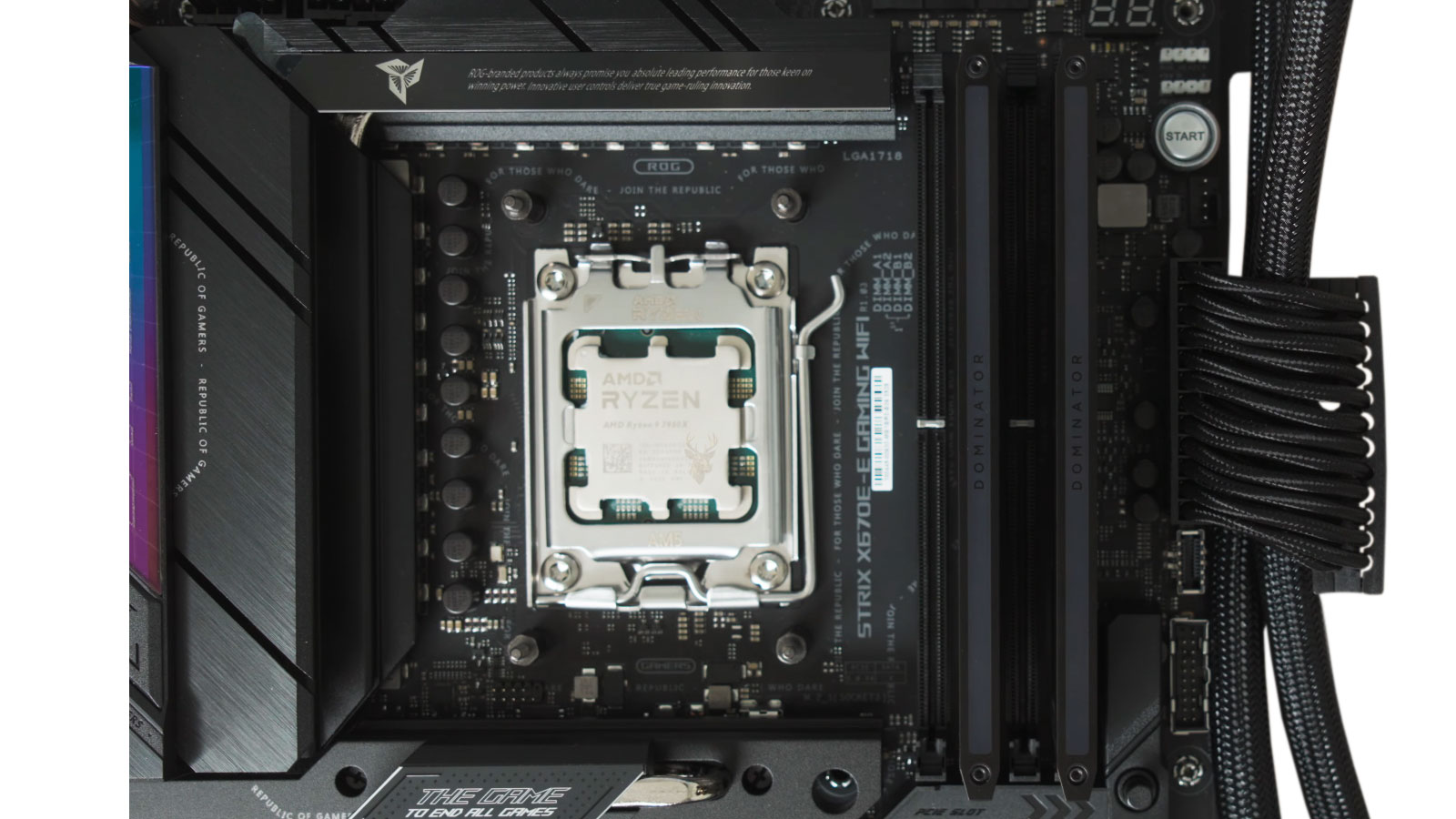
Getting the Best Performance From Installed Memory
Installing additional memory is one of the most common computer upgrades, yet the installation process involves more than simply filling every available memory slot. Modern motherboards are designed with memory channels that allow the processor to communicate with RAM more efficiently when compatible modules are installed in the proper locations.
A computer may recognize every installed memory module and still fail to operate at its intended performance if the modules are placed incorrectly. Understanding how memory channels work helps explain why motherboard manufacturers provide specific installation recommendations and why those instructions should not be overlooked.
Whether building a new desktop computer, replacing defective memory, or expanding an existing system, proper RAM placement contributes to stable operation and allows compatible hardware to perform as designed.
What Is Dual-Channel Memory?
Dual-channel memory is a hardware architecture that allows two memory channels to operate simultaneously between the processor and installed RAM. Instead of relying on a single path for transferring information, the memory controller can communicate across two channels when the system is configured correctly.
This arrangement increases available memory bandwidth, allowing the processor to access data more efficiently during many types of workloads. Although the improvement varies depending on the application, dual-channel operation is considered a standard configuration on many modern desktop platforms.
- Requires motherboard support.
- Requires processor support.
- Works best with matching memory modules.
- Depends on proper DIMM slot placement.
Why Motherboards Use Color-Coded Memory Slots
Many desktop motherboards use alternating slot colors to help identify which sockets belong to the same memory channel. Although newer boards may use identical colors with printed labels instead, the objective remains the same: guiding users toward the recommended installation pattern.
Installing two matching modules into the correct pair of slots allows the memory controller to enable dual-channel operation automatically on supported hardware. Installing those same modules into different positions may cause the computer to operate in single-channel mode instead.
| Installation Example | Typical Result |
|---|---|
| Recommended paired slots | Dual-channel operation available. |
| Adjacent slots on many boards | Often operates in single-channel mode. |
| One module installed | Single-channel operation. |
| Incorrect or unsupported configuration | Reduced performance or startup problems on some systems. |
Matching Memory Modules Produces the Best Results
Although some motherboards can operate with memory modules of different capacities or specifications, using closely matched modules generally provides the most predictable results. Manufacturers often sell memory as matched kits because the modules have been tested to operate together under the same specifications.
Important characteristics that should be considered include:
- Total capacity.
- Memory generation (such as DDR4 or DDR5).
- Operating speed.
- Voltage requirements.
- Supported timings.
Matching these characteristics helps the motherboard initialize memory correctly and minimizes the possibility of configuration-related problems during startup.
Single-Channel and Dual-Channel Configurations Compared
Both configurations allow a computer to function normally, but they differ in the amount of memory bandwidth available to the processor.
| Configuration | General Characteristics |
|---|---|
| Single-channel | Uses one active memory channel and is common when only one DIMM is installed. |
| Dual-channel | Uses two active memory channels with properly installed compatible modules. |
For many everyday tasks the difference may be modest, but applications that frequently transfer large amounts of data can benefit from the additional memory bandwidth made available through a properly configured dual-channel setup.
Why Motherboard Manuals Specify Particular Memory Slots
One of the first recommendations found in most motherboard manuals concerns the order in which memory modules should be installed. This guidance is not arbitrary. Memory slots are grouped according to the motherboard’s channel design, and installing modules in the recommended locations allows the memory controller to communicate with each channel as intended.
For example, a motherboard with four DIMM slots may instruct users to install two modules in the second and fourth slots rather than placing them next to each other. Although the computer may still start when the modules are installed differently, it may not operate in its preferred memory configuration.
Following the manufacturer’s documentation is therefore one of the simplest ways to avoid unnecessary performance or compatibility issues after a memory upgrade.
Mixing Different Memory Modules Can Produce Unexpected Results
Adding memory over time often means combining modules purchased months or even years apart. While this approach can work successfully, differences between modules may require the motherboard to operate using the specifications of the slowest or least capable module installed.
| Difference Between Modules | Possible Outcome |
|---|---|
| Capacity | Memory may operate in a mixed configuration depending on motherboard support. |
| Speed rating | The system often reduces operating speed to maintain compatibility. |
| Memory timings | Automatic adjustments may be required during startup. |
| Operating voltage | Incompatible requirements may prevent stable operation. |
| Memory generation | Different DDR generations cannot be mixed together. |
Using identical memory kits whenever possible reduces the likelihood of these compatibility concerns and simplifies future troubleshooting.
Recognizing Symptoms of an Improper Memory Configuration
Memory installation problems do not always prevent a computer from starting. In some situations, the operating system loads normally while performance or stability is affected by an incorrect configuration.
- The computer reports less usable memory than expected.
- Dual-channel mode is not detected by the firmware or diagnostic software.
- The system repeatedly restarts during initial startup.
- Memory-related warning messages appear during POST.
- Random instability begins immediately after installing additional RAM.
- The motherboard emits diagnostic beep codes indicating a memory problem.
These symptoms do not automatically indicate defective memory modules. In many cases, reseating the modules or installing them in the recommended slots resolves the problem.
Verifying That Dual-Channel Mode Is Active
After installing or upgrading memory, it is good practice to confirm that the system recognizes the configuration correctly. Many motherboard firmware interfaces display the active memory mode during startup, and numerous hardware information utilities within the operating system can report the same information.
Taking a few moments to verify the configuration helps ensure that the upgrade is delivering the expected benefit and that the hardware is operating according to the motherboard manufacturer’s design.
Memory Installation Tips Before Closing the Computer
- Confirm that the memory type matches the motherboard specifications.
- Install modules in the recommended slots listed in the manual.
- Press each module firmly until both retaining clips lock into place.
- Verify that the reported memory capacity matches the installed amount.
- Check that dual-channel operation is enabled when supported.
- Run the computer normally for a period to confirm stable operation.
Completing these basic checks before replacing the computer’s side panel can save considerable troubleshooting time later and helps ensure that the upgrade performs as expected.











