
NVRAM and the SMC Manage Different Parts of a Mac
Two reset procedures are frequently suggested when a Mac develops unusual startup, display, sound, battery, fan, or power behavior. One clears a small area of stored configuration information known as NVRAM, while the other restarts the System Management Controller responsible for several low-level hardware functions.
These procedures are not interchangeable. Resetting NVRAM changes a limited group of settings the Mac needs before or during startup. Resetting the SMC affects hardware-management functions such as power control, charging behavior, thermal response, and sleep operation on supported Intel-based models.
Neither reset repairs damaged hardware, replaces missing system files, removes unwanted software, or restores deleted data. Their value depends on whether the symptom is connected to the specific settings or controller being reset.
NVRAM Retains Selected Settings When the Mac Is Turned Off
NVRAM is a small amount of nonvolatile memory used to retain certain configuration values after power has been removed. The Mac can read these values early in the startup process before the full operating system and user account have loaded.
The exact contents can vary by model and operating-system version, but NVRAM commonly stores information related to startup disk selection, speaker volume, display characteristics, time-zone details, and recent diagnostic information.
Because the storage area is small and specialized, resetting it does not erase ordinary documents, photographs, installed programs, browser history, or account passwords. It returns certain hardware and startup preferences to default or automatically detected values.
PRAM Is an Older Name Still Used in Mac Troubleshooting
Older Macintosh computers used parameter RAM, commonly shortened to PRAM, for several startup and hardware settings. Newer systems use NVRAM, but the traditional phrase “reset the PRAM” continues to appear in repair instructions and technical discussions.
The familiar startup-key combination was retained across many generations of Intel-based Macs, so users may encounter both names describing essentially the same troubleshooting step. The terminology changed as the underlying hardware evolved, but the purpose remained focused on a small set of persistent settings.
Understanding the older name is useful when reading service documents, archived support discussions, or instructions written for earlier versions of OS X and macOS. It does not indicate that two separate resets must be performed.
The Startup Disk Setting Can Be Stored in NVRAM
A Mac with more than one bootable system may store the preferred startup volume in NVRAM. This allows the firmware to locate the selected installation without asking the user to choose a disk every time the computer starts.
If that value becomes incorrect or no longer points to an available system, the Mac may pause at startup, display a folder symbol, boot from an unexpected volume, or spend additional time searching for a usable operating system.
Resetting NVRAM can clear the stored selection, but the correct startup disk may need to be chosen again afterward. A reset cannot make an unreadable drive bootable or repair an operating system that is missing essential files.
Speaker Volume May Return to a Default Level After the Reset
Startup sound and output-volume information can be included among the values retained in NVRAM. A reset may therefore cause the Mac to begin with a different volume level than the one previously selected.
This behavior does not mean the speakers or audio hardware have been changed. The stored preference has simply been cleared and recreated using a default or newly selected value.
If sound remains missing after the correct output device and volume are selected, the cause may involve audio routing, headphones, external displays, software settings, damaged ports, or internal hardware rather than NVRAM.
Display Resolution and Startup Display Behavior Can Be Affected
NVRAM may preserve information used when the Mac initializes a display. Incorrect or outdated values can sometimes contribute to unusual resolution, an unexpected refresh setting, a blank external display during startup, or a picture that appears on the wrong connected screen.
Resetting NVRAM allows the computer to detect the available display configuration again. This can be useful after a monitor, adapter, dock, graphics device, or startup arrangement has changed.
A persistent black screen can still result from a damaged display cable, failed backlight, defective graphics hardware, incompatible adapter, loose connection, or operating-system problem. The reset only addresses stored configuration values and does not confirm that the display path is physically functional.
Time-Zone and Clock-Related Information May Need to Be Rechecked
Some Mac models and operating-system versions retain time-zone or related startup information in NVRAM. After the reset, the clock and regional settings should be reviewed if the displayed time becomes incorrect.
A one-time change following the reset is different from a clock that repeatedly loses its setting whenever the Mac is unplugged. Recurrent time loss can indicate a depleted internal backup battery, logic-board problem, or inability to synchronize with a network time server.
The reset can remove a corrupted value, but it cannot supply backup power to a failing real-time clock circuit or correct an unreliable internet connection.
NVRAM Can Contain Information From a Recent System Failure
Diagnostic and panic-related information may be written to persistent memory so it remains available after the computer restarts. This can assist the operating system or a technician in reviewing what occurred during a serious failure.
Clearing NVRAM may remove some of that retained information, which is one reason important symptoms should be documented before repeated resets are attempted. Error messages, startup symbols, unusual sounds, and the sequence leading to the problem can all be useful during diagnosis.
A reset should not be used repeatedly to hide recurring crashes. If the Mac continues restarting or displaying panic reports, the underlying software, memory, storage, peripheral, or logic-board condition still requires investigation.
The NVRAM Reset Is Performed During Early Startup
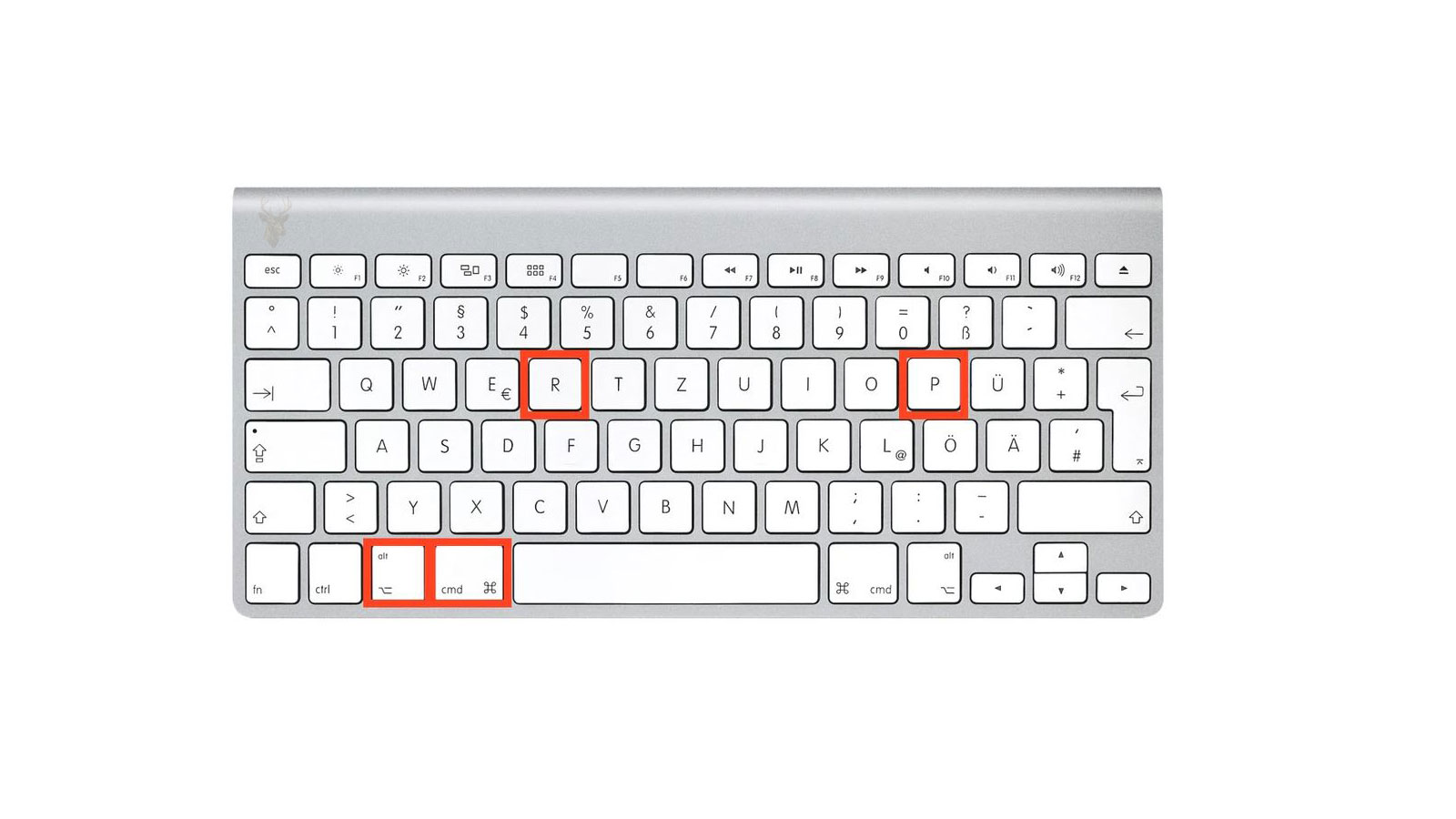
On many Intel-based Macs, NVRAM is reset by shutting down the computer, turning it on, and immediately holding the Command, Option, P, and R keys. The keys must be detected before the operating system begins loading.
The appropriate release point can differ between models. A Mac that produces a startup sound may be allowed to restart and play the sound again, while a model equipped with the Apple T2 Security Chip may use the appearance and disappearance of the Apple logo as the visual indication.
A working built-in or wired keyboard is preferable during early-startup procedures because some wireless keyboards may not connect quickly enough for the command to be recognized. The key combination should be pressed together rather than entered one key at a time.
A Firmware Password Can Prevent the Startup Keys From Working
A Mac protected by a firmware password may ignore certain startup-key combinations until that protection is removed or the password is entered through the appropriate startup process. This prevents unauthorized changes to boot behavior and firmware-level settings.
Repeatedly trying the key combination will not bypass the password. The correct credential and an authorized method of disabling the protection are required before the reset can be completed normally.
A firmware password is different from the password used to sign in to a macOS account. Knowing the user-account password does not necessarily provide access to protected firmware controls.
Settings Should Be Reviewed After NVRAM Has Been Cleared
Once the Mac starts normally, the selected startup disk, sound output, speaker level, display arrangement, resolution, date, time, and time zone should be checked. External monitors and audio devices may also need to be selected again.
These adjustments are an expected consequence of clearing stored preferences and do not indicate that the reset damaged the operating system. The computer is rebuilding or accepting replacement values for the settings that were removed.
If the original symptom disappears only briefly and then returns, another process may be rewriting the setting or a hardware problem may be preventing the preferred configuration from remaining stable.
The System Management Controller Handles Physical Operating Conditions
The System Management Controller, commonly called the SMC, is a controller used in Intel-based Macs to manage several hardware functions that operate below the level of ordinary applications and user preferences.
Its responsibilities can include power-button response, battery charging, sleep and wake behavior, thermal monitoring, cooling-fan control, keyboard illumination, status indicators, and the recognition of certain power sources or accessories.
Because these functions involve direct interaction with hardware, an SMC reset is considered when the Mac’s physical behavior is inconsistent even though macOS settings appear correct.
Power-Button Problems May Involve the SMC but Are Not Always Controller Faults
The SMC participates in how many Intel-based Macs respond to the power button and transition between powered-off, sleeping, and active states. A reset may help when the computer ignores a normal power request or behaves inconsistently after shutdown.
Before assuming the controller is confused, the power adapter, wall outlet, battery state, charging connector, and any visible indicator should be checked. A Mac with no incoming power cannot be restored by a reset alone.
A damaged power button, failed DC-in board, defective battery, liquid exposure, logic-board fault, or missing internal voltage can produce similar symptoms. The reset is one diagnostic step rather than proof that the hardware is healthy.
Battery Charging Behavior Is One Reason an SMC Reset Is Considered
The SMC communicates with the battery and charging system on supported Mac notebooks. It helps manage when charging begins, how the power adapter is recognized, and how the computer responds to changing battery conditions.
An SMC reset may be appropriate when the adapter is known to be functional but the charging indicator behaves incorrectly, the battery status appears inconsistent, or charging does not begin after a temporary power-management fault.
The procedure cannot restore worn battery cells, repair a damaged MagSafe connector, replace a failed USB-C charging circuit, or correct corrosion on the logic board. Battery health, cycle count, adapter output, and physical connections still need to be evaluated when the symptom remains.
Fan Speed Is Controlled Through Thermal Information
The SMC receives temperature information from sensors and adjusts cooling fans to protect the processor, graphics components, storage devices, battery, and other internal hardware. Fan speed can rise normally when the Mac is performing demanding work or operating in a warm environment.
A controller reset may help if fans immediately run at full speed despite low temperatures and minimal activity. However, the same behavior can occur when a temperature sensor is disconnected, damaged, or reporting an impossible value.
In that situation, maximum fan speed is a protective response rather than the original problem. Silencing the fan without identifying the missing sensor information could allow the computer to operate without reliable thermal monitoring.
Sleep and Wake Behavior Can Depend on Several SMC Functions
Closing a notebook lid, pressing the power button, connecting a charger, opening the display, or receiving input from a keyboard can cause a Mac to enter or leave a low-power state. The SMC participates in coordinating several of these physical events.
A reset may be considered when the Mac sleeps unexpectedly, refuses to wake consistently, powers on when the lid is moved, or does not respond normally to an established wake source.
Sleep problems can also result from macOS settings, connected USB devices, network activity, damaged lid sensors, failing batteries, graphics faults, or applications preventing normal sleep. The timing and physical conditions surrounding the failure help determine whether the SMC is a reasonable direction.
Keyboard Illumination and Status Lights May Respond to an SMC Reset
On supported Mac notebooks, the SMC can participate in controlling keyboard backlighting, sleep indicators, battery lights, and other hardware-level illumination. An incorrect controller state may cause a light to remain off, stay on unexpectedly, or fail to respond to changing conditions.
The reset can restore normal controller communication, but illumination problems may also involve a damaged keyboard, ambient-light sensor, display cable, battery indicator assembly, or logic-board connection.
Brightness keys and system preferences should be checked before treating every missing light as an SMC fault. Some lighting features are intentionally disabled in bright environments or when automatic controls are active.
The Correct SMC Reset Depends on the Mac’s Hardware Design
Unlike the NVRAM procedure used across many Intel-based models, the SMC reset is not performed the same way on every Mac. Apple changed the required steps as notebook batteries became internal, desktop designs evolved, and the T2 Security Chip was introduced.
Using instructions written for another model may produce no visible result and can create confusion about whether the reset succeeded. The computer’s exact model family, approximate year, battery design, and security hardware should be identified before the procedure is attempted.
The reset steps should be followed once, carefully, and then the original symptom should be tested. Repeating several unrelated key combinations without identifying the hardware provides little diagnostic value.
Older Mac Notebooks May Use a Removable-Battery Procedure
Some earlier Mac notebooks were designed with a battery that could be removed without disassembling the entire computer. On these systems, the SMC reset generally involves shutting down, disconnecting external power, removing the battery, and briefly pressing the power button.
Removing the battery disconnects one of the controller’s power sources, while pressing the power button helps discharge residual electrical energy. The battery and adapter are then reconnected before the notebook is started normally.
A swollen, damaged, or leaking battery should not be removed casually. Physical battery damage changes the situation from ordinary troubleshooting to a hardware-safety concern requiring careful handling.
Built-In Battery Models Use a Keyboard Combination While Powered Off
Many Intel-based Mac notebooks contain an internal battery that is not intended to be removed during routine troubleshooting. On supported models without the T2 Security Chip, the SMC reset commonly uses the built-in keyboard while the computer is shut down and connected to power.
The traditional combination uses the Shift, Control, and Option keys on the left side of the keyboard together with the power button. The keys are held for several seconds, released together, and the Mac is then started normally.
The computer may not display a confirmation message or make a distinctive sound. The result is judged by testing the original charging, fan, sleep, power, or indicator behavior after startup.
Mac Notebooks With the T2 Security Chip Use a Different Sequence
The introduction of the Apple T2 Security Chip changed the controller-reset procedure on several Intel-based notebook models. These systems use a sequence involving specific modifier keys and the power button, with timing that differs from earlier built-in battery models.
Because the right and left sides of the keyboard are not treated identically during this procedure, following a simplified instruction that merely says to hold Shift, Control, and Option may fail. The exact key locations matter.
A notebook with uncertain T2 status should be identified before the reset. Model information, the year of introduction, and the system report can help determine which instructions apply.
Desktop Macs Reset the Controller Without a Keyboard Shortcut
Intel-based iMac, Mac mini, Mac Pro, and other desktop models generally reset the SMC by removing AC power rather than holding a notebook keyboard combination. The Mac is shut down, unplugged for a specified period, reconnected, and then allowed a brief pause before it is started.
Disconnecting power gives the controller time to lose its retained state and initialize again when electricity is restored. Quickly removing and reinserting the cable may not provide the same result.
The wall outlet, surge protector, power strip, and cable connection should also be checked during this process. A desktop that remains completely unresponsive may have an external power problem rather than a controller state that can be cleared.
Portable Macs Should Be Connected to a Reliable Power Source
Some SMC reset procedures require the notebook to be connected to its adapter. A damaged charger, low-output replacement, loose connector, or unsupported USB-C power source can interfere with the test and make a charging problem appear unchanged.
The adapter should be connected directly through a known working outlet whenever possible. Docks, hubs, extension devices, and multiport accessories can be temporarily removed so the Mac is tested with the simplest available power path.
A power adapter can illuminate an indicator or appear in system information while still failing under load. When charging remains unreliable, adapter output and connector condition may need to be evaluated separately from the reset.
The Built-In Keyboard Is Preferred for Controller Key Combinations
Notebook reset instructions are designed around the built-in keyboard because it communicates with the system early and provides the expected modifier-key locations. An external wireless keyboard may not be active while the Mac is fully shut down.
A damaged built-in keyboard can prevent the required combination from being recognized. One failed modifier key may make the procedure appear unsuccessful even though the power button still works normally.
If liquid damage, stuck keys, or known keyboard faults are present, the reset result cannot be trusted until the input problem is considered. Repeated attempts do not compensate for a key that is not producing the correct signal.
A Successful SMC Reset May Not Produce an Obvious Confirmation
Many Macs do not display a message stating that the System Management Controller has been reset. Some adapter indicators may briefly change color, but this behavior is not universal and should not be treated as the only proof.
The meaningful test is whether the original hardware-related symptom changes afterward. Charging should be observed, fans should be allowed to respond to normal temperature conditions, sleep should be tested, and power behavior should be compared with the earlier fault.
If nothing changes, the procedure may have been incorrect for the model, the key combination may not have registered, or the symptom may have a different cause entirely.
Battery Information Should Be Reviewed Before and After the Reset
When charging or battery reporting is the concern, the battery’s condition should be documented before the controller is reset. Charge percentage, cycle count, condition message, whether the adapter is recognized, and whether the status says charging can all provide useful comparison points.
After the reset, the Mac may need time to update the displayed percentage and charging state. A number that does not change instantly is not enough to conclude that the procedure failed.
A battery reported as needing service, unable to hold capacity, or shutting down under load is unlikely to become healthy after a controller reset. The procedure can correct communication or state problems, but it cannot reverse cell deterioration.
MagSafe Indicators Provide Clues but Not a Complete Diagnosis
On Mac notebooks using MagSafe, the connector light can provide basic information about the charging state. An amber light generally indicates charging, while green commonly indicates that the battery is full or that charging is not currently required.
No light can result from a failed adapter, contaminated connector, damaged cable, weak wall connection, defective DC-in board, battery communication problem, or logic-board fault. A reset may help only when the controller is incorrectly managing an otherwise functional power path.
The connector should be examined for debris, darkened contacts, bent pins, heat damage, and movement at the cable strain-relief area. Physical defects should not be ignored because the indicator briefly returns after repositioning the cable.
USB-C Charging Problems Require the Cable and Port to Be Considered
USB-C charging depends on communication between the Mac, cable, and power adapter before the correct voltage is supplied. A cable that supports data transfer may not support the wattage required by the notebook, and a low-power adapter may maintain operation without charging the battery effectively.
Testing another compatible port can help determine whether the problem follows one connector or affects the entire charging system. Docks and displays that deliver power should be removed during comparison so the Mac can be connected directly to a known suitable adapter.
An SMC reset may restore incorrect power-management behavior, but it cannot repair a worn port, damaged charging cable, failed USB-C controller, or liquid-damaged logic-board circuit.
Unexpected Shutdowns Can Be Mistaken for an SMC Problem
A Mac that turns off without warning may have a power-management issue, but the same symptom can result from battery voltage collapse, overheating, liquid damage, memory faults, storage corruption, or a system panic.
The conditions surrounding the shutdown are important. A failure that occurs only on battery power suggests a different direction from one that happens during heavy processor load or whenever the computer is moved.
Resetting the SMC may be reasonable when power-state behavior is inconsistent, but shutdown logs, battery health, temperature, and repeatable triggers should be reviewed when the problem continues.
Full-Speed Fans Can Indicate Missing Sensor Information
Cooling fans that immediately run at maximum speed after startup are often interpreted as proof that the SMC has failed. In reality, the controller may be responding correctly to a temperature sensor that is disconnected, unreadable, or reporting an invalid value.
This can occur after a repair if a sensor cable was not reconnected, if a replacement drive lacks the expected temperature interface, or if corrosion has interrupted communication on the logic board.
An SMC reset may be attempted once, but fan behavior that returns immediately should lead to sensor inspection and hardware diagnosis rather than repeated controller resets.
Fan Noise Under Heavy Workload Is Often Normal
Video encoding, software installation, gaming, photo processing, external-display use, and background indexing can raise internal temperatures and cause the fans to become clearly audible. This response protects the hardware and does not necessarily indicate a controller problem.
Activity Monitor can help determine whether one process is keeping the processor busy. Dust buildup, blocked vents, high room temperature, or use on a soft surface can also increase the cooling demand.
Resetting the SMC will not reduce the heat generated by a demanding task. If fan speed follows processor load and decreases after the activity ends, the thermal-control system may be operating as intended.
Sleep Failures Should Be Tested With External Devices Removed
USB storage, printers, audio interfaces, docks, network adapters, and external displays can influence whether a Mac enters or leaves sleep correctly. A device may continue generating activity, fail to resume, or repeatedly reconnect during the transition.
Testing the Mac with nonessential peripherals disconnected creates a simpler environment. If sleep and wake behavior becomes normal, the devices can be restored one at a time until the problem returns.
An SMC reset performed while all accessories remain connected may appear ineffective when the controller was never the source of the repeated wake or stalled sleep condition.
A Notebook That Will Not Wake May Still Be Running
A dark screen after sleep does not always mean the entire Mac failed to wake. Keyboard illumination, fan noise, notification sounds, external-display activity, or network access may show that the computer is active while the built-in display remains blank.
This distinction matters because a display, backlight, graphics, lid-sensor, or cable problem requires a different investigation from a complete power-state failure. Forcing repeated shutdowns can also create file-system problems if the operating system is still running.
Before using an SMC reset as the only response, the display brightness, external monitor output, keyboard response, and signs of system activity should be checked.
Controller Resets Do Not Remove macOS Power Preferences
The SMC manages low-level hardware behavior, but user-selected sleep schedules, display timeouts, wake settings, and other macOS energy preferences are stored separately. Resetting the controller does not automatically return all operating-system power settings to their defaults.
A Mac that sleeps too quickly or wakes for network access may simply be following the current software configuration. Those settings should be reviewed directly instead of assuming the controller is ignoring the user’s preference.
Separating firmware-level control from macOS preferences prevents unnecessary resets and helps identify whether the unusual behavior begins before or after the operating system loads.
NVRAM and SMC Symptoms Can Overlap Without Sharing the Same Cause
A Mac that starts on the wrong display, wakes to a black screen, produces no startup sound, or behaves differently after connecting power can appear to fit both reset categories. The symptom alone may not reveal which stored setting or hardware function is involved.
The timing provides useful separation. Problems that occur during the earliest startup stages may point toward NVRAM or firmware settings, while charging, fan, battery, and physical sleep-response problems are more closely associated with SMC functions on Intel-based models.
When both procedures are reasonable, they should still be treated as separate tests. The result of each reset should be observed before another change is made so any improvement can be connected to the correct action.
Common Symptoms and the More Relevant Reset Direction
| Observed Symptom | More Relevant Direction |
|---|---|
| The Mac repeatedly selects the wrong startup disk | NVRAM stores startup-volume information on supported models. |
| Speaker volume returns incorrectly during startup | NVRAM may contain the retained output-volume setting. |
| An external display uses an unexpected startup arrangement | NVRAM may be involved, although cables and adapters must also be checked. |
| The battery is not charging despite a verified power source | An SMC reset may be relevant on an Intel-based notebook. |
| Fans run at maximum speed from a cold startup | The SMC and temperature-sensor path should be investigated. |
| The Mac ignores the power button or behaves incorrectly after shutdown | The SMC may be involved, but incoming power and hardware faults remain possible. |
| The notebook does not respond normally when the lid is opened | SMC behavior, the lid sensor, display hardware, and sleep state should be compared. |
The table identifies a starting direction rather than a final diagnosis. Persistent symptoms require the surrounding hardware, software settings, recent changes, and repeatable conditions to be considered before a controller or stored preference is blamed.
Apple Silicon Macs Handle These Resets Differently
Macs built with Apple silicon do not use the same manual SMC reset procedures as Intel-based models. Power-management functions are integrated differently, and many controller states are refreshed automatically when the computer is shut down completely and started again.
The familiar NVRAM startup-key combination is also not used in the same way. Startup options and recovery tools are accessed through the power button, and the system manages persistent settings through a different startup architecture.
Instructions written for an Intel Mac should therefore not be applied automatically to a newer Apple silicon model. Identifying the processor family is necessary before following any reset procedure.
A Complete Shutdown Is More Useful Than Closing the Display
Closing the lid of a Mac notebook normally places it into sleep rather than removing power from the hardware-management system. A sleeping Mac may retain the same controller state and continue supporting background activity.
When troubleshooting power, charging, accessory recognition, or wake behavior, the computer should be shut down through macOS and allowed to remain off briefly. External devices can then be disconnected before the next startup.
This controlled shutdown creates a clearer test than repeatedly opening and closing the lid. It also helps determine whether the problem exists only after sleep or remains present after a fresh startup.
Power Cycling Can Clear Temporary Accessory Communication Problems
Docks, monitors, storage devices, audio interfaces, and charging accessories contain their own controllers and firmware. A communication problem may remain active until both the Mac and the connected accessory lose power and initialize again.
Disconnecting an accessory from the Mac is not always enough if the device remains powered by another cable or wall adapter. A complete test may require removing its power source, waiting briefly, reconnecting the accessory, and then starting the Mac.
If the problem follows one dock, adapter, or display while the Mac behaves normally without it, resetting the Mac’s controller may not address the actual source of the failure.
Repeated Resets Can Hide the Conditions That Trigger the Fault
A reset may temporarily restore normal operation without explaining why the problem occurred. If the same symptom returns, the timing and circumstances should be recorded before the controller or NVRAM is cleared again.
Useful details include whether the Mac was connected to power, which accessories were attached, whether the lid had just been opened, how long the computer had been sleeping, and whether the failure followed an update or repair.
Repeatedly resetting the system after every occurrence removes evidence of the pattern. A repeatable trigger is often more valuable than a temporary improvement because it points toward the responsible hardware, setting, or connected device.
Startup Diagnostics Should Be Preserved Before Settings Are Cleared
Startup symbols, panic messages, unusual tones, blinking indicators, and diagnostic references can provide information that is lost after the Mac is restarted several times or its persistent settings are cleared.
Photographing the screen and recording the order of events creates a useful reference. The exact point at which the Mac stops progressing can distinguish a display-setting problem from storage failure, firmware protection, operating-system damage, or hardware initialization trouble.
A reset should follow documentation rather than replace it. The original evidence becomes especially important when the symptom does not return immediately during testing.
Apple Diagnostics Tests Hardware but Does Not Replace Observation
Apple Diagnostics can check certain internal components and may provide a reference code when it detects a supported hardware fault. Running the test can be useful when charging, fan, sensor, memory, or logic-board behavior remains abnormal after basic resets.
A result reporting no issues does not prove that every component is reliable. Intermittent failures, cable movement, liquid damage, temperature-dependent faults, and accessories connected outside the computer may not appear during a short automated test.
Diagnostic results should be combined with the observed symptoms, battery condition, sensor behavior, physical inspection, and the circumstances that trigger the failure.
Safe Mode Can Separate Startup Software From Low-Level Hardware Behavior
Safe Mode starts macOS with a reduced collection of software and performs certain system checks. It can help determine whether login items, extensions, caches, or third-party components are contributing to a symptom that appears after the operating system loads.
If the Mac charges, sleeps, wakes, or controls its fans normally in Safe Mode, the difference suggests that software activity deserves further attention. A symptom present before the login screen or during the earliest startup stages is less likely to depend on an ordinary user application.
Safe Mode and controller resets answer different questions. One changes the software environment, while the other refreshes selected low-level hardware-management states.
A New User Account Does Not Test NVRAM or the SMC
Creating another macOS account can reveal whether a problem is connected to one user’s preferences, login items, or application settings. It does not change firmware-level startup values or reset the System Management Controller.
A display arrangement, sound preference, or sleep behavior that changes only in one account may involve user settings rather than NVRAM or the SMC. A charging indicator or fan problem that appears before any account is selected points in a different direction.
Using the correct test prevents several unrelated troubleshooting steps from being treated as though they affect the same part of the Mac.
Operating-System Reinstallation Does Not Reset Failed Hardware
Reinstalling macOS can replace missing or damaged system files, but it does not repair a worn battery, failed sensor, damaged charging circuit, defective power button, or unstable logic board.
When the symptom occurs before macOS loads, remains present in recovery, or follows physical movement and temperature, reinstalling the operating system may add time without changing the underlying condition.
Software installation should be considered only after the evidence points toward macOS. NVRAM and SMC resets are narrower procedures and should not be confused with a complete operating-system repair.
Battery Calibration Is Not the Same as Resetting the SMC
Battery calibration procedures were used on certain older notebook designs to help the system estimate remaining charge more accurately. They involved controlled charging and discharging rather than clearing the controller state.
Many newer Mac batteries manage this information automatically and do not require routine manual calibration. Repeatedly draining a modern lithium battery to zero can add unnecessary wear without correcting a failed cell or charging circuit.
An SMC reset may correct an incorrect charging state on supported Intel models, but it does not restore the original capacity of an aged battery. Reported health, runtime, shutdown behavior, and physical condition remain more meaningful than the reset alone.
A Swollen Battery Requires Physical Attention Instead of Repeated Resets
A battery can expand as its internal cells deteriorate. On a Mac notebook, swelling may lift the trackpad, distort the bottom case, prevent the lid from closing evenly, or place pressure on nearby components.
No NVRAM or SMC procedure can reverse that physical change. Continuing to charge or compress a swollen battery can increase the risk of additional damage.
The notebook should be handled carefully, powered down when practical, and inspected before further charging tests are performed. A raised trackpad or separated case should not be treated as a software symptom.
Liquid Exposure Can Affect Several Functions Managed by the SMC
Liquid near the keyboard, trackpad, charging ports, battery connector, or logic board can interrupt signals involved in power, sleep, charging, temperature sensing, and keyboard illumination.
The resulting symptoms may resemble a confused controller because several hardware functions become unreliable at the same time. A reset may produce no change or only temporary improvement if corrosion continues affecting the circuit.
When liquid exposure is known or suspected, physical inspection becomes more important than repeated startup combinations. Applying power to a contaminated board can allow damage to progress.
Recent Repairs Can Introduce Sensor and Connection Problems
A symptom beginning immediately after battery, display, keyboard, storage, or logic-board service should be compared with the work that was performed. Internal connectors may have been left loose, pinched, contaminated, or attached to an incompatible replacement part.
Full-speed fans, missing battery information, failed sleep, absent keyboard lighting, and charging problems can all result from an incomplete internal connection. Resetting the SMC does not restore a cable that is physically disconnected.
The repair history is therefore part of the diagnosis. The timing of the new symptom may identify a more direct cause than a controller reset.
Reset Results Should Be Tested Under the Original Conditions
A Mac that behaves normally for a few minutes after startup has not necessarily been repaired. The original condition should be recreated as closely as possible after the reset.
If the problem involved waking after several hours, charging through a particular port, using an external display, or operating on battery power, the same arrangement should be tested again. Changing several conditions at once can make a temporary improvement difficult to interpret.
A successful comparison confirms that the relevant symptom remains absent during the situation that previously caused it, not merely that the Mac reached the desktop once.
A Troubleshooting Record Prevents Unnecessary Repetition
Each attempted procedure should be recorded together with the model, processor type, macOS version, connected devices, power source, and observed result. This prevents the same reset from being repeated without new information.
The record can also show whether the symptom changes after removing one accessory, selecting another startup disk, replacing a charger, installing an update, or allowing the computer to cool.
Clear notes make intermittent faults easier to compare and reduce the chance that a brief improvement will be mistaken for a permanent repair.
When a Reset Helps and When Further Diagnosis Is Needed
| Result After the Reset | What the Result Suggests |
|---|---|
| The setting returns to normal and remains stable | A temporary NVRAM value or controller state may have caused the symptom. |
| The symptom disappears but returns after one accessory is connected | The accessory, cable, dock, or related software should be investigated. |
| The problem returns after every sleep cycle | Sleep settings, peripherals, sensors, battery behavior, and power-state hardware require comparison. |
| The fan immediately returns to full speed | A missing or invalid temperature-sensor signal may still be present. |
| The Mac remains unable to charge with a verified adapter | The battery, port, charging circuit, or logic board may require hardware testing. |
| The startup disk must be selected again after every shutdown | The selected volume, NVRAM retention, storage condition, and firmware should be examined. |
| No change occurs after the correct procedure | The symptom may not be related to the reset, or a physical fault may be preventing normal operation. |
NVRAM and SMC Resets Are Focused Tools Rather Than Universal Repairs
NVRAM and the System Management Controller influence separate areas of Mac operation. NVRAM preserves selected startup and hardware preferences, while the SMC manages several physical functions on supported Intel-based models.
The procedures are useful when the symptom matches the function being reset and the correct instructions are used for the exact Mac. They are less useful when the problem results from damaged hardware, incompatible accessories, liquid exposure, worn batteries, disconnected sensors, or operating-system software.
Identifying the model, documenting the failure, performing one appropriate reset, and recreating the original conditions produces a more reliable conclusion than applying both procedures repeatedly. When the symptom remains, the next step should follow the evidence rather than assuming another reset will repair a fault outside the setting or controller involved.











