
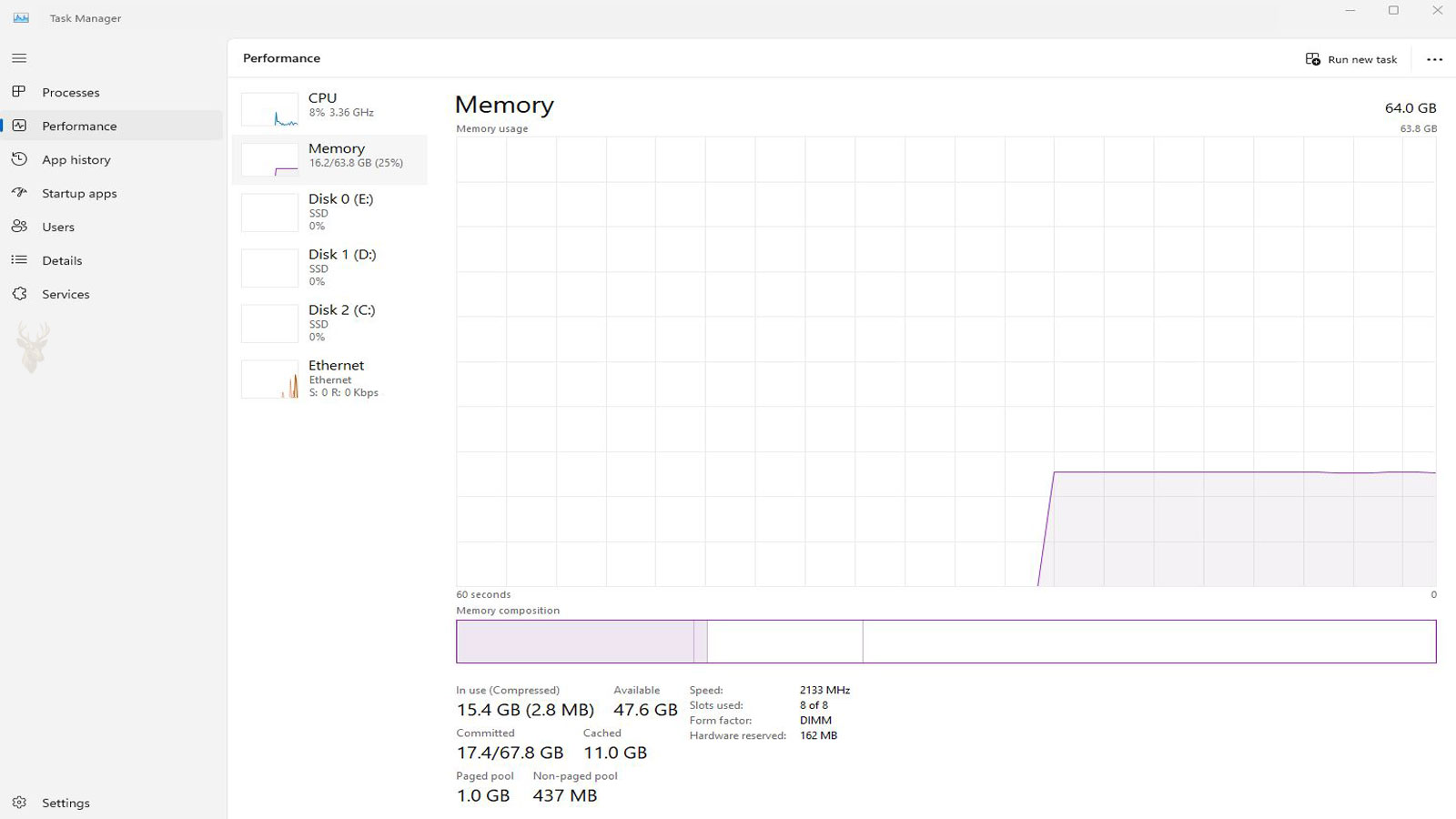
High Memory Usage Does Not Always Mean the Computer Has Run Out of RAM
Task Manager may show that a large percentage of installed memory is being used even when only a few visible programs are open. This reading can appear alarming, particularly when the computer has several gigabytes of RAM and the listed applications do not seem large enough to account for the total.
Windows uses memory for more than the programs displayed on the desktop. Background services, device drivers, security software, cached files, system components, and recently closed applications can all occupy portions of RAM. Some of that information can be released quickly when another program requires additional space.
The percentage shown in Task Manager therefore needs context. High usage accompanied by smooth performance may represent normal memory management, while high usage combined with constant disk activity, application delays, freezing, or low-memory warnings may indicate a real limitation or software problem.
Windows Tries to Keep Useful Information in Fast Memory
RAM is much faster than an ordinary hard drive and generally faster than the storage devices used for long-term files. Windows takes advantage of that speed by retaining information that may be needed again instead of emptying memory immediately whenever a program closes or a file is no longer active.
Frequently used system files, recently opened documents, program components, and other cached information may remain available in memory. If the same information is requested again, Windows can retrieve it from RAM rather than reading it from storage another time.
This behavior can make the used-memory figure appear larger, but cached data is not necessarily preventing another application from running. Windows can reduce the cache and redirect the available memory when a more urgent request arrives.
Memory Compression Keeps More Information Inside RAM
When physical memory begins to fill, Windows can compress selected memory pages instead of immediately transferring all of them to the paging file on the storage drive. Compression reduces the amount of space occupied by information that is not currently active but may be needed again.
The compressed information remains in RAM and must be decompressed before it can be used. This requires some processor work, but accessing compressed memory is often faster than retrieving the same information from a mechanical hard drive.
Memory compression is not extra physical RAM. It is a method of fitting more inactive information into the installed memory so Windows can delay or reduce slower paging activity. The effectiveness depends on the type of information being compressed and the workload running on the computer.
Compressed Memory Appears as Part of Overall System Use
Task Manager includes compressed memory within the amount attributed to the operating system. A user may therefore see the System process using more memory than expected even though no single application appears responsible for the increase.
The Memory section of Task Manager can display how much data is currently compressed. That value represents information being held in a reduced form inside physical RAM rather than an additional amount being used outside the installed capacity.
A moderate compressed-memory value during multitasking is not automatically a fault. The more important questions are whether the amount continues growing without decreasing, whether applications become unresponsive, and whether the system begins relying heavily on the storage drive.
In Use, Available, Committed, and Cached Describe Different Conditions
The Memory page in Task Manager contains several measurements that describe different parts of Windows memory management. Looking only at the percentage near the top can hide useful information about how the installed RAM is actually being used.
| Memory Reading | What It Generally Represents |
|---|---|
| In use | Physical memory currently occupied by Windows, programs, drivers, and compressed information. |
| Available | Memory that can be assigned to an application immediately or with minimal preparation. |
| Committed | Memory Windows has promised to active processes, supported by RAM or the paging file. |
| Cached | Recently used information retained for faster access and available for reassignment when necessary. |
| Paged pool | System memory that can be moved to the paging file when appropriate. |
| Non-paged pool | System memory that must remain in physical RAM while it is allocated. |
Available memory is particularly useful when evaluating whether the system has room for another workload. A computer can show substantial memory use while still maintaining enough available capacity to open programs without delay.
Committed Memory Can Exceed the Installed Physical RAM
The committed-memory reading is commonly shown as two numbers. The first represents the amount currently committed to running processes, while the second represents the limit supported by physical RAM and the configured paging file.
Because committed memory can be backed by either RAM or storage, the current value may be larger than the computer’s installed physical memory. This does not mean Windows has created additional RAM. It means some committed information can be moved between physical memory and the paging file as activity changes.
Problems become more likely when committed memory repeatedly approaches its limit. Applications may fail to open, display allocation errors, close unexpectedly, or trigger low-memory warnings when Windows cannot satisfy additional requests.
The Paging File Supports Memory That Cannot Remain in RAM
The paging file is reserved storage space Windows can use as part of its virtual-memory system. Less active memory pages may be transferred there so physical RAM remains available for information required more immediately.
Paging is slower than keeping information in RAM because the storage device must be accessed before the data can be used again. The difference is especially noticeable on computers equipped with older mechanical hard drives, where repeated paging can produce long periods of disk activity and delayed program response.
An SSD can make paging less disruptive, but it does not make virtual memory equivalent to physical RAM. A computer that regularly moves large amounts of information between RAM and storage may still benefit from reducing its workload, correcting a software problem, or installing additional memory when the hardware permits it.
Disabling the Paging File Can Create New Problems
Some users disable the paging file because they believe doing so forces Windows to use only the faster physical memory. This change can reduce the total commit limit and prevent Windows from handling workloads that temporarily require more memory than the installed RAM can provide.
Certain applications and system functions also expect virtual memory to remain available. Removing it may cause program errors, failed crash-dump creation, unexpected application closure, or low-memory warnings that did not occur under the automatically managed configuration.
A system-managed paging file is generally safer than assigning an arbitrary small size or removing the file without a specific diagnostic reason. Changing virtual-memory settings should follow evidence of an actual configuration problem rather than an attempt to reduce the memory percentage displayed in Task Manager.
Normal Memory Pressure Produces Different Symptoms From a Memory Leak
Memory pressure occurs when active programs collectively request much of the available RAM. This may happen while editing large photographs, running several browser tabs, using virtual machines, processing video, or keeping multiple business applications open at the same time.
A memory leak occurs when a program, service, or driver continues reserving memory without releasing it properly after the information is no longer needed. The affected process may grow steadily over several hours or days even though the workload remains unchanged.
Closing the responsible program or restarting Windows may temporarily return the memory, but the usage can begin increasing again when the faulty component resumes operation. This repeating pattern is more suspicious than memory use that rises during heavy activity and falls after the work is completed.
The Processes List May Not Explain Every Missing Gigabyte
Adding the memory values shown beside visible applications does not always equal the complete amount reported on the Memory page. The Processes tab focuses on memory associated with individual programs and does not present every system allocation in one simple column.
Kernel components, drivers, shared memory, compressed pages, hardware reservations, file caching, and other operating-system allocations contribute to the overall total. Some memory may also be shared between several processes instead of belonging exclusively to one application.
This difference does not automatically indicate hidden software or an incorrect Task Manager reading. More detailed measurements may be necessary before concluding that memory has disappeared or that one visible program is responsible for the entire amount.
Hardware Reserved Memory Is Unavailable to Ordinary Programs
A portion of installed RAM may be marked as hardware reserved. This memory is set aside for devices or firmware and cannot be assigned to ordinary Windows applications while it remains reserved.
Computers using integrated graphics commonly reserve part of system memory for video operation. The amount may depend on the computer model, firmware settings, installed capacity, and graphics workload.
An unusually large hardware-reserved value can also result from firmware configuration, improperly seated memory, incompatible modules, or a hardware-recognition problem. The installed amount, usable amount, firmware report, and physical module arrangement should be compared before assuming Windows is consuming the missing capacity.
Browser Tabs Can Consume Memory Even When They Are Not Visible
Modern web browsers separate tabs, extensions, graphics tasks, and background services into multiple processes. This design can improve stability because one failed tab is less likely to close the entire browser, but it also increases the amount of memory required during a long browsing session.
A tab does not always become inactive simply because another page is displayed in front of it. Streaming sites, webmail, online document editors, social platforms, dashboards, advertisements, and browser-based communication tools may continue updating or holding data in memory while they remain open.
Closing unused tabs can reduce memory demand, but the result may not appear instantly if the browser keeps processes available for faster reopening. Ending the complete browser session and reopening only the necessary pages provides a clearer test of how much memory the browsing workload actually requires.
Browser Extensions Can Increase Usage Across Every Open Page
An extension may inspect page content, block advertising, manage passwords, translate text, capture screenshots, synchronize bookmarks, or add communication features. Some extensions operate across many tabs rather than only when their toolbar button is selected.
A poorly designed or outdated extension can reserve increasing amounts of memory, create duplicate background processes, or prevent browser tabs from releasing resources after they are closed. The browser may appear to be the source of the problem even though one added component is responsible for the growth.
Testing with extensions disabled helps separate the browser’s normal memory demand from an add-on problem. Extensions should be restored gradually so changes in usage can be associated with a specific component instead of enabling everything again at once.
Background Applications May Remain Active After Their Windows Are Closed
Closing an application window does not always end every process associated with the program. Cloud synchronization tools, messaging clients, update agents, printer utilities, game launchers, security software, and hardware-control programs may continue running in the notification area or as background services.
Each background component may use only a modest amount of RAM, but several of them combined can create a noticeable baseline before the user opens any working applications. This is especially important on computers with limited installed memory.
The Startup section of Task Manager can identify many programs configured to begin with Windows. Disabling an unnecessary startup item does not uninstall the program; it prevents that component from loading automatically so its effect on memory and startup activity can be evaluated.
Security Software Uses Memory for Continuous Inspection
Antivirus and endpoint-protection programs remain active because they inspect files, downloads, running processes, network activity, and system changes. Their memory use may rise temporarily during scheduled scans, software installation, large file transfers, or the examination of compressed archives.
Temporary increases during active scanning are different from memory that rises continuously while the computer is idle. The security program’s activity history and scan status can help determine whether the increased usage corresponds to legitimate inspection work.
Running multiple full security products at the same time can increase memory demand and cause overlapping file inspection. Protection should not be removed merely to lower a Task Manager percentage, but duplicate real-time security systems should be reviewed for compatibility and necessity.
Virtual Machines Reserve Memory for an Entire Guest System
A virtual machine runs another operating system inside the main Windows installation. The memory assigned to the guest system is taken from the physical RAM available to the host computer while the virtual machine remains active.
Assigning too little memory can make the guest operating system slow, but assigning too much can leave the host without enough capacity for its own applications. The correct division depends on what both systems are expected to run at the same time.
Suspending a virtual machine may preserve its state without immediately returning every reserved resource in the same way as a complete shutdown. Fully closing the guest system provides a better comparison when determining whether virtualization is responsible for memory pressure.
Large Files Can Increase Memory Use Before They Are Fully Edited
Applications that open photographs, video projects, design files, spreadsheets, databases, or compressed archives may load supporting information into memory before the user begins making changes. Preview generation, indexing, undo history, temporary copies, and decompression can all increase the amount required beyond the visible file size.
A large file stored on disk does not necessarily occupy the same amount of RAM when opened. Some formats must be expanded into a working representation, and editing programs may keep several versions available to support undo operations.
When usage rises only while a particular project is open and returns after the application closes, the increase may reflect the normal requirements of that workload rather than a leak or hardware fault.
Integrated Graphics Shares System Memory With the Processor
Computers without a separate graphics card often use integrated graphics built into the processor or motherboard. Because this graphics hardware does not have its own dedicated video memory, it reserves or borrows part of the system RAM.
The amount used can change according to display resolution, connected monitors, video playback, browser acceleration, and graphics-intensive applications. This shared usage reduces the memory available to Windows programs even though the computer still reports the full physical amount as installed.
Adding a discrete graphics card may change the memory arrangement on compatible desktops, but it is not automatically necessary. The system’s actual workload, available expansion options, power supply, cooling, and graphics requirements should be considered before hardware is added.
Driver Problems Can Increase Kernel Memory Over Time
Device drivers operate close to the Windows kernel and can allocate memory for network traffic, graphics operations, storage activity, audio processing, printers, and other hardware functions. A defective driver may fail to release those allocations correctly.
The increase may appear in the paged or non-paged pool rather than beside a familiar application name. This can make the problem difficult to identify through the ordinary Processes list because the growing allocation belongs to a system component.
Recent driver installations, newly connected devices, repeated hardware disconnections, and usage growth that begins after a specific activity can provide important clues. Replacing unrelated hardware or closing ordinary programs may not correct a leak originating inside a driver.
The Non-Paged Pool Must Remain in Physical Memory
Non-paged pool memory contains system information that Windows cannot transfer to the paging file while it is allocated. Drivers and kernel components use this area for tasks that must remain immediately accessible.
A normal non-paged value varies according to the installed hardware, active drivers, network workload, and operating-system configuration. The amount becomes more suspicious when it grows continuously during ordinary use and fails to return after the related activity ends.
A large non-paged pool can reduce the physical memory available to applications and force additional paging. Restarting may temporarily clear the allocation, but identifying the driver or component responsible is necessary when the growth repeatedly returns.
Standby Memory Can Be Reused When Applications Need It
Standby memory contains cached information that is no longer actively required but may be useful again. Windows keeps it available because reading from RAM is faster than retrieving the same content from storage.
This memory is generally included within the available amount because Windows can reassign it when another program requests space. A large standby value is therefore not the same as an application permanently consuming that capacity.
Utilities that repeatedly clear standby memory may make the free-memory number look larger without improving actual performance. Removing useful cached data can instead force Windows to read the same files from the storage drive again.
A Memory Leak Usually Reveals a Consistent Growth Pattern
One high reading at a single moment does not establish that a leak exists. A more useful test observes the same process or memory category over time while the workload remains reasonably consistent.
If memory rises while a program performs active work and then falls after documents are closed, the allocation may be normal. If it continues increasing every few minutes while the program is idle, the pattern deserves closer investigation.
Recording the process name, starting value, later value, elapsed time, and activity being performed creates a clearer comparison than relying on a general impression that the computer has become slower.
Memory Growth Should Be Compared Before and After the Same Task
A repeatable test can help distinguish normal workload demand from a software defect. The computer can be restarted, allowed to finish loading, and observed before the suspected program is opened. The same document, website, device, or task is then used under similar conditions.
After the task is completed and the application is closed, memory readings can be checked again. Some retained cache is expected, but a large allocation that remains attached to the same process or system pool may indicate that resources were not released correctly.
Repeating the test after an application update, driver change, extension removal, or configuration adjustment helps confirm whether the suspected cause was actually corrected.
Different Symptoms Point Toward Different Memory Conditions
| Observed Behavior | Possible Direction |
|---|---|
| Memory rises only while many applications are open | Normal workload demand may be approaching the installed capacity. |
| One process grows steadily while idle | The application or one of its extensions may be leaking memory. |
| Non-paged pool increases over several hours | A driver or kernel component may not be releasing allocations. |
| Disk activity remains high while applications pause | Windows may be moving memory pages between RAM and the paging file. |
| Installed memory is larger than usable memory | Hardware reservation, firmware settings, or module recognition should be checked. |
| Usage falls substantially after closing one browser session | Tabs, browser processes, or extensions were major contributors. |
Memory behavior should be evaluated as a pattern rather than a single percentage. The program using the allocation, the length of time it remains active, the amount of available memory, storage activity, and the computer’s responsiveness all help determine whether Windows is managing RAM normally or whether a specific component requires attention.
A Clean Restart Establishes a Useful Memory Baseline
Memory readings collected after several days of use can include browser sessions, background updates, suspended applications, retained caches, and processes that have accumulated resources over time. A restart clears many of those temporary conditions and provides a more consistent starting point for comparison.
After Windows finishes loading, the computer should be allowed a few minutes to complete normal startup activity. Security checks, cloud synchronization, indexing, update services, and manufacturer utilities may temporarily increase memory use immediately after sign-in.
The amount in use after startup, the available capacity, and the largest active processes can then be recorded before ordinary work begins. Comparing later readings against this baseline helps show which applications or activities are responsible for the increase.
Sorting Task Manager by Memory Reveals the Largest Active Consumers
The Processes page in Task Manager can be sorted by the Memory column so applications using the largest amounts appear near the top. This provides a quick way to identify a browser session, editing program, virtual machine, game, or background utility using a substantial portion of RAM.
The largest process is not automatically defective. A program handling a large project may have a legitimate reason to use several gigabytes, while a small utility that grows continuously during inactivity may deserve more attention.
The process name, current workload, rate of growth, and behavior after the program closes should be considered together. Ending unfamiliar system processes without understanding their purpose can interrupt Windows or cause unsaved work to be lost.
Resource Monitor Provides a More Detailed View of Physical Memory
Resource Monitor separates physical memory into categories that show how much is actively used, modified, on standby, or completely free. It also provides more detailed process information than the simplified Task Manager list.
The modified category contains information that must be written to storage before the memory can be reassigned. Standby memory contains cached data that can usually be reused quickly, while free memory contains no currently useful information.
A computer does not need a large completely free value to be healthy. A substantial standby amount can still represent usable capacity because Windows can reclaim it when an application makes a new request.
Application Updates Can Correct Memory That Is Not Released Properly
Memory leaks are often caused by programming errors inside an application, extension, service, or driver. When the developer identifies the fault, a later update may correct the allocation behavior without requiring changes to the computer’s hardware.
The application version should be compared with the most recent stable release available for the installed edition of Windows. Release notes may mention corrected resource use, browser compatibility, graphics problems, or failures that appeared during long sessions.
Updating every component at once can make it difficult to determine which change solved the problem. When practical, the suspected application or driver should be updated first and observed under the same workload used during the earlier test.
Reinstalling a Program Can Remove Damaged Components and Settings
An application may continue using memory abnormally because one of its files, extensions, local databases, or configuration settings has become damaged. An ordinary update may preserve those components and leave the behavior unchanged.
A controlled reinstall can replace program files and remove incompatible add-ons, but user-created documents, templates, license information, and custom settings should be protected first. Some applications store important data inside hidden profile folders rather than in the main Documents directory.
After reinstalling, the program should be tested before all extensions and custom settings are restored. If the memory problem returns only after one component is added back, that component becomes a stronger suspect.
Reducing Startup Programs Lowers the Memory Baseline
A computer with many automatically loading utilities may begin each session with a large amount of RAM already committed. Update schedulers, communication clients, launchers, synchronization services, printer monitors, and manufacturer tools can all contribute before the user opens a working program.
Disabling unnecessary startup entries can reduce this baseline and leave more capacity available for active work. The program remains installed and can usually be opened manually when needed.
Security software, touchpad utilities, audio controls, backup services, and hardware-management components should not be disabled casually. Each entry should be identified before its startup behavior is changed.
Closing Programs Is More Effective Than Using Memory-Cleaning Utilities
Memory-cleaning programs often claim to free RAM by forcing cached or inactive information out of physical memory. The displayed free amount may increase temporarily, but Windows may need to reload the same information from storage shortly afterward.
This can create additional disk activity without reducing the actual demands of the applications still running. The program that requested the memory remains active and may simply allocate it again.
Closing an unnecessary application, correcting a leak, reducing browser activity, or limiting a virtual machine addresses the source of memory demand more directly than repeatedly clearing memory that Windows was already prepared to reuse.
Additional RAM Helps When the Workload Regularly Exceeds Installed Capacity
A memory upgrade can improve responsiveness when the computer repeatedly runs several demanding applications and available memory remains low during normal work. More physical RAM allows Windows to keep a larger portion of active information away from the paging file.
The benefit is most noticeable when delays coincide with heavy paging, applications reload data repeatedly, or switching between open programs causes long pauses. A system that already maintains adequate available memory may show little improvement from adding more.
Installing additional capacity does not correct a leaking application. A defective process may simply consume the larger amount over a longer period before the same symptoms return.
The Computer Must Support the Intended Memory Upgrade
Memory modules must match the electrical and physical requirements of the motherboard. Desktop and laptop systems may use different module sizes, generations, speeds, voltages, and maximum supported capacities.
Some computers have memory permanently attached to the motherboard, while others provide only one replaceable slot. A system may also support a larger total capacity than the amount recognized by a particular operating-system edition or firmware configuration.
The computer model, motherboard documentation, current module arrangement, and available slots should be checked before memory is purchased. Selecting a module only by its advertised capacity can result in incompatibility or reduced operating speed.
Matching Memory Modules Can Improve Configuration Stability
Many systems support paired memory channels that can increase available bandwidth when compatible modules are installed in the correct slots. Modules with matching capacity and similar specifications are generally easier for the motherboard to configure consistently.
Mixed modules may still operate, but the system can reduce all installed memory to a common supported speed or apply more conservative timing settings. Incompatible combinations may cause startup failure, intermittent freezing, or only part of the installed capacity being recognized.
A stable configuration is more important than selecting the highest advertised speed. Memory should be tested after installation before the computer is returned to normal use.
Memory Errors Can Resemble Software Resource Problems
Defective RAM does not usually appear as a simple high-usage percentage, but it can cause application crashes, damaged files, installation failures, blue screens, and unpredictable behavior while memory is under load.
A failing module may work during light activity and produce errors only when the computer begins using a particular address range. This can make the symptoms appear connected to one demanding application even though the underlying fault is physical memory.
Memory diagnostics can help identify repeatable errors, but one successful short test does not guarantee that every module and slot is reliable. Persistent instability may require extended testing and comparison of the modules individually.
Thirty-Two-Bit Windows Cannot Use Large Amounts of Installed Memory
A 32-bit edition of Windows has a much smaller addressable memory range than a 64-bit edition. Even when additional physical RAM is installed, the operating system may be unable to make all of it available to applications.
Part of the address space must also be reserved for hardware devices, which can reduce the usable amount further. A computer with several gigabytes installed may therefore report substantially less as available under a 32-bit operating system.
Moving to 64-bit Windows generally requires compatible hardware, drivers, and applications, and it may involve a complete operating-system installation. The change should be planned as a system migration rather than treated as a simple memory setting.
Repeated Low-Memory Warnings Should Not Be Dismissed
Windows may display a low-memory warning when committed memory approaches the available limit. Applications may also report that they cannot complete an operation, allocate resources, or save a large project.
Closing one program may provide temporary relief, but the cause should still be identified. The workload may genuinely exceed the computer’s capacity, the paging file may be disabled or too limited, or a process may be reserving memory abnormally.
Continuing to work while memory remains critically constrained can lead to unsaved changes, application closure, or incomplete operations. Important documents should be saved before intensive troubleshooting begins.
Memory Findings Should Be Recorded Before Major Changes Are Made
A useful diagnostic record includes the installed and usable memory, the amount in use after startup, the available capacity during the slowdown, the committed value, the compressed amount, and the processes showing the largest growth.
The record should also note which programs were open, how long Windows had been running, whether the storage drive was highly active, and whether restarting temporarily corrected the problem.
These observations make it easier to compare the system before and after an update, reinstall, startup adjustment, paging-file correction, or hardware upgrade. Without a baseline, a lower percentage may be mistaken for a repair even when the original workload has not been repeated.
Practical Responses to Different Memory Findings
| Finding | Appropriate Next Step |
|---|---|
| Usage is high but available memory remains adequate | Continue observing performance rather than clearing normal cache. |
| One application grows continuously while idle | Update, isolate extensions, reinstall, or replace the affected software. |
| Heavy paging occurs during the normal workload | Reduce simultaneous programs or evaluate a compatible RAM upgrade. |
| Commit usage approaches the limit | Review the paging-file configuration and identify excessive allocations. |
| A large amount is hardware reserved | Check firmware settings, integrated graphics allocation, modules, and slots. |
| Non-paged pool repeatedly grows after using one device | Investigate the related hardware driver or supporting utility. |
| Crashes occur only when memory use becomes heavy | Test physical RAM and review module compatibility. |
Memory Usage Is Most Meaningful When It Is Connected to System Behavior
Windows is designed to use installed memory rather than leaving most of it empty. Cached files, compressed pages, background services, and active programs can produce a high percentage without creating a performance problem.
The reading becomes more important when it appears alongside persistent paging, low-memory warnings, application failures, unexplained growth, or a shortage of available capacity during ordinary work. Those symptoms help separate efficient memory use from a configuration limit, software leak, driver problem, or hardware fault.
Evaluating the complete pattern prevents unnecessary changes and leads to a more accurate solution. The correct response may be closing an unused workload, correcting a defective program, restoring a suitable paging file, updating a driver, or installing compatible RAM when the computer genuinely requires more physical capacity.











