
A Stability Timeline Can Reveal Problems That Are Easy to Forget
A computer problem is not always present when someone begins investigating it. An application may have closed unexpectedly the previous evening, Windows may have stopped responding several days earlier, or an update may have failed without leaving a message on the screen. By the time the computer is examined, the immediate symptom may already be gone.
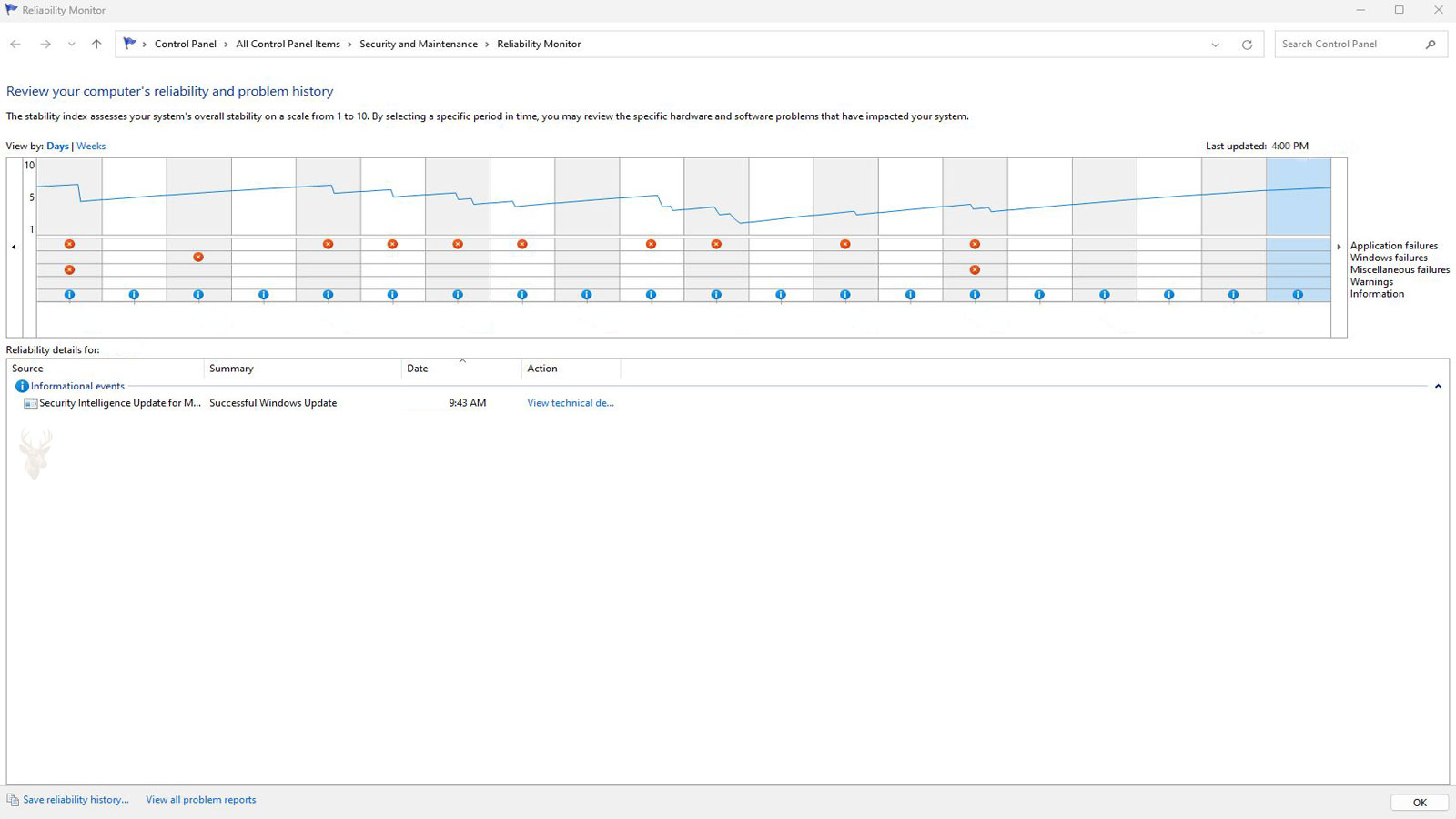
Windows Reliability Monitor organizes selected system events into a dated timeline. Instead of showing only what is happening at the current moment, it provides a history of application failures, Windows failures, hardware errors, unsuccessful installations, and informational changes.
This record can help connect a recurring problem with the date a program, driver, update, or device was introduced. It does not identify every cause automatically, but it can narrow the period in which the computer’s stability changed.
Reliability Monitor Presents Technical Events in a Simpler Format
Windows stores extensive diagnostic information in several locations, including Event Viewer. Those records can contain thousands of entries generated by normal services, applications, hardware devices, and background tasks.
Reliability Monitor filters part of that information into a more approachable daily or weekly view. Critical events appear beside warnings and informational events, allowing a user to see whether failures began suddenly or accumulated over time.
The simplified presentation is useful for finding patterns, but it does not replace the deeper logs required for complex diagnosis. A Reliability Monitor entry may identify the program that failed without explaining the precise instruction, driver, or hardware condition responsible.
The Stability Index Summarizes Recent Reliability
The graph includes a stability index that generally ranges from one to ten. A higher value represents a period with fewer recorded failures, while repeated critical events cause the line to fall.
The number should be treated as a summary rather than a direct measurement of hardware quality. One application that crashes repeatedly can lower the index even when the rest of the computer remains usable.
A low score does not identify the failed component, and a high score does not guarantee that every device is functioning correctly. The events beneath the graph are more important than the number by itself.
Recent Failures Have a Stronger Effect on the Displayed Score
The stability index places greater emphasis on recent activity. As older failures move farther into the past and the computer operates without new critical events, the score can gradually improve.
This means the line may rise even though no specific repair was performed. The earlier failures have simply become less influential within the current reliability period.
A rising score should therefore be compared with actual computer behavior. If an application has not been opened since it last failed, the absence of another crash does not prove that the original problem was corrected.
Daily View Helps Match a Failure to a Specific Date
The daily view separates events by calendar date. This can be useful when a user remembers that the computer began freezing after a particular update, software installation, repair, or peripheral connection.
Selecting a date displays the events recorded during that period. Several failures on the same day may reveal that one problem triggered additional symptoms rather than several unrelated faults occurring independently.
The recorded date should still be compared with the actual time of use. A computer that remained turned off for several days cannot generate a continuous history during that period.
Weekly View Makes Longer Patterns Easier to Recognize
The weekly view combines several days into broader periods. It can make repeated instability easier to recognize when the computer fails only occasionally and the daily graph contains long spaces between events.
A program that crashes every weekend, a driver that fails after scheduled maintenance, or an update that repeatedly attempts installation may become more visible when several weeks are compared together.
The broader view sacrifices some detail, so the relevant week should be opened in daily view when the exact sequence of events matters.
Application Failures Identify Programs That Closed Unexpectedly
An application failure is recorded when a program stops responding, terminates unexpectedly, or encounters an error that Windows recognizes as a crash. The entry commonly includes the application name and may include the executable file or failure type.
One isolated crash does not necessarily indicate a serious system problem. A damaged document, incompatible plug-in, temporary resource shortage, or programming defect can affect one program without destabilizing Windows.
Repeated failures involving the same application are more useful diagnostically. The dates can be compared with software updates, extensions, document types, graphics activity, and other conditions present when the program was used.
A Program That Stops Responding May Be Recorded Differently From a Crash
A frozen application can remain open while Windows waits for it to process messages or complete a task. If the program does not recover and is closed, Reliability Monitor may record that it stopped responding rather than reporting an immediate application fault.
This distinction can provide a useful direction. A program that becomes unresponsive while reading a large file may be waiting on storage, network access, a printer, or another external resource rather than encountering an internal software exception.
The entry alone cannot determine whether the program was truly frozen or simply occupied for an unusually long time. The workload and duration should be considered before the application is blamed.
Windows Failures Refer to Broader Operating-System Interruptions
Reliability Monitor can record failures involving Windows itself, including unexpected shutdowns, system stops, and situations in which the operating system did not close normally.
An unexpected shutdown entry does not always reveal why power was lost. The computer may have experienced a system crash, depleted battery, interrupted electrical supply, forced power-off, overheating condition, or hardware failure.
The event confirms that Windows detected an improper ending, but additional information is required to separate a software stop from a loss of electrical power.
Hardware Error Entries Often Require Additional Interpretation
A hardware error entry may appear when Windows receives a report through its hardware-error architecture. The record can involve the processor, memory path, graphics hardware, motherboard communication, or another device capable of reporting a low-level fault.
The word “hardware” should be taken seriously, but it does not always identify a part that must immediately be replaced. Firmware, drivers, unstable settings, heat, power delivery, and poor physical connections can influence how hardware errors are generated.
Repeated entries with similar details are more meaningful than one isolated report. The computer’s activity, temperature, connected hardware, and recent changes should be documented when the error returns.
Failed Software Installations Appear Beside System Failures
Reliability Monitor also records selected installation results. A failed application setup, driver package, Windows component, or update can appear as an unsuccessful event on the timeline.
This information can explain why a feature disappeared or began behaving differently after an attempted change. A setup program may have copied only part of its files before it stopped, leaving services, drivers, or registry information in an incomplete state.
The installation name and date help identify what should be repaired, removed, or installed again. They do not guarantee that the listed installer caused every problem recorded afterward.
Successful Updates Are Useful Markers on the Timeline
Informational events include successful software installations, updates, and other system changes. Although these entries are not failures, they provide reference points for comparing what changed before a problem began.
If crashes begin immediately after a driver or application update, the timing deserves attention. The update may have introduced an incompatibility, exposed an existing defect, or changed how the computer uses a device.
Timing alone does not establish cause. A failure that appears after an update may be unrelated, especially when several programs and background services changed during the same period.
Several Entries on One Date May Describe One Chain of Events
A single system interruption can produce multiple records. An application may stop responding, Windows may shut down improperly, and an update may report failure because the restart occurred before installation was completed.
Reading each entry as an independent problem can lead to unnecessary repairs. The order, time, and relationship between the events should be considered whenever several items appear together.
The earliest event may be closer to the original cause, while later entries may describe consequences of the first failure.
Technical Details Can Include the Faulting Application and Module
Opening an individual application failure may reveal the program name, version, timestamp, faulting module, exception information, and other identifiers collected by Windows Error Reporting.
The faulting module is the file in which Windows detected the failure, but it is not always the true source. A shared system library may appear because an application passed invalid information to it, a plug-in interfered with it, or memory had already been corrupted elsewhere.
Repeated failures involving the same program and module provide a stronger pattern than one technical record viewed by itself.
Problem Signatures Help Group Similar Failures
Windows may assign a problem-event name and a collection of parameters to a recorded failure. These details form a signature that helps distinguish one type of crash from another.
Two failures involving the same application are not necessarily identical. Different modules, exception codes, or event names can indicate that the program encountered separate problems during different activities.
Comparing the signatures can prevent unrelated crashes from being combined into one diagnosis merely because they involved the same executable file.
A Missing Entry Does Not Prove That No Failure Occurred
Reliability Monitor records selected events rather than every unusual condition. A brief network interruption, slow storage response, display flicker, keyboard failure, or application error handled internally may not create a critical entry.
A severe hardware fault may also prevent Windows from writing the event before power is lost. If the computer turns off instantly, the record created after the next startup may describe only the improper shutdown.
The timeline should therefore be combined with the user’s observations. An empty date does not overrule a repeatable physical symptom that was clearly present.
The Reliability History Begins Only After Windows Collects Enough Data
A newly installed operating system may not display a long history immediately. Windows must run and collect events before the graph can represent several days or weeks of activity.
Reinstalling Windows, clearing certain diagnostic records, or replacing the system drive can remove the earlier timeline. The absence of old events may therefore reflect a changed installation rather than a computer that has never failed.
When long-term comparison is important, relevant entries should be saved or documented before major system work is performed.
Reliability Monitor Is Most Useful When the Symptom Has a Date
The timeline becomes more valuable when the approximate date of the first failure is known. A user may remember that the problem began after returning from a trip, installing a printer, connecting a new monitor, or updating a frequently used program.
That date can be compared with recorded installations, warnings, and critical events. The investigation can then focus on a smaller group of changes instead of every program and device on the computer.
Even an approximate period is useful. A comparison between the last stable week and the first unstable week may reveal a change that was not initially associated with the symptom.
Different Entries Suggest Different Starting Points
| Reliability Entry | Initial Direction |
|---|---|
| The same application fails repeatedly | Compare program versions, plug-ins, files being opened, and the activity occurring before each crash. |
| Windows reports repeated improper shutdowns | Review power loss, forced shutdowns, system crashes, battery condition, and overheating. |
| A hardware error appears during demanding work | Compare temperature, power delivery, memory stability, graphics activity, and recent hardware changes. |
| A driver installation appears immediately before instability | Identify the affected device and compare the installed driver with the earlier working version. |
| Several programs fail on the same date | Look for a shared system interruption, update, storage problem, or resource condition. |
| An installation fails repeatedly | Review installer logs, available storage, permissions, required services, and the previous installation state. |
| No event appears when the symptom occurs | Use direct observation and additional diagnostic tools rather than assuming the problem is absent. |
Reliability Monitor provides a structured history, but each entry remains a starting point. The strongest conclusions come from matching the recorded event with the exact task, timing, hardware condition, and changes surrounding the failure.
The Reliability History Can Be Opened Without Waiting for Another Failure
Reliability Monitor can be reviewed while the computer is operating normally. Waiting for the next crash is unnecessary because previously recorded events remain arranged by date within the available history.
In Windows, the tool can be found by searching for reliability history or by opening the security and maintenance controls that contain the reliability option. The exact path can vary slightly between Windows versions, but the resulting graph presents the same general categories of stability information.
Opening the history before troubleshooting begins provides a baseline. The most recent critical events, successful installations, and periods without failures can be documented before software is removed, drivers are changed, or the operating system is repaired.
Selecting a Date Reveals the Events Behind the Graph
Each column in the graph represents a day or week, depending on the selected view. Choosing one of those columns displays the recorded events associated with that period beneath the timeline.
A red failure symbol may correspond to one program crash, several application failures, an unexpected shutdown, or a reported hardware condition. The symbol alone does not show how many events occurred or whether they share the same cause.
The event list should therefore be read before conclusions are made from the shape of the graph. A steep drop can result from one component failing repeatedly during a short period rather than from a general decline across the entire computer.
Viewing Technical Details Provides More Than the Event Name
Many entries include a link for viewing technical details. The expanded record may show the application path, version, faulting component, failure classification, and additional information collected when the event occurred.
The installation path can help distinguish between similarly named programs. It may reveal whether the failure came from the expected application folder, a temporary installer location, a manufacturer utility, or another copy left behind by an earlier installation.
These details are most useful when compared across several occurrences. A repeating executable path and failure signature provide stronger evidence than one general entry stating that a program stopped working.
The Faulting Module May Be Shared by Several Applications
A program can fail inside a module supplied by Windows, a device manufacturer, a graphics package, a printer driver, a media component, or a third-party extension. The listed module may therefore appear in records generated by more than one application.
When several unrelated programs fail in the same module, the investigation should expand beyond each individual application. A shared driver, damaged system component, unstable hardware condition, or security program may be affecting all of them.
When only one program repeatedly fails in that module, the application may be calling the shared component incorrectly or loading an incompatible plug-in. The surrounding pattern determines how much importance should be assigned to the module name.
Application Hang Records Can Identify Workloads That Stop Making Progress
An application hang occurs when a program remains open but stops responding to Windows for long enough to be treated as unresponsive. The title bar may display a not-responding message while the user is offered the choice to wait or close the program.
The hang may be caused by the program itself, but it can also occur while the application waits for a slow network location, unavailable printer, damaged file, busy storage device, or disconnected external resource.
Repeated hangs should be compared with the action being performed. If the program stops only when opening files from one location or sending work to one device, the external dependency may be more important than the application record alone.
A Live Kernel Event Can Appear Without a Traditional Blue Screen
Some low-level failures are recorded as live kernel events. These may involve graphics recovery, hardware communication, device timeouts, or another condition handled by the Windows kernel without producing a full system-stop screen.
The computer may briefly display a black screen, lose graphics acceleration, restart a driver, freeze momentarily, or recover without shutting down. Reliability Monitor can preserve evidence that a low-level interruption occurred even when the desktop returned.
The event name does not identify a replacement part by itself. Graphics drivers, overheating, unstable power, memory errors, firmware, and the device hardware may all require comparison when similar kernel events continue.
Unexpected Shutdown Records Must Be Matched With the User’s Experience
Windows can record that the previous shutdown was unexpected without knowing whether someone held the power button, the building lost electricity, the battery was depleted, or the operating system stopped responding.
If the user remembers forcing the computer off after a frozen program, the shutdown entry may be a consequence rather than the original failure. The application hang or device problem occurring immediately before it may provide the better starting point.
If the computer lost power without warning and no earlier event was recorded, the investigation should include power delivery, battery condition, overheating, loose connections, and hardware protection rather than assuming that Windows initiated the shutdown.
Installation Events Can Establish When a New Driver Entered the System
Driver packages may be installed through Windows Update, device-manufacturer software, hardware setup programs, or manual installation. A successful installation entry provides a date that can be compared with the first appearance of instability.
A new driver does not need to fail immediately to be relevant. The affected device may not be used until several days later, or the problem may appear only after sleep, heavy load, an external monitor connection, or another specific condition.
The device associated with the driver should be identified before it is removed or replaced. Rolling back an unrelated driver simply because it was installed near the same date can create additional problems without testing the actual relationship.
Update Success Does Not Guarantee That the Updated Component Is Stable
An update can be reported as successfully installed because its files and configuration were accepted. That status does not guarantee that the updated program or driver will operate correctly under every workload.
If failures begin after a successful installation, the new version should still be considered. Compatibility problems may appear only when a specific feature, peripheral, document format, or graphics function is used.
The installation event establishes timing, while repeated behavior establishes whether the change is likely connected. Both are needed before the update is treated as the cause.
Repeated Failed Updates Can Create a Predictable Pattern
An update that cannot complete may attempt installation again during later maintenance periods or shutdowns. Reliability Monitor can show the repeated failures on separate dates, making the pattern easier to recognize.
The cause may involve insufficient storage, a pending restart, damaged update files, disabled services, incompatible software, or a previous version that cannot be replaced cleanly.
The update identifier and installation date should be recorded before temporary files are removed or the update components are repaired. This preserves the connection between the repeated event and the package requiring attention.
Reliability Monitor and Event Viewer Serve Different Purposes
Reliability Monitor emphasizes significant failures and changes in a visual timeline. Event Viewer contains a much broader collection of operating-system, security, application, service, and device records.
A Reliability Monitor entry can provide the date and general failure category, while Event Viewer may contain events from the minutes before and after the same incident. Those surrounding records can reveal a service timeout, storage warning, driver reset, or unexpected loss of communication.
Event Viewer also contains many routine warnings and errors that do not produce visible problems. The Reliability Monitor timeline helps select a relevant time period so the larger log is not searched without direction.
The Exact Time of the Failure Helps Locate Related Events
Reliability Monitor organizes the main display by date, but technical details and related logs may provide a more precise time. That time can be compared with application logs, system events, update activity, and the user’s recollection.
Events occurring seconds after a crash may describe cleanup or recovery rather than the initial problem. Records immediately before the failure often deserve closer attention because they may show the device, service, or resource that became unavailable first.
An inaccurate system clock can complicate this comparison. The date and time should be confirmed when recorded events do not appear to match the known sequence.
Problem Reports Can Remain Available After the Application Reopens
Windows Error Reporting collects information when supported applications and system components fail. Reliability Monitor provides access to many of these problem reports after the affected program has been restarted.
This makes it possible to review an incident that the user dismissed quickly or did not fully read. The report may preserve a failure name, application version, module, and status even though the visible error window is gone.
Not every application submits the same amount of information, and some programs handle their own errors without creating a standard Windows report. The absence of a detailed report does not mean the user’s description is incorrect.
A Reported Solution May Be General Rather Than Specific
Some problem reports may include a status indicating that Windows checked for a solution. Suggested responses can include installing an update, changing a driver, contacting the software publisher, or reviewing compatibility.
These suggestions are based on the information associated with the failure and may not account for every condition on the computer. A general recommendation to update a program does not prove that the existing version caused the incident.
The proposed solution should be compared with the repeated pattern, current software version, and surrounding events before changes are made.
Saving the Reliability History Preserves a Diagnostic Snapshot
Reliability Monitor can save the displayed history to a file for later review. This creates a record of the events available before the computer undergoes major software repair, operating-system reinstallation, or storage replacement.
The saved information can be useful when a problem is intermittent or when another person will examine the computer later. It allows the earlier timeline to be compared with events recorded after changes are made.
The saved history should be accompanied by notes describing the visible symptoms and the conditions present during each failure. Technical records are more useful when they can be matched with what the user was doing at the time.
Clearing Diagnostic Records Can Remove Useful Evidence
System-cleaning tools and major repair procedures may remove error reports, temporary diagnostic files, or event history. This can make the computer appear to have a cleaner record without correcting the condition that produced the failures.
Diagnostic information should be reviewed or saved before logs are cleared. Once the original records are gone, the problem may need to occur again before the same evidence becomes available.
Deleting reports is not a repair. It changes the available history rather than the application, driver, device, or hardware condition responsible for the event.
A Clean Boot Can Test Whether Background Software Affects the Pattern
A clean-boot configuration starts Windows with a reduced selection of nonessential services and startup programs. It can help determine whether third-party background software contributes to repeated application failures or system instability.
The original task should be repeated under the reduced startup environment. If the failure no longer appears, disabled services and startup items can be restored in controlled groups until the behavior returns.
The Reliability Monitor timeline can document the comparison, but enough time and equivalent use must be allowed. One stable startup is not conclusive when the original problem occurred only once every several days.
Testing One Change at a Time Produces a Clearer History
Removing several programs, updating multiple drivers, changing memory settings, and replacing hardware during the same session may stop the failure, but it also makes the successful correction difficult to identify.
A controlled process changes one relevant factor and then repeats the original workload. New Reliability Monitor entries can be compared with the earlier events to determine whether the same failure signature returns.
This approach requires more discipline than applying many repairs at once, but it reduces the risk of introducing a new problem or incorrectly crediting an unrelated change.
Patterns in the Timeline Can Guide the Next Diagnostic Tool
| Timeline Pattern | Useful Follow-Up |
|---|---|
| One application repeatedly reports the same faulting module | Review that application’s updates, extensions, configuration, and required shared components. |
| Several applications fail during the same short period | Compare storage, memory, security software, system files, and low-level events surrounding that time. |
| Live kernel events appear during graphics-intensive work | Review graphics drivers, temperature, power delivery, firmware, and hardware stability. |
| Unexpected shutdowns occur without earlier software failures | Investigate electrical power, battery behavior, thermal protection, and physical hardware connections. |
| Failures begin after one driver installation | Test the affected device and compare the current driver with a known stable version. |
| The timeline improves only because the affected program is no longer used | Repeat the original workload before treating the rising stability index as a repair. |
| Reliability Monitor shows no event during a repeatable symptom | Use direct hardware tests, performance monitoring, device logs, or application-specific diagnostics. |
The timeline is most effective when it directs the investigation toward the appropriate source of additional evidence. It identifies when and where Windows noticed a failure, while the next diagnostic step determines what caused the condition and whether it can be reproduced.
A Reliability Timeline Becomes More Useful When the Failure Can Be Reproduced
A historical entry can show that a failure occurred, but a repeatable test provides stronger evidence. Reproducing the same problem under controlled conditions allows the new event to be compared with the earlier application name, failure type, module, and timing.
The test should resemble the original activity as closely as possible. The same program, document type, peripheral, network location, display arrangement, or workload may need to be used before a meaningful comparison can be made.
A failure that does not return immediately should not be considered resolved. Intermittent problems may depend on temperature, memory use, sleep cycles, battery state, or several hours of operation.
The Earliest Repeated Event May Be More Important Than the Final Crash
When several records appear during one incident, the last entry is often the most visible but not necessarily the original cause. An application crash may follow a driver timeout, a storage delay, or a hardware communication problem that began earlier.
Reviewing the sequence from earliest to latest can reveal how the failure developed. A device interruption may be followed by an application hang, an improper shutdown, and then an unsuccessful update during the restart.
Treating only the final event can leave the initiating condition unchanged. The first unusual entry that consistently appears before the visible symptom deserves particular attention.
Failures Limited to One File May Not Indicate a Damaged Application
A program may appear repeatedly in Reliability Monitor because it crashes whenever one particular document, image, project, archive, or media file is opened. Other files may continue working normally.
This pattern can indicate damaged content, unsupported formatting, an embedded object, or a feature used only by that file. The application should be tested with a newly created file and with other known working examples.
If the failure follows only one item, replacing or repairing the entire program may not address the actual problem. A copy of the affected file should be preserved before conversion or repair attempts are made.
Failures Across Several Programs Can Point Toward a Shared Dependency
When unrelated applications begin failing during the same period, the cause may extend beyond any one program. Several applications can depend on the same graphics driver, printer component, media library, system file, security product, or hardware resource.
The faulting modules and event times should be compared for common elements. A shared module appearing across different applications can provide a direction, especially when the crashes began after one system-wide change.
Multiple program failures can also result from unstable memory, storage errors, overheating, or power interruption. The presence of different application names does not rule out one common underlying condition.
Storage Delays Can Cause Applications to Hang Without Recording a Drive Failure
An application may stop responding while waiting for a storage device to read or write data. Reliability Monitor may record the application hang even when no separate hard-drive or solid-state-drive event appears.
The surrounding behavior can provide clues. Long file-opening times, delayed saving, disappearing external drives, repeated disk activity, or pauses when browsing one folder may indicate that storage access should be examined.
The application entry identifies where the delay became visible, not necessarily where it began. Drive health, file-system condition, cables, external enclosures, and available free space may require separate testing.
Network Locations Can Leave Programs Waiting for Unavailable Data
Applications that open files from shared folders, servers, mapped drives, or cloud-synchronized locations may become unresponsive when the connection is interrupted. The program can remain waiting while Windows attempts to reach the unavailable resource.
A reliability entry may identify the program that stopped responding without explicitly naming the failed network path. Testing the same program with a local copy of the file can help separate application instability from connection-dependent delay.
If the local copy works consistently, the investigation should include network reliability, permissions, offline synchronization, server availability, and the condition of the remote storage location.
Printer Drivers Can Affect Programs That Appear Unrelated to Printing
Many applications load printer information when they open a document, display a page layout, or prepare a print preview. A damaged or unavailable printer driver can therefore cause delays or crashes before the user chooses the print command.
If document-based applications fail while other programs remain stable, the default printer and recently installed print software should be considered. Temporarily selecting a built-in virtual printer can help test whether the physical printer package is involved.
Reliability Monitor may record only the affected application. The relationship becomes clearer when several document programs fail after the same printer or driver was added.
Security Software Can Interact With Many Recorded Failures
Antivirus and endpoint-security programs operate inside file access, web traffic, application launching, and system monitoring. A compatibility problem can therefore affect several programs without the security software appearing as the main failed application.
The installation or update date of the security product should be compared with the first instability. Temporary testing may require using the product’s supported diagnostic or removal method rather than merely closing its visible window.
Disabling protection carelessly can expose the computer to risk and may not unload all drivers. The goal is to establish whether the security component participates in the failure, not to leave the system unprotected.
Compatibility Settings Can Change How an Older Program Fails
Older applications may depend on outdated display methods, permissions, libraries, or assumptions about earlier versions of Windows. Compatibility settings can alter how Windows presents the environment to the program.
A change in compatibility mode may stop one crash while creating different behavior elsewhere. The Reliability Monitor details should be compared before and after each adjustment to determine whether the failure signature actually changed.
Compatibility options are not a substitute for a supported program version. They are diagnostic and transitional tools when newer software is unavailable or legacy data must still be accessed.
Repairing an Application Should Follow Evidence of Application-Specific Damage
When one program repeatedly fails while the rest of Windows remains stable, its built-in repair option may replace missing files, restore registry entries, and correct damaged installation components.
Repair is most useful when the program’s own files appear to be involved. It may not correct a damaged user document, incompatible extension, failing storage device, or external resource that causes the program to wait.
The failure history should be checked after the repair under the same workload. A successful launch alone does not confirm that the original operation has become reliable.
Reinstallation Can Leave User Settings and Extensions Behind
Removing and reinstalling a program does not always create a completely new environment. User preferences, plug-ins, templates, caches, and configuration files may remain in profile folders after the main application is removed.
If the failure returns immediately after reinstallation with the same signature, retained settings or extensions may be reintroduced when the program opens. Testing with a clean profile or without optional additions may provide a clearer comparison.
Important application data should be backed up before settings are renamed, moved, or removed. Some programs store custom templates, mail data, databases, or activation information alongside ordinary preferences.
System File Checks Address Windows Components Rather Than Every Crash
Windows includes tools for checking protected system files and repairing component-store damage. These procedures are relevant when several applications fail inside Windows components or when operating-system functions are also behaving incorrectly.
A successful repair does not prove that the system files caused the original problem. The same workload must be repeated and the reliability history monitored for recurrence.
These tools do not repair defective memory, unstable storage, damaged application files, or incompatible drivers. Their scope should remain limited to the Windows components they are designed to verify.
Memory Instability May Produce Different Failure Names on Different Days
Unreliable memory can corrupt data used by whichever application or driver happens to be active at the time. Reliability Monitor may therefore show different programs, modules, and exception details even though one hardware condition affects all of them.
This differs from a software defect that repeats with a consistent signature. A broad collection of unrelated crashes, especially during heavy memory use, can justify separate memory testing.
Passing one short test does not eliminate every intermittent memory problem. Heat, module placement, mixed specifications, motherboard slots, and extended workload can influence whether an error appears.
Overclocking and Aggressive Performance Settings Can Distort the Timeline
Processor, memory, or graphics settings that operate outside standard specifications may remain stable during light use but fail during demanding workloads. The resulting entries can appear under games, creative applications, drivers, or live kernel events.
Returning the hardware to normal settings creates a more reliable baseline. Testing should include firmware-level adjustments, graphics utilities, automatic performance profiles, and memory timing changes.
If stability returns under standard settings, the application named in the history may have exposed the instability rather than caused it.
Temperature-Dependent Failures May Follow a Daily Rhythm
A computer may operate normally when first started and become unstable only after internal temperatures rise. Reliability Monitor can reveal whether crashes tend to appear after long work sessions or during demanding afternoon workloads.
The timeline does not record every temperature value, so the failure dates must be compared with fan behavior, workload, room conditions, and hardware-monitoring information collected separately.
A repeated pattern after extended use can direct attention toward cooling, dust accumulation, failed fans, thermal contact, power delivery, or hardware that becomes unstable when warm.
Battery and AC-Power Comparisons Can Clarify Portable Computer Failures
A laptop that fails only while running on battery may produce the same application or Windows failure entries seen during other crashes. Reliability Monitor does not automatically explain that the power source changed.
The test should therefore document whether the adapter was connected, the battery percentage, and the workload in progress. The same task can then be compared on verified AC power.
Failures limited to one power condition can involve battery voltage, power profiles, graphics switching, charging hardware, or power-management drivers rather than the application named in the entry.
Sleep and Resume Can Be a More Important Trigger Than Startup
Some drivers and devices function normally after a fresh restart but fail after the computer enters and leaves sleep. Reliability Monitor may show an application crash or hardware event shortly after resume.
Testing only from a cold startup can miss this pattern. The original sleep duration, connected devices, display arrangement, and network state should be reproduced when the failure commonly follows resume.
A stable restart followed by an unstable wake cycle points toward power-state transitions, device drivers, firmware, or peripheral communication rather than ordinary startup loading.
Restoring an Earlier Driver Should Be Treated as a Controlled Test
When the timeline shows that instability began after a specific driver installation, returning to an earlier version can test the relationship. The previous version should be known to support the device and the installed version of Windows.
Automatic updating may reinstall the newer driver during the test period, so the actual version should be verified after each restart. Otherwise, a continuing failure may be incorrectly attributed to the older package.
If the event pattern stops only while the earlier driver is active, the timing becomes stronger evidence. If the same failures continue unchanged, the driver update may have been coincidental.
Restoring Windows to an Earlier State Can Remove More Than the Suspected Change
A restore point may reverse drivers, registry settings, applications, and system changes introduced after the selected date. This broad effect can make the computer stable without identifying which individual change was responsible.
The reliability history should be reviewed and saved before restoration because the available evidence may change afterward. Important files should also be protected even though System Restore is not designed to remove personal documents.
If the problem disappears, the removed changes can be reintroduced carefully only when necessary. Installing everything again at once can recreate the instability without revealing the responsible component.
A Stable Period After Repair Must Include Normal Computer Use
The stability index can rise while the computer is being used lightly or left idle. That improvement has limited meaning when the original problem occurred during gaming, video work, printing, network access, or another demanding activity.
Verification should include the programs, files, devices, and workloads that previously produced the failure. The test period should also be long enough to cover the usual interval between incidents.
A clean timeline under realistic use is stronger evidence than several uneventful days during which the triggering activity never occurred.
Screenshots and Written Notes Add Context the Timeline Does Not Preserve
Reliability Monitor records selected technical events, but it does not know what the screen looked like, which keys were pressed, whether the fan changed speed, or which accessory had just been connected.
Screenshots of the reliability details, photographs of visible errors, and written notes about the active workload create a fuller diagnostic record. The exact application, file, power source, and connected devices should be included when possible.
This information becomes especially valuable when the computer is examined later and the original failure cannot be reproduced immediately.
The History Should Be Compared Before and After Each Major Change
A diagnostic record is most useful when it shows the condition before a repair and the behavior afterward. The relevant event dates, signatures, and stability trend should be documented before drivers, applications, or hardware are changed.
After the change, the same workload should be repeated and the new timeline reviewed. The absence of the original signature is meaningful only when the triggering conditions were recreated.
New failure types should also be noted. A repair that removes one crash but introduces a different instability has not produced a fully reliable result.
Reliability Patterns Can Separate Likely Causes From Coincidental Events
| Observed Pattern | Interpretation to Test |
|---|---|
| One program fails only when opening one specific file | The file contents or format may be more relevant than the application installation. |
| Several unrelated programs fail inside the same shared module | A common driver, system component, extension, or hardware condition may be involved. |
| Application hangs occur only while accessing a network folder | The remote location, permissions, connection, or server response should be tested. |
| Failures appear only after the computer resumes from sleep | Power-state transitions, drivers, firmware, and connected devices deserve comparison. |
| Crashes occur under heavy load after the system becomes warm | Cooling, power delivery, and temperature-dependent hardware stability should be examined. |
| The timeline remains clean after a driver rollback under the original workload | The newer driver becomes a stronger suspected cause. |
| The stability score rises while the affected program is no longer used | The apparent improvement does not yet confirm that the original failure is corrected. |
Reliability Monitor Organizes Evidence but Does Not Make the Final Diagnosis
Windows Reliability Monitor is valuable because it converts selected failures and system changes into a dated history. It can reveal when instability began, which applications were affected, whether hardware-related events appeared, and what software was installed near the same period.
The timeline must still be interpreted alongside the user’s observations and the conditions present during each failure. An application name may identify where the problem became visible while the original cause exists in storage, memory, power, temperature, drivers, peripherals, or a shared system component.
The most reliable process preserves the history, identifies a repeatable pattern, changes one relevant factor, and recreates the original workload. When the same failure signature stops returning under comparable conditions, the timeline becomes evidence that the corrective action addressed more than the appearance of the problem.











