
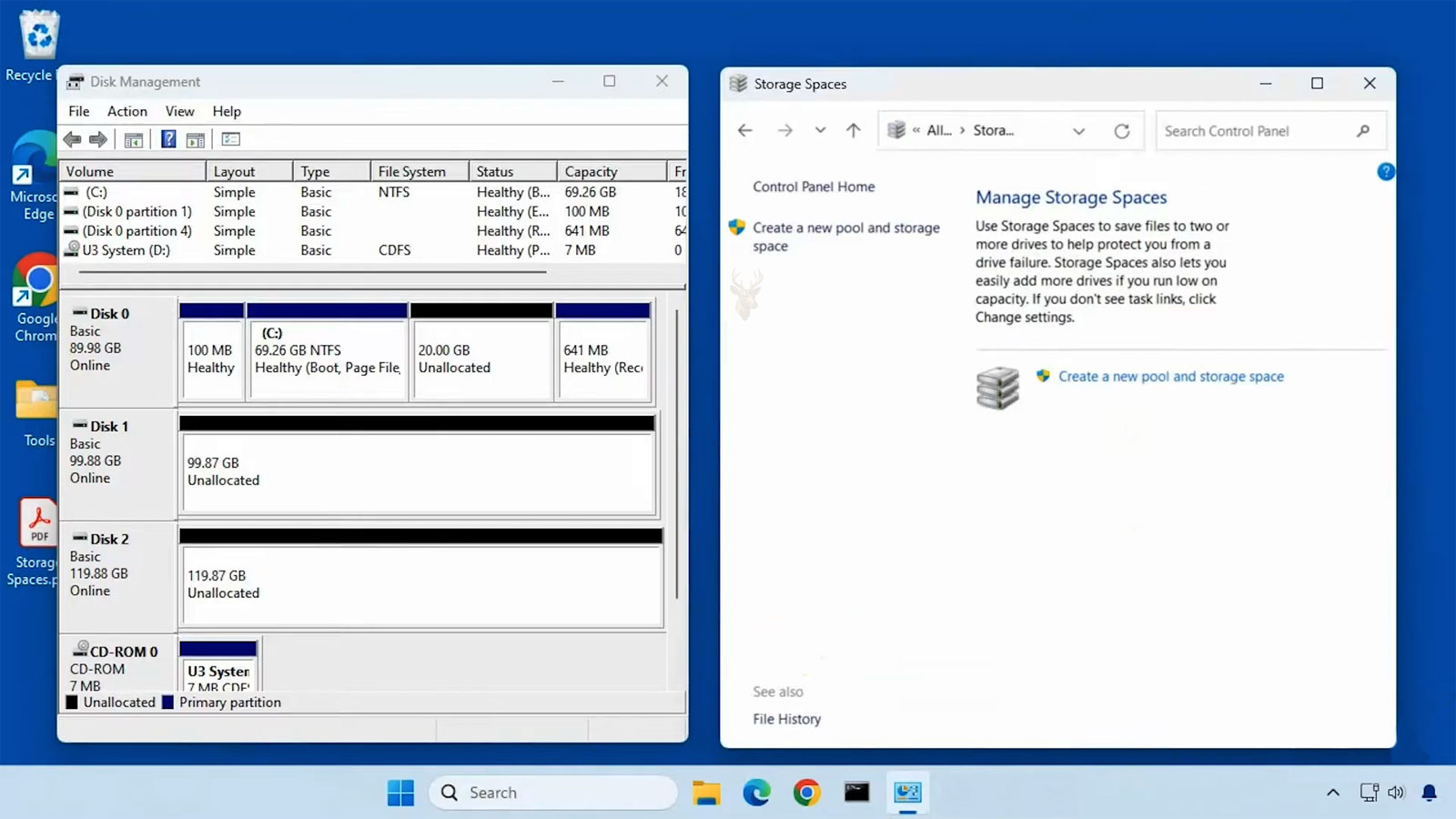
Several Physical Drives Can Function as One Organized Storage Area
A desktop computer may begin with one internal drive and gradually receive additional storage as its workload grows. An SSD might hold Windows and installed programs, while separate hard drives store photographs, videos, business records, project files, or archived material. Each added device increases capacity, but it can also leave files scattered across several drive letters.
Windows Storage Spaces provides another way to manage that arrangement. Compatible drives can be grouped into a storage pool, and Windows can use the combined capacity to create a virtual disk. The virtual disk appears in File Explorer as a normal storage location even though the available space comes from more than one physical device.
The purpose is not merely to hide drive letters. A properly planned pool can make future expansion easier, provide selected forms of drive-failure protection, and reduce the need to move folders manually whenever one disk becomes full. The result depends heavily on the number of drives, their condition, their capacity, and the resiliency option selected during setup.
The Storage Pool Holds Capacity From the Installed Drives
A storage pool is the underlying collection of physical disks. Those disks may be connected through internal SATA ports, suitable external enclosures, or other interfaces that Windows recognizes for pooled storage. Once a drive becomes part of the pool, Windows manages its capacity differently from an ordinary standalone disk.
The pool itself does not usually appear as a location where files are placed directly. Instead, one or more virtual disks are created from the capacity inside it. Those virtual disks can then be formatted with a file system and assigned drive letters, allowing folders and files to be stored in a familiar manner.
- The physical disks provide the actual storage capacity.
- The storage pool combines and manages that capacity.
- The virtual disk defines the logical storage presented to Windows.
- The formatted volume provides the folders, files, and drive letter visible in File Explorer.
Keeping these layers separate is important during diagnosis. A drive letter may continue to open while one physical disk inside the pool is reporting a problem. In another situation, the physical drives may be functioning correctly while the virtual disk has reached its allocated size.
Virtual Disks Do Not Remove the Limits of the Hardware
A virtual disk can make several devices appear as one storage destination, but it does not turn different drives into identical hardware. Their individual speeds, capacities, connection types, and health conditions still influence the storage system.
Placing a slower mechanical drive in a pool with faster devices does not automatically make that drive perform like an SSD. A weak cable, unstable enclosure, intermittent controller, or deteriorating disk can also affect the pool even when the virtual disk continues to appear under one drive letter.
| Storage Layer | Primary Function | Important Limitation |
|---|---|---|
| Physical drive | Stores the actual data. | Remains subject to hardware wear, connection faults, and capacity limits. |
| Storage pool | Groups and manages available capacity. | Depends on the condition and availability of its member drives. |
| Virtual disk | Presents usable logical storage. | Its capacity and protection depend on the selected layout. |
| Formatted volume | Provides folders, files, and a drive letter. | Can still experience file-system damage or insufficient free space. |
This distinction prevents a serious planning mistake: assuming that a virtual disk protects every file from every type of failure. Storage Spaces can provide resiliency against selected physical drive failures, but it cannot prevent accidental deletion, ransomware, electrical damage, file corruption, theft, or the loss of the entire computer.
Drive Condition Matters Before the Pool Is Created
Storage planning should begin with the condition of the hardware. An older disk with a history of read errors does not become dependable simply because it is added to a pool. Combining questionable devices may produce a larger storage location, but it can also introduce instability into the complete arrangement.
Drives do not always need to be identical, although matching devices can make capacity calculations and replacement decisions easier. When substantially different sizes are mixed, the selected resiliency layout may not use every available gigabyte as efficiently as expected. Large performance differences can also produce inconsistent transfer speeds.
- Review the operating history and health information of every proposed drive.
- Confirm that each connection remains stable during sustained file transfers.
- Check whether the drives provide enough capacity for the intended layout.
- Consider whether replacement drives of equal or greater capacity will remain available.
- Copy existing files elsewhere before adding a used drive to a new pool.
Creating or reconfiguring pooled storage can erase the existing contents of a drive. A device containing the only copy of valuable files should never be added casually. The files should be copied to a separate verified location before the configuration process begins.
One Pool Can Contain More Than One Virtual Disk
One storage pool does not have to correspond to only one drive letter. Windows can create multiple virtual disks from the same pool, allowing the available capacity to be divided for separate purposes.
A home workstation might keep active media projects on one virtual disk and completed archives on another. A small office could separate general working documents from records that change less frequently. Each virtual disk can have its own allocated size and, where the configuration permits it, a different resiliency arrangement.
This flexibility can be useful, but excessive division may make the system harder to administer. Creating too many virtual disks can reproduce the same organizational problem the pool was intended to reduce. The layout should reflect actual storage requirements rather than creating another drive letter for every type of folder.
Logical Capacity and Physical Capacity Are Not Always Identical
The size shown for a virtual disk may not always match the amount of physical capacity currently installed in the pool. Windows can allocate virtual storage in different ways, and the selected provisioning method affects when physical space is reserved.
This difference matters because a virtual disk may display a generous capacity while the underlying pool has much less free physical storage remaining. Users who watch only the drive letter in File Explorer may overlook the condition of the storage pool supporting it.
Pool capacity, virtual disk allocation, formatted volume size, and remaining file-system space should be treated as related but separate measurements. A shortage at any layer can interrupt file storage even when another layer still appears to have room.
Thin Provisioning Supports Gradual Expansion
Thin provisioning allows a virtual disk to be created with a planned size larger than the amount of physical storage currently assigned to it. The virtual disk presents the intended maximum capacity while additional physical drives can be added as actual usage increases.
This arrangement can simplify future expansion because the virtual disk does not need to be recreated whenever another drive is installed. Folders and applications can continue using the same volume while the pool receives additional capacity underneath it.
The flexibility comes with an administrative responsibility. If the pool runs out of physical capacity before another suitable drive is added, write operations may fail even though the virtual disk appears to support a larger total size.
- Allocated capacity is the space currently backed by physical storage.
- Maximum capacity is the larger limit assigned to the virtual disk.
- Free pool capacity determines whether more physical space can be allocated.
- Future expansion requires another suitable drive before the pool becomes full.
Thin provisioning is better suited to a system whose storage status is reviewed regularly. It is less appropriate when warnings may be ignored or when additional drives cannot be obtained before the existing pool reaches its limit.
Fixed Provisioning Reserves the Capacity in Advance
A fixed virtual disk reserves the required physical capacity when it is created. The storage pool must already contain enough available space to support the requested allocation, making the relationship between the virtual disk and installed capacity more predictable.
This method may be preferable when guaranteed allocation is more important than gradual expansion. It reduces the risk of displaying a large virtual disk that cannot continue accepting data without an immediate hardware addition.
The tradeoff is reduced flexibility. Capacity assigned to one fixed virtual disk is no longer freely available for another purpose inside the pool. Poor initial planning may require data movement, volume changes, or a different virtual disk arrangement later.
Drive Size Differences Can Leave Capacity Unused
Mixing drives of different capacities is possible in many Storage Spaces configurations, but the result is not always as simple as adding every advertised drive size together. Resiliency requirements determine where duplicate or parity information must be placed, and those requirements can limit the usable contribution of a larger disk.
For instance, a pool containing several small drives and one much larger drive may not use the larger device as efficiently as a collection of similarly sized disks. The exact result depends on the resiliency layout, column arrangement, and amount of capacity available across the pool.
Matching capacities are not mandatory, but calculating the likely usable space before purchasing hardware can prevent disappointment. The total printed on the drive labels is not necessarily the amount that will appear as protected storage.
Storage Spaces Is Not the Same as Joining Ordinary Partitions
A storage pool differs from placing several partitions on one physical disk. Partitions divide the capacity of a single device into separate logical areas, while a storage pool can combine capacity provided by several physical devices.
The difference becomes especially important during hardware failure. If one physical drive contains several partitions and that drive fails, every partition on it may become unavailable at the same time. Dividing one disk into multiple drive letters does not provide protection against the loss of that disk.
A resilient storage pool can distribute data across separate physical drives, but only when a suitable resiliency layout has been selected and enough drives remain healthy. The number of visible drive letters alone says nothing about the amount of physical separation underneath them.
A Storage Pool Still Requires Independent Backups
Resiliency is intended to keep data available after certain hardware failures. A backup preserves another copy that can be recovered after deletion, corruption, malware, configuration mistakes, or the loss of the original storage system.
These purposes are related but not interchangeable. A mirrored virtual disk may remain accessible after one physical drive stops working, yet it can immediately reproduce an accidental deletion across the surviving copies. Parity can preserve availability after a supported disk failure, but it does not restore a file that was overwritten with incorrect information.
Files stored in a pool should therefore be included in a separate backup plan. The backup should reside outside the pool and should be tested periodically to confirm that important folders can actually be restored.
Resiliency Determines What Happens When a Drive Stops Working
The resiliency setting selected for a virtual disk determines how Windows distributes information across the physical drives in the pool. This choice affects usable capacity, performance, the number of required drives, and whether stored files can remain available after hardware failure.
A layout intended only to combine capacity behaves differently from one designed to preserve access when a drive becomes unavailable. The appropriate choice depends on the value of the files, the expected workload, the number of installed drives, and the amount of capacity that can be dedicated to protection.
Resiliency should be selected before large amounts of data are stored. Changing the protection method later may require creating a new virtual disk and moving the files rather than simply switching one setting.
A Simple Layout Uses Capacity Without Drive-Failure Protection
A simple storage layout distributes data across the available drives without maintaining an additional recoverable copy. This arrangement can provide a large usable volume and may support strong transfer performance because capacity is not reserved for mirroring or parity information.
The disadvantage is that the virtual disk may become unavailable when one participating drive fails. Because portions of individual files may be distributed across multiple devices, losing one member can affect much more than the information that appeared to occupy that particular drive.
A simple layout may be reasonable for temporary working data, replaceable media, test files, or information already protected elsewhere. It is a poor choice for the only copy of business records, personal photographs, project archives, or other material that cannot be recreated easily.
Two-Way Mirroring Maintains Additional Copies of Stored Data
A two-way mirror keeps two copies of the stored information on separate physical drives within the pool. If one suitable drive becomes unavailable, Windows can continue reading the surviving copy while the pool reports that attention is required.
Mirroring reduces usable capacity because space must be reserved for the additional copy. A pool with several terabytes of raw drive capacity will therefore provide less than that amount as protected file storage.
The capacity reduction is the cost of maintaining availability after a supported drive failure. For documents that change frequently, active project folders, and general workstation storage, mirroring can provide a more straightforward balance between protection and performance than a layout with no redundancy.
Three-Way Mirroring Requires More Drives and More Reserved Capacity
A three-way mirror stores three copies of the data across separate physical devices. This arrangement is designed to tolerate more simultaneous drive loss than a two-way mirror, provided enough healthy drives remain and the pool was configured correctly.
The increased protection requires additional hardware and consumes a larger portion of the pool’s raw capacity. Only part of the combined drive space becomes available to the formatted volume because two additional copies must be maintained.
Three-way mirroring may be appropriate when continued access is especially important and the cost of extra drives is acceptable. It is often excessive for an ordinary home computer whose files are already backed up and where replacing one failed drive promptly is practical.
Parity Uses Capacity Differently From Mirroring
A parity layout stores data together with calculated recovery information distributed across the pool. Instead of keeping a complete second copy of every file, Windows uses the parity information to reconstruct missing data after a supported drive failure.
This method can provide more usable capacity than mirroring when several drives are installed. It is often considered for large collections of files that are written less frequently, such as media libraries, completed projects, software archives, or other material that is read more often than it is changed.
Parity calculations can create slower write performance, particularly during small or repeated file changes. A virtual disk intended for active databases, frequently edited documents, or workloads involving many small writes may therefore behave differently from one used primarily for archived files.
Protection Levels Affect Capacity and Workload Suitability
| Storage Layout | General Characteristic | Typical Consideration |
|---|---|---|
| Simple | Uses capacity without maintaining recovery data. | A drive failure can make the virtual disk unavailable. |
| Two-way mirror | Maintains two copies across separate drives. | Provides protection at the cost of reduced usable capacity. |
| Three-way mirror | Maintains three copies of stored information. | Requires more drives and reserves substantially more capacity. |
| Parity | Uses distributed recovery information instead of full duplicate copies. | Can improve capacity efficiency but may produce slower write performance. |
No layout is automatically correct for every computer. A configuration suitable for an archive may perform poorly for active production files, while a high-capacity simple layout may provide no meaningful protection for irreplaceable information.
A Degraded Pool May Continue Working While Protection Is Reduced
When a protected pool loses one of its physical drives, the virtual disk may remain accessible because another copy or sufficient recovery information is still available. Windows may describe the pool or virtual disk as degraded, reduced in resiliency, or requiring attention.
Continued access does not mean the failure can be ignored. The remaining drives are now carrying the workload without the original level of protection. A second failure during this period may cause permanent loss if the selected layout cannot tolerate it.
Important files should be reviewed immediately, current backups should be confirmed, and the failed hardware should be identified before unnecessary changes are made to the pool.
The Failed Physical Drive Must Be Identified Correctly
A computer containing several similar drives can make physical identification difficult. Windows may display a model number, serial number, capacity, or connection information, but those details must still be matched to the correct device inside the case or enclosure.
Removing the wrong healthy drive from a degraded pool can create an additional failure and place the virtual disk at greater risk. Labels applied during installation and records of drive serial numbers can make future replacement safer.
When the hardware location remains uncertain, the system should be powered down and inspected carefully rather than disconnecting drives while guessing which one generated the warning.
A Replacement Drive Must Provide Suitable Capacity
A replacement disk generally needs enough usable capacity to accept the data or recovery information that Windows must rebuild. A drive advertised with the same rounded capacity as the failed device may still contain slightly fewer usable sectors, depending on the manufacturer and model.
Using a replacement with equal or greater capacity reduces the chance that the rebuild will be blocked by a small size difference. The connection type and enclosure should also support stable continuous operation during the repair process.
A new drive should not be assumed healthy merely because it has not been used before. Connection stability and basic hardware status should be checked before the device becomes part of an already degraded storage pool.
Repairing the Virtual Disk Can Place Heavy Demand on the Remaining Drives
After suitable replacement capacity is added, Windows may begin regenerating the missing mirror copy or reconstructing data from parity information. This repair process can involve sustained reading from the surviving drives and continuous writing to the replacement.
The computer may remain usable during the repair, but storage performance can be slower until the work is complete. Large pools and heavily occupied virtual disks may require substantial time to restore their intended resiliency.
Interrupting power, disconnecting an enclosure, forcing a restart, or removing another drive during this period can complicate recovery. Stable power and cooling are especially important while the pool is under prolonged activity.
Removing a Drive Safely Is Different From Disconnecting It
A healthy drive may need to be retired because it is too small, too old, or scheduled for replacement. Disconnecting it without preparation can reduce resiliency or make files unavailable if the pool still depends on capacity stored there.
Where supported, Windows should first move or redistribute the stored information away from the device. The drive can then be removed from the pool after the system confirms that it is no longer required for active data.
This process may need free capacity elsewhere in the pool. If the remaining drives do not have enough space, another device may need to be added before the older one can be retired safely.
External Enclosures Add Connections That Can Resemble Drive Failure
A pooled drive connected through an external enclosure depends on more than the disk itself. The power adapter, USB cable, enclosure controller, computer port, and operating-system connection must all remain stable.
A momentary disconnection can make a healthy drive disappear from the pool and generate a warning similar to a hardware failure. Repeated dropouts may occur because of a damaged cable, insufficient power, an overheating enclosure, or an unreliable hub.
Replacing the disk without checking the connection path can leave the original problem unresolved. Event records, physical inspection, and testing through a known stable connection can help separate drive failure from enclosure or cable instability.
Sleep Settings Can Disrupt Drives That Do Not Wake Consistently
Some internal and external drives enter a low-power state after a period of inactivity. Most devices return to operation normally, but certain enclosures or controllers may take too long to respond or may fail to reconnect reliably.
The result can be delayed folder access, temporary storage warnings, application errors, or a drive that appears missing until the enclosure is restarted. These symptoms may occur intermittently and can be difficult to reproduce during a brief inspection.
Power-management settings should be evaluated together with hardware health. Disabling every sleep feature may hide one symptom while increasing heat and operating hours, so the underlying cause should be identified before permanent changes are made.
Pool Warnings Should Be Investigated Before Files Become Inaccessible
Storage warnings may appear before a complete failure. Windows can report reduced resiliency, a disconnected physical drive, insufficient pool capacity, an incomplete repair, or a virtual disk requiring attention.
Ignoring these notices allows a manageable problem to develop while the system continues operating with less protection than intended. A pool that still opens normally may already have lost one of the conditions needed to survive another hardware fault.
The warning details, physical drive status, available capacity, recent connection changes, and current backup condition should be reviewed together. Replacing hardware or resetting the configuration without understanding the message can make recovery more difficult.
Expanding a Storage Pool Requires Planning Beyond Adding Another Drive
One advantage of Storage Spaces is the ability to increase available capacity without replacing the entire storage system. When additional physical drives are added to the pool, Windows can make that capacity available for future use without requiring every file to be copied onto a completely new storage device.
Expansion should still be planned carefully. The type of drives being added, the available connection ports, the resiliency layout already in use, and the amount of remaining free space all influence how effectively the new hardware will be used.
Adding capacity before the pool becomes critically full is generally easier than waiting until applications begin reporting insufficient storage. Planning ahead also provides more flexibility if existing drives need to be retired or replaced later.
Adding Capacity Does Not Automatically Increase Every Virtual Disk
Installing another drive expands the amount of storage available inside the pool, but existing virtual disks may still need additional capacity assigned before they can use all of the newly available space. The storage pool and the formatted volume should therefore be viewed as separate layers rather than one automatic expansion process.
Users sometimes expect a drive letter to become larger immediately after installing another disk. Depending on the configuration, Windows may first recognize the additional capacity inside the pool while the virtual disk and formatted volume continue displaying their previous sizes.
Reviewing each layer individually helps explain why new hardware may appear correctly in Storage Spaces while File Explorer continues showing the original available capacity.
Drive Balance Can Influence Long-Term Performance
Storage activity is distributed across the drives participating in the pool. When several newer drives are added to an older configuration, the existing distribution of stored information may not immediately reflect the increased capacity available on the newer hardware.
As files continue to be created, modified, and removed, Windows gradually makes use of the additional space. Large differences in capacity or performance between older and newer drives can still influence how efficiently data is stored over time.
Maintaining reasonably similar hardware characteristics whenever practical simplifies future expansion and produces more predictable storage behavior throughout the life of the pool.
Free Space Supports Maintenance as Well as File Storage
Available capacity is important for more than saving additional files. Storage Spaces may require free pool capacity while relocating information, rebuilding resiliency, repairing a degraded virtual disk, or retiring an older drive from the configuration.
A pool that remains almost completely full limits the flexibility available for these maintenance operations. Even when no new files are being created, insufficient free space can complicate routine administration.
Leaving reasonable unused capacity allows the storage system to adapt more easily when hardware changes become necessary instead of waiting until every drive has reached its practical limit.
Monitoring Helps Detect Problems Before Users Notice Them
Storage problems often develop gradually rather than appearing without warning. Windows may report reduced resiliency, declining drive health, communication problems, or pending maintenance before employees or family members experience missing files or inaccessible folders.
Periodic reviews of Storage Spaces, system notifications, and hardware status provide opportunities to correct developing issues while the storage system is still functioning normally. Waiting until files become unavailable usually reduces the number of recovery options.
Monitoring is most effective when warning messages are investigated promptly instead of dismissed repeatedly because the computer continues operating without obvious interruption.
Routine Hardware Inspection Remains Important
Software can report many developing storage problems, but physical inspection remains valuable. Loose data cables, failing cooling fans, excessive dust, vibration, damaged power connectors, and overheating enclosures can all affect the reliability of a storage pool.
Systems that operate continuously often accumulate dust around drive bays and cooling pathways. Reduced airflow may shorten hardware life or increase the likelihood of intermittent failures during heavy storage activity.
Simple maintenance performed before problems appear is generally less disruptive than emergency repairs performed after several drives have already reported faults.
Firmware and Driver Changes Should Be Evaluated Carefully
Storage controllers, drive firmware, and Windows storage drivers influence how physical devices communicate with the operating system. Updates can improve compatibility or resolve known problems, but they should not be installed without understanding their purpose.
Business computers and workstations holding important information benefit from a measured update process rather than applying every newly released version immediately. Confirming compatibility and maintaining current backups before significant storage updates reduces unnecessary risk.
When unexpected storage problems begin immediately after a firmware or driver change, that timing becomes an important part of the troubleshooting process.
Storage Spaces Does Not Eliminate Good File Organization
Combining several drives into one storage location simplifies capacity management, but it does not replace organized folders or sensible naming practices. A larger virtual disk can become just as difficult to manage as several separate drives if files are stored without a consistent structure.
Grouping documents by project, client, year, department, or purpose helps reduce duplicate files and shortens the time required to locate important information. Consistent organization also improves backup administration and future migration planning.
Well-planned storage combines dependable hardware with an orderly filing system rather than relying on additional capacity alone to solve organizational problems.
Important Files Should Still Be Verified After Hardware Changes
After replacing a drive, expanding the pool, rebuilding resiliency, or completing other major storage maintenance, representative files should be opened from different folders to confirm normal operation. A successful repair process is more meaningful when ordinary documents, photographs, videos, and application data can all be accessed without unexpected errors.
Verifying several types of files also helps identify problems that may not appear during a simple hardware status check. Opening real working documents provides additional confidence that the storage system is functioning as intended.
This final verification step is especially valuable before deleting older backups or retiring drives that previously contained the original copies of the information.
Common Storage Spaces Maintenance Activities
| Maintenance Activity | Purpose |
|---|---|
| Review pool health | Detects warning conditions before they become critical failures. |
| Verify backup completion | Confirms that important files remain recoverable outside the storage pool. |
| Inspect physical connections | Identifies loose cables, unstable enclosures, or power problems. |
| Check remaining capacity | Allows expansion before available storage becomes critically low. |
| Test representative files | Verifies normal access after repairs, upgrades, or drive replacement. |
| Document hardware changes | Simplifies future troubleshooting and replacement planning. |
Understanding Storage Spaces Helps Build a More Reliable Windows Storage System
Storage Spaces provides Windows with a flexible method for organizing multiple physical drives into a single managed storage environment. The technology supports expansion, different resiliency layouts, and easier long-term capacity planning, but those advantages depend on thoughtful hardware selection, appropriate configuration, and regular maintenance.
Understanding how storage pools, virtual disks, physical drives, and resiliency work together allows computer owners and businesses to make better decisions before problems occur. Planning for future growth, monitoring hardware health, maintaining current backups, and responding promptly to warning conditions all contribute to a storage system that remains dependable over time.
Whether Storage Spaces is used on a personal workstation or a small office computer, it should be viewed as one part of an overall storage strategy rather than a complete replacement for careful organization, preventive maintenance, and independent backups.











