
Shared Folders Create a Central Location for Business Files
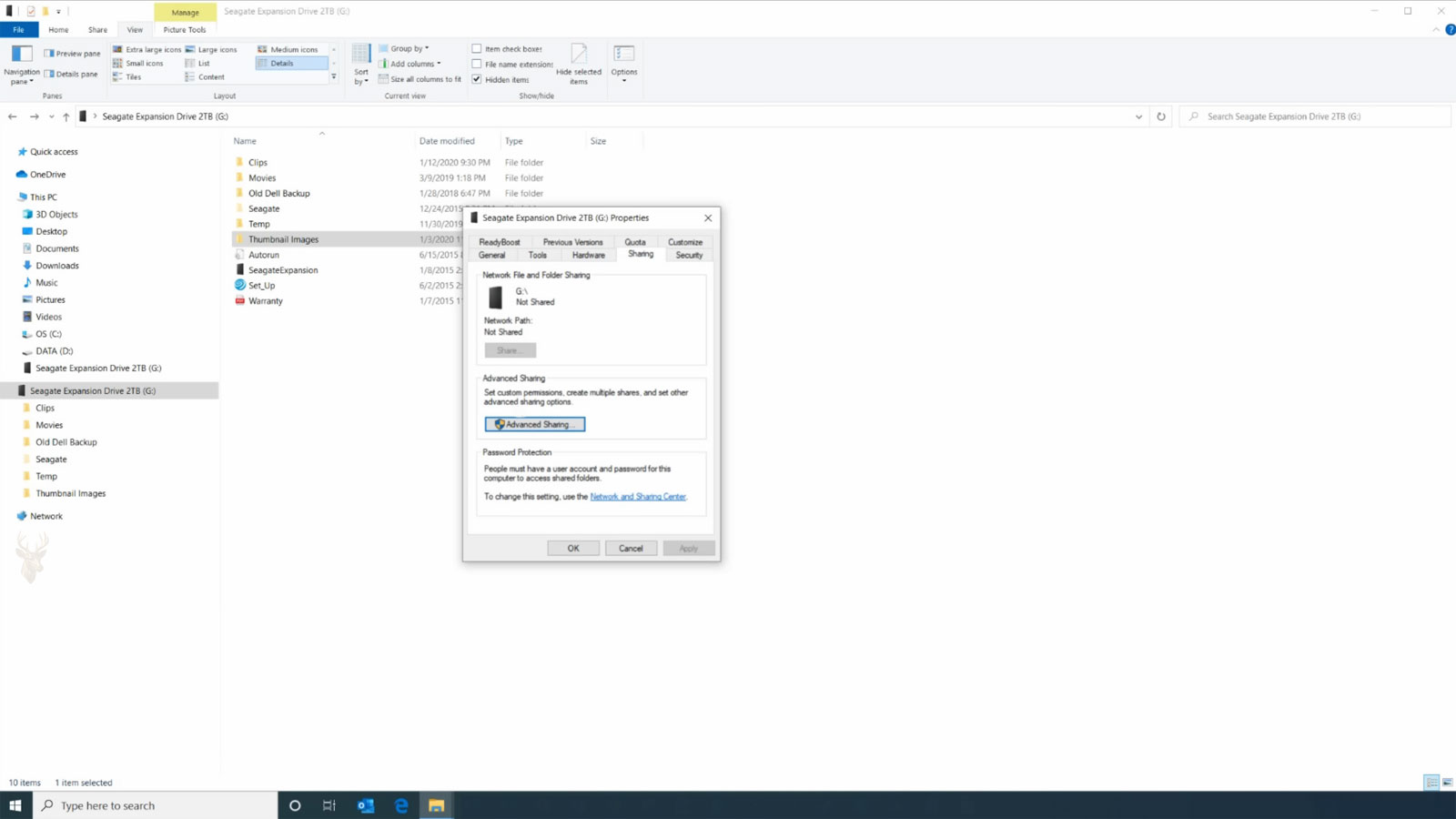
A shared network folder allows multiple authorized computers to open files stored in one common location. Instead of keeping separate copies of the same document on different desktops, an office can place working files on a designated computer, server, or network storage device that approved users reach through the local network.
This arrangement can simplify collaboration because employees work from an organized storage location rather than exchanging repeated email attachments or moving files between computers with removable drives. It can also reduce confusion over which copy contains the most recent changes.
The usefulness of a shared folder depends on more than making a directory visible. Account permissions, folder structure, network stability, file-handling practices, and backup planning all influence whether shared storage remains dependable during everyday business activity.
The Storage Location Determines When Files Are Available
A shared folder may be hosted on an employee workstation, a dedicated office computer, a server, or a network-attached storage system. Each option provides access differently and creates its own operating requirements.
If files are shared from an ordinary workstation, that computer must usually remain powered on, connected to the network, and functioning properly whenever other users need the folder. Restarting, disconnecting, or repairing the host computer can temporarily make the shared files unavailable.
A dedicated storage device or server reduces dependence on an employee’s daily workstation, but it still requires maintenance, account administration, storage monitoring, and backup protection.
A Network Share Is Different From the Folder’s Local Path
The computer hosting a shared folder sees it through a local storage path, such as a folder located on one of its internal drives. Other computers reach the same location through a network path that identifies both the host device and the shared folder name.
This distinction matters during troubleshooting. A folder may open normally on the host computer while remaining inaccessible from every other workstation because the network share, permissions, firewall settings, or device connection has failed.
Testing local access and network access separately helps determine whether the problem involves the stored files themselves or the method used to reach them from another computer.
Folder Permissions Define What Each User Can Do
Permission settings determine whether a user can view folder contents, open files, create new items, make changes, rename documents, or delete information. Not every employee requires the same level of access.
A staff member who only needs to consult reference documents may require read access, while someone responsible for maintaining those documents may need permission to modify them. Administrative users may require broader control for organizing folders and managing access.
Assigning more permission than a job requires can increase the chance of accidental deletion or unwanted changes. Assigning too little permission can prevent normal work and encourage employees to create uncontrolled copies elsewhere.
Read Access and Modification Access Serve Different Purposes
Read access generally allows a user to view folder names, open permitted files, and copy information to another location. It does not normally allow the user to save changes back into the shared folder.
Modification access commonly allows the creation, editing, renaming, and deletion of files. This permission is necessary for active working folders, but it also means that an accidental deletion can affect everyone who depends on the same location.
The correct permission level should reflect whether a folder is intended for reference, active collaboration, restricted records, temporary exchange, or long-term storage.
User Accounts Provide More Control Than One Shared Password
Small offices sometimes simplify file access by giving every employee the same account name and password. Although this approach may appear convenient, it makes it difficult to identify who changed a file, remove access for one person, or apply different permissions to separate job roles.
Individual user accounts provide better control because access can be assigned, changed, or removed without affecting every other employee. Separate accounts also support clearer activity records when the storage system records file access or administrative changes.
Account organization becomes increasingly important as a business adds users, departments, confidential files, and remote or temporary workers.
Groups Simplify Permission Management
Instead of assigning permissions separately to every employee, an office can organize users into groups based on department or responsibility. Examples may include accounting, management, sales, operations, or general staff.
Permissions are then assigned to the group, and individual accounts receive access through their membership. When an employee changes roles or leaves the company, the account can be moved or removed without rebuilding the entire folder permission structure.
Group-based planning reduces repetitive administration and helps maintain consistent access across users performing similar work.
Folder Organization Should Follow Business Responsibilities
A shared storage system becomes difficult to manage when every document is placed in one large directory. Clear top-level folders help separate departments, clients, projects, administrative records, templates, and archived material.
The folder structure should reflect how employees search for and use information. Excessive layers can make files difficult to locate, while a structure that is too broad can produce crowded folders containing unrelated documents.
Consistent names and agreed storage locations reduce the creation of duplicate directories with slightly different titles or dates.
Mapped Drives Provide a Familiar Path to Shared Storage
A network share can be assigned a drive letter on an employee’s computer. This mapped drive appears alongside local storage locations and gives users a familiar way to open shared folders through File Explorer and compatible applications.
Mapped drives can improve convenience, but they do not create a second copy of the data. The drive letter remains a connection to the original network location and depends on the host device, user credentials, and network being available.
If the mapping becomes disconnected, the files may still exist normally on the storage system even though the drive letter displays an error or becomes temporarily unavailable.
Common Permission Levels for Office Shared Folders
| Permission Level | Typical Capability |
|---|---|
| View only | Open and read permitted files without changing the shared copy. |
| Create | Add new files or folders to an approved location. |
| Modify | Edit, rename, move, and usually delete existing items. |
| Department access | Reach folders assigned to a specific team or business function. |
| Administrative control | Manage permissions, structure, ownership, and broader storage settings. |
| No access | Prevents a user or group from opening a restricted location. |
Shared network folders work best when their technical design follows the way an office actually handles information. The storage location must remain available, the folder structure must be understandable, and each user should receive enough permission to complete assigned work without unnecessary control over unrelated records. Establishing these foundations before large amounts of data accumulate makes shared storage easier to maintain and reduces access problems as the business grows.
Share Permissions and File-System Permissions Work Together
Access to a Windows shared folder can be controlled at more than one level. Share permissions regulate what a user may do when reaching the folder through the network, while file-system permissions control access to the folder and its contents on the storage device itself.
When both permission systems apply, the user’s effective access is generally limited by the more restrictive result. A share may permit modification while the underlying folder allows only reading, causing the user to open files without being able to save changes.
Reviewing only one permission layer can therefore produce confusing results during troubleshooting. Both the network share and the stored folder must be evaluated together.
Inherited Permissions Can Extend Through Subfolders
Permissions assigned to a main folder often pass automatically to the files and subfolders created beneath it. This inheritance simplifies administration because a department folder can apply one consistent access policy across a large collection of records.
Inheritance can also create unexpected access when a restricted subfolder remains connected to broader permissions assigned above it. A location intended for management records may still be reachable by general staff if inherited entries were not reviewed carefully.
Breaking inheritance is sometimes necessary, but creating many exceptions can make the overall structure difficult to understand. Restricted folders should be planned deliberately rather than added through repeated permission changes without documentation.
Explicit Deny Rules Require Careful Use
Permission systems may allow an administrator to deny a specific user or group access to a folder. A deny rule can override permissions that would otherwise be granted through another group membership.
This behavior makes deny entries powerful but potentially difficult to diagnose. An employee may belong to an approved department group and still be unable to open a folder because another group carries an inherited denial.
Where practical, access is often easier to manage by granting permissions only to the groups that require them instead of building a large structure of overlapping allow and deny rules.
Saved Credentials Can Connect a Computer Under the Wrong Account
A workstation may store credentials from an earlier connection to a server or shared computer. When the user later opens the network folder, Windows may reuse those saved details instead of asking for the account currently expected by the office.
This can cause a user to receive the wrong permission level, repeated sign-in prompts, or an access-denied message even though the correct account has been configured on the storage system.
Removing outdated credentials and reconnecting with the intended account can resolve access problems that are not caused by the folder itself.
Consistent Computer Names Make Network Paths Easier to Maintain
Shared folders are frequently reached through a network path containing the name of the host computer or storage device. If that device is renamed, replaced, or joined to a different network configuration, existing shortcuts and mapped drives may continue pointing toward the old name.
Using clear and stable device names reduces unnecessary confusion. A dedicated file host should not be renamed casually after many computers have been configured to use its shared folders.
When replacement is unavoidable, connected workstations, application paths, automated tasks, and saved shortcuts should be updated as part of the migration.
Name Resolution Converts a Device Name Into a Network Address
Employees usually open a shared folder by using a recognizable device name rather than entering a numerical network address. The network must translate that name into the correct destination before the connection can begin.
If name resolution fails, the shared folder may appear unavailable even though the host computer remains powered on and connected. In some cases, access through the numerical address still works while access through the device name does not.
This comparison helps separate a naming problem from a complete network or storage failure.
Changing Network Profiles Can Affect File Sharing
Windows classifies network connections according to their level of trust. An office network may be treated as private, while an unfamiliar connection may be classified as public and receive more restrictive sharing behavior.
If a workstation changes to a public profile after a router replacement, wireless reconnection, or network reset, file sharing and device discovery may stop working as expected. The computer may still reach the internet while remaining unable to find local shared resources.
The network profile should be reviewed before firewall protections are disabled or folder permissions are changed unnecessarily.
Firewall Rules Must Allow the Required Local Traffic
A firewall can permit ordinary web browsing while blocking the local traffic used for network file sharing. This may cause the host computer to appear online even though other workstations cannot open its shared folders.
Proper configuration allows the necessary file-sharing services on the trusted office network without exposing them broadly on public or untrusted connections.
Disabling the firewall entirely may provide a quick test, but it is not an appropriate permanent solution. The correct rules and network profile should be identified so protection remains active.
Wireless and Wired Connections Can Produce Different Results
A computer connected by Ethernet may reach the shared folder normally while a wireless device cannot. This difference may result from separate network segments, guest wireless isolation, access-point settings, weak signal strength, or restrictions that prevent wireless clients from communicating with local devices.
Guest networks are commonly designed to provide internet access without allowing users to reach office computers, printers, or storage systems. Connecting an employee workstation to the wrong wireless network can therefore make every shared folder appear unavailable.
Confirming the network name and connection type is a basic but important part of shared-folder troubleshooting.
Open Files May Be Locked While Another User Is Editing Them
When one employee opens a shared document, the application may place a temporary lock on the file to prevent conflicting changes. Another user may be allowed to open a read-only copy or may receive a message stating that the document is already in use.
This behavior protects the file from being overwritten by two separate versions at the same time. However, an application crash, interrupted network connection, or improperly closed session can leave a temporary lock behind after the original user is no longer editing the document.
Before deleting a suspected lock file, the office should confirm that no one still has the document open and that unsaved work will not be lost.
Simultaneous Editing Depends on the Application and File Type
Placing a document in a shared folder does not automatically allow several employees to edit it at the same time. Traditional desktop applications may permit only one active editor, while some modern collaboration platforms are designed to merge changes from multiple users.
If an office frequently needs simultaneous editing, the selected application, document format, and storage platform should support that workflow. A standard network share may remain suitable for many files while proving inconvenient for documents that require continuous collaboration.
Understanding this limitation helps prevent file conflicts from being mistaken for permission or network failures.
Common Shared-Folder Access Problems
| Observed Problem | Possible Area to Check |
|---|---|
| User can open files but cannot save changes | Share permissions, file-system permissions, or read-only application access. |
| Mapped drive shows as disconnected | Host availability, network connection, device name, or saved credentials. |
| Internet works but shared folders do not | Network profile, firewall rules, wireless isolation, or local name resolution. |
| One employee is denied while others connect normally | User account, group membership, inherited permissions, or explicit deny entries. |
| Document opens only in read-only mode | Another active editor, a remaining lock file, or insufficient modification rights. |
| Folder works by address but not by computer name | Name-resolution or device-name configuration. |
Shared-folder failures often appear simple to the employee because the visible result is only an unavailable drive, an access-denied message, or a document that will not save. Behind that message, the connection may depend on several separate systems, including account credentials, inherited permissions, device naming, firewall rules, network profiles, and file-locking behavior. Reviewing these layers in an organized sequence helps correct the actual cause without weakening security or rebuilding a folder structure that was already configured properly.
Shared Storage Requires a Backup Plan Separate From User Access
A shared folder may place important business information in one convenient location, but centralization also increases the effect of a storage failure. If the host computer, server, or network storage device becomes unavailable, several employees may lose access to the same records at once.
Permissions and redundancy can improve daily operation, but neither one replaces a separate backup. A user with read-only access can still be affected by hardware failure, corruption, malware, accidental administrative changes, or damage to the building where the storage system is located.
Backup planning should therefore be treated as a separate responsibility from configuring the shared folder itself.
Deleted Files May Affect Every User Who Depends on the Folder
When an employee deletes a document from a shared folder, the file may not enter the Recycle Bin on that employee’s computer. Depending on the storage system and configuration, the item may be removed directly from the shared location.
This behavior can surprise users who expect the same recovery process available for local desktop files. A mistaken deletion may become a business-wide problem if the document was used by several departments or contained the only current copy of important information.
Storage platforms that support snapshots, previous versions, or network recycle features can provide additional recovery options, but those features must be enabled and tested before they are needed.
Version History Helps Recover Earlier Document States
A file does not need to be deleted completely for data loss to occur. An employee may overwrite correct information, remove part of a spreadsheet, save an incomplete document, or replace a working file with an older copy.
Version-history features preserve earlier states of a file so a previous copy can be reviewed or restored. This capability is different from ordinary backup because it focuses on changes made over time rather than only maintaining one recent copy of the storage location.
The number of retained versions, storage space available, and length of retention should match the importance and rate of change of the office’s documents.
Ransomware Can Reach Files Through an Authorized User
A computer infected with ransomware may encrypt not only its local files but also shared folders that the signed-in user has permission to modify. The storage system may be functioning normally while harmful changes are made through a legitimate network connection.
This risk demonstrates why permission planning should limit modification rights to the folders each employee actually needs. A user who requires only reference access should not receive broad write permission across accounting, management, or archived records.
Offline backups, protected snapshots, security monitoring, and restricted administrative accounts provide additional protection when malware uses valid user permissions against shared data.
Storage Capacity Should Be Monitored Before the Volume Becomes Full
Shared folders often grow gradually as employees add scanned documents, photographs, project files, reports, backups, and exported data. Because the storage location is used by several people, no single employee may recognize how quickly capacity is being consumed.
A nearly full volume can cause failed saves, interrupted synchronization, incomplete application databases, and errors during backup operations. Some programs may create temporary files while editing, requiring more free space than the final document alone.
Regular capacity reviews allow older material to be archived, unnecessary duplicates to be removed carefully, or storage to be expanded before normal office work is interrupted.
File Naming Rules Reduce Confusion and Accidental Replacement
Even a technically reliable shared folder can become difficult to use when employees follow different naming practices. Files titled with vague descriptions such as final, latest, new, or revised may accumulate without showing which version should be used.
A consistent naming method can include the client, project, document type, date, revision, or responsible department. The exact format should remain simple enough that employees use it consistently instead of creating their own alternatives.
Clear names reduce accidental overwriting and make archived records easier to locate without opening many nearly identical files.
Employee Departures Require Prompt Account Review
When an employee leaves the business or changes responsibilities, shared-folder access should be reviewed as part of the account transition. Disabling an email account while leaving network credentials active may allow continued access to internal files.
The account may also own documents, scheduled tasks, encrypted files, or automated processes that other employees still require. Immediate deletion without reviewing those dependencies can interrupt normal operations.
A controlled offboarding process disables unnecessary access, transfers ownership where needed, preserves required records, and documents any shared credentials that must be changed.
Permission Reviews Prevent Old Access From Accumulating
Access requirements change as employees move between departments, projects end, temporary workers complete assignments, and confidential records are reorganized. Permissions that were appropriate when first granted may remain active long after the original need has ended.
Periodic reviews compare current job responsibilities with group memberships and folder access. Unused accounts, obsolete groups, inherited exceptions, and excessive administrative rights can then be corrected before they create a security or management problem.
Reviewing access on a schedule is more reliable than waiting for an incident to reveal that an old account still reaches sensitive information.
A Storage Migration Should Preserve More Than the Files
Moving shared data to a new server or storage device involves more than copying folders. User permissions, group assignments, timestamps, ownership information, application paths, mapped drives, backup jobs, and automated processes may all depend on the original system.
A basic drag-and-drop transfer may reproduce the visible documents while losing security settings or changing the paths used by office applications. Employees may then see the files but receive unexpected access errors or fail to open links stored in existing documents.
Testing the new location with representative user accounts before retiring the old system helps identify missing permissions and broken paths while the original data remains available for comparison.
Remote Access to Office Files Requires Additional Protection
A folder designed for use inside the office should not be exposed directly to the public internet simply to make remote work more convenient. File-sharing services intended for a trusted local network may not provide suitable protection when opened broadly to outside connections.
Remote employees may reach business files through a properly configured virtual private network, managed cloud platform, remote desktop environment, or another secured access method selected for the organization’s needs.
Authentication, encryption, device security, and account permissions remain important because the connection now extends beyond the controlled office network.
Routine Shared-Storage Maintenance
| Maintenance Task | Purpose |
|---|---|
| Review backup results | Confirms that shared data is being copied successfully and can be restored. |
| Check available capacity | Prevents failed saves and interrupted applications caused by a full volume. |
| Audit user and group access | Removes obsolete permissions and limits unnecessary modification rights. |
| Test previous-version recovery | Verifies that overwritten or deleted documents can be restored. |
| Review storage hardware health | Identifies drive warnings, array problems, and other developing failures. |
| Document folder paths and ownership | Supports troubleshooting, staff changes, and future migration planning. |
Shared network folders can improve office organization, but long-term reliability depends on continued administration after the first connection is created. Backups, version recovery, capacity monitoring, security controls, employee account reviews, and documented migration procedures protect the information that several users depend on each day. A carefully planned shared-storage system does more than make files accessible. It keeps those files organized, recoverable, appropriately restricted, and available as the business changes.











