
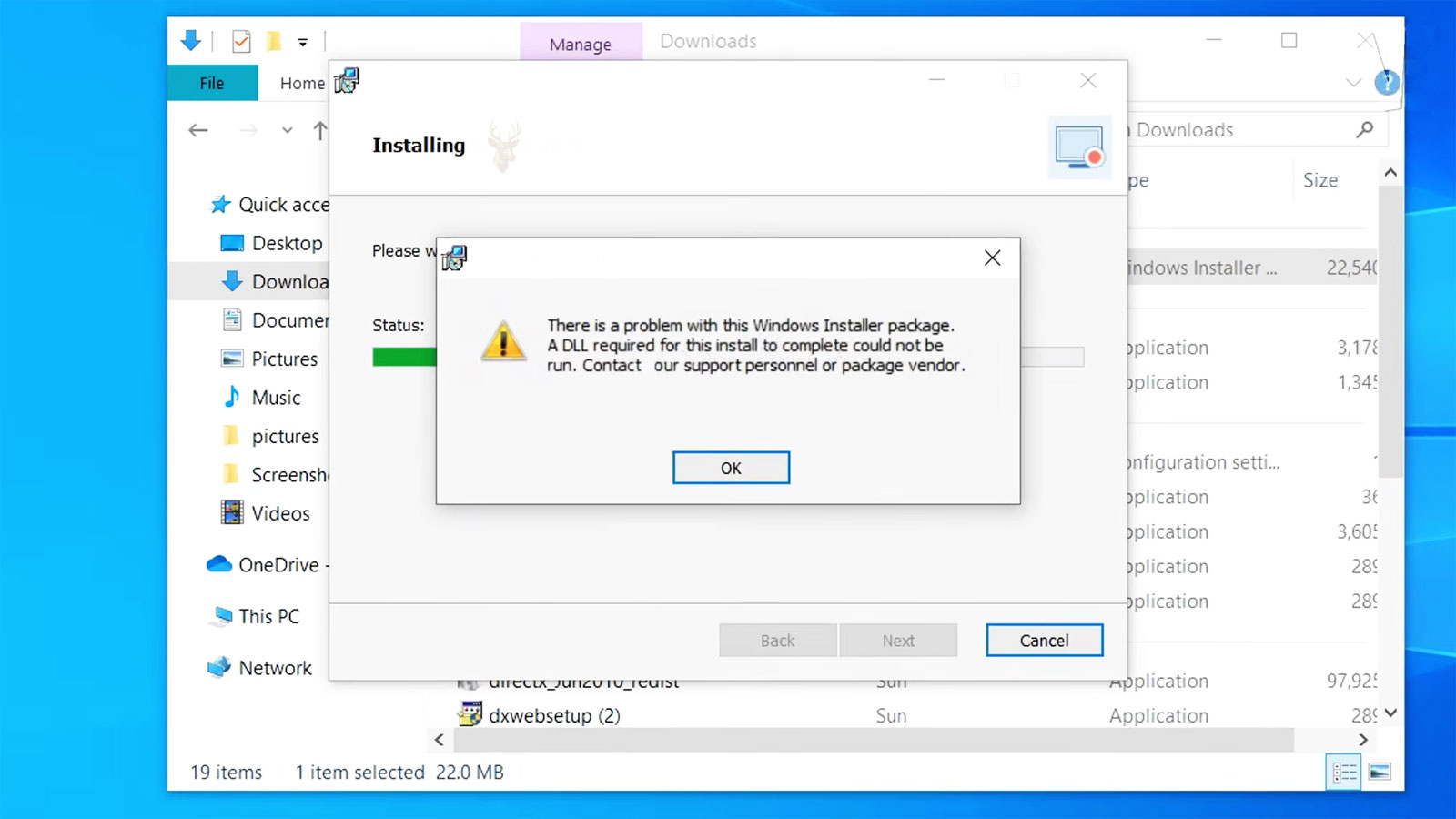
A Program Can Fail Before Its Main Files Are Fully Installed
Installing software involves more than copying an application into a folder. A setup program may create directories, register components, install shared libraries, configure services, add shortcuts, write registry information, and verify that supporting Windows features are available.
If one part of that process fails, the installation may stop before the program is ready to use. The application may not appear at all, may open with missing features, or may remain listed as installed even though important files were never placed correctly.
The visible error may identify only the final operation that failed. Understanding which stage of setup was reached helps determine whether the problem belongs to the installer package, Windows, the user account, or another program already present on the computer.
The Setup Program and Windows Installer Are Not Always the Same Component
Many applications begin with an executable setup program. That program may display the installation screens, check the computer, download additional files, and then pass part of the installation work to Windows Installer.
Windows Installer is a system component commonly used to process packages with the MSI file format. It manages installation instructions, application components, repair operations, upgrades, and removal records for compatible software.
An executable setup file can therefore open normally and still fail later when it attempts to use Windows Installer. The initial window proves only that the setup launcher started, not that every installation component is functioning.
MSI Packages Contain Structured Installation Instructions
An MSI package contains information describing what should be installed and how Windows should record it. The package can define files, folders, registry entries, shortcuts, features, components, and conditions that must be satisfied before setup continues.
The package may also include rules for repairing or removing the software later. This is why a damaged MSI record can affect not only the first installation but also future upgrades and uninstall attempts.
Some programs use several MSI packages behind one visible setup window. One package may install the main application while others provide drivers, language files, shared components, or supporting tools.
A Setup File Can Be Complete Enough to Open but Too Damaged to Finish
A partially downloaded installer may still display its opening screen. The missing or damaged portion may not be reached until the program begins extracting files or validating the package.
Setup can then stop with a cabinet error, checksum failure, missing-file message, or general statement that the installation package could not be opened. Repeating the same damaged download usually produces the same result.
Obtaining a fresh installer from the software publisher helps separate package corruption from a Windows configuration problem. The replacement should match the intended version, language, and computer architecture.
Temporary Extraction Is Often Required Before Installation Begins
Many installers first unpack their contents into a temporary location. The visible setup file may be a compressed container rather than the complete set of files used during installation.
If Windows cannot write to the temporary folder, setup may fail before the application directory is created. Insufficient free space, damaged temporary files, incorrect folder permissions, or security software can interfere with this stage.
The temporary folder can also contain remnants from an earlier failed attempt. A new installation may encounter those incomplete files and behave differently from the original setup even though the same installer is being used.
Administrative Approval and Installation Rights Are Different Issues
Windows may request administrative approval when software needs to modify protected areas of the system. Approving the prompt allows the installer to attempt those changes under elevated rights.
Elevation does not guarantee that every installation action will succeed. Organizational policies, application controls, security restrictions, or service permissions can still prevent particular files, drivers, or system changes from being installed.
A setup program that fails without elevation may need administrative rights. A setup program that continues to fail after approval requires investigation beyond repeatedly selecting the same elevated option.
The Installer Must Match the Windows Architecture
Software may be distributed in separate versions for 32-bit and 64-bit Windows. Some applications provide one installer that selects the correct components automatically, while others require the user to choose the appropriate package.
A 32-bit program can often run on 64-bit Windows, but the reverse is not generally true. A 64-bit application package cannot normally be installed on a 32-bit operating system.
Architecture also matters for drivers, browser extensions, database connectors, and application plug-ins. The main program may install successfully while an incompatible supporting component fails or remains unavailable.
| Package Type | General Compatibility |
|---|---|
| 32-bit application | May run on 32-bit or compatible 64-bit Windows. |
| 64-bit application | Requires a 64-bit version of Windows. |
| Hardware driver | Must match the device and Windows architecture closely. |
| Application plug-in | Usually must match the architecture of the program using it. |
Older Software May Reject a Newer Version of Windows
An installer can examine the Windows version before copying any program files. If the operating system is newer than the versions listed in the setup package, the installer may stop even when the application itself might otherwise be capable of running.
This behavior is common with older business software, hardware utilities, and programs whose installers were never updated after the original release. The setup logic may be more restrictive than the application files.
Compatibility settings can sometimes allow an older installer to proceed, but they cannot create missing drivers, obsolete system components, or support that the program genuinely requires.
Prerequisites May Be Installed Before the Main Program
Applications often depend on supporting components such as runtime libraries, database engines, browser frameworks, or Windows features. The setup program may check for these items and install them before beginning the main application.
If a prerequisite fails, the main program may never be attempted. The final message can still name the application even though the actual failure occurred in a separate supporting package.
Reviewing the installation sequence helps identify which component stopped. Reinstalling the main program repeatedly will not succeed while its required prerequisite remains damaged, incompatible, or incomplete.
A Pending Restart Can Block Another Installation
Some installations replace files that are currently in use. Windows may schedule those changes for the next restart because the active files cannot be replaced safely while the system is running.
If another installer begins before that restart occurs, it may detect an unfinished system change and refuse to continue. The message may state that another installation is pending or that Windows must be restarted first.
Restarting allows Windows to complete queued file replacements and configuration work. Repeatedly postponing the restart can leave several setup attempts waiting behind the same unfinished operation.
Only One Windows Installer Transaction May Be Active at a Time
Windows Installer controls complex changes that must be recorded consistently. To reduce conflicts, it may prevent a second MSI-based installation from proceeding while another installation, repair, upgrade, or removal is active.
The competing installation may be visible, minimized, or operating through another application. Software updates and maintenance utilities can also start installer activity without presenting a large setup window.
Closing the visible installer does not always end the underlying transaction immediately. Windows may still be completing rollback work or waiting for a process connected to the installation to exit.
Rollback Attempts to Reverse an Installation That Cannot Finish
When setup fails after making system changes, Windows Installer may attempt to return the computer to its earlier state. It can remove copied files, restore configuration information, and unregister components that were added during the failed transaction.
A rollback that completes successfully can leave little visible evidence that setup had begun. A rollback that is interrupted may leave partial folders, shortcuts, services, or installation records behind.
These remnants can affect the next attempt because the installer may detect an existing version, damaged registration, or component that appears installed even though it cannot function.
The Failure Stage Provides an Early Diagnostic Direction
| Where Setup Stops | Area Worth Examining |
|---|---|
| The installer does not open. | File damage, download blocking, application control, or compatibility. |
| Setup opens but cannot extract its files. | Temporary storage, free space, package corruption, or security interference. |
| The license screen appears but installation never begins. | Prerequisite checks, operating-system version, or architecture. |
| Setup stops while copying or registering components. | Permissions, files in use, security controls, or damaged system components. |
| The installer rolls back near completion. | Final configuration, service registration, custom setup actions, or an incomplete previous version. |
Recording the exact stage, displayed error, package name, and recent software changes provides a stronger starting point than launching the installer repeatedly without determining which part of setup is failing.
Windows Installer Depends on Background Components That Must Be Operating Correctly
Although the setup program is the visible part of an installation, it often relies on background Windows components to complete its work. Installer services, cryptographic functions, file verification, and other operating system features may all participate during different stages of setup.
If one of these supporting components is unavailable, the installer may stop even though the installation package itself is undamaged. The reported error may mention only the application rather than the Windows component that prevented setup from continuing.
Examining the supporting environment becomes especially important when several unrelated programs begin failing to install on the same computer.
Digital Signature Verification Can Stop an Installation Before Files Are Copied
Many installation packages are digitally signed so Windows can verify that the files have not been altered since they were published. This verification occurs before significant installation work begins.
If the signature cannot be validated because of package corruption, certificate problems, incomplete downloads, or security policy restrictions, setup may stop before creating the application’s installation folder.
A failed signature check should not automatically be bypassed. Confirming that the installer originated from the expected publisher helps reduce the risk of installing modified or untrusted software.
Security Software May Delay or Interrupt Installation Activity
Antivirus and endpoint security products often inspect installation packages as they are extracted and copied to the computer. This inspection can briefly slow installation or temporarily pause file creation while the software is examined.
If a required file is quarantined or blocked during setup, the installer may report missing components or terminate unexpectedly. The visible error may identify only the file that could not be found rather than the security action that removed it.
Reviewing the security history provides more useful evidence than repeatedly downloading the same installer when the same file continues disappearing during each installation attempt.
Programs Already Running Can Keep Installation Files in Use
An installer may need to replace files currently being used by another application. If those files remain open, Windows can postpone the replacement, request a restart, or stop the installation entirely.
This commonly occurs when updating software that is still running in the background. Notification icons, synchronization utilities, browser processes, and helper applications may continue operating after their main windows have been closed.
Confirming that the related application has completely exited can prevent repeated installation failures caused by files that remain locked throughout the setup process.
Incomplete Uninstallations Can Prevent a New Version from Installing
Many installers check whether an earlier version of the application already exists. If the previous installation was removed incompletely, Windows may still contain product information, shared components, or configuration records that interfere with the new installation.
The installer may believe the application is already installed while the user can no longer find it. In other situations, setup may refuse to continue until the damaged installation record is repaired or removed.
Determining whether remnants belong to an earlier version helps distinguish an installation conflict from a damaged installation package.
Repair Installations Depend on Existing Installation Records
Many MSI-based applications include a repair option that verifies installed components and restores missing files. This process relies on installation information recorded when the application was originally installed.
If those records become damaged or incomplete, the repair operation may fail even though the application still appears in the installed-program list. Windows may request the original installation media or the package used during the first installation.
Successful repair therefore depends not only on the current application files but also on the integrity of the installation database maintained by Windows Installer.
Network Installations Introduce Additional Points of Failure
Some organizations distribute installation packages from shared network locations rather than local storage. During setup, Windows may need continuous access to those shared files while installation progresses.
If the network connection is interrupted, the shared folder becomes unavailable, or authentication expires during installation, setup may stop before completion even though the installer itself is valid.
Copying the approved installation files to reliable local storage before beginning installation can reduce interruptions caused by temporary network instability.
Low Disk Space Can Affect More Than the Application Folder
An installer frequently requires additional working space beyond the final size of the application itself. Temporary extraction, rollback information, installation logs, and prerequisite packages all consume storage during setup.
A computer with only a small amount of remaining free space may begin installation successfully but fail later when temporary working storage becomes insufficient.
Free space should be evaluated across the entire installation process rather than comparing only the application’s published size requirement.
Installation Logs Often Contain More Detail Than the Final Error Message
The final dialog shown by a setup program is frequently a simplified summary intended for general users. Behind that message, Windows Installer and many setup applications generate detailed log files describing each installation step.
These logs can identify the action being performed when setup stopped, the component involved, and the error returned by Windows. They often provide more useful diagnostic information than a generic statement that installation failed.
Reviewing the log in chronological order helps determine which earlier event produced the visible failure instead of focusing only on the final error presented to the user.
Portable Applications Do Not Always Require Windows Installer
Some software is distributed as portable applications that operate without a traditional installation process. These programs may run directly from an extracted folder without registering components throughout Windows.
Because they avoid many installation steps, portable applications are generally unaffected by Windows Installer errors. However, they may also lack automatic updates, repair capabilities, or system-wide integration provided by conventional installations.
Understanding whether a program is portable or installer-based helps narrow the troubleshooting process before unnecessary changes are made to Windows Installer itself.
Repeated Installation Failures Usually Follow Recognizable Patterns
| Observed Behavior | Likely Area to Investigate |
|---|---|
| Every installer fails before copying files. | Windows Installer service, system components, or security restrictions. |
| Only one application version refuses to install. | Damaged package, compatibility, or prerequisite requirements. |
| Installation stops after most files are copied. | Registration, services, drivers, or final configuration tasks. |
| Setup requests a restart repeatedly. | Pending Windows operations or files remaining in use. |
| Repair and uninstall fail together. | Damaged Windows Installer registration or incomplete installation records. |
Recognizing where the installation process consistently stops provides stronger diagnostic evidence than repeating the same setup procedure without identifying which phase continues to fail.
A Clean Restart Helps Separate Temporary Installer Conflicts from Persistent Damage
Before changing Windows Installer configuration, the computer should be restarted and allowed to complete any pending shutdown or startup work. This clears many temporary file locks, closes installer processes that did not exit correctly, and completes operations that were waiting for a restart.
The installation should then be tested before opening unrelated applications. If setup succeeds immediately after restart but fails later during normal use, another running program may be creating the conflict.
If the same error returns under clean conditions, the failure is more likely to involve the package, installation records, Windows components, or a repeatable system restriction.
A Clean Boot Can Reveal Software That Interferes with Setup
A clean boot starts Windows with a reduced set of nonessential startup programs and third-party background components. It can help determine whether another application is blocking, monitoring, or modifying the installation process.
If the installer works during a clean boot, Windows Installer itself may be operating correctly. Security utilities, update managers, synchronization tools, or application helpers should then be restored gradually until the interfering component is identified.
A clean boot is a diagnostic condition rather than a permanent configuration. Normal services and startup programs should be restored after testing is complete.
Safe Mode Provides a More Restricted Installation Test
Safe Mode loads a limited Windows environment intended primarily for diagnosis. Many third-party services, drivers, and startup components remain inactive.
Not every installer is designed to run in Safe Mode because required services may be unavailable. A failure there does not automatically prove that the package is damaged.
Safe Mode is most useful when removing remnants, examining files that remain locked during normal startup, or confirming that a third-party component is involved. Standard installation should usually be retested after returning to a normal Windows session.
The Windows Installer Service Should Be Examined Without Changing Its Defaults Arbitrarily
The Windows Installer service may remain stopped when no MSI transaction is active. This does not necessarily indicate a problem because Windows can start it when an installation requires it.
The significant condition is whether the service starts when requested and whether it remains available long enough to process the installation. Errors stating that Windows Installer could not be accessed deserve closer examination.
Changing the service to run continuously is not a reliable repair for damaged registration, missing system files, or a failing installation package. Its configuration should be evaluated according to the actual error rather than altered only because it appears stopped during idle inspection.
Re-registering Windows Installer May Restore Its Command Associations
Windows relies on registration information to connect MSI packages with the installer engine. If that registration becomes damaged, MSI files may fail to open correctly or may produce errors before the package is processed.
Re-registering the installer engine can restore certain command associations and system references. This procedure is most appropriate when multiple MSI packages fail in a similar manner and the installer service itself is present.
It should not be treated as a universal repair. A single damaged application package, incompatible version, or missing prerequisite will remain defective even when Windows Installer is registered correctly.
System File Damage Can Affect Installation Functions Shared Across Windows
Windows Installer depends on operating system libraries and supporting components that are also used by other Windows features. Damage to those files can cause several unrelated installation packages to fail.
System file verification can compare protected Windows files with known copies and replace certain damaged components. Additional component-store repair may be necessary when the source used for that verification is itself incomplete.
This direction is more appropriate when installation failures occur alongside other Windows errors, missing controls, damaged management tools, or repeated problems with built-in system functions.
Temporary Files Should Be Cleared Only After Active Installations Have Ended
Temporary folders can contain extracted setup files, cached packages, logs, and rollback information. Removing abandoned files may correct conflicts left by an earlier failed installation.
Temporary data should not be deleted while an installer is active or while Windows is completing a pending update. Removing files still required by an open transaction can create a second failure and make rollback incomplete.
After confirming that no installation is running, unused temporary data can be cleared and the package downloaded again if corruption is suspected.
Installer Cache Damage Can Affect Repair, Upgrade, and Removal
Windows may retain cached installation information needed to maintain MSI-based applications. That information can be used later when the program is repaired, modified, upgraded, or removed.
If a required cached package is missing or damaged, Windows may ask for the original installer or report that the installation source is unavailable. The program may continue opening while maintenance operations fail.
Deleting installer cache files manually can make these problems worse. Cached packages should be treated as managed installation data rather than ordinary temporary files.
The Original Installation Source May Be Required for Maintenance
Some applications depend on the same installation package that was used when they were first installed. A repair or upgrade may request files from removable media, a network share, or an earlier download location.
If that source no longer exists, Windows may be unable to complete the maintenance operation. A newer installer may not satisfy the request when the product code or package revision differs from the installed version.
Locating the matching installer can allow the existing installation to be repaired or removed cleanly before a newer version is introduced.
Vendor Cleanup Utilities Should Be Used Only for the Intended Product
Some software publishers provide cleanup tools for installations that cannot be repaired or removed through normal methods. These utilities may delete product-specific services, drivers, files, and installation records.
A cleanup tool designed for one application should not be used as a general Windows Installer repair. It may remove settings, licensing information, or shared components associated with that particular product.
Important application data and configuration should be identified before cleanup begins. Removing a damaged installation record does not automatically preserve databases, templates, projects, or user-created files stored inside the program’s folders.
Registry Deletion Is Not a Safe Substitute for a Proper Uninstall
Installation records are distributed across multiple registry locations, folders, services, shared components, and cached packages. Removing one visible registry entry may hide the program from an installed-applications list without actually removing it.
The remaining files and components can continue affecting later installations. Setup may still detect the earlier version through another product record or shared component registration.
Manual registry work should be limited to well-documented repairs supported by clear evidence. Broad deletion can damage unrelated applications that depend on shared installation information.
Custom Installation Actions Can Fail Even When Standard File Copying Succeeds
Software publishers can include custom actions that run during setup. These actions may create databases, register licenses, configure firewalls, install drivers, start services, or test connections to external systems.
A custom action can fail near the end of installation after most program files have already been copied. Windows Installer may then roll back the entire package even though the earlier standard actions completed successfully.
Installation logs are particularly useful in this situation because they can identify the custom action that returned the failure. The repair may involve the application’s own requirements rather than Windows Installer itself.
Driver Installation Failures Require Hardware-Specific Investigation
Some application packages include device drivers that operate at a lower level than ordinary program files. Windows applies additional compatibility, signature, and security checks before allowing those drivers to be installed.
The main software may install while the hardware feature remains unavailable because its driver failed. The final setup message may describe the installation as incomplete even though the application icon and program folder are present.
The driver must match the hardware model, Windows version, and system architecture. Reinstalling the application without correcting the driver mismatch will usually reproduce the same partial result.
A New Windows User Profile Can Help Isolate Profile-Specific Setup Failures
Some installers write configuration information into the current user’s profile. Damaged temporary folders, profile-specific permissions, or conflicting application settings can interfere with that portion of setup.
Testing the same installer under another authorized Windows account can reveal whether the failure follows the entire computer or remains limited to one profile.
If setup succeeds under the second account, the installer engine and package may be functional. The investigation can then focus on the original profile’s temporary storage, user-specific configuration, and access rights.
Installation Logs Should Be Matched to the Exact Attempt
A computer may contain logs from several installation attempts. Reviewing the wrong file can lead to conclusions based on an earlier version, different package, or failure that has already been corrected.
The log time, application name, package path, and error sequence should match the test being investigated. The first meaningful failure is often more important than later errors produced during rollback.
Searching only for the word “error” can produce misleading results because installers may record handled conditions that do not stop setup. The surrounding actions must be read to determine whether an entry is actually responsible for the failure.
A Controlled Repair Sequence Prevents Unnecessary System Changes
- Record the complete error message and the stage at which setup stops.
- Confirm that the installer matches the Windows version and architecture.
- Obtain a fresh package from the approved software publisher.
- Restart Windows and complete any pending installation or update work.
- Check free space in the system, temporary, and destination locations.
- Close related applications and confirm that no other installer is active.
- Review security history for files blocked or quarantined during setup.
- Examine whether an older version remains partially installed.
- Use installation logs to identify the first action that fails.
- Test Windows Installer and shared system components only when several packages are affected.
- Verify the program after installation, restart, repair, and removal testing where appropriate.
This sequence begins with the package and the observed failure before moving into broader Windows repairs. It reduces the risk of changing system configuration for a problem caused by one defective installer.
The Confirmed Failure Determines the Appropriate Repair Direction
| Confirmed Finding | Repair Direction |
|---|---|
| The installation package is incomplete or damaged. | Replace it with a verified download from the publisher. |
| Only one older version refuses to install. | Review compatibility, prerequisites, and version-specific requirements. |
| An earlier installation remains partially registered. | Repair or remove that version before installing the replacement. |
| Several unrelated MSI packages fail. | Examine Windows Installer registration, services, and shared system files. |
| Setup succeeds during a clean boot. | Identify the third-party process interfering during normal startup. |
| Installation fails during a custom action. | Investigate the application-specific service, driver, database, license, or network requirement. |
| Repair and uninstall request missing source media. | Locate the matching original package or use the publisher’s supported maintenance method. |
A Completed Installation Must Be Tested Beyond the Final Setup Screen
A message stating that setup completed does not confirm that every application feature is functional. Drivers, services, plug-ins, shortcuts, and prerequisites may still require verification.
The program should be opened, its essential functions tested, and any required hardware or network connection confirmed. Windows should then be restarted to verify that background components start correctly and that the application remains registered.
Where appropriate, the repair and uninstall options should also remain available. An application that opens once but cannot later be maintained may still contain incomplete installation records.
Incomplete Program Setup Requires the Failed Installation Stage to Be Identified
Windows Installer errors can result from a damaged package, insufficient temporary storage, incompatible software, missing prerequisites, active file locks, security controls, previous installation remnants, or damaged Windows components.
The final error message does not always identify the original cause. A failure reported near completion may have begun with a prerequisite, custom action, driver, or source file that became unavailable earlier in the process.
The safest repair begins by recording where setup stops and determining whether the failure affects one package or many. Package-specific problems should be corrected without unnecessary changes to Windows, while repeated system-wide failures require examination of the shared installation environment.
After the repair, the application should install without rollback, open with its required features, survive a restart, and remain available for future repair, update, or removal. Those checks confirm that setup completed as a managed Windows installation rather than leaving another partial program record behind.











