
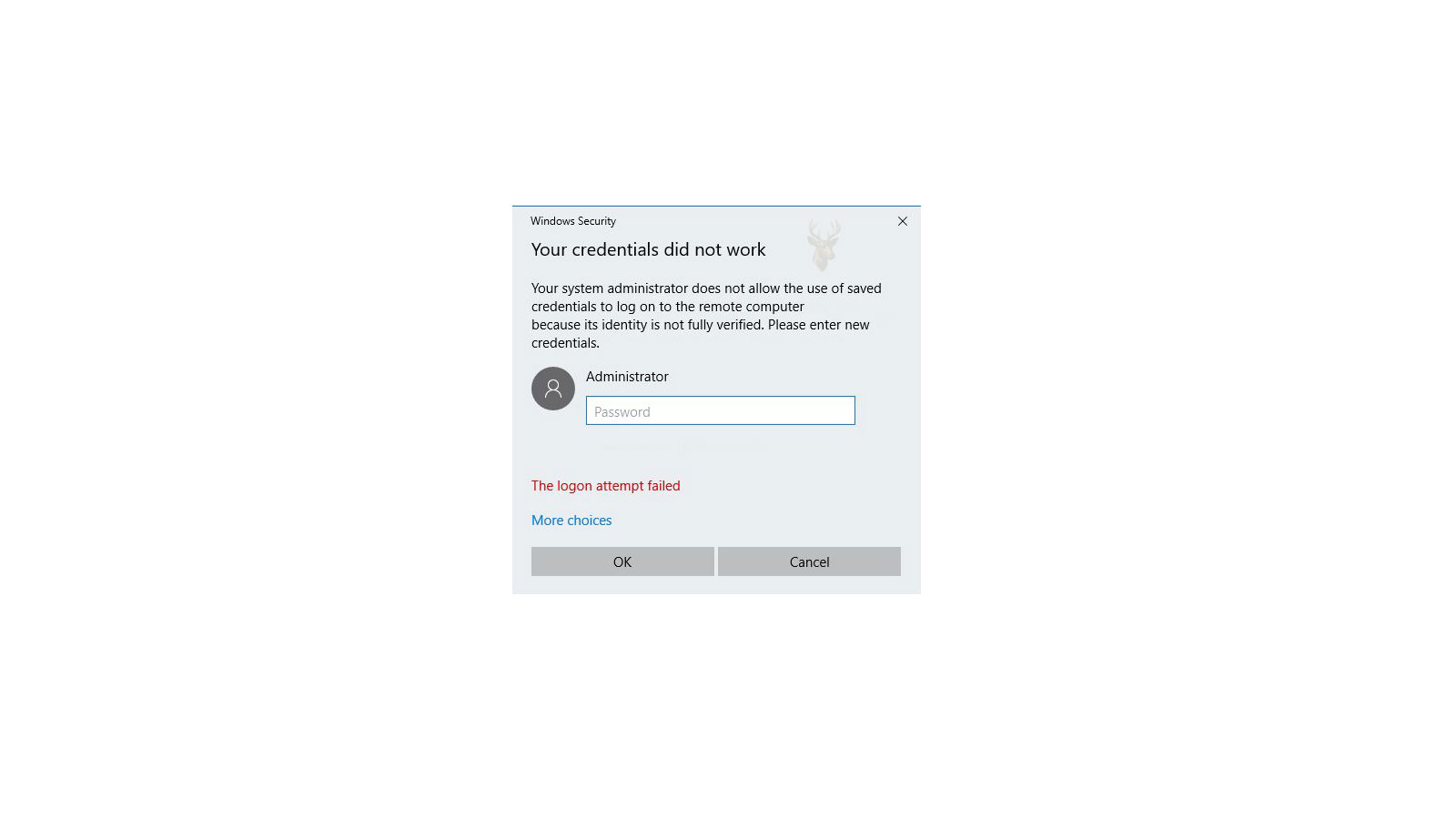
A Correct Password Can Still Be Rejected When Windows Reuses an Older One
Windows can save authentication information for network shares, remote computers, websites, business applications, and other resources that require an account. This allows a connection to be restored without asking the user to enter the same name and password every time.
The convenience becomes a problem when the saved record no longer matches the account. A password may have been changed, a server may have been replaced, or the user may now need to connect under a different identity. Windows can continue presenting the older credentials automatically before the user has an opportunity to enter the correct ones.
The resulting prompt may return repeatedly even though the current password is known and works elsewhere. The failure is not necessarily the password itself. It may be the stored record Windows is choosing, the account name attached to it, or the destination to which the credentials are being sent.
Windows Sign-In and Resource Authentication Are Separate Events
Signing in to the Windows desktop proves that the account is permitted to use the local computer. It does not automatically confirm access to every server, shared folder, remote desktop, website, or application connected to that computer.
A person can enter Windows successfully and then receive another password request when opening a mapped drive or business program. The second request belongs to the remote resource rather than to the local desktop session.
This distinction is important because changing the local Windows password may not update the password used by a file server or application account. Likewise, correcting a network credential does not necessarily affect the password used to unlock the computer.
Credential Manager Stores More Than One Type of Sign-In Record
Windows Credential Manager provides a central location for certain credentials saved by the operating system and compatible applications. These records may include authentication for network computers, shared storage, remote resources, websites, and software that uses Windows credential storage.
The entries are commonly separated into categories because not every credential is used in the same way. A Windows credential may be associated with a computer name or network address, while a web credential may belong to a browser-supported website or online service.
Removing one record does not erase every password stored throughout the computer. Browsers, email programs, cloud applications, and third-party password managers may maintain their own separate databases.
| Authentication Location | Typical Purpose |
|---|---|
| Windows sign-in | Opens the local or connected Windows user account. |
| Windows Credential Manager | Stores selected credentials used for network and application resources. |
| Web browser | May save website passwords and form sign-in information. |
| Application account | Authenticates directly with the software provider or business system. |
| Remote server | Determines whether the presented account may use the requested resource. |
The Saved Target Determines Where a Credential Is Used
A stored credential is normally associated with a particular target. The target may be a computer name, server name, network address, application identifier, or another label recognized by Windows.
If the same server can be reached by both its name and its numerical address, Windows may treat those destinations as separate targets. A credential saved for one form may not be applied when the other form is used.
This can create inconsistent behavior in which one shortcut connects successfully while another asks for a password. Although both shortcuts lead to the same physical server, their saved authentication records may not be identical.
A Password Change Does Not Always Update Every Stored Copy
Passwords can be stored in several places on the same computer. A network share may use Credential Manager, an email application may keep its own account record, and a browser may maintain a separate saved password for an online portal.
Changing the password at the server or website does not guarantee that all of those saved copies will be updated automatically. One application may request the new password immediately while another continues retrying the old one in the background.
This explains why a new password may work in a browser but fail in a mapped drive, remote application, or synchronization tool. Each connection must be evaluated according to where it obtains its credentials.
The Account Name Must Match the Authentication System
A password is evaluated together with an account name. Entering the correct password under the wrong user identity will still produce an authentication failure.
Windows may present account names in several formats. A local account may be tied to one computer, a domain account may belong to an organization, and an online account may use an email address. Some servers expect the computer or domain name to be included with the user name.
A saved credential can therefore become invalid even when the password remains unchanged. The destination may now expect a different account format, or Windows may be submitting a local account when the resource requires an organizational identity.
Local Accounts with Matching Names Are Still Separate Identities
Two computers can each contain a local account named “Office,” but the matching names do not make them the same Windows identity. Each account belongs to the computer on which it was created and can have a different password and security record.
When connecting to another computer, Windows may first attempt to use the account currently signed in on the local machine. If the remote computer has no matching account or uses a different password, access can be denied.
Providing the remote computer’s account explicitly can resolve the mismatch. The important detail is not merely the visible user name but which computer or authentication system owns that account.
Repeated Prompts Can Continue After the Correct Password Is Entered
A password dialog may reappear because the connection immediately retries with another saved record, the requested resource rejects the account, or a second component is requesting authentication at nearly the same time.
For example, a shared folder and a mapped drive may both point to the same server. Correcting the prompt for one connection does not necessarily remove an outdated credential already being used by the other.
The prompt may also disappear temporarily and return after Windows restarts because the underlying saved entry was never changed. A successful one-time connection should not be mistaken for a permanent repair until the computer reconnects normally during later use.
Mapped Drives Often Expose Credential Conflicts
A mapped drive assigns a familiar drive letter to a folder located on another computer or storage device. Windows may attempt to restore that connection automatically whenever the user signs in.
If the remote password has changed, the mapped drive can display as disconnected or unavailable. Opening it may produce a sign-in prompt, while applications that depend on the same drive may report missing files or invalid paths.
The drive mapping, saved credential, server availability, and account permission are related but separate parts of the connection. Recreating the drive letter alone will not correct an outdated password if Windows continues supplying the same stored authentication record.
Several Connections to One Server Can Complicate Account Changes
Windows may already have an active connection to a server under one account when the user attempts to connect again under another. The existing session can influence how the later request is authenticated.
This situation is common when a person first opens a shared public folder and then attempts to reach a restricted folder with different credentials. Windows may continue using the account established by the first connection instead of accepting the second identity as expected.
Closing the visible File Explorer window may not end every network session. The connection can remain active until it is disconnected, the user signs out, or Windows restarts.
An Authentication Prompt Can Also Indicate an Unavailable Destination
A password prompt does not always prove that the credentials are wrong. Windows may display authentication requests when a server is unreachable, a network name resolves incorrectly, or the expected resource has moved.
If the destination cannot verify the account, repeatedly changing passwords will not restore the connection. The computer may need to confirm that the server is online, the network path is correct, and the requested service is available.
This is especially important when several users begin receiving prompts at the same time. A shared failure affecting multiple computers is more likely to involve the destination, network, or authentication server than an individual saved credential.
The Pattern of the Prompt Helps Identify the Credential Source
| Observed Behavior | Authentication Area Worth Examining |
|---|---|
| The prompt began immediately after a password change. | Outdated saved credentials in Windows or the associated application. |
| One shortcut works while another path to the same server fails. | Different saved targets, server names, or network addresses. |
| The password works on one computer but not another. | Account-name format, stored records, and existing network sessions. |
| Every user receives a prompt at the same time. | Server availability, network access, or centralized authentication. |
| The prompt returns after every Windows restart. | Persistent saved credentials or an automatically restored connection. |
Recording when the prompt appears, which resource triggers it, and whether the same credentials work elsewhere provides a more reliable starting point than repeatedly entering passwords without identifying where Windows is sending them.
Remote Desktop Connections Can Maintain Their Own Authentication Records
Remote Desktop can remember credentials separately from ordinary network connections. A successful sign-in to a shared folder does not automatically update the credentials used when connecting to a remote Windows session.
If the remote computer password changes, the saved Remote Desktop record may continue presenting the previous credentials. The connection request may fail repeatedly even though the same account works correctly when entered directly at the remote computer.
When troubleshooting repeated Remote Desktop authentication prompts, the stored connection information should be considered independently from other Windows credential records.
Persistent Network Connections Can Continue Using Earlier Credentials
Windows attempts to maintain active network sessions while they remain in use. Even after a password has been updated, an existing connection may continue operating with authentication established before the change occurred.
This behavior can create confusing results during troubleshooting. A user may successfully browse an already-open shared folder while a newly opened connection to the same server immediately requests updated credentials.
Recognizing whether the session is newly created or already active helps explain why two windows connected to the same server can behave differently.
Cached Credentials Can Affect Computers That Are Temporarily Offline
Portable computers often continue working away from the office or home network. Cached authentication information can allow the user to access Windows even when the normal authentication source is unavailable.
Once the computer reconnects to its usual network, Windows must again communicate with the expected authentication source. If passwords, account policies, or account status changed while the computer was offline, new prompts may appear during synchronization.
The transition between offline and online operation should therefore be considered when repeated authentication requests begin after travel or extended periods away from the primary network.
Password Expiration Policies Can Produce Unexpected Authentication Requests
Some environments require passwords to be changed after a specified period. The account itself may remain valid, but Windows or the remote server expects a newer password before additional authentication attempts are accepted.
Applications that continue presenting an expired password from stored credentials may repeatedly request authentication even after the user successfully changes the password elsewhere.
Updating every saved location that uses the affected account prevents older credentials from continuing to generate unnecessary authentication failures.
Multiple User Accounts on One Computer Can Store Different Credentials
Credential storage is generally associated with the Windows user profile currently signed in. Two people sharing the same computer can each maintain different saved passwords for the same server or application.
This explains why one account can connect without difficulty while another receives repeated sign-in prompts on the same computer. The difference may exist entirely within the stored credentials of each individual profile.
Testing the affected resource under another Windows account can help determine whether the issue belongs to the shared destination or only to one user’s stored authentication records.
Account Lockout Can Be Triggered by Repeated Saved Authentication Attempts
Many organizations protect user accounts by temporarily locking them after several unsuccessful sign-in attempts. Stored credentials that continue submitting an outdated password can unintentionally reach this limit without the user repeatedly typing anything.
A synchronization application, mapped drive, scheduled task, or background connection may continue retrying authentication in the background. The account can become locked before the user manually enters the correct password.
When an account repeatedly locks after a password change, identifying every location where the old credential may still be stored becomes an important part of the investigation.
Scheduled Tasks and Background Applications May Use Independent Credentials
Windows can perform work automatically through scheduled tasks and background applications that operate independently of the interactive desktop session. These components may continue using credentials saved when they were originally configured.
If those credentials become outdated, scheduled operations such as backups, file synchronization, reports, or maintenance routines may begin failing while ordinary interactive sign-ins continue working correctly.
Authentication problems that occur only at certain times of day may indicate an automated task rather than a problem with the user’s normal Windows session.
Two-Step Verification Introduces an Additional Authentication Layer
Some services require more than a user name and password before allowing access. Verification codes, authentication applications, hardware security keys, or approval requests can become part of the sign-in process.
Applications that were originally configured before additional verification was enabled may require updated authentication methods or application-specific credentials. Simply re-entering the account password may not satisfy the newer security requirement.
Understanding whether multi-factor authentication has recently been enabled helps distinguish ordinary password failures from changes in account security policy.
Domain and Local Authentication Can Produce Different Results
Business environments often use centralized authentication in addition to local Windows accounts. Depending on the resource being accessed, Windows may validate the account locally or forward the request to an organizational authentication system.
If communication with the centralized authentication source becomes unavailable, locally cached information may continue working while access to network resources fails. The user can appear to have signed in successfully even though authentication for remote services cannot be completed.
Recognizing which authentication source is responsible for the requested resource helps prevent unnecessary password changes when the underlying issue involves communication with the authentication infrastructure.
Repeated Authentication Requests Follow Recognizable Patterns
| Observed Pattern | Most Likely Area to Review |
|---|---|
| Authentication fails immediately after a password change. | Outdated saved credentials in Windows, applications, or mapped resources. |
| Only one Windows profile experiences repeated prompts. | Credential storage associated with that user profile. |
| The account becomes locked without repeated manual attempts. | Background services, scheduled tasks, or automatic authentication retries. |
| Remote Desktop requests credentials while shared folders continue working. | Remote Desktop credential storage. |
| Authentication fails only after reconnecting to the office network. | Offline credential cache, network authentication, or updated account policies. |
Understanding exactly when the prompt appears, which resource triggers it, and whether other authentication methods continue working allows troubleshooting to focus on the appropriate credential source instead of treating every password request as the same problem.
Removing a Saved Credential Should Be Done with the Target Clearly Identified
Deleting a credential can stop Windows from automatically presenting outdated authentication information, but the correct record must be identified first. Similar target names may belong to different servers, applications, or connection methods.
Removing the wrong entry can interrupt a connection that was working correctly while leaving the actual problem unchanged. The target name, account name, and resource that produces the prompt should be compared before any saved record is changed.
Once the outdated credential is removed, Windows should request fresh authentication the next time the resource is opened. The new account information can then be tested without interference from the older saved record.
A New Credential Should Match the Exact Connection Name
Saving a replacement credential is most effective when the target matches the name Windows actually uses for the connection. A record stored for a server name may not apply when the shortcut connects through an address, alias, or different network path.
The account format must also match the authentication source. A local server account, organizational account, and online account can use different naming conventions even when the visible user name appears similar.
Testing the connection immediately after saving the new record helps confirm that Windows is applying it to the intended destination rather than selecting another credential still stored elsewhere.
Disconnecting Existing Sessions Can Prevent Windows from Reusing an Earlier Identity
An active network session may continue using the account that originally established the connection. Entering a different user name into a new prompt does not always replace the identity already associated with that server.
Disconnecting mapped drives and other open connections can allow Windows to establish a completely new session. Signing out or restarting may also clear sessions that remain active after visible windows are closed.
The resource should then be opened again with the intended account. This provides a cleaner test than repeatedly entering different credentials while an older authenticated session is still present.
The Server Must Recognize the Account Being Presented
Correcting the stored password on the Windows computer will not restore access if the destination no longer contains the account, has disabled it, or has removed its permission to use the requested resource.
The remote system may accept the account for one folder while denying another. This means authentication succeeded, but authorization for the requested location was not granted.
Separating account recognition from resource permission prevents an access restriction from being mistaken for a damaged credential record. The prompt wording and server logs may help determine whether the failure occurs before or after the identity is accepted.
An Account Can Be Disabled Even Though Its Password Has Not Changed
Accounts may be disabled because of administrative action, inactivity policies, security concerns, employment changes, or repeated failed authentication attempts. A stored credential cannot restore access while the account itself remains unavailable.
The resulting prompt may look identical to one caused by an incorrect password. Repeatedly changing or resaving the password will not correct the account status.
When the same credentials fail from multiple computers and applications, confirming whether the account is active should occur before local credential stores are repeatedly modified.
Clock Differences Can Interfere with Some Authentication Methods
Certain network authentication systems rely on reasonably accurate time between the Windows computer and the server. A computer with an incorrect date, time, or time zone may present valid credentials but still fail authentication.
This condition can appear after a depleted motherboard battery, extended disconnection from power, incorrect firmware settings, or failed time synchronization. The user may notice certificate warnings or other time-related errors in addition to repeated sign-in prompts.
Correcting the clock and confirming time synchronization can restore authentication without changing the password. This is especially relevant when several credentials fail suddenly on only one computer.
Name Resolution Problems Can Send Credentials to the Wrong Destination
A computer name must be translated into the correct network address before Windows can contact the intended server. If that translation is outdated or incorrect, the connection may reach another device or fail before authentication is completed.
The user may continue receiving password prompts because the credentials are being submitted to a destination that does not recognize the account. Using a numerical address may produce different results, but it can also create a separate credential target.
Verifying that the server name resolves to the expected device helps determine whether the problem belongs to authentication or to the network path leading to it.
Saved Credentials Should Not Be Used to Hide an Unstable Connection
Repeated prompts can sometimes disappear after a credential is saved, even though the server or network remains unreliable. Windows may continue retrying silently instead of asking the user each time.
If the resource disconnects, becomes slow, or disappears after authentication succeeds, the problem may involve wireless instability, server shutdowns, power-saving behavior, or interrupted network access rather than the credential itself.
A complete test should confirm that the connection remains available during ordinary use and reconnects successfully after Windows restarts.
Browser and Application Password Stores Must Be Checked Separately
Credential Manager does not control every saved password on the computer. Browsers, email clients, cloud synchronization tools, remote-access applications, and business programs may store authentication information in their own settings or encrypted databases.
Removing a Windows credential may correct access to a shared folder while leaving repeated prompts inside an application unchanged. The application may continue supplying an older password from its independent account configuration.
The prompt location and program displaying it should therefore be recorded. This helps identify which password store must be updated rather than clearing unrelated credentials throughout the system.
Generic Credentials May Be Created by Applications Rather Than by the User
Some programs create generic credential records to store tokens, account references, or authentication data used by the application. The target name may not clearly resemble the website or service visible to the user.
Deleting these records without understanding their purpose can sign the user out, interrupt synchronization, or require the application to be configured again. An unfamiliar entry should not automatically be treated as damaged or unnecessary.
The entry’s name, creation context, and associated application should be examined before removal. Recreating the application account may be safer than manually changing a credential record whose format is controlled by the software.
Credential Backups Should Be Protected Like Other Password Records
Stored credentials provide access to systems and information that may not require the password to be entered again. Any backup or export containing authentication records should therefore be handled as sensitive data.
Moving credential information between computers can also reproduce outdated entries and account conflicts. A credential that was appropriate on the original machine may point to a different resource or use the wrong identity on the replacement computer.
Re-entering the required credentials after migration often provides a cleaner configuration than transferring every stored record without reviewing whether it is still needed.
Testing Should Begin with One Resource and One Intended Account
Credential troubleshooting becomes difficult when several mapped drives, applications, remote sessions, and user accounts are tested at the same time. Each connection may use a different stored record and authentication method.
A controlled test begins with one clearly identified destination. Existing sessions are closed, the relevant saved credential is reviewed, and the connection is attempted using the intended account format.
Once that resource works consistently, additional connections can be tested individually. This prevents a successful change in one location from being confused with an unrelated prompt generated by another application.
A Focused Credential Troubleshooting Sequence Reduces Unnecessary Password Changes
- Identify the exact server, application, website, or remote computer producing the prompt.
- Confirm whether the current password works through another trusted sign-in method.
- Record the account name and the format expected by the destination.
- Determine whether Windows, a browser, or the application stores the credential.
- Check for active sessions already connected under another account.
- Review recent password changes, account lockouts, expiration notices, and security-policy changes.
- Verify that the destination is online and that its name resolves correctly.
- Remove or update only the saved record associated with the failed connection.
- Test the resource after signing out or restarting to confirm that the correction persists.
This approach preserves working credentials while isolating the authentication record responsible for the repeated request.
The Repair Direction Depends on Where Authentication Breaks
| Confirmed Finding | Repair Direction |
|---|---|
| Windows is automatically submitting an old password. | Remove or update the saved credential for the exact target. |
| An active session is connected under the wrong account. | Disconnect the session and reconnect using the intended identity. |
| The password works elsewhere but not through one application. | Update the credential stored inside that application. |
| The account repeatedly becomes locked. | Locate background tasks, mappings, or applications still using the old password. |
| All users lose access to the same resource. | Examine the server, network path, and centralized authentication system. |
| The account is accepted but a folder remains unavailable. | Review the permissions assigned to that resource rather than changing the password. |
A Successful Sign-In Should Be Verified After a Restart
Entering credentials successfully one time does not prove that the stored authentication problem has been corrected. The connection may be using a temporary session that will disappear when the user signs out or the computer restarts.
A reliable repair should allow the resource to reconnect according to its intended design. If credentials are meant to be remembered, Windows or the application should reuse the updated record without returning to the previous prompt.
If the connection is not supposed to be saved, Windows should request authentication once and accept the correct account without repeatedly reopening the same dialog.
Repeated Sign-In Prompts Require More Than Re-entering the Password
Windows authentication problems can involve outdated saved records, incorrect account formats, existing sessions, disabled accounts, password-expiration policies, network failures, name-resolution errors, or separate password stores maintained by applications.
The prompt itself identifies only that authentication was requested or rejected. It does not prove that the password was typed incorrectly, nor does it reveal which stored record Windows or the application selected.
The safest investigation identifies the exact destination, authentication source, intended account, and location where the credential is stored. Only the record connected to the failed resource should be updated or removed.
Once the correction is complete, the connection should be tested during normal use, after sign-out, and after a restart. Consistent access without renewed prompts confirms that Windows is presenting the correct identity to the correct destination.











