
Important Windows Functions Can Stop Even While the Desktop Still Opens
Windows depends on background services to perform work that does not require a visible application window. These services can manage networking, printing, security, updates, audio, device detection, account synchronization, and many other functions that continue operating after the user signs in.
When one of these services fails, the computer may still reach the desktop and appear mostly normal. The problem becomes noticeable only when a specific feature stops responding. A printer may remain offline, an application may report that a required service is unavailable, or a network-related function may fail while other programs continue working.
This type of failure differs from a complete Windows startup problem. The operating system has loaded, but one supporting component has not entered the state required by the feature that depends on it.
A Windows Service Is Not the Same as an Ordinary Startup Application
An ordinary startup application usually opens after a user signs in and may place an icon in the taskbar or notification area. A service can begin earlier, operate without a visible interface, and continue running even when no user is actively working at the computer.
Services are commonly used when a function must remain available to the operating system or to several user accounts. Printing, network discovery, software licensing, remote access, database operation, and security monitoring may all rely on this type of background component.
Because services are less visible than ordinary programs, their failure can be misinterpreted as an application problem. The visible program may be functioning correctly but unable to complete its work because a separate background service has stopped.
Running, Stopped, and Paused Describe Different Service States
Windows records the current state of each service. A running service is active and available to perform its assigned work. A stopped service is not currently operating, while a paused service remains loaded but has temporarily suspended some or all of its normal activity.
A stopped state is not automatically a fault. Some services are designed to remain inactive until Windows or an application requests them. Others should normally run continuously and may cause immediate problems when they stop.
The correct interpretation depends on the service and its startup configuration. Comparing the current state with the intended behavior is more useful than assuming that every stopped entry requires repair.
Startup Type Controls When Windows Attempts to Launch a Service
Each service has a startup type that helps determine when or whether Windows should launch it. Common settings include Automatic, Automatic with delayed start, Manual, and Disabled.
An automatic service is normally started during the Windows startup process. Delayed automatic services begin later so they do not compete with more important components while the computer is first loading. Manual services wait until Windows or another program requests them.
A disabled service cannot start until its configuration is changed. This setting may have been selected intentionally, applied by software, changed during troubleshooting, or left behind by a system optimization utility.
| Startup Type | Expected Behavior |
|---|---|
| Automatic | Windows attempts to start the service during normal system startup. |
| Automatic with delayed start | The service begins after higher-priority startup activity has settled. |
| Manual | The service starts when Windows or an application requests it. |
| Disabled | The service remains unavailable until the setting is changed. |
Manual Does Not Mean the Service Must Be Started by Hand
The word “Manual” can create the impression that a user must open the Services console and press Start whenever the feature is needed. In many cases, Windows starts a manual service automatically when another component requests it.
This arrangement reduces unnecessary background activity. A service that supports an infrequently used feature can remain stopped until that feature is opened, then begin operating without direct user involvement.
Changing every manual service to automatic is therefore unnecessary and can increase startup activity without solving the original problem. The correct startup type should be based on the service design rather than whether it happens to be stopped at the moment.
One Service May Depend on Several Others
Services often operate as part of a larger chain. A printing feature may depend on communication components, an application service may require a database service, and a network function may depend on several Windows networking services.
If one required component is unavailable, the service being examined may refuse to start even though its own files and settings are correct. Windows may display a dependency error or report that a required service failed to start.
Restarting only the final service in the chain will not correct the problem if an earlier dependency remains stopped or damaged. The supporting services must be identified and examined in the order in which they are required.
A Service Can Start Successfully and Stop Moments Later
Pressing Start in the Services console may cause a service to show a running state briefly before it stops again. This behavior indicates that Windows was able to launch the component but something prevented it from remaining active.
The service may be missing a required file, unable to open a database, blocked from reaching a network location, or configured to use an account whose credentials are no longer valid. Some services also stop intentionally after completing a short task.
The important distinction is whether the service is designed to remain running. A service that repeatedly stops while its related feature is in use requires a different investigation from one that performs a task and then exits normally.
Service Accounts Determine Which Resources a Background Component Can Use
A service operates under a Windows account that defines its security rights. Built-in services may use system-managed identities, while business software and specialized applications may use a local or network account created specifically for the program.
If the password for that account changes, expires, or is entered incorrectly in the service configuration, Windows may be unable to start the service. The failure can occur even though the same application files worked previously.
Changing the service to use a more powerful account is not automatically the correct repair. The original account may have been selected to limit access for security reasons, and replacing it can expose files or network resources unnecessarily.
Error Numbers Provide More Direction Than the Word Failed
Windows may display a numbered error when a service cannot start. The number can indicate a timeout, missing dependency, invalid account, unavailable file, denied permission, or another specific condition.
Recording the complete message is important because several different failures can produce nearly identical visible symptoms. An application may simply state that its service is unavailable even though Windows has already recorded a more useful technical explanation.
The error number, service name, time of failure, and action being attempted together provide a stronger starting point than repeatedly pressing Start without reviewing why the operation was rejected.
The Services Console Shows Configuration but Not the Entire Cause
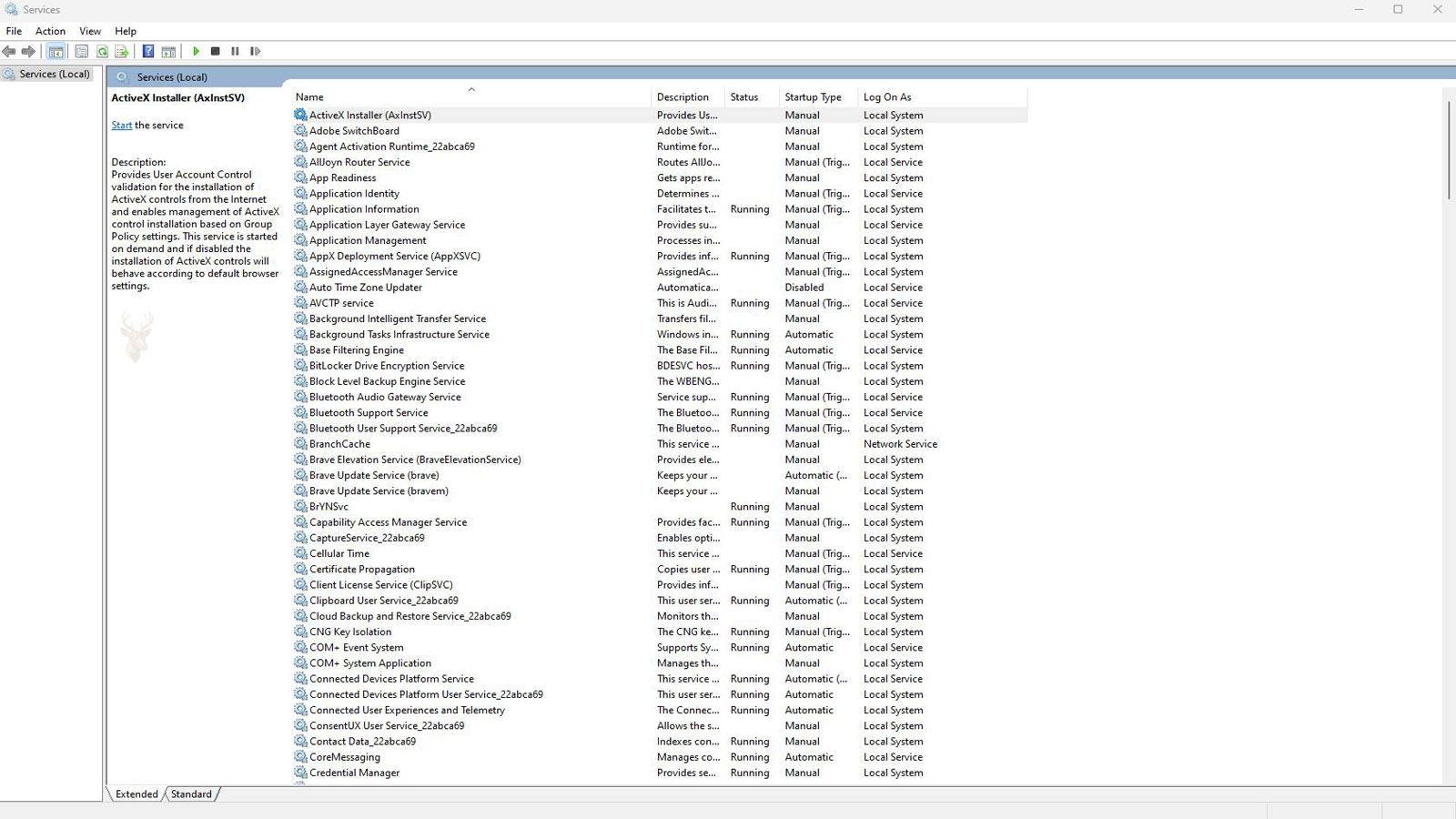
The Windows Services console can display the service name, description, current state, startup type, account, and dependency information. It is useful for confirming whether the expected component exists and how Windows is configured to launch it.
The console does not always explain why the service stopped. A failed service may depend on damaged program files, unavailable storage, incorrect registry information, network problems, or application data that cannot be opened.
For this reason, the Services console should be treated as one diagnostic view rather than a complete repair tool. Starting or changing the service may confirm the symptom, but the underlying cause may be recorded elsewhere.
Event Viewer Can Record What Happened Before and After the Failure
Windows records many service events in the system logs. These entries can show when a service entered a stopped state, whether Windows attempted to restart it, which error was returned, and whether another supporting component failed first.
The timing of the entries is especially useful. A service failure occurring immediately after an application update suggests a different cause from one that begins after a password change, storage error, or unexpected shutdown.
Not every warning in Event Viewer is connected to the current problem. The relevant entries are those that match the service name, the time of the failure, and the feature that stopped working.
The Visible Symptom Helps Identify Which Service Group to Examine
| Observed Problem | Background Area Worth Examining |
|---|---|
| A printer remains unavailable and jobs do not process | Printing services and their dependencies. |
| An application reports that its server or database is unavailable | The program’s own service and supporting data services. |
| Network discovery or shared resources disappear | Windows networking and discovery services. |
| A security program opens but protection remains disabled | The product’s monitoring and update services. |
| Several unrelated Windows features stop at the same time | Shared dependencies, system files, or broader configuration damage. |
Beginning with the failed feature keeps the investigation focused. The goal is not to make every stopped service run, but to identify the background component required by the function that is no longer available.
A Service Timeout Does Not Always Mean the Component Never Started
Windows allows a limited amount of time for a service to report that it has started successfully. If the component takes too long to initialize, the operating system may record a timeout even though part of the service has already loaded.
Slow startup can occur when the service must scan a large database, wait for a network location, verify a license, inspect connected hardware, or recover from an improper shutdown. The visible application may report that the service failed while the background process continues attempting to complete its initialization.
Repeated timeouts should be investigated rather than hidden by simply increasing the waiting period. The delay may point to damaged data, unavailable resources, or hardware that responds too slowly for the service to operate reliably.
Delayed Automatic Startup Can Prevent Unnecessary Competition During Boot
Some services are configured to begin shortly after the main Windows startup activity rather than at the same moment. This delayed arrangement reduces competition for processor time, storage access, and network initialization while the desktop is loading.
A user may sign in before a delayed service is ready and briefly encounter a feature that appears unavailable. The application may begin working a short time later without any manual repair.
The distinction between a service that starts late and one that never starts is important. Checking its state after the computer has been running for several minutes can prevent a normal delayed startup from being mistaken for a permanent failure.
Trigger-Started Services May Run Only After a Specific Event
Windows can start certain services in response to a particular condition rather than keeping them active continuously. Connecting a device, joining a network, launching an application, or receiving a system request may trigger the service.
These services can appear stopped during normal inspection and still be configured correctly. Their inactive state becomes significant only when the expected trigger occurs and the related function remains unavailable.
Testing the feature that normally calls the service provides more useful information than starting the component manually without reproducing the original condition.
Recovery Settings Determine What Windows Does After a Service Crashes
Individual services can be configured to respond differently after a failure. Windows may attempt to restart the service, run a recovery command, restart the computer, or take no automatic action.
A service that seems to stop and return repeatedly may be crashing while Windows silently restarts it. This cycle can create intermittent application failures, repeated log entries, and short periods during which the related feature becomes unavailable.
Automatic recovery can reduce downtime, but it does not correct the reason the service is failing. Frequent restarts should lead to examination of the associated program files, data, dependencies, and recent system changes.
Several Services Can Share the Same Host Process
Windows commonly groups multiple services inside shared host processes. This arrangement reduces the number of separate executable files required to manage background components.
If one shared host process becomes unstable, more than one service may stop or restart at nearly the same time. The resulting symptoms can appear unrelated because the affected features may involve different parts of Windows.
The shared process should not automatically be treated as the original cause. One service loaded inside it may have triggered the failure, or a common system component used by several services may be damaged.
Antivirus and Security Controls Can Block Service Files
Security software monitors programs that attempt to run in the background, make system-level changes, or communicate across a network. If a service file is considered suspicious, damaged, or improperly signed, the security product may quarantine it or prevent it from launching.
The associated application may then report only that its service is unavailable. Reviewing the security history can reveal whether a required executable, library, or supporting file was blocked at the time the failure began.
Protection should not be disabled permanently simply to make the service start. The blocked file should first be identified and verified so that a legitimate repair does not create a larger security risk.
Application Updates Can Leave an Old Service Registration Behind
Software installers register the service name, executable path, startup type, account, and other operating details with Windows. If an update replaces the application files but does not update the service registration correctly, Windows may continue pointing to an old or missing location.
The service can remain visible in the Services console while failing every time Windows attempts to launch it. Reinstalling or repairing the associated application may recreate the registration and restore the correct file path.
Before reinstalling, the service properties and recent update history should be reviewed. This helps confirm that the failure began with a program change rather than an unrelated Windows condition.
A Service Can Fail Because Its Working Data Is Unavailable
Many services require more than an executable file. They may need access to configuration folders, databases, temporary directories, certificates, log files, or storage locations used by the related application.
If one of these locations is missing, full, damaged, or restricted by permissions, the service may launch but immediately stop when it cannot open the required data.
This is common with database services, backup software, security products, and business applications that maintain large working files. Examining only the service executable can overlook the resource that is actually preventing startup.
Storage Problems Can Interrupt Several Background Services at Once
Services must read their files and often write logs, databases, caches, or temporary information while they operate. A storage device with file-system errors, failing sectors, or insufficient free space can interfere with these operations.
Multiple services may begin failing if they depend on the same damaged system drive or data volume. The computer may also become slow, produce application errors, or require unusually long periods to start and shut down.
When service failures appear together with read errors, disappearing files, or repeated storage warnings, the health of the drive should be examined before individual services are reconfigured.
Network-Dependent Services May Fail Before Connectivity Is Ready
Some services must contact a server, domain controller, licensing system, shared folder, or remote database before they can complete startup. If the network connection is not ready, the service may time out or enter a stopped state.
The problem can be intermittent on laptops that move between wired, wireless, office, and home networks. A business application may work after a second attempt because the network became available after the original service startup failed.
Confirming whether the required remote resource is reachable helps separate a service configuration problem from ordinary network unavailability.
Service Failures After Password Changes Often Point to Stored Credentials
A service configured to run under a named user account may store that account’s password in its Windows configuration. When the password is changed elsewhere, the saved service credentials do not always update automatically.
Windows may then reject the logon request each time the service attempts to start. Other programs used by the same person can continue functioning because the user signed in with the new password, while the background service continues presenting the old one.
Updating the stored credentials can restore operation, provided the account still has the required rights and access to the service’s files and network resources.
The Failure Pattern Helps Separate Configuration from Instability
| Observed Service Behavior | Possible Direction |
|---|---|
| The service never starts after Windows loads. | Startup type, dependencies, account credentials, or missing files. |
| The service starts after a delay and then remains stable. | Delayed startup, network readiness, or heavy initialization. |
| The service starts and stops repeatedly. | Application crashes, recovery settings, or unavailable working data. |
| Several services fail at nearly the same time. | Shared host process, common dependency, storage, or system damage. |
| The service fails only after a password change. | Stored service credentials or account rights. |
Observing when the service fails, how long it remains active, and which other components are affected provides more useful evidence than changing startup settings without a clear reason.
Clean Boot Testing Can Reveal Interference from Another Background Component
A Windows service may be configured correctly but still fail because another installed program interferes with its startup. Security utilities, monitoring software, backup applications, hardware control programs, and older system tools can load their own services and drivers before the affected component begins operating.
A clean boot temporarily prevents selected third-party services and startup applications from loading. If the original service works under that controlled condition, the improvement suggests that another background component is contributing to the failure.
The disabled items should then be restored in small groups until the conflict returns. Leaving all nonessential services disabled may hide the problem, but it does not identify which application requires repair, reconfiguration, or removal.
Safe Mode Provides a Different Service Environment
Safe Mode starts Windows with a reduced collection of drivers, services, and startup components. This limited environment can help determine whether a background failure depends on third-party software or on a component that loads only during a normal startup.
Not every service is expected to run in Safe Mode. A stopped service under these conditions does not automatically confirm that it is damaged. The useful observation is whether the broader symptom changes when many optional components are absent.
If the related feature works only in Safe Mode, attention can shift toward software conflicts, drivers, security products, or normal-startup services rather than the basic Windows startup environment.
System File Damage Can Prevent Built-In Services from Loading Correctly
Windows services often depend on shared executable files, libraries, registry information, and system components. If these resources are missing or damaged, several built-in functions may fail even though the individual service entries remain visible.
System corruption can follow an interrupted update, storage error, malware infection, improper shutdown, or failed repair attempt. The service may return a missing-file error, stop immediately, or fail without presenting a clear explanation in the visible application.
Repairing the Windows component store and protected system files may restore the resources required by multiple services. Individual startup settings should not be changed repeatedly when the same shared files are failing across several components.
Registry Configuration Errors Can Point a Service to the Wrong Resources
Windows stores important service configuration information in the registry. This information can include the executable path, startup instructions, dependencies, account details, and parameters supplied to the service when it launches.
An incomplete software removal, failed upgrade, manual registry edit, or aggressive cleanup utility can leave these entries damaged or inconsistent. Windows may attempt to launch a file that no longer exists or provide startup parameters that the current version of the program does not recognize.
Registry entries should not be copied from another computer or changed without confirming the correct configuration for the affected Windows version and application. An incorrect repair can prevent the service from registering properly or create additional startup failures.
A Missing Service May Require Application Repair Rather Than Manual Recreation
Sometimes the expected service does not appear in the Services console at all. It may have been removed during an incomplete uninstall, deleted by security software, or never registered successfully during installation.
Manually creating a service entry is rarely the best first response. The installer may need to add supporting permissions, registry values, files, recovery settings, and dependencies in addition to the visible service name.
Repairing or reinstalling the associated application usually provides a more complete restoration. The installation source should match the intended software version and Windows architecture so that the correct service components are registered together.
Removing an Obsolete Service Entry Can Prevent Repeated Startup Errors
An application can be removed while its service registration remains behind. Windows may continue attempting to start the abandoned service during every boot, producing delays or recurring entries in the system logs.
The presence of an old service name does not prove that the associated program is still installed. Its executable path, publisher, installation folder, and related application records should be checked before any removal decision is made.
Obsolete service entries should be removed through the original uninstaller or an appropriate repair procedure whenever possible. Deleting an active Windows or application service by mistake can disable features that are difficult to restore.
Changing a Service Account Can Affect Access to Files and Networks
A service account determines more than whether the component is allowed to start. It also affects which local folders, registry locations, network shares, certificates, and other resources the service can use after startup.
Switching a service to a built-in system account may allow it to launch while preventing it from reaching a network location previously available to a named user account. The opposite change may reduce its ability to access protected local resources.
The account should match the service design and receive only the rights required for its work. A successful startup followed by application errors may indicate that the replacement account lacks access to a resource needed after the initial launch.
Service Control Permissions Can Block Administrative Changes
Windows also controls which accounts are permitted to start, stop, pause, reconfigure, or remove a service. A user may belong to the local administrators group and still encounter restrictions imposed by security software, organizational policies, or service-specific permissions.
These restrictions are common on managed business computers where background components must remain protected from ordinary changes. A service may be working correctly while the current user is simply unauthorized to control it.
Ownership of program files does not automatically grant control over the registered service. The service permissions and the file-system permissions are separate security layers and should be evaluated independently.
Group Policy Can Enforce Service Settings on Managed Computers
Business and institutional computers may receive service configurations through local or domain-based policy. These policies can specify startup types, account rights, security permissions, and other restrictions that Windows reapplies automatically.
A manual change may appear successful and then disappear after the next restart or policy refresh. Repeatedly changing the local setting will not provide a lasting repair when a centralized policy continues restoring the previous configuration.
The intended organizational setting should be confirmed before treating the service state as a local Windows error. A disabled service may reflect an administrative decision rather than damage on the computer.
Service Repair Should Include the Feature That Depends on It
A running status does not guarantee that the background component is performing its work correctly. The service may remain active while failing to process print jobs, update a database, communicate with hardware, or answer requests from its application.
After a repair, the original feature should be tested under the same conditions that exposed the problem. A printing service should process a test job, a backup service should complete a controlled backup, and an application service should accept a normal connection.
This functional test confirms that the service can reach its files, data, devices, and network resources rather than merely remaining listed as running.
Repeated Failures Should Be Correlated with System Activity
Intermittent service failures are easier to diagnose when their timing is compared with other activity on the computer. The service may stop during a backup, after waking from sleep, when a network changes, while storage space is low, or immediately after an application update.
Recording the time of each failure allows Event Viewer entries, security detections, update history, storage warnings, and application logs to be examined together. A repeated pattern can reveal a trigger that is not visible from the service state alone.
A service that fails randomly requires a different investigation from one that stops during the same operation each day. Reliable timing information reduces unnecessary changes and helps reproduce the condition during testing.
A Controlled Repair Sequence Keeps the Investigation Focused
- Identify the feature that is unavailable and the service associated with it.
- Record the service name, startup type, current state, account, and complete error message.
- Confirm whether the service is automatic, delayed, manual, or trigger-started by design.
- Review dependencies before attempting repeated restarts.
- Match Event Viewer entries to the exact time of the failure.
- Check recent application updates, password changes, security detections, and system configuration changes.
- Verify access to required files, databases, storage locations, and network resources.
- Use a clean boot or other controlled startup only when software interference is suspected.
- Test the related feature after the service remains stable.
This sequence separates a normal stopped state from a genuine startup failure and helps identify whether the cause belongs to Windows, the application, its account, or an external resource.
The Repair Direction Should Match the Evidence
| Confirmed Finding | Repair Direction |
|---|---|
| A required dependency is stopped or damaged. | Restore the supporting component before restarting the dependent service. |
| The service points to a missing application file. | Repair or reinstall the associated program and verify its registration. |
| The configured account can no longer sign in. | Correct the stored credentials and confirm the required account rights. |
| The service works during a clean boot. | Identify the third-party service or startup component creating the conflict. |
| Several built-in services fail with system-file errors. | Evaluate Windows component and storage integrity before individual reconfiguration. |
| The service runs but the related feature still fails. | Check working data, permissions, devices, network resources, and application communication. |
Stable Service Operation Requires More Than Changing the Startup Type
Setting a service to Automatic may cause Windows to attempt an earlier launch, but it cannot restore missing files, correct invalid credentials, repair damaged data, or make an unavailable network resource respond. Startup type is only one part of the service configuration.
A complete repair confirms that the component starts at the intended time, remains active for as long as required, survives normal restarts, and performs the function expected by Windows or the associated application.
Services that are designed to remain stopped until requested should not be forced to run continuously. Unnecessary changes can lengthen startup, increase background activity, and create conflicts without improving the feature being investigated.
Background Service Failures Need Component-Level Diagnosis
A failed Windows service can be the visible result of a disabled configuration, unavailable dependency, invalid account, damaged executable, missing database, security restriction, network delay, storage problem, or conflict with another background program.
The Services console identifies the component and its current configuration, but the complete explanation may require system logs, application records, security history, file inspection, account review, and controlled startup testing.
The safest approach begins with the feature that stopped working and follows its service requirements in order. Starting unrelated services or changing every manual entry to automatic introduces new variables and can make the original failure harder to isolate.
Once the underlying cause is corrected, the service should start according to its intended design and the dependent feature should be tested through a normal restart and ordinary use. Reliable operation not merely a temporary running status is the final evidence that the repair is complete.











