
A Visible File Is Not Automatically Available to Every Windows Account
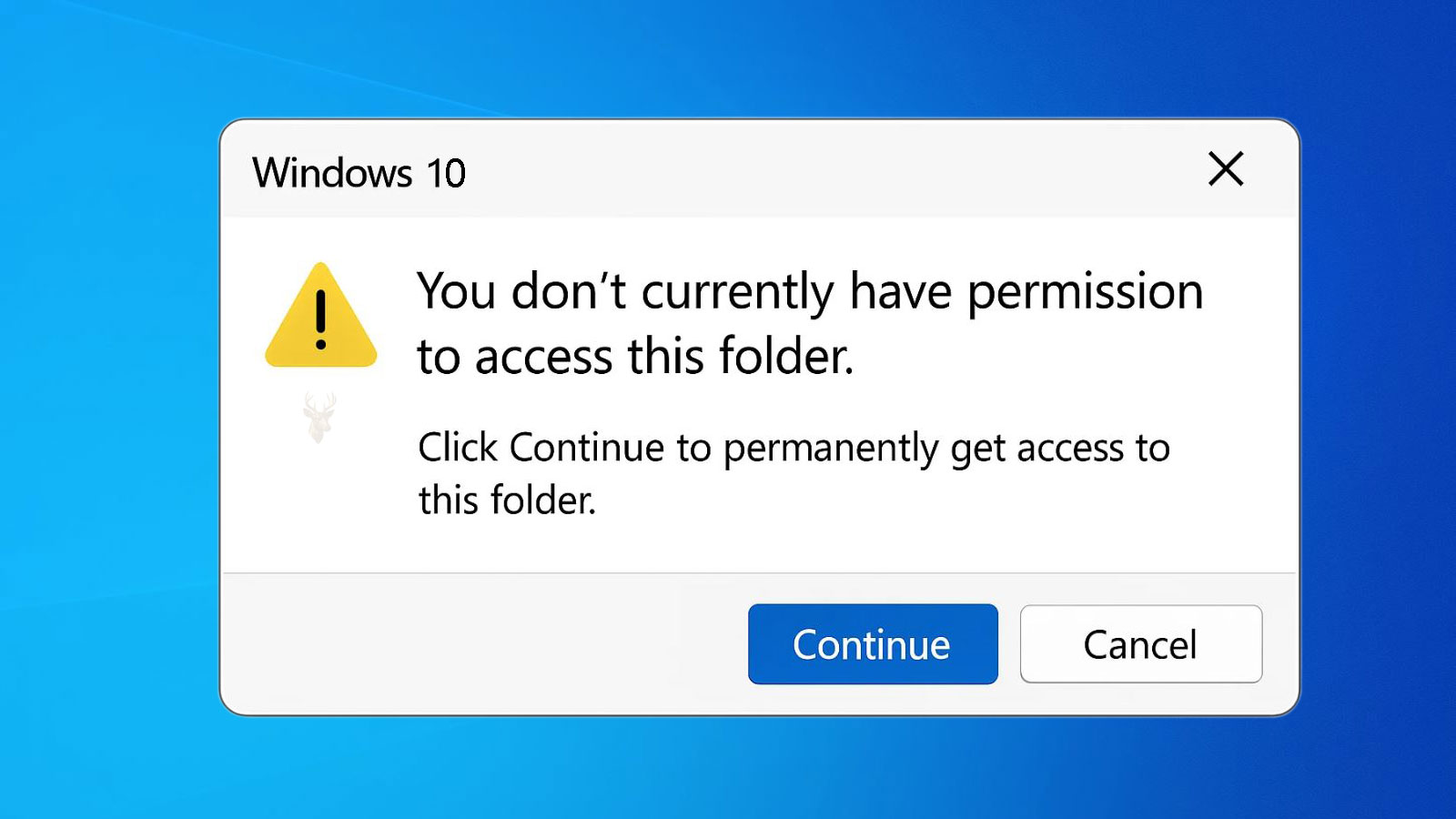
A file can appear in File Explorer, display its correct name and size, and still refuse to open, copy, rename, or delete. Windows may report that access is denied, permission is required, or the current user does not have authorization to perform the requested action.
These messages do not always indicate that the file is damaged. They often mean that Windows recognizes the item but is enforcing security information attached to the file, folder, or storage volume.
The restriction may have been created intentionally, inherited from a parent folder, carried over from another Windows installation, or left behind after a user account was removed. Identifying who owns the item and which accounts are permitted to use it is therefore more important than repeatedly attempting the same operation.
Ownership and Permission Describe Different Parts of File Security
Windows ownership identifies the account or security group that has administrative control over a file or folder. Permissions describe what particular accounts are allowed to do with that item, such as reading it, modifying it, creating new files, or deleting existing information.
The owner does not necessarily use the file every day, and an account does not need to be the owner to receive normal access. A folder may be owned by an administrator group while several users are granted permission to read and modify its contents.
This distinction explains why changing ownership alone does not always restore complete access. The new owner may still need appropriate permissions before applications can open or save information within the location.
Permissions Can Apply to Files, Folders, and Entire Storage Volumes
Windows can store security settings on an individual document, a single folder, or a much larger directory structure. A user may have full access to one file while being blocked from another file located beside it.
Folder permissions can also affect newly created content. Files placed inside a secured location may automatically receive restrictions inherited from that folder, even when the user did not configure each item separately.
When an entire secondary drive was previously used by another Windows installation, many folders may carry security information belonging to accounts that no longer exist on the current system. The drive is detected and readable at the hardware level, but access may vary from one directory to another.
Windows Identifies Accounts Through Security Records Rather Than Display Names Alone
Two accounts can display the same user name while still being treated as different identities by Windows. Each account receives a unique security identifier when it is created.
After Windows is reinstalled, a new account named “John” is not automatically the same account that owned files under the previous installation. The visible name may match, but the underlying security identifier is different.
This is why personal folders copied from an older computer or recovered from a previous system drive may display access-denied messages. Windows sees the original owner as a separate identity, even when the current user believes the account has been recreated with the same name.
Administrator Status Does Not Automatically Remove Every Restriction
An administrator account has authority to make many system changes, but it does not ignore all file permissions automatically. Windows still evaluates the security information attached to the requested item.
An administrator may be able to take ownership or approve a permission change, yet the file can remain unavailable until that action is completed. Some operations also require explicit elevation because Windows normally runs applications with limited rights even while an administrator is signed in.
This separation is intentional. It reduces the ability of ordinary programs or malicious software to alter protected information simply because the current account belongs to the administrators group.
| Security Term | What It Controls |
|---|---|
| Owner | The account or group authorized to control the security settings of the item. |
| Read permission | Whether the account can view the file or list folder contents. |
| Write permission | Whether new information can be created or existing content changed. |
| Modify permission | Whether the account can read, change, and usually delete the item. |
| Full control | Whether the account can perform normal operations and change permissions. |
Inherited Permissions Can Spread Through a Folder Structure
Windows commonly allows files and subfolders to inherit security settings from the folder above them. This reduces the need to configure every item individually and helps maintain consistent access across a large collection of information.
A restriction applied to a parent folder may therefore affect hundreds or thousands of items beneath it. Likewise, granting access at the correct parent level may restore access throughout the structure without editing every file separately.
Inheritance can also become confusing when one subfolder has been configured differently. Most folders may follow the parent settings while one directory contains explicit permissions that override or supplement what it inherited.
An Explicit Denial Can Override Otherwise Valid Access
Permissions can be granted or denied. A user may belong to one group that permits access while also belonging to another group that contains an explicit denial.
In many Windows permission evaluations, an explicit denial takes priority over an ordinary allowance. This can produce a situation in which the account appears to have the required permission through one group but remains blocked because another security entry specifically denies the action.
Adding more allow entries may not correct this conflict. The complete set of permissions must be reviewed so the source of the denial can be identified rather than covered with increasingly broad access.
Files Recovered from Another Computer May Retain Their Previous Security Settings
When a hard drive is removed from one Windows computer and connected to another, the files do not automatically become owned by the new user. Security information stored on the drive may continue referring to accounts from the original system.
This behavior is common when retrieving information from an old system drive, moving a secondary drive into a replacement computer, or examining files after Windows can no longer start. Personal folders may be visible while access to documents, pictures, or desktop files remains restricted.
Taking ownership and assigning suitable permissions can restore access in many cases, provided the files are not protected by a separate encryption system. Ownership changes should be limited to the necessary data folders rather than applied indiscriminately to every partition and system directory.
Protected Windows Locations Are Restricted for System Stability
Windows places additional protection around operating-system files, installed program directories, account data, and other locations that should not be modified casually. Even an administrator may receive a confirmation request or access-denied message when attempting to alter these areas.
These restrictions help prevent applications, users, and malicious software from replacing important system components. They also reduce accidental deletion of files required for startup, updates, recovery, and application operation.
Changing ownership across protected Windows folders simply to eliminate a warning can create serious problems. Updates may fail, built-in applications may stop working, and the original security configuration may be difficult to reconstruct.
Application Access Can Differ from Direct File Explorer Access
A file may open when selected directly in File Explorer but fail when an application tries to use it. The opposite can also occur: a program may display a document from its recent-file list while the surrounding folder remains unavailable to the user.
Applications can operate under different security contexts, use temporary folders, connect through services, or request elevated privileges. Some also require permission to create supporting files beside the original document rather than merely reading the document itself.
For example, a program may successfully open a file but fail to save changes because the account has read permission without write or modify permission. Testing opening, editing, saving, renaming, and copying separately helps identify which capability is actually being denied.
Read-Only Attributes and Security Permissions Are Not the Same Control
Windows files can carry a read-only attribute, but this setting is different from the security permissions that determine which accounts can access the item. Clearing the read-only box does not automatically grant permission to a user who is blocked by ownership or access-control rules.
Folders can make the distinction especially confusing because the read-only indicator shown in their properties does not always behave like the same attribute on an individual document. It may relate to folder customization rather than preventing every file change.
When Windows reports that permission is required or access is denied, reviewing the security settings is generally more relevant than repeatedly changing the read-only attribute.
The Exact Failed Action Helps Identify the Missing Permission
| Observed Behavior | Security Area Worth Examining |
|---|---|
| The folder opens, but a file cannot be viewed | Read permission on the individual file. |
| A document opens but cannot be saved | Write or modify permission in the file or destination folder. |
| A file can be copied but not deleted | Delete or modify permission on the item and parent folder. |
| Every personal folder from an old installation is blocked | Ownership and account identifiers from the previous system. |
| Only protected Windows folders produce the error | System ownership, elevation, and operating-system safeguards. |
Access-denied messages become easier to interpret when the failed operation is described precisely. Being able to see a file, open it, change it, and remove it are separate capabilities that Windows may evaluate differently.
Sharing Permissions Are Separate from Local File Permissions
A folder shared across a network may be affected by two different security systems at the same time. Windows evaluates the permissions assigned to the shared folder as well as the underlying NTFS permissions stored on the drive itself.
A user may receive permission to connect to the shared folder but still be unable to open or modify certain files because the underlying NTFS permissions remain more restrictive. Likewise, generous NTFS permissions alone cannot provide access if the network sharing rules deny the connection.
Understanding that both security layers participate in the final decision helps explain why two users connecting to the same shared folder may experience different levels of access.
Compressed Archives Usually Do Not Preserve Everyday File Access Problems
When files are copied into ZIP archives or similar compressed containers, they are packaged as ordinary data rather than remaining attached to the original folder’s Windows security configuration. After extraction, the new files typically inherit permissions from the destination folder instead of reproducing the previous access restrictions.
This behavior explains why files received from another person inside a ZIP archive often open normally even when the originals on the sender’s computer were protected by local Windows permissions.
Encryption is different. If the archive itself is encrypted or the files were protected using a separate encryption method, access may still require the correct password or recovery information regardless of where the archive is extracted.
Cloud Synchronization Can Introduce Additional Access Restrictions
Cloud storage services often synchronize local folders while also maintaining their own account permissions. Windows may permit access to a folder, yet the cloud application may refuse synchronization because the signed-in account lacks authorization to modify the online copy.
Conversely, a cloud service may recognize the account correctly while Windows blocks local access because of NTFS ownership or permission settings. Both security systems operate independently, and resolving one does not automatically correct the other.
When files are synchronized across multiple computers, reviewing both the Windows permissions and the cloud account associated with the folder helps determine which layer is responsible for the restriction.
Permission Changes Should Be Limited to the Necessary Scope
Broad permission changes can solve one problem while creating unnecessary security exposure elsewhere. Granting full control to every user or removing inherited protections across an entire drive may restore access, but it also weakens the safeguards intended to protect sensitive information.
Whenever possible, permission changes should be applied only to the affected files or folders. Expanding the scope should occur only after confirming that the restriction truly extends throughout the directory structure.
A targeted adjustment is generally easier to review, easier to reverse, and less likely to affect unrelated applications or users sharing the same computer.
Copying a File Can Produce Different Security Than Moving It
The method used to relocate information can influence the resulting permissions. When a file is copied into another folder, Windows commonly allows the new copy to inherit the destination folder’s permissions. The original file remains unchanged.
Moving a file within the same NTFS volume often preserves the original security settings because the file itself remains on the same storage structure while only its location changes. Moving information to another volume may instead create a new copy that inherits permissions from the destination.
This distinction explains why the same document may become accessible after being copied into a different folder while remaining restricted in its original location.
Encrypted Files Require More Than Ownership to Become Accessible
Windows supports encryption technologies that protect files beyond ordinary ownership and permission settings. An encrypted document may remain unreadable even after ownership has been transferred to another account.
Encryption relies on certificates, recovery keys, or other cryptographic information rather than only on NTFS permissions. Without the required credentials, the data may remain inaccessible regardless of the account’s administrative authority.
For this reason, access-denied messages involving encrypted files should not automatically be interpreted as simple permission problems. Confirming whether encryption is involved helps prevent unnecessary ownership changes that cannot resolve the underlying restriction.
Applications May Create Files with Different Security Than Their Parent Folder
Many programs inherit the permissions of the folder in which they save information, but some applications intentionally create files with more restrictive or more specific access settings. Databases, financial records, development projects, and collaborative software may assign permissions that differ from nearby documents.
This behavior can result in two files stored in the same folder responding differently when opened by another user. One document may be fully accessible while another reports that permission is denied.
Examining the individual file rather than assuming every item in the folder shares identical permissions helps identify these exceptions.
Temporary Administrative Changes Should Be Reviewed Afterwards
Some maintenance procedures require temporary elevation or ownership changes to complete repairs, install software, or recover information. After the work is finished, those temporary changes should be reviewed to confirm that broader access was not left in place unnecessarily.
Leaving folders permanently writable by every account increases the possibility of accidental modification or unwanted software changes. Returning security settings to an appropriate level helps preserve the protection originally intended for the files.
Security adjustments should solve the specific access problem without reducing protection for unrelated users or applications.
Error Messages Often Reveal Which Security Layer Is Involved
The wording displayed by Windows provides valuable clues about the type of restriction being encountered. Messages referring to administrator approval, insufficient permissions, encryption, network credentials, or ownership each point toward different security mechanisms.
Although several warnings may appear similar, they do not necessarily recommend the same solution. Reading the complete message instead of focusing only on the words “Access Denied” can prevent unnecessary troubleshooting steps.
| Observed Situation | Area to Evaluate |
|---|---|
| Files from an old Windows installation cannot be opened. | Ownership and previous account identifiers. |
| A shared folder opens but files cannot be modified. | NTFS permissions in addition to sharing permissions. |
| An encrypted document remains inaccessible. | Recovery keys or encryption credentials. |
| Only one application reports permission errors. | Application storage location and file-specific permissions. |
| Every protected Windows folder rejects changes. | Operating-system security and administrative elevation. |
Separating ownership, permissions, encryption, and application behavior allows access problems to be investigated systematically rather than treating every denial as the same type of failure.
Taking Ownership Should Follow Identification of the Correct Folder
Ownership changes can restore administrative control over files from an older Windows installation, a replaced computer, or a secondary drive. The operation should begin only after the affected folder has been identified accurately.
Applying ownership changes to an entire system drive can alter protected directories that were never part of the original access problem. Windows components, application folders, recovery data, and user profiles may all contain security settings designed for specific accounts or services.
Limiting the change to the required personal or business data protects unrelated folders and reduces the amount of permission information Windows must process.
Replacing Permissions Can Affect Every Item Beneath a Folder
Windows can apply new permission entries to a folder and propagate them through its subfolders and files. This is useful when a large collection of recovered documents shares the same outdated ownership, but the effect can be broader than expected.
Any custom restrictions stored farther down the folder structure may be replaced or supplemented. A subfolder that was intentionally limited to one user could become accessible to additional accounts after inheritance is reapplied.
Before permissions are propagated through a large directory, the existing arrangement should be reviewed and the intended users identified. Broad replacement is appropriate only when the entire structure is supposed to follow the same access rules.
Permission Changes Can Take Time on Large Data Collections
A folder containing many years of documents, photographs, project files, or application data may include hundreds of thousands of individual items. Windows must update the security information on each affected file when ownership or permissions are applied recursively.
During this process, the computer may appear slow and storage activity may remain high. Interrupting the operation can leave part of the folder using the new permissions while another part retains the previous configuration.
Allowing sufficient time and confirming that the storage device remains connected helps avoid an incomplete permission change that later produces inconsistent access from one subfolder to another.
Access Denied During Deletion May Involve an Active Process
A file can appear to have correct permissions and still refuse deletion because an application or Windows service is currently using it. In that case, the denial is related to an open handle rather than ownership alone.
Documents may remain locked by editing software, preview handlers, synchronization utilities, antivirus scanning, backup programs, or background services. Closing the visible application may not release the file if another process continues working with it.
Determining whether the item is in use prevents unnecessary permission changes. Restarting the application or Windows may release a temporary lock, while repeated locking may require investigation of the program responsible.
A Damaged File System Can Produce Permission-Like Errors
Security information is stored as part of the file system. If the storage structure becomes damaged, Windows may be unable to read ownership or permission records correctly.
The resulting messages can resemble ordinary access restrictions even though no account setting was intentionally changed. Files may become inaccessible at random, folder names may appear damaged, or permission errors may be accompanied by read failures and disappearing directories.
When access problems affect unrelated folders or appear together with storage errors, the condition of the drive and file system should be evaluated before extensive permission changes are attempted.
Permission Repair Does Not Recover Damaged File Contents
Restoring ownership can allow Windows to attempt opening a file, but it cannot repair information that is already corrupted. A document may become accessible after the security problem is corrected and still fail to open because its internal contents are damaged.
This distinction is important during data recovery. Successful permission repair confirms that the account can reach the file; it does not confirm that the file itself remains complete or usable.
Recovered files should be opened and verified after access is restored. Important information may require separate recovery or application-specific repair if the contents remain unreadable.
Business Data May Require Group-Based Permissions
On computers used by several employees, assigning access individually to every user can become difficult to maintain. Windows groups allow administrators to grant permissions according to job function, department, or responsibility.
A shared accounting folder, for example, may be accessible to members of one approved group while other users receive read-only access or no access at all. When an employee joins or leaves the department, group membership can be adjusted without rewriting every file permission.
Access-denied problems in business environments may therefore result from missing or outdated group membership rather than incorrect permissions on the files themselves.
Permissions Should Be Tested with the Intended User Account
A folder may appear accessible while an administrator performs the repair but remain blocked when the regular user signs in. Testing only from the account that changed the permissions can create a false impression that the problem has been resolved.
The affected user should be able to complete the same task that originally failed, whether that involves opening a document, saving changes, creating a file, renaming a folder, or deleting outdated information.
Testing with the intended account confirms that the final permission entries apply to the correct identity rather than only to the administrator who performed the adjustment.
Effective Access Depends on All Applicable Security Entries
Windows does not evaluate a permission entry in isolation. It considers the user’s direct permissions, group memberships, inherited settings, explicit allowances, and explicit denials when determining the final level of access.
A folder may display several apparently generous permission entries while the user remains blocked by one conflicting rule. Removing random entries or repeatedly granting full control can make the configuration harder to understand.
Reviewing the effective access for the specific account provides a clearer explanation of what Windows will ultimately permit.
| Troubleshooting Finding | Appropriate Direction |
|---|---|
| The file belongs to an account from a previous Windows installation | Take ownership of the required data and grant access to the current account. |
| The user can open but cannot save the file | Review write and modify permissions on the file and destination folder. |
| The permissions appear correct, but deletion still fails | Check whether an application or service is using the file. |
| Only encrypted files remain inaccessible | Locate the required certificate, password, or recovery key. |
| Permission errors appear with read failures and disappearing folders | Examine file-system integrity and storage health. |
A Structured Permission Review Prevents Unnecessary Changes
Access problems are easier to resolve when the investigation follows the exact operation that failed. The file may need only read permission, the application may require modify access to the surrounding folder, or the entire directory may still belong to an account from another installation.
- Identify the exact file or folder producing the error.
- Record whether opening, editing, saving, copying, or deleting fails.
- Confirm the current owner and inherited permissions.
- Review group membership and explicit denial entries.
- Check for encryption before assuming ownership will restore access.
- Inspect storage health when permission behavior is inconsistent.
- Test the completed repair from the intended user account.
This approach limits changes to the security layer actually responsible for the failure.
Restored Access Should Preserve Appropriate Security
The purpose of permission repair is not to make every file available to every account. It is to restore the level of access required by the correct users while preserving protection against unwanted changes.
After the repair, authorized users should be able to perform their normal work, unauthorized accounts should remain restricted, and protected Windows folders should retain their original safeguards.
Broad settings such as granting full control to all users may appear convenient, but they can expose personal records, business information, application data, and system files to accidental or unauthorized modification.
Access Denied Messages Require More Than Administrator Approval
Windows access errors can originate from ownership, inherited permissions, group membership, explicit denials, network sharing rules, encryption, active applications, or damaged storage structures. Similar messages can therefore represent very different conditions.
Administrator authority may allow a technician or account owner to change the security configuration, but it does not replace missing encryption credentials, repair corrupted files, or release a document held open by another process.
The safest repair begins by identifying the exact failed action and the security layer involved. Ownership should be changed only where necessary, permissions should match the intended users, and protected system locations should not be modified simply to remove a warning.
Once access is restored, files should be opened, edited, saved, copied, and verified according to their normal use. A complete repair provides reliable access without weakening the protections that keep personal data, business records, applications, and Windows components secure.











