
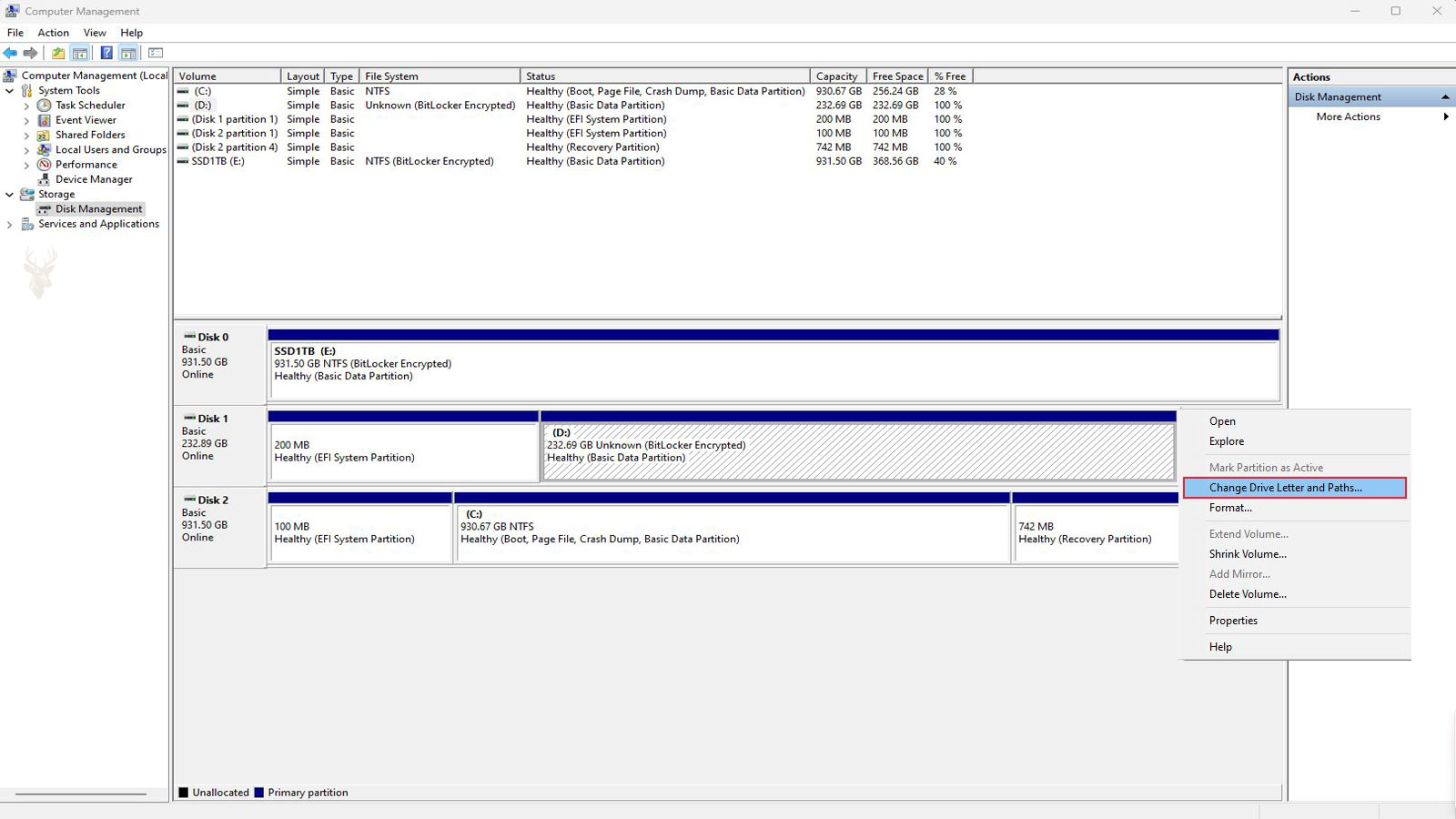
A Connected Drive Can Exist Without Appearing in Its Usual Location
Windows normally identifies accessible storage locations with letters such as C:, D:, or E:. These labels allow File Explorer, applications, shortcuts, and users to refer to a particular drive without needing to know how the device is physically connected.
When a drive letter changes or disappears, the storage device may seem completely missing even though Windows can still detect it. An external hard drive may appear in system management tools but not in File Explorer, a memory card may connect without opening, or a secondary internal drive may no longer appear under the letter previously used to access it.
This situation differs from a storage device that receives no power or is not detected at all. Before assuming the drive has failed, it is important to determine whether Windows recognizes the hardware, whether the volume remains present, and whether an accessible letter or path has been assigned.
Drive Letters Are Windows Assignments Rather Than Permanent Hardware Labels
A letter such as E: is not physically stored on the outside of a hard drive, USB device, or memory card. Windows assigns the letter when it recognizes a usable storage volume and determines where that volume should appear within the operating system.
The same external drive may receive one letter on one computer and a different letter on another. Its assignment can also change on the same computer if other storage devices, card readers, network locations, or recovery partitions occupy letters that were previously available.
Because the letter is part of the Windows configuration, a changed assignment does not automatically indicate that files have been moved or erased. The information may remain on the same device while Windows presents it through a different location.
File Explorer Shows Only Storage Windows Considers Accessible
File Explorer does not display every physical device connected to the computer. It primarily shows volumes that Windows recognizes, can mount, and has assigned to an accessible drive letter or folder path.
A physical drive may contain more than one volume. One volume may appear normally while another remains hidden because it has no letter, uses an unsupported file system, is reserved for recovery, or contains structural damage that prevents Windows from mounting it.
This explains why checking only File Explorer can provide an incomplete picture. A missing entry there confirms that the location is not currently accessible in the usual way, but it does not establish whether the hardware itself is absent.
Disk Management Can Reveal Volumes That File Explorer Does Not Show
Windows Disk Management provides a broader view of connected storage. It can display physical disks, partitions, volume sizes, file systems, assigned letters, and areas that have not been prepared for ordinary use.
If a missing drive appears there with the expected capacity and file system but without a letter, Windows may recognize the volume even though File Explorer has no location through which to display it. Assigning an appropriate unused letter can sometimes restore access immediately.
Disk Management must be used carefully. Options involving initialization, formatting, deletion, or creation of new volumes can alter the storage structure and place existing files at risk. A drive containing important information should not be modified simply because Windows presents an unfamiliar prompt.
A Letter Conflict Can Prevent the Expected Drive from Appearing
Two active storage locations cannot normally use the same drive letter at the same time. If Windows attempts to reconnect a device using a letter already assigned elsewhere, the expected location may not appear correctly.
This is common when external drives are assigned letters that are also used by mapped network drives, removable card readers, optical drives, or other devices that are not always connected. The conflict may become visible only after a particular combination of devices is present.
Changing one of the assignments to a clearly unused letter can resolve the conflict. The chosen letter should be selected thoughtfully, especially when applications, backups, or shortcuts already depend on the existing path.
| Observed Condition | What It May Indicate |
|---|---|
| The drive appears in Disk Management without a letter | The volume may be recognized but not mounted in File Explorer. |
| The drive appears under an unexpected letter | Windows may have reassigned it after another device used the previous letter. |
| A network drive and external drive expect the same letter | A letter conflict may be preventing one location from appearing normally. |
| The physical disk appears, but its space is listed as unallocated | The partition structure may be missing or damaged and should not be recreated casually. |
Mapped Network Drives Can Occupy Letters Even When the Server Is Unavailable
A mapped network drive uses a familiar Windows letter to represent a folder located on another computer, server, or network storage device. The assigned letter may remain reserved even when the remote location is disconnected or cannot currently be reached.
An external drive connected later may therefore receive a different letter than expected or fail to appear under the location used by a shortcut or application. The unavailable network drive can still influence local storage assignments because Windows remembers the mapping.
Reviewing existing network mappings helps explain why an apparently unused letter is not available. Removing an obsolete mapping or assigning the local drive a different permanent letter can prevent repeated conflicts.
Card Readers May Reserve Several Letters Without Containing Media
Some desktop computers, printers, and external accessories contain multi-slot card readers. Windows may assign a separate letter to each slot even when no memory card is inserted.
These empty locations can occupy several letters and cause newly connected storage devices to appear farther down the alphabet than expected. A user accustomed to seeing an external drive as E: may suddenly find it listed as H: or another letter after a card reader is installed.
The additional letters do not necessarily represent extra storage or indicate a problem. They may simply be placeholders for removable media slots. Identifying them prevents an empty reader from being mistaken for a failed drive or an unfamiliar storage device.
Changing a Drive Letter Can Break Shortcuts and Program References
Applications and shortcuts often record the exact path to a file or folder. If a program expects information at D:\Records but the same drive later appears as F:, Windows may report that the file cannot be found even though it remains stored on the device.
Backup software, media libraries, accounting programs, games, and editing applications may all depend on fixed drive paths. Changing a letter can therefore solve one visibility problem while creating access problems elsewhere.
Before changing an established assignment, it is useful to identify whether the drive supports installed programs, scheduled backups, shared folders, or other automated tasks. Restoring the former letter is often preferable when many existing references depend on it.
A Missing Letter Is Different from an Unrecognized File System
A volume can have a drive letter and still remain inaccessible if Windows cannot interpret its file system. The device may appear in File Explorer but produce a message requesting formatting, reporting an unavailable location, or stating that the file system is not recognized.
Assigning a different letter does not repair file system damage. It merely changes the path through which Windows attempts to access the volume. If the structure containing folders and file records is corrupted, the underlying problem remains.
A formatting request should be treated cautiously when the drive contains needed files. Formatting creates a new file system and can complicate recovery of the information that was already present.
Recovery and System Partitions Are Often Hidden Intentionally
Many computers contain small partitions used for Windows recovery, startup files, manufacturer diagnostics, or other system functions. These areas normally do not receive drive letters because they are not intended for everyday file storage.
After a repair, upgrade, cloning procedure, or partition change, one of these hidden areas may accidentally receive a letter and begin appearing in File Explorer. The newly visible location may contain unfamiliar folders and have very little free space.
Removing an unintended letter from a confirmed recovery or system partition can hide it again without deleting the partition. The identity of the volume must be verified first, since removing the letter from an ordinary data drive would make that location disappear from File Explorer.
A Newly Installed Internal Drive May Not Yet Have an Accessible Volume
A new hard drive or solid-state drive does not always appear in File Explorer immediately after installation. Windows may detect the physical device while showing its capacity as unallocated because no usable partition and file system have been created.
Preparing a truly new and empty drive generally involves initializing it when necessary, creating a volume, selecting a file system, and assigning a letter. These steps make the storage available for ordinary use.
The same procedure should not be applied automatically to a previously used drive that unexpectedly appears unallocated. In that situation, missing partition information or storage damage may be present, and creating a new volume could overwrite details needed to recover existing files.
USB Devices Can Receive Different Letters on Different Computers
Portable storage devices are frequently connected to multiple computers, and Windows assigns drive letters independently on each system. An external drive recognized as E: on one computer may appear as G: or H: on another without indicating any problem with the device itself.
This difference becomes important when portable applications, backup jobs, or shortcuts expect a specific drive letter. The storage remains accessible, but references created on another computer may no longer point to the correct location.
Recognizing that drive letters are assigned locally rather than permanently stored on the device helps explain why identical hardware may appear differently across multiple Windows installations.
Docking Stations and USB Hubs Can Influence Storage Detection
External drives connected through docking stations, USB hubs, monitors, or expansion adapters depend on every device in that connection path functioning correctly. A problem affecting the intermediary hardware can prevent Windows from assigning a drive letter even though the storage device itself remains operational.
Testing the same storage device through a direct USB connection can help determine whether the issue involves the drive or an accessory placed between the computer and the storage hardware.
Changes in connection method should be viewed as diagnostic comparisons rather than proof that the storage device has failed.
Drive Letters Can Change After Windows Is Reinstalled
A fresh Windows installation rebuilds many storage assignments from the beginning. Internal data drives often receive the same letters as before, but external drives, removable devices, and network mappings may be assigned differently after the operating system has been reinstalled.
Programs restored from backups or manually reconfigured afterward may continue expecting their previous storage paths. As a result, an application may report missing files even though the information remains present under a different drive letter.
Reviewing drive assignments after reinstalling Windows helps restore application access without assuming that files have disappeared.
Virtual Drives Can Occupy Letters Alongside Physical Storage
Some software creates virtual drives that appear in File Explorer even though no physical storage device is connected. Disc image software, virtual machines, encryption tools, and certain backup applications may reserve letters for these temporary or permanent virtual locations.
Because Windows treats many virtual drives similarly to physical volumes, they can influence letter assignments for removable storage. A newly connected USB drive may therefore receive a different letter simply because a virtual device already occupies the preferred location.
Identifying virtual drives helps explain unexpected letter changes without suggesting that additional physical storage has been installed.
Drive Paths Can Use Folders Instead of Letters
Although most users recognize storage through drive letters, Windows also supports mounting a volume within an existing folder on another drive. In this arrangement, the storage becomes accessible through a directory rather than receiving its own letter.
This approach is commonly used on servers or specialized workstations where additional letters are unnecessary or where administrators prefer organizing storage beneath a single directory structure.
A volume mounted through a folder may appear missing to someone expecting a traditional drive letter even though Windows has made the storage fully accessible by another path.
Storage Capacity Does Not Determine the Assigned Letter
Windows does not assign drive letters according to storage size. A small USB flash drive may receive a lower letter than a multi-terabyte external drive simply because it was connected first or because other assignments were already in use.
Likewise, replacing a small drive with a larger one does not guarantee that Windows will preserve the previous assignment. The operating system evaluates available letters rather than storage capacity when determining where a newly recognized volume should appear.
Understanding this behavior prevents unnecessary concern when a larger replacement drive appears under an unfamiliar letter.
Applications May Continue Searching for an Old Storage Path
Some programs store the exact location of libraries, project folders, backup destinations, or databases. If the referenced drive letter changes, the application may report missing files even though the data remains available elsewhere.
Media editing software, accounting programs, virtual machine managers, and backup utilities commonly rely on stored paths. Restoring the original drive letter or updating the application’s storage location often resolves these references without requiring files to be copied again.
Reviewing application settings before moving or renaming storage locations reduces the likelihood of broken references later.
The Same Physical Disk May Contain Several Different Volumes
A single hard drive or solid-state drive can be divided into multiple partitions, each functioning as a separate volume with its own file system and drive letter. One physical disk may therefore appear in File Explorer as several independent storage locations.
If one volume loses its drive letter while another remains accessible, it may seem as though only part of the storage has disappeared. The hardware itself may still be functioning normally while one partition requires attention.
This distinction is important because troubleshooting a missing volume differs from diagnosing a physical disk that Windows cannot detect at all.
Unexpected Formatting Prompts Require Careful Evaluation
When Windows cannot interpret a storage volume correctly, it may offer to format the device before it can be used. This message often appears because the file system is damaged, unsupported, or incomplete not because the drive is necessarily empty.
Formatting prepares a volume for future use by creating a new file system. If important files already exist on the drive, accepting the prompt without understanding why it appeared can complicate later recovery efforts.
Whenever valuable information is involved, determining why Windows requested formatting is generally more appropriate than immediately approving the operation.
The Pattern of the Problem Often Reveals Its Scope
| Observed Behavior | Likely Area to Examine |
|---|---|
| The drive appears in Disk Management but not File Explorer. | Drive letter assignment or volume mounting. |
| The drive appears under a different letter than expected. | Letter reassignment or conflict. |
| Windows detects the hardware but requests formatting. | File system or volume structure. |
| Only shortcuts fail while the drive remains accessible. | Applications still reference the previous storage path. |
| No storage device is detected anywhere. | Connection, power, controller, or hardware detection. |
Looking at where the drive disappears whether only from File Explorer, from applications, or from Windows entirely provides valuable direction before making changes to the storage configuration.
A Drive Letter Should Not Be Assigned to Every Visible Partition
Disk Management may display several partitions that do not appear in File Explorer. Some are intentionally hidden because they contain startup information, recovery tools, diagnostic utilities, or other system data that Windows uses behind the scenes.
Assigning letters to these partitions can make them visible without providing any practical benefit. Windows may begin displaying low-storage warnings for a small recovery area, and users may accidentally alter files that were not intended for ordinary access.
A missing letter should therefore be corrected only after the volume has been identified. Its size, location, file system, label, and relationship to nearby partitions can help determine whether it is an ordinary data volume or a protected part of the operating system.
Removing a Letter Does Not Erase the Volume
Removing a drive letter generally prevents the volume from appearing through that particular File Explorer path. It does not normally delete the partition or erase the files stored on it.
This distinction is useful when a recovery partition has become visible accidentally or when an administrator needs to prevent casual access to a particular storage location. The volume continues to exist even though ordinary applications may no longer reach it by letter.
Removing a letter from an active data drive can still disrupt backups, shortcuts, shared folders, and installed applications. The operation may be nondestructive to the files themselves while remaining highly disruptive to anything that depends on the previous path.
Encrypted Volumes May Remain Inaccessible After a Letter Is Assigned
Storage protected by encryption may appear in Windows with a normal drive letter while still requiring a password, recovery key, certificate, or other form of authorization before its contents can be opened.
Assigning or restoring a letter does not remove that protection. It only gives Windows a location through which the encrypted volume can be addressed. The drive may remain locked until the required credentials are supplied.
If an encrypted drive suddenly requests recovery information that was not previously needed, the cause should be examined before repeated access attempts are made. Hardware changes, account changes, security settings, or damaged encryption metadata may be involved.
Storage Pools and Combined Volumes May Not Follow Ordinary Letter Behavior
Some Windows systems combine multiple physical drives into a storage pool or another managed arrangement. The individual disks may not appear separately in File Explorer because Windows presents their usable capacity through one or more combined virtual volumes.
A missing letter in this environment can involve the virtual volume, the storage pool configuration, or one of the physical disks supporting it. Assigning letters directly to individual members without understanding the arrangement can interfere with the managed storage structure.
Computers using pooled, mirrored, striped, or otherwise combined storage should be evaluated as complete systems rather than as unrelated drives. The visible letter may represent capacity provided by several devices working together.
Cloning a Drive Can Create Duplicate Identification Information
Drive cloning copies the structure and contents of one storage device to another. If both the original and cloned drives are connected at the same time, Windows may encounter duplicated disk or volume identification information.
To avoid confusion, Windows may leave one disk offline, withhold a drive letter, or present the volumes differently than expected. The files may remain intact even though the newly cloned device does not immediately appear in File Explorer.
Bringing a cloned disk online or changing its identification should be done with awareness of which device contains the current working copy. Selecting the wrong disk can create startup problems or cause applications to use an unintended version of the data.
A Drive That Repeatedly Loses Its Letter May Have a Broader Problem
A one-time reassignment can occur after connecting new devices or reinstalling Windows. A drive that repeatedly disappears, changes letters, or disconnects during use may indicate unstable communication rather than a simple assignment issue.
Loose cables, failing USB ports, inadequate external power supplies, damaged enclosures, controller problems, and deteriorating storage hardware can all interrupt detection. Windows may assign the drive again each time the connection returns, making the letter change appear to be the primary fault.
When disappearance is accompanied by connection sounds, delayed access, transfer errors, or unexpected disconnections, the physical connection and health of the device deserve attention before the letter is changed repeatedly.
Important Data Should Be Protected Before Structural Changes
Changing an ordinary drive letter is usually less intrusive than formatting or repartitioning, but storage troubleshooting can quickly expose options capable of altering the device. Initialization, volume deletion, conversion, and formatting should not be used experimentally on a drive containing needed files.
If the volume remains accessible by any method, important information should be copied to separate storage before broader repairs are attempted. When the drive is unstable, minimizing unnecessary scans and write operations may also help preserve the best chance of recovering its contents.
- Confirm the correct physical disk by capacity and connection.
- Record the current partition and letter arrangement.
- Back up accessible files before changing storage structure.
- Avoid formatting a drive merely because Windows suggests it.
- Do not create a new volume over space that previously contained data.
- Test connections and hardware when the drive repeatedly disappears.
Permanent Letter Assignments Are Most Useful for Dedicated Data Drives
A secondary internal drive or external device used regularly for backups, projects, media libraries, or business records benefits from a consistent path. Assigning a letter farther along in the alphabet can reduce the chance that temporary USB devices or card readers will claim it first.
Consistency allows scheduled tasks and applications to find the same location after restarts and reconnections. It also makes written instructions, backup documentation, and shared workflows easier to maintain.
Portable drives intended for use across many different computers may still receive different letters elsewhere. A stable assignment on one Windows installation does not control how another computer identifies the device.
The Correct Repair Depends on What Windows Can Still See
| Windows Detection Level | Appropriate Direction |
|---|---|
| The volume appears normally but uses the wrong letter | Review conflicts and restore the preferred assignment if appropriate. |
| The volume appears without a letter | Identify it carefully and assign an unused letter when the structure is healthy. |
| The disk appears, but partitions are missing or unallocated | Protect the data and examine the partition structure before creating anything new. |
| The device connects and disconnects repeatedly | Inspect cables, ports, power, enclosures, and hardware condition. |
| The device is absent from all Windows storage tools | Investigate physical detection, controller access, power, and device failure. |
This sequence prevents a simple letter assignment from being confused with file system damage, partition loss, or complete hardware failure.
Verification Should Continue After the Drive Reappears
Restoring a missing letter may return the drive to File Explorer immediately, but visibility alone does not confirm that the storage is fully reliable. Folders should open normally, files should be readable, and transfers should complete without disconnections or repeated error messages.
Applications that depend on the drive should also be tested. Backup jobs, shortcuts, libraries, databases, and shared folders may still reference an older path even though the volume itself is now accessible.
If the drive disappears again after a restart or reconnection, the assignment may not be the only issue. Repeated testing helps determine whether the repair is stable or whether a connection, file system, or hardware condition remains unresolved.
Missing Storage Locations Require Identification Before Modification
A missing drive letter can make an intact storage device appear inaccessible, but not every absent drive has the same cause. Windows may have assigned a different letter, reserved the expected one for another location, withheld a letter from a valid volume, or hidden a system partition intentionally.
Other cases involve damaged file systems, missing partitions, encryption, unstable connections, or hardware that Windows cannot detect reliably. Assigning a letter can resolve only the situations in which a healthy volume already exists and simply lacks an accessible path.
The safest approach begins by identifying the physical disk and its volumes, comparing File Explorer with Disk Management, and determining whether important files are present. Only then should drive assignments be changed or broader recovery work considered.
Careful identification protects both the storage structure and the applications that depend on it. A drive that returns under the correct letter should remain accessible after restarts, reconnect normally, and continue reading and writing data without errors before the problem is considered resolved.











