
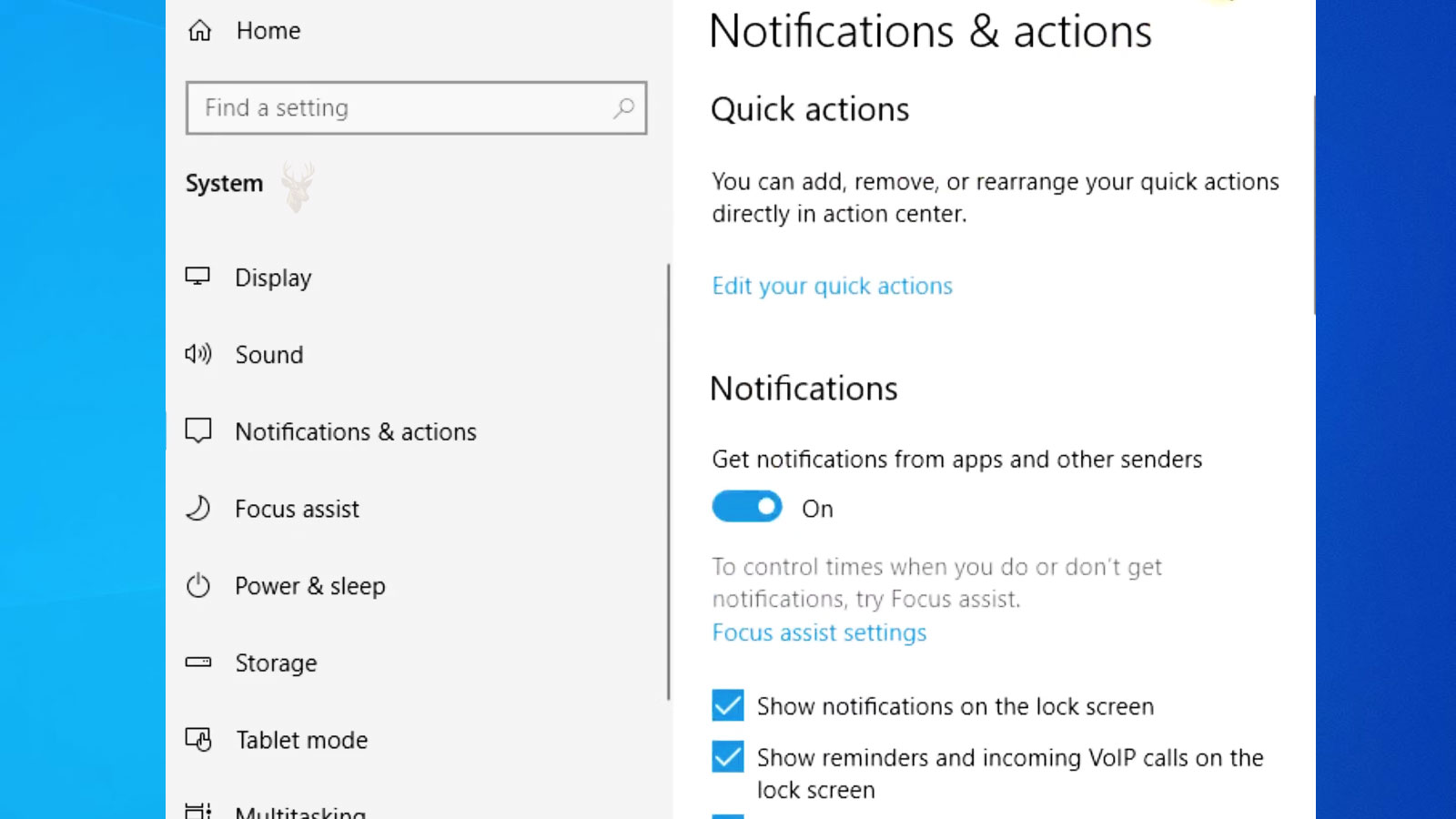
Alerts Can Fail Even While the Programs Producing Them Continue to Work
Windows notifications are intended to provide brief information without requiring users to keep every application open on the screen. An email program may announce a new message, security software may report a completed scan, or a calendar application may display an upcoming appointment while other work continues.
Problems begin when those alerts no longer behave predictably. A notification may appear for only an instant, arrive long after the related event, return after being dismissed, or remain visible even though the application has already been checked. In other cases, the program continues receiving information normally but produces no alert at all.
Because notification delivery depends on Windows settings, application permissions, background activity, account synchronization, and stored alert data, the visible symptom does not always identify the source. Determining whether one application, one user account, or the entire notification system is affected provides a more reliable starting point.
A Notification Is Separate from the Event It Represents
The alert displayed by Windows is not the email, appointment, security warning, or download itself. It is a temporary message generated after an application or system component detects an event that may deserve the user’s attention.
This distinction explains why an application can work correctly even when its alerts fail. New email may still arrive in the inbox, a file may finish downloading, or a backup may complete successfully without Windows displaying the expected message.
The reverse can also occur. An old alert may remain stored after the related event has already been resolved. Opening the notification does not necessarily mean the underlying application is malfunctioning, and repairing the application does not automatically remove every alert retained by Windows.
Missing Alerts May Be Limited to a Single Application
Windows allows notification behavior to be controlled separately for individual applications. One program may be permitted to display banners and play sounds while another is allowed to place alerts only in the notification history.
If calendar reminders continue appearing but email alerts have stopped, the Windows notification system is still capable of displaying messages. The problem may be confined to the email application’s permissions, internal settings, account connection, or background activity.
Testing more than one notification source prevents a single-program problem from being mistaken for a system-wide failure. It also reduces the risk of changing settings that were already working correctly for every other application.
Banners and Notification History Do Not Behave the Same Way
A notification banner is the temporary message that appears on the screen when an event occurs. Notification history retains supported alerts so they can be reviewed after the banner has disappeared.
An application may be configured to place alerts in the history without showing a visible banner. This can make notifications appear to be missing even though Windows is still receiving and storing them. A user who does not open the notification panel may never see that the message arrived.
Other applications may display a banner but remove the alert from history as soon as it is selected or the related program is opened. Understanding which part is failing helps distinguish a display preference from a delivery problem.
| Observed Behavior | Possible Explanation |
|---|---|
| No banner appears, but the alert is in notification history | Banner display may be disabled for that application. |
| A banner appears, but no alert remains afterward | The application may clear notifications automatically. |
| No alert appears anywhere | Notifications may be disabled, delayed, or never generated. |
| The same alert returns after dismissal | The application may be recreating it because the underlying condition remains. |
Quiet Modes Can Suppress Alerts Without Turning Them Off Permanently
Windows includes features designed to reduce interruptions during presentations, games, full-screen activity, or selected hours. Depending on the Windows version, this may be identified as Quiet Hours, Focus Assist, or a similar notification control.
When the feature is active, alerts may be delayed, sent silently to notification history, or restricted to selected priority applications. A user may therefore believe notifications have stopped working when Windows is intentionally holding them back.
Automatic rules can make the behavior more confusing. Notifications may work normally during the day but disappear whenever a full-screen application opens or a scheduled quiet period begins. Reviewing both the main setting and any automatic conditions is necessary before assuming the notification system is damaged.
Application Permissions Can Change After Installation or Updates
Applications may request permission to display notifications when they are installed or first opened. If that permission is declined, disabled later, or changed during an application update, the program may continue operating without producing visible alerts.
Some applications also maintain notification controls inside their own settings. Windows may allow alerts while the program itself is configured not to generate them. Both levels must permit the activity before the expected banner or sound can appear.
Reinstalling an application can reset certain permissions, but it may also remove account settings or locally stored information. Checking the existing Windows and application controls is usually more appropriate than immediately reinstalling software.
Background Restrictions Can Delay Time-Sensitive Messages
Many applications must continue performing limited background activity to check for new information while their main windows are closed. Email, messaging, calendar, weather, and synchronization programs commonly depend on this ability.
If background activity is restricted to conserve power, reduce data usage, or improve performance, an application may not discover new information until it is opened manually. The notification then arrives late or appears only after the user has already seen the event inside the program.
This is especially noticeable on laptops operating in a battery-saving mode. Windows may reduce nonessential background work to extend battery life, causing alerts to arrive differently when the computer is disconnected from its charger.
Account Synchronization Determines Whether Some Alerts Exist
An application cannot announce information it has not received. A calendar reminder may fail because the account stopped synchronizing, an email alert may be absent because the mailbox connection requires attention, or a messaging program may have signed out without displaying an obvious error.
Opening the application and confirming that current information is present helps separate synchronization failure from notification failure. If the newest messages or appointments are missing inside the program, the notification system may not be responsible.
Password changes, expired sign-in sessions, server communication problems, incorrect dates and times, and damaged account data can all interrupt synchronization before Windows has an opportunity to display an alert.
Repeated Notifications Often Point to an Unresolved Condition
Dismissing a notification removes the visible message, but it does not necessarily correct the condition that produced it. Security software may continue warning about disabled protection, a backup program may keep reporting an incomplete job, or Windows may repeat a request to restart after an update.
If the application checks the same condition again and finds that nothing has changed, it can create another notification that appears identical to the one already cleared. This behavior may seem like a stuck alert even though Windows is receiving a newly generated message each time.
Opening the related application and reviewing the underlying issue is more effective than repeatedly dismissing the banner. The notification usually stops only after the condition is resolved, acknowledged within the program, or intentionally disabled.
An Alert That Will Not Clear May Be Stored Incorrectly
Occasionally, a notification remains in the panel after it has been selected, dismissed, or addressed within the application. The alert may reappear after sign-in or continue displaying outdated information that no longer matches the program.
This can occur when stored notification data becomes inconsistent, the application fails to report that the message has been handled, or the notification process does not update correctly. Restarting the application may clear a temporary mismatch, while a persistent problem may require closer examination of the program and the Windows notification database.
Before removing stored data, it is important to confirm that the alert is truly outdated. Some warnings remain because Windows or the application still detects the original condition and is intentionally presenting the message again.
Sound Settings and Visual Banners Are Controlled Separately
A notification may appear silently, produce only a sound, or display both a banner and an audible alert depending on Windows settings and the application’s own notification preferences. Because these options are controlled independently, the absence of one does not automatically indicate that notifications have stopped working completely.
For example, an email application may continue displaying banners after notification sounds have been disabled, while another program may continue playing sounds even though visual banners have been turned off. Observing exactly which part has changed helps narrow the investigation.
Testing both the visible alert and its accompanying sound provides a more complete picture than focusing on only one type of notification.
Time and Date Settings Influence Notification Timing
Windows schedules many notifications according to the system clock. Calendar reminders, software maintenance alerts, scheduled backups, and update notifications all depend on accurate time and date information.
If the computer’s clock is incorrect, notifications may appear much earlier or later than expected. A reminder intended for the afternoon may appear during the morning, while another may seem to disappear simply because Windows believes the scheduled time has not yet arrived.
Incorrect time zone settings can produce similar behavior, particularly on laptops that frequently travel between locations or computers whose clocks have drifted after hardware or battery problems.
Power Management Can Change Notification Behavior
Battery-saving features are designed to extend operating time by reducing background activity and limiting certain nonessential tasks. Depending on the Windows version and application involved, this may delay notification delivery until normal power conditions return.
Some applications continue checking for updates while others temporarily pause synchronization. As a result, notifications may appear immediately after reconnecting the charger or waking the computer from a low-power state.
Comparing notification behavior while operating on battery power and while connected to external power can help determine whether energy-saving policies are influencing alert delivery.
Network Availability Can Delay Certain Notifications
Many notifications depend on information arriving from remote servers. Email messages, cloud storage updates, messaging services, online calendars, and collaboration platforms all require a functioning network connection before Windows can announce new activity.
If the network connection becomes unstable, notifications may appear in groups after communication is restored rather than individually when each event originally occurred. This can create the impression that Windows stored alerts incorrectly when the delay actually occurred before the information reached the computer.
Testing whether applications can successfully synchronize with their online services helps distinguish notification problems from ordinary network interruptions.
Multiple User Accounts Maintain Separate Notification Settings
Windows stores notification preferences independently for each user account. Changes made under one account do not automatically apply to every other person who signs in to the same computer.
If notifications behave normally for one user but not another, the operating system itself may be functioning correctly while the affected account contains different permissions, application settings, or notification history. This distinction helps avoid unnecessary system-wide repairs.
Testing another user account provides valuable information because it separates profile-specific behavior from problems affecting the entire Windows installation.
Security Software May Generate Its Own Independent Alerts
Antivirus programs, firewall utilities, backup software, and hardware monitoring applications frequently include their own notification systems in addition to those provided by Windows. Some create standard Windows notifications, while others display custom message windows or status indicators.
Because these products use different methods, one security application may continue displaying warnings even when Windows notifications are disabled. Conversely, Windows may function normally while a particular security program has stopped reporting its own events.
Identifying which application actually generated the alert prevents troubleshooting from focusing on the wrong notification system.
Software Updates Can Reset Notification Preferences
Major updates to Windows or individual applications occasionally introduce new notification categories, revised permission requests, or updated default settings. An application that previously displayed alerts may behave differently after receiving a significant update.
Some programs ask users to review notification permissions again after installation. Others silently restore recommended defaults, which can make notification behavior appear to change unexpectedly even though the update completed successfully.
Reviewing notification preferences after major software updates helps confirm that the expected settings remain in place.
Notification History Can Become Difficult to Interpret
As multiple applications generate alerts throughout the day, notification history may contain reminders, completed tasks, system messages, software announcements, and informational updates from many different sources. Similar-looking entries can make it difficult to determine which application produced each notification.
This becomes especially noticeable when several synchronization services or communication programs report activity at nearly the same time. Reading only the notification text without identifying its source may lead users to investigate the wrong application.
Understanding which program created each notification helps prioritize troubleshooting and reduces unnecessary configuration changes.
Different Symptoms Usually Point Toward Different Causes
| Observed Notification Behavior | Area Worth Investigating |
|---|---|
| No application displays notifications. | Windows notification settings or global permissions. |
| Only one application is affected. | Application configuration or account synchronization. |
| Notifications arrive several minutes late. | Background activity, network connectivity, or power management. |
| The same notification repeatedly returns. | The original condition has not yet been resolved. |
| Old notifications remain after being addressed. | Stored notification information or application communication. |
Looking at the pattern of behavior often provides better diagnostic information than concentrating on a single alert by itself.
Notification Problems Often Develop Gradually
Some notification failures appear suddenly after a major software change, while others develop over time as settings accumulate, applications are added, accounts are modified, or synchronization problems begin affecting individual programs.
Identifying when the first unusual behavior appeared is often as important as identifying the behavior itself. A notification system that stopped working immediately after a Windows update deserves a different investigation than one that slowly became inconsistent over several months.
Establishing a timeline of recent changes provides valuable context before making broader adjustments to Windows or reinstalling applications.
Restarting the Application May Refresh Its Alert Connection
An application that remains open for long periods may lose its connection to the Windows notification system even though the program itself still appears usable. Closing the application completely and opening it again can reestablish background services, account connections, and alert registration.
This is different from merely minimizing the program. Some applications continue running in the notification area after their main windows are closed, so the background process may need to be ended before a true restart occurs.
If notifications resume immediately after the application restarts, the failure may have been temporary. Repeated loss of alerts, however, suggests that the program, account, or related Windows component requires further examination.
Signing Out Can Reset More Than Closing Individual Programs
Signing out of Windows closes applications associated with the current user and reloads profile-specific services during the next sign-in. This can refresh notification permissions, background application connections, and stored session information without requiring a complete system repair.
A standard restart may accomplish the same result while also refreshing system-wide services. Signing out is still useful when the problem appears limited to one account or when another user needs to remain signed in separately.
If the alert problem disappears after a fresh sign-in but returns later, attention should shift toward startup applications, synchronization activity, or notification data that becomes unstable during normal use.
Clearing Every Notification Does Not Repair the Delivery System
Removing all entries from notification history can make the panel easier to review, but it does not change the settings or background conditions responsible for alert delivery. New messages may continue arriving late, repeating, or failing to appear after the history has been cleared.
Clearing old entries is most useful when outdated alerts make it difficult to identify whether newly generated notifications are behaving correctly. After the panel is emptied, one controlled test can reveal whether a fresh notification appears, remains stored, and clears as expected.
This simple comparison is more informative than repeatedly deleting alerts without checking which application created them or whether the underlying event remains active.
Reinstalling an Application Should Not Be the First Response
Reinstallation may correct damaged program files or restore missing notification components, but it can also remove saved preferences, local databases, account information, and custom settings. The disruption may be unnecessary when the actual cause is a disabled permission or interrupted account connection.
Before reinstalling, it is usually more useful to confirm that notifications are enabled in both Windows and the application, verify synchronization, restart the program, and test the behavior under another user account when possible.
If those checks show that only one application remains affected, reinstalling or repairing that program becomes a more reasonable next step.
System File Damage Can Affect Notification Components
The Windows notification interface depends on protected system files, background services, account databases, and application registrations. Damage in any of these areas can prevent alerts from appearing or cause the notification panel to behave inconsistently.
Broader Windows symptoms may accompany this type of failure. Built-in applications may refuse to open, settings pages may close unexpectedly, the notification panel may remain blank, or several unrelated applications may lose alerts at the same time.
When multiple Windows features are affected, repairing protected system components may be more appropriate than adjusting individual application settings. Any recurring corruption should also prompt an examination of storage health and system stability.
Notification Data Should Be Rebuilt Only After Simpler Causes Are Excluded
Windows stores information used to organize and display notification history. If that information becomes damaged, alerts may remain stuck, disappear prematurely, or fail to update after the related application has changed state.
Rebuilding stored notification data can remove the existing history and require applications to register their alert behavior again. Because this is more disruptive than reviewing ordinary settings, it should not be the first troubleshooting step.
Before stored data is reset, the affected applications, account synchronization, quiet modes, and background permissions should already have been checked. This reduces the chance of erasing notification history without correcting the real cause.
Managed Computers May Follow Organization-Wide Policies
Business and school computers may use administrative policies that control which applications can display notifications, whether alerts appear on the lock screen, and how quiet periods are enforced. These settings can override preferences available to the individual user.
A notification option may appear unavailable or return to its previous state after being changed because the computer is applying a centrally managed rule. In that situation, repeated local adjustments will not produce a permanent result.
Confirming whether the computer is managed helps distinguish a technical failure from an intentional restriction established for security, privacy, or workplace consistency.
Lock Screen Alerts Require Additional Privacy Decisions
Windows may permit selected notifications to appear while the computer is locked. This provides convenient access to reminders and incoming messages, but it can also expose information to anyone who can see the display.
An application may therefore be allowed to generate notifications after sign-in while being prevented from showing their contents on the lock screen. The alert system is functioning, but privacy controls are limiting where the information appears.
Notification troubleshooting should preserve these privacy choices. Enabling every lock screen alert simply to test delivery may reveal message previews, calendar details, or account information that the user intended to keep private.
A Controlled Test Is More Useful Than Waiting for a Random Alert
Notification problems are difficult to evaluate when the next alert may not arrive for several hours. A controlled test creates an event whose timing and source are already known, such as sending a message to the affected account or creating a reminder scheduled a few minutes ahead.
The test should record whether the application receives the event, whether a banner appears, whether sound is produced, whether the alert enters notification history, and whether it clears after being opened.
| Test Result | What It Helps Confirm |
|---|---|
| The event appears inside the application but produces no alert | Synchronization works, but notification generation or permission may be failing. |
| The event does not appear inside the application | The account or network connection should be investigated first. |
| The alert appears only after opening the application | Background activity may be restricted. |
| The banner appears and clears normally | The notification path is functioning during the test. |
| The same alert returns after the event is resolved | Stored data or application acknowledgment may be inconsistent. |
Repeating the same test after one setting is changed provides clear evidence about whether that adjustment affected the problem.
Notification Repair Should Follow the Scope of the Failure
A single missing email alert does not justify rebuilding Windows notification data, and a system-wide failure affecting every application is unlikely to be corrected by changing one program’s preferences. The repair should match the number of applications, accounts, and Windows features involved.
- Check the affected application’s own notification settings.
- Confirm that Windows permits alerts from that application.
- Verify that the application is receiving current information.
- Review quiet modes, power restrictions, and background permissions.
- Test another application or user account to determine the scope.
- Examine Windows components only when the problem is broader.
Following this order protects working settings and avoids turning a limited application problem into a larger configuration issue.
Reliable Alerts Depend on More Than One Windows Setting
Windows notifications rely on a chain of events. The application must receive new information, decide that an alert is required, have permission to operate in the background, and successfully pass the notification to Windows. The operating system must then decide when, where, and how that alert should appear.
A failure at any point can produce similar results. Missing banners may come from disabled application settings, delayed messages may result from power restrictions, and repeating alerts may continue because the original condition has not been corrected.
Separating the underlying event from the alert that represents it makes these problems easier to diagnose. The application should first be checked for current information, followed by its own notification controls and then the broader Windows settings.
With a controlled test and a clear understanding of which applications are affected, most notification problems can be narrowed without unnecessary software removal or widespread system changes. The goal is not simply to make an alert appear, but to restore dependable notification behavior without sacrificing privacy, battery life, or useful account settings.











