
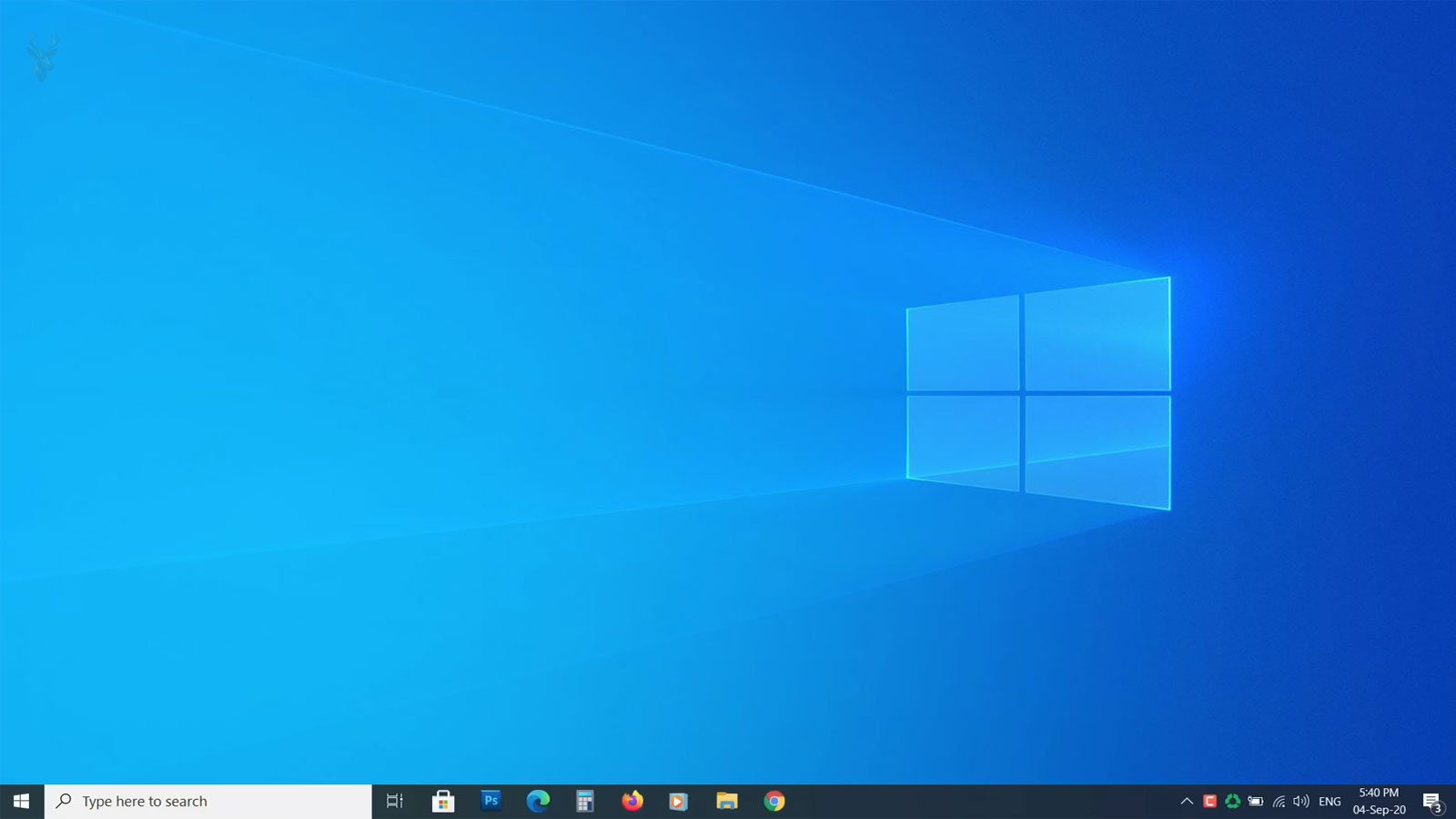
When the Desktop Appears but Its Main Controls Stop Responding
A computer can finish loading Windows, display the desktop, and still leave the user unable to work normally. The Start button may not open, the taskbar may stop responding, notification icons may disappear, or programs may remain inaccessible even though the mouse continues moving across the screen.
These symptoms often feel like a complete operating system failure because the Start menu and taskbar provide access to applications, settings, open windows, search functions, and shutdown controls. In reality, the problem may be limited to the Windows interface rather than the entire computer.
Identifying whether the desktop interface is temporarily stalled, damaged within one user account, or affected by a broader Windows problem helps determine the appropriate repair. Restarting the correct process may resolve a brief interruption, while recurring failures require closer examination of system files, software changes, and account configuration.
The Taskbar Is Part of the Windows Shell
The taskbar is not an independent program operating separately from the desktop. It forms part of the Windows shell, the graphical environment responsible for displaying desktop icons, folders, open program buttons, menus, and many familiar controls.
On many Windows versions, this environment is closely associated with the Windows Explorer process. File Explorer windows and the visible desktop may therefore depend on the same underlying process. If that process becomes unresponsive, several parts of the interface can fail at once.
A stalled shell may cause the taskbar to freeze while an already-open application continues working. This difference is important because it indicates that Windows has not necessarily stopped completely. The graphical controls used to reach other parts of the system may simply be unavailable.
Common Symptoms Do Not Always Appear Together
Start menu and taskbar problems can present themselves in several ways. One computer may show a normal taskbar that ignores every click, while another may display only a blank strip along the bottom of the screen. A third may allow programs to open but fail whenever the Start button is selected.
- The Start button does not respond to the mouse or keyboard.
- The taskbar remains visible but cannot be selected.
- Open program buttons disappear or stop updating.
- The notification area no longer displays expected icons.
- The search field opens and immediately closes.
- The entire taskbar vanishes after Windows signs in.
- Desktop icons disappear at the same time as the taskbar.
The exact combination of symptoms can help distinguish a temporary interface interruption from a damaged user profile, display configuration problem, or more extensive operating system fault.
A Frozen Taskbar Does Not Always Mean the Computer Is Frozen
When the taskbar stops responding, users often assume the entire computer has locked up. Before forcing a shutdown, it is useful to observe whether anything else still works. The pointer may continue moving, an open document may still accept typing, or a keyboard shortcut may bring another window forward.
If applications continue responding, the failure is more likely confined to the Windows shell. A complete system freeze usually prevents movement, typing, program switching, and other activity across the entire computer.
This distinction matters because an unnecessary forced shutdown can interrupt unsaved work. When the operating system remains partly responsive, there may be safer ways to restart the interface or close applications before restarting the computer.
Windows Explorer Can Sometimes Be Restarted Without Rebooting
If Task Manager can still be opened, restarting the Windows Explorer process may rebuild the desktop, taskbar, and related controls without requiring a complete computer restart. This procedure closes and reloads the graphical shell while leaving many other Windows processes active.
During the restart, desktop icons and the taskbar may disappear briefly. They should return when the Explorer process begins running again. If the interface resumes normal operation, the original failure may have been a temporary process interruption rather than permanent system damage.
A shell that repeatedly stops responding should still be investigated. Restarting Explorer can restore access, but it does not explain why the process became unstable in the first place.
Recently Installed Software Can Interfere with the Desktop Interface
Some applications integrate themselves into File Explorer, the notification area, shortcut menus, or Windows startup. Security programs, desktop customization utilities, synchronization software, and system-monitoring tools may all add components that load with the shell.
If one of these components becomes incompatible or damaged, the Start menu or taskbar may respond slowly, restart repeatedly, or fail immediately after sign-in. The timing of the first failure is therefore useful. A problem beginning directly after a software installation deserves different attention from one that developed without any recent changes.
Removing or disabling recently added shell extensions may restore normal behavior, but changes should be made carefully. Multiple programs may have been installed around the same time, and the most visible application is not automatically the one responsible.
Incomplete Windows Updates May Leave Interface Components Unstable
Windows updates replace protected files, register system components, and modify services used by the desktop environment. If an update is interrupted or only partially installed, the computer may reach the desktop while leaving certain interface functions unavailable.
Typical signs include a Start menu that worked before the update, a taskbar that reloads repeatedly, missing built-in applications, or errors that appear immediately after signing in. Restarting the computer once more may allow pending update work to finish, but persistent symptoms can indicate damaged or mismatched system files.
Update history provides useful context, although an update listed as successful is not absolute proof that every related component is operating correctly. The condition of Windows after the installation still needs to be evaluated.
One User Account May Fail While Another Works Normally
The Start menu and taskbar depend partly on information stored within the individual Windows user profile. If that profile becomes damaged, interface problems may affect one account while another account on the same computer continues working correctly.
Testing a separate user account can therefore provide valuable diagnostic information. A normal taskbar under another account suggests that the main Windows installation and hardware are still capable of operating properly. The fault may be limited to the original profile’s settings, database files, or application registrations.
| Observed Behavior | What It May Suggest |
|---|---|
| Taskbar fails under every account | A system-wide Windows, software, or shell problem may be present. |
| Only one account is affected | The individual user profile may be damaged. |
| Problem appears only after one program starts | A startup application or shell extension may be interfering. |
| Desktop and taskbar both disappear temporarily | The Windows Explorer process may be restarting or crashing. |
This comparison does not repair the problem by itself, but it narrows the area that should be examined and helps avoid unnecessary changes to the entire operating system.
A Missing Taskbar May Be Hidden Rather Than Broken
Not every missing taskbar indicates corruption. Windows includes an automatic hiding option that moves the taskbar off the visible edge of the screen until the pointer reaches that area. Display changes can also move the taskbar onto another monitor that is no longer connected.
Before beginning system repairs, the screen edges should be checked carefully. Pressing the Windows key may also reveal whether the Start menu is opening outside the expected location. Computers previously connected to multiple displays can retain positioning information that makes interface elements appear to be missing.
Confirming that the taskbar is not merely hidden or displayed elsewhere prevents a configuration issue from being mistaken for a damaged Windows installation.
Task Manager Can Help Confirm Whether the Shell Is Still Running
When the Start menu or taskbar stops responding, Task Manager can provide a clearer picture of what remains active. If it opens normally, Windows is still processing keyboard input and running background services even though the visible interface has become unreliable.
The Processes section may show Windows Explorer consuming unusual processor or memory resources, restarting repeatedly, or appearing unresponsive. In other cases, another application may be using enough system resources to delay the shell and make the taskbar appear frozen.
This information helps separate an overloaded computer from a damaged interface component. A slow taskbar caused by heavy disk activity requires different attention from one that disappears because Explorer is crashing.
Keyboard Shortcuts May Provide Access When Mouse Controls Fail
A nonresponsive Start button does not always prevent access to the rest of Windows. Keyboard shortcuts can sometimes open Task Manager, display the security options screen, switch between active programs, or launch a command window without relying on the taskbar.
This can be useful when the mouse pointer still moves but clicking the desktop controls has no effect. The ability to use keyboard commands suggests that the operating system remains active beneath the damaged or stalled interface.
- Ctrl + Shift + Esc may open Task Manager directly.
- Ctrl + Alt + Delete may display security and restart options.
- Alt + Tab can switch between programs that are already open.
- Windows + R may open the Run dialog if the shell remains partly functional.
- Alt + F4 can close the active program or display shutdown choices from the desktop.
These shortcuts are temporary access methods rather than complete repairs, but they may allow important work to be saved before further troubleshooting begins.
Safe Mode Can Reveal Whether Added Software Is Involved
Safe Mode starts Windows with a reduced set of drivers, services, and startup components. If the Start menu and taskbar work normally in that environment, a third-party program, added service, or nonessential driver may be interfering with the regular desktop session.
A failure that continues in Safe Mode suggests a deeper Windows problem, damaged user profile, or system file issue. The test does not identify the exact cause, but it helps determine whether the fault depends on software that normally loads during a standard startup.
Because Safe Mode intentionally disables many ordinary features, its appearance and behavior will differ from a normal desktop. The important question is whether the basic Start menu, taskbar, and Explorer controls respond consistently.
Damaged System Files Can Affect the Desktop Shell
The Windows interface depends on protected files and registered system components. If those files become corrupted through an interrupted update, storage error, improper shutdown, or failed software installation, the desktop may load only partially.
Symptoms can include a Start menu that never opens, search functions that close immediately, repeated Explorer restarts, or built-in interface elements that display blank areas. System file checking tools may identify and replace certain damaged Windows components.
A repair tool reporting success should be followed by a restart and practical testing. File replacement may correct the interface, but recurring corruption can indicate an underlying storage or memory problem that still needs attention.
Search Failures Can Be Related Without Affecting the Entire Taskbar
Windows search is closely integrated with the Start menu on many versions of the operating system, but it also depends on separate services and background components. A user may therefore have a functioning taskbar and Start button while the search field alone remains blank or unresponsive.
This narrower symptom should not automatically be treated as a complete shell failure. Search indexing, application registration, user-profile data, or a stalled search process may be responsible while the rest of Explorer continues operating normally.
Observing which controls still work prevents unnecessary repairs. A problem limited to search requires a more focused approach than a desktop where icons, menus, and taskbar buttons all fail together.
Notification Area Icons Can Fail Independently
The small icons near the clock represent applications, network status, sound controls, security software, removable devices, and other background functions. Missing icons do not always mean those services have stopped working.
An icon may be hidden by taskbar settings, delayed during startup, or omitted because its application did not load correctly. The network may still be connected even though the wireless symbol is missing, and sound may continue playing even when the volume icon does not appear.
Testing the underlying function is more useful than relying on the icon alone. If several unrelated icons disappear at the same time, however, the notification area or Explorer process may be unstable.
A Full Screen Application Can Make the Taskbar Seem Unavailable
Video players, games, remote-access sessions, and presentation software can cover the entire display and prevent the taskbar from appearing until the application leaves full-screen mode. A program that becomes stuck in this state may create the impression that Windows has lost the taskbar.
Switching to another open program or pressing the appropriate full-screen shortcut may restore the desktop. If the application continues covering the screen, Task Manager may be needed to close it.
This situation differs from a true shell failure because the taskbar usually returns immediately after the full-screen program is minimized or terminated.
Multiple Displays Can Change Where the Taskbar Appears
Windows can place taskbars on more than one monitor or assign the primary taskbar to a selected display. After a monitor is disconnected, a docking station is removed, or display settings change, the expected taskbar may appear on another active screen.
Resolution changes can also alter the visible workspace and make part of the interface extend beyond the monitor’s usable area. This is more likely when a computer moves between televisions, projectors, docking stations, and external monitors with different resolutions.
| Display Situation | Possible Taskbar Behavior |
|---|---|
| External monitor disconnected | The taskbar may remain assigned to another display configuration. |
| Primary display changed | The main Start button and notification area may move to a different screen. |
| Resolution set incorrectly | Part of the taskbar may extend beyond the visible image. |
| Full-screen application active | The taskbar may remain covered until the application is minimized. |
Checking display arrangement and primary-monitor settings can resolve these cases without modifying Windows system files.
A Clean Startup Can Isolate Background Conflicts
Windows normally loads numerous background services and startup applications before the desktop becomes ready. A clean startup temporarily prevents many non-Microsoft components from loading, making it easier to determine whether one of them is interfering with the shell.
If the taskbar works consistently under the reduced startup configuration, disabled items can be restored gradually until the problem returns. This process is more reliable than removing several programs at random because it narrows the conflict through controlled testing.
Care should be taken not to disable essential security, storage, or hardware services permanently. The purpose of the clean startup is diagnosis, not leaving the computer indefinitely without normal supporting software.
Repeated Explorer Crashes May Leave Clues in Windows Logs
When Windows Explorer closes unexpectedly, the operating system may record information about the event. Error reports can sometimes identify a failing module, extension, or application component involved in the crash.
These records are most helpful when the taskbar repeatedly disappears and returns, especially if the pattern occurs after opening a particular folder, connecting a device, or starting a specific application. A recurring module name can direct attention toward the software that added it.
Log entries must still be interpreted carefully. The component listed at the time of the crash may be affected by a broader problem rather than being the original cause.
Hardware Problems Can Produce Similar Symptoms
Although Start menu and taskbar failures are commonly associated with Windows itself, hardware should not be ruled out immediately. Unstable memory, storage devices developing read errors, overheating components, or intermittent motherboard faults can corrupt data that the operating system depends on while it is running.
When interface problems occur together with unexpected restarts, application crashes, file corruption, or blue screen errors, broader hardware testing may be appropriate. A software repair that temporarily restores the desktop does not necessarily eliminate an underlying physical defect.
Considering both software and hardware possibilities helps avoid repeatedly repairing Windows when the true source of instability lies elsewhere in the computer.
User Profile Corruption Can Return After Temporary Repairs
Restarting Windows Explorer or signing out and back in may temporarily restore the desktop, but those actions do not rebuild a damaged user profile. If profile information has become corrupted, the same symptoms may reappear during future logins even after several successful restarts.
Comparing behavior between different user accounts remains one of the most useful diagnostic steps. When only a single profile experiences taskbar failures while others continue operating normally, attention can be focused on profile-specific configuration instead of the entire Windows installation.
This targeted approach often reduces unnecessary repairs and preserves a stable operating system when the problem is isolated to one account.
Storage Space Can Influence Desktop Reliability
Windows relies on available storage space for temporary files, updates, virtual memory, and various background operations. When the system drive becomes critically full, desktop components may respond slowly or fail unexpectedly while Windows struggles to manage limited free space.
A nearly full drive does not always cause the Start menu to stop working by itself, but it can contribute to update failures, damaged temporary files, and reduced system responsiveness that affect the desktop environment.
Maintaining reasonable free space allows Windows to complete maintenance tasks more reliably and reduces unnecessary stress on the operating system.
Cloud Synchronization Software May Delay the Desktop
Many computers automatically start cloud synchronization services immediately after sign-in. These applications may begin checking thousands of files, verifying changes, and communicating with remote servers before the desktop has finished loading.
If synchronization software encounters damaged files, communication delays, or unusually heavy workloads, Windows may appear slow while the Start menu and taskbar respond inconsistently. In these situations, the desktop often improves after background activity subsides.
Observing whether the interface becomes responsive after startup activity finishes can help determine whether background synchronization is contributing to the delay.
System Restore May Reverse Recent Interface Changes
If taskbar or Start menu failures begin immediately after installing software, updating drivers, or modifying Windows settings, System Restore may provide a way to return the operating system to an earlier configuration. This is most effective when an appropriate restore point exists from before the problem appeared.
System Restore is intended to reverse selected Windows configuration changes rather than recover personal files. Applications installed after the selected restore point may require reinstallation if the restoration succeeds.
Because the feature has specific limitations, it should be viewed as one possible recovery tool rather than a guaranteed solution for every desktop problem.
Windows Updates Should Complete Before Judging the Result
After installing major updates, Windows may continue configuring components during one or more restarts. Interrupting this process too early or forcing repeated shutdowns can leave interface components in an incomplete state.
Allowing Windows to finish scheduled maintenance before beginning additional repairs provides a clearer understanding of whether the operating system is still completing legitimate update work or whether a genuine fault remains.
Patience during the update process can prevent unnecessary troubleshooting based on symptoms that disappear once installation has fully completed.
Avoid Making Multiple Changes at the Same Time
When troubleshooting desktop interface problems, making several repairs simultaneously can make it difficult to identify which change actually corrected the issue. Restarting Explorer, uninstalling software, editing the registry, updating drivers, and restoring Windows all at once removes the ability to evaluate each step individually.
A structured approach allows each adjustment to be tested before another is introduced. If the problem returns later, the repair history is much easier to understand and repeat.
| Troubleshooting Practice | Reason It Helps |
|---|---|
| Make one change at a time | Identifies which action affected the problem. |
| Restart after major repairs | Confirms whether the desktop loads normally. |
| Record recent software changes | Provides useful troubleshooting history. |
| Test normal daily tasks | Verifies that the interface is stable under regular use. |
The Desktop Interface Depends on Many Working Components
The Start menu and taskbar appear simple because they are familiar, yet they rely on numerous Windows services, protected files, user-profile information, application registrations, and background processes working together correctly. A problem affecting any one of these areas can interrupt normal desktop operation.
For that reason, symptoms that look identical on the surface may have very different underlying causes. One computer may require only an Explorer restart, another may need damaged system files repaired, while a third may reveal storage errors or profile corruption that demand additional investigation.
Observing when the failure began, identifying recent system changes, and testing each possible cause methodically usually produces better results than relying on a single repair technique.
A Careful Diagnosis Produces More Reliable Long-Term Results
Windows Start menu and taskbar failures can interrupt nearly every aspect of computer use, but they do not always indicate that Windows must be reinstalled. Temporary shell interruptions, damaged user profiles, incomplete updates, software conflicts, display configuration issues, and hardware faults can all produce similar symptoms while requiring very different solutions.
Understanding how the Windows shell operates, recognizing the differences between interface failures and complete operating system failures, and approaching troubleshooting in a logical sequence allows problems to be isolated more accurately. Restarting Explorer, comparing user accounts, reviewing recent software changes, checking system files, and evaluating hardware stability each contribute valuable information.
Rather than treating every frozen Start menu as the same problem, examining the surrounding circumstances provides a clearer path toward reliable recovery. A systematic diagnosis not only restores access to the desktop more effectively but also reduces the likelihood that the same interface failure will return unexpectedly in the future.











