
A Recovery Feature Designed for System Changes Rather Than Complete Computer Backups
Windows includes several recovery tools, but their names do not always make their purposes clear. System Restore is one of the most frequently misunderstood. Some computer users expect it to return every file, program, and setting to an earlier state, while others assume it will erase everything currently stored on the computer.
Neither description is accurate. System Restore is primarily intended to reverse selected changes made to Windows system files, the registry, installed drivers, and certain program configurations. It can be useful when a recent software installation, driver change, or system adjustment causes instability, but it is not a substitute for a complete backup.
Knowing what the feature records—and what it leaves untouched—helps determine whether it is appropriate for a particular problem. It also prevents unnecessary disappointment when a restore completes successfully but does not recover something that was never included in the restore point.
Restore Points Capture Selected Parts of Windows
A restore point is a record of important system information from a specific moment. Depending on the Windows version and configuration, it may include registry data, protected system files, driver information, installed program details, and other settings that influence how the operating system behaves.
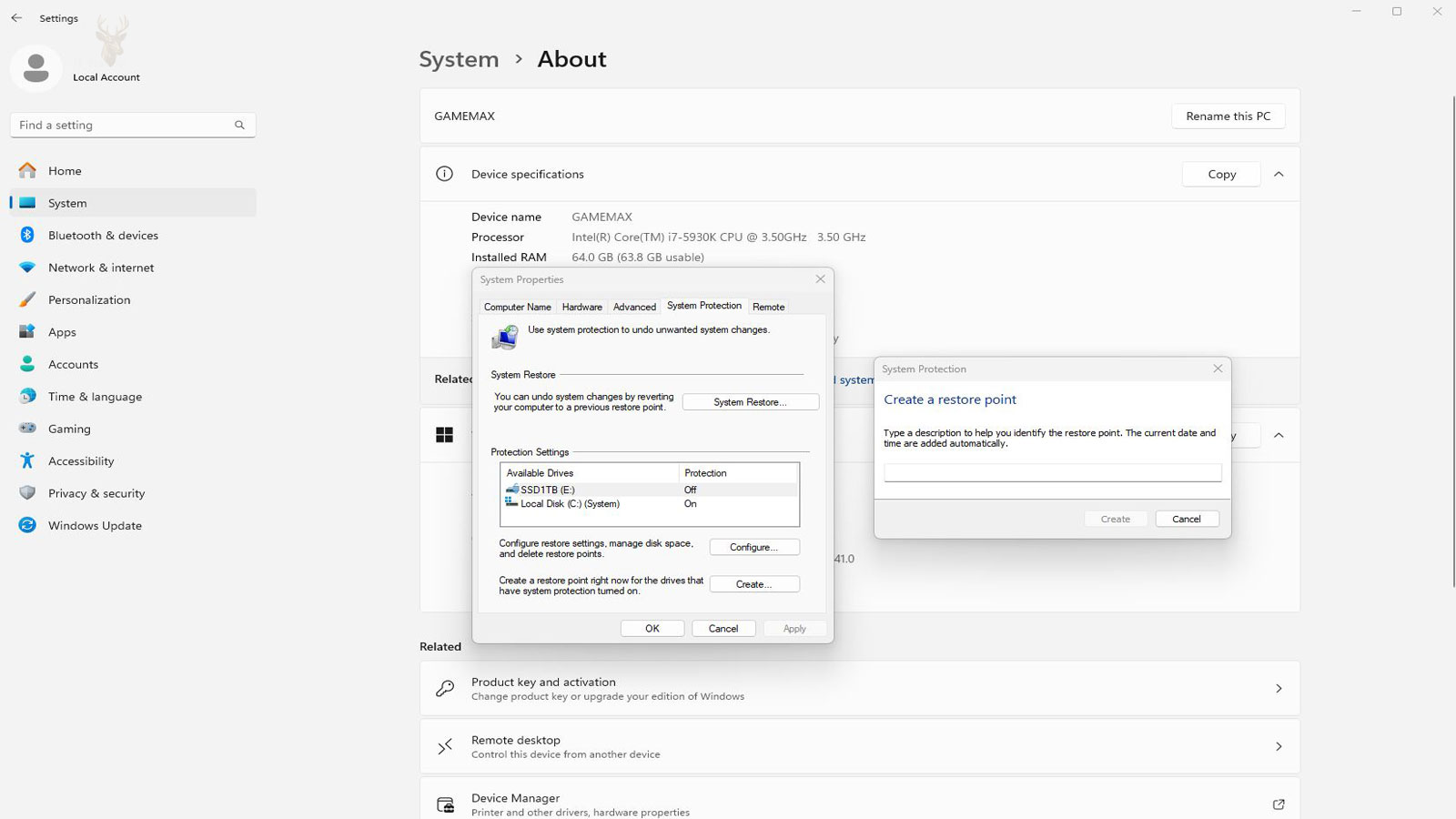
Windows may create restore points automatically before certain significant changes. An installer, driver package, or system maintenance operation may request one before modifying protected areas of the operating system. Users can also create restore points manually when System Protection is enabled.
The restore point does not contain a complete copy of the storage drive. Instead, it preserves enough system-related information to help Windows return selected components to an earlier configuration.
Personal Documents Are Normally Left in Place
One of the most useful characteristics of System Restore is that it is not designed to remove ordinary personal files. Documents, photographs, music, and other user-created data generally remain in their current locations after the restoration process.
This allows Windows to reverse certain system changes without behaving like a factory reset. A computer may return to an earlier driver or registry configuration while recently created documents remain available.
However, leaving personal files untouched does not mean those files are protected by System Restore. If a document is deleted, overwritten, corrupted, or lost because of storage failure, restoring Windows to an earlier date will not normally bring that document back.
Installed Programs May Be Added or Removed by the Rollback
Applications installed after the selected restore point may no longer be registered correctly after Windows returns to the earlier configuration. In many cases, those programs are removed from the active installation and must be installed again.
The opposite can also occur. A program that was removed after the restore point may reappear in Windows configuration records, although its files may not always be complete enough for the software to function normally.
Before the process begins, Windows can often display a list of programs and drivers that may be affected. Reviewing that list helps identify software that might require reinstallation afterward.
Driver Problems Are a Common Reason to Use System Restore
A newly installed device driver can occasionally create problems that were not present before the update. Symptoms may include startup errors, missing sound, unstable networking, display problems, or a device that no longer responds correctly.
When the trouble begins immediately after a driver change, restoring Windows to a point created before that installation may return the previous driver configuration. This can be especially helpful when Windows will still start but has become unstable.
System Restore is not the only method for reversing a driver. Device Manager may allow a driver rollback, and a known working driver can sometimes be installed manually. The best method depends on whether the problem is limited to one device or affects broader areas of Windows.
A Successful Restore Does Not Prove the Computer Is Physically Healthy
System Restore changes software-related information. It does not repair damaged memory, a failing storage drive, an overheating processor, an unstable power supply, or another physical defect.
A hardware problem can sometimes appear to improve temporarily after a restoration because Windows is using a different driver or placing less demand on the affected component. That improvement should not be mistaken for a confirmed hardware repair.
If errors return, files continue becoming corrupted, or the computer remains unreliable under normal use, hardware testing may still be necessary even though the restore operation completed without reporting an error.
Not Every Computer Has an Earlier Restore Point Available
System Restore can only use restore points that exist. On some computers, System Protection is disabled, available storage space is too limited, or older restore points have already been removed.
Windows reserves a portion of drive space for restore information. As that space fills, older points may be deleted to make room for newer ones. This means a restore point that existed several weeks earlier may no longer be available when a problem is finally noticed.
Major Windows upgrades and certain repair operations may also clear previous restore information. The presence of the System Restore feature therefore does not guarantee that a suitable date will be offered.
System Protection Controls Restore Point Creation
Restore points are managed through a Windows feature called System Protection. It can be enabled or disabled separately for individual drives, although the drive containing Windows is normally the most important one.
When protection is active, Windows can reserve storage space for restore information and create points before qualifying system changes. When it is disabled, no new restore points are generated for that drive.
| System Protection Condition | Likely Result |
|---|---|
| Enabled with sufficient space | Windows may create and retain restore points as system changes occur. |
| Enabled with very limited space | Only a small number of recent restore points may remain available. |
| Disabled | No new restore points are created for the selected drive. |
| Drive recently replaced or erased | Restore information from the previous installation is normally unavailable. |
Checking this setting before a problem occurs provides a clearer understanding of whether System Restore is likely to be available later.
Choosing a Restore Point Requires More Than Selecting the Oldest Date
The oldest available restore point is not automatically the best choice. Returning Windows farther into the past may affect more programs, drivers, and system settings than necessary.
A better approach is to identify when the problem first appeared and select a restore point created shortly before that change. This limits the number of unrelated modifications that may need to be reversed.
If the first attempt does not correct the problem, an earlier point may be considered afterward. Starting with the closest relevant date generally keeps the restoration more focused.
The Computer May Restart More Than Once During Restoration
System Restore cannot replace every protected file while Windows is fully active. The computer therefore restarts and completes part of the operation before the normal desktop environment loads.
The process may remain on a preparation or restoration screen for an extended period, especially when many system changes must be reversed or the storage drive is slow. Turning off the computer prematurely can interrupt the operation and create additional complications.
Once Windows starts again, it normally reports whether the restoration completed successfully. That message confirms the status of the procedure, but the original symptoms should still be tested before assuming the problem has been resolved.
System Restore Cannot Recover Deleted Personal Files
Because System Restore focuses on Windows configuration rather than personal data, it should not be viewed as a file recovery solution. Documents, photographs, spreadsheets, videos, and other personal files that have been deleted are generally outside the scope of what a restore point can recover.
Recovering lost files usually requires a separate backup or specialized data recovery techniques. Restoring Windows to an earlier date may successfully reverse a driver installation or registry change while leaving deleted personal files exactly as they were before the restoration began.
Understanding this distinction helps avoid confusion when choosing between Windows recovery features and dedicated backup or data recovery methods.
Malware Removal May Require More Than a Restore Point
Some malicious software modifies Windows settings in ways that can sometimes be reversed through System Restore, but many modern threats are designed to survive or interfere with the restoration process. Certain types of malware intentionally disable recovery features or create additional changes after the computer restarts.
For that reason, System Restore should not be considered a complete malware removal solution. Security software, operating system repairs, and additional troubleshooting may still be necessary depending on the nature of the infection.
If malware is suspected, verifying that the computer is actually clean after the restoration is just as important as confirming that Windows starts successfully.
Storage Problems Can Prevent Successful Restoration
System Restore depends on the ability to read and write information reliably on the storage device. If the drive contains damaged sectors, communication errors, or other developing hardware problems, the restoration process may fail or complete only partially.
Repeated restore failures, unexpected error messages, or restore points that disappear without explanation may indicate that the storage device itself deserves closer examination. In these situations, correcting the underlying hardware issue is often more important than attempting additional restorations.
A successful operating system recovery requires dependable hardware as well as valid restore information.
Software Installed After the Restore Point May Need Attention
Returning Windows to an earlier configuration may affect applications that were installed after the selected restore point. Some programs may no longer appear in Windows, while others may remain listed but require repair or reinstallation before functioning correctly.
This behavior occurs because System Restore is attempting to recreate the earlier system environment rather than preserve every software change that happened afterward. Programs closely integrated with Windows are more likely to be affected than portable applications that operate independently.
Reviewing recently installed software after the restoration helps identify anything that should be reinstalled or updated.
Windows May Recommend System Restore Automatically
Following repeated startup failures, Windows may enter its recovery environment and present several repair options. Depending on the circumstances, System Restore may be offered alongside Startup Repair, Safe Mode, Reset options, or other recovery tools.
These recommendations are based on the symptoms Windows detects during startup. Selecting System Restore is most appropriate when the problem appears related to recent configuration changes rather than physical hardware failure.
Understanding why Windows suggests a particular recovery option makes it easier to choose the tool most likely to address the underlying issue.
Administrative Access Is Usually Required
Because System Restore modifies protected operating system files and registry settings, Windows normally requires administrative privileges before allowing the restoration to begin. This helps prevent unauthorized users from making significant system-wide changes.
On computers with multiple user accounts, the administrator password may be requested before access to available restore points is granted. Knowing these credentials in advance can simplify the recovery process if Windows becomes unstable.
Security measures like these help protect both the operating system and the information stored within it.
Manual Restore Points Can Be Helpful Before Major Changes
Although Windows often creates restore points automatically, there are situations where creating one manually can provide additional peace of mind. Before installing a large application, replacing hardware drivers, modifying important system settings, or performing advanced troubleshooting, creating a fresh restore point establishes a recent recovery option.
The process generally requires only a short amount of time, yet it can simplify recovery if the planned change introduces an unexpected problem. Having a clearly named restore point also makes it easier to identify later.
| Before This Activity | Creating a Manual Restore Point May Be Beneficial |
|---|---|
| Installing new hardware drivers | Yes |
| Changing advanced Windows settings | Yes |
| Installing major software suites | Yes |
| Editing the Windows registry | Yes |
| Creating ordinary documents | No, regular file backups are more appropriate. |
Restoring Windows Does Not Reset Every Application
Many programs maintain their own configuration files, cloud synchronization, or separate databases outside the areas monitored by System Restore. As a result, application-specific settings may not always return to an earlier state even when Windows itself has been restored successfully.
This explains why some software appears unchanged after a restoration while Windows system settings, drivers, or startup behavior have clearly been modified. The scope of System Restore is intentionally limited to selected operating system components.
Recognizing those limits helps establish realistic expectations before beginning the recovery process.
The Recovery Process Should Be Allowed to Finish
Once System Restore has started, the computer may appear inactive for several minutes while Windows replaces protected files and updates internal configuration information. Restarting the computer during this stage can interrupt the process before it has been completed properly.
Even if progress appears slow, allowing Windows to finish without interruption provides the best opportunity for a successful restoration. Patience during this stage is often rewarded with a more reliable outcome.
After Windows reports that the restoration has finished, the original problem should be tested carefully to determine whether additional troubleshooting is still necessary.
A Restore Can Sometimes Be Undone
When System Restore is started from within a functioning Windows installation, the operating system may preserve enough information to reverse the restoration afterward. This can be useful if the selected restore point introduces a different problem or removes a program that is more important than expected.
The option to undo the most recent restoration is not available in every situation. A restore performed from certain recovery environments, Safe Mode sessions, or advanced repair procedures may not provide the same reversal capability.
For this reason, the possibility of undoing a restore should be viewed as a helpful feature rather than a guaranteed safety net. Selecting an appropriate restore point and reviewing the affected programs beforehand remain important.
Restore Points May Disappear After Major Windows Changes
Large operating system upgrades can modify the Windows installation so extensively that earlier restore points are no longer considered compatible. After a major version upgrade, the previous restore information may be removed or become unavailable.
Disk cleanup utilities, storage optimization tools, and certain repair procedures may also delete restore points to reclaim space. A user may therefore remember seeing several available dates earlier but find that only one or two remain later.
Restore points should never be treated as permanent archives. They are temporary recovery resources whose availability depends on Windows configuration, available drive space, and subsequent system maintenance.
Encrypted Drives and Protected Accounts Can Affect Access
Computers using drive encryption may require a recovery key before Windows recovery tools can access the operating system partition. This is especially relevant when System Restore is launched from the Windows Recovery Environment instead of the normal desktop.
The restore point itself may be valid, but the recovery process cannot continue until the protected drive has been unlocked. Keeping encryption recovery information in a secure location outside the computer can prevent an otherwise manageable problem from becoming more difficult.
Account passwords, recovery keys, and other security credentials are part of the preparation for system recovery even though they are not contained within the restore point.
Restore Point Dates Do Not Always Identify the Exact Cause
A restore point may be labeled with the name of a software installer, driver package, or Windows update, but that description does not necessarily prove the listed item caused the problem. It only identifies the activity associated with the point’s creation.
Several other changes may have occurred around the same time, including automatic driver updates, application services, registry modifications, or background maintenance. The selected date is therefore a troubleshooting reference rather than a complete explanation of what failed.
Testing the computer after restoration remains necessary. If the symptoms continue, the original assumption about the cause may need to be reconsidered.
System Restore Is Different from Resetting the Computer
Windows provides a reset feature that can reinstall the operating system while either retaining or removing personal files. That process is much broader than System Restore and can remove applications, replace system files, and return many settings to their defaults.
System Restore attempts to reverse selected system changes within the existing Windows installation. A reset rebuilds a much larger portion of that installation. The two tools may appear together in recovery menus, but they should not be considered interchangeable.
| Recovery Method | Primary Purpose | Typical Effect on Programs |
|---|---|---|
| System Restore | Reverse selected system and configuration changes. | Programs installed after the selected point may be removed. |
| Reset this PC | Reinstall Windows using a broader recovery process. | Most installed applications are removed. |
| File backup restoration | Recover copies of personal files. | Normally does not repair Windows configuration. |
| Factory recovery | Return the computer to the manufacturer’s original software state. | Installed programs and user configuration are usually removed. |
Choosing the least disruptive tool that matches the problem can preserve time, software, and system configuration.
System Image Backups Provide Broader Recovery
A system image is a much more complete record of a computer than a restore point. Depending on how it was created, it may contain Windows, installed applications, system settings, and personal files from an entire drive or partition.
Restoring an image usually returns the selected drive to the state it was in when the image was created. This can recover from problems that System Restore cannot address, but it can also overwrite newer information stored after the backup date.
System Restore is useful for reversing limited software changes. A system image is intended for broader recovery when the operating system or storage installation must be reconstructed more completely.
Repeated Reliance on Restore Points Can Hide a Continuing Problem
If the same fault returns after every restoration, the computer may be repeatedly reinstalling a troublesome driver, reapplying a problematic update, or encountering a hardware condition that System Restore cannot correct.
Continuing to roll Windows backward without identifying the recurring cause may provide only temporary relief. Update history, device behavior, storage health, system temperatures, and recent software changes may all need to be reviewed.
A restore point is most effective when it is part of a diagnosis. It should not become a repeated substitute for determining why the computer keeps returning to the same unstable condition.
Important Files Should Be Backed Up Before Recovery Work
System Restore is designed to leave personal files unchanged, but any computer experiencing serious Windows errors may also have storage problems, file system damage, or another condition that places data at risk.
When the computer remains usable, copying important documents to a separate storage device before beginning recovery work is a sensible precaution. This is especially important when the original cause of the failure has not yet been confirmed.
- Save important documents and current work to separate storage.
- Confirm that backup copies can be opened.
- Record recently installed programs and drivers.
- Note the date when the problem first appeared.
- Keep required passwords and encryption keys available.
These preparations reduce the consequences of an unsuccessful repair and make later troubleshooting more organized.
The Result Should Be Evaluated After Windows Restarts
A message stating that System Restore completed successfully confirms that Windows finished applying the selected restore point. It does not automatically confirm that the original problem has been corrected.
The computer should be tested under the same conditions that previously caused trouble. A network connection should be checked if wireless access was failing, a device should be tested if its driver caused instability, and normal startup should be repeated if the system had difficulty loading Windows.
It is also useful to review applications and settings that may have changed during the rollback. Programs removed by the restoration can then be reinstalled carefully while observing whether the problem returns.
System Restore Works Best as a Focused Recovery Tool
System Restore can be valuable when a computer becomes unstable after a recent driver, application, registry, or Windows configuration change. It offers a way to reverse selected system modifications without performing a complete operating system reinstallation.
Its usefulness depends on several conditions: System Protection must have been enabled, an appropriate restore point must still exist, the storage drive must be functioning reliably, and the problem must involve something included within the restoration process.
The feature cannot replace file backups, repair damaged hardware, guarantee malware removal, or recover every missing document. Used with those limitations in mind, it becomes a practical part of Windows troubleshooting rather than a universal solution for every computer failure.
The most reliable recovery approach combines restore points with current backups, careful observation of recent changes, and further diagnosis whenever the same symptoms continue. That combination provides more protection than relying on a single Windows feature alone.











