
Looking Beyond Software Updates and Understanding the Small Program That Helps Every Computer Start
Most computer owners become familiar with operating system updates because Windows regularly announces them. Firmware updates are different. They happen far less often, receive much less attention, and are frequently misunderstood. Some people assume every available firmware update should be installed immediately, while others avoid them entirely out of concern that something might go wrong.
Neither approach fits every situation. Firmware is an important part of the computer, but updating it is not routine maintenance in the same way that installing Windows security updates or updating an application might be. The decision depends on the reason the update was released, the condition of the computer, and whether the new version addresses a problem that actually affects the system.
Understanding what firmware does, how updates are performed, and why manufacturers release them helps remove much of the uncertainty surrounding the process. Rather than viewing every firmware release as either essential or dangerous, it becomes easier to evaluate each update on its own merits.
Firmware Is the First Software a Computer Uses
Before Windows begins loading, the motherboard starts a small collection of programs stored on non-volatile memory. This firmware initializes the processor, memory, storage devices, keyboard, display hardware, and many other essential components before handing control to the operating system.
Modern computers generally use UEFI firmware, while older systems commonly relied on the traditional BIOS. Although the technology has evolved considerably, both perform the same basic responsibility of preparing the computer so that an operating system can begin running.
Because firmware operates before Windows, problems at this level may prevent the operating system from starting at all. Likewise, improvements made through a firmware update can influence hardware compatibility, startup behavior, and overall system stability.
Why Manufacturers Release Firmware Updates
Firmware revisions are usually published to address specific technical issues rather than to introduce dramatic new features. In many cases, a computer that already operates normally may appear unchanged after the installation because the update corrects situations that only affect certain hardware combinations or operating conditions.
Examples include improved compatibility with newer processors, corrected communication between hardware devices, better memory support, adjustments for storage controllers, startup reliability improvements, or security enhancements discovered after the original firmware version was released.
Reading the manufacturer’s release notes provides valuable context. Those notes often explain exactly what has changed and whether the update addresses a situation relevant to a particular computer.
Not Every Firmware Update Is Necessary
A common misconception is that every available firmware update should always be installed immediately. While keeping software current is generally good practice, firmware updates deserve a more deliberate evaluation because they modify one of the computer’s most fundamental components.
If a manufacturer releases a firmware update to improve compatibility with hardware that is not present in the computer, the update may provide little practical benefit for that particular system. Likewise, an update intended to support a newly released processor may not change the behavior of an older configuration that already operates reliably.
This does not mean firmware updates lack value. Instead, it highlights the importance of understanding why an update exists before deciding whether it should be applied.
Situations Where an Update May Be Worth Considering
There are many circumstances where installing a newer firmware version becomes a reasonable decision because it directly addresses a known limitation or planned hardware change.
- The manufacturer documents a correction for an issue already affecting the computer.
- A processor upgrade requires a newer firmware revision for recognition.
- Additional memory is supported only after updating the firmware.
- A storage device compatibility problem has been corrected.
- A published security vulnerability has been resolved by the manufacturer.
- The update improves overall startup reliability for the installed hardware.
Matching the published improvements to the actual computer is often more useful than installing every available update simply because it exists.
The Update Process Replaces Existing Firmware
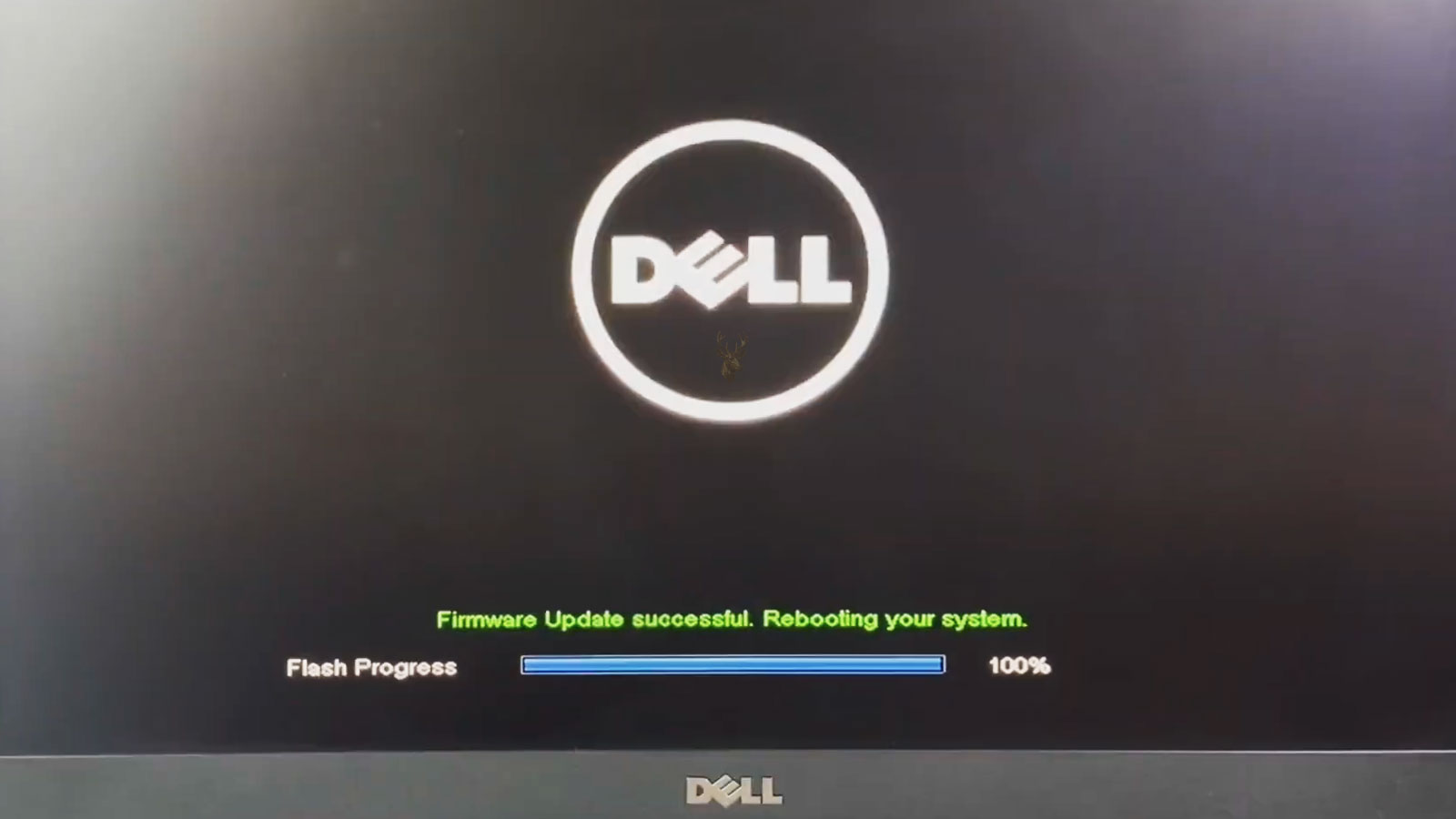
Unlike installing an ordinary application, a firmware update rewrites the code stored on the motherboard. During the process, the previous firmware is replaced by a newer version supplied by the computer or motherboard manufacturer.
This procedure is commonly called flashing the firmware. Modern update tools have made the process much more reliable than it was years ago, but it still involves modifying software that the computer depends on every time it starts.
For that reason, interruptions during the update should be avoided. Stable power, the correct firmware file, and following the manufacturer’s instructions carefully remain important parts of a successful installation.
Desktop and Laptop Updates Are Not Always Performed the Same Way
Motherboard manufacturers often provide their own firmware update utilities for desktop systems, while laptop manufacturers usually distribute updates specifically designed for each model. Even computers using similar processors may require completely different firmware packages.
Installing firmware intended for another model can prevent the computer from functioning correctly. Model numbers, motherboard revisions, and manufacturer documentation should therefore be verified before any update begins.
| System Type | Typical Firmware Source | Important Consideration |
|---|---|---|
| Desktop computer | Motherboard manufacturer | Verify the exact motherboard model and hardware revision. |
| Brand-name desktop | Computer manufacturer | Use updates intended for the complete system model. |
| Laptop | Laptop manufacturer | Match the update to the precise model and product series. |
Although the overall goal is the same, the recommended update procedure can vary significantly between manufacturers and product lines.
Power Stability Matters During a Firmware Update
Because firmware is actively being rewritten, losing power before the process finishes can leave the computer unable to complete its normal startup sequence. Modern motherboards often include recovery features that reduce this risk, but protection varies considerably between designs.
Desktop computers benefit from reliable electrical power during the update, while laptops should normally have both a charged battery and the correct AC adapter connected unless the manufacturer specifies another procedure.
Allowing the update to complete without interruption is one of the simplest ways to avoid unnecessary complications.
Modern Firmware Often Includes Built-In Recovery Features
Many current motherboards include protective features that were uncommon years ago. Some can verify the integrity of the firmware before startup, while others maintain a secondary recovery image or provide a dedicated recovery mode if an update does not complete successfully.
These safeguards have made firmware updates more dependable than they once were, but they should not be viewed as a guarantee that every failed update can be reversed automatically. Recovery capabilities differ from one manufacturer to another, and some systems offer considerably more protection than others.
Reviewing the documentation before updating helps determine what recovery options, if any, are available for a particular computer.
Firmware Updates Can Improve Hardware Compatibility
As new processors, memory modules, storage devices, and expansion cards become available, manufacturers occasionally release firmware revisions that improve communication between the motherboard and those newer components.
This is particularly common with desktop computers designed to support multiple processor generations. A motherboard purchased several years earlier may require a newer firmware version before recognizing a processor that was released later in the product’s lifespan.
Compatibility improvements may also address newer NVMe solid-state drives, updated memory modules, graphics hardware, or peripheral devices that were not available when the motherboard originally entered production.
Security Improvements Sometimes Begin at the Firmware Level
Operating system updates receive most of the attention when discussing computer security, but firmware also plays an important role. Researchers occasionally discover vulnerabilities that affect the startup environment itself, allowing manufacturers to publish updated firmware that strengthens the system before Windows even begins loading.
These security improvements may enhance hardware verification, strengthen communication between system components, or correct weaknesses that were identified after the computer was originally released.
When a manufacturer specifically identifies a firmware update as addressing an important security issue, reviewing the published information carefully becomes especially worthwhile.
Firmware Does Not Replace Device Drivers
Firmware and device drivers work together but perform different jobs. Firmware prepares hardware during startup and provides low-level communication, while drivers allow Windows to interact with individual devices after the operating system has loaded.
Updating one does not automatically update the other. Installing a newer BIOS version does not replace a graphics driver, audio driver, or wireless networking driver. Likewise, updating Windows drivers normally leaves the motherboard firmware unchanged.
Understanding this distinction helps explain why certain hardware problems are corrected through driver updates while others require firmware improvements instead.
Read the Release Notes Before Installing Anything
Every firmware package should include release notes describing the changes introduced in that version. Although these summaries are often brief, they provide valuable information about compatibility, corrected issues, and any installation requirements.
Reviewing these notes can prevent unnecessary updates while helping identify those that solve a known problem. They may also describe special instructions, such as installing an intermediate version first or updating additional system components afterward.
Taking a few minutes to read the documentation often prevents confusion during the update process itself.
A Stable Computer Is Usually the Best Starting Point
Firmware updates are best performed when the computer is operating normally. Attempting to update a system already experiencing random shutdowns, memory instability, overheating, or intermittent power problems introduces unnecessary risk because the update depends on the computer remaining operational throughout the procedure.
If hardware faults are already suspected, identifying and correcting those issues first often creates a safer environment for any future firmware update.
Although firmware can occasionally resolve hardware compatibility problems, it should not be expected to compensate for failing physical components.
Firmware Settings May Return to Their Defaults
After some firmware updates, certain configuration settings may return to their factory defaults. This varies by manufacturer, but options such as boot order, virtualization support, Secure Boot configuration, or custom fan profiles may require review afterward.
Users who have intentionally customized firmware settings should take note of those changes before beginning the update. Recording important values makes it much easier to restore the preferred configuration once the installation has finished.
| Configuration Item | May Need Verification After Updating |
|---|---|
| Boot device order | Confirm the preferred startup drive remains selected. |
| Virtualization settings | Verify hardware virtualization is still enabled if required. |
| Fan configuration | Review custom cooling profiles if previously adjusted. |
| Date and time | Confirm system clock information is correct. |
| Storage controller mode | Ensure storage configuration matches the operating system. |
Internet Advice Should Match the Exact Hardware
Firmware procedures discussed in forums or online videos may appear convincing while describing a different motherboard revision, laptop series, or manufacturer. Even small hardware differences can change the required firmware file or installation method.
Model numbers, revision identifiers, and official documentation should always take precedence over generalized instructions found elsewhere. Advice intended for another product can create unnecessary problems even when it appears very similar.
Confirming the exact hardware before downloading firmware is one of the simplest ways to avoid installing an incompatible update.
Older Computers May Reach Their Final Supported Version
Manufacturers eventually conclude firmware development for older computer models. Once that happens, additional updates are generally not released unless an exceptional issue is discovered.
This does not necessarily mean the computer has become unreliable. It simply indicates that active firmware development has ended and the final published version remains the recommended release for that hardware.
Knowing that a system has reached its final supported firmware version can prevent unnecessary searching for updates that no longer exist while helping establish realistic expectations for future hardware compatibility.
Interrupting an Update Can Leave the Computer Unable to Start
Although modern firmware update tools are considerably more reliable than earlier generations, they still depend on the update process completing successfully. Interrupting the installation by disconnecting power, forcing a shutdown, or restarting the computer before the procedure finishes can leave the firmware incomplete.
The result varies by system. Some motherboards automatically recover from a failed update, while others require a dedicated recovery procedure or external programming before they can operate again. The possibility of recovery depends on the hardware design rather than the update software itself.
Allowing the process to finish without interruption remains one of the most important precautions whenever firmware is being updated.
Firmware Updates Rarely Improve Everyday Performance by Themselves
One expectation that often leads to disappointment is the belief that a firmware update will noticeably speed up an otherwise healthy computer. In most situations, firmware revisions are intended to improve compatibility, stability, or reliability rather than increase processing speed.
If a firmware update corrects a hardware issue that was limiting performance, an improvement may certainly be observed. However, installing the latest firmware on a properly functioning computer does not normally produce dramatic changes in application speed or general responsiveness.
Performance improvements are more commonly associated with faster storage, additional memory, updated processors, or software optimization than with routine firmware revisions.
Keep the Computer Connected to Reliable Power
Power interruptions remain one of the few external events capable of disrupting a firmware installation. For desktop computers, using a dependable electrical source helps reduce unnecessary risk. Systems connected to an uninterruptible power supply receive additional protection against brief outages during the update process.
Laptops should normally remain connected to their original AC adapter while also maintaining sufficient battery charge. The battery provides temporary protection if household power is interrupted during the installation.
These precautions require little preparation yet can significantly reduce the likelihood of an incomplete firmware installation.
Verify the Current Firmware Version First
Before downloading an update, it is useful to determine which firmware version is already installed. Occasionally, a computer already contains the latest release, making another installation unnecessary.
Knowing the current version also simplifies troubleshooting if questions arise later. It provides a clear starting point for comparing release notes and confirming whether a particular improvement has already been applied.
- Identify the motherboard or computer model.
- Check the installed firmware version.
- Compare it with the manufacturer’s latest release.
- Read the published change history.
- Confirm that the update addresses a relevant need.
Following these steps helps ensure that updates are performed for a clear technical reason rather than simply because a newer version exists.
Beta Firmware Requires Additional Consideration
Manufacturers occasionally publish beta firmware versions for testing before a final release becomes available. These versions may introduce support for new hardware or address recently discovered issues while still undergoing broader evaluation.
Because beta firmware has not completed the same validation process as a final release, it may also contain unresolved issues. Unless a beta version specifically resolves a problem affecting the computer, many users choose to wait for the official production release.
Understanding whether a firmware package is marked as beta or final helps establish appropriate expectations before installation.
Firmware Updates and Operating System Support Are Different Topics
A firmware update may improve hardware compatibility with a newer operating system, but it does not guarantee that every version of Windows will be supported on every computer. Operating system requirements depend on many additional factors, including processor capabilities, security features, available drivers, and manufacturer support policies.
Similarly, installing a newer operating system does not automatically update the motherboard firmware. The two maintenance tasks are related only when the manufacturer specifically recommends performing both.
Evaluating each independently helps avoid unrealistic expectations about what either update is intended to accomplish.
Choosing the Appropriate Time for an Update
Firmware updates should be scheduled when there is enough uninterrupted time to complete the procedure carefully. Beginning an update immediately before an important meeting, while traveling, or during unstable weather conditions increases unnecessary risk.
Allowing extra time also provides an opportunity to verify settings afterward, confirm successful startup, and ensure that connected hardware continues operating normally.
A well-planned update is usually less stressful than one performed under pressure.
Firmware Maintenance Is Most Effective When It Is Purposeful
Firmware is one of the computer’s most important software components because it prepares the hardware long before Windows begins running. Updating it can improve compatibility, reliability, and security, but only when the update matches a genuine technical need.
Understanding the purpose of each release, confirming compatibility with the exact computer model, reviewing the manufacturer’s documentation, and maintaining stable power throughout the installation all contribute to a successful update. Those practical steps are often far more important than simply installing the newest available version.
Approached thoughtfully, firmware updates become another useful maintenance tool rather than a routine task performed without a clear objective. Knowing when to update and when to leave a stable system unchanged helps keep a computer reliable throughout its service life.











