
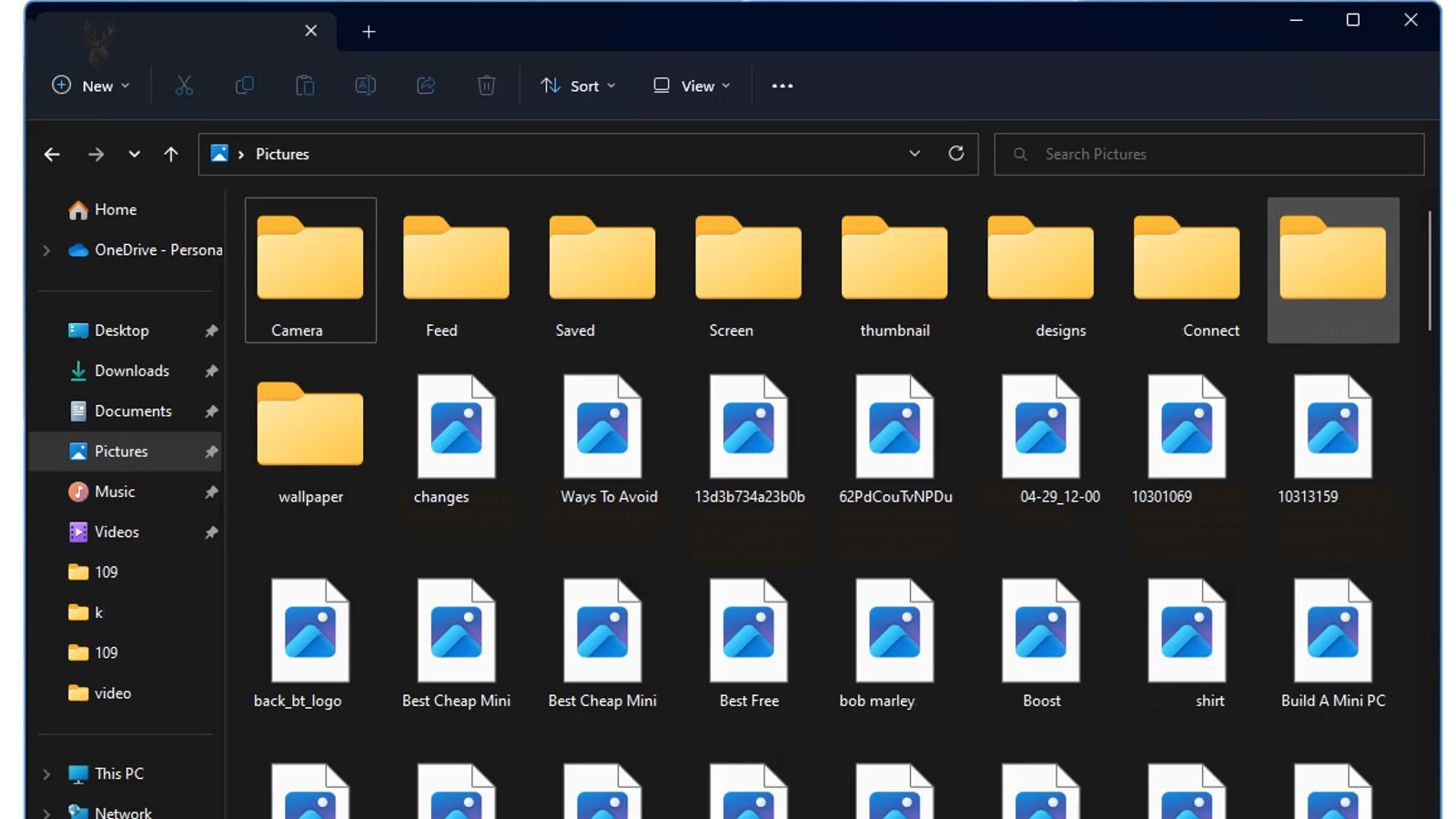
A File Can Remain Completely Usable Even When File Explorer Stops Showing What Is Inside It
File Explorer often displays more than a filename. Photographs can appear as miniature images, videos may show a representative frame, and certain documents can provide a preview without being opened in their full application. These visual shortcuts make large folders easier to recognize and organize.
When thumbnails become blank, generic icons replace familiar images, or the preview pane remains empty, users may worry that the underlying files have been damaged. In many cases, however, Windows has lost only the temporary information used to create the visual preview. The original photograph, video, or document may still open normally.
Thumbnail and preview problems can begin with File Explorer settings, damaged cache records, unsupported file formats, missing software components, restricted permissions, cloud synchronization, or storage devices that are not responding consistently. Identifying which files still open is the first important distinction.
Thumbnails Are Small Representations Created for Convenience
A thumbnail is a reduced visual representation of a larger file. Instead of opening every photograph or video individually, Windows creates a small image that can be displayed inside the folder.
The thumbnail is not normally the original file. It is generated from the file and stored temporarily so File Explorer can display the folder more quickly the next time it is opened.
This separation explains why deleting or rebuilding thumbnail information does not usually erase personal photographs. Windows loses the convenience copy and must create it again from the original material.
Generic Icons Do Not Automatically Indicate Damaged Files
When Windows cannot or does not create a thumbnail, it may display a general icon associated with the file type. A photograph can appear as an image icon, a video as a media symbol, and a document as the icon of the program normally used to open it.
The icon confirms that Windows recognizes something about the file, but it does not show the contents. The original item may still open without errors when selected directly.
Opening a representative file provides more useful information than judging its condition from the folder icon alone. If the file opens correctly, attention can remain on the preview system rather than on data recovery.
Folder View Settings Determine Whether Thumbnails Are Requested
File Explorer can display folders in several layouts, including lists, details, small icons, medium icons, large icons, and extra-large icons. Some views emphasize filenames and properties rather than visual previews.
A folder shown in Details view may appear to have no thumbnails even though Windows can generate them. Switching to a larger icon view gives File Explorer enough space to display visual representations.
The selected layout can differ from one folder to another. Photographs may display correctly in one location while another folder remains in a list-based view that shows only small program icons.
- List and Details views emphasize names, dates, types, and sizes.
- Medium and Large icon views provide more room for thumbnails.
- Folder-specific settings can produce different results in different locations.
- Changing the view does not modify the files themselves.
- Some file types display icons even in a large-icon view when no thumbnail handler is available.
Confirming the current folder layout should come before clearing caches or reinstalling applications.
Windows Can Be Configured to Show Icons Instead of Thumbnails
File Explorer includes a setting that instructs Windows to display icons rather than thumbnail images. This can reduce background processing and may improve folder performance on older computers or very large collections.
When the setting is enabled, every photograph and video can appear as a generic file-type icon even though the files remain healthy. The behavior is deliberate rather than a failure of the thumbnail cache.
A system-performance adjustment, cleanup utility, business configuration, or earlier troubleshooting step may have changed this option without the user remembering it later.
The Thumbnail Cache Prevents Windows From Rebuilding Every Preview Repeatedly
Creating thumbnails requires Windows to open enough of each file to produce a recognizable miniature. Repeating that work every time a folder appears would slow browsing, particularly in collections containing thousands of images or videos.
Windows therefore stores generated thumbnails in cache files. When the folder is opened again, File Explorer can retrieve the prepared image instead of reading the complete source file each time.
The cache improves speed, but it can become outdated or inconsistent. A file may have been edited, renamed, moved, or replaced while an older thumbnail remains associated with it.
Damaged Cache Records Can Produce Blank or Incorrect Images
If thumbnail cache files become damaged, File Explorer may display empty boxes, incorrect previews, outdated images, or generic icons for files that previously appeared normally.
The condition can develop after an unexpected shutdown, storage error, interrupted cleanup, incomplete Windows update, or problem affecting the user profile. The original media files may remain unchanged while only the temporary preview database becomes unreliable.
Comparing the thumbnail with the image that appears after opening the file helps determine whether the inconsistency belongs to the cache or to the original content.
Rebuilding Thumbnails Creates a Temporary Period of Empty Previews
When thumbnail cache information is cleared, Windows must generate new previews as folders are opened. Large image and video collections may therefore show generic icons at first and fill in gradually.
This delay is expected after a cleanup or cache rebuild. The computer must read each supported file, create the miniature, and store it for later use.
Repeatedly clearing the cache before Windows finishes can prevent the folder from ever reaching a stable state. Allowing one complete rebuild provides better evidence than starting over whenever several previews remain blank.
| Folder Behavior | Possible Explanation |
|---|---|
| Every image shows a generic icon. | Thumbnail display may be disabled, or the folder may use a view that does not emphasize previews. |
| Only a few files remain blank. | The formats may be unsupported, damaged, incomplete, or unavailable locally. |
| Thumbnails appear slowly after cleanup. | Windows may be rebuilding the cache normally. |
| The preview shows an older version of the image. | The thumbnail cache may not reflect recent file changes. |
| Files open normally despite blank thumbnails. | The original data may be healthy while the preview system requires attention. |
| Files fail to open and thumbnails are also missing. | The condition may involve the files, storage device, permissions, or incomplete synchronization. |
The difference between a missing preview and a file that cannot be opened determines whether the investigation should remain with File Explorer or expand to the underlying storage.
The Preview Pane Uses a Different Process From Thumbnail View
The File Explorer preview pane displays a larger view of the selected file without opening the full application. Although it appears related to thumbnails, it can rely on separate preview handlers supplied by Windows or installed software.
A file may show a normal thumbnail while the preview pane remains blank. The reverse can also occur when the preview handler can read the document but no thumbnail provider is available for the folder view.
These differences mean that thumbnail generation and preview-pane operation should be tested separately rather than treated as one identical feature.
Preview Handlers Depend on the Type of File Selected
Windows includes built-in support for previewing certain common formats. Other file types depend on software installed by the application that created or normally opens them.
If that software is removed, damaged, or replaced with a basic viewer, File Explorer may lose the ability to show the larger preview even though the file remains valid.
A missing preview for one specialized format should therefore be separated from a complete File Explorer problem affecting photographs, text documents, videos, and several unrelated formats at once.
Large Media Files May Need More Time Before a Preview Appears
High-resolution photographs and long videos require more processing than small images. Windows may need to read metadata, decode part of the content, and select a suitable frame before a thumbnail can be displayed.
On a slower computer or mechanical hard drive, several blank placeholders may remain visible while this work continues. Opening a folder containing hundreds of large media files can increase the delay.
A preview that appears after several seconds suggests slow generation rather than a complete inability to read the file.
Unsupported File Formats Cannot Always Produce Thumbnails
Not every file type includes built-in thumbnail support within Windows. Specialized graphics, engineering drawings, professional video formats, raw camera images, and proprietary document types often depend on additional software to generate previews.
If the appropriate thumbnail provider is unavailable, File Explorer usually displays a standard program icon instead of a miniature image. The original file may still open correctly using the application that created it.
When only one uncommon format lacks thumbnails while common photographs display normally, the limitation is more likely related to file support than to the Windows thumbnail cache itself.
Raw Camera Images Often Require Additional Codec Support
Many digital cameras save photographs in manufacturer-specific raw formats that preserve significantly more image information than ordinary JPEG files. These formats vary between camera brands and even between camera models.
Windows may recognize the files without automatically generating thumbnails unless compatible codec support is available. Photographers frequently notice that JPEG images preview normally while the accompanying raw files display only generic icons.
This difference reflects format support rather than damage to the photographs themselves.
Cloud Storage Can Display Placeholders Instead of Complete Files
Cloud storage services may show files that exist online but are not fully downloaded onto the local computer. These placeholders allow folders to display quickly while conserving storage space.
If Windows cannot access the complete contents locally, thumbnail generation may be delayed or unavailable until the file becomes fully accessible. The icon may indicate that synchronization is still pending or that the content must first be retrieved from the cloud.
A missing thumbnail in this situation does not necessarily indicate corruption. The preview system simply lacks the information required to build the miniature image.
Synchronization Interruptions Can Leave Incomplete Preview Information
If cloud synchronization pauses unexpectedly because of network interruptions, account sign-out, limited storage space, or application errors, Windows may display files whose thumbnail information has not yet been created.
Some items may show proper previews while neighboring files remain represented only by generic icons. This uneven appearance often reflects differences in synchronization status rather than inconsistent file quality.
Allowing synchronization to complete before rebuilding thumbnail caches avoids unnecessary troubleshooting of files that are still being transferred.
External Drives May Generate Thumbnails More Slowly
Portable hard drives, USB flash drives, memory cards, and network storage often respond more slowly than an internal solid-state drive. Before Windows can display a thumbnail, it must read enough of the original file from that storage device.
If the connection is slow or temporarily unstable, File Explorer may initially display generic icons before replacing them with thumbnails as the files become available.
Disconnecting the storage device while Windows is still reading thumbnails can interrupt the process and leave folders appearing incomplete until the drive is connected again.
- Internal SSDs usually provide the quickest thumbnail generation.
- Mechanical hard drives may require more time when browsing large folders.
- USB flash drives vary greatly in performance.
- Memory cards depend on both the card and the reader being used.
- Network storage performance depends on both the storage device and the network connection.
The same folder can therefore appear differently depending on where the files are stored.
Damaged Image Files May Fail to Produce Previews
Windows generates thumbnails by reading part of the original file. If essential image information has become corrupted, the preview system may not have enough valid data to create a miniature.
Some damaged photographs still open partially, display only part of the picture, or report an error after loading begins. Others fail to generate both thumbnails and full-size images.
When the same files also refuse to open in several image viewers, attention should shift from File Explorer toward the condition of the files themselves.
Storage Errors Can Affect Preview Generation Before Files Become Unreadable
A storage device beginning to develop read problems may respond slowly when Windows requests thumbnail information. The operating system can experience delays, incomplete previews, or repeated attempts to read the same file before eventually displaying an icon instead.
As the condition progresses, the original files themselves may begin reporting read errors or fail to open completely. Missing thumbnails alone do not prove storage failure, but they become more significant when combined with slow file access, unexpected disconnections, or read errors.
Comparing the preview behavior with the ability to open the actual files helps determine whether the storage device deserves closer examination.
Network Locations Can Produce Different Thumbnail Behavior
Folders stored on another computer or network-attached storage must transmit file information across the network before Windows can generate previews. Limited bandwidth, temporary interruptions, or sleeping remote systems can increase the time required.
Large media collections stored remotely may therefore display generic icons initially before thumbnails appear gradually as additional information becomes available.
If the network connection is interrupted, thumbnail generation may stop even though File Explorer continues displaying the folder contents.
Preview Handlers Can Be Removed Along With Applications
Many specialized applications install their own preview components so File Explorer can display documents created by that software. Removing or replacing the application may also remove those preview handlers.
The files themselves usually remain intact, but Explorer may no longer understand how to generate previews for that particular format. The associated application icon often replaces the expected thumbnail.
This behavior affects only formats relying on that software and should not be confused with a Windows-wide thumbnail problem affecting every file type.
| Observed Result | Likely Direction |
|---|---|
| JPEG images preview normally, but raw photos do not. | Additional raw image support may be required. |
| Only cloud files show generic icons. | Synchronization or local availability may be incomplete. |
| Large folders populate thumbnails slowly. | Windows may still be generating previews. |
| Files on an external drive show delayed previews. | Storage performance or connection speed may be limiting generation. |
| One specialized file type never displays previews. | Its preview handler or associated software may be unavailable. |
| The file neither previews nor opens. | The file or its storage may require closer examination. |
Comparing which file types, storage locations, and applications are affected provides a clearer direction than assuming every missing thumbnail has the same cause.
Thumbnail Generation Can Use Significant Processor and Storage Activity
Opening a folder containing many photographs or videos can cause Windows to perform noticeable background work. File Explorer may need to read each file, decode enough information to create a miniature, and save the result in the thumbnail cache.
On an older computer, this activity can temporarily increase processor use, storage access, and memory consumption. The folder may respond slowly while previews appear one after another.
This temporary activity does not necessarily indicate malware or a failing computer. It can be the expected result of Windows rebuilding previews for a large collection.
Antivirus Scanning Can Delay the First Preview
Security software may examine files as Windows opens them for thumbnail generation. This is particularly common with downloaded archives, unfamiliar document types, email attachments, and files stored on removable media.
The added inspection can delay preview creation without preventing the file from opening later. Several thumbnails may remain blank briefly while the security scan completes.
If previews consistently fail only for quarantined, blocked, or suspicious files, the security status of those items should be reviewed before changing File Explorer settings.
Permissions Can Prevent File Explorer From Reading Enough Information
Windows permissions determine whether the current user and background components can read a file. A folder copied from another account, restored from backup, or protected by business access controls may permit limited viewing while restricting deeper access.
If File Explorer cannot read the required content, it may display only a generic icon even though the filename remains visible. Another user with different permissions may see a normal preview on the same computer.
This difference points toward ownership and access control rather than a damaged thumbnail cache affecting every account.
Encrypted Files May Limit Preview Availability
Encryption protects file contents from unauthorized access. Windows may display the file in a folder while withholding its preview unless the correct user account and encryption credentials are available.
A restored encrypted document can therefore retain its name and size while remaining unavailable for thumbnail or preview generation. Rebuilding the cache cannot replace missing encryption keys.
When encrypted files are the only items without previews, the access method should be examined separately from ordinary File Explorer behavior.
User Profiles Maintain Their Own Thumbnail Cache Information
Thumbnail cache files are associated with the Windows user profile. Two accounts on the same computer can therefore display the same folder differently.
If thumbnails appear normally in one account but remain blank in another, the original media files and shared storage are likely functioning. The problem may belong to the affected profile’s cache, settings, permissions, or installed preview components.
This comparison is useful because it separates a profile-specific condition from a computer-wide failure.
File Associations Can Influence Which Icon Appears
Windows associates file extensions with applications. When no thumbnail is available, File Explorer often uses the icon of the program assigned to open that file type.
Changing the default application can therefore change the visible icon without changing the file or restoring a thumbnail. A generic white icon may also appear when the association is missing or damaged.
This should be distinguished from a preview problem. File associations determine which program and icon represent the file, while thumbnail handlers determine whether its contents can be shown visually.
Icon Cache Problems Can Resemble Thumbnail Failures
Windows also maintains a cache for application and file-type icons. If that cache becomes inconsistent, files may display blank, incorrect, or outdated program icons even when thumbnail generation is not involved.
A folder containing documents that never used visual thumbnails can still appear incorrect because the icon cache is damaged. Applications may show the wrong symbol, or every file of one type may display a blank page icon.
Determining whether the missing image should be a content thumbnail or a program icon helps identify which cache requires attention.
File Explorer Extensions Can Interrupt Preview Generation
Installed software can add thumbnail providers, preview handlers, context-menu commands, cloud indicators, and other extensions to File Explorer. These additions allow Windows to understand more file types and display additional information.
A damaged or incompatible extension can cause folders to load slowly, previews to remain blank, or File Explorer to stop responding when a particular file is selected.
If the problem began after installing or removing media, document, archive, or cloud software, the associated Explorer extension may deserve attention before the complete Windows installation is blamed.
One Problematic File Can Delay the Entire Folder
File Explorer may process folder contents in sequence. A damaged video, unusually large image, unsupported document, or unstable cloud placeholder can take much longer to examine than surrounding files.
While Windows waits for that item, several later thumbnails may remain blank. Moving through the folder or selecting the problematic file can make File Explorer appear frozen even though the delay originates from one item.
Sorting the folder, testing smaller groups, or temporarily moving suspected files can help determine whether one item is slowing the complete preview process.
- A damaged video may take unusually long to decode.
- A very large image can consume more memory during preview creation.
- An online-only file may wait for synchronization.
- An unsupported format may delay while Windows searches for a handler.
- An unstable external drive can pause when one file becomes difficult to read.
The folder-wide symptom can therefore begin with one file rather than with every thumbnail in the collection.
Restarting File Explorer Can Restore a Temporary Preview Interruption
File Explorer can occasionally stop updating thumbnails during a long Windows session. Folder windows continue opening, but previews remain blank or fail to refresh after files are changed.
Restarting File Explorer reloads the Windows shell and can restore preview generation when the interruption is temporary. This action does not repair damaged files, missing codecs, unavailable cloud content, or failing storage.
If the same folder repeatedly causes File Explorer to stop responding, the contents and storage location should be examined rather than relying on repeated restarts.
Clearing the Cache Should Follow Basic File Checks
Rebuilding thumbnail information can correct outdated or damaged cache records, but it should normally follow simpler observations. A representative file should first be opened, the folder view should be confirmed, and the affected file types and storage locations should be compared.
If only unsupported formats, encrypted documents, cloud placeholders, or damaged files are affected, clearing the cache may reproduce the same missing previews after Windows finishes rebuilding.
The repair is most useful when ordinary supported files open correctly but their previews remain inconsistent or outdated across the affected user profile.
| Diagnostic Test | What the Result Suggests | Next Area to Review |
|---|---|---|
| The file opens normally but has no thumbnail. | The original content may be healthy. | View settings, cache records, format support, or preview handlers. |
| The same files display correctly in another user account. | The problem is likely profile-specific. | The affected account’s cache, settings, or permissions. |
| Only one file type lacks previews. | Windows may not have a compatible handler. | The application, codec, or software associated with that format. |
| Files on one drive load slowly and fail to preview. | The storage device or connection may be limiting access. | Drive performance, file-system health, and cable stability. |
| Thumbnails disappear after every cache cleanup. | The rebuild may not be finishing or another condition remains unresolved. | Background activity, profile health, storage space, or cleanup software. |
| Files neither preview nor open. | The problem extends beyond the temporary thumbnail system. | File integrity, permissions, synchronization, or storage condition. |
These comparisons help determine whether attention belongs on File Explorer or on the files and storage underneath it.
Repeated Cleanup Utilities Can Prevent the Cache From Remaining Useful
Some maintenance programs remove thumbnail cache files automatically to recover storage space. Although the files are temporary, clearing them repeatedly forces Windows to rebuild the same previews again and again.
A user may notice that thumbnails appear slowly after every startup or disappear soon after they are generated. The cache is not necessarily failing; another program may be deleting it as part of scheduled cleanup.
Thumbnail storage usually occupies less space than the original media collection and exists specifically to improve folder performance. Automatic removal should be balanced against the repeated work required to recreate it.
Important Media Should Be Verified Independently of Its Preview
A thumbnail is only a convenience image. It should not be used as the sole proof that an important photograph, video, or document is complete and readable.
Representative files should be opened from their actual storage location, especially after copying a large archive, restoring a backup, or noticing errors on an external drive. A valid thumbnail can remain cached even after the original file becomes unavailable.
Opening the original file provides stronger evidence than relying on a miniature created earlier.
A Structured Review Prevents Unnecessary File Repair
Blank thumbnails become easier to interpret when the simplest distinctions are made first. The most important question is whether the underlying files still open correctly.
- Open several affected files directly.
- Confirm that the folder uses a thumbnail-capable view.
- Check whether icons-only display has been enabled.
- Compare common and specialized file formats.
- Determine whether the problem follows one user profile or the complete computer.
- Review cloud, external-drive, network, permission, and encryption status.
- Rebuild the thumbnail cache only after these comparisons are complete.
Working in this order helps preserve useful evidence and prevents healthy files from being treated as though they require recovery.
Missing Previews Usually Describe Windows Display Behavior, Not File Loss
File Explorer thumbnails and previews depend on view settings, cache files, format support, installed handlers, user permissions, local availability, and reliable access to the underlying storage. A failure in any of these areas can remove the visual representation while leaving the original file unchanged.
The clearest distinction is whether the item opens correctly outside the preview system. Files that open normally direct attention toward Windows display and caching, while files that also fail to open require broader investigation involving synchronization, permissions, corruption, or storage health.
By treating the thumbnail as a temporary convenience rather than as the file itself, blank icons become easier to evaluate. The repair can then focus on the actual point where Windows loses access to the information needed to create the preview.











