
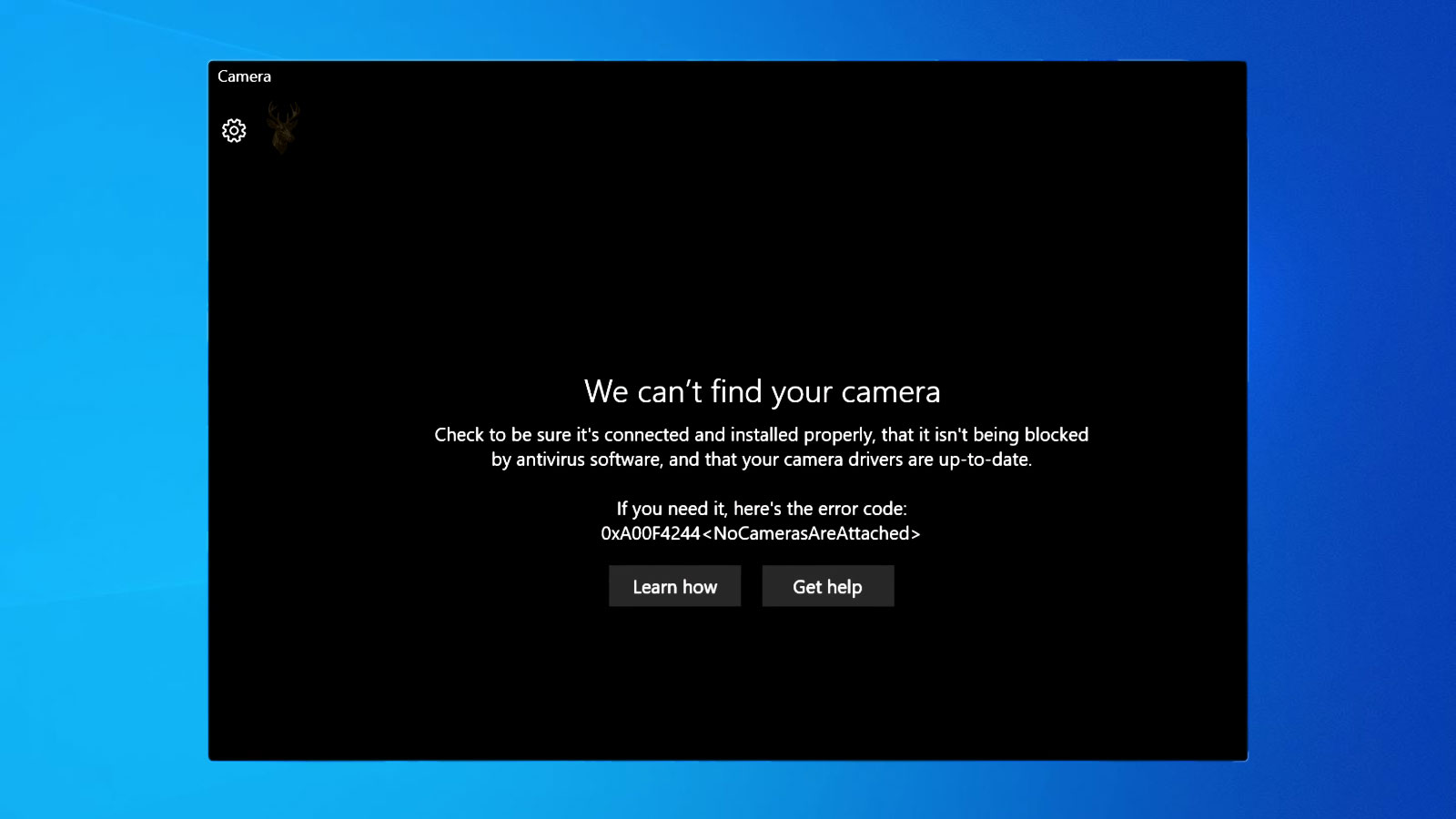
A Camera Can Be Present Above the Screen While Remaining Unavailable to Every Program That Tries to Use It
A built-in laptop webcam appears simple from the outside. A small lens sits above the display, an indicator light may turn on during use, and video-call software shows the image. Behind that familiar behavior, several separate systems must work together before any picture reaches the screen.
The camera module must receive power, communicate through its internal cable, be recognized by the motherboard, load through the correct driver, remain permitted by Windows privacy settings, and be available to the application requesting access. A failure at any one of those stages can leave the camera missing, dark, frozen, or unavailable.
This is why a webcam problem should not immediately be treated as a failed camera module. A privacy switch, disabled device, application setting, damaged driver, or another program already using the camera can produce nearly identical symptoms.
The Webcam Is Usually a Separate Device Inside the Display Assembly
The built-in camera is commonly mounted near the top edge of the display behind the screen bezel. It may share a small circuit board with microphones, indicator lights, infrared sensors, or other components used for video calls and sign-in features.
A thin internal cable carries power and data from the display assembly through the hinge area to the motherboard. The camera does not normally communicate through the visible screen panel itself, even though both components are located in the same lid.
This separation explains why the display can work perfectly while the webcam disappears. A problem affecting the camera module, its cable, or its motherboard connection does not necessarily disturb the image shown on the screen.
A Physical Privacy Shutter Can Block the Image Without Disabling the Camera
Some laptops include a sliding shutter that covers the camera lens. The operating system may continue detecting the webcam normally while the image appears completely dark, blurred, or partially blocked.
The shutter can be difficult to notice because it may use the same color as the display bezel. A very small slider beside the camera can move accidentally while the screen is being cleaned or the laptop is placed into a bag.
When the camera indicator light turns on but the image remains uniformly dark, the physical cover should be checked before software or hardware repair begins.
Keyboard Camera Controls May Disable the Device Electronically
Many laptops provide a keyboard shortcut for disabling the camera. The key may display a small camera symbol, privacy icon, or crossed-out lens and may require the function key to activate.
Unlike a physical shutter, an electronic privacy control can prevent the camera from being detected or accessed at all. Some models disable only the video stream, while others remove the device from ordinary application access until the control is turned back on.
An accidental key combination can therefore make the webcam appear to have failed even though no hardware has changed.
- Look for a camera symbol on the function-key row.
- Check whether a camera privacy indicator is illuminated.
- Review the laptop manufacturer’s keyboard controls.
- Test the camera again after toggling the privacy key once.
- Avoid repeatedly pressing unrelated function keys.
The exact key and behavior vary between manufacturers, making model-specific markings more useful than assuming every laptop uses the same shortcut.
Windows Privacy Settings Can Permit One Program and Block Another
Windows includes privacy controls that determine whether applications may use the camera. Access can be disabled for the complete computer, limited to certain types of applications, or denied to individual programs.
This can create a situation in which the camera works in one program but appears unavailable in another. The hardware and driver remain functional, but Windows is applying different permissions to each request.
A message stating that camera access is blocked or permission is required points more strongly toward privacy settings than toward a damaged webcam module.
Application Permissions Are Separate From the Camera Being Detected
A camera can appear normally in Device Manager and still remain unusable inside a video-call program. Detection confirms that Windows recognizes the hardware, but it does not guarantee that every application has permission to activate it.
Programs may also maintain their own camera selection. A conferencing application can continue looking for an external webcam that is no longer connected while ignoring the built-in camera that remains available.
Checking both Windows privacy controls and the application’s selected camera helps separate permission problems from hardware detection problems.
Only One Program May Be Able to Use the Camera at a Time
Webcams often provide one active video stream. If a browser tab, meeting application, recording program, or background utility already has control of the camera, another program may report that the device is busy or unavailable.
The first application may be minimized or hidden behind another window, making the conflict difficult to notice. Closing the visible meeting program may not release the camera if a related background process remains active.
Restarting the affected applications provides a cleaner comparison than reinstalling the driver before confirming whether the camera is simply occupied elsewhere.
Browser Camera Access Uses Its Own Permission Layer
Websites running inside a browser must usually request permission before using the webcam. The browser may remember whether access was previously allowed or blocked for that particular website.
A video-call website can therefore fail even when a separate desktop application uses the camera correctly. The browser may be blocking the site, selecting another camera, or applying a permission decision made during an earlier visit.
Testing the camera in another trusted application helps determine whether the problem belongs to the browser session or to the complete Windows camera system.
| Observed Behavior | Possible Direction |
|---|---|
| The camera light turns on, but the picture is black. | A physical shutter, blocked lens, or image-processing problem may be involved. |
| The camera works in one application but not another. | Application permissions, camera selection, or a program-specific conflict may exist. |
| No camera appears in any program. | The device may be disabled, undetected, missing its driver, or affected by hardware failure. |
| A browser site reports that access was denied. | Browser or Windows privacy permissions may be blocking the request. |
| The camera reports that it is already in use. | Another application or background process may control the video stream. |
| The camera disappears after the screen is moved. | The internal display cable or camera connection may be intermittent. |
The pattern of what still works often identifies the layer where camera access stops more clearly than the wording of one error message.
The Camera Driver Connects Windows to the Webcam Hardware
The webcam driver allows Windows and applications to communicate with the camera module. Many built-in webcams use standard drivers supplied through Windows, while others rely on manufacturer-specific software or supporting components.
If the driver becomes damaged, incomplete, or incompatible after an update, the camera may disappear, display an error symbol, or remain detected without producing video. The physical camera can remain intact while communication through Windows fails.
A driver problem usually affects every application attempting to use the same camera, unlike an isolated permission setting affecting only one program.
Device Manager Helps Separate Detection From Application Access
When the webcam appears in Device Manager without a warning, Windows recognizes that a camera device is connected. This does not confirm perfect image quality, but it shows that the hardware is communicating at a basic level.
A missing camera entry may indicate that the device is disabled, hidden, disconnected internally, unsupported by the current driver, or not receiving power. An error symbol can provide additional information about whether Windows started the device successfully.
Comparing Device Manager detection with application behavior prevents a software permission issue from being mistaken for complete hardware disappearance.
A Disabled Camera Can Remain Physically Installed
Windows allows hardware devices to be disabled without removing them from the computer. A disabled webcam remains mounted above the display but does not operate until it is enabled again.
The device may have been disabled intentionally for privacy, through a manufacturer utility, during earlier troubleshooting, or by business security policy. Some firmware setup menus also provide an option to disable the built-in camera below the operating-system level.
When the camera is disabled in firmware, reinstalling Windows software may have no effect because the motherboard is not presenting the device to the operating system.
Camera Problems After a Windows Update May Involve Detection or Permissions
Windows updates can change hardware drivers, privacy controls, application permissions, and the way devices are identified. A webcam that worked previously may disappear, become unavailable to certain programs, or return with a different device name after an update.
The timing provides a useful clue, but it does not automatically prove that the camera driver was replaced incorrectly. The update may have changed privacy settings, reset an application preference, disabled an older component, or introduced a compatibility problem with manufacturer software.
Comparing Device Manager detection, Windows privacy settings, and camera behavior across several applications helps identify which part of the system changed.
Manufacturer Utilities Can Control Camera Features Outside Windows Settings
Some laptop manufacturers include utilities that manage privacy controls, image settings, infrared sensors, keyboard shortcuts, and automatic camera behavior. These programs can influence the webcam even when ordinary Windows settings appear correct.
A manufacturer utility may disable the camera for privacy, apply background effects, control low-light adjustments, or switch between a standard webcam and an infrared sensor. If the utility becomes damaged or outdated, the camera may remain detected while producing an unexpected result.
Reviewing model-specific software is especially important when the laptop includes a privacy light, electronic shutter, or dedicated camera key that does not respond through ordinary Windows controls.
Infrared Cameras and Standard Webcams Serve Different Purposes
Some laptops include more than one camera sensor above the display. A standard color webcam provides ordinary video, while an infrared camera may support facial recognition and low-light authentication.
An application can select the wrong sensor or display an unusual image if it attempts to use the infrared device for ordinary video. Likewise, facial recognition can fail while the standard webcam continues working normally.
Recognizing that the laptop contains separate camera devices prevents a problem affecting one sensor from being described as complete camera failure.
Facial Recognition Depends on More Than a Visible Camera Image
Windows facial sign-in can rely on infrared sensors, depth information, secure hardware, and specialized drivers rather than on the ordinary webcam alone. A normal video image does not confirm that every facial-recognition component is functioning.
If video calls work but facial sign-in stops recognizing the user, attention may belong on the infrared camera, biometric driver, Windows Hello configuration, or stored recognition data.
Reconfiguring facial recognition may help when the hardware remains detected, but it cannot correct a disconnected sensor or failed camera module.
Poor Image Quality Does Not Always Mean the Camera Is Failing
A webcam can remain fully operational while producing a dark, grainy, blurred, or washed-out image. Lighting conditions, fingerprints on the lens, protective film, application settings, and automatic exposure can all influence picture quality.
Strong light behind the user can cause the camera to darken the face while exposing the background correctly. Very low light can introduce grain because the camera increases electronic sensitivity to create a visible picture.
Cleaning the lens gently and testing in balanced lighting provides a useful comparison before image quality is blamed on internal hardware.
- Check for protective film over the camera area.
- Clean fingerprints from the lens with a suitable soft cloth.
- Avoid placing a bright window directly behind the user.
- Test with another trusted camera application.
- Review resolution and exposure controls when available.
- Compare image quality before and after restarting the application.
Consistent image defects across several programs and lighting conditions point more strongly toward the camera module or its connection.
A Frozen Image Can Come From Software or an Unstable Connection
A webcam may display one frame and then stop updating. The application can continue running while the picture remains frozen, delayed, or intermittently refreshed.
This behavior may result from an application problem, driver interruption, limited system resources, unstable internal wiring, or another program competing for the camera. The exact pattern matters because a frozen image in only one application differs from freezing across every program.
If moving the display changes the image or causes the camera to disconnect, the internal cable deserves attention. Software problems do not usually respond consistently to physical screen movement.
The Camera Cable Often Passes Through the Hinge Area
The cable connecting the webcam to the motherboard usually travels through the display assembly and across one of the laptop hinges. This area bends slightly every time the screen is opened or closed.
Under normal conditions the cable is routed to tolerate that movement. Hinge damage, case separation, pinched wiring, previous display repair, or repeated twisting can place additional stress on the connection.
A camera that disappears at certain screen angles, reconnects when the lid moves, or fails after hinge damage may be experiencing an intermittent cable problem rather than a software restriction.
Display Repairs Can Disturb the Webcam Connection
Replacing a screen, display cable, bezel, hinge, or rear cover often requires access near the camera module. The webcam connector may need to be unplugged or moved during the repair.
If the connection is not seated fully during reassembly, the screen can work correctly while the camera remains missing. A pinched cable can also create intermittent behavior that appears only after the display is moved.
Camera failure beginning immediately after display service should include inspection of the internal webcam connection before extensive Windows changes are made.
| Camera Behavior | Area Worth Examining |
|---|---|
| The camera works in one program but not another. | Application selection, permissions, or program-specific settings. |
| The camera disappears when the screen moves. | Internal cable routing, hinge-area damage, or a loose connector. |
| The image is dark while the activity light remains on. | Privacy shutter, blocked lens, lighting, or exposure settings. |
| The webcam works, but facial recognition does not. | Infrared hardware, biometric software, or Windows Hello configuration. |
| The camera stopped after display repair. | The module or internal cable may not be connected correctly. |
| The image freezes across every application. | Driver stability, hardware communication, or internal connection problems. |
Physical patterns, application differences, and detection status together provide a clearer direction than reinstalling camera software immediately.
External Webcams Provide a Separate Hardware Path
A USB webcam contains its own camera module and communicates through an external port rather than through the laptop display assembly. Testing one can help determine whether Windows and the video-call application are capable of using a camera at all.
If an external webcam works while the built-in camera remains missing, the problem is more likely to involve the internal camera, its cable, its driver, or a privacy control specific to the laptop.
If neither camera works in the same application, broader Windows permissions, application settings, or security software may require attention.
Security Software May Block Camera Access Intentionally
Some security programs monitor webcam use and alert the user when an application attempts to activate the camera. These controls are intended to reduce unauthorized recording.
If access is denied, the camera may remain visible in Windows while applications receive a blocked or unavailable message. Business security policies may apply the restriction automatically without allowing ordinary users to change it.
Camera access should not be restored by disabling all security protection permanently. The appropriate goal is to identify whether the application is trusted and whether a specific privacy rule is responsible.
Business Computers May Have Camera Restrictions by Design
Organizations may disable built-in webcams to protect sensitive environments, reduce unauthorized recording, or meet internal security requirements. The restriction can be applied through firmware, Windows policy, security software, or physical modification.
A company laptop may therefore show no usable camera even though the same model normally includes one. Reinstalling drivers or changing personal privacy settings may have no effect if the restriction is being enforced centrally.
On managed equipment, confirming organizational policy should come before attempting to bypass a camera limitation that may be intentional.
Reinstalling the Camera Driver Should Follow Basic Comparisons
Driver reinstallation can help when Windows no longer communicates correctly with the webcam, but it does not correct a closed privacy shutter, blocked application permission, disabled firmware option, or loose internal cable.
Before removing software, it is useful to test another camera application, confirm Windows privacy access, review Device Manager, check manufacturer controls, and observe whether screen movement affects detection.
Those comparisons preserve evidence about the original failure and help determine whether reinstalling the driver addresses the correct layer.
Camera Problems Should Be Identified Before the Laptop Is Disassembled
Removing the display bezel, replacing the camera module, or opening the laptop should normally follow careful observation rather than serve as the first troubleshooting step. Many webcam interruptions originate in software configuration, privacy controls, or application behavior instead of physical hardware.
Determining whether the camera is detected by Windows, whether another application can access it, and whether the image changes under different conditions provides valuable information before internal components are disturbed.
When the evidence consistently points toward an internal hardware problem, the earlier observations help narrow the repair instead of requiring unnecessary disassembly.
A Loose Internal Connector Can Interrupt Camera Detection Completely
The webcam connector is typically very small and designed to fit within the limited space available inside the display assembly. If it becomes partially disconnected, Windows may fail to detect the camera altogether rather than displaying a degraded image.
This type of interruption differs from poor picture quality because the operating system may behave as though no camera is installed. Device Manager, camera applications, and video conferencing software may all report that no compatible device exists.
Connector-related problems often develop after impact damage, hinge stress, display replacement, or previous internal service rather than appearing spontaneously during ordinary software use.
Excessive Heat Can Influence Camera Reliability
Although webcams generate very little heat themselves, they rely on the motherboard, processor, and supporting electronics operating within normal temperature limits. A laptop experiencing severe overheating may begin exhibiting unpredictable behavior involving several integrated devices.
Intermittent camera detection accompanied by other unusual symptoms, such as wireless interruptions, unexpected shutdowns, or unstable USB devices, suggests looking beyond the webcam alone. Multiple devices failing together often indicate a broader system condition.
A camera that fails only after the computer has been operating for an extended period may therefore deserve comparison with the laptop’s overall thermal behavior.
Low Available Memory Can Affect Video Applications
Video conferencing programs must process live images while also handling audio, networking, and screen updates. When system memory becomes heavily used, some applications may respond slowly, freeze the camera preview, or fail to initialize video correctly.
These conditions do not normally prevent Windows from detecting the webcam, but they can affect how smoothly applications display the incoming video stream. Closing unnecessary programs provides a cleaner environment for comparison.
If the webcam performs normally after reducing system load, the camera hardware itself may not require repair.
USB Bandwidth Can Influence External Cameras More Than Built-In Ones
External webcams connected through USB share communication resources with other USB devices. Large file transfers, multiple cameras, external storage, and docking stations can occasionally reduce available bandwidth for video.
Built-in webcams generally communicate through dedicated internal connections and are less likely to be affected by ordinary USB traffic. Comparing the behavior of the built-in camera and an external webcam can therefore provide useful diagnostic information.
If only the external webcam experiences interruptions while the internal camera remains stable, attention may belong to the USB connection rather than to Windows camera software.
Testing More Than One Camera Application Reduces Guesswork
Relying on a single application can make diagnosis more difficult because every program manages cameras differently. One application may store outdated settings, while another automatically selects the available webcam.
If several unrelated applications produce the same result, the problem is more likely to exist at the Windows, driver, or hardware level. When only one application fails, attention can remain focused on that individual program.
Comparing applications creates a useful separation without changing drivers or opening the laptop.
- Confirm that Windows detects the webcam.
- Test another trusted camera application.
- Review Windows privacy permissions.
- Verify the selected camera inside the application.
- Observe whether moving the display changes camera detection.
- Compare behavior with an external webcam if one is available.
- Only after these observations should hardware disassembly be considered.
Working through the camera path systematically often identifies the interruption before unnecessary repairs are attempted.
Different Symptoms Often Point to Different Parts of the Camera System
| Observed Result | Likely Area to Examine | What It Does Not Automatically Mean |
|---|---|---|
| The webcam is completely missing. | Driver, disabled hardware, firmware setting, or internal connection. | That the camera module itself has permanently failed. |
| The image is black while the indicator light is on. | Privacy shutter, blocked lens, exposure, or image processing. | That Windows cannot communicate with the camera. |
| The picture freezes after a few seconds. | Application conflict, driver stability, or intermittent hardware connection. | That the camera sensor is physically damaged. |
| Only one application cannot use the camera. | Application permissions or camera selection. | That every camera-related component is defective. |
| The camera disappears when the display moves. | Internal cable or hinge-area connection. | That reinstalling the driver alone will solve the issue. |
| An external webcam works normally. | The built-in webcam hardware or its internal connection. | That Windows camera support is completely broken. |
Each observation removes some possibilities while directing attention toward others. Looking at the complete pattern produces a more reliable diagnosis than reacting to a single symptom.
Camera Privacy Features Continue to Evolve
Modern laptops increasingly include privacy shutters, dedicated camera buttons, firmware controls, and operating-system permissions designed to give users greater control over when a webcam can be used.
These improvements strengthen privacy, but they also introduce additional places where camera access can be intentionally restricted. A disabled webcam is not always evidence of a malfunction. In many situations the camera is operating exactly as configured.
Understanding which controls affect the hardware, which belong to Windows, and which belong to individual applications makes camera behavior much easier to interpret.
Missing Camera Access Does Not Always Mean the Webcam Has Failed
A laptop webcam depends on several independent systems working together. Privacy controls, keyboard shortcuts, application permissions, browser settings, Windows drivers, internal cables, and the camera module itself all contribute to whether video becomes available.
The most useful diagnostic approach is to determine how far the camera process succeeds before it stops. Whether the device is detected, whether applications can request it, whether the image appears, and whether movement affects operation all provide valuable clues about the source of the interruption.
Following that sequence separates software configuration from hardware failure, reduces unnecessary replacement of working components, and makes webcam problems easier to understand regardless of the laptop manufacturer.











