
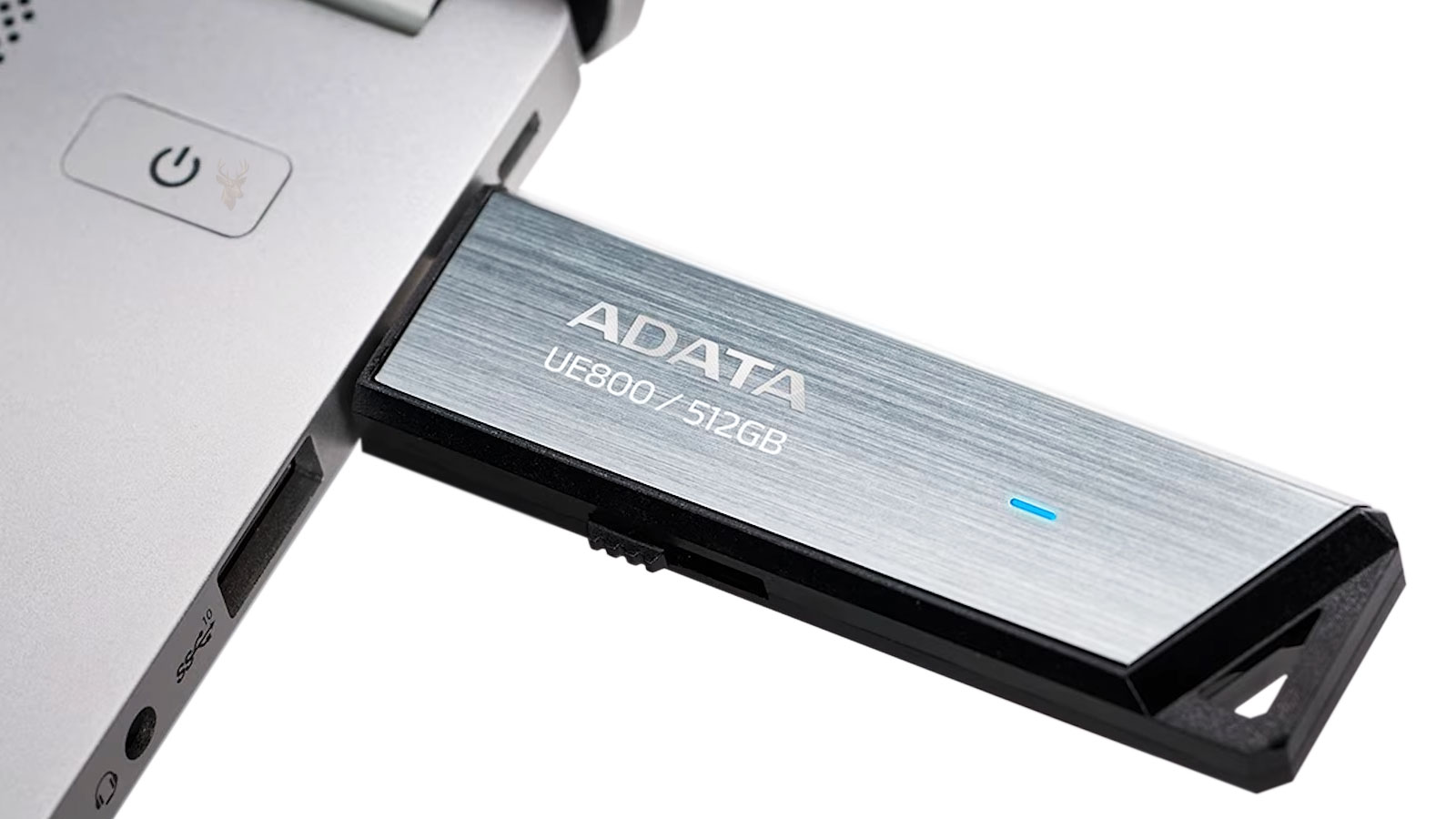
Files May Still Open Normally Even After a Flash Drive Stops Accepting Changes
A USB flash drive can appear healthy when it is first connected. Windows may recognize it immediately, folders may open, and existing documents may remain readable. The problem becomes visible only when someone attempts to save a new file, rename an existing item, delete a folder, or format the device.
Messages stating that the drive is write-protected or read-only indicate that Windows is being prevented from changing the stored information. The restriction may come from a physical switch, an operating-system setting, file-system damage, security software, or the flash drive’s own internal controller.
Because reading and writing are separate operations, a device can continue providing access to existing files while refusing every change. This temporary accessibility is important. A flash drive that has entered a protective read-only state may be giving the user an opportunity to copy important information before the device becomes less reliable.
Read Access and Write Access Perform Different Jobs
Reading allows the computer to retrieve information that is already stored. Writing changes the device by creating files, editing documents, updating folders, or recording file-system information.
A storage device can succeed at one operation while failing at the other. The flash memory may still return previously stored data correctly even though the controller no longer considers new writing safe.
This distinction explains why photographs can remain viewable while attempts to delete them fail, or why documents can be copied from the drive even though no new document can be saved to it.
Write Protection Can Be Intentional
Some removable storage devices include a physical switch that prevents writing. This feature is more familiar on full-size SD cards, but certain specialized USB devices and adapters use similar controls.
When the switch is enabled, the storage can be read without allowing files to be changed. The protection can help preserve installation media, photographs, recovery tools, or other information that should not be altered accidentally.
A switch can move while the device is being carried or inserted into an adapter. Examining the complete device and any removable-media adapter should therefore come before assuming that the flash memory has failed.
Most Ordinary Flash Drives Have No External Lock
Many standard USB flash drives do not provide a physical write-protection switch. When one of these devices suddenly becomes read-only, the restriction is more likely to originate in Windows, the file system, the device controller, or software controlling removable storage.
This is why instructions intended for an SD card lock may not apply to an ordinary USB drive. The outward message can be similar even though the source of the restriction is completely different.
Identifying the exact type of removable storage prevents time from being spent searching for a switch that the device was never designed to include.
A Flash Drive Controller Manages the Memory Behind the Connector
The memory chips inside a flash drive do not communicate with Windows directly. A small controller manages data placement, translates computer requests, tracks unusable memory areas, and attempts to distribute writing across the available flash cells.
This controller is responsible for presenting the storage to Windows as a usable device. It can continue responding to read requests even when it detects that reliable writing is no longer possible.
When the controller enters a protective mode, Windows may report the entire device as write-protected. The restriction may not be removable through ordinary formatting because it is being enforced inside the flash drive rather than by the operating system.
Flash Memory Wears Gradually With Repeated Writing
Flash memory cells tolerate a limited number of erase-and-write cycles. The controller attempts to distribute activity so the same area is not used continuously, but wear still accumulates throughout the life of the device.
Ordinary file storage may require more internal writing than the user sees. Renaming a file, updating a folder, deleting an item, or changing file-system records can all modify information on the drive.
A heavily used flash drive may therefore develop reliability problems even when it has not stored an unusually large amount of data at one time. Repeated use as a portable workspace, logging device, or temporary application drive can create substantially more writing than occasional file transfers.
- Frequently editing documents directly on the flash drive.
- Using the device for continuous logs or recordings.
- Running portable applications that update their files regularly.
- Deleting and replacing large collections repeatedly.
- Using the drive as temporary working storage every day.
- Disconnecting it during active write operations.
These activities do not guarantee failure, but they can place greater demand on low-cost removable storage than occasional backup or transfer use.
Protective Read-Only Mode Can Be a Warning of Device Failure
Some flash drives intentionally stop accepting changes after the controller detects serious memory errors. Allowing continued writing under those conditions could damage files that remain readable.
By switching to a read-only state, the device may preserve access long enough for the user to copy available information elsewhere. This behavior is not guaranteed on every flash drive, but it is an important possibility when write protection appears suddenly without any Windows setting being changed.
Repeated attempts to force writing or formatting should not come before copying important files. The device may be approaching complete failure, and current access may not remain available indefinitely.
File-System Damage Can Also Prevent Changes
The file system records the names, locations, sizes, and relationships of files stored on the drive. If these records become damaged, Windows may limit access or report errors when attempting to make additional changes.
File-system damage can develop after an unsafe removal, interrupted write, sudden loss of power, unstable USB connection, or failure inside the storage device. Existing files may remain partially or completely accessible even while the structure used to manage new changes becomes unreliable.
A file-system problem and a failing flash controller can produce similar symptoms. The difference matters because repairing logical records may help in one situation while having no effect on a controller that has permanently disabled writing.
| Observed Behavior | Possible Explanation |
|---|---|
| Files open, but none can be deleted or renamed. | The complete device may be read-only or write-protected. |
| Only one folder refuses changes. | Permissions, file attributes, or localized file-system damage may be involved. |
| The restriction appears on several computers. | The condition likely follows the flash drive rather than one Windows installation. |
| The drive works normally on another computer. | Windows settings, security policies, or software on the original computer may be responsible. |
| Formatting also reports write protection. | The restriction may exist below the ordinary file level. |
| The drive became read-only after errors or disconnections. | File-system damage or protective controller behavior may have developed. |
Testing whether the restriction affects one file, one folder, one computer, or the complete device helps narrow the source without immediately erasing the storage.
Unsafe Removal Matters Most While Data Is Being Written
Disconnecting a flash drive while no activity is occurring may not produce an obvious problem. Removing it during a write operation is more dangerous because Windows or an application may still be updating file contents, directory records, or allocation information.
The visible file transfer window can close before every supporting operation has finished. Background programs, antivirus scanning, synchronization tools, and file-system caching may continue using the device briefly.
Using the operating system’s removal procedure and waiting for activity to stop reduces the chance of interrupting these final changes. It does not prevent hardware wear, but it helps protect the logical structure stored on the device.
Write Protection May Affect the Entire Computer
Windows settings and business security policies can restrict writing to removable storage. Organizations may use these controls to reduce unauthorized copying, prevent malware from spreading through USB devices, or protect confidential information.
When a policy is responsible, several unrelated flash drives may become read-only on the same computer while continuing to work normally elsewhere. The drives themselves have not all failed at the same time.
Testing another known working removable device provides an important comparison. A restriction affecting every device points toward the computer, while a restriction following only one flash drive points toward that device or its file system.
File Attributes Can Restrict Individual Items Without Locking the Complete Drive
Windows files can carry attributes that influence how they are handled. A read-only attribute on one document may prevent ordinary editing while other files on the same flash drive continue working normally.
This condition differs from a complete device-level restriction. If new folders can still be created and other files can be deleted, the problem may belong only to the affected item rather than to the entire flash drive.
Checking whether the limitation follows one file, one folder, or every item on the device helps distinguish a local attribute from full write protection.
Folder Permissions Can Resemble Write Protection
Files copied from another computer or restored from backup can retain permissions that do not match the current Windows user account. The folder may open successfully while attempts to modify its contents are denied.
Permissions usually affect selected folders or files rather than the complete storage device. A user may be unable to edit one project folder while still creating new files elsewhere on the flash drive.
This pattern points toward ownership or access control rather than a failing controller or system-wide removable-storage policy.
Security Software Can Restrict Changes to Removable Storage
Antivirus, data-loss prevention, and endpoint security software can monitor removable devices closely. Some products block writing to unknown storage, require encryption, or permit access only to approved company devices.
The flash drive may remain readable because the policy allows users to retrieve files while preventing new information from being copied onto the device. This can appear identical to ordinary write protection from the user’s perspective.
When the same drive works normally on another computer, security software and organizational policy on the original system should be considered before attempting to repair the device itself.
Business Policies May Be Enforced Through Windows
Managed computers can receive removable-storage restrictions through administrative policy. These controls may block all writing, permit only encrypted devices, or prevent access to certain classes of USB storage.
A user may not have permission to change these settings even when signed in with an ordinary local account. The restriction can return after every restart because it is being reapplied by the organization’s management system.
Removing the policy without authorization can violate security requirements. On a business computer, the correct response is to confirm whether the limitation was established intentionally.
Testing on Another Computer Provides a Useful Separation
Connecting the flash drive to another trusted computer can help determine whether the restriction follows the device. If the same read-only behavior appears there, the problem is more likely to involve the flash drive, its file system, or its internal controller.
If the drive works normally elsewhere, attention should return to the original computer. Windows policy, security software, USB configuration, or account permissions may be responsible.
This comparison should be performed before formatting or making broad system changes because it preserves valuable diagnostic information.
- Test the same flash drive on another trusted computer.
- Test a different known working flash drive on the original computer.
- Compare whether reading and writing fail in the same way.
- Note whether only one folder or the entire device is affected.
- Record any exact Windows error message before changing settings.
These controlled comparisons help separate a device problem from a computer-wide restriction.
A Different USB Port Can Rule Out an Unstable Connection
A damaged or unstable USB port can interrupt communication while the computer is attempting to write. The flash drive may disconnect briefly, return with errors, or fail during file-system updates.
Testing another direct port helps determine whether the problem follows the storage device or one particular connection. Front-panel desktop ports, unpowered hubs, docking stations, and worn laptop ports can introduce instability that is not present on another connector.
An unreliable connection does not usually create permanent write protection by itself, but repeated interruptions can contribute to file-system damage and incomplete writes.
USB Hubs and Adapters Add More Points of Failure
Flash drives connected through hubs, extension cables, card readers, or multiport adapters depend on every part of that path. Insufficient power, loose connectors, or unstable electronics can interfere with communication.
During diagnosis, connecting the device directly to the computer removes those additional variables. If writing becomes reliable through a direct port, the storage device may be healthy while the accessory path requires attention.
This test is especially useful when the flash drive disconnects, reconnects, or produces errors only when other USB devices are active.
Capacity Misreporting Can Indicate Counterfeit or Failing Storage
Some low-quality or counterfeit flash drives report more capacity than their physical memory can actually provide. They may appear to accept files until the real storage limit is reached, after which data becomes corrupted, disappears, or cannot be written reliably.
A device sold as a large-capacity drive can therefore fail even though Windows still shows substantial free space. The controller may be presenting false information to the operating system.
Unexpected read-only behavior combined with missing files, impossible capacity, repeated corruption, or unusually low purchase price should raise concern about the authenticity and reliability of the device.
| Comparison Test | What the Result May Indicate |
|---|---|
| The drive is read-only on every computer. | The restriction likely follows the device, file system, or internal controller. |
| Several flash drives are read-only on one computer. | Windows policy, security software, or system configuration may be responsible. |
| Only one folder cannot be changed. | Permissions, ownership, or localized corruption may be involved. |
| The drive works through one USB port but not another. | The original port, hub, or adapter may be unstable. |
| The device reports unrealistic capacity and corrupts files. | The flash drive may be counterfeit, defective, or misreporting its storage. |
| The drive becomes read-only after repeated errors. | The controller may have entered a protective state. |
Testing under controlled conditions provides stronger evidence than repeatedly changing attributes or attempting to format the device.
Formatting Requires Write Access
Formatting creates a new file-system structure on the storage device. It must erase or replace important records, which means the flash drive must accept write commands.
If the device controller has permanently disabled writing, formatting tools cannot override that decision. Windows may detect the drive, display its capacity, and begin the format process before returning a write-protection error.
A failed format therefore does not automatically confirm that the selected formatting tool is defective. The storage device may be refusing every command that would alter its contents.
Formatting Is Not a Data-Preservation Step
When important files remain readable, copying them elsewhere should come before any attempt to format or repair the file system. Formatting is intended to prepare storage for use, not to preserve existing documents.
Even a quick format changes file-system records and can complicate later recovery. A full format may place additional stress on a device that is already unstable.
The priority should be determined before changes are made: either preserve the existing data or attempt to return the device to service. Those goals do not always require the same procedure.
Repair Utilities Cannot Correct Every Read-Only Condition
File-system repair tools can examine logical structures and correct certain inconsistencies, but they depend on the storage device accepting changes. A controller-enforced read-only state prevents the utility from writing repaired information back to the drive.
Likewise, changing a Windows setting has no effect when the restriction is being enforced inside the flash drive. The source of the read-only condition determines whether software repair is possible.
Repeatedly running repair commands without first preserving readable files can waste time while the device continues deteriorating.
Important Files Should Be Copied Before Extensive Testing
A flash drive that suddenly changes behavior should not be trusted as the only location for important information. Even when files remain readable, the condition may worsen without warning.
Copying available files to reliable storage creates a working duplicate before troubleshooting continues. The copied files should be opened and checked rather than assumed to be complete simply because the transfer finished.
Once the information is protected, additional testing can proceed without placing the only copy at unnecessary risk.
A Successful Copy Does Not Prove Every File Is Healthy
When a read-only flash drive still allows files to be copied, the transfer may appear to complete without errors. That result confirms that Windows was able to read the requested information, but it does not guarantee that every document is complete or undamaged.
Files affected by earlier corruption may copy successfully while containing missing sections, unreadable images, damaged archives, or incomplete database records. The copied material should therefore be opened and reviewed from the new storage location.
Verification is especially important for irreplaceable photographs, business documents, compressed archives, accounting files, and project folders containing many related items.
Copying Small Groups Can Be Safer Than One Large Transfer
An unstable flash drive may stop responding during a lengthy transfer. Copying the entire device in one operation can make it difficult to identify which files were completed before the interruption occurred.
Transferring important folders in smaller groups provides clearer checkpoints. If the drive disconnects or produces an error, the completed groups can be verified before another attempt begins.
The most valuable and irreplaceable files should generally be copied first. Less important software installers, temporary files, and material that can be downloaded again can wait until essential data has been secured.
Repeated Write Tests Can Reduce the Remaining Opportunity to Recover Data
A flash drive that has become read-only may already be experiencing internal memory or controller problems. Repeated attempts to remove the restriction, create test files, format the device, or run repair commands can consume time while the drive remains in an uncertain condition.
If the controller is allowing reads only as a protective measure, preserving the available files is more important than proving whether one additional write command can be forced through.
Testing should become more conservative when the device begins disconnecting, slowing down, reporting unreadable files, or disappearing from Windows intermittently.
Changing Registry or Policy Settings Requires Evidence
Windows includes settings that can restrict removable-storage writing, and online instructions often recommend changing registry values immediately. Those changes are appropriate only when the restriction is actually being enforced by the operating system.
If the flash drive remains read-only on several unrelated computers, changing one Windows registry setting is unlikely to help because the condition follows the device. Broad system changes can also affect other removable storage that was working correctly.
Comparative testing should come first so that any policy or registry adjustment is based on evidence rather than on the wording of one general error message.
Command-Line Tools Cannot Override Failing Hardware
Windows command-line utilities can display disk attributes, examine partitions, and request changes to certain software-controlled settings. They are useful when the read-only condition comes from a removable-storage attribute or an incomplete disk configuration.
These tools still depend on the flash drive accepting the requested commands. If the internal controller has locked the device because of memory failure, clearing a software attribute may report an error or appear successful without restoring write access.
A command completing without an obvious warning should be followed by a controlled test rather than being treated as proof that the storage is reliable again.
Manufacturer Utilities Apply Only to Certain Devices
Some flash-memory manufacturers provide specialized utilities for selected products. These programs may identify the controller, update device firmware, restore factory formatting, or test the physical memory.
A utility intended for another controller or model should not be used simply because the drives look similar. Many flash drives sold under different brand names contain unrelated internal hardware, while visually identical models can use different components across production batches.
Low-level restoration tools may erase all existing information and still fail if the controller or memory chips are physically damaged. They should never be treated as a data-preservation method.
A Read-Only Drive Should Not Return to Important Daily Use
Even if write access is restored temporarily, a flash drive that became read-only unexpectedly has demonstrated abnormal behavior. The original restriction may have resulted from file-system damage, unstable communication, controller problems, or worn memory.
Continuing to use the same device as the only location for active work or important files creates unnecessary risk. A replacement drive is inexpensive compared with the time required to reconstruct lost documents or recover damaged data.
The affected device may still be useful for limited testing after its contents are secured, but it should not be trusted until its reliability has been established through more than one successful file operation.
| Condition After Testing | Practical Interpretation | Recommended Priority |
|---|---|---|
| The files copy successfully, but writing remains blocked. | The device may be preserving read access while refusing further changes. | Verify the copied files and replace the flash drive. |
| Write access returns only on one computer. | The original computer may have a policy, software, or configuration issue. | Review the affected computer before changing the device. |
| Write access returns after file-system repair. | Logical damage may have caused the restriction. | Back up the contents and continue testing before reuse. |
| The drive disconnects or becomes extremely slow. | Hardware instability or severe corruption may be developing. | Stop unnecessary testing and preserve readable data. |
| Formatting succeeds but errors return soon afterward. | The device may have deeper controller or memory problems. | Retire the drive rather than relying on it again. |
| The drive fails on every computer and cannot be formatted. | The restriction is likely being enforced inside the device or caused by hardware failure. | Separate data-recovery needs from replacement of the storage. |
The result of each test should guide the next decision rather than encouraging repeated attempts to force an unreliable device back into service.
Flash Drives Are Better for Transport Than Long-Term Dependence
USB flash drives are convenient for moving files between computers, carrying installers, or keeping temporary working copies. Their small size and lack of moving parts make them easy to transport, but those advantages do not make every device suitable for permanent storage.
Low-cost models may use modest controllers, limited error management, and memory selected primarily for affordability. They can work well for ordinary transfers while still being less dependable than storage designed for long-term backup.
Important information should exist in more than one location, preferably on different types of reliable storage. A flash drive should not be the only copy simply because it has worked without problems in the past.
Safe Removal Protects the File System but Cannot Stop Memory Wear
Using the Windows removal option helps ensure that pending writes and file-system updates have finished before the device is disconnected. This reduces the risk of logical corruption caused by interrupting active work.
Safe removal does not reverse physical wear inside the memory chips or correct a controller that is beginning to fail. A carefully handled flash drive can still reach the end of its useful life after enough writing or internal defects develop.
Good handling lowers avoidable risk, while backups address the failures that careful handling cannot prevent.
Replacement Should Include Verification of the New Copy
Moving files from an unreliable flash drive to a replacement device is only the first step. The new copy should be checked to confirm that important folders are present and representative files open correctly.
For valuable information, another copy should also be stored somewhere separate from the replacement flash drive. Keeping both copies in the same bag, desk drawer, or computer case does not protect against theft, loss, fire, or physical damage affecting both devices together.
- Copy the most important readable files first.
- Open selected documents, images, and archives from the new location.
- Compare folder sizes or file counts where practical.
- Create another backup on separate reliable storage.
- Label or retire the questionable flash drive so it is not reused accidentally.
- Avoid erasing the original until the replacement copies have been verified.
Verification prevents an incomplete transfer from being mistaken for a successful backup.
Read-Only Behavior Is a Condition to Interpret, Not Merely Remove
A write-protection message can originate from a physical lock, individual file setting, folder permission, Windows policy, security program, damaged file system, unstable connection, counterfeit capacity, or failing flash controller. The wording alone does not identify which source is responsible.
The most useful distinction is whether the restriction affects one item, the complete drive, one computer, or every computer tested. That pattern determines whether attention belongs on Windows, the connection, the logical file structure, or the storage device itself.
When a flash drive suddenly becomes read-only, preserving accessible files should take priority over forcing it to accept changes again. Once the data is verified elsewhere, the device can be evaluated without risking the only remaining copy of the information.











