
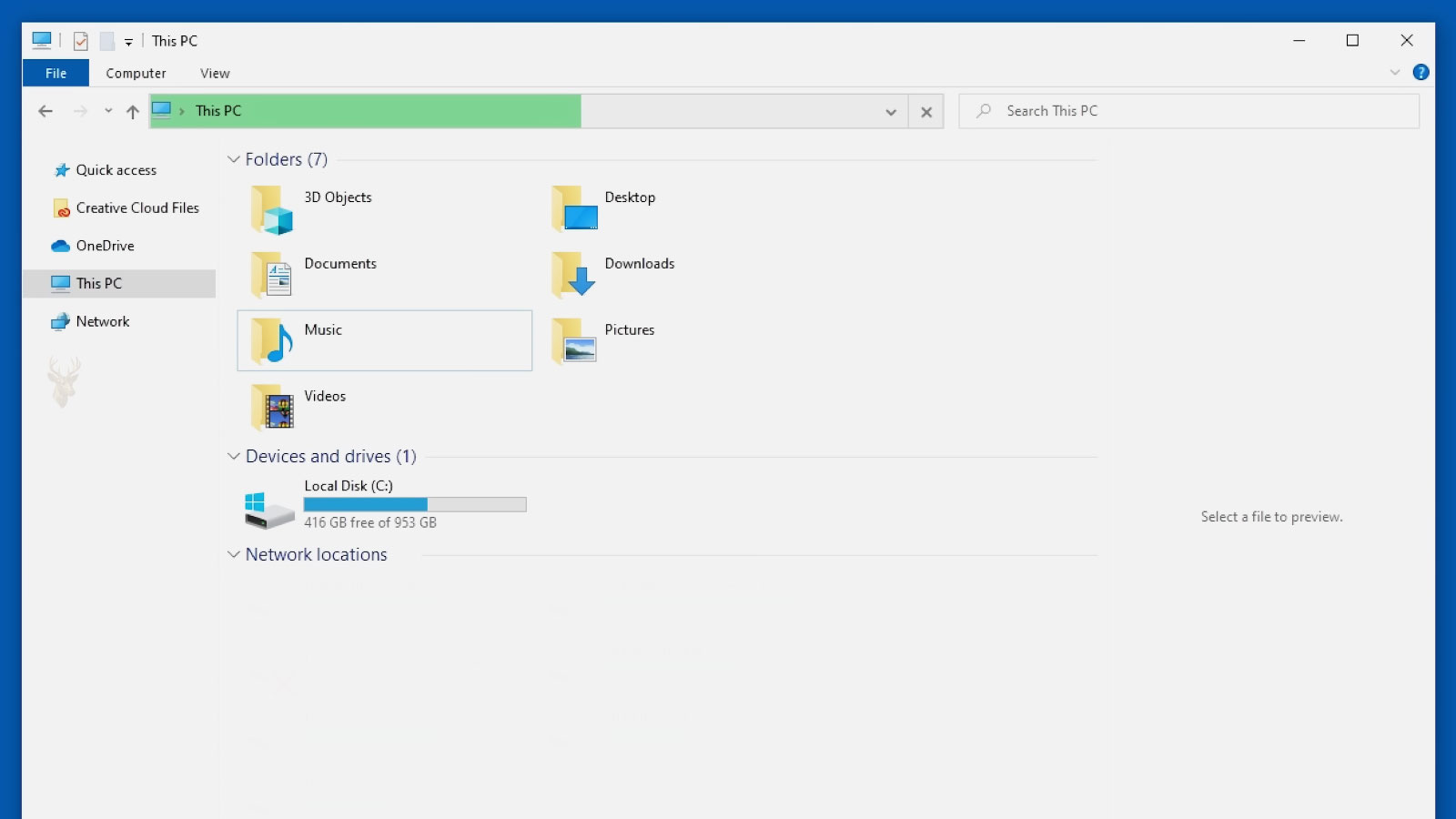
A File Can Remain Safely Stored on the Computer Even When Windows Search No Longer Shows It
Typing a filename into the Windows search box can feel like a direct request to examine every folder on the computer. In many situations, however, Windows is not searching the complete storage device at that moment. It is consulting a prepared index containing information collected earlier from selected locations.
This design makes routine searches much faster. Instead of opening thousands of folders and examining every file each time, Windows can compare the search terms against a database built in the background. The results may appear almost instantly when that database is current and complete.
Problems begin when the index falls behind, becomes damaged, excludes an important folder, or cannot read the information required to identify a document. The file may still exist and open normally through File Explorer while remaining absent from search results.
The Search Index Is a Catalog Rather Than a Second Copy of the Files
The Windows search index stores descriptive information about files rather than duplicating the files themselves. It may record names, locations, dates, file types, properties, and selected text contained inside supported documents.
If the index is erased or rebuilt, personal documents are not normally deleted. Windows simply loses the catalog it was using to locate them quickly and must create that catalog again.
This distinction is important because a missing search result does not by itself confirm that the original file has been removed, corrupted, or lost.
Only Selected Locations May Be Indexed
Windows does not always index every connected storage location. User folders, the Start menu, email data, and certain libraries may be included automatically, while other folders, external drives, network locations, or secondary partitions may be excluded.
A document stored in an indexed Documents folder may appear immediately, while an identical file placed in an unindexed archive folder may require a slower direct search or may not appear through the same search interface.
The difference can create the impression that search works only for certain files when the real distinction is where those files are stored.
- User profile folders may be indexed automatically.
- Secondary internal drives may require manual inclusion.
- External drives may use different search behavior.
- Network folders depend on server and offline-file settings.
- Encrypted or restricted folders may not be fully readable by the indexing service.
- Temporary and system locations may be excluded intentionally.
Reviewing the indexed locations helps determine whether the missing result comes from an indexing failure or from a folder that was never included.
File Names and File Contents Are Indexed Separately
Windows can often index the name and basic properties of a file even when it cannot examine the text inside it. Searching for the filename may succeed while searching for a sentence contained in the document produces no result.
Content indexing depends on whether Windows has a suitable filter capable of reading that file format. Common text documents, email messages, and office files may be supported, while specialized formats can remain searchable only by name or metadata.
This is why two files stored in the same folder can behave differently during a content search even though both are present in the index.
New Files May Not Appear Immediately
Indexing usually occurs as a background task so it does not constantly interfere with normal computer use. A newly created, copied, downloaded, or renamed file may therefore require some time before its information is added to the catalog.
The delay can become longer when the computer is busy, running on battery power, processing a large number of changes, or rebuilding the complete index after maintenance.
Searching through the file’s actual folder can confirm whether it exists while Windows finishes updating the broader search database.
Large File Collections Can Extend Indexing Time
A computer containing years of documents, photographs, email, and archived project files may require significant time to build a complete index. The service must examine each supported item and record the information needed for later searches.
Adding an entire secondary drive or restoring a large backup can suddenly introduce hundreds of thousands of items. Search results may remain incomplete until the new material has been processed.
During this period, some searches may work correctly while others return partial results, depending on which folders have already been examined.
Indexing Activity Can Slow Down on a Busy Computer
Windows attempts to perform indexing without making the computer feel unresponsive. When the processor, storage device, or memory is already under heavy use, indexing may pause or proceed more slowly.
This behavior is especially noticeable on older computers with traditional hard drives. Reading many small files for indexing can compete with applications that are also requesting storage access.
A delayed index is therefore not always damaged. It may simply be waiting for the computer to become less active before continuing its work.
| Search Behavior | Possible Explanation |
|---|---|
| A file opens from its folder but does not appear in search. | The location may not be indexed, or the index may not be current. |
| The filename appears, but text inside the document does not. | Content indexing may be disabled or unsupported for that file type. |
| New files appear only after a delay. | The background indexing service may still be processing recent changes. |
| Results from one drive are complete while another drive is missing. | The second drive may not be included in indexed locations. |
| Search becomes incomplete after restoring many files. | The index may still be cataloging the restored collection. |
| Search stops working across several locations at once. | The Windows Search service or index database may require attention. |
The pattern of missing results often reveals whether the problem involves one folder, one file type, recent changes, or the complete Windows search system.
The Windows Search Service Maintains the Catalog
A background Windows service coordinates indexing and responds to search requests from File Explorer, the Start menu, Control Panel, and certain applications. If the service stops, search may become slow, incomplete, or unavailable depending on the location and interface being used.
Some searches can still inspect folders directly even when the index is unavailable, but they may take much longer because Windows must examine files individually rather than consulting the prepared catalog.
A service that repeatedly stops may be reacting to damaged index data, system-file problems, software conflicts, or storage errors. Restarting it can restore temporary operation without correcting the condition that caused it to stop.
A Damaged Index Can Return Outdated or Inconsistent Results
The index database changes constantly as files are created, renamed, moved, edited, and deleted. If those records become inconsistent, Windows may display files that no longer exist, omit files that are present, or point toward locations that have changed.
This condition can develop after an unexpected shutdown, storage error, interrupted system repair, or software problem affecting the indexing service. The original documents may remain unharmed while the catalog describing them becomes unreliable.
Comparing search results with the actual contents of the folder helps determine whether the inconsistency belongs to the index rather than to the files themselves.
Rebuilding the Index Creates a Temporary Period of Incomplete Search
When the index is rebuilt, Windows removes the existing catalog and begins creating a new one from the selected locations. This can correct damaged or outdated records, but search results remain incomplete until enough files have been processed again.
Repeatedly starting another rebuild before the previous one finishes can prevent the catalog from ever becoming complete. The computer may appear to have a permanent search problem when the indexing process has simply been restarted several times.
Allowing one rebuild to finish under stable conditions provides more useful information than repeatedly clearing the index after every missing result.
Search Results Can Differ Between the Start Menu and File Explorer
Windows provides several places to search, but they do not always examine information in exactly the same way. A search from the Start menu may emphasize applications, settings, and indexed user files, while File Explorer can focus more directly on the folder or drive currently open.
This difference explains why a document may fail to appear in one search box but become visible when the user opens its parent folder and searches from there. The file has not changed; the search scope and method have changed.
Comparing the same search term in more than one location helps determine whether the problem affects the complete index or only a particular Windows search interface.
Search Scope Determines Which Locations Are Examined
A search started inside one folder may examine only that folder and its subfolders. Searching from a library, user profile, or complete drive can produce a much broader set of results.
Users sometimes assume that every search box checks the entire computer automatically. In reality, the current location often defines the boundaries of the search unless another scope is selected.
A missing result may therefore come from searching the wrong location rather than from an indexing failure.
- A search inside Documents may not include files stored on another drive.
- A search inside one project folder may exclude neighboring folders.
- A library search may include several physical folders grouped together.
- A complete-drive search can be slower than an indexed user-folder search.
- Network and external locations may require separate searches.
Confirming the current search scope should come before rebuilding the index or changing system services.
File Extensions Influence What Windows Can Recognize
Windows uses file extensions to identify document types and determine which indexing filter should examine their contents. A familiar extension such as .txt, .docx, or .pdf may receive different treatment from a specialized engineering, accounting, or design format.
If the extension is missing, incorrect, or associated with an unsupported format, Windows may still index the filename while being unable to read the internal text. The file can therefore appear when searched by name but remain absent when searched by a word contained inside it.
Changing an extension manually does not convert the file into another format. It can make the document harder for both applications and the indexing service to interpret correctly.
PDF Search Depends on Whether the Text Is Actually Readable
Two PDF files can look nearly identical on the screen while containing very different internal information. One may include selectable text, while another may consist only of scanned page images.
Windows can index readable text when an appropriate PDF filter is available. A scanned image without recognized text may be searchable only by filename, date, or other basic properties.
This explains why a phrase visible on a PDF page may not appear in Windows Search. The words can be part of an image rather than stored as searchable characters.
Permissions Can Limit What the Indexing Service Reads
Windows file permissions determine which users and services can open particular folders and documents. If the indexing service cannot read a location, it may be unable to add complete information from that location to the search catalog.
This situation can occur with folders copied from another computer, restored from backup, inherited from a former user account, or protected through business access controls.
The file may still be accessible to one administrator while remaining unavailable to ordinary users or background services. Search behavior can therefore differ between accounts on the same computer.
Encrypted Files May Require the Correct User Context
Encrypted files are designed to prevent unauthorized access to their contents. Depending on the encryption method, Windows Search may index only limited information or may require the authorized user account to be signed in before content can be examined.
A restored encrypted folder can appear present while its contents remain unreadable to the account currently using the computer. In that condition, rebuilding the search index cannot substitute for the missing encryption credentials.
Search limitations involving encrypted data should therefore be separated from ordinary indexing delays or damaged catalog records.
External Drives Do Not Always Remain Available Long Enough to Be Indexed
An external drive may be connected only occasionally, assigned a different drive letter, or removed before Windows finishes processing its files. Search results can then remain incomplete or point toward a location that is no longer attached.
Portable drives also vary in how they are formatted and how Windows handles their content. Some are treated as fixed storage, while others behave more like removable media with limited indexing support.
Searching directly from the external drive can provide a more reliable test than expecting every item to appear through the Start menu or a general computer-wide search.
| Location or File Condition | Possible Search Limitation |
|---|---|
| A folder is outside the indexed locations. | Results may require a slower direct search from File Explorer. |
| A scanned PDF contains only page images. | Visible words may not be available for content search. |
| A specialized file type lacks an indexing filter. | The filename may be searchable while internal text remains unavailable. |
| A folder has restricted permissions. | The indexing service or current user may not be able to read it. |
| An external drive is disconnected frequently. | Indexing may remain incomplete or results may point to an unavailable location. |
| A search begins inside the wrong folder. | The requested file may fall outside the selected search scope. |
These differences show why a missing result does not always indicate one universal Windows Search failure.
Network Folders Follow Different Indexing Rules
Files stored on a network server are not always indexed by the local computer. Search may depend on the server’s own indexing service, the sharing method, offline-file configuration, and whether Windows can request indexed results from the remote system.
A network folder can open normally while searches inside it remain slow or incomplete. In that case, the local Windows index may have little or no information about the remote files.
Business environments may manage network search centrally, making server configuration just as important as the settings on the user’s computer.
Offline Files Can Create More Than One Version of the Same Location
Windows can keep local copies of selected network files so they remain available when the computer is disconnected from the server. These offline copies must later synchronize with the network location.
During synchronization delays or conflicts, search may find the local copy, the server copy, both versions, or neither version through the expected path. The apparent search problem may actually involve synchronization rather than the index alone.
Checking whether the file is online, offline, or waiting to synchronize can clarify why results differ depending on the computer’s network connection.
Outlook Search Often Relies on the Same Windows Indexing System
Some versions of Microsoft Outlook use Windows Search to index email messages, attachments, contacts, and calendar information. A broader indexing problem can therefore affect both file searches and Outlook results.
If recent messages are missing from Outlook search while older messages still appear, the email data may still be waiting for indexing. If all results disappear suddenly, the Windows Search service, Outlook data file, or indexed location may require attention.
An email that opens normally from its folder but remains absent from search follows the same basic principle as a document that exists on disk but is missing from the catalog.
Moving Large Email Archives Can Delay Search for Hours
Importing an old mailbox, reconnecting an archived data file, or restoring years of email introduces a large amount of new material to the indexing service. The messages may be fully accessible in Outlook before search results become complete.
The indexing process must examine message subjects, senders, dates, recipients, and sometimes attachment contents. Large archives can therefore take considerably longer to catalog than a small folder of ordinary documents.
Searching immediately after a large import can produce partial results that improve gradually as the index catches up.
Searching by Exact Name Can Fail Because the Name Is Not Exact
File names can include spaces, numbers, punctuation, dates, and extensions that are easy to remember incorrectly. A document may also have been renamed automatically when another file with the same name was copied into the folder.
Searching with only part of the expected name, the file extension, an approximate date, or another known property can reveal files that an overly specific search term misses.
This is especially useful when Windows has added a number such as “(1)” to a duplicate filename or when the file was saved under the document’s first line rather than the name the user expected.
Hidden and System Files May Be Excluded From Ordinary Results
Windows hides certain files and folders to reduce clutter and protect important operating-system components from accidental changes. Search interfaces may also omit these items unless the current folder settings allow them to be shown.
A hidden file can still exist and occupy storage while remaining absent from an ordinary visual inspection. This behavior is intentional and should not automatically be treated as index corruption.
Changing hidden-file settings should be done carefully because many hidden items belong to Windows or installed applications rather than to the user’s personal documents.
Search Filters Can Narrow Results More Than Expected
Windows Search can filter by date, file type, size, author, and other properties. These filters help reduce large result lists, but an old or accidental filter can also hide the file being sought.
A search limited to documents modified this week will not display an older file even when the name matches perfectly. A type filter can exclude an item saved in a different format than expected.
Clearing unnecessary filters and testing with a simpler search term helps determine whether the result is missing or merely excluded by the current search conditions.
A Direct Folder Check Provides the Most Important Comparison
Before assuming that data has disappeared, the expected folder should be opened directly whenever its location is known. Sorting by name, date, or file type can reveal the document without depending on the index.
If the file appears in the folder and opens normally, the problem belongs to search behavior rather than file existence. If it is absent from the expected location, the investigation should expand to recent folders, alternate drives, backups, synchronization services, and the Recycle Bin.
This simple comparison separates an indexing problem from a broader question about where the file was saved, moved, or deleted.
The Index Does Not Replace a Good Folder Organization
Search is designed to help locate information quickly, but it is not intended to replace a logical folder structure. Files stored in clearly named folders are often easier to locate even if the search index is temporarily rebuilding or unavailable.
Separating documents into meaningful categories, avoiding several folders with nearly identical names, and using consistent filenames reduces dependence on search alone. The index becomes a convenience rather than the only practical method of finding important files.
Good organization also makes backup verification, file transfers, and long-term maintenance easier because important information remains predictable regardless of how search behaves.
Cloud Synchronization Can Affect Search Results
Cloud storage services may keep some files fully downloaded while leaving others available only when requested. Depending on the synchronization settings, Windows Search may index locally available files immediately while online-only files behave differently.
A document shown inside a cloud folder is not always stored completely on the computer at that moment. If the synchronization status changes or the internet connection becomes unavailable, search results may differ from what the user expects.
Observing whether a file is fully synchronized, stored locally, or available only through the cloud helps explain why two documents in the same folder sometimes appear differently during a search.
Renaming or Moving Large Numbers of Files Requires the Index to Catch Up
Moving an entire folder to another drive or renaming thousands of files changes a large amount of information that Windows must record. Until the indexing service processes those changes, older names or locations may continue appearing temporarily in search results.
This behavior does not necessarily indicate that duplicate files exist. The index may simply be updating its records to reflect the new structure while background processing continues.
Large organizational projects are therefore more likely to produce temporary search inconsistencies than small day-to-day edits involving only a few documents.
Storage Errors Can Prevent Reliable Index Updates
The indexing service depends on being able to read folders consistently. If a storage device develops unreadable sectors, intermittent communication problems, or file-system corruption, Windows may be unable to examine every file successfully.
Search results can gradually become incomplete because some files cannot be read during indexing, even though many others continue appearing normally. The missing results are then only one symptom of a broader storage condition.
Repeated indexing problems accompanied by disk warnings, unusually slow file access, or file-system errors deserve attention beyond the search feature itself.
User Accounts Maintain Separate Search Environments
Each Windows user account has its own profile containing personal folders, settings, and application data. Two users sharing the same computer may therefore receive different search results even when they use identical search terms.
A document stored inside one user’s profile is not automatically visible to another account unless permissions allow access. Likewise, email, browser downloads, and desktop files often belong only to the account that created them.
Confirming which Windows account created or stored the file is sometimes more useful than rebuilding the search index repeatedly.
Search Performance Depends on More Than the Processor
Fast searches rely heavily on storage performance because the indexing database and the files being examined must be read efficiently. Computers using solid-state drives generally rebuild indexes and return search results more quickly than similar systems using older mechanical hard drives.
Memory capacity, processor speed, and background activity also influence how rapidly indexing progresses, but storage performance often has the greatest effect during large indexing operations.
A slower computer is therefore not necessarily searching incorrectly. It may simply require more time to complete indexing after significant file changes.
Rebuilding the Index Should Not Be the First Response
Because rebuilding removes the existing catalog and starts over, it should normally follow simpler observations rather than replace them. Confirming the search scope, checking indexed locations, verifying file existence, and allowing recent changes to finish processing often answer the question without requiring a complete rebuild.
If the underlying issue involves permissions, unsupported file formats, removable storage, or cloud synchronization, creating a new index alone may produce exactly the same incomplete results after rebuilding finishes.
The effectiveness of rebuilding depends on whether the catalog itself is damaged or whether another condition is preventing accurate indexing.
Observing the Pattern Is More Helpful Than One Missing File
One document failing to appear may involve its name, location, permissions, or file type. When many unrelated files disappear from search at the same time, the pattern points toward a broader indexing or Windows Search issue.
Looking for similarities such as every missing file being stored on the same drive, created recently, saved in one format, or located in one folder often provides stronger diagnostic information than concentrating on a single document.
- Confirm that the file actually exists in its expected folder.
- Verify that the folder is included in indexed locations.
- Determine whether the search is by filename or file contents.
- Check whether recent file changes are still being indexed.
- Compare results from File Explorer and the Start menu.
- Look for patterns involving one drive, folder, or file type.
- Consider rebuilding the index only after the earlier observations have been made.
Following this sequence reduces unnecessary changes and helps identify whether the interruption belongs to the index, the storage location, or the files themselves.
Fast Search Depends on an Accurate Catalog
Windows Search is most effective when the indexing service has enough time to examine the selected locations, maintain current records, and recognize the types of files stored on the computer. The speed users experience comes from consulting that prepared catalog instead of inspecting every folder during every search.
When expected results disappear, the missing information is often connected to the catalog rather than to the files themselves. Indexed locations, permissions, synchronization, storage condition, search scope, and supported file formats all influence what Windows can display.
Viewing Windows Search as a continuously maintained catalog rather than a real-time examination of every file makes its behavior easier to understand. Once the stage where information stops becoming available is identified, it becomes much easier to determine whether attention belongs on the index, the file location, or the underlying storage system.











