
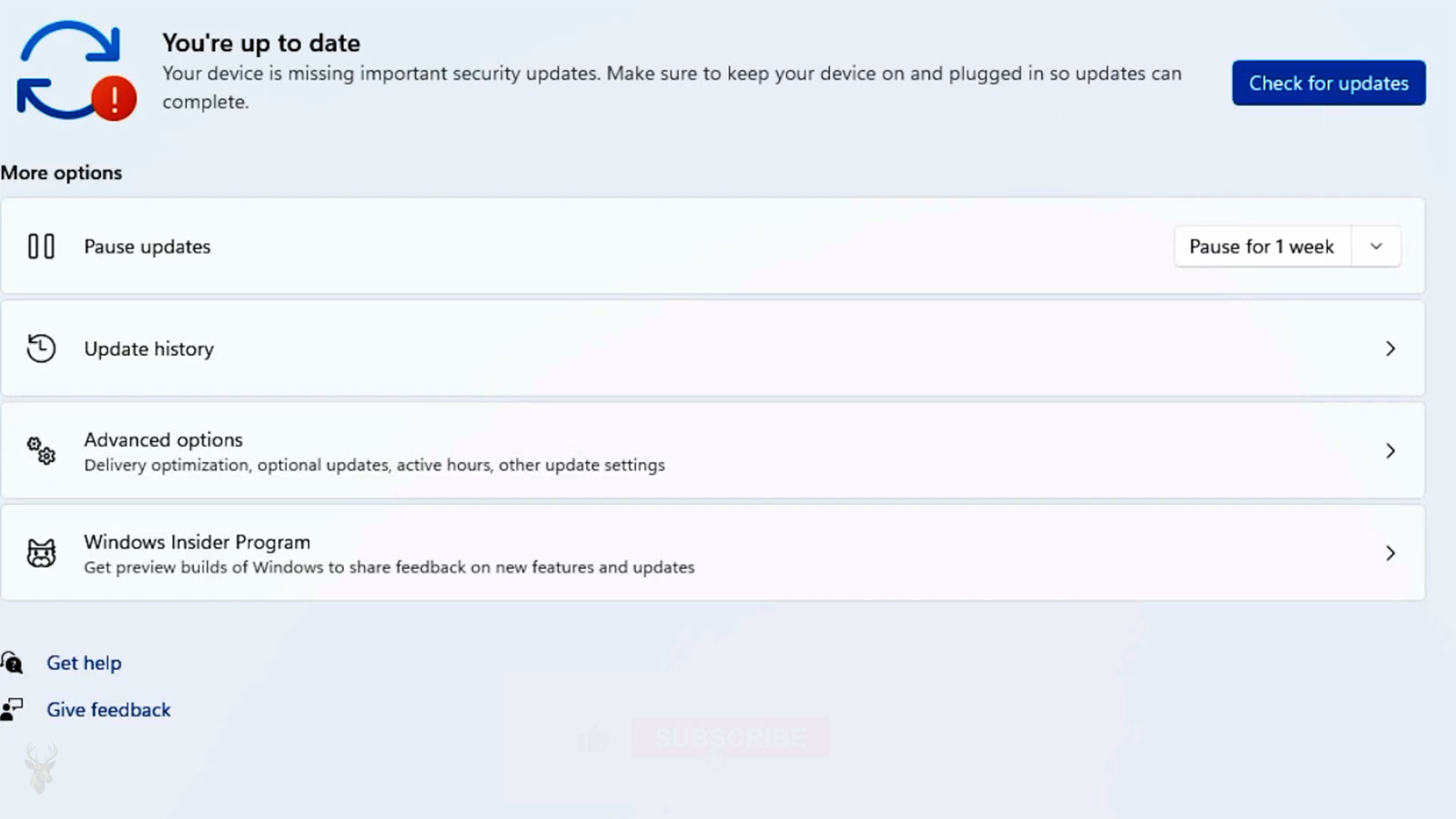
An Update That Returns Every Day May Be Failing at a Different Stage Than the Message Suggests
Windows updates are designed to install security corrections, reliability improvements, hardware support, and changes to built-in system components. Most complete quietly in the background or during a scheduled restart. When the same update repeatedly returns, however, the visible message may not reveal where the process actually stopped.
An update must first be identified, downloaded, verified, prepared, installed, and recorded as complete. Some updates also require the computer to restart so Windows can replace files that were in use. A failure at any of these stages can cause the update to appear again even though part of the work was already completed.
This is why repeated installation attempts do not always mean Windows is downloading the exact same files from the beginning. The system may be trying to resume an incomplete stage, reverse a failed change, or correct records that no longer match the files installed on the computer.
The Update Process Begins Before Installation
Before Windows can install an update, it must determine which packages apply to the computer. The operating-system version, installed components, processor architecture, hardware drivers, and previous updates all influence what is offered.
Windows then downloads the required files and checks whether they appear complete and trustworthy. If the download is interrupted, stored incorrectly, or damaged, installation may fail before any system files are changed.
This early failure can look similar to a later installation error from the user’s perspective. Both may produce a retry button or error code, but the corrective steps can differ depending on whether the problem occurred during downloading, preparation, or installation.
A Successful Download Does Not Confirm a Successful Update
After the files arrive, Windows must prepare them for installation. This can involve checking dependencies, creating temporary working files, confirming available storage, and determining which components must be replaced during the next restart.
An update may reach 100 percent during the download stage and still fail later. The percentage shown on the screen reflects only the current phase, not necessarily completion of the complete update process.
This distinction explains why an update can appear fully downloaded, request a restart, and then return with a failure message after the computer starts again.
Restarts Allow Windows to Replace Files That Are Already in Use
Many operating-system files remain active while Windows is running. Replacing them safely requires a controlled restart so the update can work before ordinary programs and services load completely.
During this stage, the computer may display messages about configuring, applying, or completing updates. Interrupting power while system files are being replaced can leave the installation incomplete or force Windows to reverse the changes.
A long update does not automatically mean the computer has frozen. Storage speed, processor performance, update size, and the number of files being replaced can all affect how long the restart stage lasts.
- The computer restarts more than once during a large update.
- The percentage remains unchanged for several minutes.
- The display briefly becomes dark between installation stages.
- Windows reports that changes are being completed or reversed.
- The desktop takes longer than usual to appear after the restart.
These behaviors can occur during normal update processing, although repeated returns to the same failure point suggest that the installation is not completing correctly.
Limited Storage Can Stop an Update Before the User Notices
Windows updates need more space than the final installed files alone. Temporary packages, backup copies, working folders, and rollback information may all exist at the same time during installation.
A computer with only a small amount of free storage can download part of an update and then fail while preparing or applying it. The available space may also change during the process as temporary files are created and removed.
This is especially relevant on computers with small solid-state drives, heavily used system partitions, or years of accumulated temporary files. Removing personal documents without checking where storage is actually being consumed may provide little improvement.
Interrupted Downloads Can Leave Unusable Update Files Behind
An unstable internet connection, unexpected shutdown, router interruption, or temporary service problem can stop an update while its files are being transferred. Windows may retry automatically, but incomplete information can sometimes remain in the update storage area.
If Windows repeatedly attempts to use a damaged package, the same error can return even after the internet connection becomes stable. The problem is no longer the original interruption alone; it is now the incomplete material left behind from that interruption.
Update files should not be deleted randomly from system folders. Windows uses specific services and databases to track what has been downloaded, installed, superseded, or scheduled for another attempt.
Error Codes Are Clues Rather Than Complete Diagnoses
Windows Update may display a numerical or hexadecimal error code after a failed attempt. The code can help identify the stage or system component involved, but it does not always point to one unique cause.
The same code can appear on two computers for different reasons, particularly when it describes a broad condition such as damaged files, unavailable services, insufficient storage, or a failed installation package.
Recording the exact code, update name, date, and behavior surrounding the failure provides more useful information than searching only for a general phrase such as “Windows update not working.”
| Observed Update Behavior | Stage That May Require Attention |
|---|---|
| The download never begins. | Internet access, update services, system time, or connection settings may be involved. |
| The download reaches a percentage and restarts. | The package may be incomplete, interrupted, or unable to verify correctly. |
| The update downloads but will not prepare. | Storage space, system files, or update records may be preventing installation. |
| The computer fails during restart. | Windows may be unable to replace files, load a driver, or complete configuration. |
| The update installs and then appears again. | The completion record may not match the installed files, or the update may have been reversed. |
| Several unrelated updates fail together. | A broader Windows servicing or system-file problem may be affecting the update process. |
The error code becomes more meaningful when it is considered alongside the exact point where progress stops and whether one update or many updates are affected.
One Problematic Update Can Delay Everything Behind It
Updates are not always installed as completely independent packages. One may require another correction, servicing component, or restart before later updates can proceed.
If an earlier package remains pending or fails repeatedly, newer updates may wait, fail with secondary errors, or appear unavailable until the first condition is resolved.
This dependency can make a computer appear to have many separate update problems when one incomplete package is actually blocking the rest of the sequence.
Repeated Shutdowns Can Prevent Windows From Reaching the Completion Stage
Some users postpone updates by turning off the computer whenever Windows begins preparing a restart. Others close a laptop lid, disconnect power, or force the system off because the process appears to be taking too long.
If Windows never receives enough uninterrupted time to finish, the update can remain pending across several sessions. The computer may repeatedly display preparation messages because it is returning to work that was never completed.
Allowing the computer to remain connected to reliable power and complete a full restart cycle is an important first distinction before assuming the update system itself is damaged.
Device Drivers Can Prevent an Update From Completing
Windows updates occasionally replace or interact with hardware drivers during installation. If an existing driver is damaged, incompatible, or no longer behaves as expected, the update process may stop while attempting to configure the affected device.
This situation is especially noticeable after major feature updates because they modify larger portions of the operating system than routine security patches. The computer may restart successfully several times before encountering a driver that cannot complete its portion of the installation.
A failed update does not automatically mean the driver itself is defective. The interruption may result from the interaction between the installed driver and the newer Windows components.
System File Damage Can Affect the Windows Servicing Process
Windows relies on thousands of protected operating-system files while preparing and installing updates. If important servicing components become damaged or inconsistent, the update engine may no longer be able to verify, replace, or register files correctly.
In some situations the computer appears to operate normally during everyday tasks because only a small portion of Windows has been affected. The problem becomes visible only when the servicing process attempts to use those damaged components.
This explains why a computer that starts, runs applications, and connects to the internet can still experience repeated Windows Update failures.
Security Software May Delay Certain Update Operations
Antivirus and endpoint security software constantly monitors changes made to important operating-system files. During a Windows update, many protected files are intentionally modified as part of the installation.
Modern security software is generally designed to work alongside Windows Update, but damaged installations, outdated security products, or unusually restrictive configurations can occasionally interfere with servicing operations.
Rather than assuming the security software is responsible, it is more useful to determine whether the interruption consistently appears while the same components are being updated.
Feature Updates Differ From Monthly Security Updates
Not every Windows update performs the same task. Monthly cumulative updates usually replace existing operating-system components, while feature updates introduce broader changes that resemble installing a newer release of Windows.
Because feature updates replace a much larger portion of the operating system, they generally require additional storage, longer restart periods, and more compatibility checks before installation can finish.
Understanding which type of update is failing helps establish realistic expectations for both installation time and troubleshooting.
Rollback Is a Protective Part of the Update Process
If Windows determines that an update cannot be completed safely, it may reverse the partially applied changes and restore the previous operating-system state. During this process the screen may display messages indicating that changes are being undone.
Although seeing a rollback can be frustrating, it usually indicates that Windows detected a condition preventing the installation from finishing correctly. Preserving a usable operating system is generally preferable to leaving the computer only partially updated.
Repeated rollbacks, however, suggest that the same underlying condition continues to interrupt the installation each time it is attempted.
Restart Loops Should Be Observed Carefully
A computer that repeatedly restarts during an update is not always trapped in an endless loop. Some updates intentionally require several restarts as different installation stages complete.
The important observation is whether measurable progress continues between restarts or whether the computer consistently returns to exactly the same percentage or message before reversing the installation.
Recognizing this pattern helps distinguish normal multi-stage updating from a repeated installation failure.
- Notice whether the displayed percentage continues increasing over time.
- Record any recurring error code or message.
- Observe whether Windows eventually reverses the changes.
- Determine whether one update or several updates are affected.
- Watch for hardware or driver errors immediately after restart.
Small details observed during the restart process often provide useful clues about where the installation stops.
Several Failed Updates May Share One Underlying Cause
When multiple updates begin failing around the same time, it is tempting to view each package as a separate problem. In many situations they are simply different symptoms of a broader interruption affecting the Windows servicing system.
Storage limitations, damaged servicing files, driver incompatibilities, interrupted update databases, or repeated rollback conditions can prevent several otherwise unrelated updates from installing successfully.
Looking for the common factor often provides a clearer direction than troubleshooting every failed update independently.
Temporary Files Play an Important Supporting Role
Windows creates working folders while downloading, preparing, verifying, and installing updates. These temporary files are intended to support the installation rather than remain permanently on the computer.
If those working files become incomplete or inconsistent after an interruption, Windows may continue attempting to use them during later installation attempts. The visible failure then appears long after the original interruption has occurred.
Because these folders are managed by Windows, manually deleting system files without understanding their purpose can complicate the recovery process instead of improving it.
| Observed Situation | Possible Area to Investigate |
|---|---|
| The same update fails repeatedly. | Installation records, servicing components, or pending changes may be preventing completion. |
| Several updates begin failing together. | A broader Windows servicing problem may exist. |
| The update reaches restart and reverses. | Drivers, protected files, or configuration changes may be interrupting installation. |
| Large feature updates fail while smaller updates succeed. | Compatibility, storage capacity, or broader operating-system changes may be involved. |
| Updates stop during downloading. | Connectivity, update storage, or download integrity should be evaluated. |
Viewing each failure within the complete update sequence makes it easier to determine whether the interruption occurs before installation begins, during servicing, or while Windows is completing changes after restart.
The Update History Can Reveal Whether Windows Reversed the Installation
Windows keeps a record of many successfully installed and failed updates. Reviewing that history can show whether the same package has failed repeatedly, whether the problem began after a particular date, or whether Windows completed the installation and later removed it.
The history is most useful when the update name and identification number are considered together. Several packages may have similar descriptions, and a broad label such as security update does not always distinguish one installation from another.
A repeated failure recorded at consistent intervals often indicates that Windows is automatically retrying the same unresolved package rather than encountering a completely new problem each day.
Pending Restart Conditions Can Block Later Updates
Some updates remain incomplete until Windows performs a full restart. During that period, the operating system may record that changes are pending and delay other installations until the first process finishes.
Shutting down does not always produce the same result as restarting, particularly when power-management features preserve portions of the previous Windows session. A deliberate restart can therefore complete work that ordinary shutdowns have left pending.
If the pending condition remains after several normal restart attempts, the update system may be unable to finalize or reverse an earlier change.
Incorrect Date and Time Can Interfere With Update Verification
Windows relies on accurate date and time information when communicating with update services and validating digitally signed files. A computer with a significantly incorrect clock may be unable to establish trusted connections or confirm that update packages are valid.
The visible symptom may resemble an internet problem even when ordinary websites still open. Secure services can reject communication when the system time falls outside the expected range.
A clock that repeatedly becomes inaccurate after shutdown may point toward a separate motherboard battery or firmware timekeeping problem rather than an update defect.
Hardware Instability Can Surface During Large Updates
Major updates place sustained demands on storage, memory, and the processor while thousands of files are read, written, verified, and replaced. A computer that appears stable during light daily use may expose an underlying hardware problem during this longer workload.
Unstable memory, a failing storage device, overheating, or unexpected power loss can interrupt installation and leave Windows unable to determine whether the failure began in software or hardware.
Repeated update failures accompanied by freezes, blue screens, disk errors, or sudden restarts deserve broader hardware evaluation instead of being treated only as a Windows Update problem.
External Devices Can Complicate Major Upgrade Attempts
Printers, external drives, docking stations, specialized USB equipment, and other accessories may load drivers or services during Windows startup. Most do not interfere with routine updates, but unusual or outdated hardware can create compatibility problems during a major operating-system upgrade.
Disconnecting unnecessary external equipment before another controlled attempt can reduce the number of devices Windows must evaluate. Essential items such as the keyboard, mouse, display, and required network connection can remain in place.
This test is most useful when the failure occurs during hardware detection or immediately after a restart rather than during the initial download stage.
- External hard drives and flash drives.
- USB hubs and docking stations.
- Older printers and scanners.
- Specialized audio or video devices.
- Memory-card readers and removable media.
- Nonessential Bluetooth accessories.
Removing unnecessary devices does not repair the update system, but it can help determine whether one attached component contributes to the failure.
Manual Installation Can Provide More Specific Feedback
Some updates can be downloaded and installed separately rather than through the ordinary automatic process. A manual installation may display a more specific message about applicability, prerequisites, or package condition.
This approach should use the exact package intended for the installed Windows version and processor architecture. Installing a similarly named but incompatible update will not correct the original problem.
A message stating that an update does not apply may mean that it has already been replaced, the required prerequisite is missing, or the computer is running a different Windows build than expected.
Repairing Windows Components Should Follow Diagnosis
Windows includes maintenance tools capable of checking protected system files and repairing parts of the operating-system image. These tools can be useful when servicing components are damaged, but they should not replace observation of the original failure.
If the update cannot download because the network is unavailable, repairing system files may have no effect. Likewise, clearing temporary update material will not solve a failing storage device or incompatible driver.
The strongest use of repair tools comes after the failure stage has been narrowed and the results can be compared with the original behavior.
Backing Up Files Matters Before Extensive Update Repair
Most update troubleshooting does not affect personal documents, but repeated rollback, system-file repair, storage cleanup, or operating-system recovery can involve broader changes than an ordinary update attempt.
Important files should be backed up before major repair work begins, especially if the computer has already shown disk errors, startup instability, or repeated failed recovery attempts.
A backup does not correct Windows Update, but it reduces the risk that a separate storage or startup problem becomes a data-loss event during troubleshooting.
Reinstallation Is Not the Only Remaining Option
When updates continue failing, users sometimes assume that Windows must be erased and installed again. A clean installation can resolve certain severe operating-system problems, but it also removes programs, settings, and existing configuration.
Less disruptive repair paths may remain available depending on the Windows version and the condition of the system. These can include repairing servicing components, completing an in-place operating-system repair, correcting driver conflicts, or resolving storage problems first.
The appropriate choice depends on whether the operating system remains stable, whether personal files are protected, and whether the update failure is isolated or part of broader Windows corruption.
| Repair Direction | When It May Be Appropriate | What It Does Not Address Automatically |
|---|---|---|
| Complete a normal restart | An update remains pending and Windows has not completed a full restart cycle. | Damaged packages, failing hardware, or incompatible drivers. |
| Free system storage | The update cannot create enough temporary working space. | Corrupted servicing components or hardware instability. |
| Repair system files | Protected Windows components are damaged or inconsistent. | Network failures or insufficient disk capacity. |
| Review or update drivers | The failure occurs during hardware configuration or after restart. | Incomplete downloads or damaged update records. |
| Perform an in-place Windows repair | Several operating-system components are damaged but Windows still starts. | Failing storage, unstable memory, or missing backups. |
| Complete a clean installation | The system is severely damaged and other repair paths are unsuitable. | Hardware faults that caused the original corruption. |
Choosing the least disruptive option that addresses the actual cause helps preserve programs, settings, and user data whenever practical.
A Controlled Test Provides Better Information Than Repeated Retrying
Pressing the retry button repeatedly without changing the conditions often produces the same result. A more useful attempt begins after the available storage, restart status, internet connection, error history, and recent system changes have been reviewed.
- Record the exact update name and error code.
- Confirm that Windows has completed a full restart.
- Check available storage on the system drive.
- Verify the date, time, and internet connection.
- Review whether one update or several updates are failing.
- Disconnect unnecessary external devices before a major upgrade.
- Observe the exact stage where the next attempt stops.
Changing one relevant condition at a time makes it possible to compare results and identify which action actually affected the installation.
Repeated Update Failures Usually Point Beyond the Retry Button
A Windows update can fail while downloading, preparing, installing, restarting, or recording completion. Each stage depends on different services, files, drivers, hardware, and available resources.
The most useful clues are the update involved, the exact point where progress stops, whether Windows reverses the changes, and whether other system problems occur at the same time. Those details help separate a damaged package from limited storage, servicing corruption, driver incompatibility, or hardware instability.
Once the failure is treated as a sequence rather than a single error message, the repair path becomes clearer. The goal is not merely to force the update to run again, but to identify and correct the condition that prevented Windows from completing it.











