
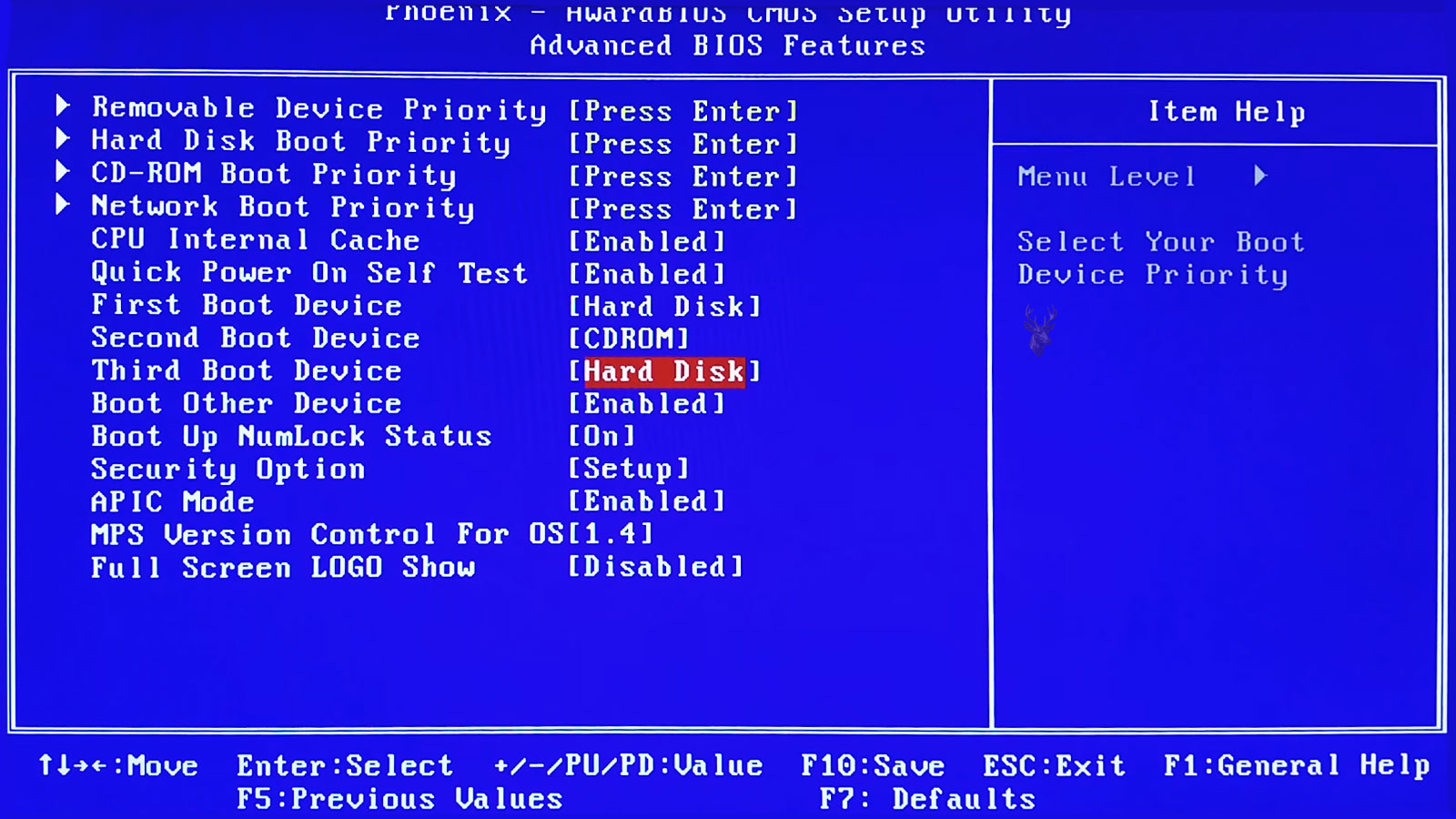
How Firmware Decides Which Device Receives Control During the First Moments of Startup
Every time a computer is powered on, it must decide where to begin loading an operating system. That decision happens long before Windows displays its logo or a user reaches the desktop. The firmware examines the available hardware, follows its configured startup sequence, and attempts to locate a device that contains usable startup information.
This process usually takes only a few seconds, making it almost invisible during normal use. However, when the startup order changes unexpectedly or a preferred device is unavailable, the computer may display unfamiliar messages, repeatedly restart, or attempt to start from the wrong storage device.
Understanding how startup priority works helps explain why replacing a drive, connecting a USB device, installing another operating system, or resetting firmware settings can change the way a computer behaves even though no Windows files have been modified.
The Startup Sequence Begins Before Windows Exists
When power reaches the motherboard, the firmware performs its initial hardware checks before looking for software capable of continuing the startup process. Memory, processors, storage controllers, and other essential components are prepared so the system can begin searching for a bootable device.
Only after a suitable device is found does control pass to the operating system. Until that point, Windows has not yet started, which is why changing Windows settings alone cannot alter many firmware startup decisions.
The startup sequence therefore belongs to the computer itself rather than to any particular operating system installed on its storage devices.
Boot Priority Is Simply a Preferred Search Order
Firmware maintains a list that tells the computer which devices should be examined first when searching for startup information. This list is commonly called the boot priority or boot order.
If the first device contains valid startup files, the search usually ends immediately. If not, the firmware continues through the remaining devices until a usable operating system is located or every option has been exhausted.
Because the process follows a defined sequence, changing only the order can completely alter which operating system starts first without modifying any files stored on the drives themselves.
Several Types of Startup Devices May Be Present
Modern computers can often start from many different types of storage. Some are used every day, while others are intended only for installation, maintenance, or recovery.
- Internal solid-state drives.
- Traditional hard drives.
- USB flash drives prepared for startup.
- External storage devices that support booting.
- Optical discs when compatible hardware is available.
- Network startup services used in some business environments.
Not every computer supports every startup method, and the available choices depend on both the firmware design and the hardware installed.
Temporary Boot Menus and Permanent Boot Order Are Different
Many computers provide a temporary startup menu that appears after pressing a manufacturer-specific key during power-on. Selecting a device from this menu usually affects only that single startup.
Changing the permanent boot priority inside the firmware setup has a different purpose. Those changes remain in effect until they are modified again, allowing the computer to follow the new sequence every time it starts.
This distinction allows a recovery drive to be used once without permanently changing the preferred startup device.
The First Device Is Not Always the One That Starts
A common misconception is that the first device listed in the firmware will always become the startup device. In reality, the firmware first checks whether that device contains valid startup information.
If no suitable startup records are found, the firmware simply continues to the next device in the configured order. This behavior explains why a disconnected storage drive, an empty USB device, or an optical drive without media may be skipped automatically.
The search continues only until an acceptable startup source is found or no remaining candidates are available.
Adding New Hardware Can Influence Startup Behavior
Installing another storage device does not automatically replace the existing operating system, but it may introduce another startup option that the firmware must evaluate. Depending on the motherboard and its configuration, the newly installed device may appear in the startup list immediately or require manual selection.
This sometimes surprises users who expect a newly installed drive to become the primary startup device automatically. In many systems, the original drive continues loading Windows until the firmware settings are intentionally adjusted.
Conversely, firmware updates, motherboard resets, or storage changes can occasionally restore default startup priorities, requiring the preferred operating system to be selected again.
| Startup Device | Typical Purpose |
|---|---|
| Internal SSD | Primary operating system for everyday use. |
| Internal hard drive | Operating system or long-term storage on older systems. |
| Bootable USB drive | Installation, diagnostics, or recovery tools. |
| Optical disc | Legacy installation and recovery media. |
| Network boot | Centralized deployment in managed environments. |
Recognizing the role of each startup device makes it easier to understand why the firmware searches them in a particular order and why changing that order can influence the startup experience without changing the operating system itself.
Startup Messages Can Reveal Where the Search Stops
Many startup messages appear before Windows has an opportunity to display its own recovery tools. The wording shown during these early moments often reflects what the firmware discovered while searching for a bootable device. A missing operating system, an inaccessible storage drive, or an unavailable startup record can each produce different messages even though the computer has not yet reached Windows.
Reading these messages carefully provides more useful information than immediately assuming the operating system has become damaged. In many situations, the firmware is simply reporting that it has not located a suitable device in the expected order.
Because manufacturers use different wording, two computers experiencing similar startup conditions may display different messages while pointing to the same stage of the startup process.
External Storage Can Occasionally Take Priority
USB flash drives and external storage devices are convenient because they can contain installation media, diagnostic utilities, or recovery environments. If firmware is configured to examine removable devices before the internal drive, connecting one of these devices can change the startup sequence.
This does not necessarily indicate a fault. The firmware is simply following the configured priority list. Once the removable device is disconnected or the preferred startup order is restored, the computer usually returns to its normal behavior.
This is one reason technicians often disconnect unnecessary external devices while diagnosing startup-related problems. Reducing the number of possible startup candidates simplifies the process of identifying where the search should begin.
Multiple Operating Systems Require Careful Startup Management
Some computers are intentionally configured with more than one operating system. In these situations, the firmware first identifies the preferred startup device before another component presents the available operating systems for selection.
Changing the boot priority can therefore affect which operating-system manager appears first, even though the installed operating systems themselves remain unchanged. Understanding this relationship makes troubleshooting less confusing when a computer suddenly starts a different installation than expected.
Business workstations, development systems, and laboratory computers commonly use this approach when different software environments are required.
Storage Upgrades May Require Startup Adjustments
Replacing an older hard drive with a newer solid-state drive often improves performance, but the firmware still needs to know where the operating system now resides. If both drives remain connected after the upgrade, the computer may continue attempting to start from the previous device until the preferred startup location is updated.
Some cloning procedures preserve startup information automatically, while others require minor firmware adjustments before the new storage device becomes the primary startup source. The exact behavior depends on the motherboard, firmware version, and installation method.
This explains why two otherwise identical upgrades can produce slightly different startup experiences on different computers.
Default Firmware Settings May Restore the Original Startup Order
Firmware settings occasionally return to their default configuration after a motherboard reset, a firmware update, or certain maintenance procedures. When that happens, the preferred startup device may no longer appear first in the priority list.
The operating system itself may remain fully intact, yet the computer behaves differently because it begins searching in another location. Restoring the intended startup order often resolves the unexpected behavior without changing any Windows files.
| Situation | Possible Startup Result |
|---|---|
| A bootable USB drive is left connected. | The firmware checks the removable device before the internal drive. |
| A second storage device is installed. | The preferred startup device may require manual selection. |
| Firmware settings are reset. | The startup priority may return to factory defaults. |
| Another operating system is added. | A different startup manager may appear first. |
| An older drive is removed after cloning. | The firmware may need to identify the replacement drive as the primary startup device. |
Viewing startup behavior as a sequence of decisions rather than a single action makes many early boot problems easier to interpret. The firmware simply follows the order it has been given, checking one possible startup source after another until it finds a device capable of continuing the startup process.
UEFI Systems May Identify Windows by Name Instead of Drive Model
Older firmware often displayed startup choices mainly as physical devices, such as a hard drive, optical drive, or removable disk. UEFI systems may present entries differently by listing a named startup option such as Windows Boot Manager.
This named entry points the firmware toward startup information stored on a particular device. The physical drive may still appear elsewhere in the menu, but selecting the drive directly is not always equivalent to selecting the operating system’s registered startup entry.
After a storage replacement or cloning procedure, a drive can be detected correctly while the expected Windows Boot Manager entry is absent, duplicated, or associated with the wrong device. The difference between hardware detection and a usable UEFI startup entry is therefore important during diagnosis.
Legacy and UEFI Startup Methods Are Not Interchangeable
Some computers support both traditional legacy startup and modern UEFI startup. Although both methods can load an operating system, they organize startup information differently and may expect different disk layouts.
An operating system installed while the computer is using UEFI mode may fail to start if the firmware is later changed to legacy mode. The reverse can also occur with an installation prepared for older BIOS-compatible startup.
This situation can appear after firmware settings are reset or altered during hardware service. The storage device remains present and its files may still be intact, but the firmware is searching for startup information using a method that does not match the installation.
- UEFI installations commonly use a dedicated EFI system partition.
- Legacy installations depend on traditional boot records.
- Changing modes does not automatically convert the installed operating system.
- Secure Boot normally operates with UEFI rather than legacy startup.
- Disk partition style can affect which startup mode is supported.
Startup mode should therefore be confirmed before assuming the operating system must be reinstalled.
Secure Boot Adds Another Decision to the Startup Process
Secure Boot is designed to prevent untrusted startup software from taking control before the operating system loads. It evaluates approved startup components and may reject media that does not meet the firmware’s security requirements.
A USB drive can therefore be technically bootable yet fail to appear or start under the current security configuration. This does not necessarily mean the USB port, flash drive, or operating system files are defective.
Disabling security features without understanding their purpose can create unnecessary risk. When recovery or diagnostic media is required, the preferable approach is to determine whether the media supports the computer’s existing UEFI and Secure Boot configuration.
A Detected Drive Is Not Automatically a Bootable Drive
Firmware may list a storage device correctly while still being unable to start an operating system from it. Detection confirms that the motherboard can communicate with the hardware, but it does not confirm that valid startup files are present.
A newly purchased blank drive, a secondary data drive, or a device with damaged startup information can all appear normally in the firmware. If selected, the computer may display a startup error because there is nothing usable for the firmware to load.
This distinction prevents hardware detection from being mistaken for proof that Windows is installed correctly.
Startup Files Can Reside on a Different Drive Than Windows
Computers containing several storage devices can develop an arrangement in which Windows is installed on one drive while essential startup files are placed on another. This may happen during installation if multiple drives are connected and the installer uses an existing system partition.
The arrangement can operate normally for years because both devices are present. The dependency becomes visible only when the secondary drive is removed, replaced, reformatted, or disconnected.
At that point, the drive containing the Windows folder may remain healthy and readable while the computer can no longer begin startup. The failure appears to involve the operating-system drive even though the missing startup information was stored elsewhere.
| Firmware Observation | What It Does and Does Not Confirm |
|---|---|
| The drive model appears in storage information. | The motherboard can detect the hardware, but startup files may still be missing. |
| Windows Boot Manager appears in the boot list. | A registered UEFI startup entry exists, although its files can still be damaged. |
| A USB drive appears in the temporary boot menu. | The firmware recognizes the device, but compatibility and security settings still matter. |
| The computer starts only while two internal drives are connected. | Startup files may be located on a different drive from the Windows installation. |
| A drive appears under legacy mode but not UEFI mode. | The startup method may not match the way the operating system was installed. |
Checking both the physical devices and the registered startup entries provides a clearer picture than viewing either list alone.
Network Startup Usually Belongs to Managed Environments
Many business computers include the ability to request startup software from a network rather than from local storage. This feature may be used to install operating systems, deploy standard company configurations, or run centralized maintenance tools.
On a home computer, a network-startup message can appear unexpectedly if the internal drive fails to start and the firmware continues to the next available option. The computer may display text related to PXE, DHCP, or network media even though the user never intended to start from a network.
The message is often a result of the search order rather than a networking problem. The firmware reached the network option because earlier startup choices did not succeed.
Fast Startup Features Can Make Boot-Menu Timing Difficult
Some computers move through their early startup checks so quickly that the opportunity to press the setup or temporary boot-menu key is brief. A display may remain dark until the operating system has already begun loading.
Repeatedly pressing the wrong key can create confusion because manufacturers assign different keys to firmware setup, diagnostics, and one-time startup menus. The correct key may also differ between desktop and laptop models from the same company.
Documentation for the exact computer or motherboard model is more reliable than assuming every system uses the same command.
Firmware Passwords Can Restrict Changes to Startup Priority
A computer may permit ordinary Windows use while preventing changes to its startup configuration. A supervisor or administrator password can lock the firmware menu, disable removable-device startup, or prevent the permanent boot order from being edited.
This can be intentional on business, school, and shared computers where administrators do not want users starting unapproved software. It may also become an obstacle on used equipment when the original credentials were not transferred to the new owner.
The startup order and the firmware password are separate subjects, but one directly affects the ability to change the other. A locked setup menu should not be mistaken for a defective keyboard or unresponsive firmware screen.
Changing the Boot Order Does Not Repair Damaged Startup Files
Boot priority determines where the computer searches. It does not repair the information stored on the selected device. Placing a damaged Windows installation first in the list will not make its startup files valid again.
Likewise, moving a healthy device lower in the order can hide a working installation behind another device that repeatedly fails. The order must point to the correct source, and that source must also contain usable startup information.
This is why diagnosis should separate firmware configuration from operating-system repair. Both affect startup, but they operate at different stages and require different corrective steps.
A Careful Startup Review Prevents Unnecessary Reinstallation
When a computer suddenly stops loading its usual operating system, reinstalling Windows should not be the first assumption. The preferred startup entry may have changed, the firmware mode may no longer match the installation, or essential startup files may depend on another connected drive.
A practical review begins by confirming which storage devices are detected, identifying the intended operating-system drive, examining the permanent boot order, and comparing it with the temporary startup menu. Recent hardware changes, firmware resets, disconnected devices, and security settings should also be considered.
- Identify the drive that contains the intended operating system.
- Confirm that the firmware detects the physical storage device.
- Look for the correct UEFI or legacy startup entry.
- Verify that the firmware mode matches the installation.
- Disconnect unnecessary removable devices during testing.
- Review recent storage, motherboard, or firmware changes.
- Repair startup files only after the correct device and configuration are confirmed.
Following this order preserves useful information and reduces the chance of replacing hardware or erasing an installation that remains recoverable.
Boot Order Is a Map, Not the Operating System Itself
The startup list does not contain Windows, personal files, or installed programs. It simply directs the firmware toward the location where the next stage of startup should begin.
That simple distinction explains a wide range of computer behavior. A healthy operating system can remain unused because another device has priority, while a correctly selected drive can still fail because its startup information is damaged or incompatible with the current firmware mode.
By viewing boot order as a map that guides the computer rather than as the operating system itself, startup problems become easier to separate into firmware settings, storage detection, startup-file condition, and operating-system repair. Each layer can then be evaluated without confusing one problem for another.











