
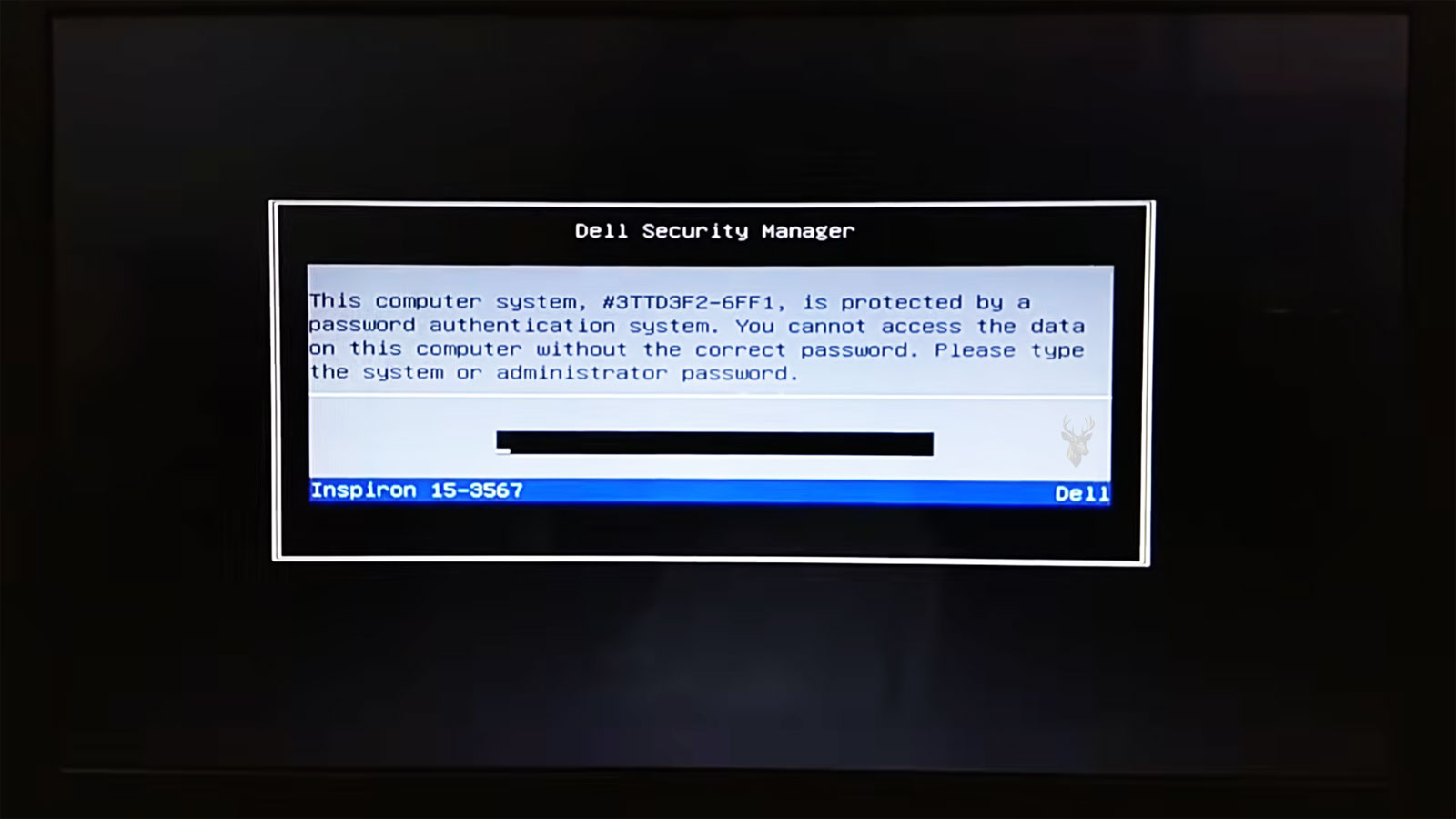
The Security Controls That Operate Before Windows, User Accounts, and Ordinary Recovery Tools Become Available
A password request appearing immediately after the power button is pressed can create confusion because it may look similar to an ordinary Windows sign-in. The timing is the important difference. If the request appears before the Windows logo, desktop, or account screen, the password may belong to the computer’s firmware rather than the operating system.
Firmware passwords are used to control access at a much earlier stage of startup. Depending on the computer, they may prevent the system from turning on fully, restrict entry into the BIOS setup, block changes to startup settings, or protect a storage drive independently of Windows.
These protections are useful when they are configured intentionally and recorded properly. They become difficult when ownership changes, documentation is lost, a former employee leaves, or a password is forgotten years after it was created. The available recovery path depends on the exact kind of lock, the hardware design, and the policies established by the manufacturer.
Firmware Security Exists Below the Operating System
The BIOS or UEFI firmware begins running before Windows. It identifies essential hardware, prepares the processor and memory, locates available storage, and decides which device should be used for startup.
A password stored at this level can take effect before Windows has access to the keyboard, storage drive, or account information. This is why changing a Windows password does not normally remove a firmware lock.
The reverse is also true. Clearing a firmware setting does not erase or reset a Windows account password. The two protections may appear on the same computer while remaining completely separate from one another.
Several Password Types May Be Available on the Same Computer
Manufacturers do not always use the same names, but firmware menus commonly offer more than one security option. Each controls a different part of the startup process.
- A power-on password may be required whenever the computer starts.
- A supervisor or administrator password may protect firmware settings.
- A user password may allow startup while limiting configuration access.
- A storage password may lock an internal hard drive or solid-state drive.
- A management password may be controlled through a business security platform.
Knowing which prompt is being displayed matters because the recovery options and consequences differ considerably. A setup password that blocks configuration changes is not equivalent to a drive password protecting the information stored on the disk.
Power-On Passwords Interrupt Startup Before Windows Appears
A power-on password is intended to prevent unauthorized use of the complete computer. The prompt normally appears shortly after the system is switched on, before the operating system begins loading.
Without the correct entry, the computer may remain at the password screen or shut down after several unsuccessful attempts. Windows recovery media, Safe Mode, and account-reset tools cannot be reached because the firmware has not yet allowed startup to continue.
This type of protection can be valuable on a laptop containing private information, but it also creates a dependency on accurate records. A forgotten power-on password can make otherwise functional hardware unavailable to its owner.
Setup Passwords Protect Configuration Rather Than Everyday Use
A supervisor, administrator, or setup password may allow the computer to start normally while preventing unauthorized changes inside the firmware menu. The user can reach Windows, but important configuration options remain locked.
These restrictions can protect the boot order, virtualization settings, security features, hardware controls, and other options that affect the complete system. Businesses often use them to keep employees from changing settings that were established for management or security reasons.
The password may not become noticeable until someone attempts to start from a recovery drive, enable a hardware feature, or replace equipment that requires a firmware adjustment. A computer can therefore remain in daily use for years before the missing password creates an obstacle.
Storage Passwords Can Follow the Drive Into Another Computer
Some hard drives and solid-state drives support passwords stored through the drive’s own security features. Once enabled, the storage device may refuse access until the correct password is supplied during startup.
This protection differs from a Windows account password because the lock belongs to the drive rather than to the operating system installed on it. Removing the drive and connecting it to another computer may not provide access. The new computer can detect the hardware while remaining unable to read its contents.
A storage password can provide strong protection for confidential information, but a forgotten password may also make the data inaccessible. Reformatting or replacing the drive may restore use of the computer without restoring access to the protected files.
| Password Location | Typical Effect |
|---|---|
| Windows user account | Restricts access to one operating-system profile. |
| Power-on firmware password | Stops startup before Windows begins loading. |
| Firmware setup password | Limits changes to BIOS or UEFI configuration. |
| Storage-device password | Restricts access to the drive and may follow it to another computer. |
| Full-disk encryption recovery key | Protects encrypted information through a separate security system. |
The wording shown on the screen is not always enough to identify the protection. The point in startup where it appears and the behavior of the computer afterward provide additional clues.
Drive Encryption Is Separate From a Firmware Password
Encryption protects stored information by converting it into a form that requires the correct key before it can be read. A computer may use encryption even when no BIOS password has been configured, or it may use both protections together.
Removing a firmware password does not decrypt information protected by BitLocker or another encryption system. Likewise, possessing an encryption recovery key does not necessarily grant access through a separate power-on or drive password prompt.
These layers are often confused during recovery because they can appear one after another. The firmware may first permit startup, followed by an encryption request, and then the ordinary Windows sign-in screen.
Removing the CMOS Battery Is Not a Universal Password Reset
Older desktop systems often stored configuration information in memory maintained by a small motherboard battery. Disconnecting that battery or using a reset jumper could return many firmware settings to their defaults.
This history created the belief that every BIOS password can be removed by taking out the CMOS battery. Modern computers may store security information in nonvolatile memory that does not depend on the battery. Removing power can reset the clock while leaving the password unchanged.
Laptops may use additional security controllers, manufacturer service procedures, or motherboard-specific storage that makes a simple battery reset ineffective. Repeated disassembly based on an outdated assumption can damage connectors without changing the lock.
Desktop Reset Jumpers Must Be Identified Correctly
Some desktop motherboards include pins or a small switch for clearing stored firmware settings. The reset location may be labeled near the board, described in the manual, or positioned close to the motherboard battery.
Moving the wrong jumper can affect unrelated hardware or create a short if the computer remains connected to power. The correct procedure may also require a particular sequence involving shutdown, disconnection, jumper placement, and restoration.
- Confirm the exact motherboard model before locating the reset pins.
- Disconnect power according to the board’s procedure.
- Do not move unidentified jumpers at random.
- Record important firmware settings before clearing them when possible.
- Expect the date, boot order, and other options to require reconfiguration.
Even a correctly performed settings reset may leave certain security credentials intact if the motherboard stores them separately.
Laptop Security Often Depends on the Manufacturer’s Design
Laptop firmware security varies widely between product lines. Some older models provide a documented reset procedure, while newer business systems may require manufacturer authorization, service tools, proof of ownership, or motherboard replacement.
The restriction is deliberate. A password that could be removed through one universal shortcut would provide little protection against theft. Stronger designs are intended to remain effective even after the main battery, clock battery, and storage drive are disconnected.
The complete model number is essential before any recovery option is evaluated. Advice written for another manufacturer or an earlier generation may not apply and can create additional damage if followed blindly.
Manufacturer Recovery Procedures Vary Considerably
When a firmware password has been forgotten, the recovery process depends almost entirely on the computer manufacturer and the specific model. Some systems allow authorized reset procedures after ownership has been verified, while others intentionally provide no practical method for bypassing the protection.
This variation explains why advice that works for one desktop or laptop may have no effect on another. The firmware, security hardware, and storage method for the password are design decisions made by the manufacturer rather than universal industry standards.
Before attempting any recovery procedure, the complete model number and serial information should be identified so the correct documentation can be consulted.
Business Computers May Include Enterprise Security Features
Many business-class systems include additional security technologies that extend beyond ordinary firmware passwords. Centralized management, hardware authentication, and administrative policies may determine how startup protection is configured and recovered.
A computer previously owned by a company may therefore remain subject to policies established years earlier. Even after the operating system has been reinstalled, firmware restrictions can remain active because they are stored independently of Windows.
Ownership changes should include the removal or transfer of these security settings whenever possible so that future maintenance does not become unnecessarily complicated.
Repeated Incorrect Attempts Can Trigger Additional Restrictions
Some firmware implementations simply reject an incorrect password and request another attempt. Others introduce waiting periods, temporary lockouts, or additional security responses after several unsuccessful entries.
The purpose is to discourage repeated guessing while protecting confidential information stored on the system. Continuing to enter random combinations rarely improves the situation and may lengthen the recovery process.
- Record any messages displayed after failed attempts.
- Avoid repeatedly entering different guesses.
- Check available documentation before continuing.
- Determine whether the password belongs to the computer or the storage device.
- Preserve proof of ownership if manufacturer assistance becomes necessary.
The exact response depends on the firmware design, making careful observation more valuable than repeated trial and error.
Firmware Updates Usually Preserve Existing Security Settings
Updating the BIOS or UEFI firmware generally improves hardware compatibility, stability, or security. It is not normally intended as a method for removing passwords.
Most firmware updates are designed to retain important configuration information, including security settings, throughout the upgrade process. Assuming that an update will erase a forgotten password can therefore lead to unnecessary work and disappointment.
If a firmware update is appropriate for another reason, existing security credentials should be available beforehand because the updated system will often request them again after installation.
Replacing the Storage Drive Does Not Always Remove Startup Protection
Users sometimes assume that installing a new hard drive or solid-state drive will eliminate every password request. Whether that works depends on which security mechanism is involved.
If the password belongs to the computer firmware, replacing the storage device changes nothing because the motherboard still requests authentication before startup. If the protection belongs only to the original storage device, a replacement drive may start normally while the original drive remains inaccessible.
Understanding where the password is stored prevents unnecessary hardware replacement based on incorrect assumptions.
Used Computers May Arrive With Forgotten Security Settings
Second-hand desktops and laptops occasionally reach new owners with firmware passwords that were never removed by the previous user. The computer may appear fully functional until someone attempts to enter the BIOS setup or reinstall the operating system.
Checking for firmware restrictions soon after acquiring a used computer can prevent unexpected surprises months or years later. Discovering the issue while the previous owner can still be contacted often simplifies the resolution.
When purchasing used business equipment, confirming that all administrative security has been cleared should be part of the inspection process.
Recording Firmware Passwords Is Part of Good Computer Maintenance
Unlike everyday website passwords that may be used frequently, firmware passwords are often entered only occasionally. Months or years can pass without needing them, making forgotten credentials much more likely.
Keeping accurate records in a secure password manager, company documentation system, or protected physical record reduces the chance that essential security information will disappear after personnel changes or equipment upgrades.
Businesses should also document who established the password, when it was created, and under what circumstances it may be changed.
Password Prompts Should Be Identified Before Recovery Begins
The wording displayed on the screen, the moment it appears during startup, and what the computer does afterward provide valuable clues about the type of protection involved.
A prompt appearing before any manufacturer logo differs from one shown inside the BIOS setup utility. Likewise, an encryption recovery request displayed after firmware startup is not the same as a Windows account sign-in screen.
Correctly identifying the prompt often prevents the wrong recovery method from being attempted and helps focus attention on the appropriate security layer.
Motherboard Replacement Can Change the Security Situation
Because firmware passwords are commonly stored on the motherboard or associated security hardware, replacing the motherboard may also replace the stored firmware configuration.
This differs from replacing storage, memory, or the power supply. Those components generally do not contain the firmware credentials themselves, although encrypted storage may still require its own authentication afterward.
Motherboard replacement should therefore be viewed as a hardware repair rather than a routine password-reset technique. It introduces additional considerations involving activation, firmware configuration, and hardware compatibility.
Accurate Documentation Prevents Future Recovery Problems
Firmware security is most effective when it protects a computer without becoming an obstacle for its rightful owner. That balance depends less on the password itself than on careful documentation, secure storage of recovery information, and a clear understanding of which security features have been enabled.
Knowing whether the prompt belongs to the firmware, the storage device, the encryption system, or Windows itself helps establish realistic recovery expectations. Each layer protects a different part of the computer, and each follows its own recovery procedures.
Recognizing those distinctions makes firmware passwords easier to manage over the life of the computer while reducing confusion if access must eventually be restored after years of normal use.
Proof of Ownership May Be Required Before Assistance Is Provided
Manufacturers that offer firmware-password recovery often require evidence that the person requesting help owns the computer. This may include a purchase receipt, service tag, serial number, business asset record, or other identifying information tied to the system.
The requirement is part of the security design. A recovery process that ignores ownership would weaken the protection against theft and unauthorized access.
Keeping purchase records and asset documentation with important computer information can therefore become useful years after the original sale, especially for business laptops that may pass between employees or departments.
Online Master-Password Lists Should Be Treated With Caution
Some websites publish lists of supposed universal passwords or recovery codes for firmware locks. A few older systems did use predictable manufacturer methods, but those lists do not apply reliably across modern computers.
Entering random codes can waste time, trigger lockout behavior, or create the false impression that the motherboard has developed another problem. It can also expose the user to unsafe downloads, misleading payment requests, or unverified software claiming to remove the password.
Recovery information should come from documentation that matches the exact computer model or from the manufacturer’s authorized support process.
Password-Removal Software Cannot Reach Every Security Layer
Programs running inside Windows can modify operating-system accounts and certain software settings, but they usually cannot remove a firmware prompt that appears before Windows starts. The operating system has not yet loaded when the lock is enforced.
Utilities that claim to clear every BIOS, drive, encryption, and Windows password with one procedure should be viewed skeptically. These protections are stored in different locations and controlled by different hardware and software systems.
- Windows account tools operate after the operating system becomes accessible.
- Firmware passwords are controlled before Windows loads.
- Drive passwords may be enforced by the storage device itself.
- Encryption requires the correct key or recovery information.
- Manufacturer security controllers may require authorized service procedures.
Identifying the security layer prevents unsuitable tools from being used against a problem they cannot reach.
Data Recovery Becomes More Limited With a Locked Drive
A storage device protected by a hardware password can remain inaccessible even after it is removed from the original computer. The drive may respond electrically and identify itself correctly while refusing ordinary read commands.
This creates a different situation from a damaged Windows profile or forgotten account password. The restriction is enforced below the file-system level, before recovery software can examine folders and documents.
Replacing the drive can restore the computer to working condition, but it does not unlock the information on the original device. The practical value of replacement and the value of the stored data must therefore be considered separately.
A Locked Computer and a Locked Drive Are Not the Same Repair
A motherboard-level startup password may prevent the entire computer from proceeding, while the storage device itself remains readable when connected elsewhere. A drive-level password produces the opposite limitation: the computer may be reusable with another drive while the original storage remains locked.
Testing must respect both possibilities. Removing a drive simply to determine whether the prompt changes can provide diagnostic information, but it should not be assumed that the data will become available in another system.
| Result After Hardware Changes | What It May Indicate |
|---|---|
| The prompt remains after the storage drive is removed | The lock is likely associated with the computer firmware. |
| The computer starts with a replacement drive | The original storage device may carry its own password. |
| The original drive remains locked in another computer | The protection follows the storage device. |
| The firmware setup is accessible but certain options remain unavailable | A supervisor or administrator password may be active. |
These comparisons help identify the protected component without assuming that every startup prompt belongs to the same security system.
Motherboard Replacement Can Affect Operating-System Activation
Replacing a motherboard to resolve an unrecoverable firmware lock changes more than the password state. The new board may present Windows with a different hardware identity, which can affect operating-system activation and certain licensed applications.
Business management settings, encryption protection, secure boot information, and device-specific drivers may also require attention after the replacement. The computer can be mechanically repaired while still needing software reconfiguration before normal use returns.
This broader impact is one reason motherboard replacement should be considered carefully rather than treated as a simple password-reset procedure.
Encryption Recovery Keys Should Be Preserved Before Firmware Changes
Changes to secure boot, trusted hardware modules, motherboard identity, or startup configuration can cause an encrypted system to request a recovery key. The encryption itself may be functioning correctly while treating the hardware change as a possible security event.
Before replacing a motherboard, clearing security hardware, or making substantial firmware changes, available recovery information should be confirmed and stored safely.
A successful firmware repair can still leave the operating system inaccessible if the encryption recovery key is unavailable afterward.
Business Equipment Should Be Released With Security Credentials
Computers transferred between employees, sold after a lease, donated, or retired from business use should have their firmware security reviewed before leaving the organization.
Removing company data is only one part of that process. Administrative passwords, drive locks, management features, and ownership records should also be cleared or transferred according to the organization’s policy.
- Confirm whether a firmware administrator password is active.
- Review storage and encryption protection.
- Remove company management settings where appropriate.
- Verify that the new owner can enter firmware setup.
- Document any security controls intentionally left in place.
Completing these steps prevents a usable computer from becoming difficult to service after the original administrator is no longer available.
Security Questions Should Be Resolved Before Major Hardware Work
A firmware password may remain unnoticed until a repair requires entry into setup. Replacing storage, changing the boot order, enabling virtualization, or testing from external media can all depend on configuration access.
Discovering the restriction after the computer has been disassembled can delay the repair and complicate testing. Confirming firmware access before major service begins helps establish which procedures will be available later.
This is particularly useful on used business laptops, systems with unknown service history, and computers previously managed by another organization.
Weak Clock Batteries Do Not Normally Erase Strong Security Credentials
A failing motherboard battery can cause the date, time, and certain firmware settings to reset. Modern password storage is often designed to survive that loss of standby power.
This can produce a confusing combination in which the computer forgets its clock but continues requesting the same administrator or startup password. The behavior is consistent with security information being stored separately from ordinary configuration values.
Replacing the clock battery may correct timekeeping without changing the password request.
Password Recovery and Data Preservation Require Separate Decisions
The fastest way to make a locked computer usable may be different from the safest way to preserve its files. Replacing a motherboard or storage drive can return the hardware to service while leaving protected data unavailable.
Before choosing a repair path, it is important to determine whether the priority is recovering the existing information, restoring use of the computer, or accomplishing both. Each goal may involve different limitations, costs, and documentation requirements.
Keeping those objectives separate prevents a successful hardware replacement from being mistaken for successful data recovery.
Firmware Security Is Effective Because Recovery Is Restricted
A firmware password offers meaningful protection only if it cannot be removed casually by anyone with physical access to the computer. The same design that discourages theft can create serious difficulty for an owner who loses the credentials.
The correct response begins with identifying the prompt, confirming the computer model, locating ownership records, and determining whether the lock belongs to the motherboard, storage device, encryption system, or Windows account.
Once that distinction is clear, recovery expectations become more realistic. Some systems support an authorized reset, others require component replacement, and certain protected drives may remain inaccessible without the original password. Careful documentation before the problem occurs remains the most dependable way to preserve both security and future serviceability.











