
Tracing Incorrect File Behavior Back to Extensions, Default Applications, and Windows Configuration
A familiar file can suddenly begin opening in an unfamiliar program. A photograph may launch inside a web browser, a music file may open with editing software, or a document may display an error stating that Windows does not know which application should be used.
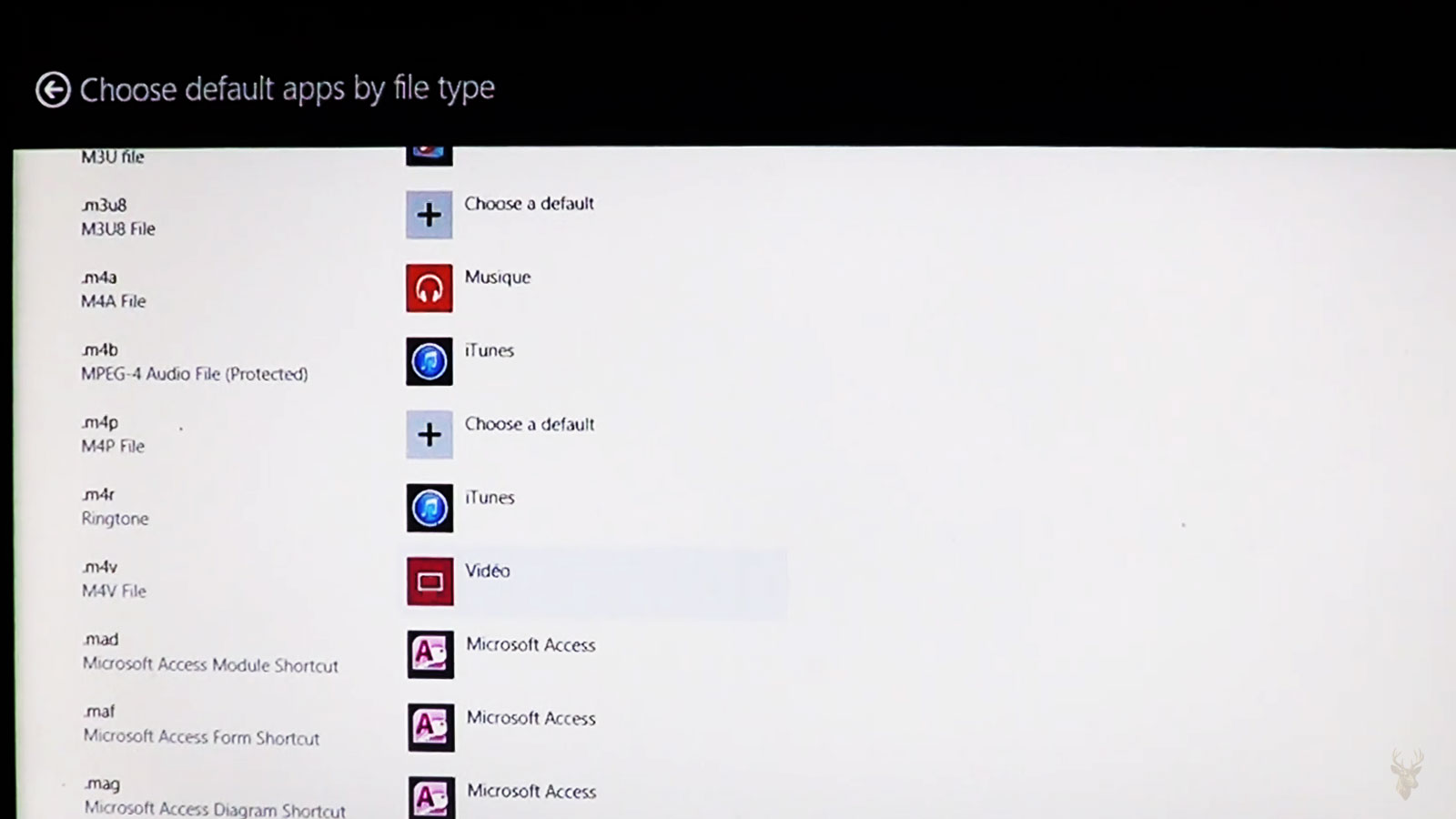
The file itself may still be completely intact. In many cases, Windows has simply lost or changed the connection between that type of file and the program normally used to open it. This connection is known as a file association.
File association problems can affect one extension, several related formats, or nearly every shortcut and document on the desktop. The scope of the change often reveals whether the cause is a simple default-program selection, a damaged application installation, a registry problem, or a broader Windows configuration issue.
Windows Uses File Extensions to Identify Different Formats
A file extension is the group of characters appearing after the final period in a filename. Extensions such as .jpg, .pdf, .mp3, .docx, and .txt help Windows identify the format and determine which installed applications may be able to open it.
The extension does not contain the complete description of the file, but it acts as an important label. Windows compares that label with its stored associations and launches the program assigned to that format.
If the association changes, the same file can begin opening in a different application without any change to its contents. The behavior belongs to Windows configuration rather than necessarily to the document, image, or recording itself.
The Default Program Is Only the First Choice
Several installed applications may support the same file type. A computer can have multiple image viewers, media players, text editors, and document programs capable of opening similar formats.
Windows selects one of those applications as the default. Double-clicking the file launches that program automatically, while another compatible application can often be chosen manually through the Open With menu.
Selecting a different program once should not always replace the default. Problems begin when the option to use that program for every file of the same type is enabled unintentionally.
- A new media player becomes the default for every audio file.
- Images begin opening in an editing program rather than a viewer.
- PDF documents launch in a browser after an update.
- Text files open in a word processor with unexpected formatting.
- Email attachments use a different application from files on the desktop.
These changes can be inconvenient without indicating that either the file or the application is damaged.
Installing New Software Can Replace Existing Associations
Application installers often ask whether the new program should become the default for supported file formats. The option may appear during installation, during the first startup, or after an update introduces additional features.
If the selection is accepted, Windows updates its associations and begins directing those files to the new application. The previous program remains installed, but it no longer opens automatically when the file is double-clicked.
This is common with media players, web browsers, photo tools, archive utilities, office suites, and PDF readers. The timing of the change is often the clearest clue: files begin behaving differently immediately after one program is installed or updated.
One File Opening Incorrectly Is Different From Every File of That Type
If every .jpg image opens in the wrong application, the association for that extension is probably involved. If only one photograph behaves incorrectly while the others open normally, the file itself may have a different extension, a damaged header, or an unusual internal format.
The same distinction applies to documents and media. A single file may be incomplete, mislabeled, corrupted, or created by software that uses a specialized variation of a common format.
| Observed Behavior | Likely Direction |
|---|---|
| Every file with one extension opens in the wrong program | The default file association may have changed. |
| Only one file refuses to open | The file may be damaged, incomplete, or mislabeled. |
| Several unrelated file types changed at once | A broader application or Windows configuration change may be involved. |
| The correct program opens but displays an error | The format may be unsupported or the file contents may be damaged. |
| The file opens correctly through Open With | The assigned default may be wrong while the file remains usable. |
Testing more than one file prevents an isolated damaged document from being mistaken for a system-wide association problem.
Hidden Extensions Can Make File Types Difficult to Recognize
Windows commonly hides extensions for file types it recognizes. A document may appear simply as “Report” even though its complete name is “Report.docx.” This keeps filenames cleaner, but it can make troubleshooting more confusing.
Two files with the same visible name can be completely different formats. One may be a document, another a shortcut, and another an executable program whose extension is hidden from view.
Displaying extensions temporarily can clarify whether the affected file actually uses the format the user expects. It also helps identify doubled extensions, such as “invoice.pdf.exe,” that may otherwise look like ordinary documents.
Renaming an Extension Does Not Convert the File
Changing the letters after the period alters the label Windows uses, but it does not transform the internal contents. Renaming a photograph from .jpg to .png does not convert its image format, and changing a text file to .docx does not create a word-processing document.
The renamed file may open incorrectly, produce an error, or appear damaged because the application expects one internal structure while receiving another.
- Changing .txt to .doc does not add document formatting.
- Changing .mp3 to .wav does not convert the audio encoding.
- Changing .zip to .rar does not rebuild the archive format.
- Changing .jpg to .pdf does not create a PDF document.
- Restoring the original extension may make the file recognizable again.
Proper conversion requires software that reads the original format and saves or exports the information into a new one.
The Open With Menu Can Correct a Simple Default-Program Change
When the file is healthy and a suitable application is already installed, the Open With menu can be used to choose another program. Windows may also provide an option to make that choice permanent for every file using the same extension.
The selected application should genuinely support the format. Choosing an unrelated program can create confusing icons and repeated errors without damaging the underlying file.
A permanent change should be made only after testing one file successfully. This avoids assigning an entire category of documents to a program that can open only some variations of the format.
Missing Applications Can Leave Files Without an Association
If the program previously assigned to a file type is uninstalled, moved, or damaged, Windows may no longer know what to launch. Double-clicking the file can produce a message asking the user to select a program or search for an application.
This does not necessarily mean the file has become unreadable. Another compatible program may still open it, or the original application may need to be repaired or installed again.
Files created by specialized business, design, accounting, or engineering software may depend on that exact application. Assigning them to a general-purpose viewer may display nothing useful even though Windows accepts the new association.
Shortcuts Can Fail Even While the Original Files Remain Available
A Windows shortcut is not the actual document or program. It is a small file containing directions to another location. If the target is moved, renamed, deleted, or stored on a disconnected drive, the shortcut can stop working while the original item remains elsewhere.
Broken shortcuts are sometimes confused with damaged file associations because both can produce errors after double-clicking. The difference is that an association affects a category of file, while a shortcut problem usually affects one specific link.
Checking the shortcut properties can reveal the expected target path and show whether Windows is being directed toward a location that no longer exists.
Email Attachments May Use Temporary Copies
Opening a file directly from an email message often creates a temporary copy. The email program stores that copy in a temporary folder and asks Windows to open it with the assigned application.
If the temporary copy has an incomplete name, unusual extension, or restricted location, it may behave differently from the same file after being saved to the Documents folder.
Saving the attachment first provides a cleaner test. If the saved copy opens normally, the problem may involve the email program or temporary storage rather than the general file association.
Compressed Archives Depend on the Correct Extraction Program
Files ending in formats such as .zip, .rar, or .7z are containers that can hold several folders and documents together. Windows can open certain archive types directly, while others require a separate extraction utility.
An association error may cause the archive to open in a media player, text editor, or another unrelated application. The contents have not necessarily disappeared; Windows is simply sending the container to software that does not understand its structure.
A second issue appears when the correct archive program opens but reports that the file is incomplete. In that situation, the download may have ended early or one section of a multipart archive may be missing. Changing the default program will not repair missing data inside the archive.
Portable Applications Can Lose Their Associations After Being Moved
Some programs run from a removable drive or a folder that can be moved without a traditional installation. Windows may associate a file type with that program’s original path.
If the folder is renamed, the USB drive receives a different letter, or the application is moved elsewhere, the association can continue pointing toward a location that no longer exists. Double-clicking the file then produces an error even though the portable program remains available in another folder.
Reassigning the file type to the program’s current location can restore normal behavior. The failure is caused by an outdated path rather than by the document itself.
Program Repairs Can Restore Missing Registration Information
Installed applications normally register the file formats they support. If an update fails, installation files become damaged, or part of the application is removed manually, that registration information may become incomplete.
The program may still open from its own shortcut while documents no longer recognize it as an available choice. A repair installation can sometimes rebuild the required associations without removing personal files created by the application.
- The program opens normally from the Start menu.
- Files no longer display the expected application icon.
- The application is missing from the Open With choices.
- The change began after an interrupted update.
- Repairing the installation restores supported file types.
Application repair is more appropriate than changing every extension manually when several formats belonging to the same program fail together.
Different Versions of the Same Program May Handle Files Differently
A file created by a newer version of an application may include features that an older release cannot read. Windows may still send the file to the expected program, but the application can report that the format is unsupported or damaged.
This is not always an association error. The correct application family is opening the file, but the installed version lacks compatibility with the newer format.
Saving the document in an older format from the original program, installing a compatible viewer, or updating the application may be necessary. Reassigning the extension to unrelated software generally creates more confusion.
Similar Extensions Can Represent Very Different File Types
Some extensions differ by only one character while representing unrelated information. A user may expect one file to behave like another because the names look similar, even though the internal formats and intended applications are completely different.
This is common with specialized design, accounting, database, and media formats. Choosing a familiar program based only on the visible extension can lead to repeated errors.
The source of the file provides useful context. A document exported from a camera, business application, engineering program, or recording device may require software associated with that equipment rather than a general Windows application.
Executable File Associations Require Special Caution
Programs and shortcuts rely on associations too, but changes affecting executable formats can be far more disruptive than an image opening in the wrong viewer. If Windows no longer handles .exe files correctly, applications may fail to launch throughout the system.
The user may click a program and receive a prompt asking which application should open it, or every executable may be redirected to the same unrelated program. Normal repair tools can become difficult to run because they depend on the same damaged association.
Executable associations should not be changed through ordinary experimentation. Incorrect registry edits or selecting an application through Open With can prevent access to essential Windows tools.
Shortcut Associations Can Affect Every Desktop Icon
Windows shortcuts commonly use the .lnk extension. If that association becomes damaged, many desktop and Start menu icons may suddenly display the same symbol or attempt to open through one program.
The installed applications are usually still present. Windows has lost the correct method for interpreting the shortcut files that point toward them.
- Many unrelated icons change at the same time.
- Every shortcut attempts to open in one application.
- The original program files remain in their installation folders.
- Opening an executable directly may still work.
- Creating another shortcut produces the same incorrect behavior.
This broad pattern differs from one broken shortcut whose target was moved or deleted.
Malware Can Alter Associations to Redirect Normal Activity
Unwanted software may change file associations so that programs, web links, or documents pass through its own components. It may also interfere with executable files to make security and repair tools harder to launch.
A changed association by itself does not prove infection. Accidental Open With selections and legitimate software installations are much more common. Suspicion increases when the change appears together with unfamiliar programs, redirected websites, disabled security software, or unexplained pop-ups.
Restoring the association may correct the visible symptom while leaving the unwanted software active. Broader inspection is appropriate when several unauthorized changes appear at the same time.
Registry Cleaning Utilities Can Remove Needed Entries
File associations are stored partly through Windows registry information. Utilities that remove entries they consider unused can occasionally delete references still required by installed applications.
The effect may not appear until the next time a particular format is opened. The application remains installed, but Windows no longer knows that it supports the affected extension.
Broad registry cleaning is rarely necessary for ordinary file-association maintenance. Repairing the affected program or restoring a known association is generally safer than removing large groups of entries without a specific problem to solve.
User Profiles Can Maintain Different Default Programs
Two people using the same computer may have different applications assigned to the same file type. One account may open photographs in an editing tool while another uses a basic viewer.
This means an association problem can affect only one Windows profile. Testing under another account can help determine whether the program registration is damaged system-wide or whether one user’s default choices have changed.
If the behavior remains normal in another account, replacing or reinstalling the application for the entire computer may be unnecessary. The repair can focus on the affected user’s settings.
Files on Network Drives May Behave Differently From Local Copies
A document stored on a server or shared folder can be affected by permissions, network availability, application restrictions, or file locking. The same file may open normally after being copied to the local computer.
This comparison helps separate a file-association problem from a network condition. If local files of the same type open correctly, Windows already knows which program to use.
The remote copy may be unavailable, already open by another user, or blocked by a policy that does not apply to local storage.
Downloaded Files Can Be Blocked Even With the Correct Association
Windows and web browsers can mark files obtained from the internet as coming from an external source. Security warnings may appear when the file is opened, particularly with scripts, programs, documents containing macros, and other formats capable of running active content.
The warning does not mean the association is wrong. Windows may have selected the correct application while still asking the user to confirm whether the file should be trusted.
Removing security restrictions merely to eliminate the warning is not advisable unless the source and contents are understood. A file that opens in the proper program can still be unsafe.
A Correct Application Cannot Repair a Damaged File
Restoring the proper file association ensures that Windows sends the file to suitable software. It does not repair information that is already incomplete, corrupted, or stored in an unsupported format.
A document may still produce an error after the correct program opens because part of its internal structure is missing. Downloads interrupted before completion, failing storage devices, improper removal of external media, and application crashes during saving can all leave files unusable.
Testing another known working file with the same extension provides an important comparison. If the second file opens normally, the application and association are probably functioning while the original file requires separate attention.
File Size Can Reveal an Incomplete Download or Empty Document
A file may have the expected name and extension while containing little or no useful data. Comparing its size with similar documents can reveal whether the transfer or saving process completed successfully.
A photograph measuring only a few bytes, an archive much smaller than expected, or a document showing zero bytes is unlikely to become usable merely by selecting another application. The file may be only a placeholder, an incomplete download, or an empty item created after an interrupted operation.
Size alone does not confirm corruption, but it provides a simple clue before more complicated association repairs are attempted.
Default-Program Changes Should Be Tested With Several Files
After assigning a new default application, several files of the same type should be opened from different locations. This confirms that the association applies consistently rather than only to one document or one folder.
- Open a known working file from the Documents folder.
- Test another file with the same extension from the desktop.
- Save a new file in that format and open it again.
- Restart Windows and repeat the test.
- Confirm that the expected application icon appears consistently.
A setting that works only until the next restart may indicate damaged registration information, a program that reclaims the association automatically, or a user-profile problem affecting stored defaults.
Some Applications Reclaim File Types During Updates
A program may restore itself as the default for supported formats after an update, repair, or first launch. Media players, browsers, archive tools, and document readers sometimes present this choice again when their configuration changes.
If file behavior repeatedly returns to one application after being corrected, the program’s own settings should be reviewed. Windows may be saving the user’s preference correctly while the application continues requesting control of the same extensions.
Disabling unnecessary association prompts inside the program can provide a more lasting result than changing the Windows default after every update.
Icons May Remain Incorrect After the Association Is Fixed
Windows stores many file and program icons in a cache so they can be displayed quickly. After a default application changes, the file may open correctly while the old icon remains visible for a period of time.
This visual delay can make the repair appear unsuccessful even though double-clicking the file launches the intended program. Restarting Windows or allowing the icon cache to refresh may correct the appearance later.
The icon should therefore be considered together with actual behavior. A familiar symbol is useful, but it does not determine whether the underlying file contents or association are healthy.
Shared Computers Can Produce Conflicting Expectations
On a computer used by several people, each account may prefer a different application for the same format. One person may want images to open in a simple viewer, while another expects them to launch in an editing program.
Changing defaults under one profile may not affect the others. This can make the computer appear inconsistent when the behavior actually follows the account currently signed in.
Testing under the affected user profile prevents a working system-wide application from being reinstalled unnecessarily because another account already opens the files correctly.
Business Software May Require Vendor-Specific Formats
Accounting, medical, legal, engineering, design, and database applications often create files intended only for that software family. Windows may display a generic icon or ask the user to choose a program when the original application is unavailable.
Selecting a common text editor or office program may open unreadable symbols because the file was never designed for general viewing. The format may contain structured records, compressed data, or proprietary information interpreted only by the original software.
Before changing the association permanently, the program that created the file and the version required to open it should be confirmed.
Backup Copies Can Help Separate Configuration From File Damage
If an older backup of the same document opens normally in the expected application, the current file may be damaged while the Windows association remains correct. If neither the original nor the backup opens, the program or association deserves closer attention.
Comparing copies from different dates also helps determine when the problem began. A file that opened last week and fails today may have been modified incompletely, synchronized incorrectly, or affected by storage trouble after the earlier version was created.
Backup history provides evidence that cannot be obtained by repeatedly changing default programs.
Storage Problems Can Damage Files Across Unrelated Extensions
If documents, photographs, archives, and application files begin failing at the same time, the issue may extend beyond associations. A storage device with unreadable areas can damage many formats even though each one opens through a different program.
Slow file access, repeated read errors, disappearing folders, unusual drive noise, or corruption affecting newly saved information should shift attention toward the drive and file system.
Changing defaults may temporarily correct icons while the underlying storage problem continues affecting data. Important files should be copied to a safe location before extensive testing is performed on an unstable drive.
System Restore May Reverse a Recent Association Change
If many file types changed after one software installation, update, or registry modification, returning Windows to an earlier restore point may reverse the configuration changes that caused the problem.
System Restore does not repair damaged personal files, and it should not replace a backup. Its usefulness is greatest when the timeline clearly connects the association failure with a recent system-level change.
A successful restoration supports the conclusion that Windows configuration was responsible rather than the contents of every affected file.
Broad Registry Fixes Can Create More Problems Than They Solve
Online repair files and registry scripts are sometimes offered as universal solutions for damaged associations. A script prepared for another Windows version or a different type of failure can overwrite valid settings and affect formats that were previously working.
Repairs should match the scope of the problem. One incorrect image association does not justify replacing every file-type setting in the operating system, while widespread executable and shortcut damage may require a more controlled system repair.
Backing up relevant settings and confirming the Windows version are important before registry information is changed manually.
The Repair Should Match the Level of Failure
A single file opening in the wrong program may require only a corrected default. Several formats belonging to one application may justify repairing that software. Every shortcut changing at once points toward a broader Windows association problem, while one document that fails everywhere is more likely to be damaged itself.
These distinctions prevent a simple preference change from becoming an unnecessary operating-system repair. They also prevent a corrupted file from being blamed on Windows when the correct application is already opening it properly.
The most dependable diagnosis comes from comparing several files, confirming their extensions, testing another user account when appropriate, and identifying the last software or system change before the behavior began.
Restoring Predictable File Behavior
File associations act as directions between stored information and the programs capable of reading it. Those directions can change through software installation, user choices, damaged registration data, profile settings, or unwanted modifications without altering the file itself.
Checking whether the problem affects one file, one extension, one application family, or the entire Windows environment keeps the repair proportional to the failure. Once the correct distinction is made, normal behavior can often be restored without renaming files, reinstalling unrelated software, or making broad changes to the operating system.











