
Interpreting Sounds Produced Before the Operating System Begins Loading
A computer that produces a series of beeps during startup is communicating before it can display an ordinary Windows error. The screen may remain black, the manufacturer logo may never appear, and the machine may seem unable to continue beyond its first few seconds of operation.
These sounds are different from fan noise, hard-drive clicking, speaker interference, or alerts heard after the operating system has loaded. Startup beep codes are usually generated by the motherboard during its earliest hardware checks, when the computer is determining whether essential components are present and responding.
The sequence can provide useful direction, but it is not a universal language. One long beep followed by two short beeps may describe a graphics problem on one system and mean something different on another. The motherboard model, firmware type, and computer manufacturer must be considered before the sound is translated into a specific diagnosis.
The Beeps Usually Occur During the Power-On Self-Test
Immediately after the power button is pressed, the computer begins a basic inspection commonly called the Power-On Self-Test, or POST. This process checks whether the processor can begin executing instructions, whether memory is available, whether graphics output can be initialized, and whether other essential hardware is responding well enough for startup to continue.
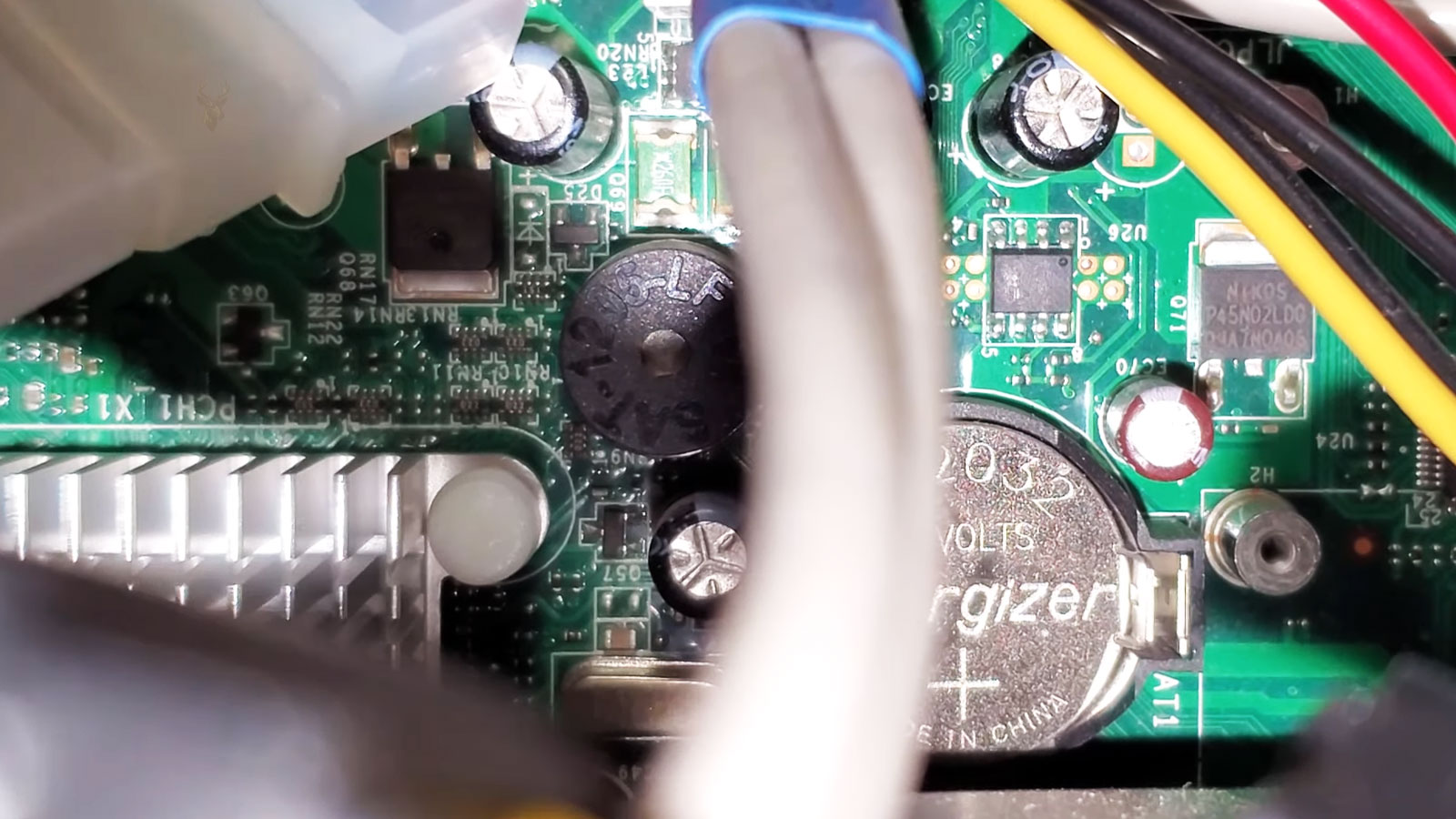
If the system reaches a point where it cannot display an error message, it may use sound instead. A small internal speaker, piezoelectric buzzer, or motherboard-mounted sounder produces a pattern that corresponds to the problem detected during POST.
The sound therefore belongs to the firmware stage of startup rather than to Windows. Reinstalling the operating system will not correct a fault that prevents the computer from completing POST.
A Single Brief Beep May Indicate Normal Startup
Some desktop computers produce one short beep after completing their initial hardware check successfully. The display then activates and startup continues normally.
Other systems remain silent during a healthy startup, so the absence of a beep does not automatically indicate a problem. Many modern computers also omit the internal speaker unless one has been connected separately.
The useful comparison is the computer’s usual behavior. A machine that has always given one short beep and suddenly begins producing a repeating pattern has changed in a meaningful way. A system that has always started silently should not be expected to produce a confirmation sound.
The Exact Pattern Matters More Than the General Presence of Beeping
A startup code may consist of short beeps, long beeps, pauses, repeated groups, or a continuous tone. Counting only the total number can be misleading if the sequence contains different lengths or begins again after a pause.
- Count the beeps in each group.
- Notice whether they are short, long, or mixed.
- Listen for a pause before the pattern repeats.
- Record whether the sound continues indefinitely.
- Note whether the screen displays anything at the same time.
A phone recording can be useful when the sequence is fast or difficult to remember. The original pattern should be documented before parts are removed, because reseating hardware may change the sound and erase an important clue.
Beep-Code Meanings Depend on the Firmware Family
Motherboards have used several firmware families over the years, including designs commonly associated with AMI, Award, Phoenix, and manufacturer-specific systems. Each can assign different meanings to similar sound patterns.
Large computer manufacturers may also replace the general firmware code with their own diagnostic sequence. A Dell, HP, Lenovo, or other branded system may use patterns documented for that product line rather than the generic chart associated with the underlying firmware.
For this reason, an online list found for an unrelated motherboard should not be treated as definitive. The system model or motherboard identifier must be confirmed before interpreting the code.
| Observation | Why It Matters |
|---|---|
| One short beep followed by normal startup | Some systems use this as a successful POST signal. |
| A repeating sequence with no video | The firmware may be reporting a hardware condition that prevents display output. |
| The same pattern returns after every restart | The failure is likely repeatable rather than a one-time startup delay. |
| The pattern changes after hardware is reseated | The computer may now be reaching a different stage of POST. |
| No sound is produced despite a failed startup | The system may lack an internal speaker or be unable to execute the diagnostic code. |
The sound is most useful when combined with the exact computer model, recent repair history, and visible startup behavior.
Memory Problems Commonly Produce Startup Beeps
System memory is required very early in the startup process. If the motherboard cannot detect usable memory, the computer may be unable to proceed far enough to display a message on the screen.
The cause may be a failed module, poor seating, contamination on the contacts, an incompatible upgrade, a damaged memory slot, or a problem with the processor’s memory controller. The beep code identifies the general stage of failure, not necessarily the exact part that must be replaced.
- The beeping began after a memory upgrade.
- The computer was recently transported or dropped.
- One module is not fully locked into its slot.
- Different memory types or specifications were mixed.
- The system starts with one module but not another.
Memory should be tested methodically because replacing every module at once can hide whether the problem belongs to one stick, one slot, or the motherboard itself.
A Partially Seated Memory Module Can Look Installed
Desktop memory modules require firm, even insertion until the retaining clips lock into place. One end can appear seated while the other remains slightly raised, especially when access is blocked by cables or a large processor cooler.
Laptop memory installs at an angle and then presses downward beneath retaining arms. If the module is not inserted deeply enough before being lowered, the clips may hold it physically while the electrical contacts remain incomplete.
A startup failure immediately following memory service should therefore lead back to the installation before the motherboard or processor is blamed.
Graphics Initialization Can Fail Before Any Image Appears
The computer must initialize a graphics device before it can display the manufacturer logo, firmware menu, or operating-system startup screen. If a graphics card is missing, poorly seated, unsupported, or electrically damaged, the machine may remain black while producing a diagnostic sound.
On a desktop with a separate graphics card, the problem can involve the card itself, its slot, required power connectors, or the power supply feeding it. Systems using integrated graphics may instead point toward the processor, motherboard, or shared memory.
A graphics-related beep does not prove that the monitor has failed. The code is generated before a normal video signal is available, while a defective monitor usually does not prevent the computer from completing POST.
Graphics Cards Often Require More Than Slot Contact
Many performance graphics cards receive part of their power from the motherboard slot and additional power through one or more cables from the power supply. The card may be physically installed while still lacking the electrical connection required for startup.
After cleaning, transportation, or hardware replacement, a supplemental power connector can be overlooked. The computer may turn on, spin its fans, and produce a warning pattern without creating an image.
- Confirm that the card is fully seated.
- Check required power connectors.
- Inspect the retaining bracket for misalignment.
- Verify that the monitor is connected to the intended video output.
- Look for visible damage or contamination near the slot.
The complete installation should be reviewed before the card is considered defective.
Processor and Motherboard Faults Can Stop POST Very Early
The processor begins executing the firmware instructions used during POST. If it cannot initialize, the computer may fail before memory and graphics testing are completed.
Possible causes include improper processor installation, bent socket contacts, missing power connections, unsupported hardware, overheating from a poorly mounted cooler, or failure in the motherboard’s voltage-regulation circuitry.
Some failures occur too early for a detailed beep sequence to be generated. The absence of sound therefore does not rule out a serious processor or motherboard problem.
Recent Internal Work Changes the Diagnostic Priority
A computer that begins beeping immediately after an upgrade or repair should be examined in relation to the work just performed. The most likely explanation is often a disturbed connection, incompatible part, or installation error rather than an unrelated component failing at the same moment.
Memory, graphics cards, processor power cables, cooling-fan connectors, and motherboard power plugs can all be affected while the case is open. A cable moved aside for access may not have been restored fully afterward.
Reviewing the service sequence in reverse order usually provides a clearer path than replacing parts based only on the first code description found online.
Repeating Beeps Usually Indicate That Startup Cannot Continue
A repeating beep pattern often means the computer has reached the same failed hardware check and is attempting to report it continuously. The sound may repeat at regular intervals until the machine is turned off.
The repetition does not necessarily mean several parts have failed. It may reflect one unresolved condition, such as unusable memory, missing graphics hardware, or a component that the firmware cannot initialize.
The pause between groups is especially important. Three short beeps followed by silence and another identical group should be recorded as a repeating sequence rather than counted as six unrelated beeps.
A Continuous Tone May Point Toward Power, Memory, or Cooling Trouble
Some computers produce a steady tone instead of a numbered pattern. Depending on the system, this can indicate memory trouble, an overheated processor, a fan that is not detected, a stuck key, or another hardware condition requiring immediate attention.
A continuous sound heard after recent internal work should prompt a review of the processor fan connection, memory seating, motherboard power cables, and any wiring disturbed during the repair.
The tone should not be interpreted from sound alone. Whether the fans spin, whether the screen activates, and whether the computer shuts down automatically all help establish which part of startup has failed.
Some Laptops Use Sound Together With Flashing Lights
Laptop manufacturers often combine beep codes with diagnostic lights. The Caps Lock, Num Lock, power, battery, or charging indicators may flash in a repeating sequence while the speaker produces sound.
The light pattern can be easier to count than the beeps, especially in a noisy room or when the internal speaker is quiet. A sequence of two flashes, a pause, and three more flashes may identify a different condition from a single repeating light.
- Record which indicator is flashing.
- Count each group before the pause.
- Note whether the beep and light sequences match.
- Confirm the exact laptop model before checking the code.
- Repeat the observation after a full shutdown.
Manufacturer documentation is more dependable than a general code chart because similar flashing patterns can carry different meanings across product families.
A Silent Failed Startup Does Not Eliminate Hardware Trouble
Many modern desktops do not include an internal speaker by default. The motherboard may attempt to generate a diagnostic code, but no sound is produced because nothing is connected to the speaker header.
Some boards use status LEDs or small numerical displays instead. Others provide no visible diagnostic information beyond fan activity and the absence of video.
A computer that remains silent with a black screen can still have the same memory, processor, graphics, or power problem that would cause beeping on another system. The lack of sound describes the diagnostic hardware, not necessarily the condition of the computer.
Internal Speakers Can Be Connected Incorrectly
Desktop case speakers usually connect to a small motherboard header. If the connector is loose, installed on the wrong pins, or absent after a motherboard replacement, expected startup sounds may disappear.
The speaker should not be moved randomly across front-panel pins because nearby connections may control the power switch, reset switch, or indicator lights. The motherboard layout should be confirmed before attaching or repositioning it.
Once connected properly, the speaker can provide useful information during minimal-hardware testing, especially when the computer has no display output.
Keyboard Problems Can Produce Startup Warning Sounds
Older systems and certain firmware designs check the keyboard during POST. A stuck key, damaged keyboard, or failed keyboard controller may produce a warning tone or on-screen message before startup continues.
The sound may begin after liquid exposure, debris beneath a key, or damage to the keyboard cable. On a desktop, testing with another compatible keyboard can help separate the input device from the motherboard connection.
- A key remains physically depressed.
- The tone begins only when one keyboard is connected.
- Startup continues after the keyboard is removed.
- The keyboard lights flash abnormally.
- Recent liquid exposure affected the input area.
A keyboard warning differs from a memory or graphics failure because the computer may still display an error and allow startup after the condition is acknowledged.
Cooling-Fan Warnings Can Appear Before Windows Loads
Many motherboards monitor the processor fan during startup. If the fan is disconnected, turning too slowly, or connected to the wrong header, the firmware may produce a beep or warning message.
This protection exists because a processor can heat rapidly without proper cooling. A fan may be spinning visibly while the motherboard still reports a problem if the speed signal is missing or the fan is attached to a case-fan connector instead of the processor-fan header.
The warning should not be bypassed until the cooling system is confirmed to be working correctly. Disabling monitoring can hide a genuine fan failure and allow the processor to operate without reliable protection.
Processor Overheating Can Trigger a Warning During Restart
A computer restarted immediately after overheating may enter firmware setup with a temperature warning or produce an alert before continuing. The processor may still be hot from the previous shutdown, especially if the cooler is loose or the fan has stopped.
This pattern differs from a cold-start beep that appears after the machine has been off for several hours. Temperature history, fan behavior, and the timing of the warning help distinguish thermal protection from a general POST failure.
Repeatedly restarting an overheated system without correcting the cooling problem can create additional stress on the motherboard and surrounding components.
Minimal-Hardware Testing Can Narrow the Failed Area
When a desktop cannot complete POST, unnecessary components can be disconnected so the motherboard is tested with only the hardware required for basic startup. This may include the processor, cooler, one memory module, power supply, and graphics output where required.
Storage drives, extra memory, USB devices, expansion cards, and front-panel accessories can be reintroduced later. If the beep pattern changes after one component is removed, the computer may be progressing to a different stage of startup.
- Disconnect external accessories that are not required.
- Verify the main motherboard and processor power connections.
- Install one known compatible memory module.
- Use integrated graphics when the system supports it.
- Power on and record the resulting sound pattern.
- Add one component at a time after basic startup improves.
This process should be performed with proper electrical and electrostatic precautions. Removing parts at random while the computer remains connected to power can create new problems.
Removing All Memory Can Create a Useful Comparison
A motherboard capable of executing POST will often produce a specific warning when no memory is installed. This test can help show whether the processor and firmware are operating far enough to detect the missing component.
If the machine remains completely silent with no memory present, the result may point toward the motherboard, processor, power supply, speaker connection, or a failure too early for the code to be generated.
The exact behavior still depends on the system. Some boards use lights instead of sound, and others may not provide a clear response without memory.
Power Connections Should Be Verified Before Replacing the Motherboard
A desktop motherboard usually requires a large main power connector and a separate processor power connection near the CPU socket. The computer may light up or spin fans even when the processor connector is missing.
Graphics cards may require their own power cables, and modular power supplies can also have disconnected cables at the power-supply end. Recent cable management or component replacement increases the chance that one connection was overlooked.
Visual inspection should confirm that each connector is fully seated and belongs to the correct device. Similar-looking cables are not always electrically interchangeable.
Beep Codes Identify a Category, Not Always the Failed Part
A memory code means the startup process encountered a problem while initializing memory. The cause could still be the module, slot, processor controller, motherboard trace, power supply, or incompatible settings.
The same limitation applies to graphics and processor codes. Firmware reports the stage where startup stopped; it does not always know which physical component created the condition.
Using the code as a direction rather than a final verdict prevents unnecessary parts replacement and encourages testing of the complete circuit involved.
A Different Beep Pattern After Reseating Hardware Can Be Progress
Changing a memory module, reconnecting a graphics card, or correcting a loose cable may cause the computer to produce a different startup code than it did originally. Although another warning is still present, the change can indicate that the firmware has successfully passed an earlier stage of the Power-On Self-Test.
For example, a system that originally reported a memory-related warning may begin reporting a graphics initialization problem after the memory issue is corrected. The second code does not necessarily mean a new fault has appeared. It may simply be the next condition discovered once startup progressed farther than before.
Recording each change during troubleshooting makes it easier to recognize forward progress instead of assuming that every new beep represents another unrelated failure.
Firmware Settings Can Occasionally Prevent Successful POST
Startup problems are not always caused by damaged hardware. Incorrect firmware settings involving memory speed, processor tuning, secure boot, or expansion devices may also stop POST before Windows begins loading.
After an unsuccessful overclock, firmware update, or unsupported hardware change, restoring default firmware settings may allow the computer to complete its normal hardware checks again.
This process affects configuration rather than personal files. Even so, customized storage settings, boot order, virtualization features, and security options may need to be reviewed afterward if they were changed intentionally before the reset.
Many Modern Motherboards Include Visual Diagnostic Displays
Instead of relying entirely on sound, many desktop motherboards now include diagnostic LEDs or small two-character displays that indicate which stage of startup is currently being tested.
Processor, memory, graphics, and boot indicators may illuminate one after another as POST progresses. If one remains lit continuously while startup stops, that stage becomes an important starting point for diagnosis.
These indicators complement beep codes rather than replacing them. When both are available, comparing the sound pattern with the visual indicator often provides a clearer understanding of where startup has failed.
Mechanical Noises Should Not Be Mistaken for Diagnostic Beeps
A failed hard drive can click repeatedly, cooling fans may scrape against cables, and some power supplies can produce electrical noises under load. These sounds are different from the deliberate warning tones generated during POST.
Diagnostic beeps usually have a regular rhythm and begin immediately after the power button is pressed. Mechanical noises often vary in volume, continue while the computer is operating, or change as the fan speed increases.
- POST beeps follow a deliberate pattern.
- Hard drive clicks are irregular mechanical sounds.
- Fan contact usually changes as fan speed changes.
- Electrical buzzing often comes from power components.
- Operating-system notification sounds occur only after Windows has loaded.
Separating these sounds prevents attention from being directed toward the wrong part of the computer.
Replacement Parts Should Match the System Requirements
Testing with another component is often helpful, but the replacement must be compatible with the motherboard and firmware. A different memory type, unsupported processor, or graphics card requiring additional firmware support may create new startup warnings unrelated to the original problem.
Known-compatible hardware provides more reliable diagnostic results than simply installing the first available spare part. Matching specifications, firmware support, and electrical requirements reduces unnecessary confusion.
Compatibility should be verified before concluding that both the original and replacement parts have failed.
Repeated Startup Attempts Can Complicate Diagnosis
Pressing the power button dozens of times without changing anything rarely produces new information. If a connection is loose or a hardware component has failed, repeating the same startup sequence usually reproduces the same result.
Instead, each startup attempt should follow a specific change, such as reseating one memory module, reconnecting processor power, or removing an unnecessary expansion card. This method makes it possible to associate changes in behavior with the work that was performed.
Organized testing generally reaches a useful conclusion more quickly than repeatedly powering the computer on without a clear troubleshooting plan.
External Devices Can Occasionally Interrupt Startup
USB storage devices, docking stations, malfunctioning hubs, and certain expansion accessories can interfere with POST on some systems. Although these situations are less common than memory or graphics faults, disconnecting unnecessary external devices provides a simple way to eliminate them during testing.
If the beep pattern disappears after a peripheral is removed, reconnecting devices one at a time helps identify which accessory is affecting startup.
This process should begin with nonessential equipment while leaving the keyboard, monitor, and primary power connections intact.
Firmware Updates Can Change Diagnostic Behavior
Motherboard firmware updates occasionally alter the way hardware is initialized during POST. A newer firmware version may introduce additional compatibility checks, different warning messages, or revised startup timing.
This does not usually change the underlying hardware fault, but it can influence how the motherboard reports the problem. Comparing beep sequences recorded before and after a firmware update should therefore take the firmware version into account.
Keeping a record of recent firmware changes can provide useful context when startup behavior suddenly differs from previous observations.
Power Supply Problems Can Resemble Other Hardware Failures
A power supply delivering unstable voltage may cause memory, graphics, or processor initialization to fail even though those components are functioning correctly. The resulting beep code reflects the stage where startup stopped rather than confirming which part created the interruption.
Unexpected shutdowns, difficulty powering on, intermittent startup success, or visible instability during POST may justify evaluating the power supply alongside the component identified by the beep sequence.
Considering the electrical source as well as the reported hardware stage helps prevent unnecessary replacement of otherwise functional parts.
One Warning Can Lead to Another During System Recovery
Complex hardware failures sometimes involve more than one defective component. After replacing or correcting the first problem, another startup warning may appear because the firmware is finally reaching the next stage of POST.
This progression should not automatically be interpreted as creating additional damage during the repair. The computer is simply able to continue farther through its startup sequence before encountering the next obstacle.
Maintaining a chronological record of each symptom helps distinguish newly discovered faults from changes caused by the troubleshooting process itself.
Startup Sounds Provide Clues Rather Than Final Answers
Beep codes remain one of the earliest diagnostic tools available during computer startup because they appear before Windows, drivers, and application software become involved. They reveal where the firmware encountered difficulty while preparing the system for normal operation.
The sounds are most valuable when combined with careful observation, compatible test hardware, knowledge of the specific motherboard or computer model, and an organized troubleshooting sequence. Interpreting them without that additional context can lead to replacing the wrong component or overlooking the actual source of the failure.
Listening carefully, documenting the exact pattern, and understanding that each manufacturer may define its own diagnostic language allows startup warning sounds to become a useful guide rather than a source of confusion during hardware diagnosis.











