
Reading the Pattern Behind Flashing Images, Sudden Blackouts, and Unstable Brightness
A laptop display can develop problems without becoming completely unusable. The image may flicker for a fraction of a second, dim unexpectedly, turn black and return, or change whenever the screen angle is adjusted. Other systems remain stable for hours and begin flashing only after Windows loads or a particular program opens.
These variations are important because the word “flickering” can describe several different conditions. A backlight that rapidly changes brightness is not the same as an image breaking into lines, and a screen that cuts out near the hinge suggests a different direction from one that flashes only during video playback.
Successful troubleshooting begins with the appearance and timing of the disturbance. The color of the screen, whether the image remains faintly visible, the position of the lid, and the stage of startup can each reveal which part of the display system deserves attention.
Screen Flicker Is a Symptom Rather Than a Single Failure
The laptop screen receives image information from the graphics hardware, carries that information through an internal cable, displays it through the panel, and relies on lighting components to make the picture visible. A disturbance anywhere along that path can produce an unstable display.
Software also participates in the process. Windows controls resolution, refresh behavior, brightness, power settings, and the graphics driver used to communicate with the display hardware. This means that visible flicker can begin inside the operating system even though the screen panel remains physically intact.
The first objective is therefore not to name a failed part immediately. It is to identify whether the disturbance affects the image, the lighting behind it, or the complete video signal.
Brightness Pulsing Is Different From Image Corruption
A display that repeatedly becomes brighter and darker may still show a clear, correctly shaped image. Text remains readable, icons stay in place, and no unusual colors appear. The visible problem is limited mainly to the amount of light coming through the panel.
Image corruption behaves differently. Horizontal lines, blocks, duplicated sections, unusual colors, or a distorted picture suggest that the display is receiving or processing incorrect visual information rather than simply changing brightness.
- The full image remains present while brightness rises and falls.
- The screen flashes black but returns without rearranging the desktop.
- Colored lines remain visible across certain areas.
- Parts of the image repeat or break into blocks.
- The picture changes when the lid is moved.
Describing the visual change precisely prevents lighting trouble from being confused with graphics corruption or a loose signal connection.
A Brief Black Screen Does Not Always Mean the Laptop Shut Down
During some display failures, the screen turns black even though the laptop remains fully operational. Audio may continue playing, keyboard indicators may respond, and programs may remain open behind the dark display.
This distinction matters because an actual power loss affects the complete computer, while a display interruption affects only what the user can see. Pressing keys or moving the mouse may reveal that Windows is still running normally.
A screen that returns after a few seconds may be recovering from a graphics-driver reset, a momentary cable interruption, a backlight problem, or a change in display mode. The duration and surrounding activity help separate these possibilities.
The Lid Position Can Expose Cable or Hinge-Related Trouble
The internal display cable commonly travels from the motherboard through the hinge area and into the screen assembly. Every time the laptop is opened or closed, part of that cable moves or flexes with the lid.
Over years of use, the cable can become worn, pinched, loosened, or damaged near the hinge. The display may flicker at one angle, turn black when opened farther, or return when the lid is moved slightly backward.
A damaged hinge can contribute to the same problem by placing abnormal pressure on the cable path. Cracked mounting points may allow the display assembly to shift more than intended, gradually stressing the connection each time the lid moves.
- Flicker begins while opening or closing the laptop.
- The image returns at a particular screen angle.
- Lines appear briefly when the hinge moves.
- The hinge feels loose, stiff, or uneven.
- The problem began after screen or hinge repair.
Repeatedly moving the lid to restore the picture may provide temporary access, but it can also worsen an already damaged cable or hinge mount.
A Loose Display Connector Can Produce an Intermittent Picture
The display cable connects at both ends: one connection near the motherboard and another behind the screen panel. If either connector becomes partially unseated, the laptop may continue working while the image flashes, changes color, or disappears temporarily.
This is especially relevant after the laptop has been opened for screen replacement, hinge work, motherboard service, or repairs near the display assembly. A connector may appear secure while sitting slightly uneven beneath its retaining tape or bracket.
Signal connections are delicate and should not be adjusted while the laptop is powered. Improper handling can damage connector pins or create a short near the display circuitry.
Problems Present Before Windows Loads Point Away From Ordinary Software
The startup logo and firmware screens appear before the full Windows environment is active. Flickering, lines, or repeated blackouts visible at that stage cannot be explained solely by a normal Windows desktop setting.
Hardware, firmware, or the basic graphics output becomes more relevant when the disturbance is already present during startup. The screen panel, display cable, graphics hardware, or an electrical connection may be involved.
By contrast, a picture that remains completely stable through startup and begins flickering only after Windows appears leaves more room for driver, refresh, application, or power-management causes.
Graphics Drivers Can Cause Flashing After Windows Starts
The graphics driver controls how Windows communicates with the video hardware and internal display. A damaged, incompatible, or incorrectly installed driver can cause the screen to flash, reset, change resolution, or briefly lose its image.
This type of problem may begin after a driver update, Windows installation, graphics software change, or system recovery. The laptop may display a stable manufacturer logo and then begin flickering as soon as the Windows graphics driver takes control.
Installing any available graphics driver is not necessarily a reliable solution. Some laptops use manufacturer-specific switching between integrated and dedicated graphics, and the correct driver combination may be required for normal display behavior.
A Single Application Can Trigger Display Instability
If flickering appears only inside one program, the screen panel may not be the source. Web browsers, video players, games, design software, and other applications can use hardware acceleration or display modes that interact differently with the graphics driver.
The desktop may remain stable until the program opens, and normal behavior may return as soon as it closes. That repeatable pattern points toward the relationship between the application and graphics system rather than a cable that fails randomly with movement.
Testing the same visual task in another program can help determine whether the failure belongs to the content, one application, or the complete display environment.
Refresh and Resolution Settings Can Produce an Unstable Image
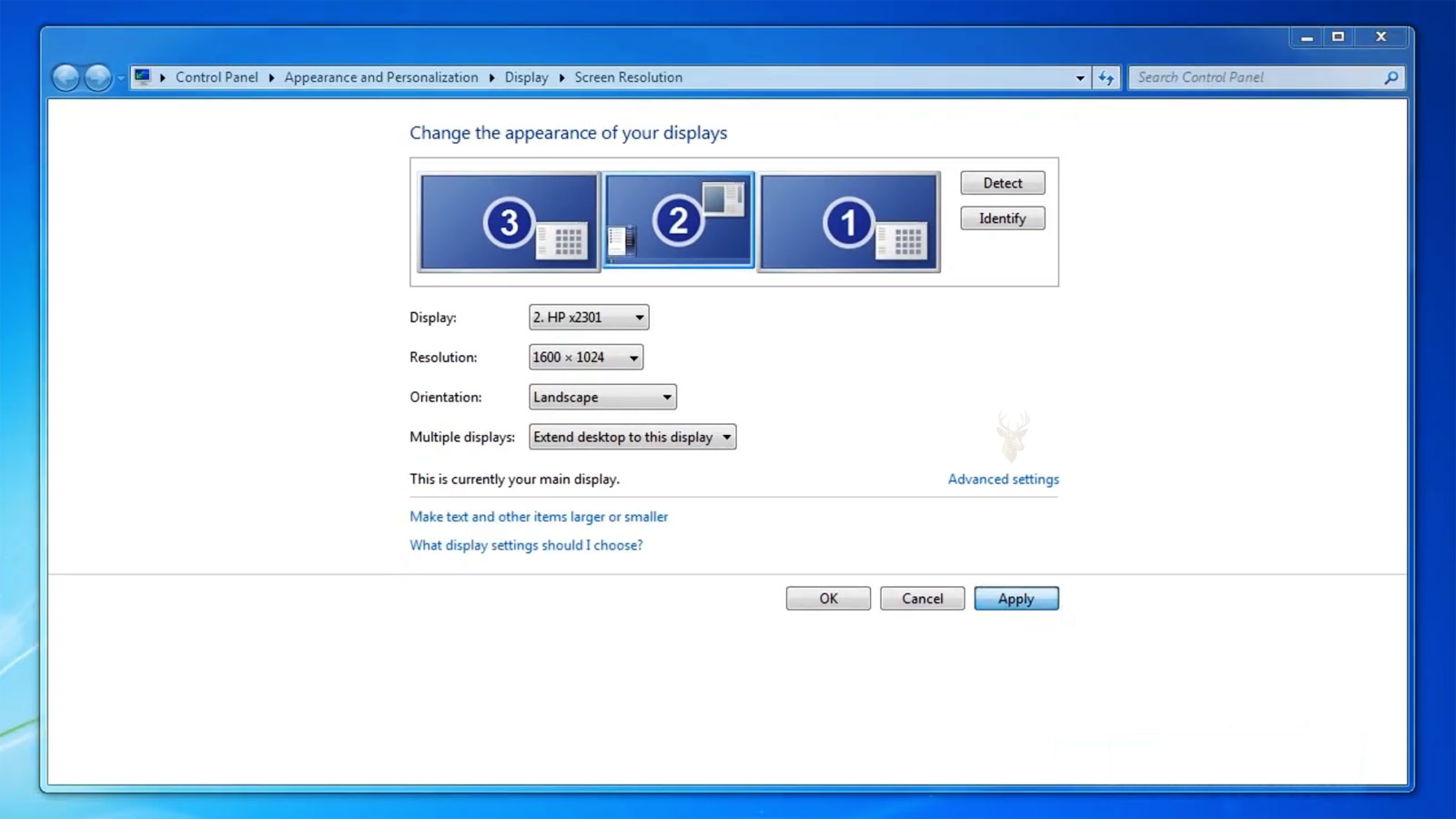
Every laptop display is designed to operate at supported resolutions and refresh behavior. Incorrect settings can make text appear distorted, produce scaling problems, or cause instability on hardware that does not accept the selected mode correctly.
This is more likely after connecting an external monitor, installing a new graphics driver, using remote-control software, or changing display settings for a game. The internal panel may be left in a mode different from the one intended by the manufacturer.
Returning to the display’s native resolution and a supported refresh setting can separate configuration trouble from a panel that remains unstable under every mode.
Adaptive Brightness Can Create Unwanted Changes in Illumination
Some laptops adjust screen brightness automatically according to ambient light, battery condition, or the image currently displayed. The feature is intended to improve visibility and reduce power consumption, but rapid changes can be mistaken for a failing backlight.
The screen may become dimmer on dark pages, brighten when a white window opens, or change after the laptop is moved into a different room. These adjustments can appear irregular when the user is unaware that the computer is making them deliberately.
A predictable relationship between the displayed content, surrounding light, or battery mode points more strongly toward brightness management than an electrical connection failing at random.
Power Plans Can Change the Display Without Affecting the Image Signal
Windows power plans often use different brightness levels for battery operation and AC power. Disconnecting the charger may therefore cause an immediate reduction in illumination even though the panel and graphics hardware remain stable.
Problems arise when the brightness changes repeatedly as the charging connection makes and breaks. A worn adapter cable or loose power jack can cause the laptop to alternate rapidly between plugged-in and battery settings, creating visible pulsing on the screen.
- The display dims each time the charger disconnects.
- Brightness returns when the plug is moved.
- The charging icon changes at the same moment as the flicker.
- The image remains clear while illumination rises and falls.
- The problem disappears during steady battery operation.
In that pattern, the screen may only be reacting to unstable power status rather than failing internally.
Backlight Failure Can Leave a Faint Image Behind
A laptop panel may continue creating the picture even after the lighting behind it stops working. The screen appears black at first glance, but a very faint desktop or startup logo may still be visible under strong external light.
This distinction separates loss of illumination from complete loss of video information. The graphics system may still be sending a normal image while the backlight circuit, panel lighting, cable, or power supply to the display has become unreliable.
A screen that lights briefly during startup and then becomes dark can also point toward a lighting-related condition. The exact design matters because older and newer displays use different backlight technologies and control methods.
Older Displays May Depend on a Separate Inverter
Many older laptop screens use fluorescent backlighting powered by a small inverter board. The inverter converts low-voltage power from the laptop into the higher voltage needed by the lamp inside the panel.
A failing inverter can cause dimming, flashing, delayed illumination, or a screen that lights for only a moment. The lamp itself can produce similar symptoms as it wears, making accurate diagnosis important before either part is replaced.
Inverter circuits operate at elevated voltage and should not be handled casually while powered. Visible flickering does not justify probing the display assembly without appropriate precautions.
LED-Backlit Panels Can Fail Without a Separate Inverter Board
Newer laptop panels commonly use LED backlighting. Their lighting circuitry may be integrated into the panel, display cable, or motherboard rather than placed on a separate removable inverter.
Symptoms can still include pulsing brightness, partial illumination, a dark screen, or flicker near certain brightness levels. The absence of a separate inverter does not eliminate the possibility of a backlight-related failure; it changes where the fault may be located.
Replacing parts based on older display designs can therefore lead in the wrong direction. The screen type should be identified before assumptions are made about which lighting components exist inside the laptop.
Flicker at One Brightness Level Can Expose a Power-Control Problem
Some displays remain stable at maximum brightness but flicker when dimmed. Others behave normally at medium levels and become unstable near the lowest setting.
This behavior may be related to the way the backlight is being controlled rather than a loose video signal. A worn lamp, unstable LED circuit, graphics power feature, or panel electronics can react differently as brightness commands change.
Testing several brightness levels can reveal whether the disturbance follows illumination control consistently. A cable problem tied to hinge movement is less likely to remain limited to one exact setting.
An External Monitor Provides a Valuable Comparison
Connecting the laptop to a separate monitor or television helps divide the display system into two paths. The external screen uses the same computer and graphics hardware but does not rely on the laptop panel, internal display cable, hinges, or built-in backlight.
If the external image remains stable while the laptop screen continues flickering, the fault is more likely to be found in the internal display path. If both screens show the same corruption or blackouts, the graphics driver, graphics hardware, or broader system behavior deserves more attention.
| Comparison Result | Possible Direction |
|---|---|
| Internal screen flickers while the external display remains stable | Panel, cable, backlight, or internal display connection. |
| Both displays flicker at the same time | Graphics driver, graphics hardware, or shared software. |
| External display works only after Windows loads | Output settings or driver behavior may influence the result. |
| Internal screen changes with lid movement | The cable path or hinge area becomes more significant. |
The test is most useful when both screens are observed during the same activity rather than compared at different times.
Graphics Problems Can Affect Both Internal and External Displays
The internal screen is only one destination for the image created by the graphics system. If the graphics processor, video memory, motherboard connection, or driver produces corrupted output, the same lines, blocks, flashes, or blackouts may appear on every connected display.
Heat can make this behavior more noticeable. A laptop may display normally after a cold start and begin showing artifacts after gaming, video work, or extended use. Once the system cools, the symptoms may temporarily disappear.
A temperature-related pattern does not identify the exact failed component, but it separates the issue from a panel that flickers immediately regardless of workload.
Lines and Blocks Can Originate Inside the Panel
Not every distorted image comes from the graphics processor. The screen panel contains its own row and column control circuitry, and damage there can create permanent vertical lines, horizontal bands, flickering sections, or areas that update incorrectly.
Panel-related defects often remain in the same physical location on the screen. A vertical line may stay fixed from top to bottom regardless of which window is open, while a damaged region may react when pressure is applied near the edge of the display.
- The line remains in one exact position.
- An external monitor shows a normal picture.
- The defect appears before Windows loads.
- Light pressure near the bezel changes the symptom.
- The problem followed impact to the screen assembly.
Pressing or twisting the display to restore the image can worsen internal panel damage and should not be used as a continuing solution.
Physical Pressure Can Damage the Display Without Cracking the Surface
A laptop screen can be damaged even when the outer surface appears intact. Closing the lid on an object, carrying the laptop in an overfilled bag, or pressing heavily on the back cover can affect the internal panel layers.
The result may be localized flicker, dark patches, colored areas, or lines that appear later. Internal fractures and damaged connections do not always produce the obvious spiderweb pattern associated with a visibly cracked screen.
A symptom that begins immediately after pressure or impact should be evaluated as possible physical damage even if the glass or outer finish looks normal.
Webcam and Wireless Cables May Share the Hinge Area
The display cable is not the only wiring routed through a laptop hinge. Antenna leads, webcam cables, microphone wiring, and other connections may travel through the same narrow space.
A damaged hinge can therefore create several symptoms at once. Screen flicker may appear together with weak wireless reception, an unavailable webcam, or microphone problems near the top of the display.
Multiple failures beginning after hinge damage make the cable path more significant than a software setting affecting only the image.
Previous Screen Replacement Can Change the Diagnostic Direction
Intermittent display trouble appearing soon after a screen replacement may involve connector seating, cable routing, retaining tape, panel compatibility, or pressure from the bezel.
A replacement panel can fit physically while using different electrical specifications or connector placement. Likewise, a cable routed too tightly around the hinge may work initially and begin failing after repeated opening and closing.
Reviewing the installation and exact replacement part is more productive than assuming the new panel must be free of defects simply because it was recently installed.
Display Artifacts Can Indicate Different Types of Failures
Not every visual defect should be described simply as flickering. Colored dots, checkerboard patterns, horizontal bands, random symbols, image tearing, and brief flashes each develop for different reasons. Although they may appear together, their patterns often point toward different areas of the display system.
Artifacts that change with graphics-intensive work deserve different attention than defects that remain visible during startup. Likewise, a fixed vertical line is usually evaluated differently from random blocks that appear only while the computer is under heavy load.
Describing the appearance accurately helps narrow the investigation before any hardware is replaced.
Heat Can Make Display Problems More Noticeable
Some laptops operate normally when first powered on but begin showing visual instability after they have been running for a period of time. As internal temperatures rise, graphics components, display circuitry, or electrical connections may become less stable.
A display that remains clear while the computer is cool but begins flashing after gaming, video editing, or extended operation follows a different pattern from one that flickers immediately after startup.
- The picture is stable immediately after turning the laptop on.
- Flickering develops gradually as the system warms.
- The symptom becomes more frequent during demanding applications.
- Cooling the laptop temporarily improves the display.
- The problem returns after another period of heavy use.
Temperature alone does not identify the failed component, but it provides an important clue when the behavior repeats consistently.
Testing in Safe Mode Can Help Isolate Software
Windows Safe Mode starts the operating system with a limited collection of drivers and services. Because advanced graphics features are reduced, comparing display behavior in this environment can help determine whether software is contributing to the instability.
If the display remains stable only in Safe Mode, attention may shift toward graphics drivers, startup software, or display-related utilities. If the flickering continues exactly as before, the display hardware or its supporting components become stronger possibilities.
Safe Mode does not diagnose the exact cause by itself, but it provides another point of comparison without opening the laptop.
Docking Stations and Display Adapters Can Introduce Their Own Variables
Many business laptops connect to external monitors through docking stations, USB display adapters, or multifunction hubs. These accessories become part of the video path and can influence display behavior.
If flickering appears only while the laptop is connected to one accessory, the built-in screen may not be responsible. Signal conversion, connector quality, cable condition, or compatibility between the adapter and the graphics hardware should also be considered.
Comparing the display with and without the accessory attached helps separate an external connection problem from one inside the laptop itself.
High Refresh Displays Require Proper Graphics Support
Some laptops include displays capable of operating at higher refresh rates than standard office systems. Those panels rely on graphics hardware and drivers that support the selected operating mode correctly.
If the graphics configuration changes unexpectedly after an update or driver installation, the display may show instability that was not previously present. Returning to the manufacturer’s recommended settings can help determine whether the issue is related to configuration rather than hardware failure.
Not every laptop includes this type of panel, but refresh-related problems have become more common as higher-performance displays have become widely available.
Testing Across Different Applications Provides Useful Evidence
A display problem that appears while watching videos but not while editing documents suggests a different direction from one that affects every task equally. Comparing several types of applications can reveal whether the graphics hardware is being stressed in a particular way.
Office software, web browsers, streaming video, image editing, and three-dimensional applications place different demands on the graphics system. Observing where the problem begins often narrows the list of possible causes.
| Observed Pattern | Possible Area to Examine |
|---|---|
| Only the built-in display flickers. | Panel, display cable, backlight, or hinge area. |
| Internal and external displays both show corruption. | Graphics hardware, graphics driver, or motherboard. |
| The problem appears only after Windows loads. | Driver, software, or display configuration. |
| The image changes when the lid moves. | Display cable or hinge assembly. |
Display Repairs Often Require Careful Parts Matching
Laptop display assemblies are manufactured in many different versions. Screen size alone is not enough to guarantee compatibility. Resolution, connector position, mounting brackets, backlight design, refresh capability, and surface finish can all vary between otherwise similar models.
Installing a physically similar panel without verifying its specifications can introduce new display problems that did not exist previously. Matching the original part information remains one of the most reliable ways to avoid compatibility issues.
The same attention should be given to display cables, which may also differ between screen options offered for the same laptop series.
A Successful Repair Should Be Verified Under Different Conditions
Testing a repaired display should involve more than confirming that an image appears. The screen should be observed while the lid is opened and closed, during battery and AC operation, after the laptop has warmed up, and while several different applications are running.
- Check the display immediately after startup.
- Adjust the lid through its normal range of movement.
- Test several brightness levels.
- Observe the display after extended operation.
- Connect an external monitor if one is available.
- Verify that normal desktop work and video playback remain stable.
A repair that remains stable under different conditions is more likely to have addressed the underlying cause rather than only one symptom.
Following the Display Path From Source to Screen
An image displayed on a laptop passes through several stages before it reaches the user. Graphics hardware creates the picture, software determines how it is presented, cables carry the signal, and the display panel produces the visible result. A problem at any point along that path can create flickering, brief blackouts, changing brightness, or visual distortion.
Carefully observing when the symptom appears, how the image changes, and whether the behavior follows lid movement, software activity, temperature, or external displays provides a much stronger foundation for diagnosis than treating every flicker as the same type of failure.











