
What Individual Key Failures Can Reveal About the Keyboard Surface, Internal Circuitry, and Windows Input Settings
A laptop keyboard does not always fail as one complete unit. Sometimes only a single letter stops responding. In other cases, several keys in the same area become unreliable, a key begins typing twice, or an entire row no longer produces any input.
The pattern matters because laptop keyboards are built from many small mechanical parts positioned over a shared electrical membrane. A damaged keycap can affect one key, while contamination or a broken circuit path may disable several keys that appear unrelated on the surface.
Before replacing the keyboard, it helps to determine whether the problem follows a physical key, a group of keys, one application, or the entire operating system. Those differences can separate ordinary wear from liquid damage, cable trouble, software settings, or a failing keyboard assembly.
One Failed Key Is Different From an Entire Keyboard That Does Not Respond
When every key stops working at the same time, the keyboard may be disabled, disconnected, incorrectly detected, or affected by a broader system problem. A single failed key usually points toward a more localized condition.
The key may be physically obstructed, the plastic mechanism beneath it may be damaged, or the electrical contact for that position may no longer register reliably. Nearby keys often continue working because they use separate mechanical points even though they share the same keyboard assembly.
- Only one letter or number fails.
- The key works only when pressed firmly.
- The keycap feels loose or uneven.
- The key sometimes produces two characters.
- Nearby keys continue responding normally.
These symptoms suggest a local problem more strongly than a complete loss of communication between the keyboard and the laptop.
Laptop Keys Use Small Mechanical Parts Beneath the Keycap
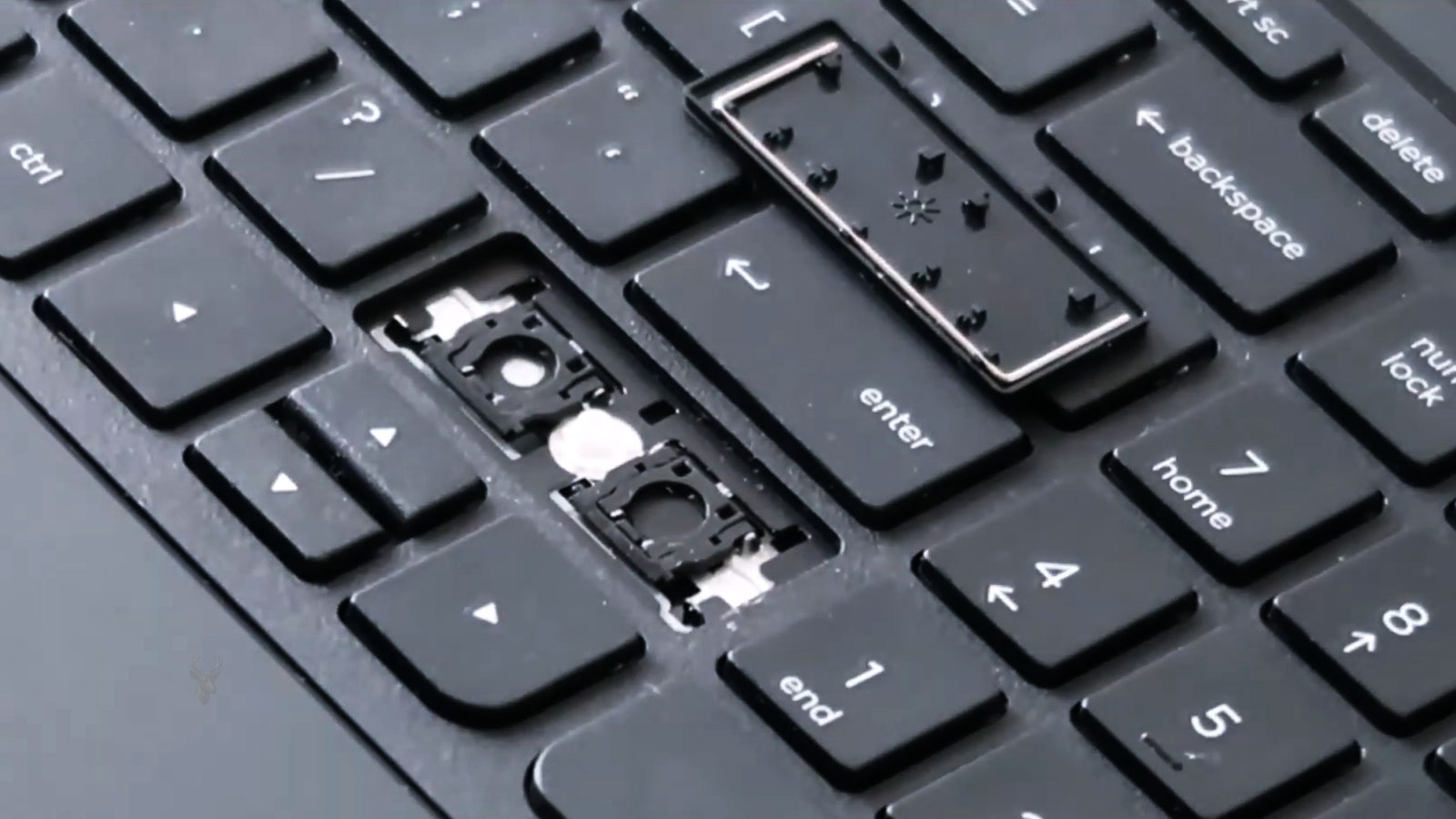
Most laptop keys rest on a low-profile plastic mechanism that guides the keycap downward and returns it to its normal position. Beneath that mechanism is a flexible contact area that registers the press.
The plastic supports are thin because the keyboard must fit inside a shallow enclosure. They can crack when a keycap is pulled upward, struck sharply, or removed with the wrong technique.
A damaged mechanism may leave the key tilted, loose, difficult to press, or unable to return after being pushed. The electrical contact may still work if pressed directly, but normal typing becomes uncomfortable or unreliable because the keycap no longer moves correctly.
Debris Can Prevent a Key From Traveling Far Enough
Crumbs, dust, hair, and other small particles can collect around the edges of frequently used keys. If enough material becomes trapped beneath the keycap, the key may not travel far enough to activate the contact below it.
The result is often inconsistent rather than complete failure. The key may work when pressed near one corner, respond only with extra force, or feel different from the keys around it.
Cleaning should be approached carefully. Forcing sharp objects beneath the keycap can break the retaining clips, and excessive compressed air can push debris farther into the keyboard instead of removing it.
A Sticky Key May Have Dried Residue Beneath It
Small spills do not always cause the keyboard to stop working immediately. A drop of soda, coffee, juice, or another sweetened liquid may dry beneath one or two keys and leave a sticky residue behind.
The key may begin returning slowly, remain partially depressed, or require more pressure than before. Over time, the residue can attract dust and become more difficult to remove.
Surface cleaning may improve the feel of the key without reaching contamination that has already entered the mechanism or electrical layers. If the key continues sticking after the visible area is cleaned, the problem may exist deeper inside the keyboard assembly.
Several Failed Keys in a Pattern Can Point Toward the Keyboard Circuit
Laptop keys are arranged electrically in a matrix of rows and columns. Pressing a key completes a particular path within that grid, allowing the keyboard controller to identify which character was selected.
If one shared path becomes damaged, several keys can stop working even when they are not located next to one another. This is why a failed group may include letters, numbers, or function keys scattered across different parts of the keyboard.
| Failure Pattern | Possible Direction |
|---|---|
| One key fails while all others work | The key mechanism or local contact may be damaged. |
| Several neighboring keys feel sticky | Debris or liquid residue may be present in one area. |
| Unrelated keys fail in a repeating pattern | A shared electrical path inside the keyboard may be open. |
| An entire section stops after a spill | Contamination may have reached the keyboard membrane. |
| Every key fails at once | The ribbon cable, controller, settings, or system state may require inspection. |
The physical location of the failed keys is useful, but it should not be the only factor considered because the electrical layout beneath the keyboard is not always arranged exactly like the visible key rows.
Liquid Can Damage More Than the Keys That Were Directly Wet
A spill that lands on the left side of the keyboard may eventually affect keys farther away if the liquid travels between internal layers. Gravity, capillary movement, and the angle of the laptop can carry moisture beyond the original spill area.
The keyboard may continue working at first and develop problems later as residue dries or corrosion forms along conductive paths. Keys can become intermittent, type the wrong character, or stop responding in groups.
- Several keys fail after the keyboard appears dry.
- Characters repeat without being held down.
- Pressing one key produces a different character.
- Input changes as the laptop warms.
- New failures appear days after the spill.
Repeatedly testing a liquid-exposed laptop while moisture or contamination remains inside can increase the risk of damage reaching the keyboard connector or motherboard.
Repeated Characters Can Come From a Worn or Contaminated Contact
A key that produces two or three characters from one press may be making and breaking contact several times during a single movement. This can happen when the mechanism is worn, the membrane is contaminated, or the key does not return smoothly.
Software settings can also influence repetition when a key is held, but they do not usually explain why only one key types twice after a quick tap. Comparing the affected key with several others helps show whether the behavior is mechanical or system-wide.
Fast typing makes this problem particularly disruptive because repeated letters may not be noticed until a document, password, or message has already been entered incorrectly.
Keyboard Layout Settings Can Make Correct Keys Produce Unexpected Characters
Not every incorrect character indicates hardware failure. Windows can use different keyboard layouts for different languages and regions. When the selected layout changes, the physical labels on the keys may no longer match the characters produced on the screen.
A user may press one symbol and receive another, or discover that punctuation marks have moved to different positions. The keyboard is still registering the presses correctly, but Windows is interpreting them through a different layout.
This condition usually affects many keys in a consistent way rather than causing random or intermittent failures. Checking the active language and keyboard layout can prevent unnecessary replacement of a functioning keyboard.
Number Lock Can Change the Behavior of Letter Keys on Some Laptops
Compact laptop keyboards sometimes place a numeric keypad over a group of letter keys. When Number Lock is enabled, those keys may type numbers or symbols instead of the letters printed most prominently on the keycaps.
This can make the keyboard appear damaged even though it is following an alternate input mode. The setting may be changed with a function-key combination and can sometimes remain active after a restart.
- Several letters type numbers instead.
- The affected keys form a keypad-shaped group.
- The problem begins after using function keys.
- An indicator light or on-screen symbol shows Number Lock status.
- Turning Number Lock off restores normal letters immediately.
A consistent alternate pattern is more suggestive of a keyboard mode than damaged contacts beneath several keys.
Loose Ribbon Cables Can Affect Entire Sections of the Keyboard
Most laptop keyboards communicate with the motherboard through a thin ribbon cable secured by a small locking connector. If that cable becomes partially unseated, groups of keys may stop responding even though the keyboard itself remains physically undamaged.
This situation is most often seen after a laptop has been opened for battery replacement, memory upgrades, fan cleaning, or other internal repairs. The cable may appear connected while sitting slightly out of position inside its connector.
Because the problem originates beneath the keyboard, cleaning individual keys or changing Windows settings is unlikely to restore normal operation.
Heat and Age Gradually Change Keyboard Reliability
Every keyboard experiences thousands of key presses throughout its life. Repeated mechanical movement, combined with the heat produced inside the laptop, slowly affects the plastic supports, flexible membrane, and conductive materials beneath the keys.
The change is usually gradual rather than sudden. A key that once required a normal touch may begin needing additional pressure, become inconsistent for several weeks, and eventually stop registering altogether.
Older laptops used daily for work often develop this kind of wear without any single event causing the failure.
Impact Damage Does Not Always Break the Screen First
A dropped laptop may continue displaying a perfect image while developing keyboard problems. The force of the impact can flex the palm rest, disturb internal connectors, crack keyboard mounting points, or damage delicate conductive layers beneath the keys.
When keyboard symptoms begin immediately after the computer is dropped, that timing deserves careful attention. A hardware problem caused by physical shock is unlikely to be corrected through driver installation or operating system updates.
- Several keys stop working after the impact.
- The keyboard frame no longer sits evenly.
- The palm rest creaks when pressed.
- The problem becomes worse after moving the laptop.
- An external keyboard continues working normally.
Accessibility Features Can Be Mistaken for Keyboard Failure
Windows includes accessibility features intended to help users with different typing needs. Options such as Sticky Keys, Filter Keys, and Toggle Keys intentionally change the way keyboard input is interpreted.
If one of these features becomes enabled unintentionally, the keyboard may appear slow to respond, ignore repeated presses, or require keys to be held longer than expected. Since the physical keyboard is still functioning, the symptoms often disappear once the setting is corrected.
Because these features modify keyboard behavior rather than the hardware itself, they can create confusing symptoms that resemble mechanical failure.
Testing With an External Keyboard Helps Narrow the Problem
A USB keyboard provides a useful comparison because it communicates with the computer independently of the built-in laptop keyboard. If the external keyboard works normally while the internal one continues failing, Windows is still receiving keyboard input and the investigation can focus on the laptop’s integrated keyboard or its connection.
If both keyboards show the same unusual behavior, attention should expand beyond the internal keyboard to include software, Windows configuration, or another system-wide condition affecting input.
| Observed Result | What It Suggests |
|---|---|
| Only the built-in keyboard fails. | The keyboard assembly or its connection deserves closer inspection. |
| Both keyboards behave the same way. | The cause may involve Windows, drivers, or system configuration. |
| Only one application receives incorrect input. | The issue may be limited to that specific program. |
| The external keyboard works after a spill. | Liquid damage may be isolated to the built-in keyboard. |
Problems Limited to One Program Should Be Viewed Differently
If a key appears to fail only while using one application, the keyboard itself may not be responsible. Shortcut assignments, language settings within the application, or software-specific input methods can produce unexpected results while the rest of Windows continues working normally.
Opening a simple text editor and testing the same keys often helps determine whether the problem follows the keyboard everywhere or only appears inside one program.
Repeated Cleaning Can Cause Its Own Damage
Attempting to remove every keycap, spraying large amounts of cleaner directly onto the keyboard, or using metal tools beneath delicate plastic retainers can create problems that were not present originally.
Laptop keyboards are designed with very small clips and thin scissor mechanisms that are easily damaged during unnecessary disassembly. Once those retaining parts break, the affected key may never sit correctly again even if the electrical contact beneath it remains functional.
Routine surface cleaning helps reduce dust accumulation, but aggressive cleaning methods can shorten the life of an otherwise serviceable keyboard.
Intermittent Failures Usually Follow a Pattern
A keyboard that works perfectly for several hours before one group of keys stops responding often provides more diagnostic information than a keyboard that never works at all. Changes related to temperature, movement, pressure on the palm rest, or opening and closing the display can all point toward a developing hardware issue.
Recording when the problem appears, whether it affects the same keys every time, and what the computer was doing immediately beforehand can make it much easier to distinguish between software behavior and a physical keyboard fault.
Driver Problems Usually Affect the Keyboard as a Whole
Laptop keyboards generally use a standard input driver supplied through Windows. If that driver becomes damaged or the device is no longer recognized correctly, the entire keyboard may stop responding rather than one isolated group of keys.
This distinction is useful because individual key failures are more often connected to the keyboard mechanism, membrane, contamination, or internal circuit paths. A system-wide driver problem can still occur, but it rarely explains one letter failing while every surrounding key continues operating normally.
Driver troubleshooting becomes more relevant when the keyboard disappears from Device Manager, stops after a Windows change, or fails together with other input functions.
The Startup Screen Provides a Useful Comparison
Testing the keyboard before Windows fully loads can help separate operating-system behavior from hardware trouble. Many laptops allow certain keys to open the firmware setup, select a boot device, or respond inside built-in diagnostics.
If the same keys fail before Windows starts, software inside the operating system becomes a less likely explanation. The keyboard, ribbon cable, connector, or motherboard input circuitry deserves greater attention.
A key that works in the firmware screen but fails only after Windows loads points more strongly toward layout settings, accessibility options, software conflicts, or another operating-system condition.
On-Screen Input Can Keep the Laptop Usable Temporarily
Windows includes an on-screen keyboard that allows characters to be entered with a mouse or touchpad. This can provide temporary access to documents, account settings, or diagnostic tools when several physical keys are unavailable.
It is a workaround rather than a repair. The on-screen keyboard does not correct contamination, worn contacts, a loose cable, or liquid damage inside the laptop.
Passwords should also be entered carefully because a failing physical key can produce missing or repeated characters without making the error obvious on a concealed password field.
Removing a Keycap Is Not Always the Best First Step
A keycap may appear simple from above, but the retaining mechanism beneath it can include several small interlocking pieces. The clips differ between manufacturers and even between models from the same product line.
Pulling upward from the wrong side can break the hinge or mounting tabs. Once that happens, the keycap may no longer remain attached even if the original typing problem was caused only by a small piece of debris.
- Confirm that debris is actually visible before removing anything.
- Avoid prying with sharp metal tools.
- Do not assume every keycap lifts from the same edge.
- Keep track of all small hinge pieces if removal is necessary.
- Stop if the key requires unusual force.
Cleaning around a key is often safer than dismantling a mechanism that is still structurally intact.
Replacing One Key May Not Solve an Electrical Failure
A replacement keycap can correct a missing cap or broken plastic hinge, but it cannot repair the conductive membrane beneath the keyboard. If the electrical contact no longer registers, installing new plastic parts on top will not restore input.
This is why the feel of the key matters. A key that sits crooked or falls off may need a cap or hinge. A key that moves normally but produces no character is more likely to have a contact problem below the visible mechanism.
Testing the contact without damaging the membrane requires care, and some laptop keyboards are not designed for individual electrical repair.
Many Laptop Keyboards Are Replaced as Complete Assemblies
Once several keys fail because of membrane damage, corrosion, or worn circuit paths, replacing the full keyboard is often more practical than attempting to repair individual contacts. The assembly is manufactured as one thin layered component, and its internal paths are difficult to access without causing further damage.
Keyboard replacement difficulty varies significantly. Some models allow the keyboard to be released from the top with a few clips or screws. Others secure it beneath the palm rest, use melted plastic mounting points, or integrate it into a larger upper-case assembly.
The replacement part must match the keyboard layout, language, backlight connection, ribbon-cable position, mounting design, and exact laptop series.
Backlit Keyboards May Use More Than One Cable
A backlit keyboard often has one ribbon cable for key input and another smaller connection for the lighting. It is possible for the keys to work while the backlight remains dark, or for the lighting to operate even though typing does not register.
These separate functions can help identify which connection is affected. A keyboard that lights normally but produces no input may still have a loose main ribbon cable. A keyboard that types correctly without illumination may have a separate backlight connection or control problem.
Both cables should be handled carefully because the smaller lighting connector can be especially delicate.
Motherboard Trouble Is Less Common but Still Possible
The keyboard sends its signals through a connector and controller on the motherboard. Damage in that area can prevent a known working keyboard from being detected or can affect particular input lines.
This possibility becomes more relevant after liquid reaches the motherboard, the ribbon connector is damaged, or a replacement keyboard produces the same failure pattern. Corrosion, broken connector pins, or damaged controller circuitry can prevent normal input even when the keyboard assembly itself is functional.
Replacing the keyboard repeatedly without checking the connector and surrounding circuitry can leave the actual fault unchanged.
Testing After Replacement Should Include Every Key
A replacement keyboard should be checked across the full layout rather than judged by typing one short sentence. Function keys, arrow keys, punctuation, modifiers, the numeric section, and special controls can each use different portions of the keyboard matrix.
- Test every letter and number.
- Check Shift, Ctrl, Alt, and function combinations.
- Verify punctuation and symbol keys.
- Test arrows, navigation keys, and the numeric keypad where present.
- Confirm that backlighting and special controls operate correctly.
- Restart the laptop and repeat a basic typing test.
A complete test can reveal a damaged replacement part, an improperly seated cable, or a layout mismatch before the laptop is returned to normal use.
The Failure Pattern Usually Identifies the Most Likely Source
A loose keycap points toward the mechanical structure above the membrane. Sticky movement suggests debris or dried residue. Scattered groups of failed keys can reflect a damaged circuit path, while complete loss of input raises questions about the ribbon cable, connector, firmware detection, or motherboard controller.
Software settings deserve attention when the keys produce consistent but unexpected characters, input changes only inside one program, or accessibility features alter the response. Those conditions differ from a physical key that works only when pressed hard or stops after liquid exposure.
Careful comparison of the affected keys, their physical feel, and the event that preceded the failure provides a much clearer direction than replacing parts based on one missed character.











