
Separating a Problem With One Computer From a Problem Affecting the Entire Wireless Network
A wireless connection problem becomes especially confusing when every phone, tablet, television, and other computer in the building continues working normally. The router appears to be online, the internet service has not stopped, and the network name is visible, yet one computer refuses to connect or loses access repeatedly.
That pattern immediately changes the direction of troubleshooting. When several devices fail together, the modem, router, or internet service deserves attention. When only one machine is affected, the cause is more likely to be found in that computer’s wireless hardware, saved connection information, Windows configuration, driver, or security settings.
The exact message shown by Windows also matters. “No networks found,” “Unable to connect,” “Limited access,” and “Connected, no internet” describe different stages of the connection process. Treating them as the same problem can lead to unnecessary router resets and repeated password changes that never address the real cause.
The First Question Is Whether the Computer Can See the Network
A computer must first detect the wireless network before it can attempt to join it. If the expected network name does not appear at all, the problem is different from a situation where the name is visible but the connection attempt fails.
Failure to detect nearby networks may involve a disabled wireless adapter, an inactive wireless switch, a driver problem, weak signal reception, or hardware that is no longer operating correctly. A visible network that rejects the connection points more toward authentication, saved settings, or compatibility.
- No wireless networks appear anywhere in the list.
- Other networks are visible, but the expected network is missing.
- The correct network appears with very weak signal strength.
- The network appears normally but disappears after several seconds.
- The computer can see the network but cannot complete the connection.
These observations provide more useful information than simply stating that the Wi-Fi does not work.
Wireless Hardware Can Be Disabled Without Being Physically Damaged
Many laptops include a keyboard shortcut, physical switch, or function-key combination that turns the wireless radio on and off. The feature is useful during travel or when conserving power, but it can also be activated accidentally.
Windows may then behave as though no wireless networks exist, even though the router and internet service are working normally. Some computers display an indicator light or on-screen symbol, while others provide very little visible feedback.
Airplane mode creates a similar result by disabling wireless communication through software. A user may enable it intentionally during a trip and later forget that the setting remained active.
A Saved Network Profile Can Contain Outdated Information
Windows stores information about wireless networks that the computer has joined previously. This saved profile may include the network name, security type, password, and connection preferences.
If the router password, security mode, or network configuration changes, Windows may continue trying to connect with the old information. The network still appears in the list, but each connection attempt fails because the stored profile no longer matches the router.
Removing the saved network and joining it again allows Windows to create a fresh profile. This is often more effective than entering the password repeatedly into a connection that is still using outdated settings behind the scenes.
The Password May Be Correct for Other Devices but Wrong on This Computer
Phones and tablets that connected months earlier may continue using a stored password automatically. Their successful connection does not prove that the password currently being entered on another computer is correct.
Wireless passwords are usually case-sensitive, and characters such as zero, the letter O, lowercase L, uppercase I, hyphens, and underscores can be difficult to distinguish. Keyboard layout changes and the state of Caps Lock can also produce a password that looks correct while containing different characters.
- Confirm uppercase and lowercase letters carefully.
- Check whether Caps Lock or Num Lock is affecting entry.
- Verify that the correct keyboard layout is active.
- Make sure the computer is joining the intended network name.
- Avoid assuming that a remembered password is still current.
A password error usually prevents the computer from completing authentication even though the wireless signal itself is strong.
A Computer Can Connect to the Router Without Reaching the Internet
Wireless connectivity and internet access are related, but they are not identical. A computer may successfully join the router and receive a strong signal while still being unable to open websites or use online services.
In that situation, the wireless adapter is communicating with the local network. The remaining problem may involve address assignment, DNS settings, security software, a damaged network configuration, or restrictions applied specifically to that computer.
| What the Computer Shows | Where Troubleshooting May Begin |
|---|---|
| No wireless networks are listed | Wireless radio, adapter, driver, or signal reception. |
| The network is visible but rejects the connection | Password, saved profile, or security compatibility. |
| Connected with limited access | Address assignment or local network configuration. |
| Connected but websites do not open | DNS, firewall, browser, or internet routing. |
| The connection drops repeatedly | Signal quality, driver stability, power management, or adapter condition. |
The wording may vary between Windows versions, but the stage at which communication fails remains an important diagnostic clue.
Wireless Drivers Allow Windows to Communicate With the Adapter
The wireless adapter depends on a driver that translates between Windows and the hardware. If the driver becomes damaged, outdated, incompatible, or partially removed, the adapter may disappear, show an error, detect networks inconsistently, or fail whenever a connection is attempted.
Driver problems sometimes begin after a Windows update, system recovery, hardware replacement, or installation of software supplied for a different adapter model. The computer may still display a wireless icon, but the underlying hardware is not operating reliably.
Using the correct driver matters more than simply installing the newest file available. Laptop manufacturers may use several wireless adapter brands within the same product line, so the exact hardware should be identified before replacing driver software.
Weak Reception Can Affect One Device More Than Another
Two devices in the same room do not necessarily receive wireless signals equally. Antenna design, adapter quality, laptop position, nearby interference, and the frequency band being used can all influence reception.
A phone may remain connected near the edge of the router’s range while an older laptop drops the network repeatedly. Moving the computer closer to the router can help determine whether distance and signal strength are contributing to the problem.
Metal furniture, thick walls, cordless equipment, and other electronics can also affect one computer more noticeably depending on where its antenna is located inside the screen or case.
Some Computers Support Fewer Wireless Standards
Wireless technology has changed over time, and older adapters may not support every frequency, channel, or security method used by a newer router. A computer that once connected successfully may stop after the router is replaced or reconfigured.
For example, an older adapter may support only the 2.4 GHz band while the expected network is being broadcast only on 5 GHz. Security settings can also matter if the router is configured for a method the computer’s adapter or driver does not understand.
This type of compatibility issue often affects one older machine while newer phones and computers continue connecting without difficulty.
Power Management Can Quietly Disable the Wireless Adapter
Windows may reduce power to the wireless adapter when the computer is idle, running on battery, or entering a low-power state. This can help extend battery life, but some adapters do not recover cleanly when normal activity resumes.
The connection may disappear after sleep, remain unavailable until the computer is restarted, or return only after the adapter is disabled and enabled again. These symptoms are different from a password problem because the computer may have connected normally before entering the reduced-power state.
Power-saving behavior becomes a stronger possibility when the wireless connection works reliably after startup but fails later without any change to the router.
Sleep and Resume Problems Can Leave Networking Partially Active
When a laptop wakes from sleep, Windows must restore the wireless driver, reconnect to the saved network, request an address, and resume communication with the router. If one part of that sequence does not complete properly, the wireless icon may appear normal even though internet access has not returned.
Some computers reconnect after a short delay. Others remain stuck until the adapter or the entire machine is restarted. A pattern that appears only after sleep is useful because it narrows the problem to power-state recovery rather than general wireless compatibility.
- The connection works before the laptop sleeps.
- Wi-Fi is missing or limited immediately after waking.
- A restart restores normal access.
- The problem does not occur after a full shutdown.
- The failure becomes more frequent after a driver or Windows update.
Testing after both sleep and a complete restart can help show whether the issue is tied specifically to the resume process.
An Incorrect Network Address Can Prevent Local Communication
After joining a wireless network, the computer normally receives an address from the router. That address allows it to communicate with other devices on the local network and send traffic toward the internet.
If address assignment fails, Windows may report limited connectivity or display a connection without usable internet access. The wireless link itself may be active, but the computer has not received the information needed to communicate correctly.
This can happen after the router changes settings, the computer retains outdated network information, the address service is unavailable, or a manual configuration no longer matches the network.
Manual Network Settings Can Outlast the Environment That Required Them
Some computers are configured with fixed network addresses for office systems, printers, test equipment, or specialized software. Those settings may work correctly in one location and fail completely when the computer is moved to another network.
A laptop previously used in a business environment may therefore connect to a home router but remain unable to reach websites because its address, gateway, or DNS information still points toward the old network.
- The computer worked on one network but not another.
- Other devices receive addresses automatically.
- The connection appears active without internet access.
- Old workplace settings remain in the adapter configuration.
- Changing back to automatic assignment restores communication.
Manual settings should not be removed blindly from a managed business computer, but they should be reviewed when the machine is expected to operate on a different network.
DNS Trouble Can Make a Working Connection Appear Broken
A computer can reach the router and still fail to open websites if it cannot translate website names into network addresses. That translation is handled by the Domain Name System, commonly called DNS.
When DNS is the problem, the wireless connection may remain strong and local network access may continue working. The failure appears mainly when a browser or program tries to reach an online service by name.
Incorrect DNS entries, security software, damaged network settings, or unavailable servers can affect one computer while every other device continues using the network normally.
Security Software Can Block Traffic Without Disconnecting Wi-Fi
Firewalls and internet-security programs inspect network activity and decide which connections should be allowed. If a rule becomes corrupted or overly restrictive, the computer may join the wireless network but fail to browse, update, or communicate with specific services.
The wireless icon may show a normal connection because the adapter is still linked to the router. The restriction occurs later, when software filters the traffic passing through Windows.
This possibility becomes more relevant after security software is installed, removed, updated, or replaced. Leftover filtering components from an older product can sometimes continue affecting network communication even after the main program is gone.
Proxy Settings Can Redirect Web Traffic to the Wrong Place
A proxy directs internet traffic through another system before it reaches the final destination. Businesses, schools, filtering programs, and some specialized applications may configure proxy settings for legitimate reasons.
If the computer later leaves that environment, the old proxy address may no longer be available. The wireless connection still succeeds, but web browsers cannot reach the server they were told to use.
Unexpected proxy settings can also appear after unwanted software changes browser or Windows configuration. The timing of the problem and the presence of other unfamiliar changes can help determine whether the setting was intentional.
The Router May Treat One Computer Differently
Even when the router works for most devices, it can still apply rules to one particular computer. Access controls, device limits, parental restrictions, reserved addresses, and blocked hardware addresses can prevent one machine from using the network normally.
This is less common than a local driver or profile problem, but it becomes worth checking when the same computer fails on one router while connecting successfully elsewhere.
| Observed Pattern | What It May Suggest |
|---|---|
| The computer connects to other Wi-Fi networks | The adapter is capable of wireless communication. |
| Only one router rejects the computer | Compatibility or router-specific rules may be involved. |
| The computer joins but loses access at certain times | Scheduling or parental controls may be active. |
| A new device works after an older one disconnects | The router may have reached a device or address limit. |
Comparing the computer on another known wireless network is one of the clearest ways to separate router-specific behavior from a problem that follows the machine everywhere.
Hardware Address Filtering Can Reject a Valid Password
Every network adapter has a hardware identifier commonly called a MAC address. Some routers are configured to allow or block devices based on that identifier.
When filtering is enabled, the user may enter the correct wireless password and still be denied access because the router does not recognize the computer as an approved device. Other phones and computers continue working because their addresses are already listed.
This kind of restriction is more likely on managed home networks, offices, or locations where access has been intentionally limited. It is less likely on a newly installed router using its default configuration.
Interference Can Cause Repeated Drops Without Removing the Network
A wireless network may remain visible even when interference makes the connection unreliable. Nearby routers, cordless devices, microwave ovens, wireless cameras, and other electronics can reduce signal quality on crowded frequencies.
One computer may be affected more than others because of its adapter, antenna placement, driver behavior, or physical location. The problem may appear only in one room, during certain times of day, or when another device is operating nearby.
- The connection is stable near the router but unreliable farther away.
- Dropouts occur in one room more than another.
- The problem appears during heavy activity on nearby networks.
- Signal strength remains visible even while data stops moving.
- Changing position improves the connection temporarily.
Signal bars alone do not measure every part of wireless quality. A connection can appear strong while interference still causes retransmissions and interruptions.
An Internal Antenna Can Become Loose or Damaged
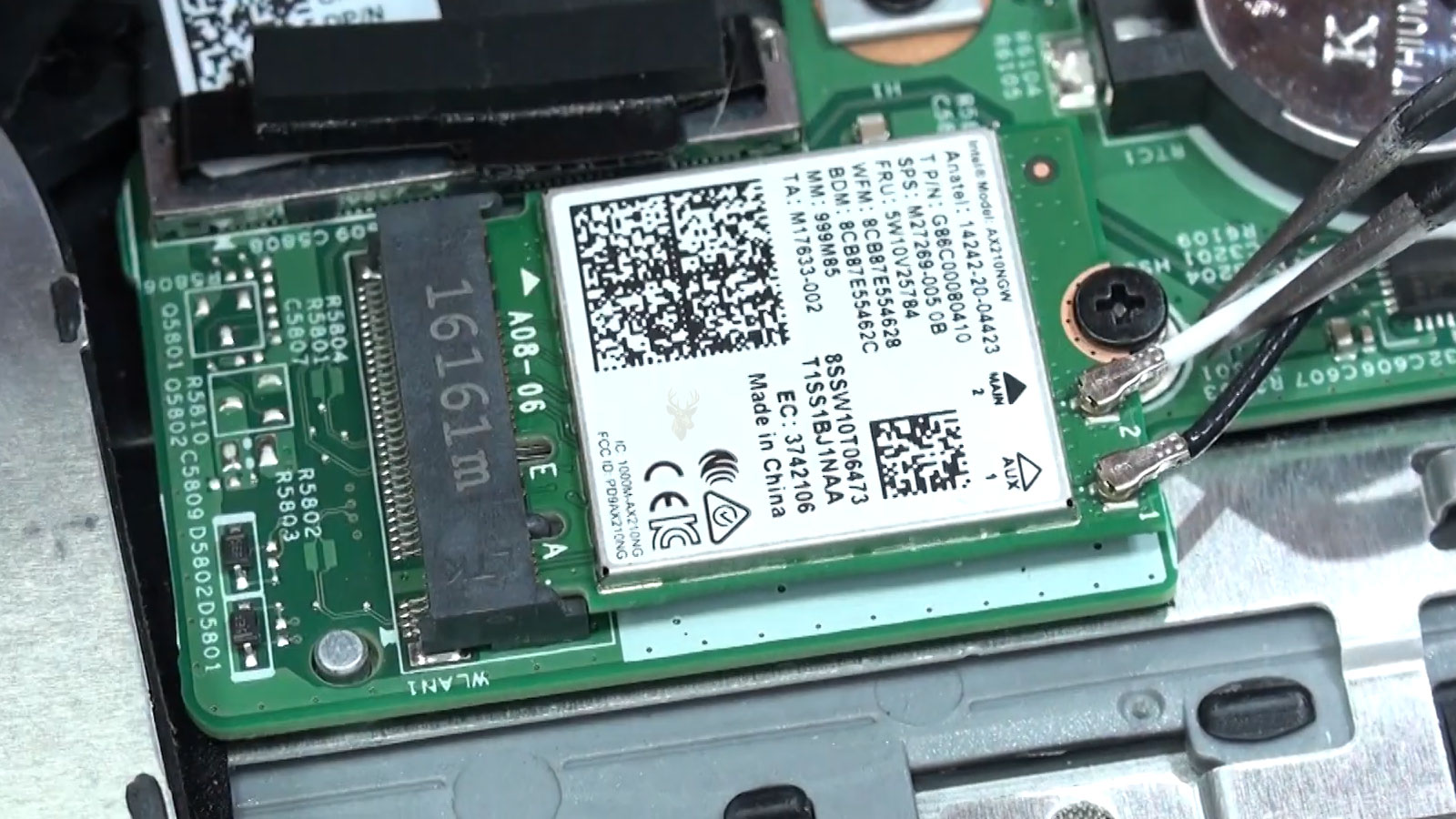
Laptop wireless antennas are commonly routed through the display assembly and connected to the adapter with small snap-on leads. A drop, screen replacement, hinge repair, or previous internal service can loosen one of those connections.
The wireless adapter may continue detecting nearby networks, but reception becomes much weaker than it was before. The computer might work near the router and fail elsewhere, making the issue look like a software problem at first.
A sharp decline in range after physical repair or impact is an important clue because driver changes do not usually explain why the same adapter now requires the computer to remain unusually close to the router.
External Wireless Adapters Can Help Isolate Internal Hardware
A compatible USB wireless adapter can sometimes be used as a comparison tool. If the external adapter connects reliably while the built-in wireless device continues failing, the internal adapter, antenna, or driver becomes a stronger suspect.
This comparison does not identify the exact failed part by itself. The external adapter may use a different driver, frequency band, antenna, or wireless standard. Even so, it can show that Windows and the router are capable of communicating through another wireless device on the same computer.
The test is most useful when both adapters are used in the same location and under similar conditions.











