
Tracing Incorrect Dates and Repeated Time Changes Back to Windows, Internet Synchronization, or the Motherboard Clock
A computer clock may seem like a minor convenience until it begins showing the wrong time. Email messages can appear out of order, recently created files may carry confusing dates, websites can reject secure connections, and scheduled programs may run earlier or later than expected.
The clock shown in Windows depends on more than one part of the computer. The operating system displays and adjusts the time while the machine is running, an internal real-time clock continues keeping time when the computer is off, and internet synchronization can periodically correct small differences.
When the displayed time becomes inaccurate, the way it changes provides an important clue. A clock that is exactly one hour wrong suggests a different cause from one that resets to an old date every time the computer is unplugged. Recognizing that pattern is the first step toward identifying where the problem begins.
The Computer Keeps Time Even While It Is Turned Off
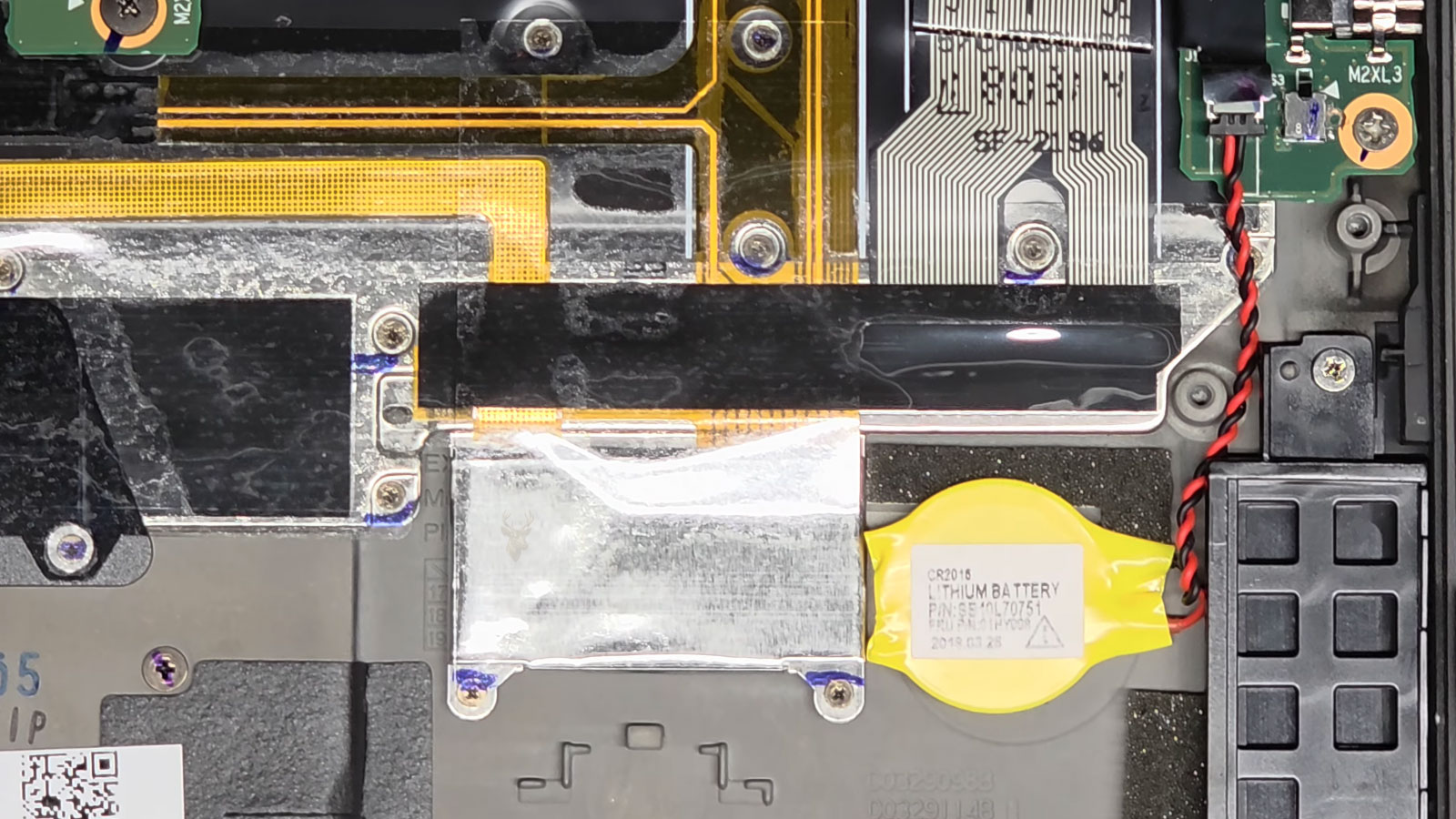
Inside a desktop or laptop is a small real-time clock that continues tracking the date and time when the main operating system is not running. This clock is part of the motherboard circuitry and receives a small amount of power from a separate battery when the computer is shut down or disconnected from the wall.
When the computer starts, Windows reads the time stored by this hardware clock. Windows may later compare that reading with an online time source and make corrections, but the initial value comes from the motherboard.
This arrangement explains why a computer can remember the time after remaining powered off overnight. It also explains why some clock problems appear only after shutdown rather than while the computer is being used.
A Weak CMOS Battery Often Causes the Date to Reset
The small motherboard battery is commonly called the CMOS battery, although its practical role on modern computers extends beyond powering traditional CMOS memory. It helps preserve the real-time clock and certain firmware settings while external power is unavailable.
As this battery ages, it may no longer provide enough voltage to maintain those settings reliably. The computer may then start with an incorrect date, lose customized BIOS settings, or display a warning before Windows loads.
- The date returns to a much earlier year after shutdown.
- The time is wrong each morning but remains stable during the day.
- BIOS settings return to their defaults.
- A startup message mentions a checksum, clock, or configuration error.
- The boot order changes after the computer is unplugged.
A failing motherboard battery does not normally make Windows run slowly or damage personal files. Its effects are more closely related to timekeeping and firmware settings that should remain stored without main power.
The Timing of the Error Helps Separate Hardware From Software
A clock problem that appears only after the computer has been off points toward the hardware clock or its battery. A time change that occurs while Windows is running may instead involve synchronization, time-zone configuration, software, or a problem communicating with an online time server.
Testing does not require changing several settings at once. It is often enough to note the correct time before shutdown, leave the computer disconnected for a period, and compare the clock shown at the next startup.
| When the Time Changes | Likely Area to Examine |
|---|---|
| After the computer is unplugged overnight | The motherboard battery or hardware clock may be losing its stored value. |
| Immediately after Windows connects to the internet | Time synchronization or time-zone settings may be correcting the clock incorrectly. |
| Exactly one hour ahead or behind | The selected time zone or daylight-saving setting may be wrong. |
| Gradually falls behind while the computer remains on | The system clock, software, or synchronization process may require investigation. |
| Changes after switching between operating systems | The systems may interpret the hardware clock differently. |
This comparison is more useful than repeatedly correcting the clock without recording when it becomes inaccurate again.
An Incorrect Time Zone Can Look Like a Failing Clock
When the minutes remain correct but the hour is consistently wrong, the clock may be keeping time normally under the wrong regional setting. Windows stores both the current time and the time-zone information used to display it locally.
A computer set to another region may appear several hours ahead or behind even though its internal clock is functioning correctly. This can happen after reinstalling Windows, restoring an old system image, changing location settings, or selecting the wrong region during setup.
The pattern is usually consistent. Instead of drifting gradually, the clock remains wrong by the same number of hours. Correcting the time manually may appear to solve the problem until synchronization runs and applies the selected time zone again.
Daylight-Saving Changes Can Create a One-Hour Difference
Some regions adjust their clocks seasonally, while others remain on the same time throughout the year. If Windows is configured for the wrong region or the automatic daylight-saving option is inconsistent with the local rules, the computer may become exactly one hour early or late.
This type of error often appears around the dates when seasonal time changes occur. It may also affect computers that have not connected to the internet recently or systems with outdated regional information.
- The minutes and seconds remain accurate.
- The difference is exactly one hour.
- The problem begins near a seasonal clock change.
- Manually correcting the hour does not permanently solve it.
- The selected city or time zone does not match the computer’s location.
A one-hour error should be checked against regional settings before replacing hardware.
Internet Time Synchronization Corrects Small Differences
Computer clocks are not perfectly accurate over long periods. Small variations in the hardware clock can cause the displayed time to gain or lose seconds. Windows can compensate by comparing the local clock with an internet time server and adjusting it periodically.
Synchronization depends on a working internet connection, correct system settings, and access to the selected server. If the computer remains offline for a long time or cannot reach the server, a minor clock difference may gradually become more noticeable.
A synchronization failure is different from a complete reset to an old date. The former often produces a gradual difference of seconds or minutes, while the latter more strongly suggests that the motherboard clock did not retain its value while the computer was off.
Incorrect Time Can Affect More Than the Clock in the Corner
Modern software relies heavily on accurate timestamps. Secure websites compare certificate dates, email programs organize messages by time, backup tools determine which files have changed, and scheduled tasks depend on the system clock to begin at the intended moment.
If the date is years behind or ahead, a web browser may warn that a secure connection cannot be trusted even though the website itself is working normally. Software licenses, antivirus updates, cloud synchronization, and network logins can also behave unexpectedly when the computer’s date falls outside an acceptable range.
For that reason, a recurring clock problem should not be treated as purely cosmetic. Correct timekeeping supports many ordinary functions that may otherwise appear unrelated.
A Clock That Drifts Slowly May Have a Different Cause
Some computers do not reset to an obviously incorrect date. Instead, they gain or lose a few minutes over several days. This gradual drift can happen when the internal clock is slightly inaccurate and Windows is not correcting it successfully through synchronization.
The amount of drift matters. A computer that falls behind by several seconds over a long period may simply need its time service checked. A machine that loses large amounts of time during one afternoon may be dealing with a broader system problem, such as interrupted operation, unstable firmware settings, or software repeatedly changing the clock.
Recording the difference at the same time each day can reveal whether the error is steady, random, or connected to shutdowns and restarts.
Windows Time Service Can Stop Working Correctly
Windows uses a background service to compare the system clock with a selected time source. If that service is disabled, damaged, or unable to reach the server, the computer may continue using an increasingly inaccurate local clock.
Firewall rules, network restrictions, incorrect service settings, and temporary server failures can all interrupt synchronization. In business environments, the computer may also be expected to obtain time from a local network server rather than directly from the internet.
- The clock remains wrong after connecting to the internet.
- Manual synchronization produces an error.
- The selected time server cannot be reached.
- The computer corrects itself only after a restart.
- Other machines on the same network show similar time problems.
A failed synchronization attempt does not automatically indicate motherboard trouble. The local clock may still be functioning while Windows is unable to confirm the correct time externally.
Networked Computers May Follow a Central Clock
Office computers joined to a managed network often receive their time from a central system. This arrangement keeps workstations, servers, file records, and login events aligned with one another.
If the central source is incorrect, several computers may show the same error. Correcting the clock on one workstation may not last because the network can apply the wrong time again during the next synchronization cycle.
This pattern is especially important when multiple users report matching clock differences. In that situation, replacing individual motherboard batteries would not address the common source of the problem.
Dual-Boot Systems Can Disagree About the Hardware Clock
A computer running more than one operating system may show the wrong time after switching between them. The operating systems can interpret the motherboard clock differently, with one treating it as local time and another treating it as a universal reference.
Each system may appear correct while it is running, yet leave the hardware clock in a format the other system does not expect. The result is often a predictable difference of several hours after rebooting into the alternate environment.
Because the clock changes only after moving between systems, the pattern differs from a weak battery that loses settings whenever power is removed.
Some Software Can Change the Time Deliberately
Most programs read the system clock without modifying it. Certain applications, however, may change time settings as part of network management, testing, synchronization, or specialized business operations.
Remote-management tools, virtual machines, backup software, and security utilities can all interact with system time under particular conditions. Malware can also interfere with the clock, although ordinary configuration errors are more common.
A useful clue is whether the time changes immediately after one program starts, one network connection is established, or one scheduled task runs. That repeated sequence can help separate software behavior from a hardware clock that simply cannot retain the correct value.
Virtual Machines May Use the Host Computer as Their Reference
A virtual machine operates inside another computer and may synchronize its clock with the host system. If the host clock is wrong, the virtual environment may inherit the same error. In other cases, the virtual machine may attempt its own correction and produce repeated time changes.
This can affect test environments, older software, and business applications that depend on exact timestamps. The visible error may appear inside the virtual machine even though the underlying cause begins outside it.
- The virtual machine changes time after resuming from pause.
- The guest system matches the host shortly after startup.
- Time shifts occur only while virtualization software is running.
- Several virtual machines show the same difference.
Checking both clocks avoids spending time correcting the guest system while the host continues supplying an incorrect reference.
Sleep and Hibernation Can Reveal Timekeeping Problems
Some clock errors appear after the computer wakes from sleep or hibernation. During these low-power states, Windows expects the hardware clock and power-management system to preserve the passage of time correctly.
If the computer resumes with the same time it displayed before sleeping, the system may not be accounting for the hours that passed. A later internet synchronization may suddenly move the clock forward, making the problem look random.
Outdated firmware, power-management drivers, or problems resuming from sleep can contribute to this behavior. The clock may remain accurate through a normal shutdown yet become wrong only after one particular power state.
Firmware Settings Can Be Lost Along With the Time
When the motherboard battery weakens, the clock may not be the only setting affected. The firmware can also forget changes related to boot order, storage configuration, fan behavior, security options, and other hardware settings.
A user may first notice the wrong date, then discover that the computer is attempting to start from the wrong drive or displaying a setup message before Windows loads. These additional symptoms strengthen the possibility that stored firmware settings are not being preserved.
Before replacing the battery, important firmware settings should be documented when possible. Installing a new battery can restore reliable storage of those settings, but it may not automatically recreate custom values that were already lost.
Desktop and Laptop Battery Replacement Can Differ Significantly
Many desktop motherboards use a visible coin-cell battery that can be replaced once the computer is powered down and safely opened. Access is often straightforward, although large graphics cards or other components may block the battery.
Laptops vary much more. Some use a standard coin cell in a small holder, while others use a wrapped battery connected by a cable. Reaching it may require removing the bottom cover, keyboard, motherboard, or several internal parts.
The correct replacement should match the original type and connection. A battery that fits physically but uses the wrong polarity, connector, or voltage can create additional problems.
Replacing the Battery Does Not Correct Every Clock Error
A new motherboard battery can solve time loss caused by insufficient standby power, but it will not correct the wrong time zone, a disabled synchronization service, network misconfiguration, or software that repeatedly changes the clock.
The replacement makes the most sense when the date resets after power is removed, firmware settings disappear, or startup warnings indicate that stored configuration has been lost.
Matching the repair to the pattern prevents unnecessary parts replacement and keeps troubleshooting focused on the part of the system actually responsible.











