
Understanding How Everyday Software Can Influence Speed Long After Installation
Adding software to a computer is usually a routine task. Whether installing office applications, photo editors, games, printers, accounting software, or communication tools, most people expect the installation to end once the progress bar reaches one hundred percent. In reality, many programs continue affecting the computer every time Windows starts, even when those applications are never opened again.
This does not mean every new program makes a computer slower. Many applications have very little impact on performance. Others, however, install background services, scheduled tasks, update utilities, browser extensions, and startup components that continue operating quietly behind the scenes.
Over months or years, these small additions can accumulate until the computer feels noticeably different from when it was first set up. The change is often gradual enough that users attribute it to the computer simply becoming old, when the real explanation is a growing collection of software performing work that is no longer necessary.
Installing a Program Often Adds More Than the Main Application
Modern software rarely consists of a single executable file. Installation packages commonly include supporting components that help the program update itself, communicate with online services, verify licensing, synchronize settings, or monitor connected devices.
For example, a printer may install status monitors, update utilities, and notification services in addition to the driver needed for printing. Cloud-storage applications often add synchronization software that begins running automatically whenever Windows starts. Communication programs may check continuously for incoming messages, while media software may search for new content in selected folders.
Each addition may consume only a small amount of memory or processor time, but dozens of similar background activities can gradually increase the workload placed on the operating system.
Background Activity Is Not Always Visible
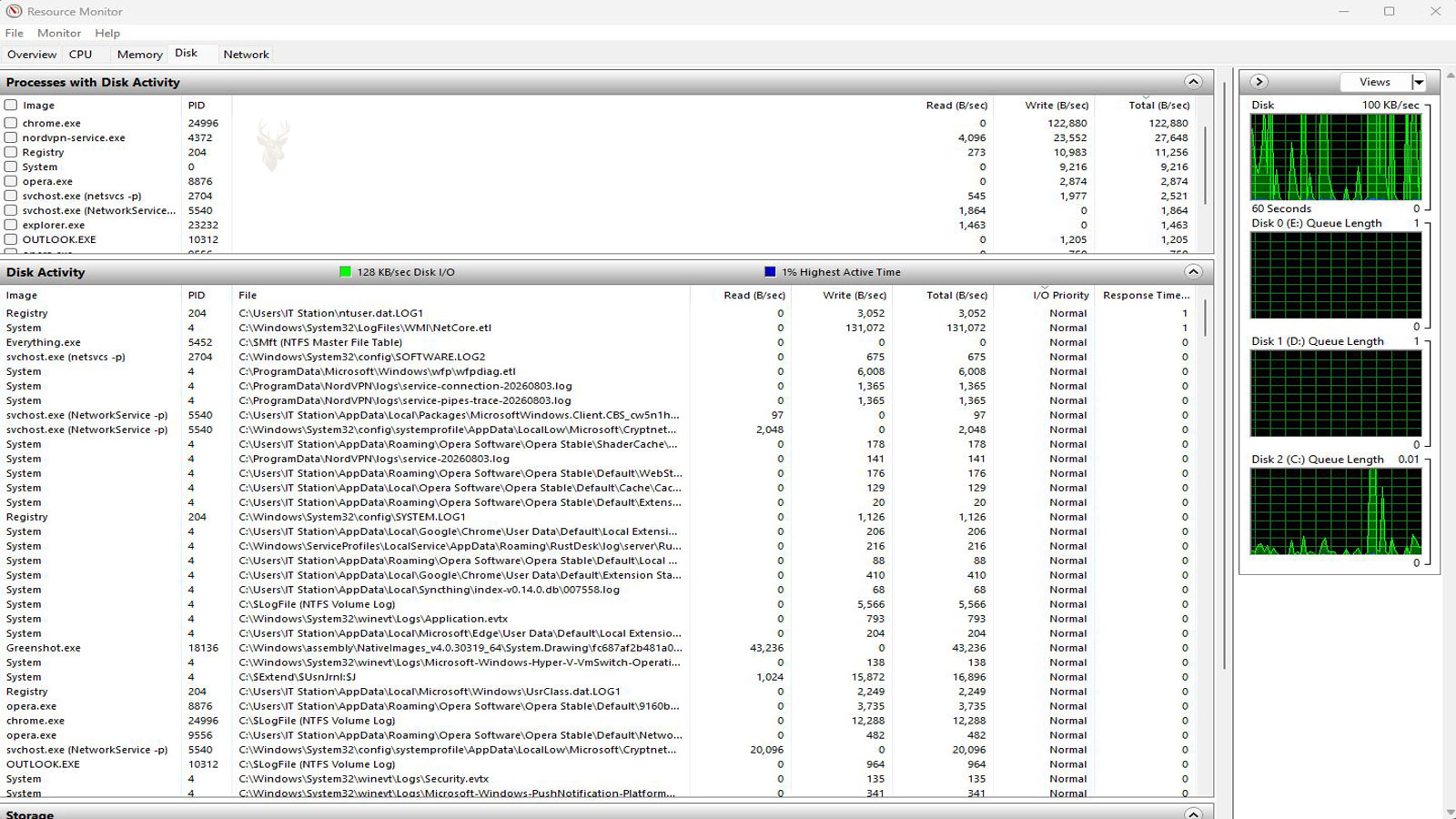
One reason software-related slowdowns can be difficult to recognize is that many background processes have no visible window. The desktop may appear idle even though numerous services are checking for updates, indexing files, synchronizing cloud storage, scanning for connected hardware, or waiting for scheduled events.
Windows is designed to manage many of these activities efficiently, but the overall workload grows as additional software introduces more processes competing for processor time, memory, storage access, and network communication.
- Automatic update services.
- Cloud synchronization utilities.
- Device management software.
- Printer monitoring applications.
- Communication programs that remain signed in.
- Security software performing scheduled checks.
Most of these components serve a legitimate purpose. Performance concerns usually develop when many of them accumulate over an extended period.
Startup Can Become Longer Without Any Hardware Changes
Some software is configured to launch automatically each time Windows starts. This allows frequently used applications to become available immediately, but it also increases the amount of work the operating system performs before reaching a fully usable desktop.
Users sometimes notice that the desktop appears quickly after signing in, yet several minutes pass before the computer feels responsive. During that period, startup applications may still be loading, connecting to online services, checking for updates, or completing scheduled initialization tasks.
This behavior differs from hardware failure because the computer often becomes faster after those startup activities finish. Repeatedly adding programs that start automatically can gradually extend this waiting period.
Unused Programs Still Occupy Storage Space
Removing shortcuts from the desktop does not uninstall an application. Programs that are no longer used often remain installed for years, occupying storage space together with configuration files, cached information, temporary data, and update files created after installation.
As available storage decreases, Windows has less free space for temporary files, updates, paging operations, and other routine tasks. Although storage capacity alone is not the only factor affecting performance, keeping large amounts of unused software can contribute to unnecessary disk usage.
Reviewing installed applications occasionally helps identify programs that are no longer needed, particularly those that have not been used in several years.











