
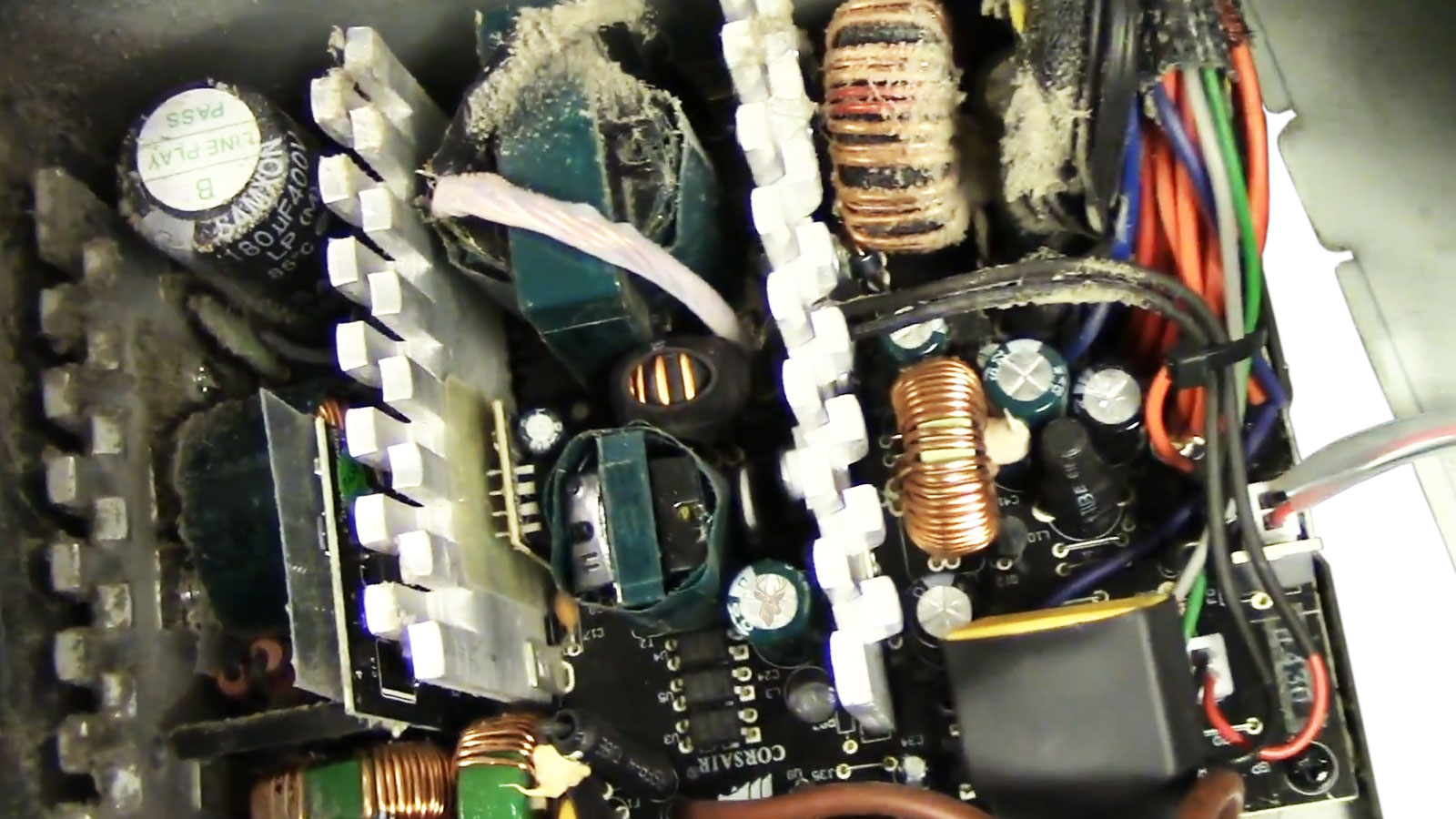
How Unstable Power Can Affect Every Component Inside a Desktop Computer
The power supply is one of the least visible parts of a desktop computer, yet every internal component depends on it. The motherboard, processor, storage devices, graphics card, cooling fans, memory, and connected accessories all require stable electrical power before the system can operate reliably.
When a power supply begins to fail, the symptoms are not always obvious. The computer may refuse to start, shut down during demanding work, restart without warning, freeze intermittently, or appear to have an unrelated motherboard, storage, or graphics problem. Because power instability affects many parts at once, the visible behavior can be difficult to interpret without testing.
Recognizing the warning signs helps distinguish ordinary software trouble from a developing electrical problem. It also reduces the chance of replacing other components before the condition of the power supply has been considered.
The Power Supply Converts Electricity for the Computer
Electricity from a wall outlet is not delivered in the form required by computer components. The power supply converts incoming alternating current into several lower direct-current voltages used throughout the system.
It must perform this conversion while maintaining stable output under changing workloads. A computer may consume relatively little power while idle and substantially more when the processor and graphics card are active. The power supply must respond to these changes without allowing voltages to move outside acceptable limits.
| Power Supply Function | Why It Matters |
|---|---|
| Converts incoming electricity | Provides the type of power required by internal components. |
| Maintains stable voltages | Helps prevent crashes, resets, and component instability. |
| Responds to changing demand | Supports higher workloads from the processor and graphics card. |
| Distributes power through multiple connectors | Supplies the motherboard, drives, fans, and expansion hardware. |
| Provides electrical protection | May help limit damage during certain abnormal conditions. |
A power supply that cannot maintain stable output may allow the computer to operate under light conditions while becoming unreliable as soon as demand increases.
A Computer That Does Not Turn On May Have a Power Problem
Complete failure to power on is one of the clearest symptoms associated with the power system. Pressing the power button may produce no lights, no fan movement, no sound, and no display response.
The power supply is only one possible cause. A defective power button, disconnected cable, failed motherboard, damaged wall outlet, tripped surge protector, or shorted component can create similar behavior. The absence of power therefore identifies the general area of the problem without proving which part has failed.
- No fans begin spinning.
- No indicator lights appear.
- The power button produces no response.
- The system briefly reacts and immediately becomes inactive.
- The computer starts only after repeated attempts.
Testing the complete power path is more reliable than assuming the power supply is defective based only on a computer that does not start.
Brief Fan Movement Can Indicate Immediate Protection Shutdown
Some computers react for only a fraction of a second when the power button is pressed. Fans may move briefly, lights may flash, and the system may shut down before reaching the manufacturer logo.
This behavior can occur when the power supply detects excessive current, a short circuit, or another abnormal condition. It may also result from a defective motherboard, improperly installed component, damaged cable, or internal device drawing power incorrectly.
| Observed Behavior | Possible Direction |
|---|---|
| Fans move once and stop | Protection shutdown, short circuit, or unstable power. |
| System repeatedly tries to start | Power cycling caused by unstable hardware or voltage. |
| Lights remain on but no startup occurs | Motherboard, memory, processor, or power-delivery issue. |
| Computer starts after accessories are disconnected | Peripheral or power-demand problem. |
| Power supply clicks during startup | Internal relay activity or protective response requiring evaluation. |
Repeatedly pressing the power button rarely identifies the cause and may place additional stress on components if an electrical fault is present.
Unexpected Shutdowns May Appear Under Heavy Workloads
A weakening power supply may continue operating during light tasks such as reading documents or browsing simple websites. The problem may appear only when the computer requires more power during gaming, video rendering, software installation, file compression, or another demanding activity.
When electrical output becomes insufficient or unstable, the system may shut down abruptly without the normal Windows closing process. It may also restart, freeze, or lose display output while fans and lights remain active.
- Shutdown occurs when a game begins.
- The computer restarts during processor-intensive work.
- Display output disappears under graphics load.
- The system remains stable while idle but fails during demanding tasks.
- New hardware causes instability that did not exist previously.
These symptoms can also result from overheating, defective memory, graphics-card failure, or motherboard instability. The relationship between workload and power demand makes the power supply an important part of the diagnostic process.
Random Restarts Can Be Electrical Rather Than Software Related
Windows errors, unstable drivers, memory faults, and storage problems can all cause restarts. Power instability can produce similar behavior without leaving a clear software error behind.
A brief voltage interruption may reset the motherboard as though the computer had been turned off and immediately restarted. The user may see the manufacturer logo again without receiving a blue screen or explanatory message.
| Restart Pattern | Information It May Provide |
|---|---|
| Restart without a blue screen | May involve power loss, overheating, or motherboard reset. |
| Restart during one demanding application | May be connected to workload, heat, or power demand. |
| Restart at unpredictable times | Could involve intermittent electrical or hardware instability. |
| Restart after adding a graphics card | Power capacity or connector requirements should be reviewed. |
| Restart when external devices are connected | USB power draw or a defective peripheral may be involved. |
The absence of a visible error message does not prove that Windows is functioning correctly, but it does make hardware and electrical causes more important to consider.
Unusual Odors Require Immediate Attention
A burning, metallic, or sharply electrical odor should never be treated as ordinary computer operation. Excessive heat, failing insulation, damaged capacitors, overheated wiring, or an internal short can produce distinctive smells before complete failure occurs.
The computer should be turned off and disconnected from electrical power if a new burning odor appears. Continuing to operate the system may increase the risk of additional component damage.
- Burning-plastic odor near the rear of the computer.
- Electrical smell appearing during high workloads.
- Odor accompanied by smoke or visible discoloration.
- Power cable or connector becoming unusually hot.
- System shutting down shortly after the odor appears.
Odor alone does not always identify the exact component because airflow can carry smells from one area of the computer to another. The complete system should be inspected before power is restored.
Power Supply Fans Can Develop Mechanical Problems
Most desktop power supplies use an internal fan to remove heat. Dust accumulation, worn bearings, damaged fan blades, or restricted airflow can make the fan noisy or prevent it from spinning correctly.
A grinding or rattling sound near the rear of the computer may come from the power-supply fan, although case fans and processor coolers can produce similar noises. Locating the source carefully is important because opening a power supply is not an ordinary maintenance procedure.
Internal power-supply components can retain dangerous electrical energy even after the computer has been unplugged. The enclosure should not be opened for casual cleaning or fan replacement without appropriate knowledge, equipment, and safety precautions.
A Failed Power Supply May Produce No Visible Damage
Many electrical failures leave no obvious burn marks, melted connectors, or swollen components visible from outside the unit. A power supply may appear normal while producing unstable voltage, failing only after warming up, or shutting down under a particular level of demand.
This is one reason visual inspection alone cannot confirm that the unit is healthy. Reliable evaluation may require voltage measurement, controlled load testing, comparison with a known-working unit, or examination of the computer’s behavior under different operating conditions.
A successful startup also does not prove that every power output remains stable. Intermittent failures often appear only after the computer has been running for some time or when power demand changes rapidly.
Adding New Hardware Can Increase Power Requirements
Many desktop computers are upgraded over time with faster graphics cards, additional storage devices, more memory, improved cooling systems, or expansion cards. While these upgrades often improve performance, they also increase the amount of electrical power the computer must supply during normal operation.
A power supply that operated comfortably with the original hardware may be working much closer to its limits after several upgrades have been installed. The result may not be immediate failure, but rather intermittent instability that appears only during demanding workloads.
| Hardware Upgrade | Possible Effect on Power Demand |
|---|---|
| Dedicated graphics card | Often increases power consumption significantly. |
| Additional storage drives | Raises total electrical load during operation. |
| Liquid cooling pump | Adds continuous power usage. |
| Multiple case fans | Increases overall system demand. |
| Expansion cards | May require additional motherboard power. |
Reviewing the complete hardware configuration helps determine whether the existing power supply remains appropriate for the computer’s current requirements.
Power Supplies Naturally Age Over Time
Like many electronic components, power supplies gradually change as they accumulate years of operation. Internal capacitors, cooling fans, solder joints, and other components experience thermal cycling and normal electrical stress throughout their service life.
Age alone does not mean a power supply has become unreliable, but older units may no longer perform exactly as they did when new. Stability under heavy workloads can decrease gradually, making problems difficult to recognize until they become more frequent.
- System stability slowly decreases over time.
- Random restarts become more common.
- The cooling fan grows louder than before.
- Electrical efficiency may decline gradually.
- Power-related symptoms appear under heavier workloads first.
Build Quality Influences Long-Term Reliability
Power supplies vary considerably in design, component quality, cooling performance, protective circuitry, and manufacturing standards. Two units with similar advertised wattage may perform very differently under sustained workloads.
Higher-quality designs generally provide more stable voltage regulation, improved thermal performance, and additional protection against abnormal operating conditions. Lower-quality units may continue functioning for years, but they may also be more susceptible to instability when operated near their limits.
Because internal construction cannot always be evaluated from the exterior, published wattage should not be viewed as the only measure of overall capability.
Power Connectors Should Remain Secure
Electrical reliability depends not only on the power supply itself but also on the condition of its cables and connectors. Loose motherboard connectors, damaged graphics-card power cables, partially seated drive connectors, or worn extension cables can interrupt power delivery even when the power supply is operating normally.
Connectors should fit securely without excessive movement or visible signs of overheating. Discoloration, melting, or damaged plastic around a connector deserves immediate attention because it may indicate excessive resistance or poor electrical contact.
| Connector Condition | Possible Concern |
|---|---|
| Loose motherboard connector | Intermittent electrical contact. |
| Discolored plastic | Heat generated by poor connection. |
| Melted connector housing | Electrical overload or excessive resistance. |
| Damaged cable insulation | Potential safety and reliability issue. |
| Connector difficult to seat fully | Mechanical damage or obstruction. |
Voltage Problems May Produce Inconsistent Symptoms
Power irregularities do not always create complete system failure. Slight voltage instability may cause occasional freezing, unexpected application crashes, display interruptions, storage communication errors, or restarts that seem unrelated to one another.
Because these symptoms overlap with motherboard, memory, storage, and software problems, diagnosis often requires examining the complete operating history rather than relying on one isolated event.
- Random application crashes.
- Unexpected display signal loss.
- Storage devices temporarily disappear.
- Peripheral devices disconnect unexpectedly.
- Intermittent system freezing.
External Electrical Conditions Also Matter
The computer’s power supply depends on receiving stable electricity from the building’s electrical system. Problems involving damaged outlets, overloaded circuits, poor grounding, or repeated utility interruptions may affect computer reliability even when the internal hardware remains in good condition.
Surge protectors and uninterruptible power supplies can help reduce certain external electrical risks, although they cannot compensate for every possible electrical problem or correct an already failing internal power supply.
Considering both the computer and its surrounding electrical environment provides a more complete understanding of recurring power-related symptoms.
Testing Is More Reliable Than Guessing
Because many computer failures resemble power-supply problems, replacing the unit without testing does not always resolve the issue. Motherboard faults, defective memory, processor instability, graphics-card failures, and storage problems may produce similar behavior.
Diagnosis typically involves evaluating voltages, observing system behavior under different workloads, inspecting connectors, eliminating unrelated faults, and comparing results with known-working components when appropriate. This systematic approach reduces unnecessary part replacement while increasing confidence in the final diagnosis.
| Diagnostic Method | Purpose |
|---|---|
| Visual inspection | Look for obvious physical damage. |
| Voltage testing | Evaluate electrical stability. |
| Load observation | Monitor behavior during heavier workloads. |
| Known-working component comparison | Help isolate the defective part. |
| System history review | Identify recurring operating patterns. |
Power Supplies and Motherboards Can Produce Similar Symptoms
One of the more challenging aspects of desktop diagnosis is that motherboard faults and power-supply failures frequently resemble one another. Both may prevent startup, interrupt power unexpectedly, restart the computer without warning, or produce no display while fans continue spinning.
The similarity between these symptoms explains why replacing one component without proper evaluation sometimes leaves the original problem unchanged. Identifying whether the electrical source or the distribution circuitry inside the computer is responsible requires considering the complete operating behavior rather than assuming that one particular part has failed.
Preventive Maintenance Supports Stable Power Delivery
Although every electronic component eventually reaches the end of its service life, regular maintenance can help reduce unnecessary stress on the power supply. Excessive dust, restricted airflow, elevated operating temperatures, and poor cable management can all increase the amount of heat the unit must dissipate during normal operation.
Maintaining clear airflow through the computer case, ensuring cooling fans operate normally, and avoiding blocked ventilation openings help create conditions in which the power supply can perform more consistently. Preventive maintenance cannot eliminate age-related wear, but it can reduce environmental factors that contribute to unnecessary thermal stress.
- Keep ventilation openings free of dust.
- Inspect case fans for proper operation.
- Organize cables to improve airflow.
- Operate the computer in a clean, dry environment.
- Periodically inspect for unusual sounds or odors.
Replacing the Power Supply Does Not Always Solve Every Problem
Because power-related symptoms overlap with many other hardware faults, installing a new power supply does not automatically restore normal operation. If another component has already been damaged or the original problem involves the motherboard, processor, graphics hardware, or storage subsystem, the computer may continue exhibiting the same symptoms after replacement.
For that reason, replacing the power supply should be viewed as one possible solution rather than the first assumption. Confirming the source of the failure before purchasing replacement hardware often prevents unnecessary expense.
| Observed Result After Replacement | Possible Interpretation |
|---|---|
| Computer operates normally | The original power supply may have been the primary fault. |
| Symptoms remain unchanged | Another component may also require evaluation. |
| Different symptoms appear | Multiple independent faults may exist. |
| Startup improves but instability remains | Additional diagnostic testing is appropriate. |
| No improvement at all | The original diagnosis should be reviewed. |
Power Problems Can Affect Stored Data Indirectly
A failing power supply does not normally damage files directly, but repeated unexpected shutdowns can interrupt write operations while Windows or an application is saving information. File-system inconsistencies, incomplete updates, and document corruption may occur if electrical power is lost at critical moments.
Storage devices are also forced to recover from abrupt interruptions that occur without the normal shutdown process. While modern operating systems include mechanisms designed to reduce this risk, repeated power loss is generally less desirable than controlled shutdowns whenever possible.
Maintaining current backups remains an important precaution whenever electrical instability is suspected.
Do Not Overlook Simple External Causes
Not every apparent power-supply problem originates inside the computer. A loose power cable, defective surge protector, failing extension cord, switched outlet, or overloaded electrical circuit can interrupt operation in ways that resemble internal hardware failure.
Verifying the external power path before assuming an internal defect helps eliminate straightforward causes that might otherwise lead to unnecessary repairs or component replacement.
- Confirm the wall outlet functions correctly.
- Inspect the power cable for visible damage.
- Verify surge protectors operate normally.
- Avoid overloaded extension cords.
- Ensure connectors are fully seated.
Electrical Symptoms Should Be Evaluated Promptly
Many desktop computers continue operating for some time after the first signs of power instability appear. Random shutdowns may become more frequent, startup attempts may require several presses of the power button, or electrical noises may gradually increase before complete failure eventually occurs.
Addressing these warning signs early often simplifies diagnosis and reduces the possibility that repeated interruptions will affect other components or valuable information stored on the computer.
Looking Beyond the Most Obvious Symptom
A desktop computer that restarts unexpectedly, refuses to power on, shuts down under heavy workloads, or produces unusual electrical behavior may appear to have a single obvious fault. In reality, similar symptoms can result from several different hardware conditions, making careful diagnosis more valuable than replacing components based on assumptions.
Readers interested in broader desktop hardware diagnosis may also find our article Signs Your Computer Needs Professional Repair helpful. It explains how recurring hardware symptoms often point toward underlying problems that require systematic evaluation rather than repeated temporary fixes.
Reliable Power Supports the Entire Computer
The power supply serves as the foundation for every electrical function inside a desktop computer. Stable voltage allows the processor, memory, storage devices, graphics hardware, and motherboard to operate together as intended. When that stability begins to disappear, the resulting symptoms can resemble many unrelated hardware or software problems.
Understanding how power-supply failures develop, recognizing their warning signs, and considering the complete electrical path helps avoid unnecessary replacement of otherwise functional components. Careful evaluation remains the most dependable approach because identical symptoms can originate from different sources.
Whether the problem involves a failing power supply, an external electrical issue, or another internal component, identifying the actual cause before making repairs improves reliability, reduces unnecessary expense, and helps return the computer to dependable everyday operation.











