
Understanding Why Startup Performance Gradually Changes
Many computer owners notice that Windows starts quickly when the computer is new but becomes noticeably slower after months or years of regular use. This gradual change often leads people to believe that the operating system is simply “getting old.” In reality, startup performance is influenced by many different factors that develop over time rather than by Windows itself becoming slower simply because of age.
Every time the power button is pressed, Windows performs hundreds of individual tasks before the desktop is fully ready for use. Hardware is initialized, storage devices are detected, system drivers are loaded, background services begin operating, startup applications are launched, and security software performs its initial checks. The combined effect of these operations determines how quickly the computer becomes responsive.
As software is installed, hardware ages, updates accumulate, and startup processes increase, the amount of work required during each boot may also grow. Understanding how these changes affect startup helps explain why one computer reaches the desktop in seconds while another may require several minutes before it is ready to use.
What Happens Before the Desktop Appears?
Startup begins long before the Windows desktop becomes visible. After the computer receives power, the firmware performs an initial hardware check, verifies essential components, and identifies available storage devices before transferring control to the operating system.
Windows then loads core system files, initializes device drivers, starts background services, prepares user accounts, and launches programs configured to run automatically. Although many of these steps happen quickly, delays at any stage can increase the total startup time.
- Hardware initialization.
- Storage device detection.
- Loading Windows system files.
- Initializing hardware drivers.
- Starting Windows services.
- Launching startup applications.
- Preparing the desktop environment.
Only after these processes have progressed sufficiently does Windows present a usable desktop, even though additional background activity may continue for several minutes afterward.
Startup Programs Continue to Grow
Many applications add themselves to the Windows startup sequence during installation. Cloud storage utilities, messaging software, printer tools, media players, update services, security products, hardware management utilities, and other applications often begin automatically whenever Windows starts.
Each individual program may require only a small amount of time, but together they increase processor activity, storage access, and memory usage during startup. As additional software accumulates over the years, the startup sequence often becomes progressively more demanding.
| Startup Item | Purpose |
|---|---|
| Cloud synchronization | Keeps files synchronized automatically. |
| Security software | Provides continuous system protection. |
| Printer utilities | Supports printing and device monitoring. |
| Hardware management tools | Controls manufacturer-specific features. |
| Software update services | Checks for application updates. |
Not every startup application is unnecessary. Many perform useful functions, but understanding which programs load automatically helps explain why startup times gradually increase.
Storage Performance Influences Every Boot
Because Windows must read thousands of files during startup, the performance of the storage device plays an important role in overall boot time. Solid-state drives generally retrieve information much more quickly than traditional mechanical hard drives, reducing the amount of time required for Windows to access system files and applications.
A storage device experiencing communication delays, developing mechanical wear, or operating with limited free space may further increase startup time. The operating system may continue functioning, but the additional delays become noticeable each time the computer starts.
This is one reason why two otherwise similar computers may display very different startup performance despite running the same version of Windows.
Background Services Continue Working After Login
Reaching the desktop does not necessarily mean Windows has completed its startup process. Many services continue loading after the user signs in, including update components, indexing services, cloud synchronization, antivirus checks, scheduled maintenance, and other background tasks.
This explains why a computer may appear to have finished booting while still responding slowly for several minutes afterward. The startup process continues until these background activities have reached a stable operating state.
Understanding the difference between reaching the desktop and completing the startup process helps explain why perceived startup performance does not always match the time shown on the login screen.
Limited Free Space Can Slow the Startup Process
Windows depends on available storage space for temporary files, updates, virtual memory, system logs, and many other background operations. When the primary storage device becomes nearly full, the operating system has less room to organize these tasks efficiently.
Mechanical hard drives may be affected more noticeably because files can become scattered across different physical areas of the disk as available space decreases. The drive must then perform additional movement to retrieve the information required during startup.
- Temporary files remain stored for long periods.
- Downloaded installation files accumulate.
- Large video or photo collections occupy the system drive.
- Old backups are stored in the same location as Windows.
- Applications create growing caches and log files.
Maintaining reasonable free capacity gives Windows more flexibility to manage startup activity and other everyday operations.
Updates Can Temporarily Increase Boot Time
Windows updates often continue working during startup and shutdown. System files may need to be replaced, settings may be reorganized, and new components may be configured before the operating system is fully ready for use.
A temporary slowdown after a major update does not automatically indicate a permanent problem. Windows may require several restarts before background maintenance and indexing return to normal levels.
Concern becomes more appropriate when startup remains unusually slow long after the update has completed or when repeated errors, failed updates, or restart loops begin appearing.
Drivers Can Delay Hardware Initialization
Every major hardware component relies on a driver that allows Windows to communicate with it correctly. During startup, these drivers must initialize storage controllers, graphics hardware, network adapters, audio devices, printers, and many other components.
An outdated, corrupted, or incompatible driver may take longer than expected to respond. Windows may pause while waiting for the device, retry the initialization process, or record an error before continuing with the startup sequence.
| Driver-Related Behavior | Possible Explanation |
|---|---|
| Long pause before the login screen | A device may be slow to initialize. |
| Startup became slow after a driver update | The new driver may be incompatible or unstable. |
| External device delays startup | Windows may be waiting for the device to respond. |
| Device Manager reports an error | The driver or hardware may require further evaluation. |
| Safe Mode starts much faster | A normal-startup driver or service may be involved. |
Because several drivers load at nearly the same time, comparing normal startup with Safe Mode can help determine whether optional hardware support is contributing to the delay.
Network Connections May Add Delays
Windows may attempt to reconnect network drives, printers, shared folders, cloud services, or business resources during startup. If one of these destinations is unavailable, the operating system may wait before eventually continuing without it.
This type of delay is often more noticeable on business computers, laptops that move between several networks, or systems configured to access shared office resources. The computer itself may be functioning correctly while Windows waits for a network response that never arrives.
- Unavailable mapped network drives
- Disconnected office printers
- Cloud synchronization services waiting for internet access
- Business login scripts
- Slow or unstable wireless connections
Security Software Performs Early Checks
Antivirus and security applications begin operating early in the Windows startup process because they are designed to monitor the system before other software becomes fully active. These programs may inspect startup locations, verify files, update definitions, and examine recently changed components.
A healthy security program may add some startup activity without creating a serious delay. Problems arise when several security products run simultaneously, a scan begins during every startup, or damaged security software consumes excessive processor and storage resources.
- More than one antivirus program is installed.
- Full scans begin immediately after login.
- Security software has become corrupted.
- Definition updates repeatedly fail and restart.
- Background protection consumes unusually high resources.
Security software should not be disabled without understanding the risks, but its startup behavior may still deserve attention when boot performance changes significantly.
Aging Hardware Changes the Startup Experience
Software grows more demanding over time, but hardware also experiences gradual wear. Mechanical hard drives may take longer to access information, cooling systems may become less efficient, batteries may no longer provide stable power, and memory or motherboard components may begin operating less reliably.
These changes do not always cause complete failure. Instead, they may first appear as longer pauses, repeated detection attempts, delayed login, or a computer that takes increasingly more time to become responsive after reaching the desktop.
When startup performance continues declining together with unusual noises, storage errors, overheating, or random restarts, hardware diagnosis becomes more important than software cleanup alone.
Measuring Startup Time More Accurately
Startup time can be measured in several different ways. Some users begin counting when the power button is pressed and stop when the login screen appears. Others consider startup incomplete until the desktop is fully responsive and background activity has settled.
The second measurement is often more useful because a desktop that appears quickly may still be loading services, synchronizing files, checking for updates, and opening startup applications. The computer may look ready while continuing to respond slowly.
| Startup Stage | What Is Happening |
|---|---|
| Power button to manufacturer logo | Firmware and hardware initialization |
| Manufacturer logo to Windows loading | Boot device detection and handoff |
| Windows loading to login screen | System files, drivers, and core services |
| Login to visible desktop | User profile and startup programs |
| Visible desktop to full responsiveness | Background services and maintenance finishing |
Observing which stage takes the longest provides better diagnostic direction than measuring the total time alone.
Reviewing Startup Programs Carefully
Reducing unnecessary startup activity can improve boot performance, but every item should be reviewed before it is disabled. Some programs support security, hardware controls, cloud storage, printer functions, touchpads, audio features, or other services that may be useful even when their purpose is not immediately obvious.
The goal is not to remove everything from startup. It is to identify applications that do not need to begin operating before the user actually requires them. A program can often remain installed and available without launching automatically every time Windows starts.
- Identify the publisher and purpose of each startup item.
- Keep security and essential hardware services enabled.
- Disable only programs that do not need to run continuously.
- Restart the computer and observe whether any required feature is affected.
- Make changes gradually so the result of each adjustment remains clear.
Changing several startup settings at once can make it difficult to determine which item was responsible for an improvement or a new problem.
When a Clean Startup Helps Isolate the Delay
A clean startup temporarily prevents many third-party services and startup applications from loading with Windows. This creates a controlled comparison between the normal startup environment and a simplified one without requiring the computer to remain in Safe Mode.
If Windows starts considerably faster under the simplified configuration, the delay is likely connected to one or more optional services or startup applications. Items can then be restored gradually until the slowdown returns, helping identify the software responsible.
This method works best when changes are documented carefully. Restoring several services at the same time may cause the delay to return without revealing which one created it.
Startup Repair and Reinstallation Are Not the First Answer
A slower startup does not automatically mean Windows must be repaired or reinstalled. Reinstallation can remove applications, settings, and useful diagnostic evidence while leaving a hardware-related delay unchanged.
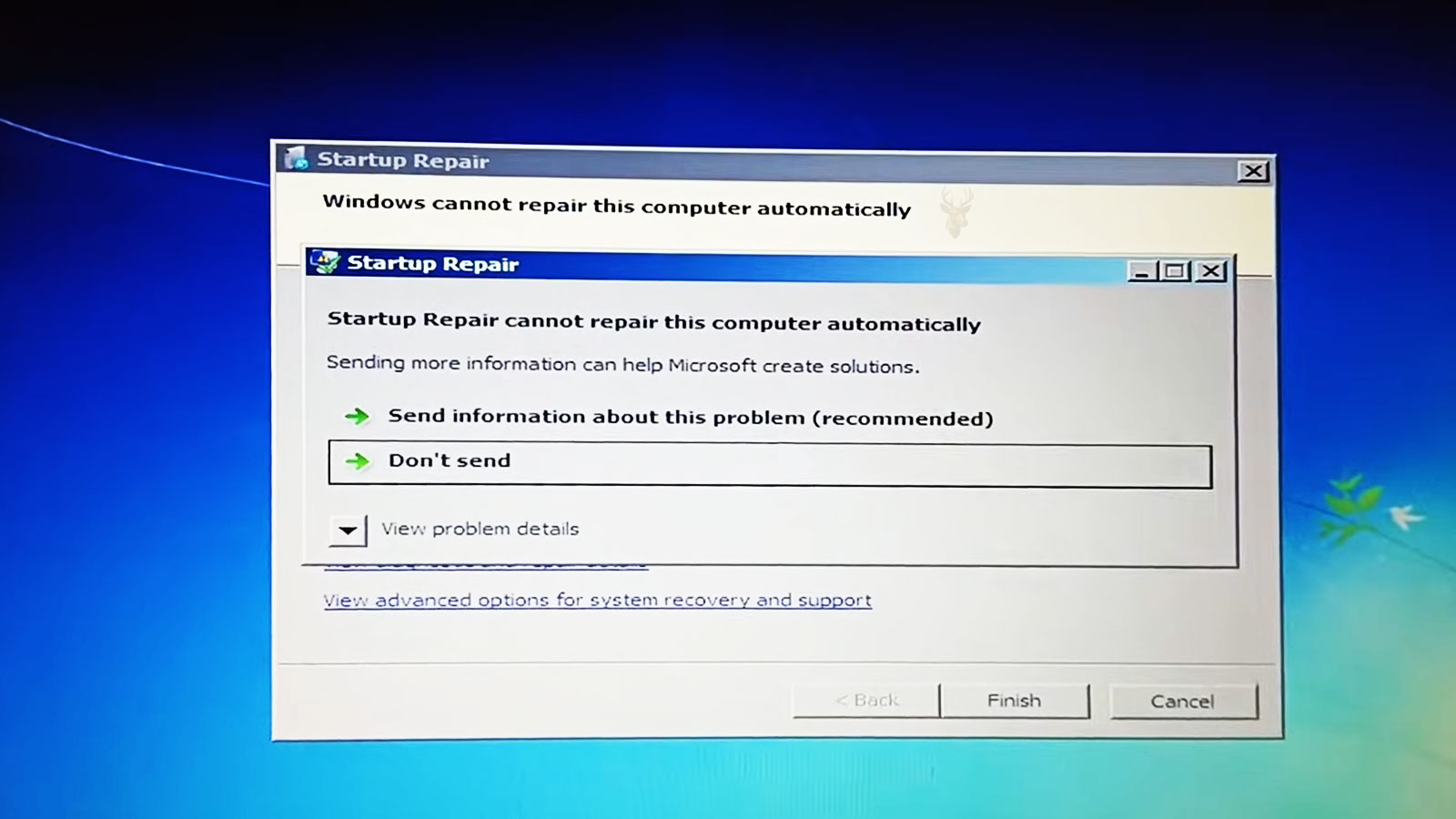
Startup repair tools are more appropriate when Windows cannot complete the boot process because essential files or configuration information are damaged. They are not designed to correct every gradual performance problem caused by startup applications, storage limitations, network delays, or aging hardware.
Testing should follow the stage where the delay appears. A long firmware pause suggests a different direction from a desktop that loads quickly but remains unresponsive while background applications continue opening.
Warning Signs That Point Beyond Ordinary Startup Clutter
Gradual startup slowdown is common, but certain additional symptoms suggest that routine optimization may not be enough. When boot delays appear together with instability or hardware warnings, diagnosis should consider the complete system rather than focusing only on Windows.
- Repeated clicking or grinding from a mechanical hard drive.
- Storage errors or files that become unreadable.
- Blue screens during startup.
- Restart loops before reaching the login screen.
- The storage device disappears intermittently.
- The computer becomes unusually hot while starting.
- Long pauses occur before Windows begins loading.
These signs may indicate storage, memory, power, cooling, or motherboard problems that software cleanup alone cannot correct.
Comparing Normal Startup With Safe Mode
Safe Mode can provide a useful comparison when Windows takes an unusually long time to start. Because this environment loads fewer drivers, services, and startup applications, a noticeable improvement may indicate that an optional software component is contributing to the delay.
If startup remains slow even in Safe Mode, storage performance, hardware initialization, corrupted system files, or another lower-level condition may deserve greater attention. Our article Understanding Safe Mode in Windows explains how this simplified startup environment can help narrow the possible causes of Windows problems.
A Practical Startup Review
| What to Observe | Why It Matters | Possible Direction |
|---|---|---|
| Delay before Windows begins loading | The operating system has not started yet | Firmware, storage detection, or hardware initialization |
| Long Windows loading screen | Core files and drivers are being loaded | Storage, drivers, updates, or system files |
| Fast login followed by slow desktop | Startup applications and services are still opening | Background software and startup items |
| Slow only when connected to office network | Windows may be waiting for remote resources | Mapped drives, printers, login scripts, or network services |
| Boot time changes after cooling down | Temperature may influence hardware behavior | Cooling, storage, power, or motherboard evaluation |
Improving Startup Without Creating New Problems
Startup performance usually improves most when changes are based on evidence rather than aggressive cleanup. Removing unknown services, deleting system files, or installing several optimization utilities may create instability while providing little lasting benefit.
- Keep reasonable free space on the Windows drive.
- Remove software that is genuinely no longer used.
- Review startup applications periodically.
- Allow updates to complete without repeated interruption.
- Investigate hardware warnings instead of ignoring them.
- Maintain backups before making major system changes.
A slower boot process is often the combined result of several small conditions. Correcting the most meaningful ones usually produces better results than searching for a single setting that promises an instant improvement.
Finding the Stage Where Windows Is Waiting
Windows startup is a sequence rather than one single event. Firmware prepares the hardware, the storage device delivers system files, drivers initialize components, services begin operating, and applications continue loading after the desktop appears. Any one of these stages can create a delay.
Identifying where the computer spends the most time provides a much clearer direction than describing the entire startup as slow. A pause before the Windows logo, a long loading screen, and a delayed desktop each point toward different possible causes.
Once the slowest stage has been identified, troubleshooting becomes more focused. Startup performance can often be improved through careful software review, storage maintenance, driver correction, or hardware evaluation without making unnecessary changes to parts of the system that are already functioning correctly.











