
Why Windows Starts Differently When Troubleshooting Problems
When Windows refuses to start normally or begins behaving unexpectedly, one of the first troubleshooting tools often mentioned is Safe Mode. Although many computer users have heard the name, fewer understand what actually changes when Windows starts in this special environment or why it can be useful during diagnosis.
Safe Mode is not a different operating system, nor does it automatically repair a computer. Instead, it starts Windows using only the essential components required for basic operation. By temporarily leaving out many drivers, startup programs, and background services, Safe Mode creates a simplified environment that can help determine whether a problem originates from Windows itself or from software added later.
Because many unnecessary components remain inactive, a computer that struggles during a normal startup may behave quite differently in Safe Mode. Comparing those two situations often provides valuable clues during troubleshooting.
What Changes During Safe Mode?
Under normal conditions, Windows loads hundreds of drivers, services, scheduled tasks, and background applications while the operating system starts. Most of these components work together without the user ever noticing them. Safe Mode intentionally reduces this startup process to the minimum required for Windows to operate.
Only essential system files and basic hardware support are loaded. Many optional drivers, third-party startup applications, printer software, audio enhancements, and specialized hardware utilities remain disabled until Windows starts normally again.
- Core Windows system files.
- Basic keyboard and mouse support.
- Standard display driver.
- Essential storage drivers.
- Minimum operating system services.
Because fewer components are running, Safe Mode can make certain software-related problems easier to identify without affecting the computer’s permanent configuration.
Why Safe Mode Helps Troubleshoot Problems
The value of Safe Mode comes from comparison. If a computer repeatedly crashes during a normal startup but operates reliably in Safe Mode, that difference suggests the problem may involve a driver, startup application, service, or another software component that does not load in the simplified environment.
On the other hand, if the same problem continues even in Safe Mode, attention may shift toward hardware, corrupted Windows system files, storage problems, or another issue that affects the operating system regardless of which optional components are loaded.
Safe Mode therefore does not identify the failed component directly. Instead, it helps narrow the list of possibilities by changing the conditions under which Windows starts.
Problems That May Benefit From Safe Mode
Although Safe Mode cannot solve every Windows issue, it is particularly useful when software appears to interfere with normal startup or everyday operation.
| Observed Problem | How Safe Mode May Help |
|---|---|
| Windows freezes during startup. | Starts with fewer drivers and startup programs. |
| Blue screens after installing new software. | Allows software removal or further testing. |
| Problem began after a driver update. | Loads basic drivers for comparison. |
| Suspicion of background software conflicts. | Starts without most third-party startup applications. |
| Windows becomes unstable after login. | Provides a simplified environment for troubleshooting. |
These examples do not guarantee that Safe Mode will resolve the issue, but they demonstrate why it has remained an important troubleshooting tool across many versions of Windows.
Safe Mode Is a Diagnostic Tool, Not a Repair
One common misunderstanding is that successfully starting in Safe Mode means the computer has been repaired. In reality, Safe Mode simply changes the operating environment. The underlying problem may still exist when Windows starts normally.
For example, uninstalling a problematic driver while in Safe Mode may resolve a startup issue, but merely reaching the Safe Mode desktop does not automatically correct damaged software, failing hardware, or corrupted Windows files. The information gained from that comparison helps determine what should be examined next rather than serving as the final solution.
Understanding this distinction prevents unnecessary confusion and encourages a more systematic approach to Windows troubleshooting.
Different Versions of Safe Mode
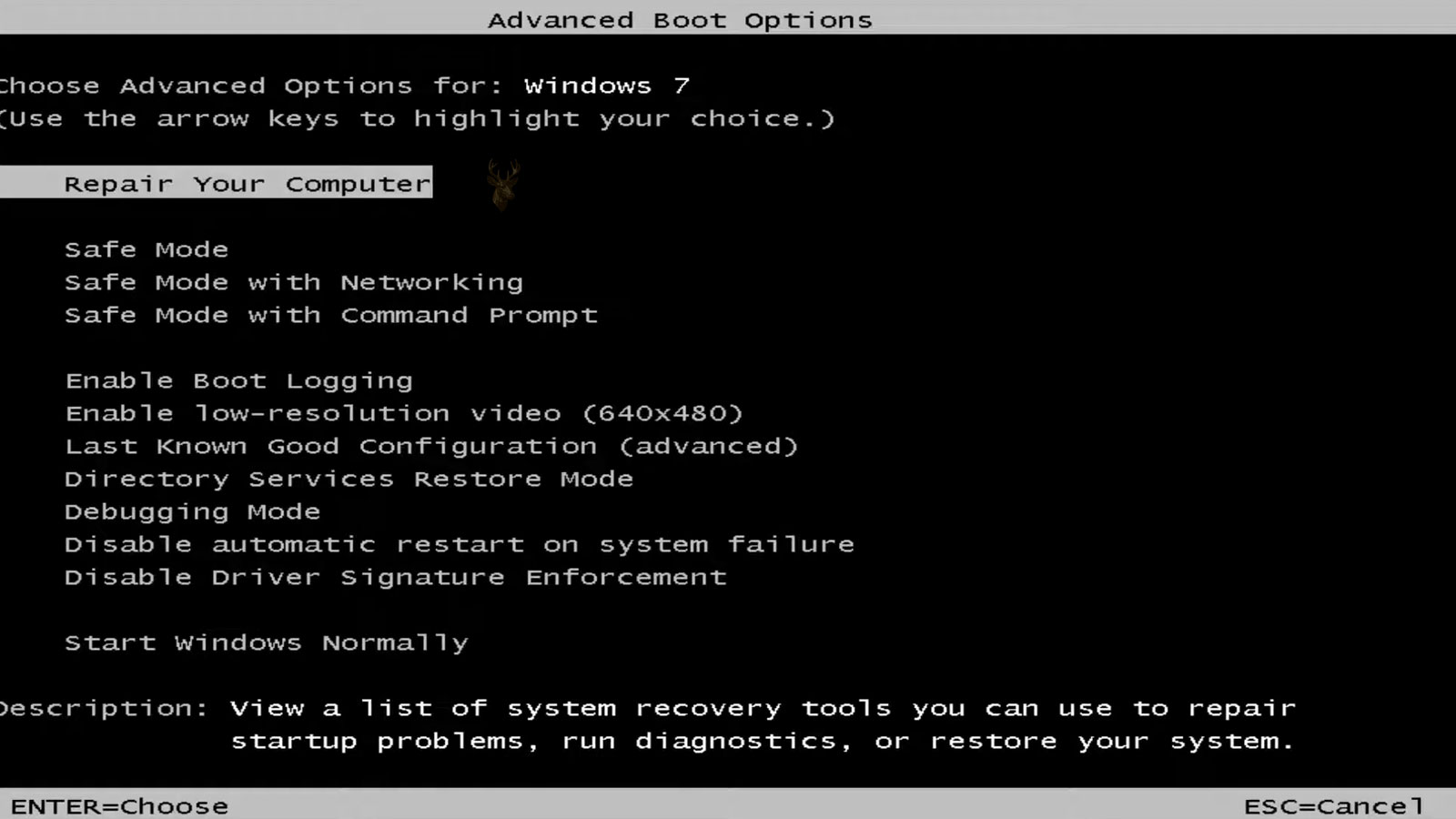
Windows provides several Safe Mode options because different troubleshooting situations require different tools. Although each version starts with a reduced set of drivers and services, certain features may be enabled when they are needed for diagnosis.
The standard Safe Mode environment focuses on loading only the essential components required to operate Windows. Other versions add limited networking support or provide direct access to the command-line interface for advanced maintenance procedures.
| Safe Mode Option | Primary Purpose |
|---|---|
| Safe Mode | Starts Windows with only essential drivers and services. |
| Safe Mode with Networking | Adds basic network support for troubleshooting that requires connectivity. |
| Safe Mode with Command Prompt | Provides a command-line environment for advanced recovery tasks. |
Choosing the appropriate option depends on the task being performed rather than selecting the most advanced mode available.
Why the Screen Looks Different
Many users notice that Windows looks unusual after entering Safe Mode. Icons may appear larger, screen resolution may be lower than normal, and visual effects are often reduced. These changes are expected because Windows loads a basic display driver instead of the manufacturer-specific graphics driver used during a normal startup.
The simplified appearance does not indicate damage to the monitor or graphics hardware. It simply reflects that Safe Mode prioritizes stability and compatibility over appearance while troubleshooting is taking place.
What Safe Mode Can Help Identify
Comparing system behavior inside and outside Safe Mode helps narrow the possible causes of many Windows problems. Rather than proving exactly which component has failed, the comparison often reveals where additional investigation should be directed.
- Recently installed drivers causing startup problems.
- Software that loads automatically with Windows.
- Background services interfering with normal operation.
- Configuration changes made shortly before the issue began.
- Certain types of malware that depend on normal Windows startup.
Each successful comparison eliminates some possibilities while making others more likely. This process gradually reduces the number of potential causes until the problem can be isolated more accurately.
Problems Safe Mode Cannot Solve
Although Safe Mode is valuable during troubleshooting, it has practical limitations. Hardware failures generally continue affecting the computer regardless of how Windows starts. Likewise, physical damage, defective storage devices, unstable memory, overheating, and electrical faults usually require hardware diagnosis rather than simply loading fewer Windows components.
Even software-related problems may remain unresolved until the underlying cause is corrected. Safe Mode provides an opportunity to investigate the issue, but it does not automatically repair damaged Windows files, remove every type of malware, or restore corrupted hardware drivers.
| Situation | Can Safe Mode Help? |
|---|---|
| Driver conflicts | Often yes |
| Startup software problems | Often yes |
| Failing hard drive | Usually no |
| Overheating hardware | Usually no |
| Damaged charging circuitry | No |
| Defective memory module | No |
Safe Mode Is Only One Step in Troubleshooting
Because Safe Mode changes how Windows starts, it should be viewed as one part of a larger troubleshooting process rather than the final destination. The information gathered while using Safe Mode helps determine which drivers, startup programs, services, or hardware components deserve closer attention.
For example, if Windows operates normally only in Safe Mode, additional investigation may focus on recently installed drivers or startup software. If the same failure occurs in both environments, hardware testing or broader system diagnostics may become the next logical step.
This methodical comparison helps avoid unnecessary repairs by following evidence instead of relying on assumptions or replacing parts without confirming the actual cause.











